On Sunday 8th February, our GP Connect service will undergo scheduled maintenance. While we cannot confirm the exact time, this work may result in up to 60 minutes of downtime. We apologise for any inconvenience this may cause and thank you for your understanding.

View Categories

Picture Tagging on Pocket

This guide will cover how to use the Picture Tagging tool on Care Control Pocket. This feature allows images to be taken on a mobile device in order to upload onto Care Control for use on CC Windows or CC Mobile.

1

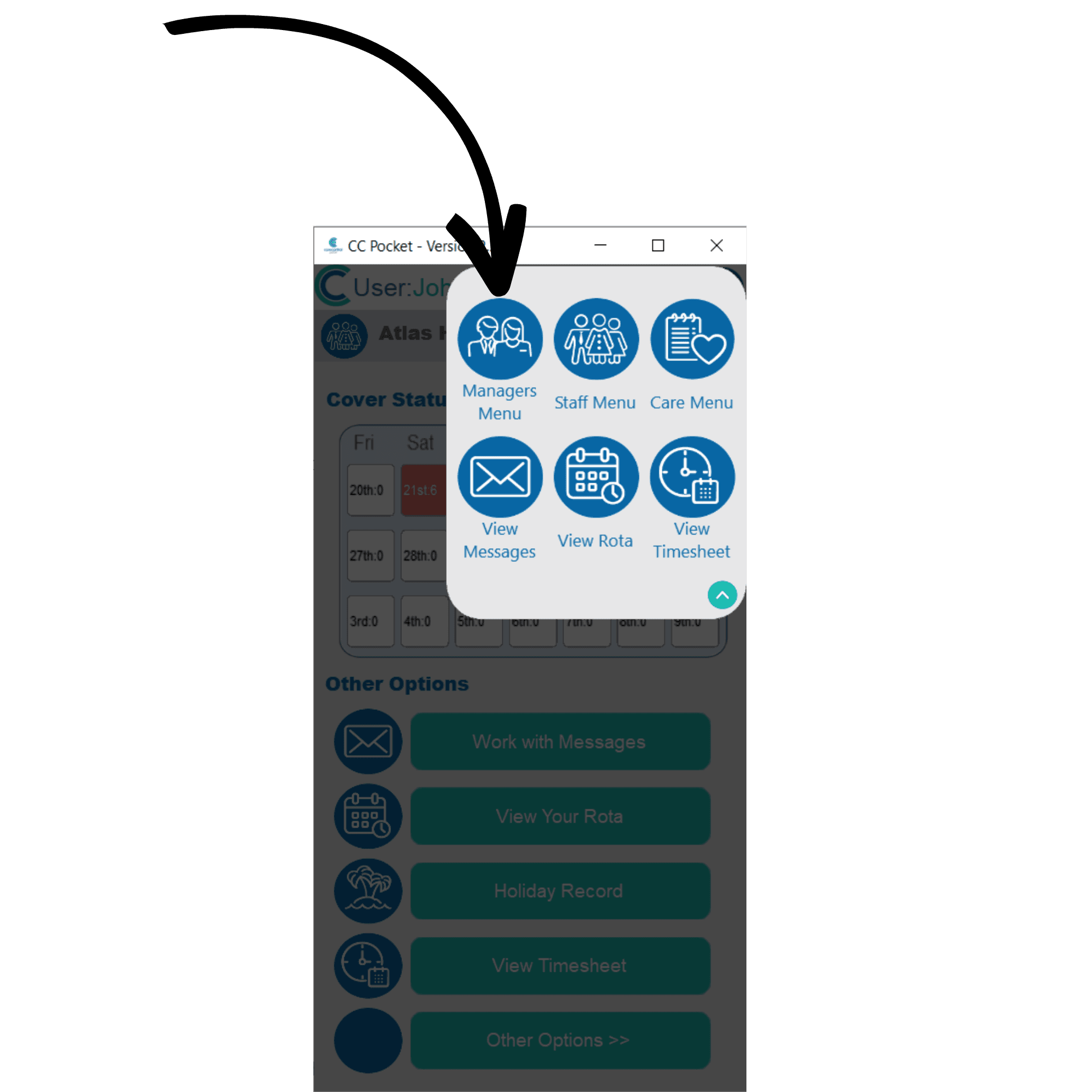
From the Staff Menu in Care Control Pocket, press the 3-bar icon in the top right corner of the screen to open the menu. Here, select Managers Menu.

2

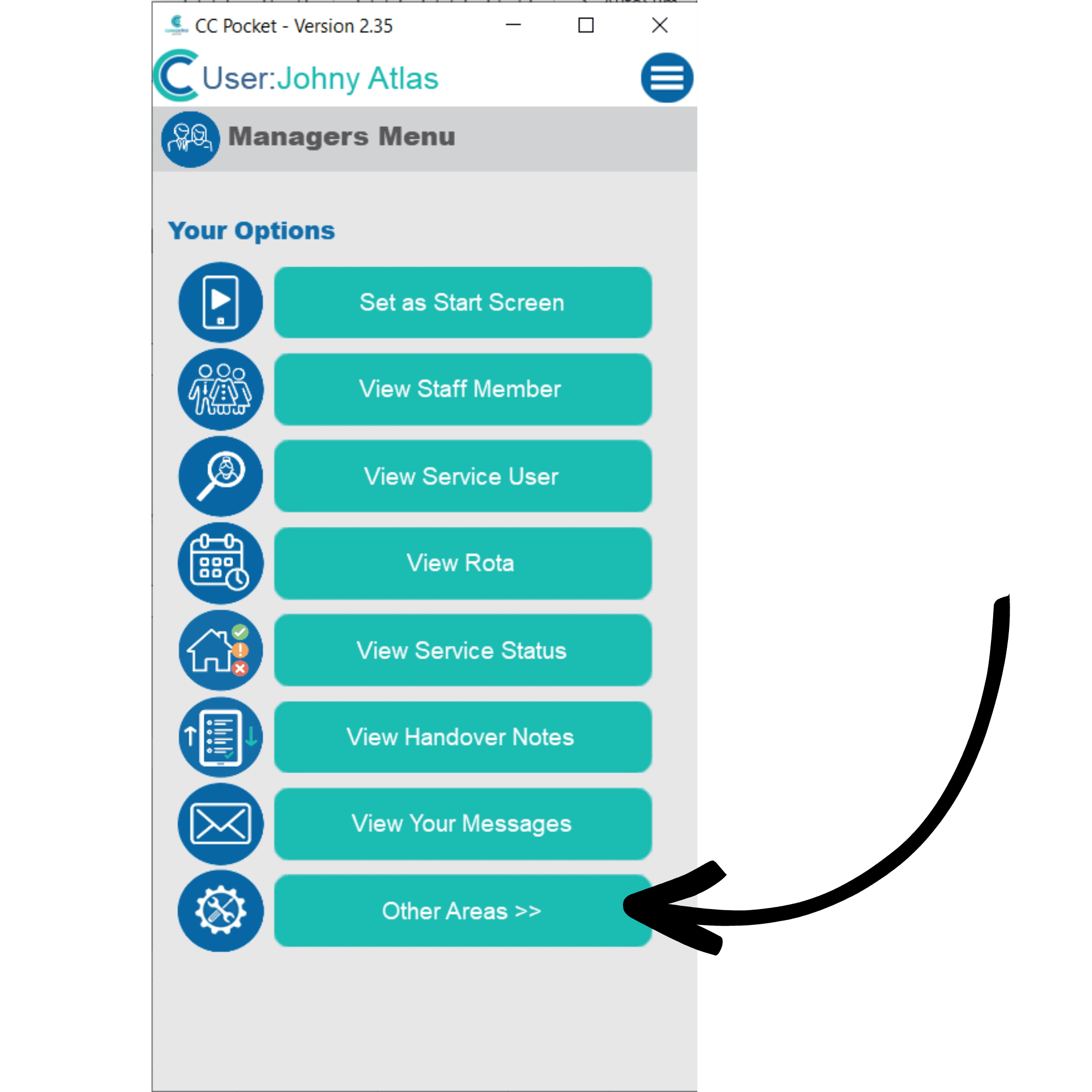
From the Managers Menu, select Other Areas.

3

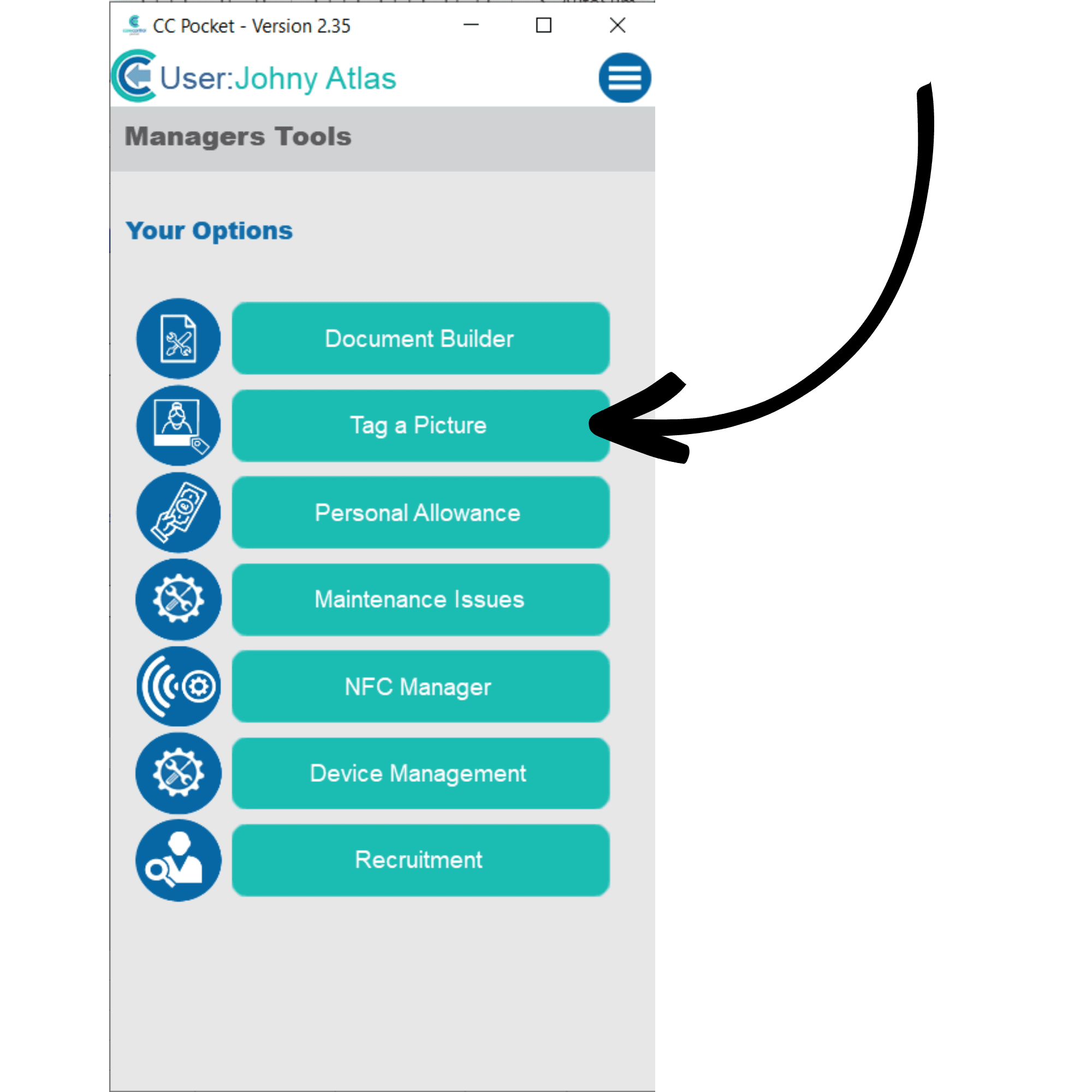
Here you should see a tool called Tag a Picture.

4

A blank page will open. Here you can take a photo or upload an existing one from the device’s image library, by tapping on the camera icon.

You can also add Picture Tags in order to identify the image when viewing it on CC Windows or Mobile.

Press Save Picture to complete the process.