Join our next webinar to learn how to use Care Planning in Cloud
This guide will cover how to create new allocation groups on Care Control Windows for your roster.
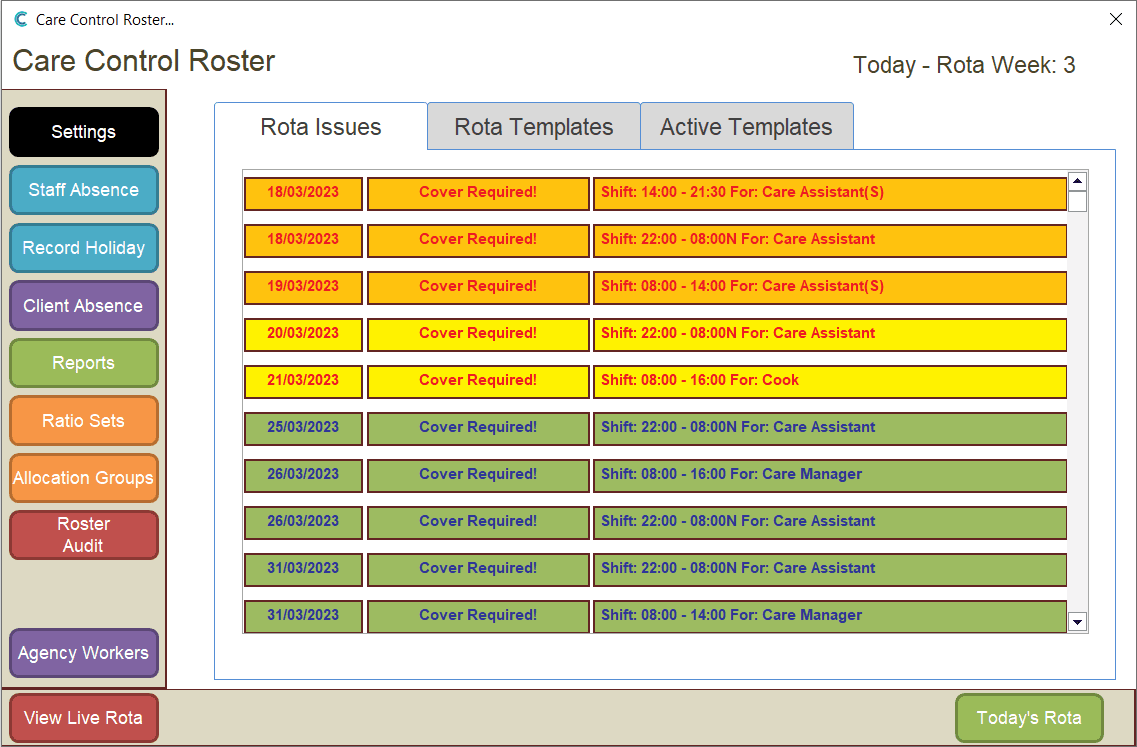
In the Administration of Care Control Windows, navigate to the Roster System, which can be found under the Common Options and Time & Attendance tabs.
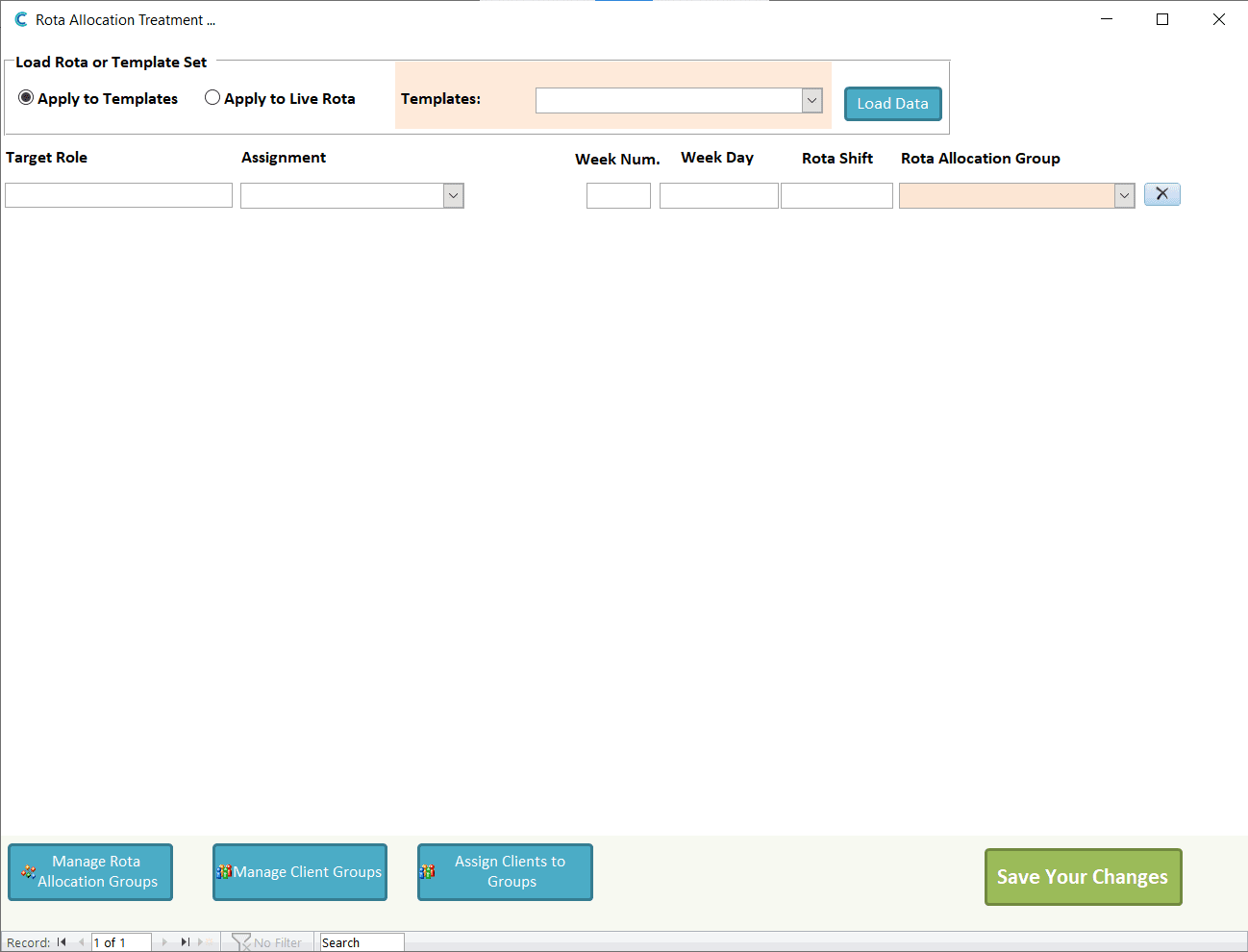
Here, select Allocation Groups from the options on the left-hand side of the window.
Here, select Manage Client Groups.
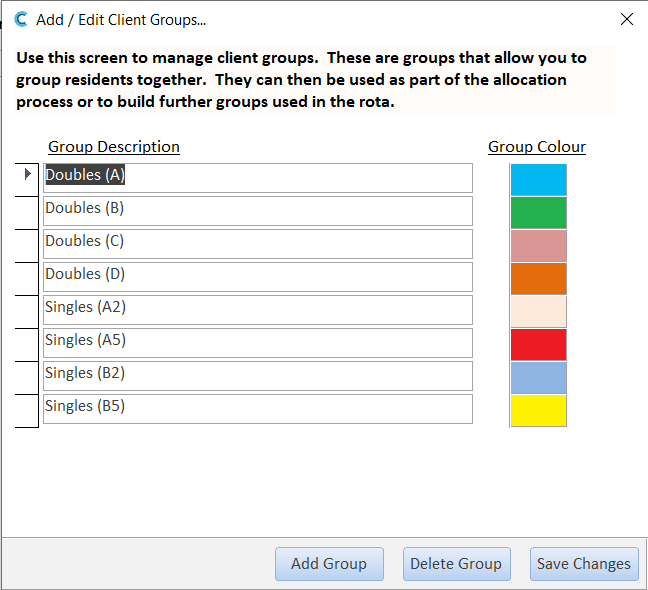
A list of your current allocation groups will be displayed. Press Add Group to create a new one.
Enter a group name and press Ok. Your new group will appear in the list.