Bring your payroll up to date, join our Cloud Payroll webinar
This guide will cover how to upload a staff photo onto a staff record on Care Control Mobile.
Note: Administrator level access to the system, and the administration password, is required to do this.
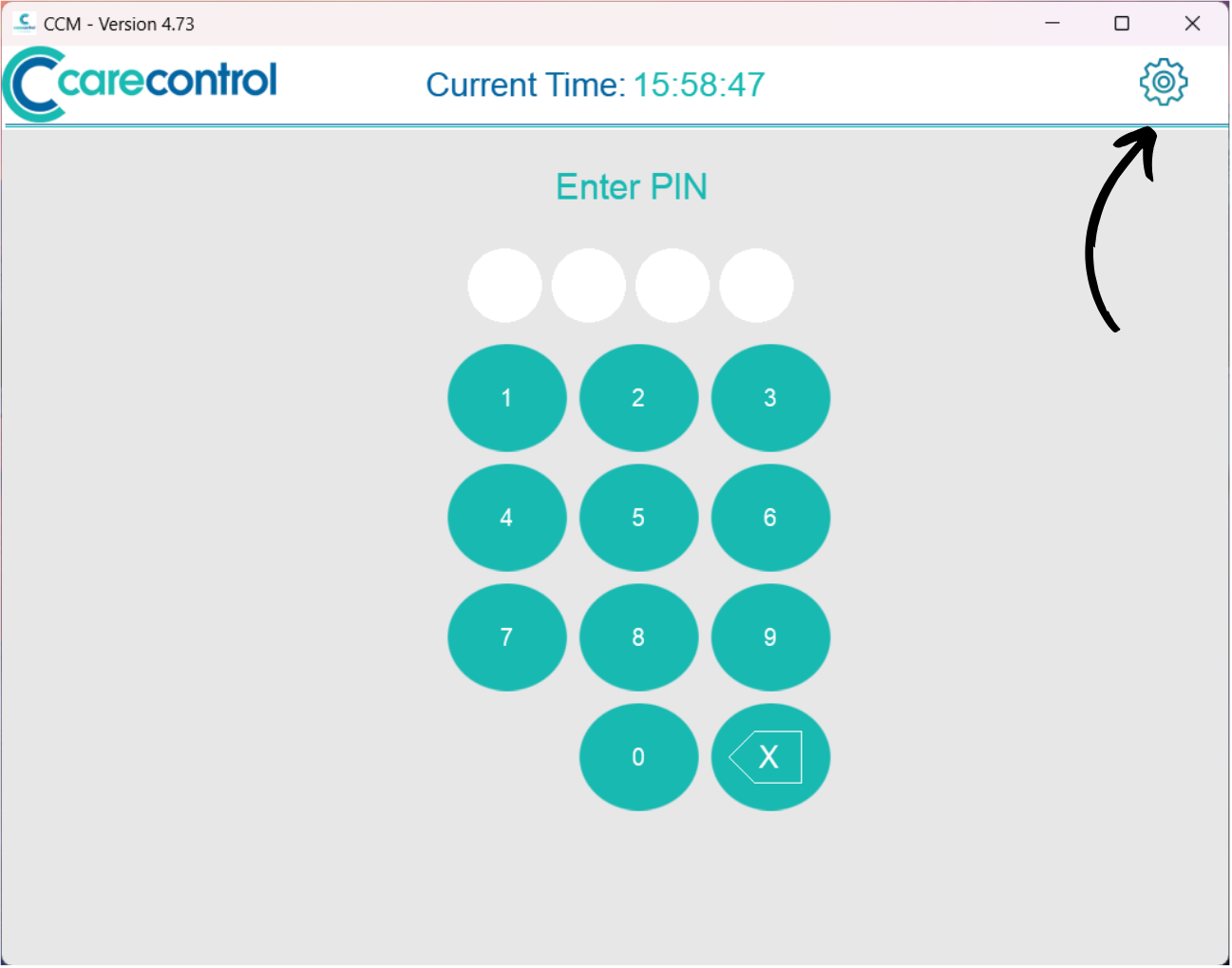
On the CC Mobile PIN screen, select the Cog Wheel in the top right corner.
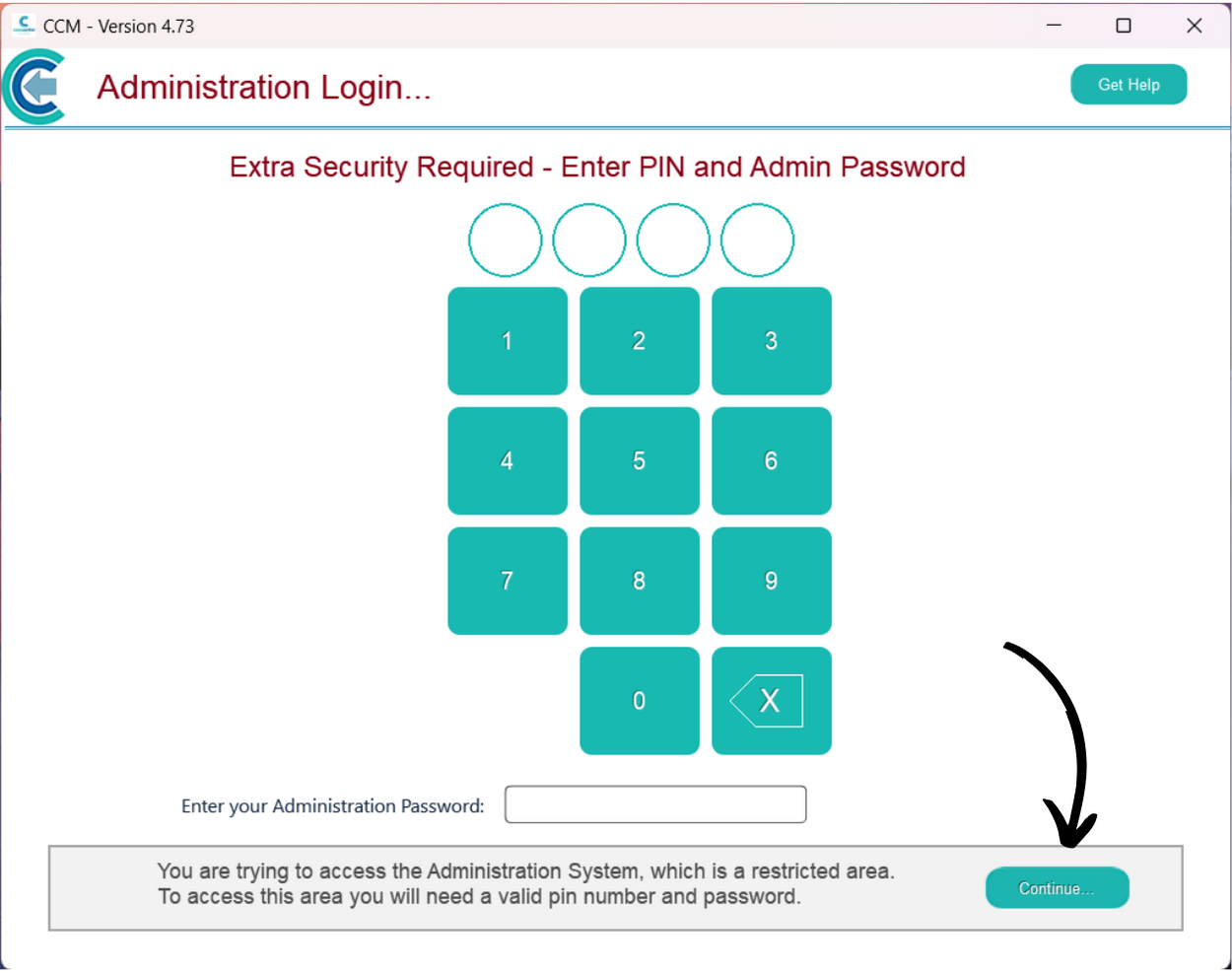
Here, enter your PIN and Administration Password.
Then, press Continue.
Open the side menu labelled Show Administration Options.
Select Staff Area.
Select Manage Staff Records.
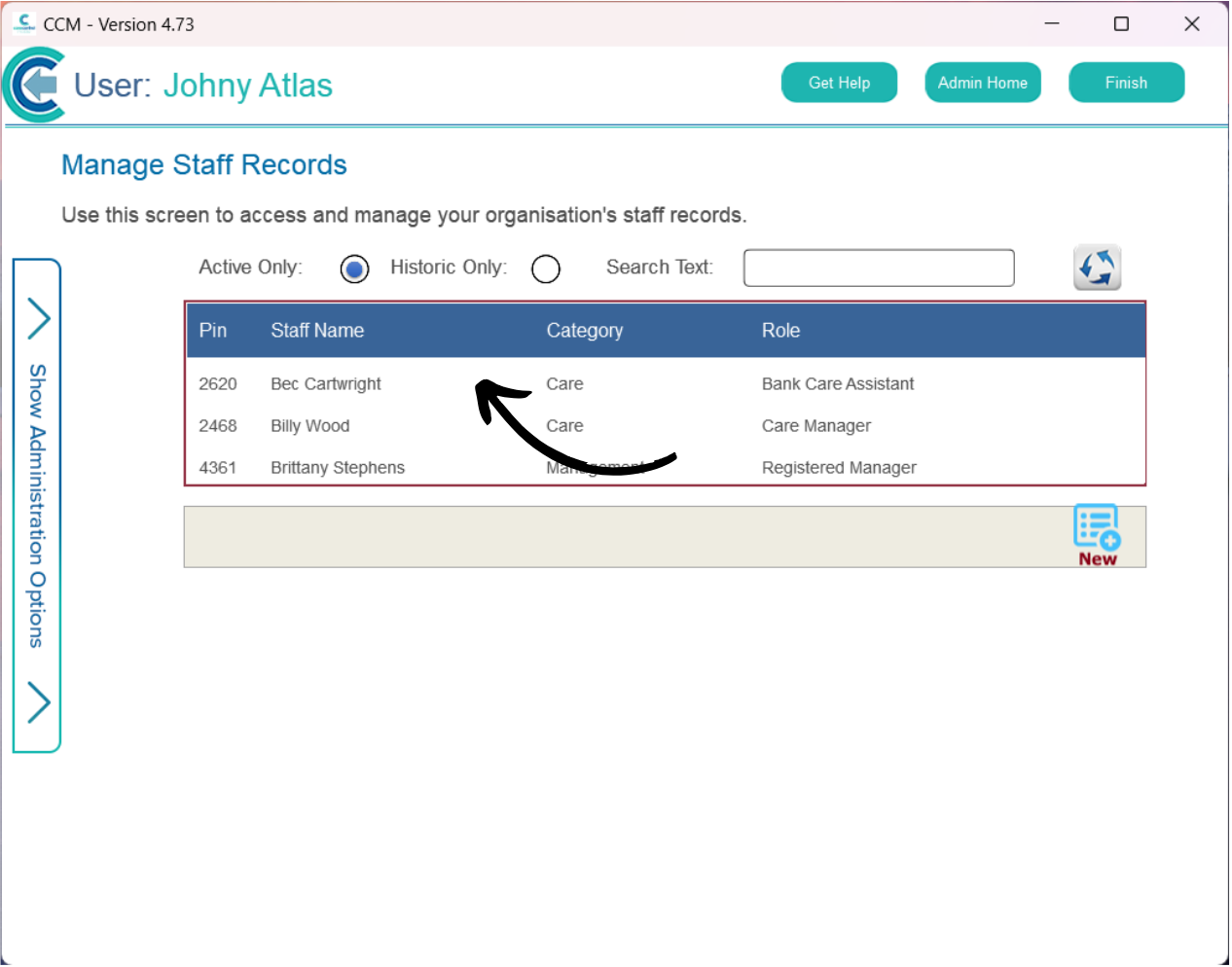
A list of active staff members will be displayed. Here, find the staff member you wish to upload a photo for and tap on them to open their record.
Press the blue edit button.
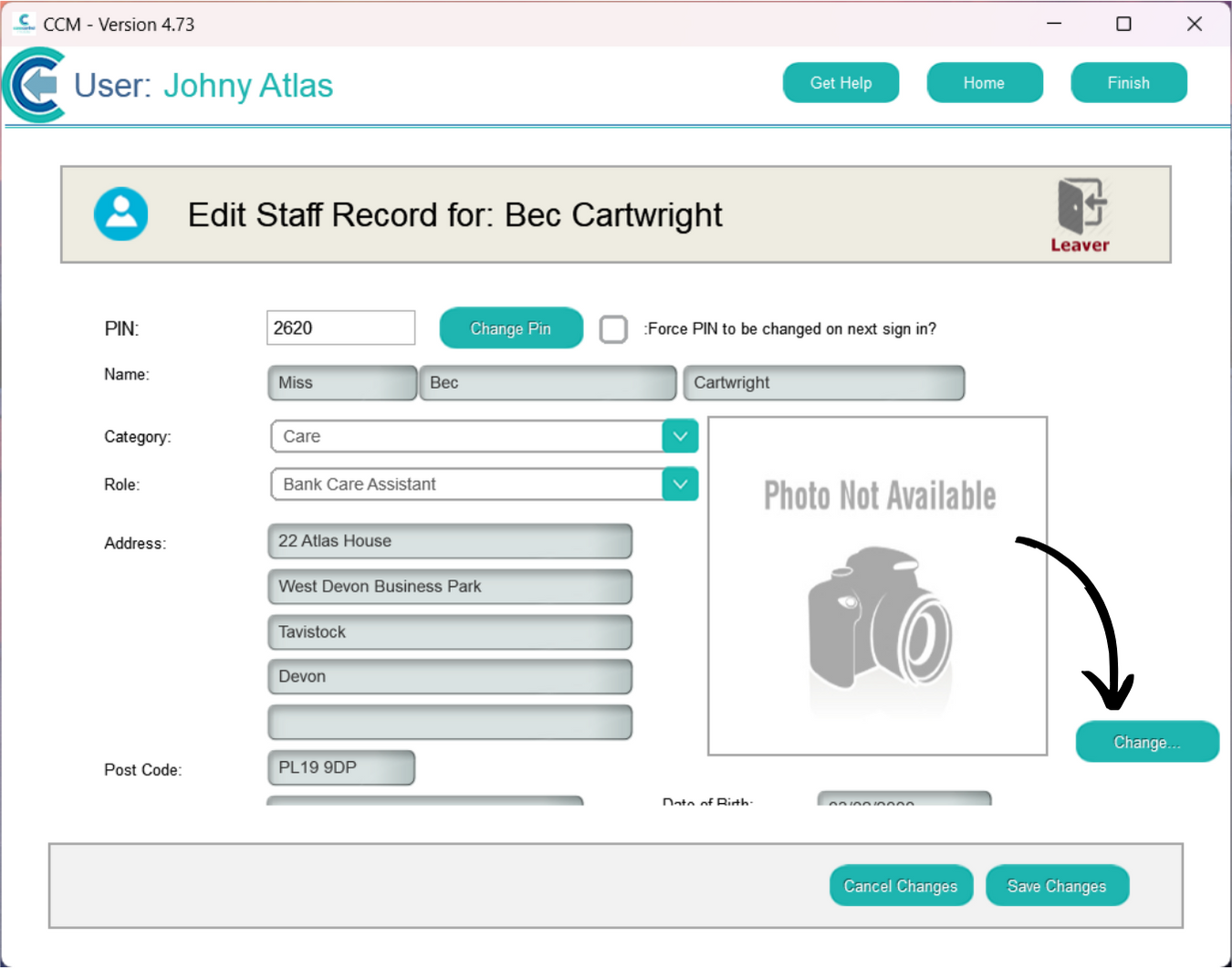
Press Change next to the current photo.
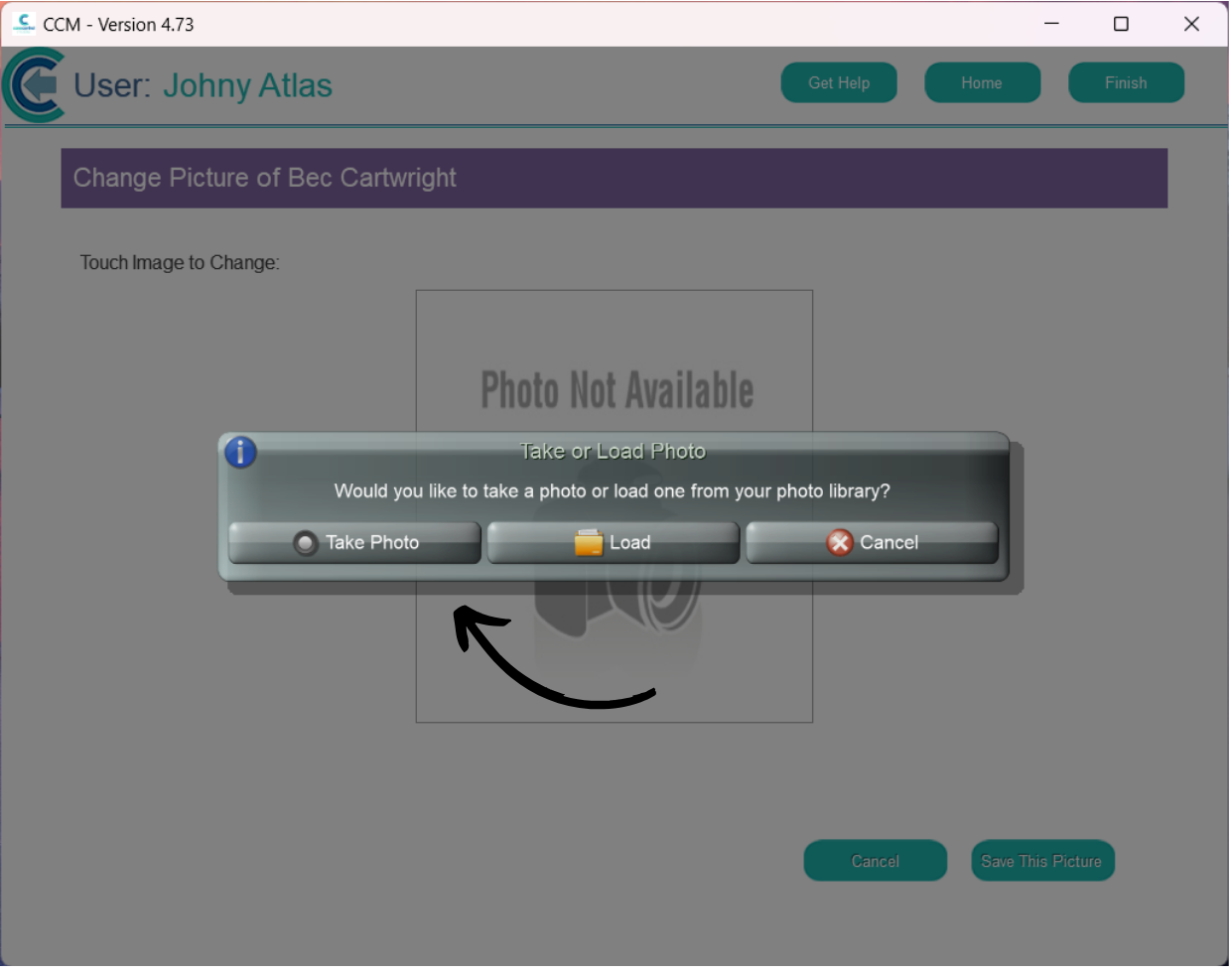
Tap on the camera icon to upload a new image.
Here, you can choose to open the camera and take a photo using the devices camera, or you can load a photo from the devices photo library.
After doing so, press Save This Picture, and then Save Changes to the staff record.