Bring your payroll up to date, join our Cloud Payroll webinar
This guide will cover how to remove a registered staff Pocket device via Care Control Windows.
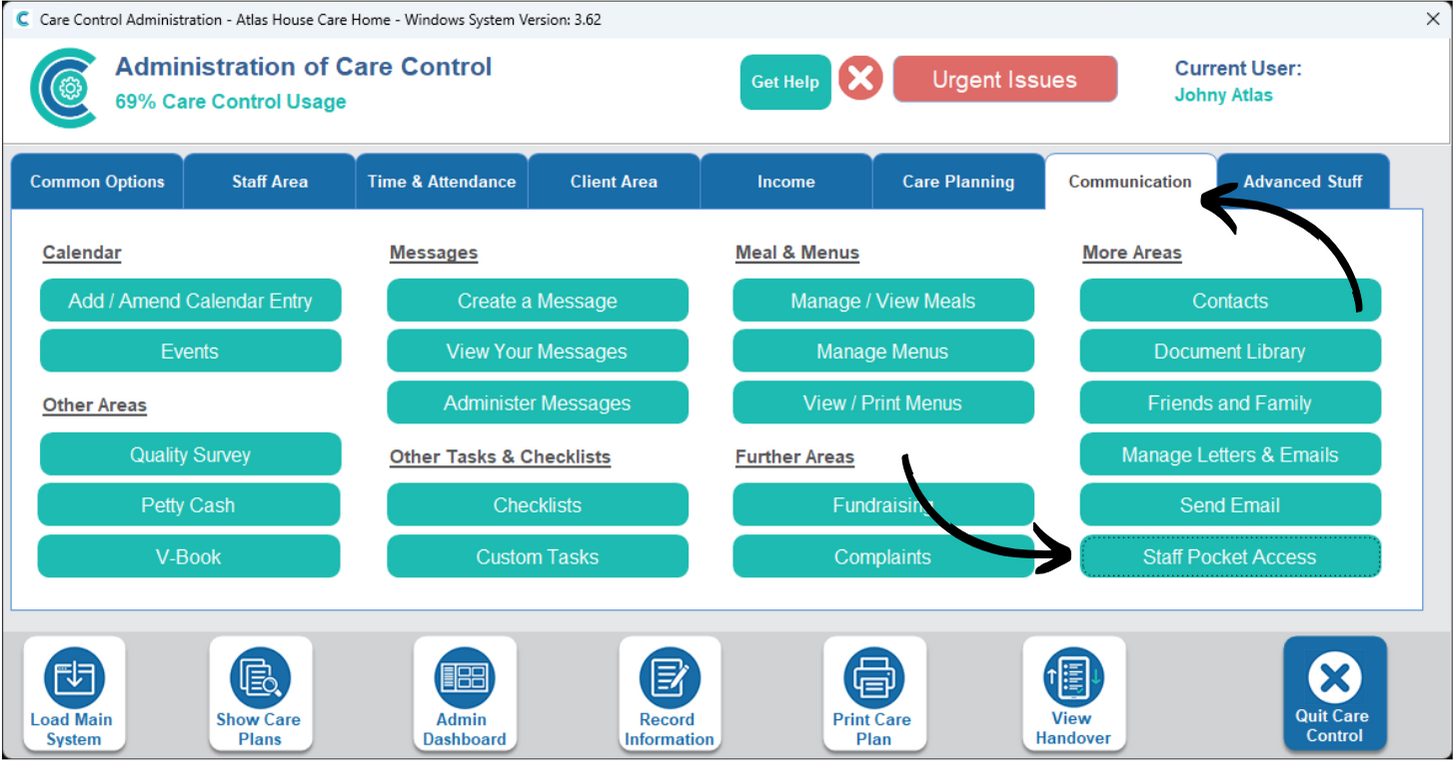
In the Administration of Care Control Windows, navigate to the Staff Pocket Access tool, which can be found under the Communication tab.
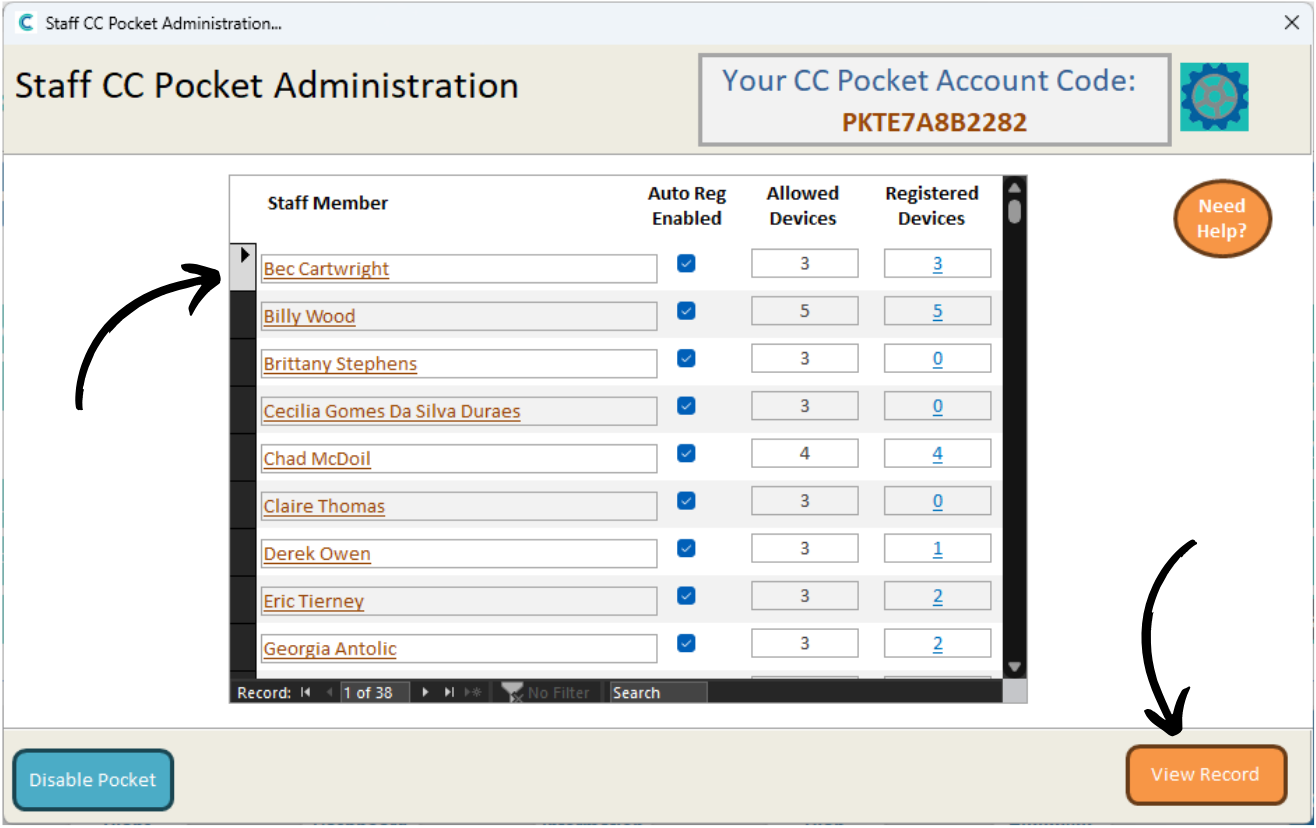
A new window will open. Here, a list of your staff members who have registered staff devices will be displayed.
Select one and press View Record.
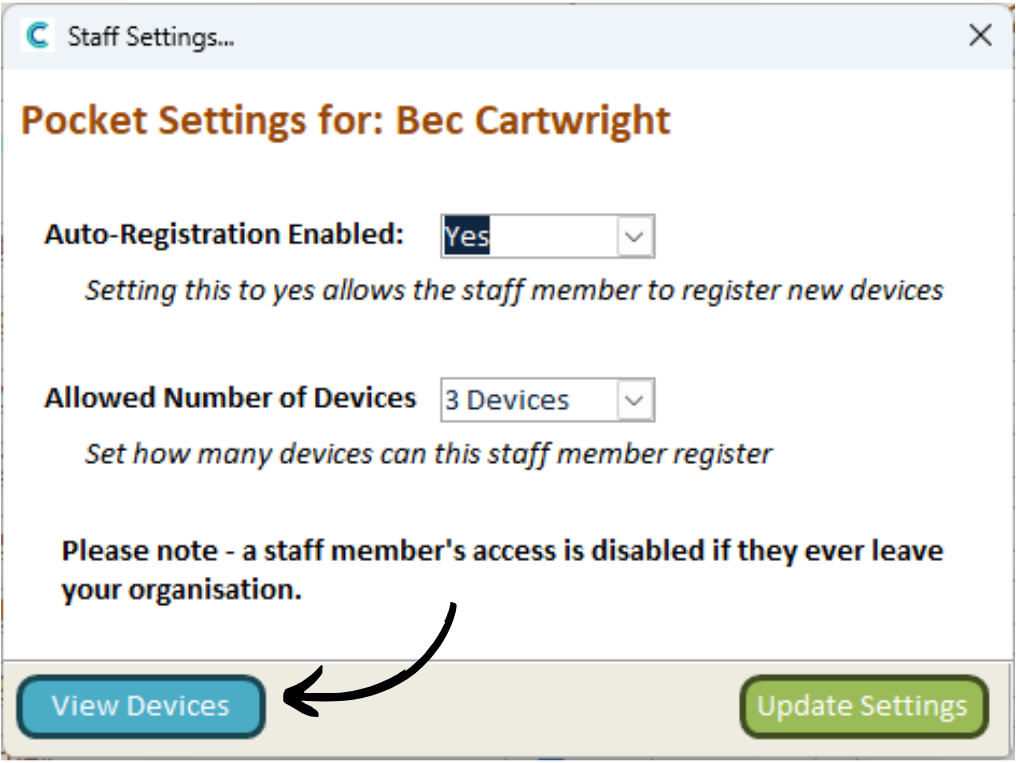
A series of settings for the staff member will open. Press View Devices.
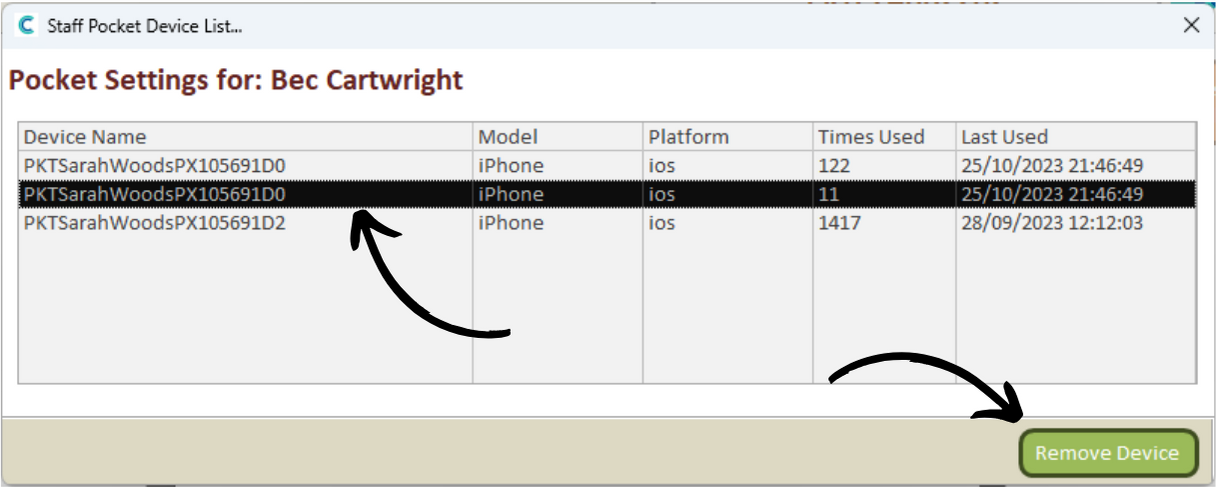
A list of devices registered to the staff member will be displayed.
This includes the Device Name, Model/Platform as well as the number of Times Used and when it was Last Used.
To remove one, select it and press Remove Device.
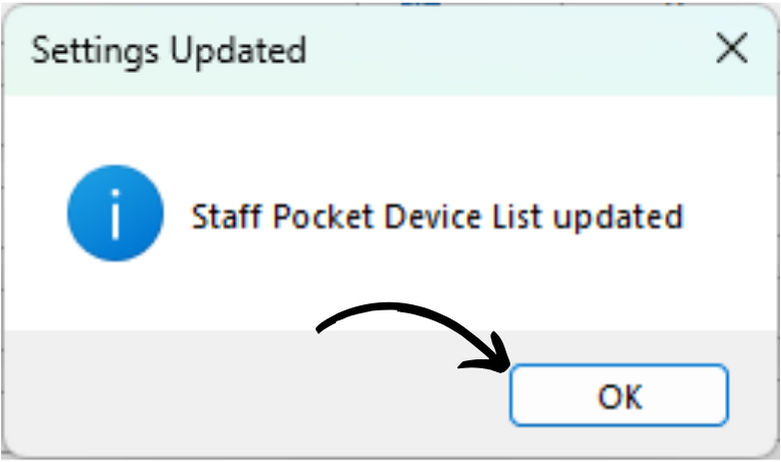
You will receive a confirmation message. Press OK.