This guide will cover how to Bulk Start or Stop monitoring for a service user on Care Control Mobile. This can be useful if the service user is leaving your care for a short time.
1
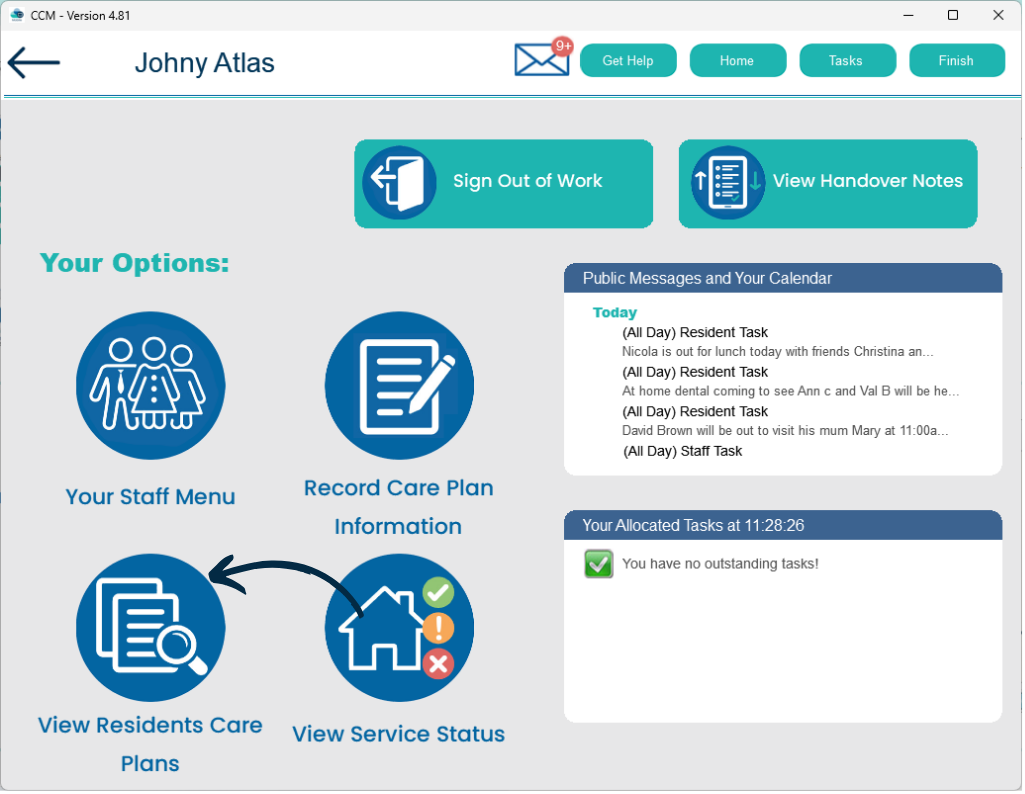
After signing into Care Control Mobile, select the View Resident Care Plans tool.
2
Then, select the Service User you wish to make changes for from the menu on the right hand side of the screen.
3
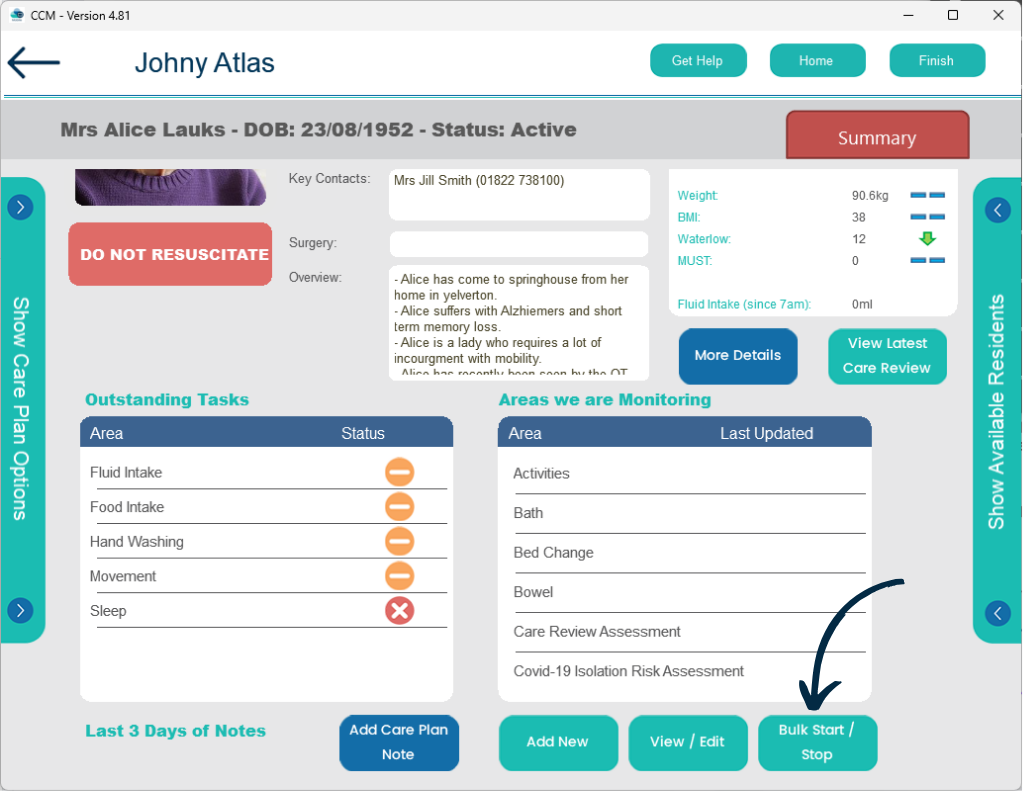
The chosen service users Care Plan will open. Scroll down to the ‘Areas we are Monitoring‘ section.
Here, a list of the monitoring areas assigned to this service user will be displayed. Press the Bulk Start/Stop button just below this list.
4
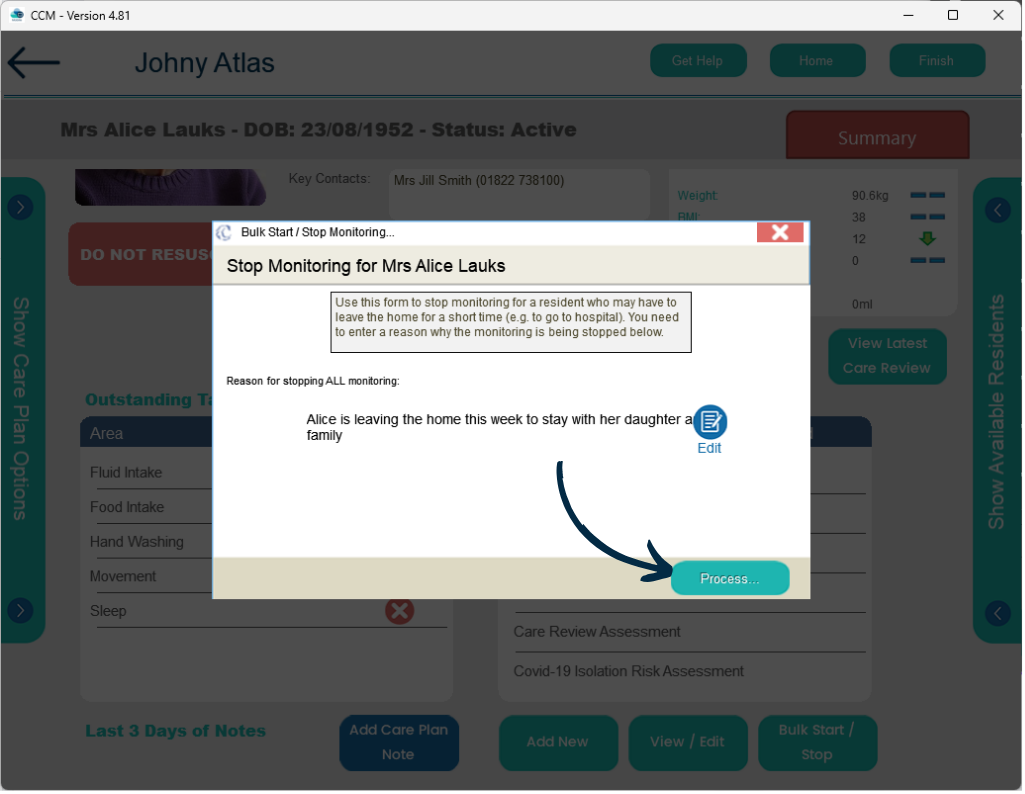
A new window will open.
You will need to enter a reason for this change – press the Edit button.
5
After adding your reason, press Process.
Please follow the same steps when bulk starting the monitoring for the service user.
6
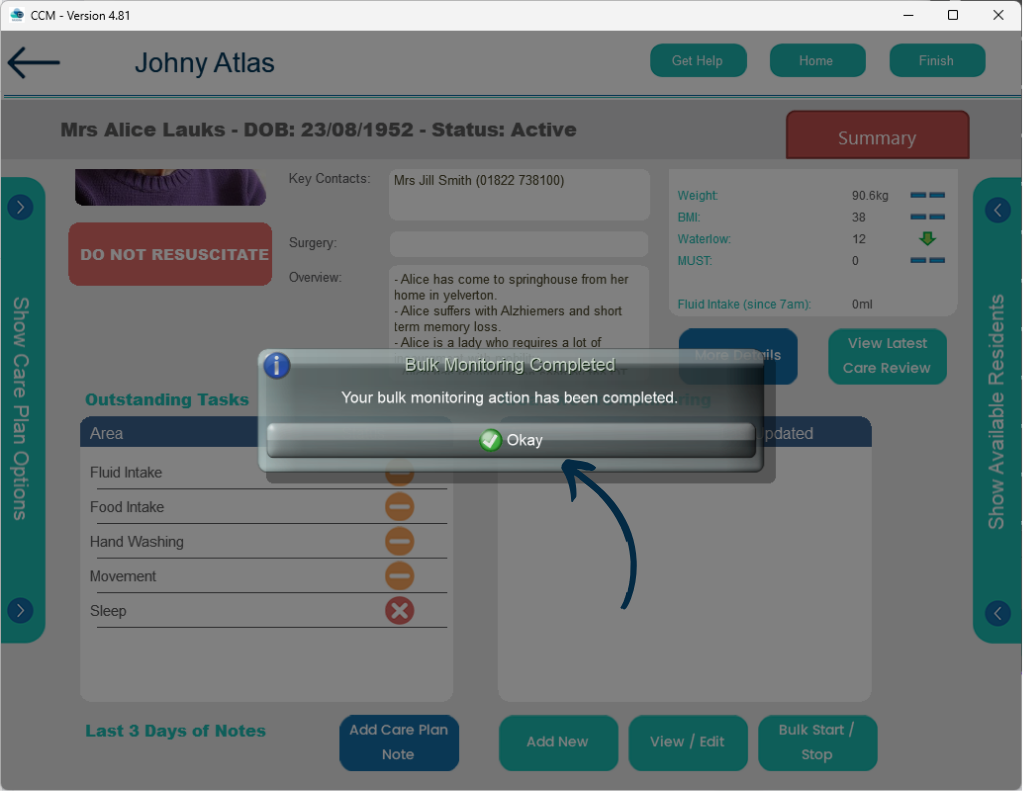
You will receive a confirmation message, press Okay.