How to add staff within the Roster Cloud Draft Plan.
Step 1:
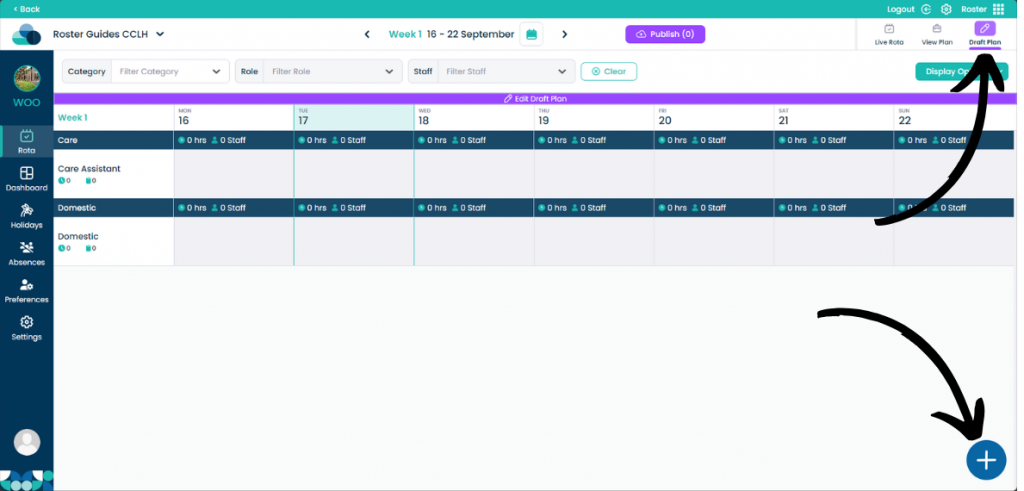
When on your rota screen, select Draft Plan and then Edit Draft Plan. Then click the Plus Button in the bottom right of the screen.
Step 2:
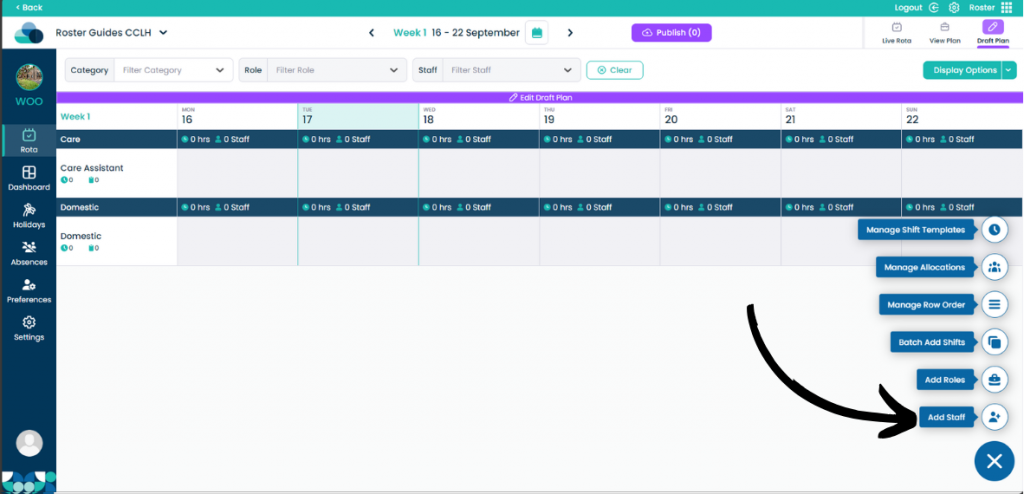
Now select the Add Staff button to open up the next menu.
Step 3:
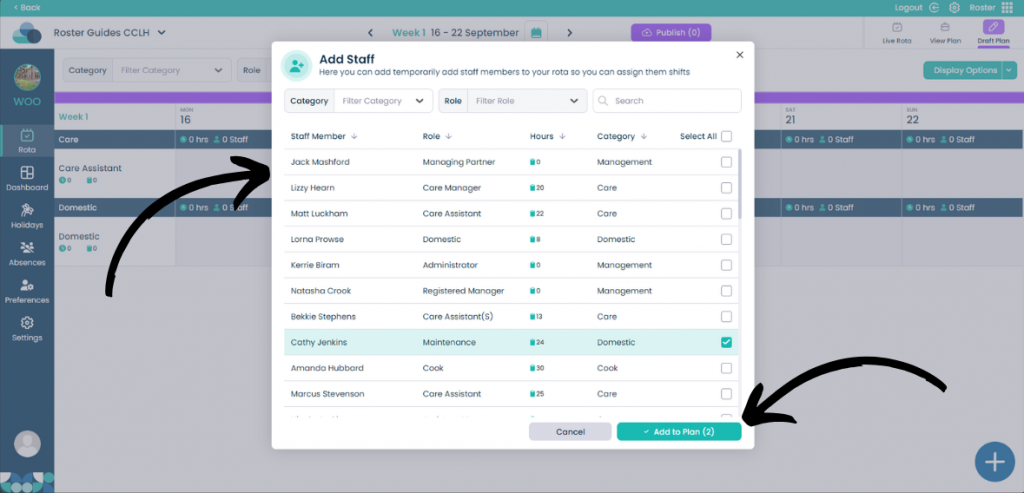
Now the Add Staff menu should show. You can select which staff member you would like to add by clicking the tick box on the right hand side of the screen.
You can also filter by Category, Role and by using the Search feature.