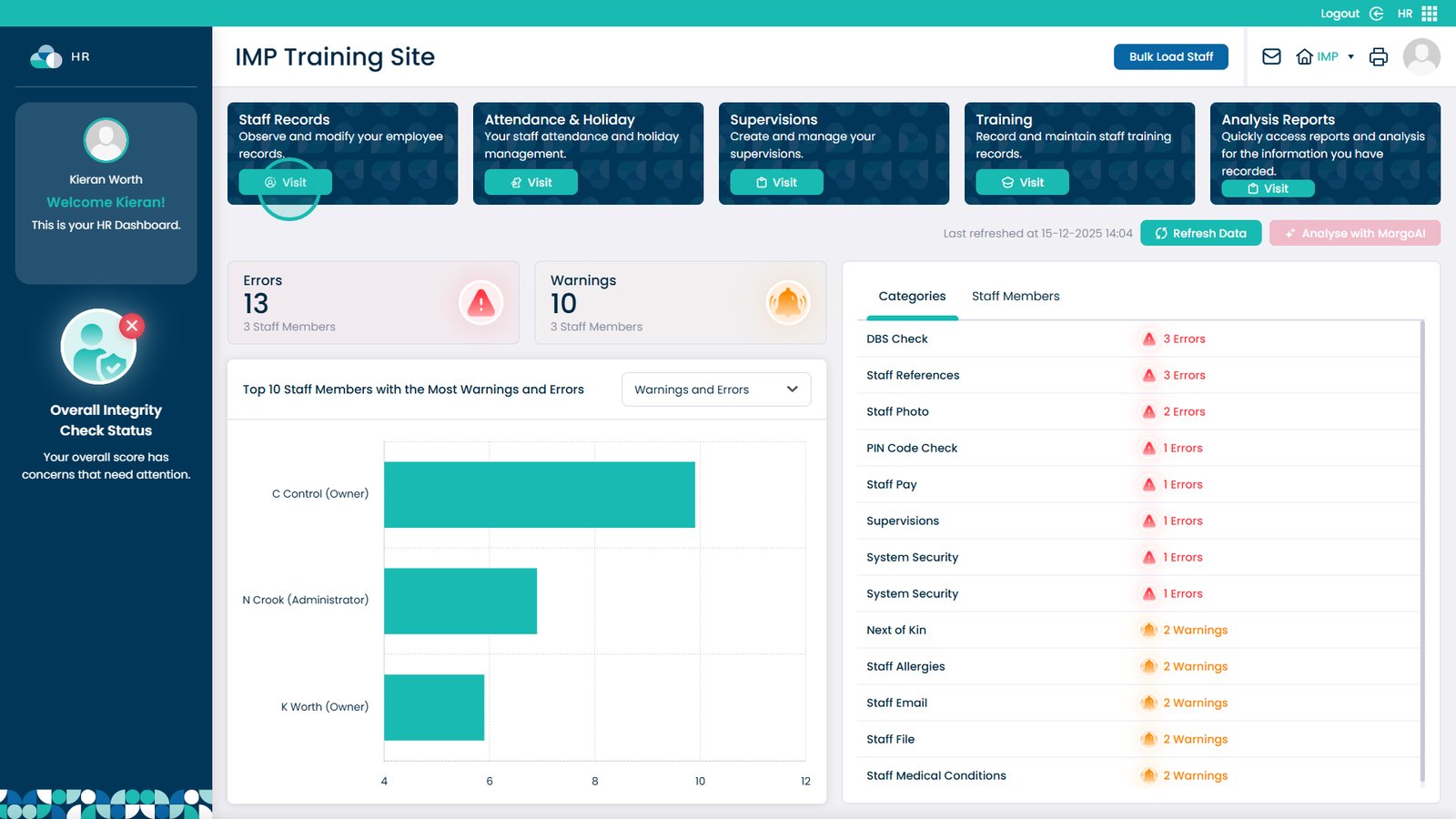
Enter the Staff Records area
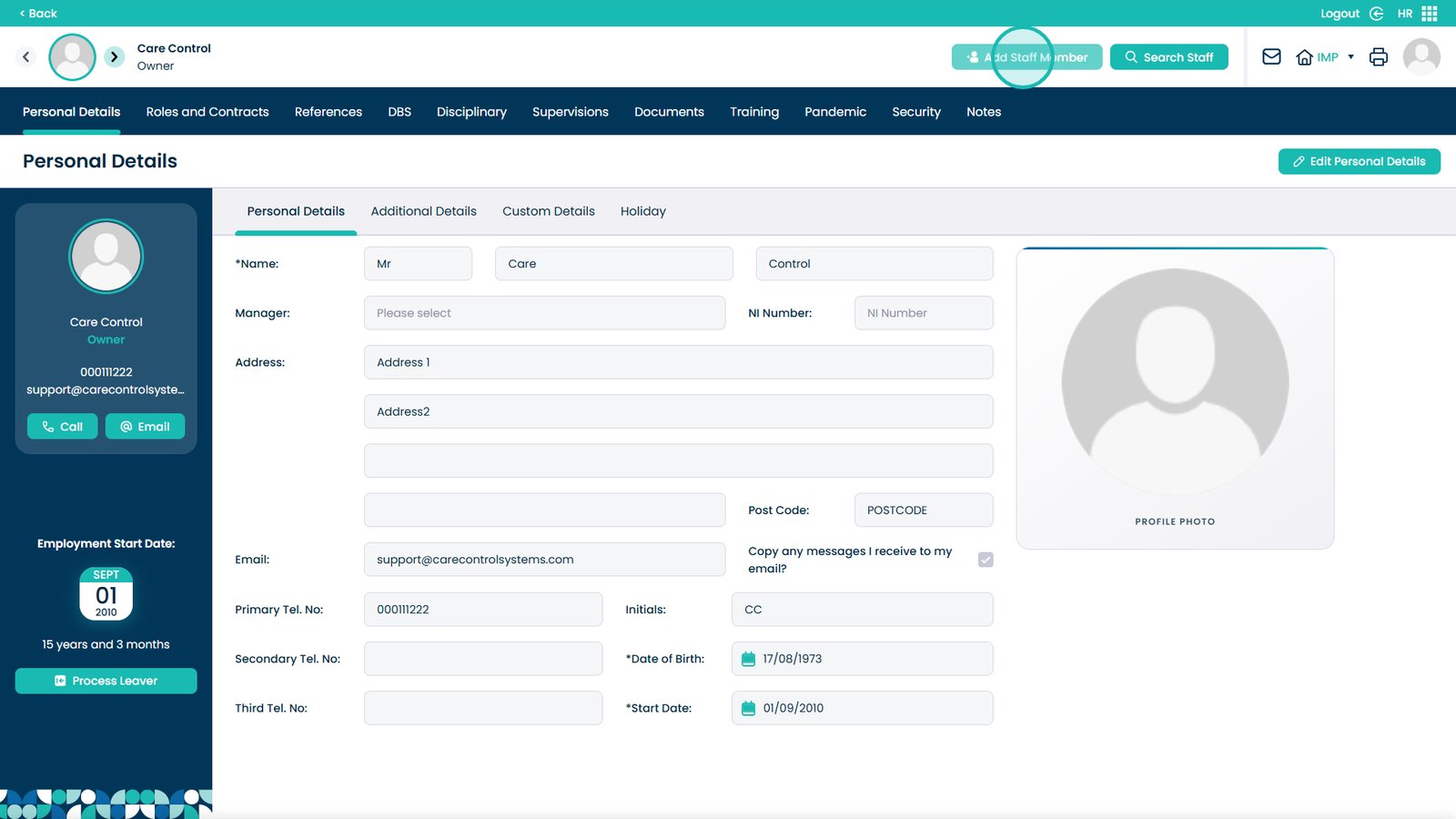
Click Add Staff Member
Select a title
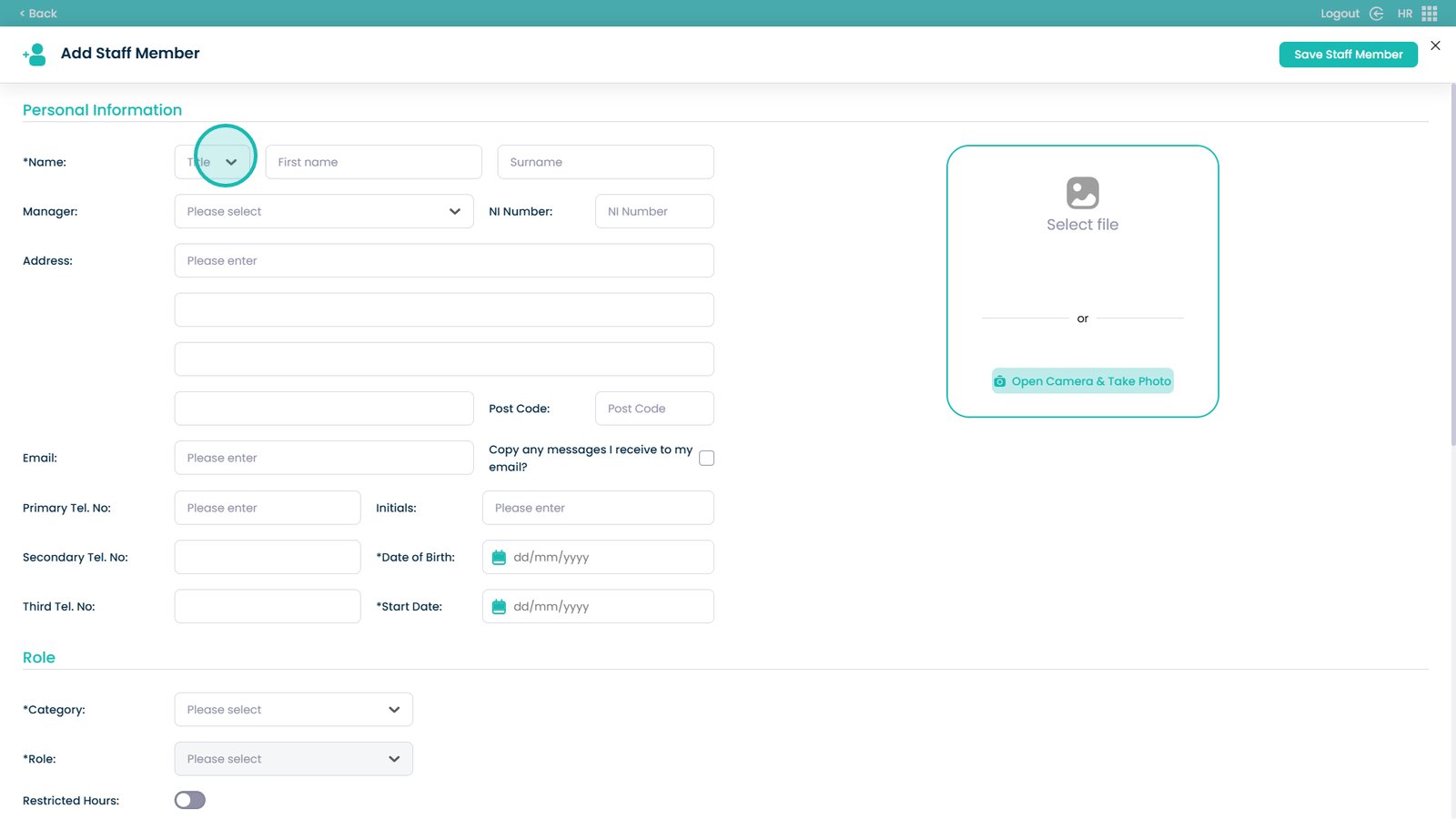
Enter the staff member’s name details

Enter the forename
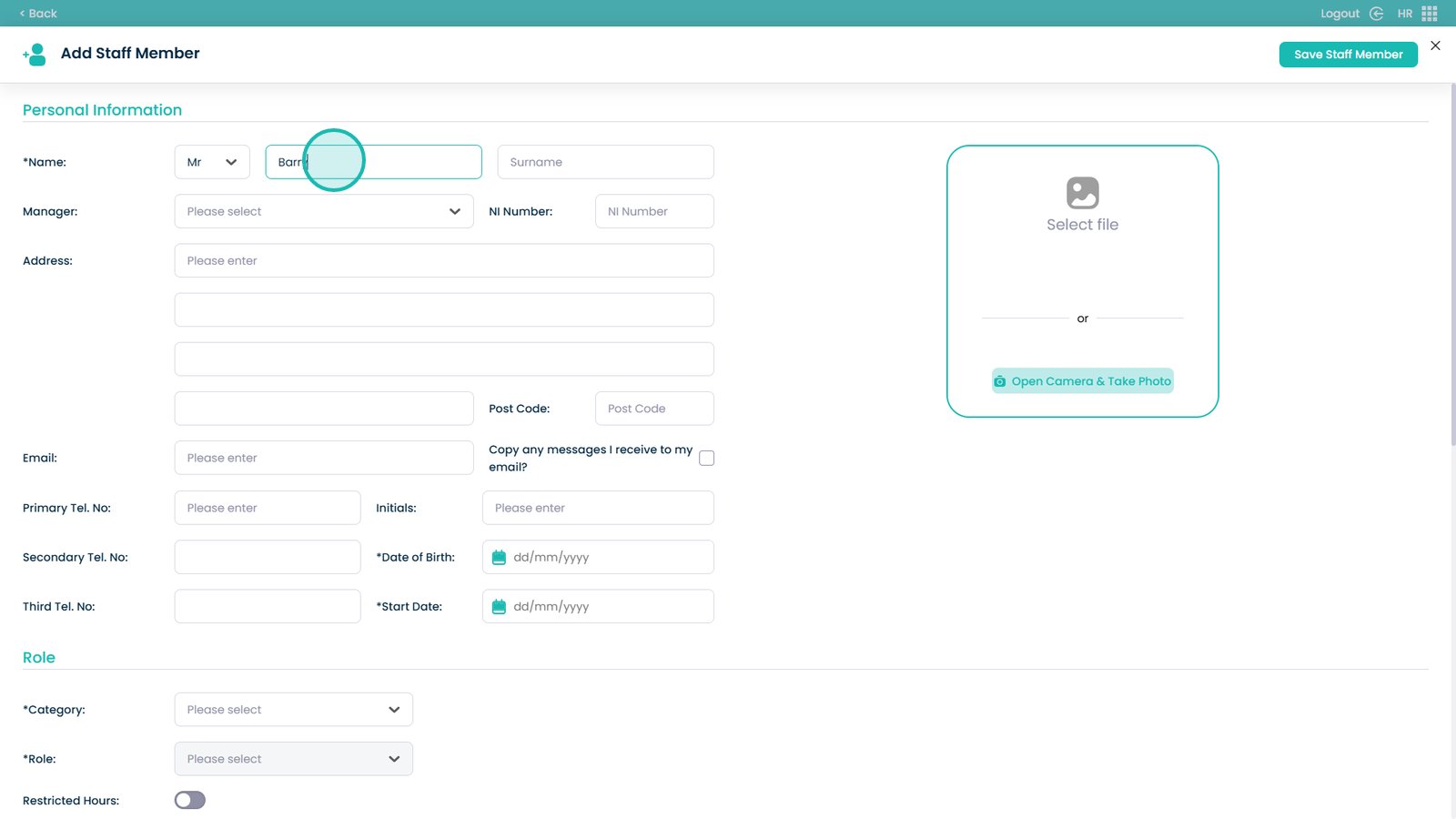
Enter the surname
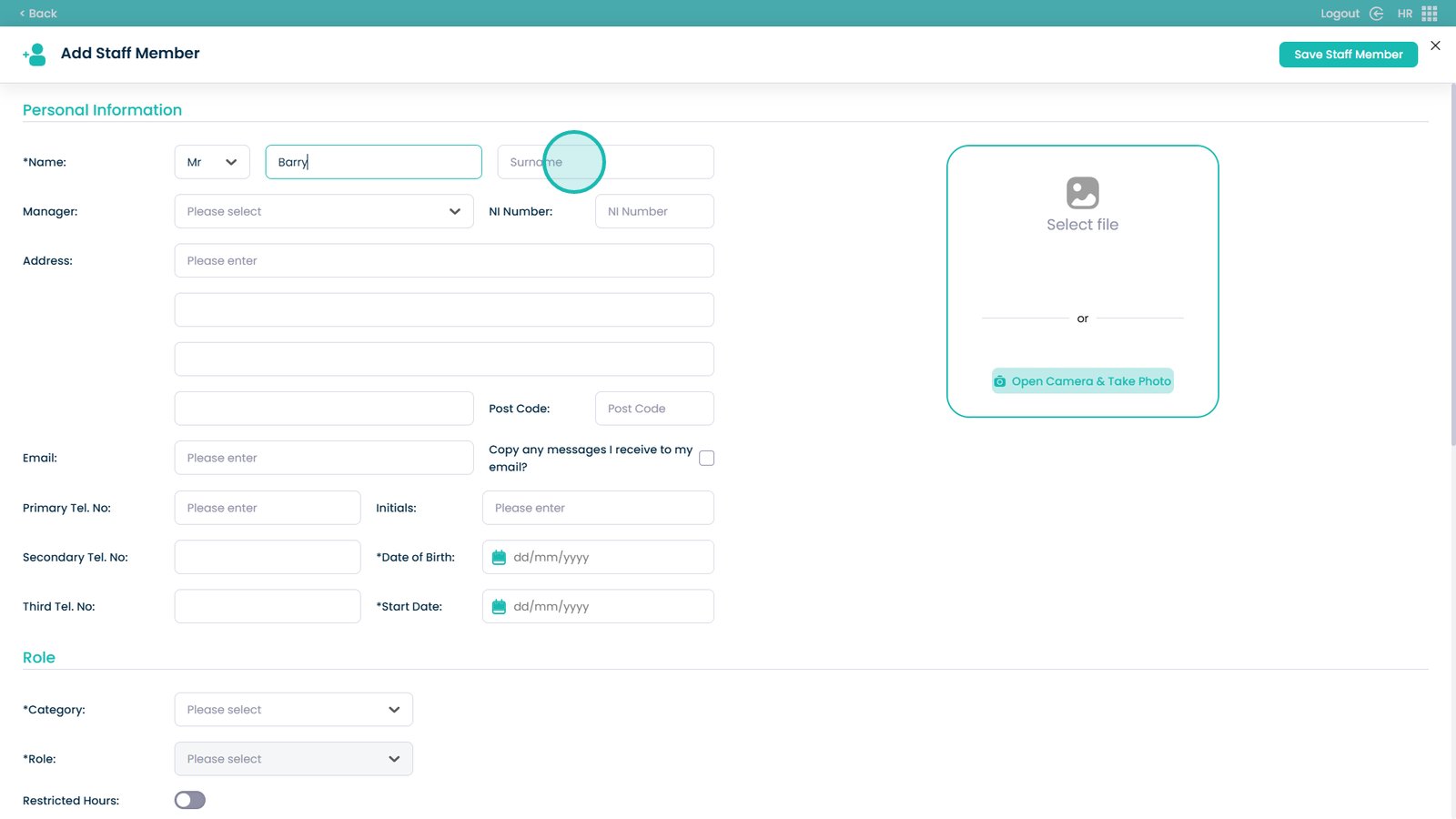
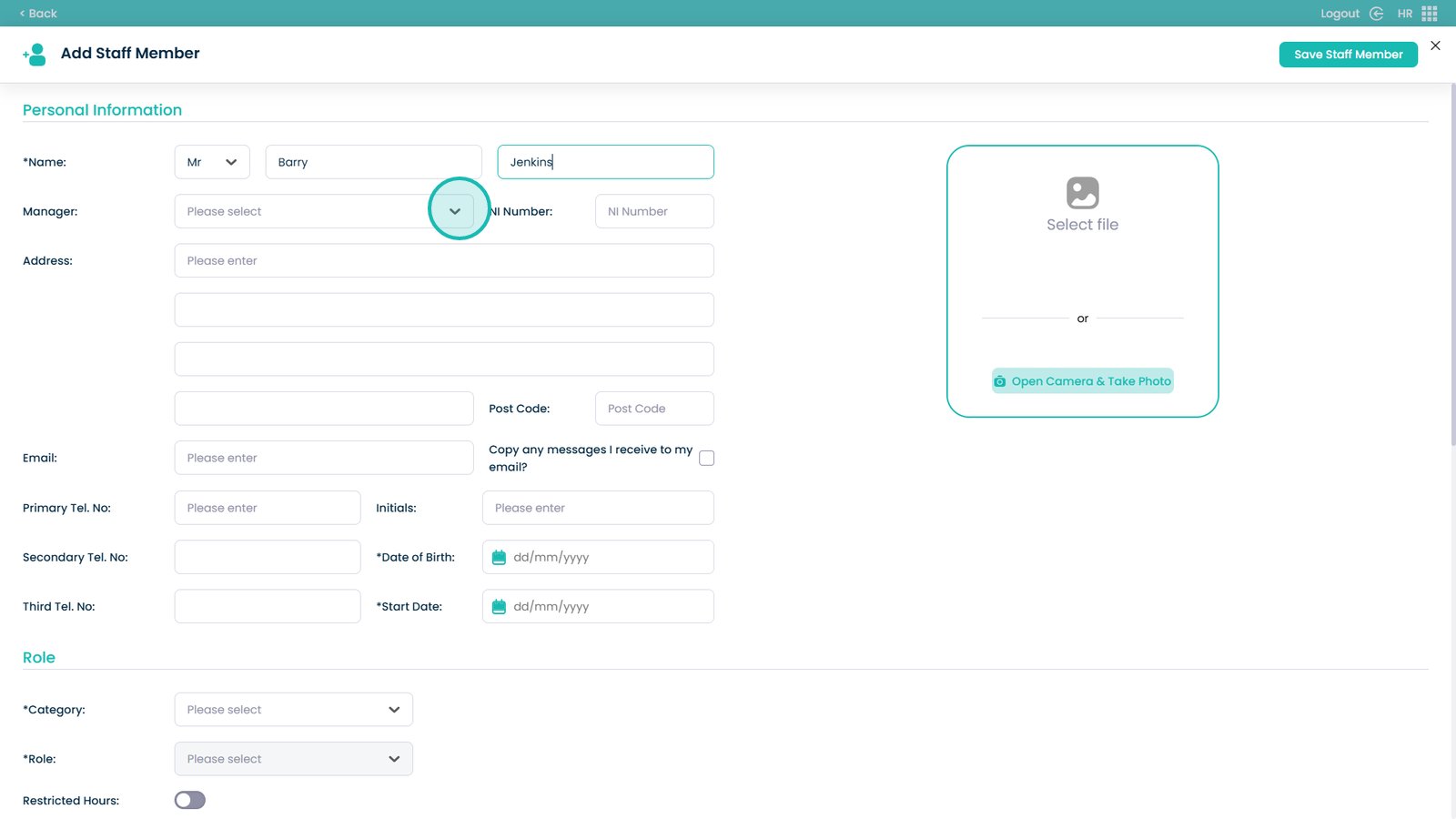
Select a manager (leave blank if not applicable)
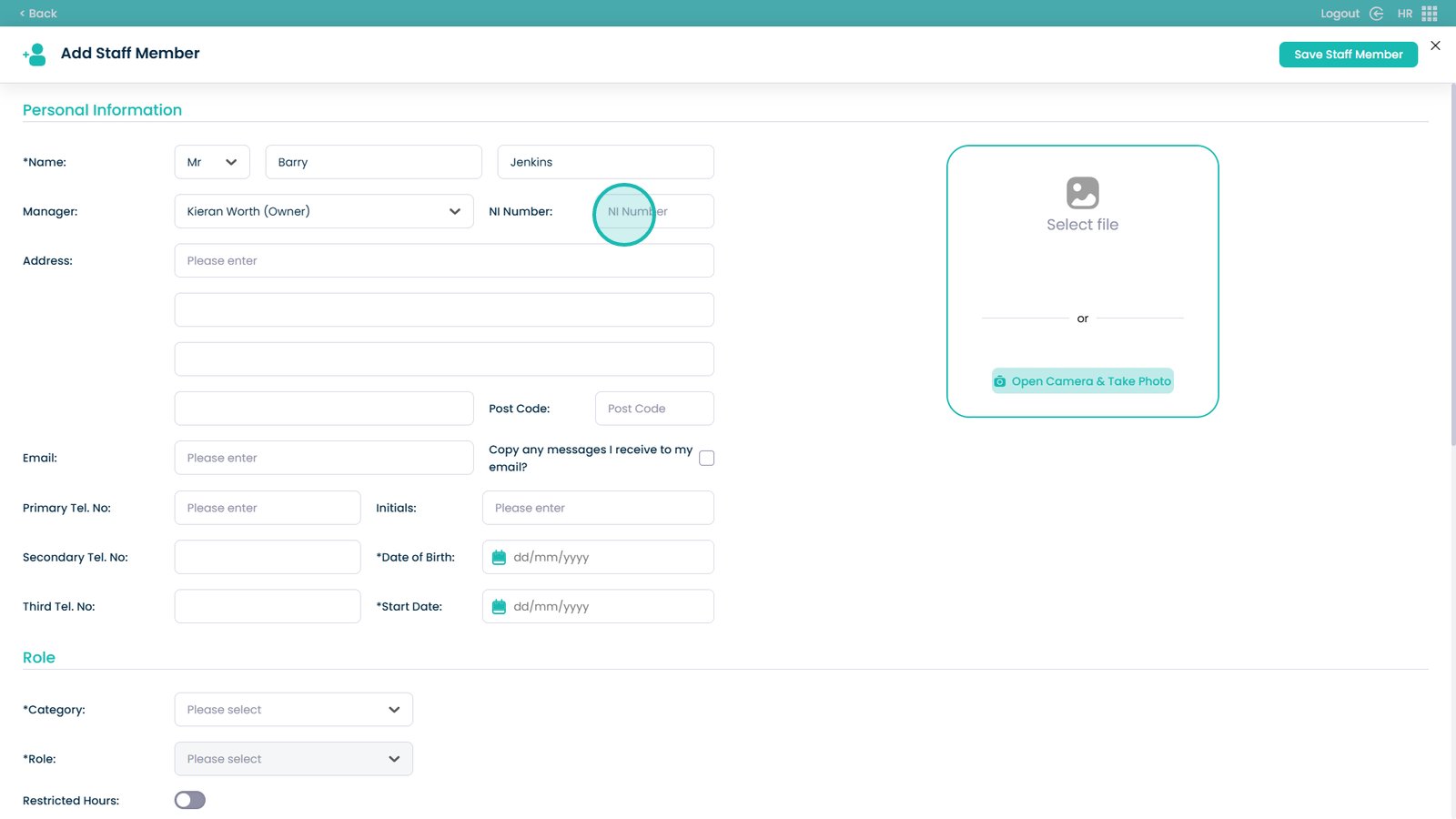
Complete personal and employment details

Enter the National Insurance number
Enter the address
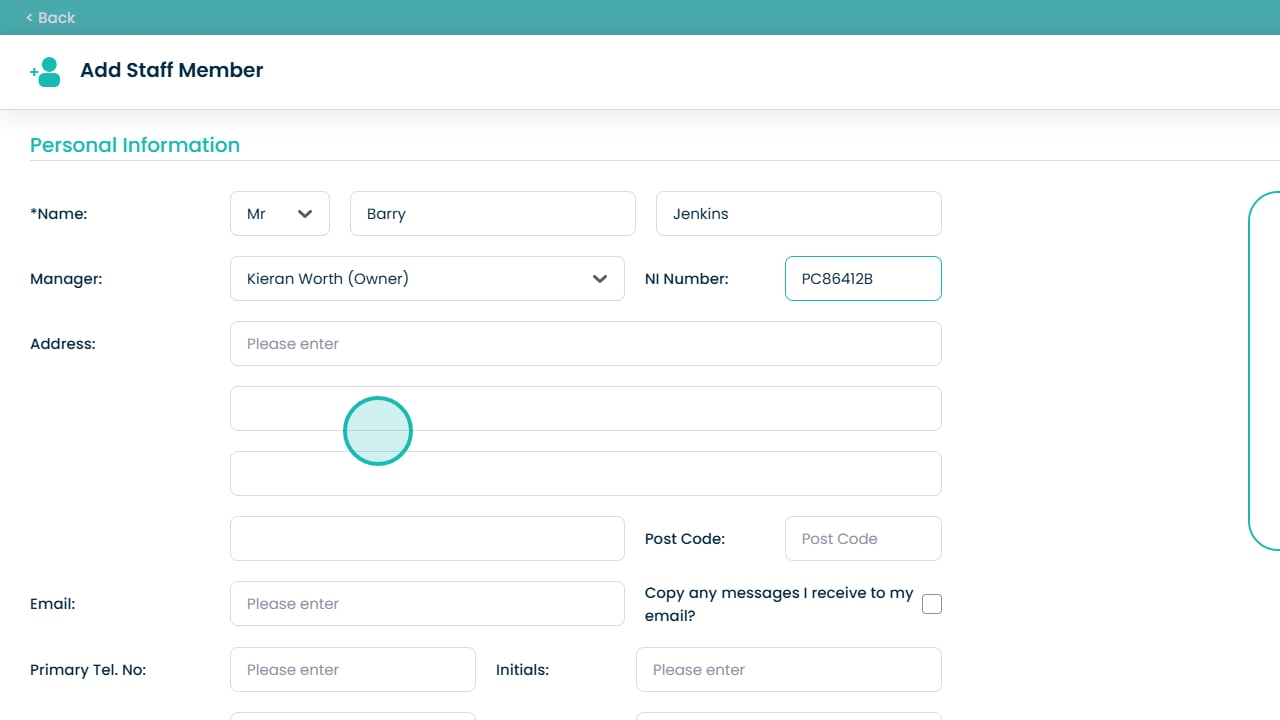
Enter the postcode
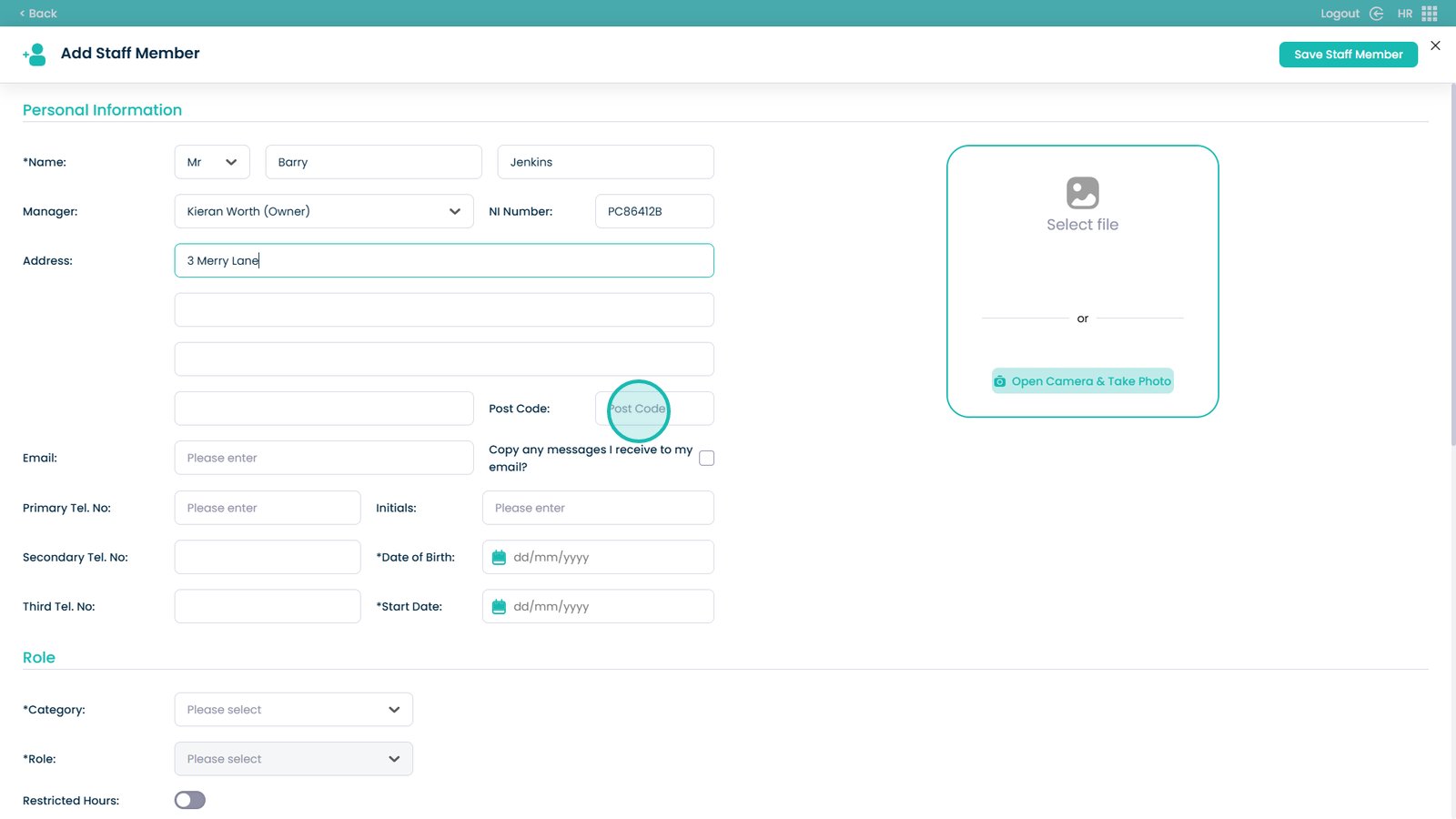
Enter the email address
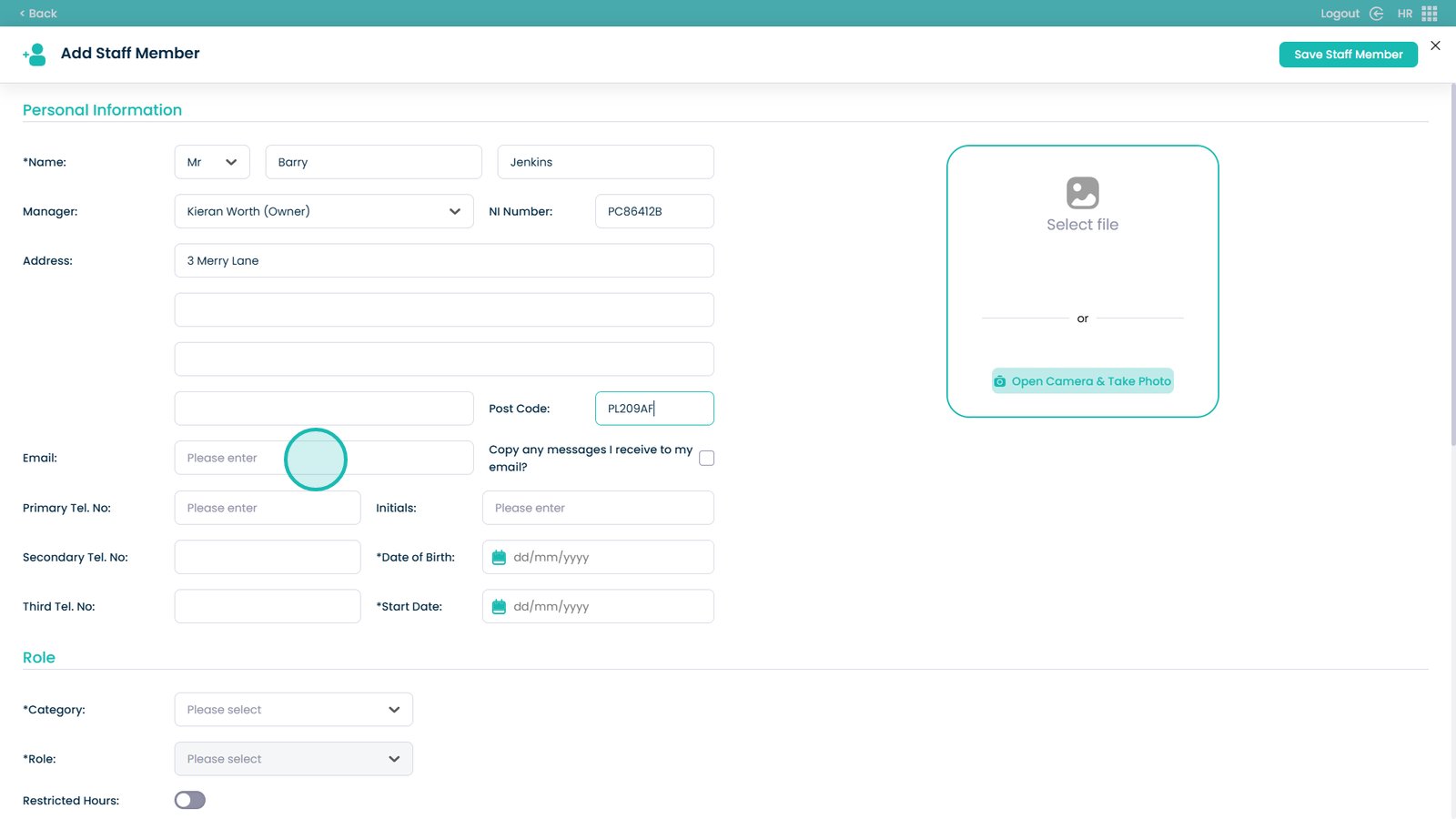
Enable email notifications for messages (optional)
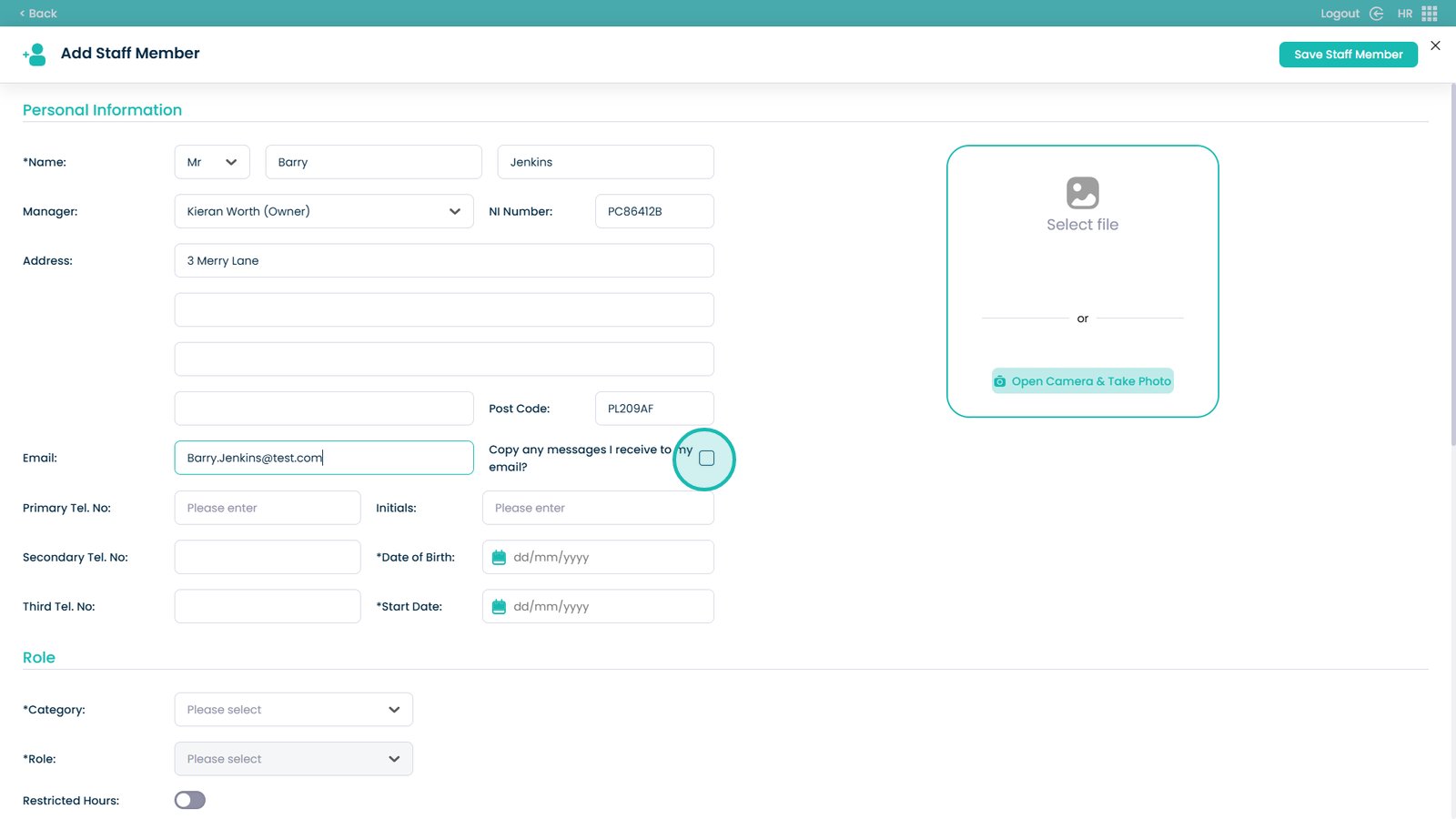
Enter the primary telephone number
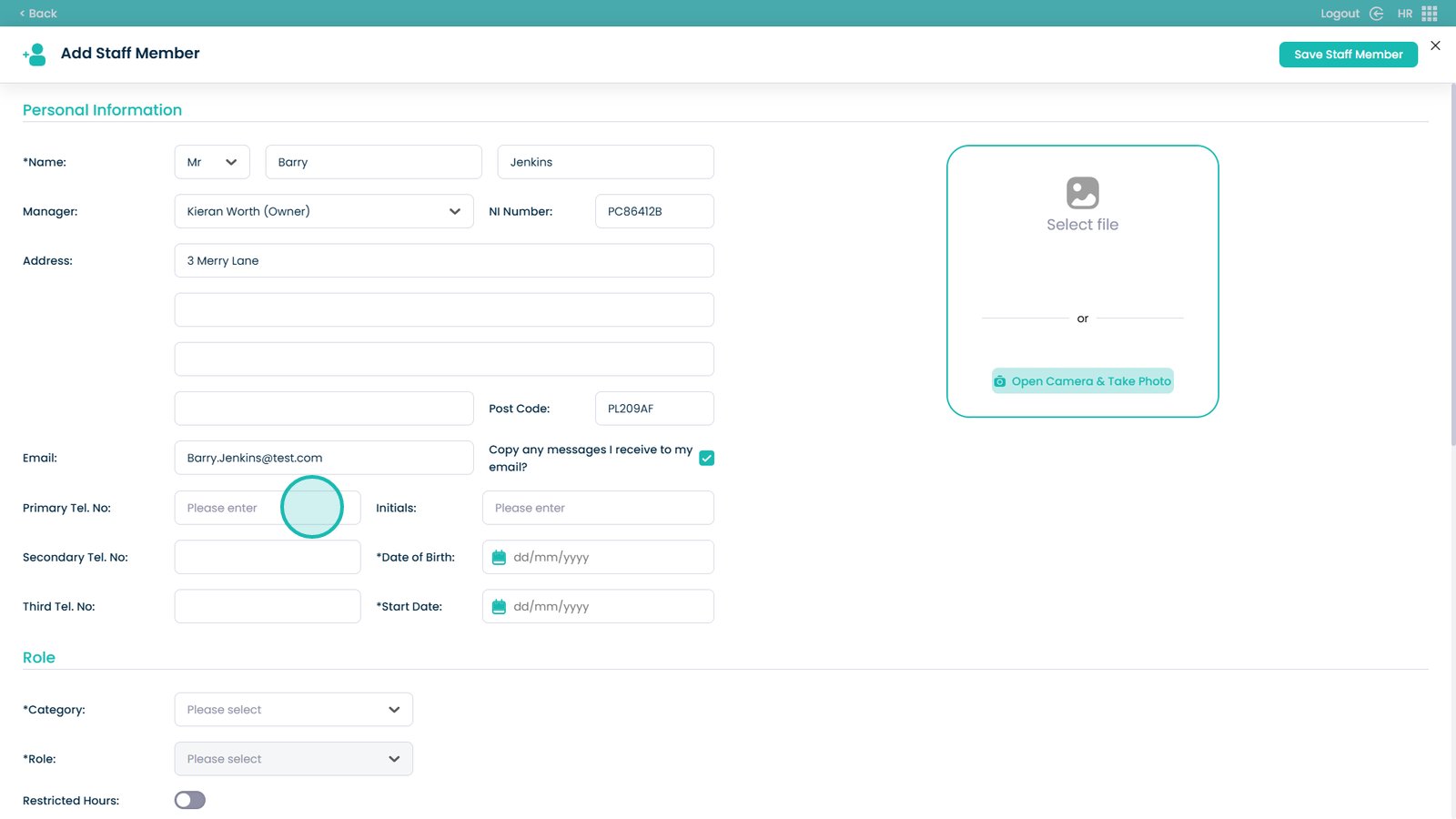
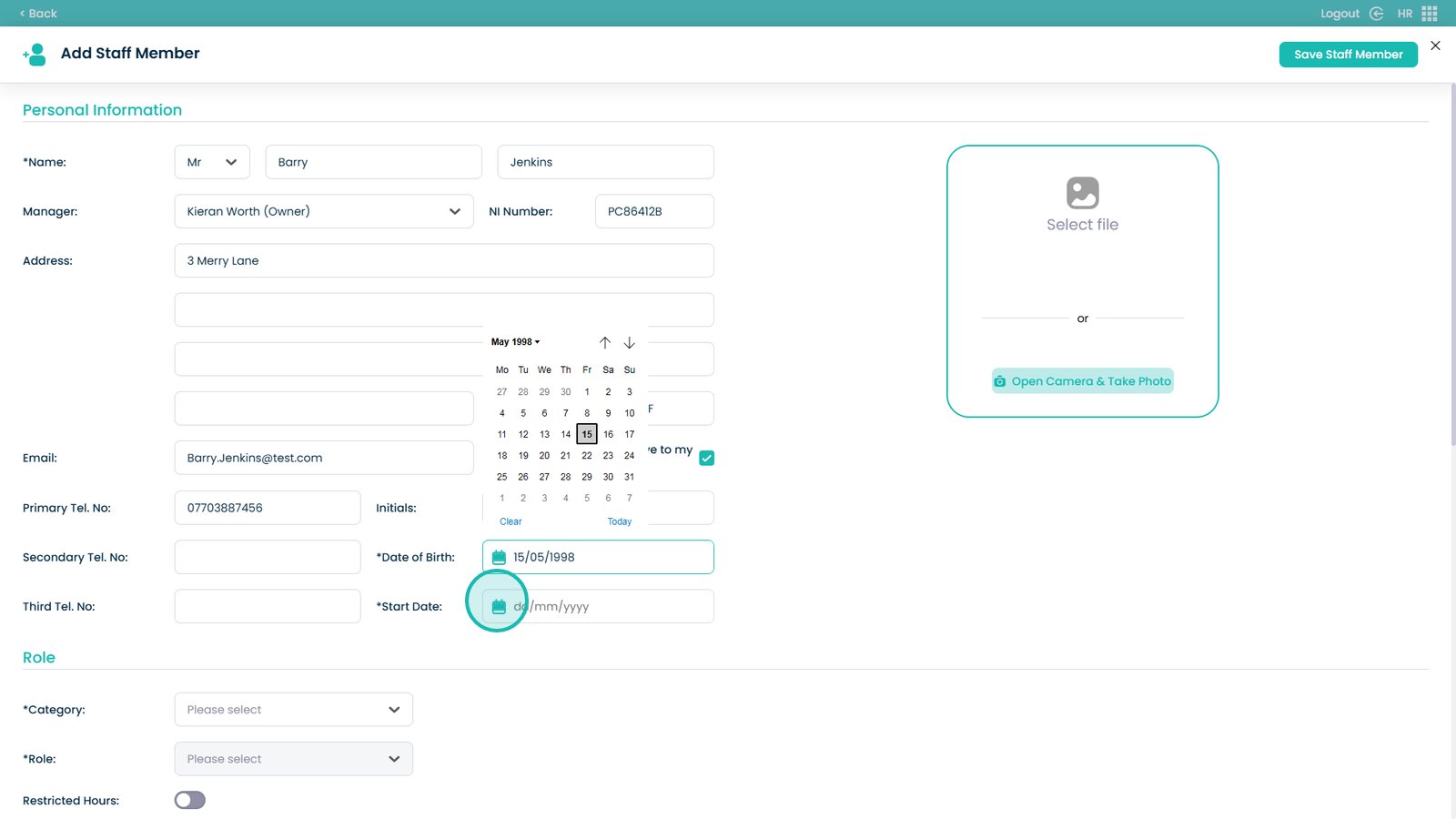
Enter the date of birth
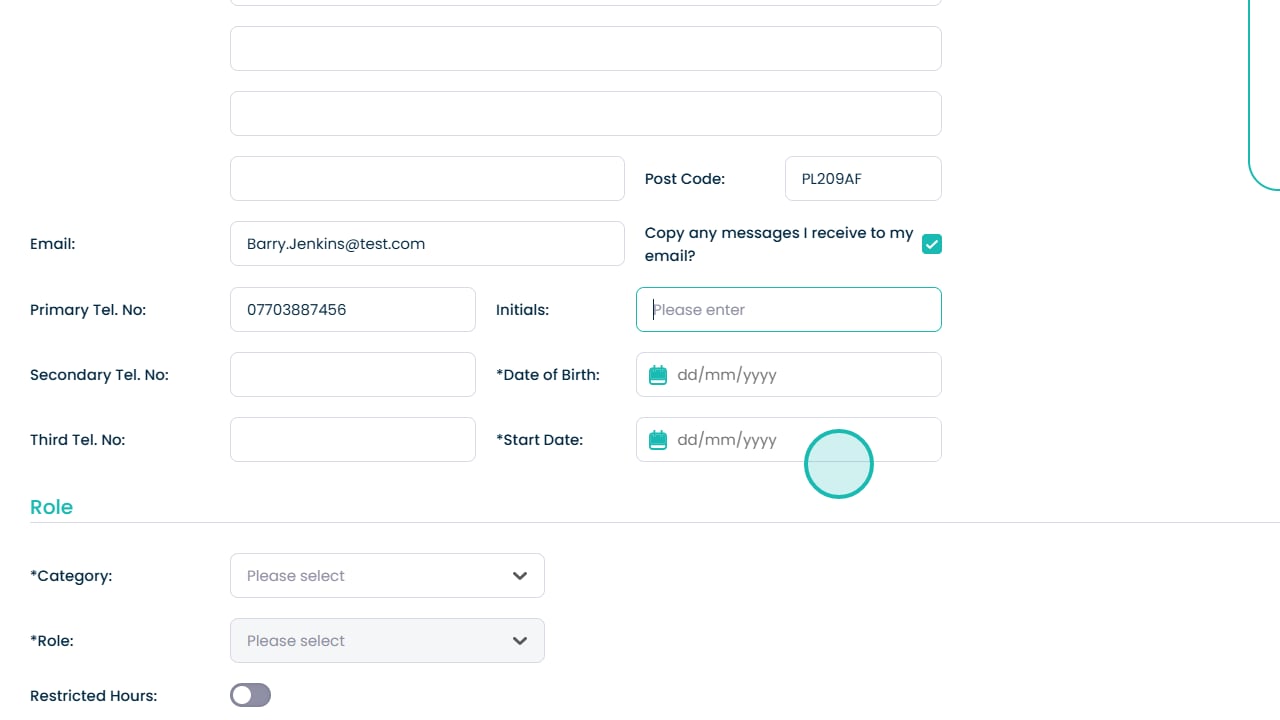
Enter the start date
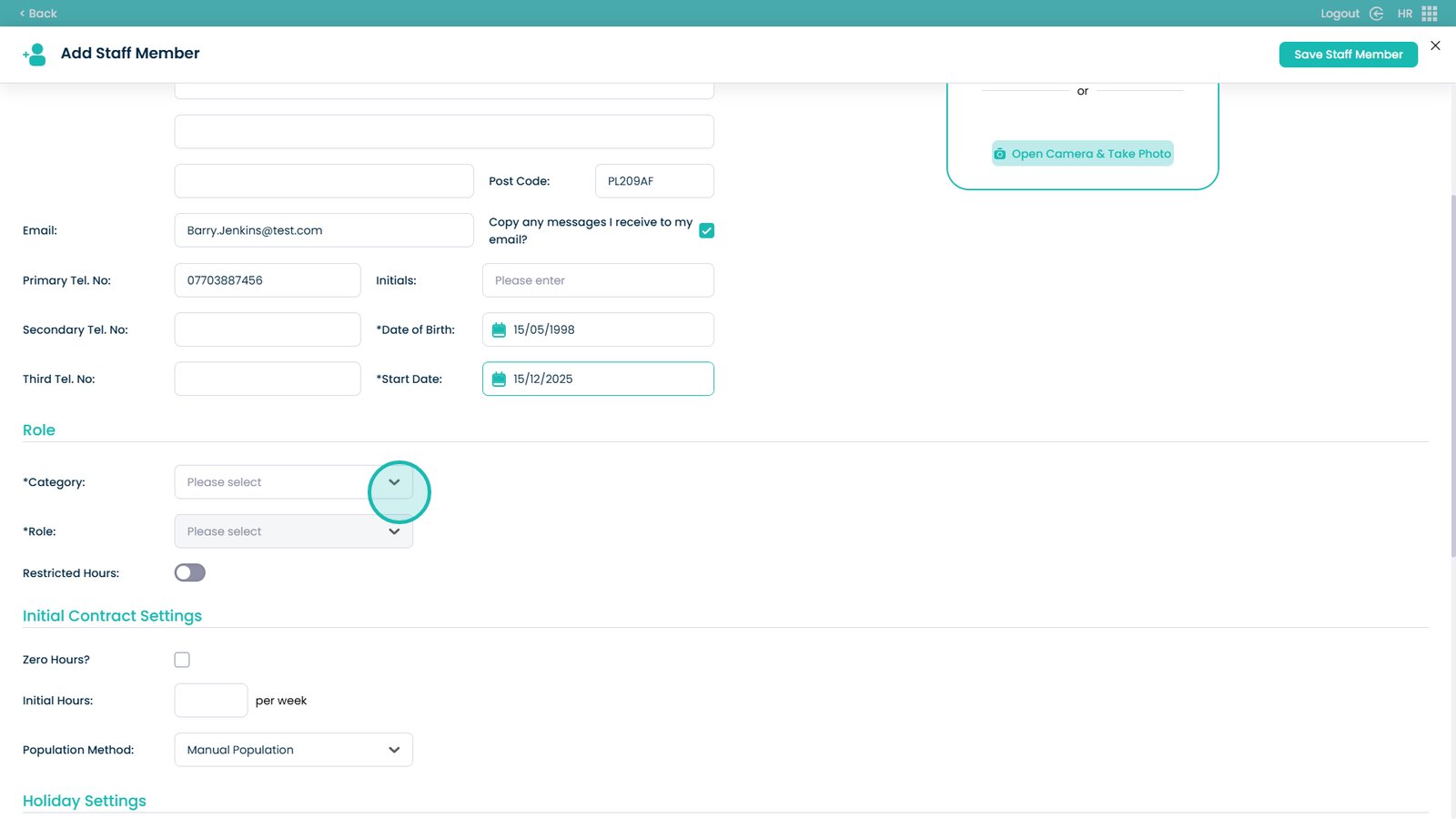
Select the role category
Select the role
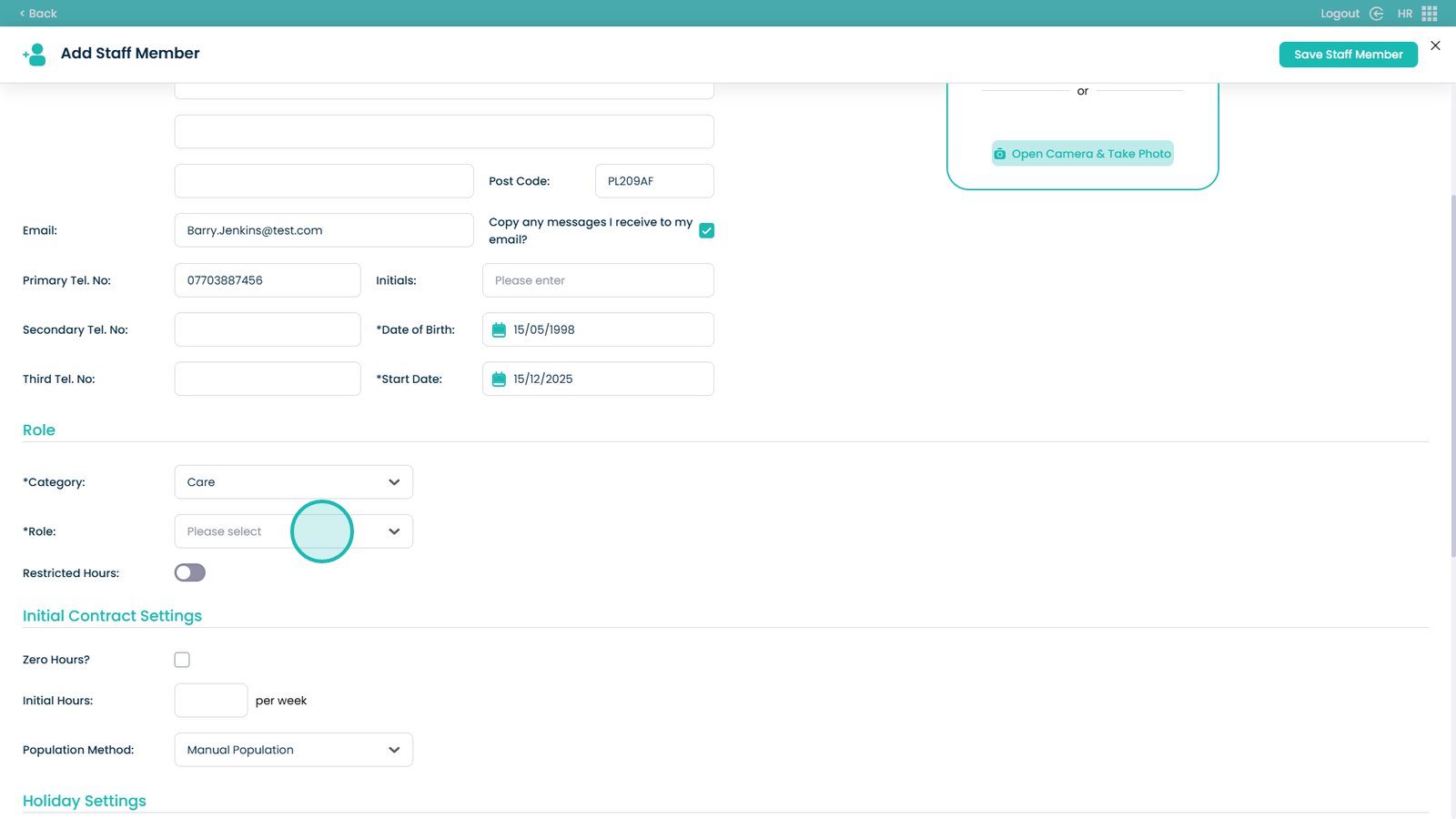
Choose contract settings
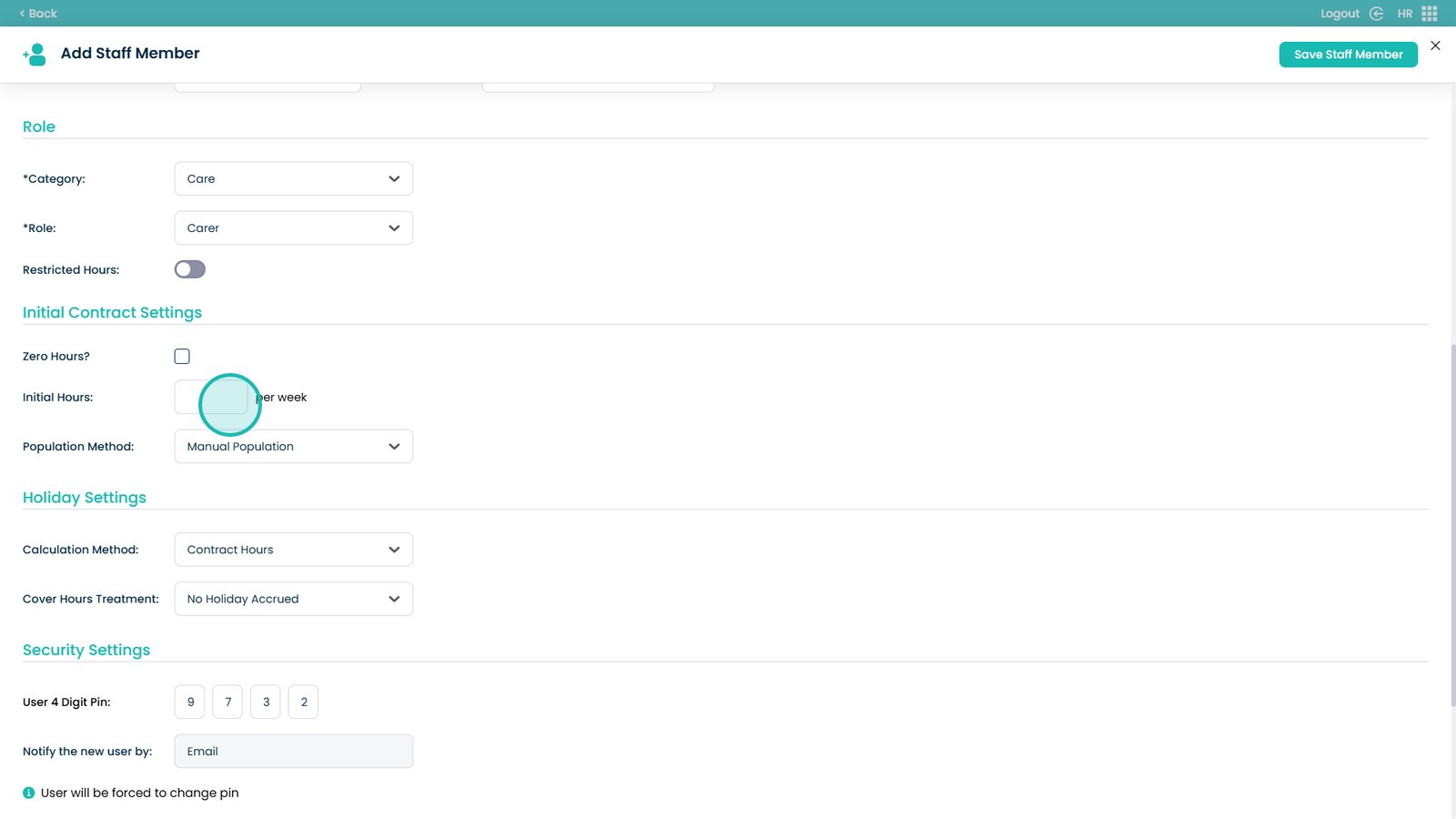
Choose how holiday hours are calculated
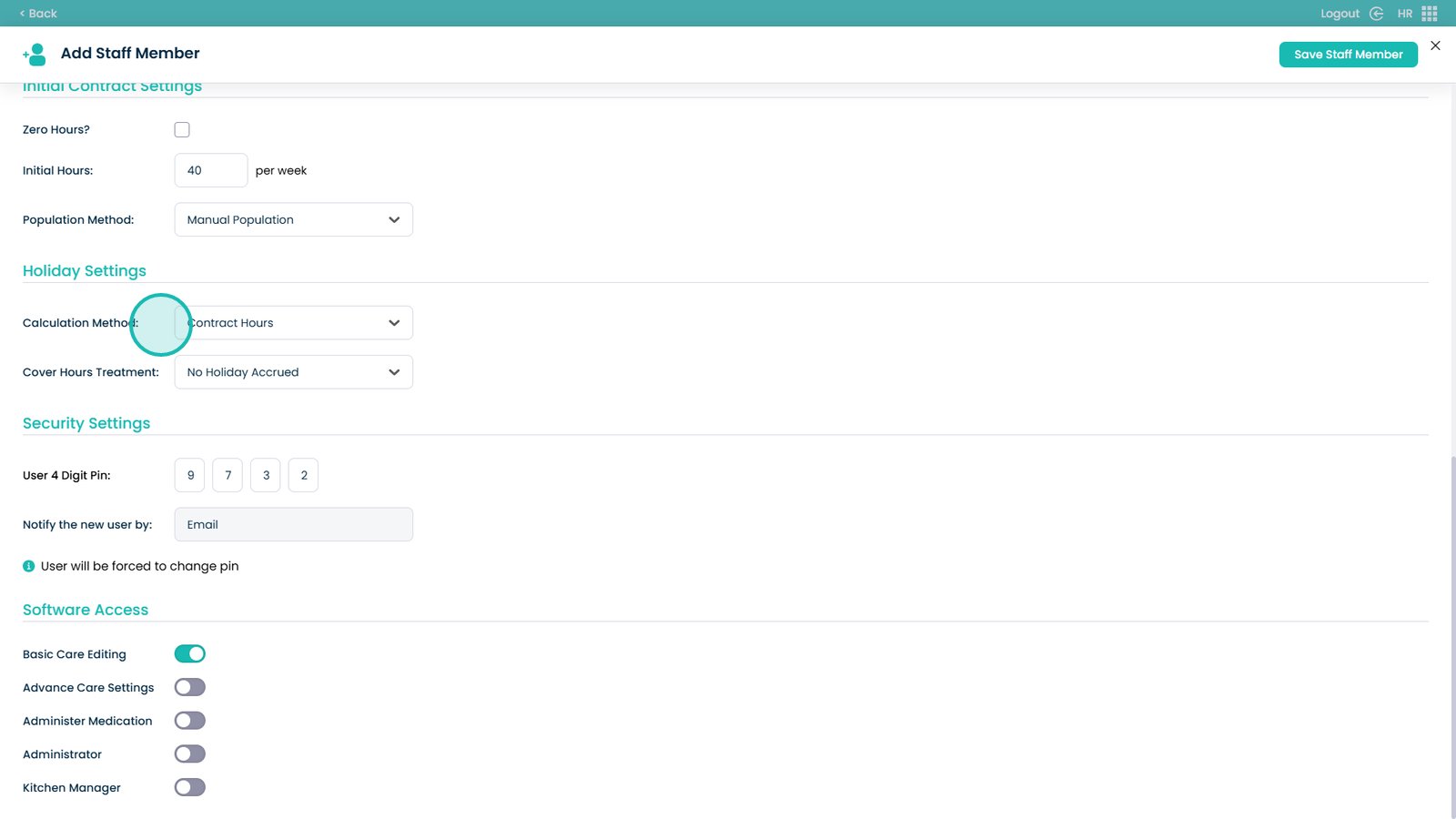
Create a PIN (sent to the staff member by email)
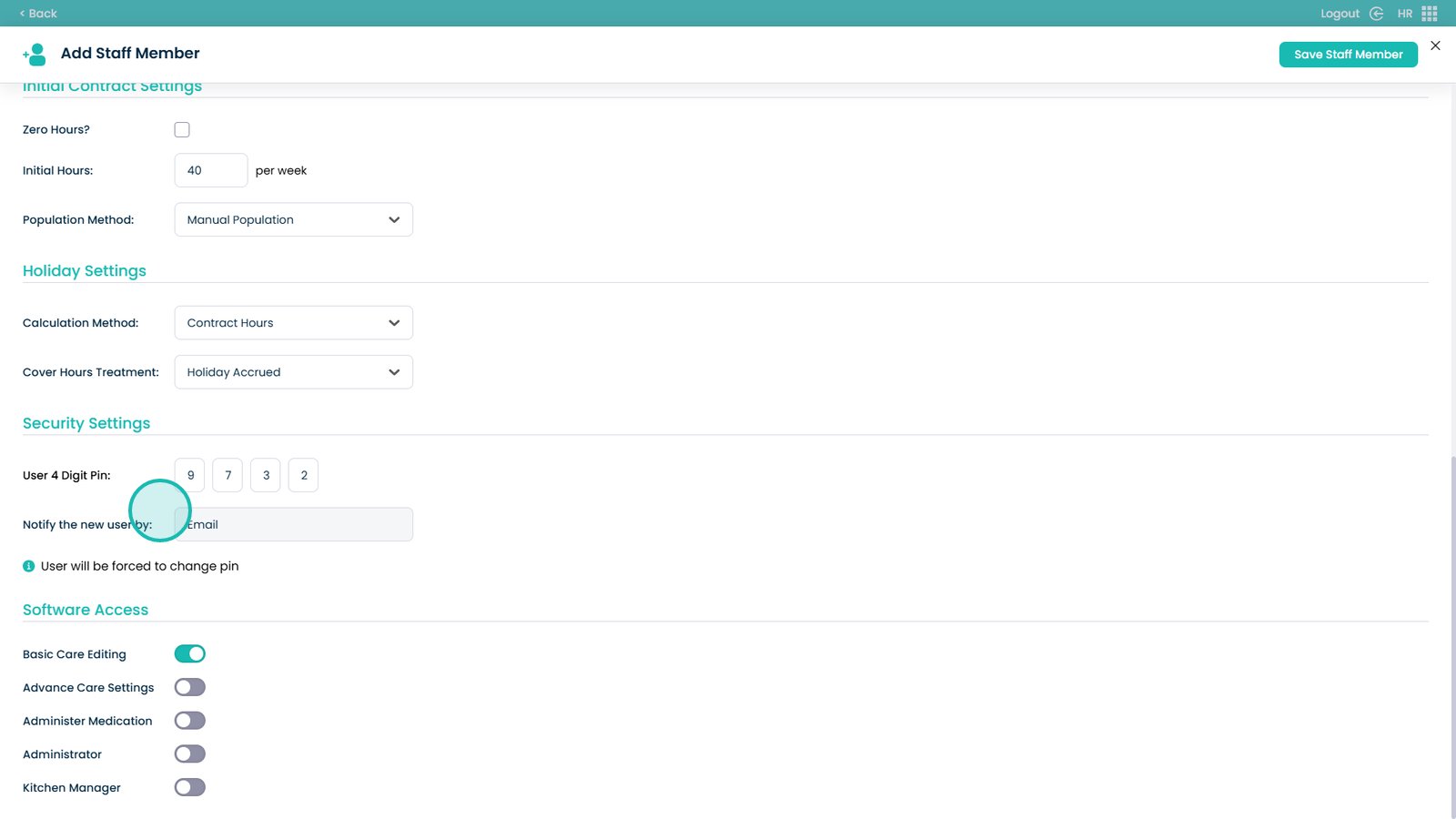
Set staff access permissions
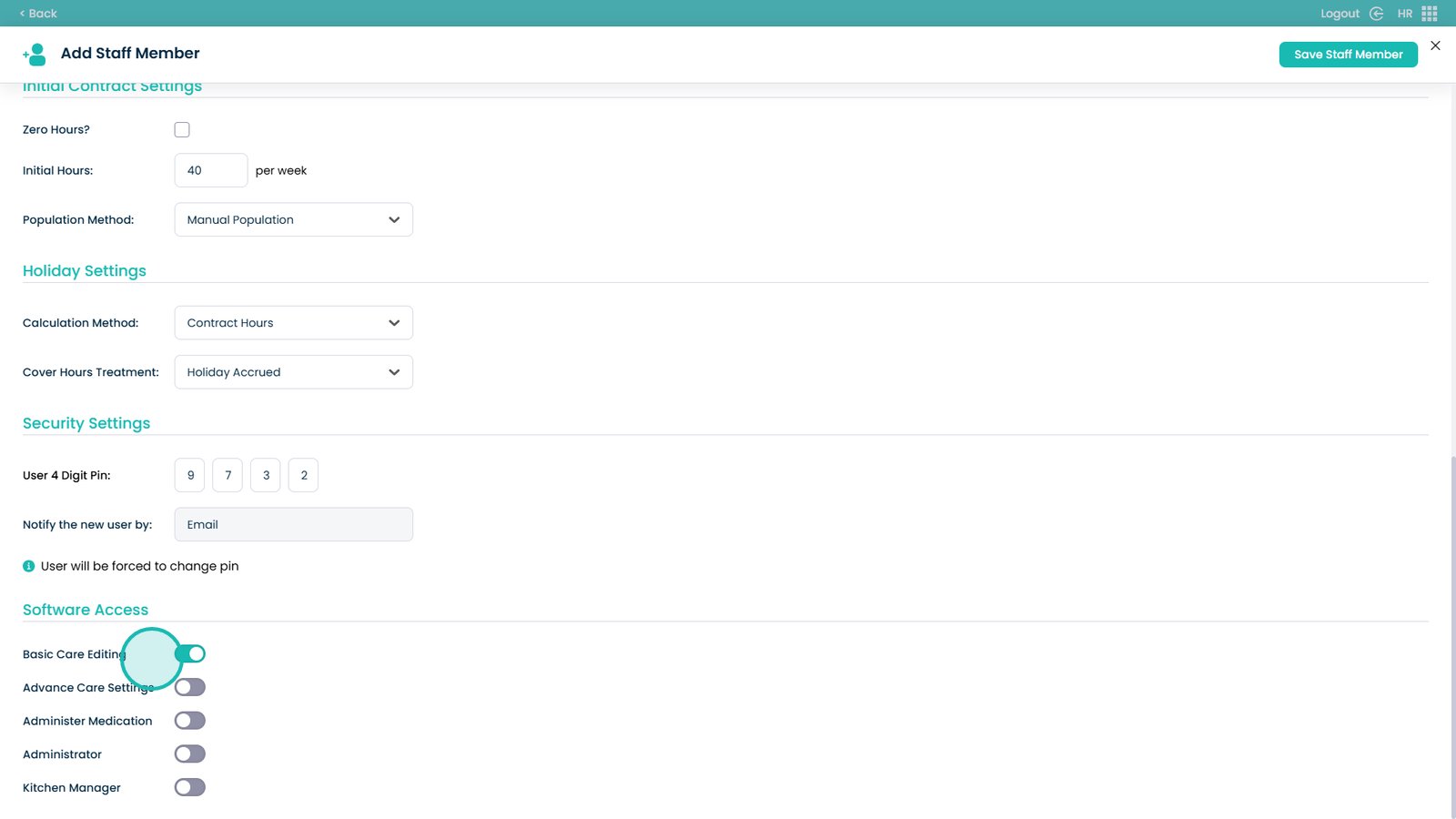
Save the staff member

Confirm to continue
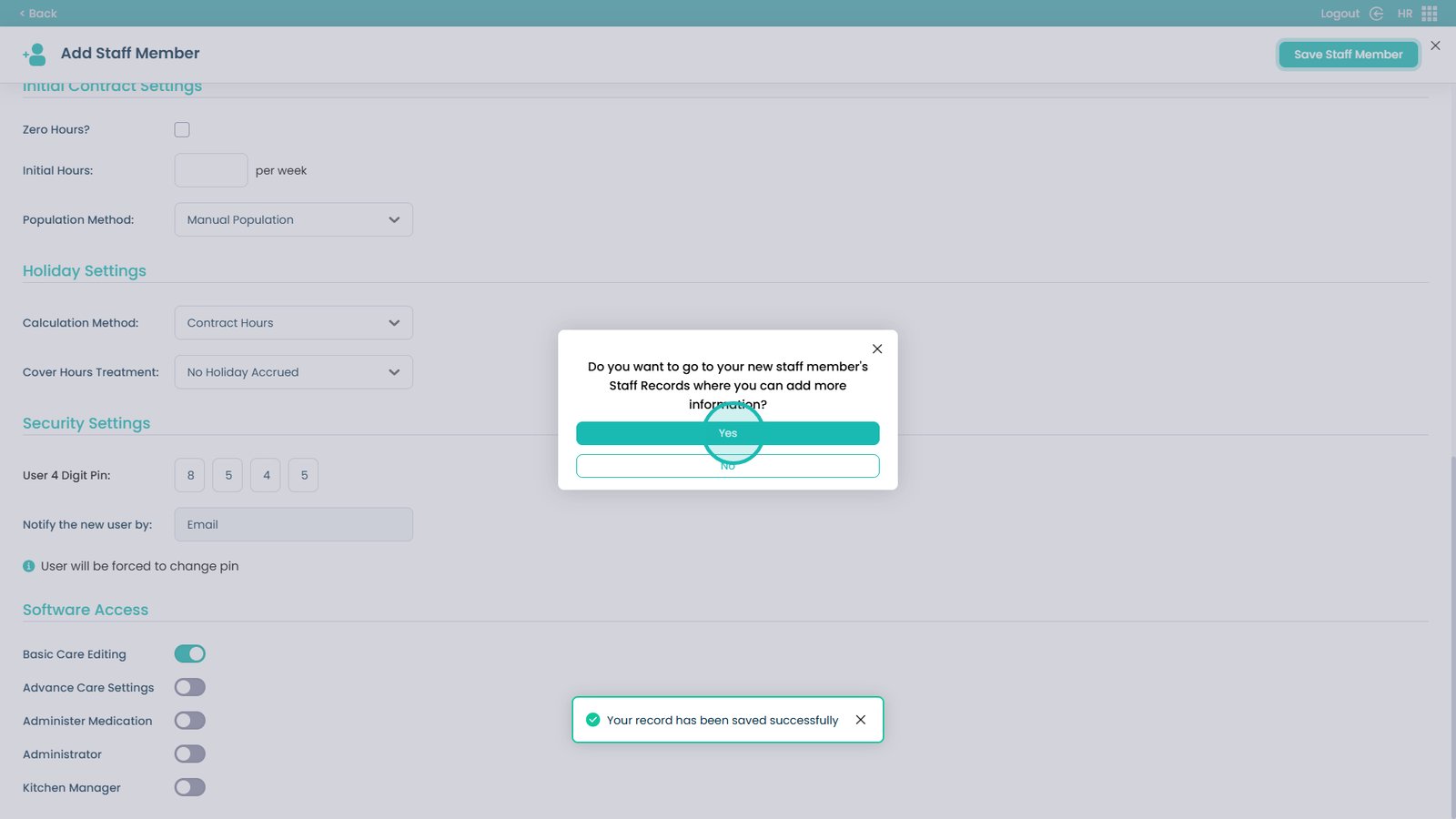
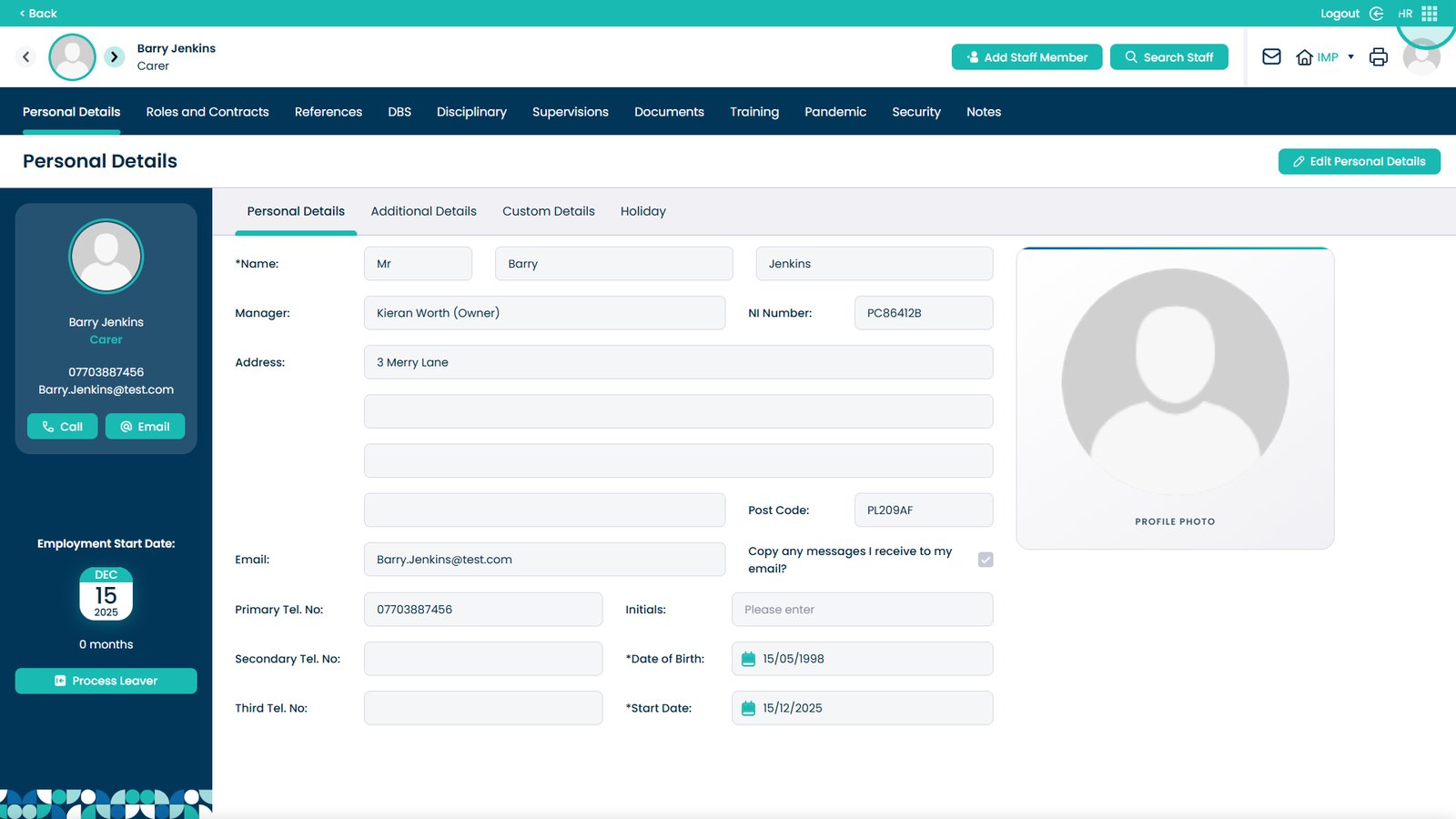
Add additional, custom, or holiday details if needed

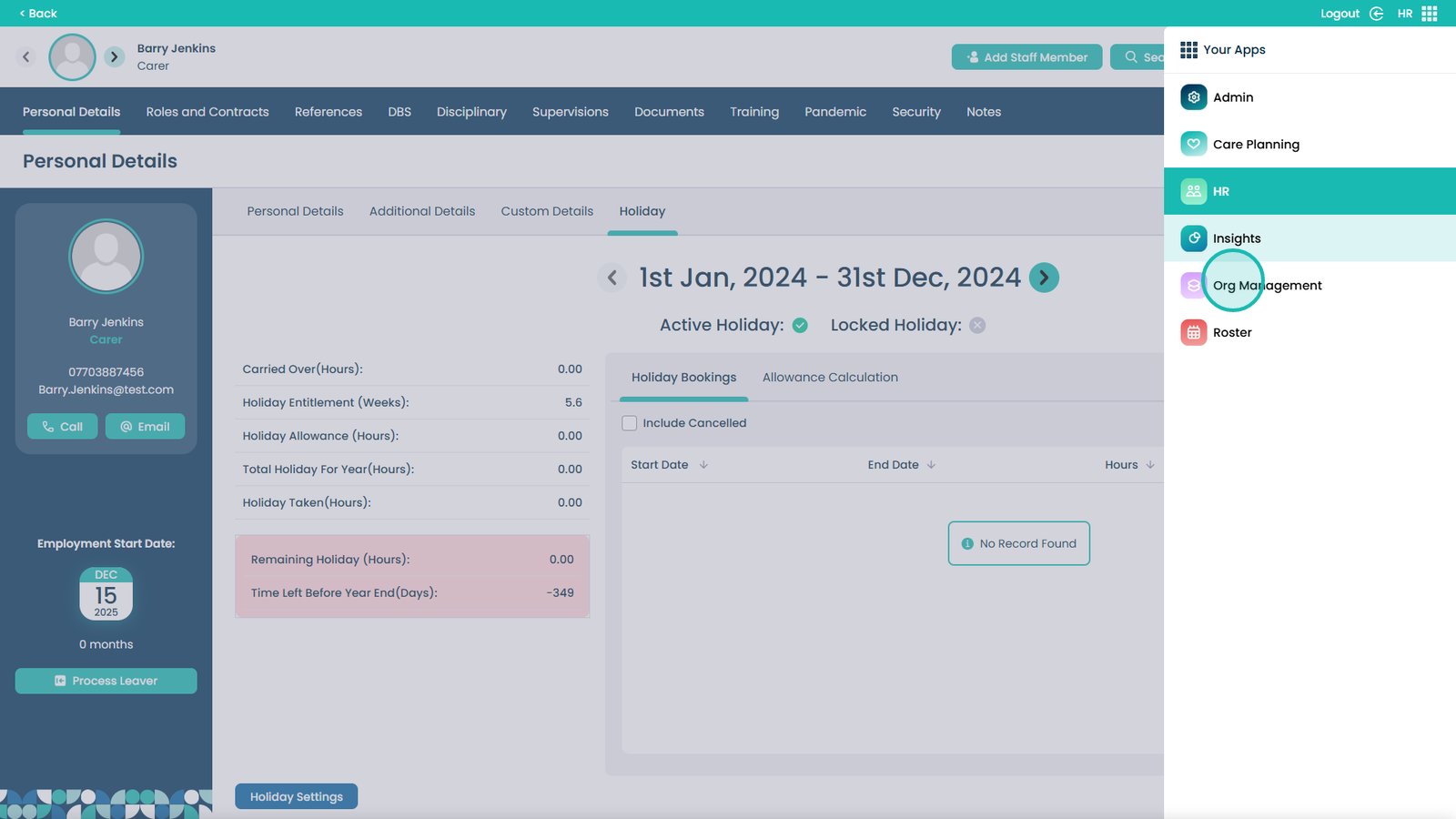
Open the app panel
Go to Org Management
Open Users
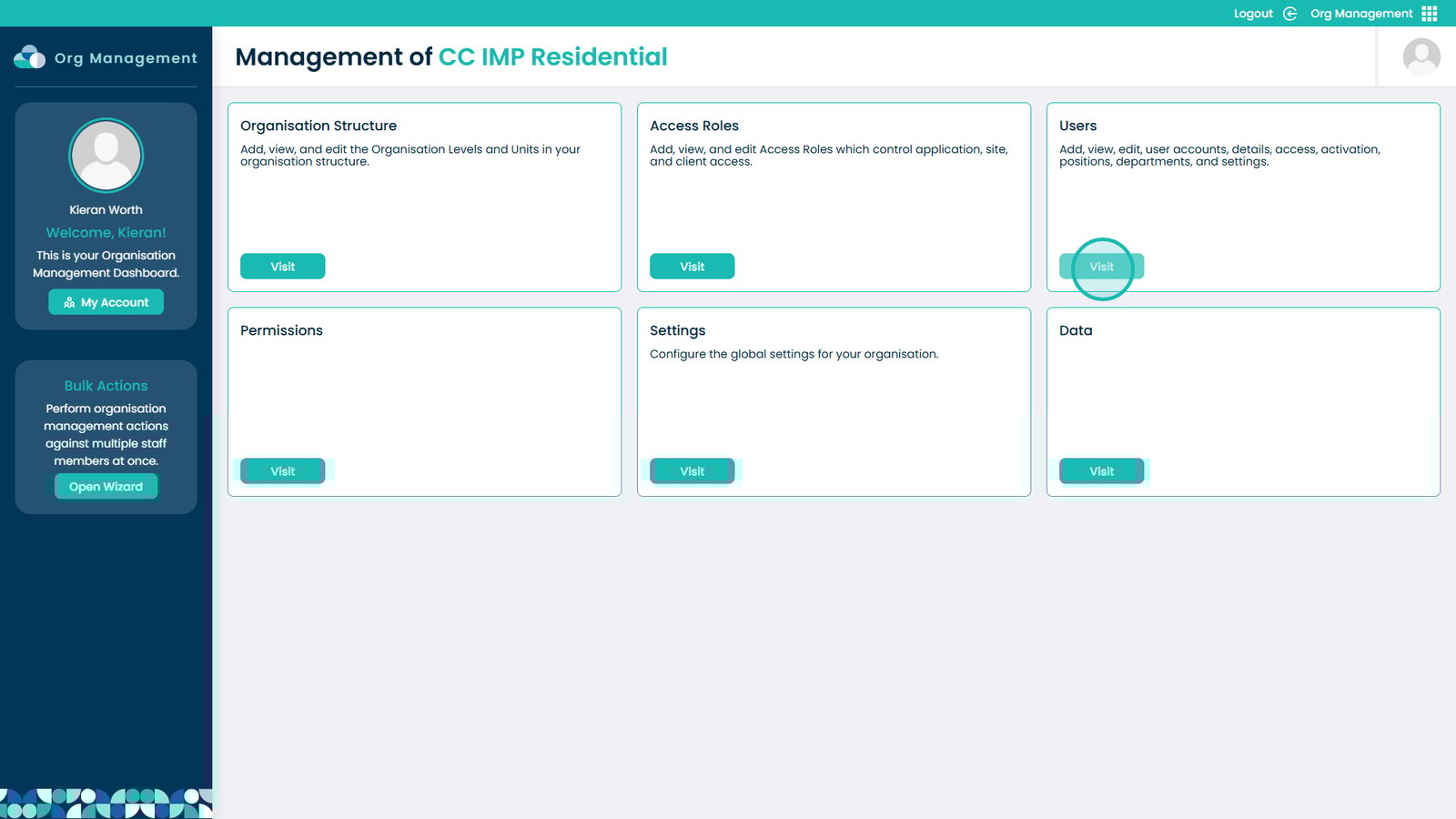
Show inactive users
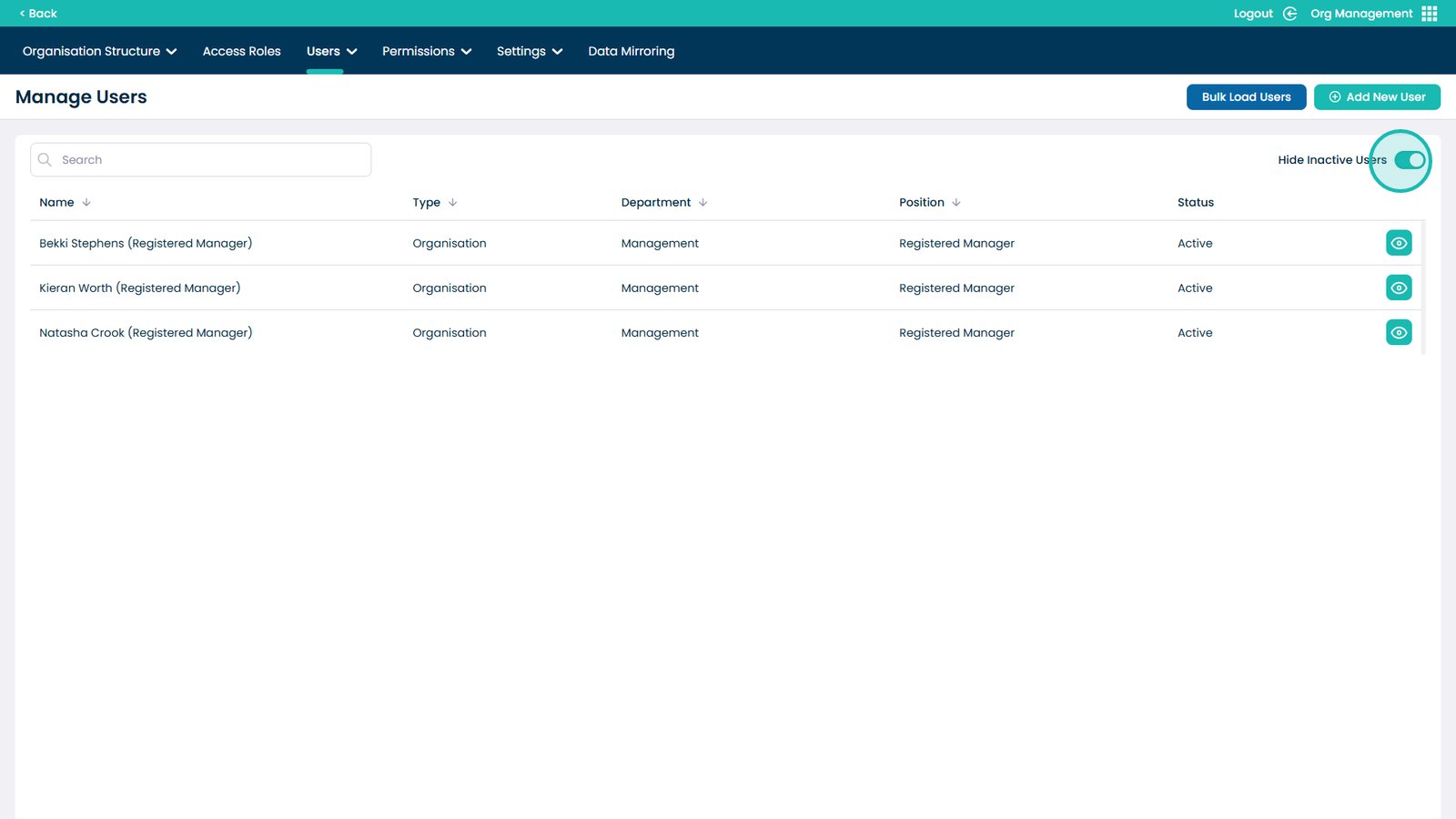
Select the user to attach the staff member to
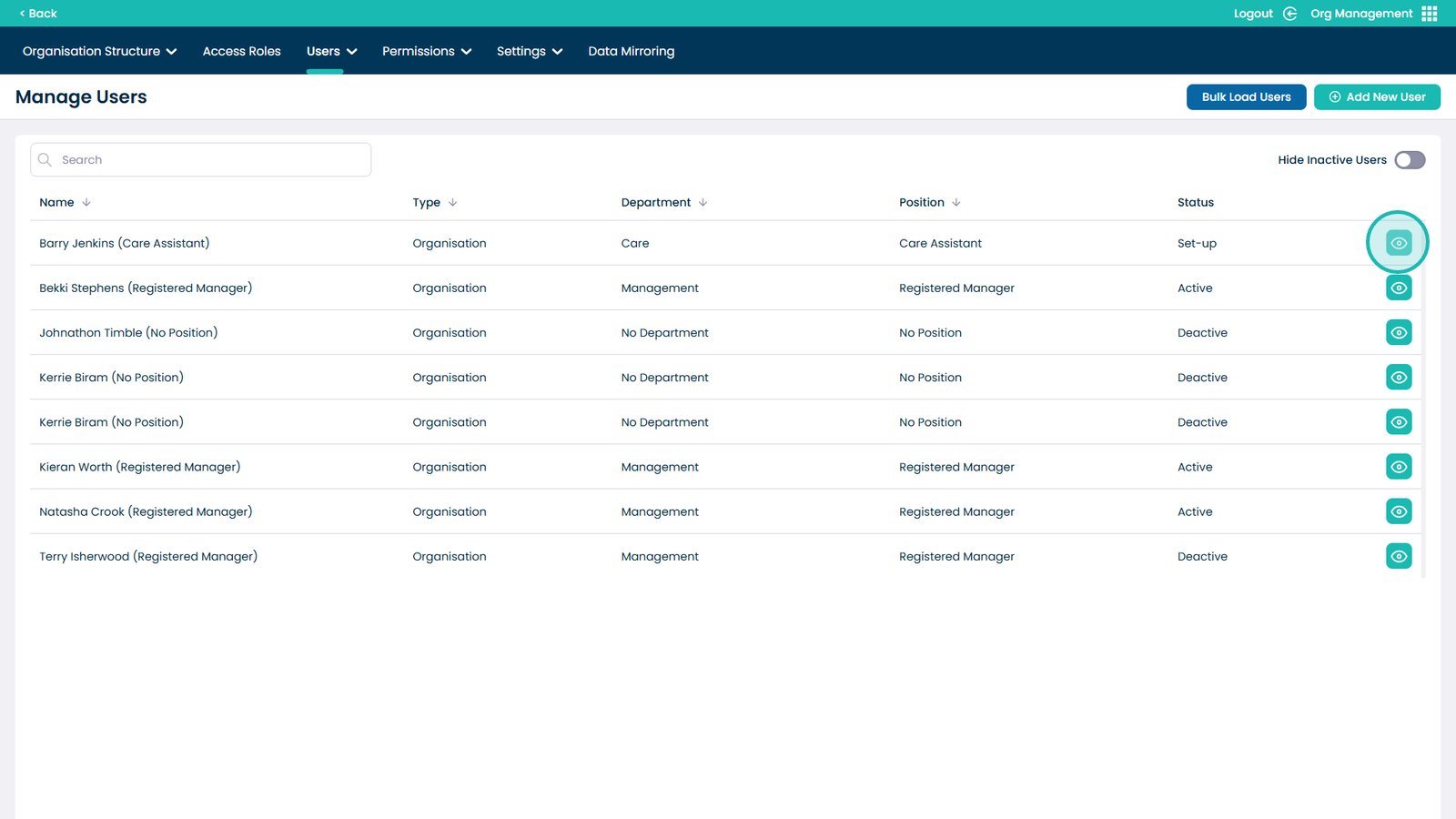
Open Role Assignment

Edit user roles
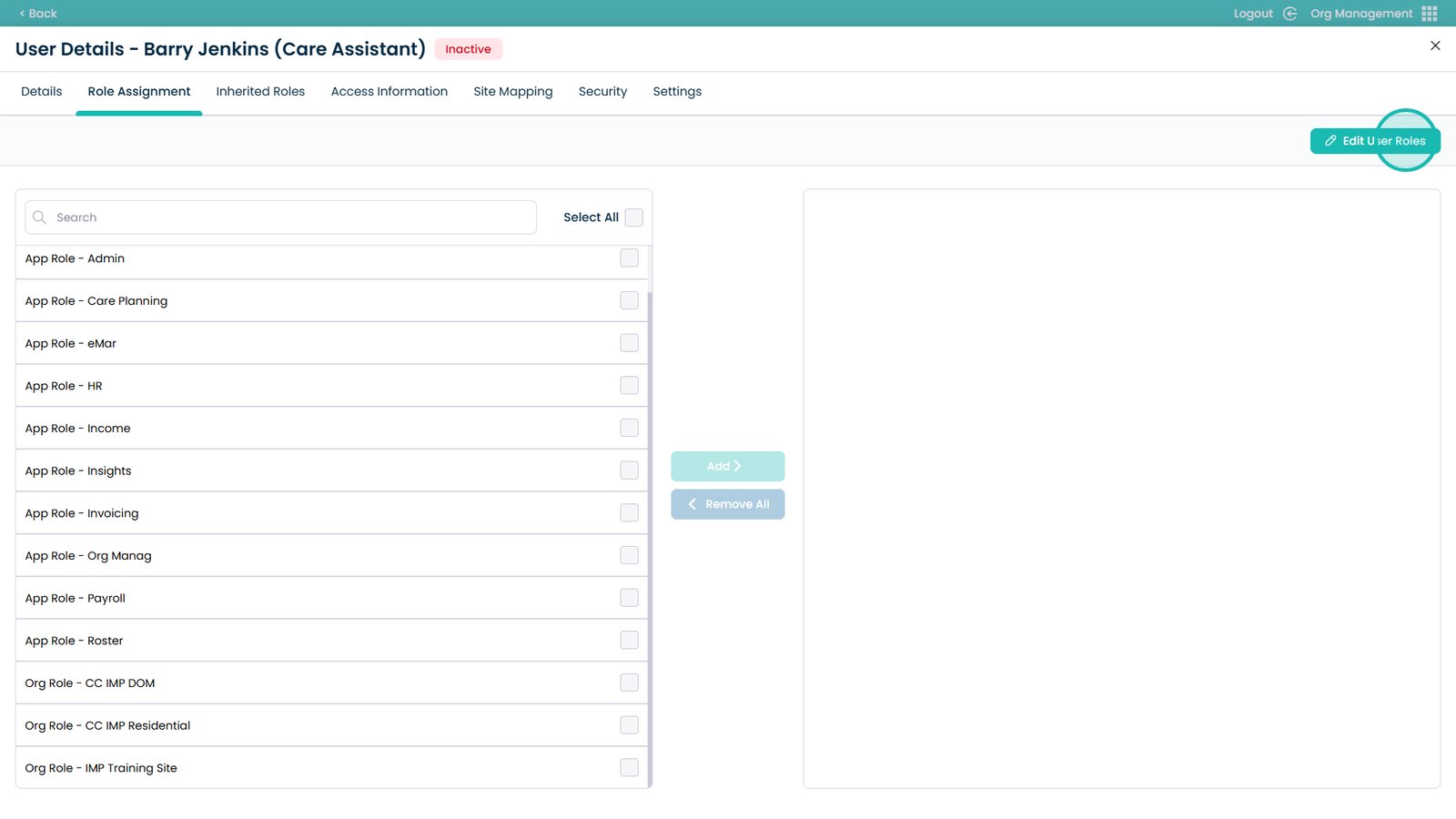
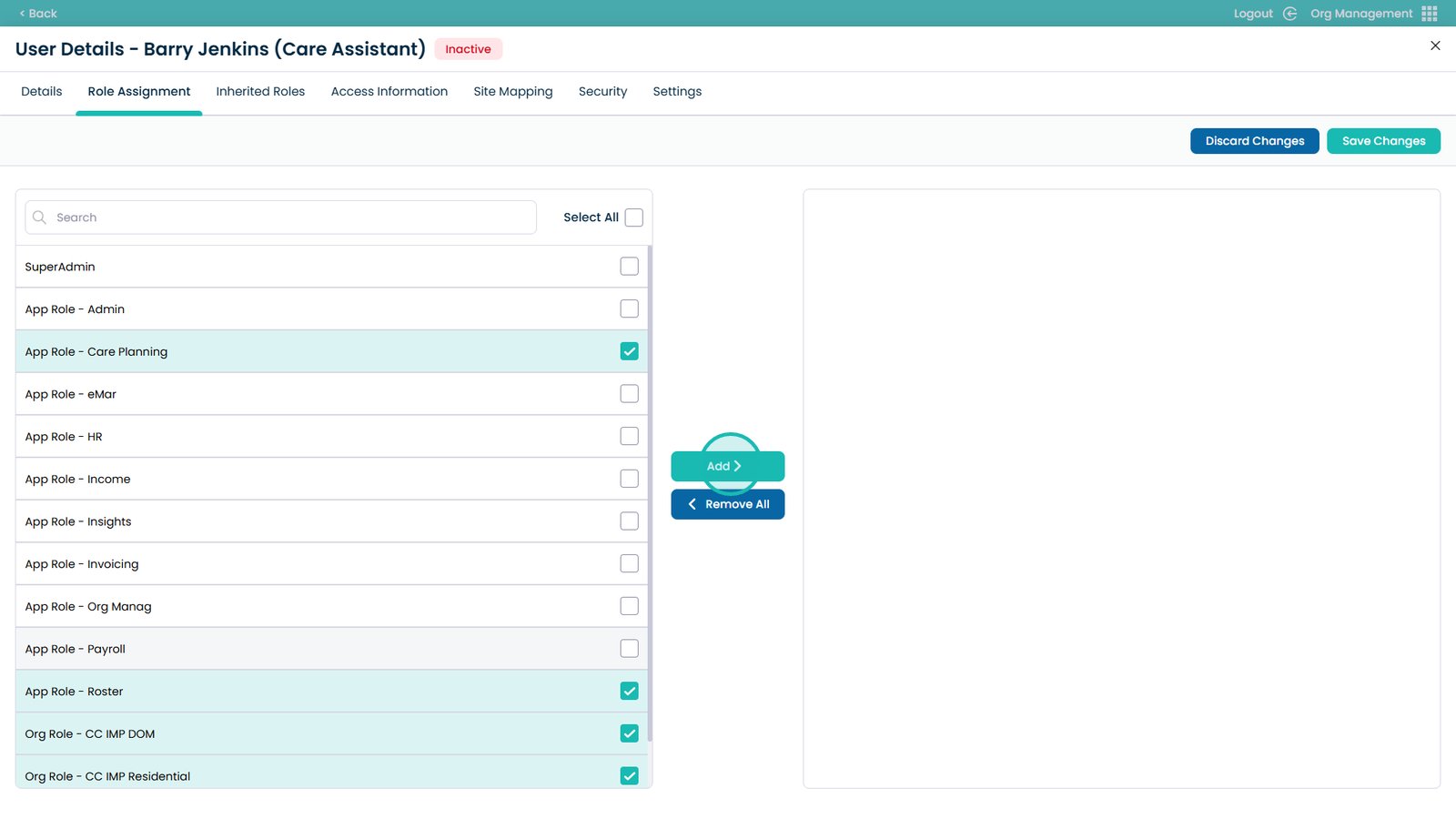
Assign the required role (including site-specific Super User roles)
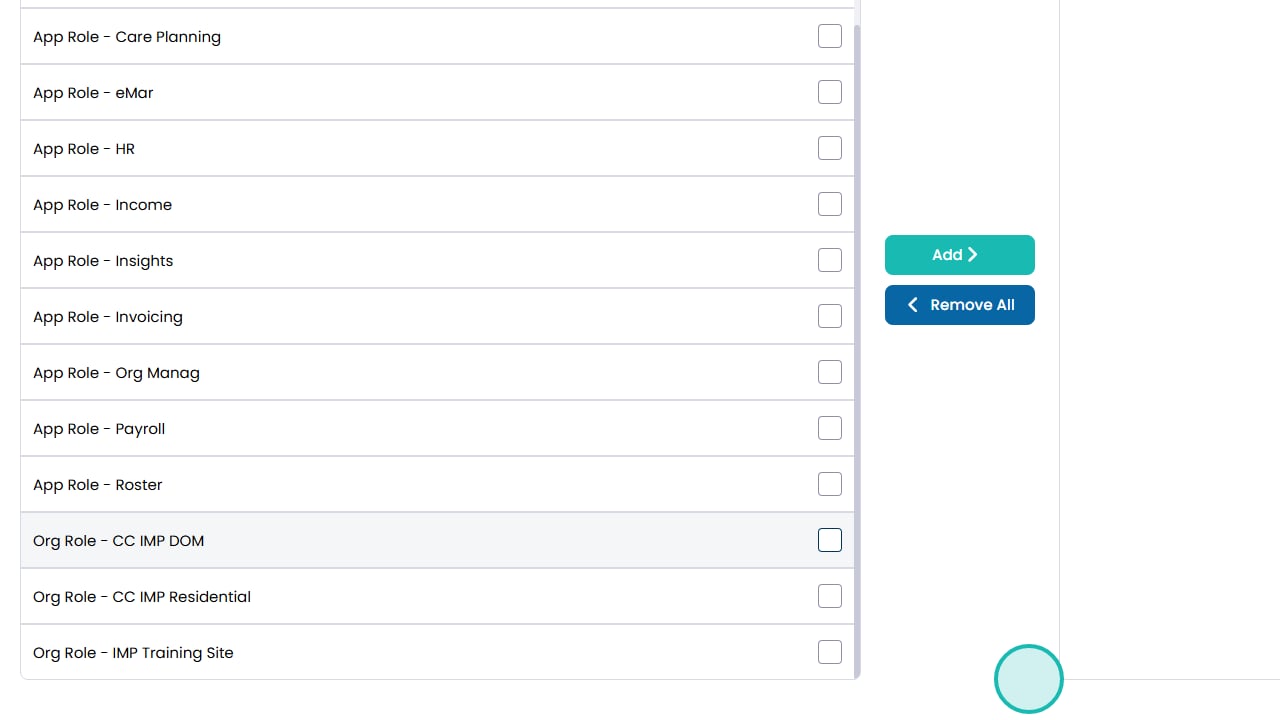
Add additional roles if needed

Add the role
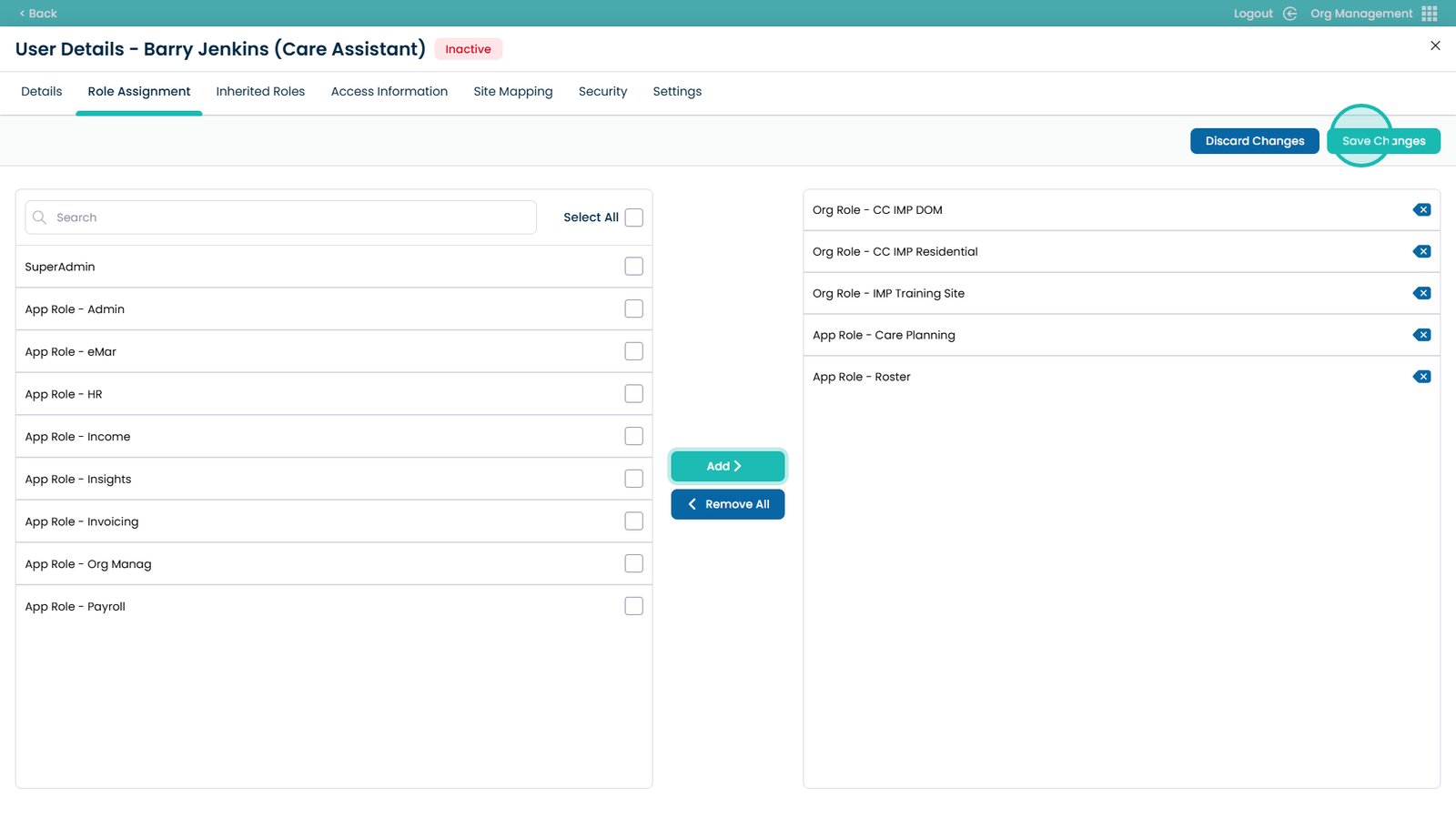
Save changes
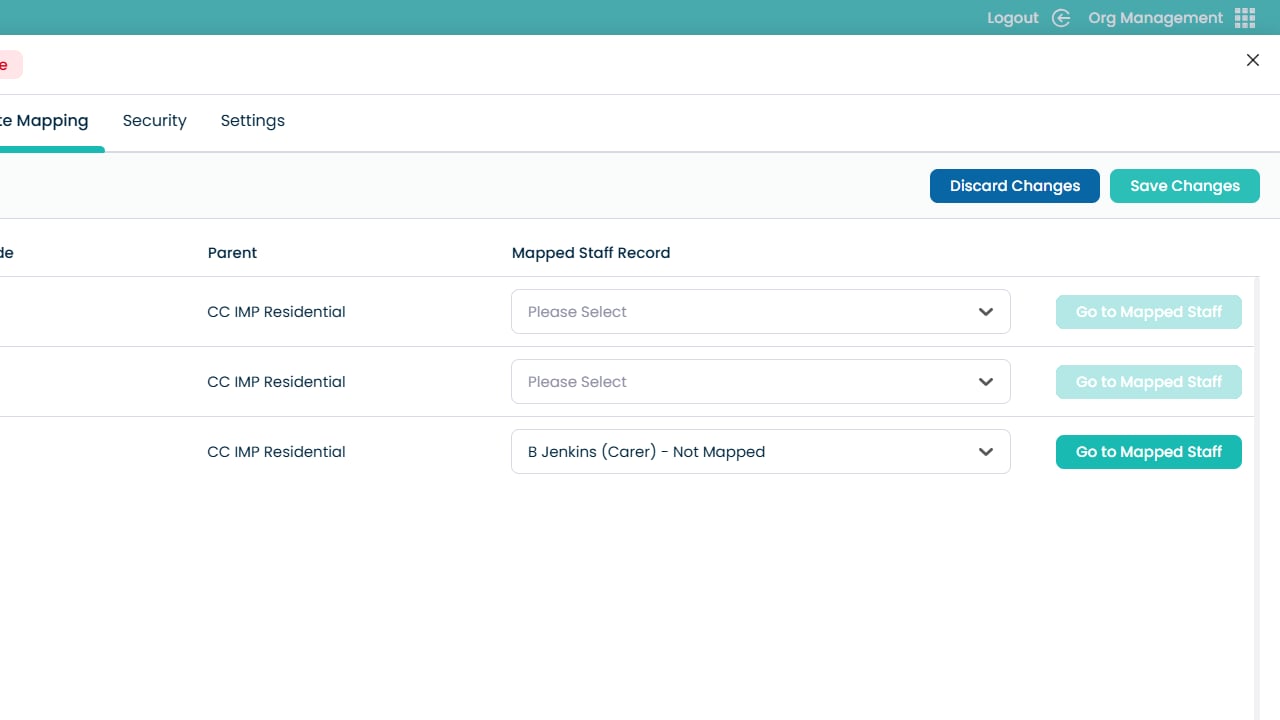
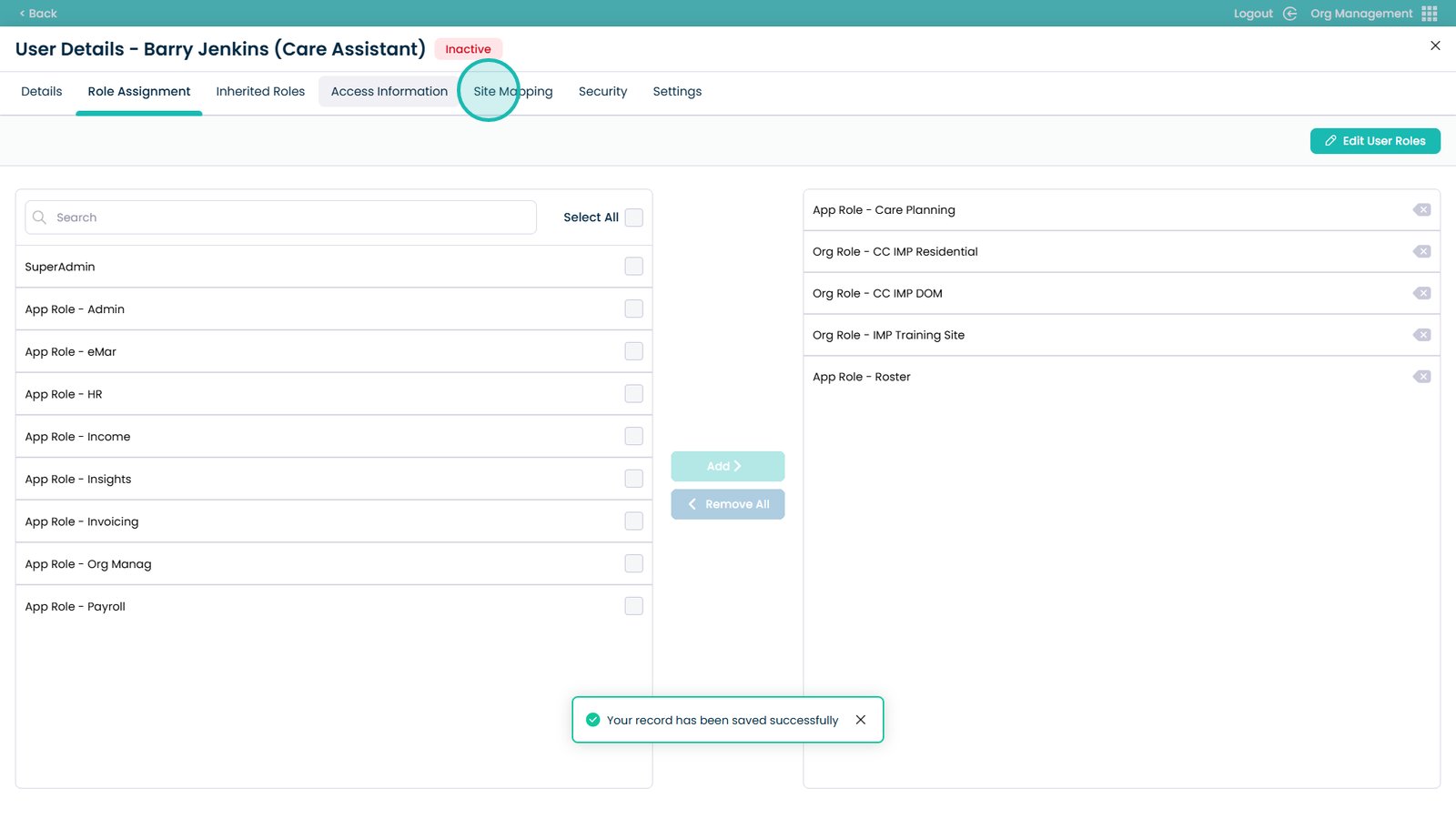
Open Site Mapping
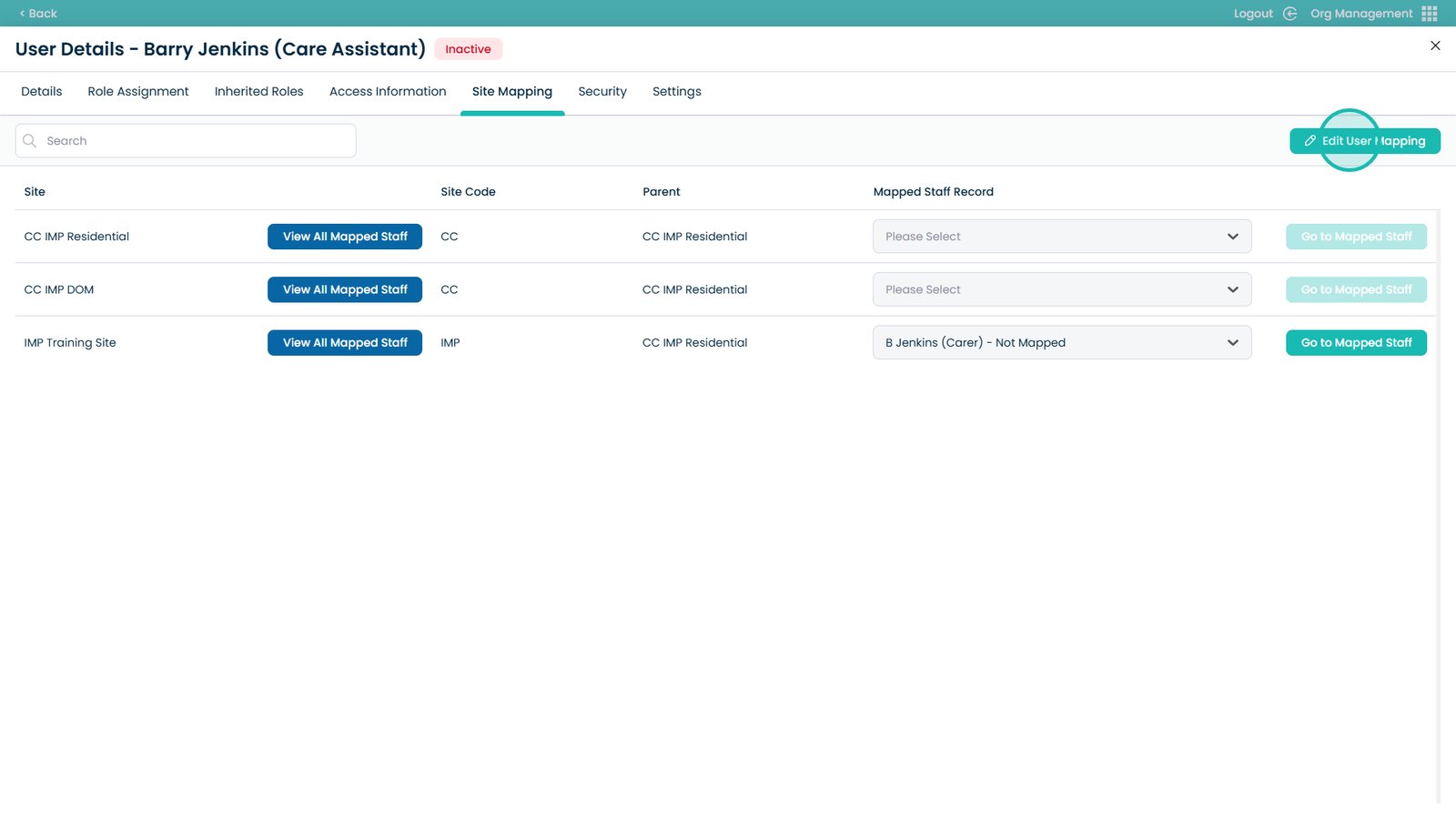
Assign the staff record to the user
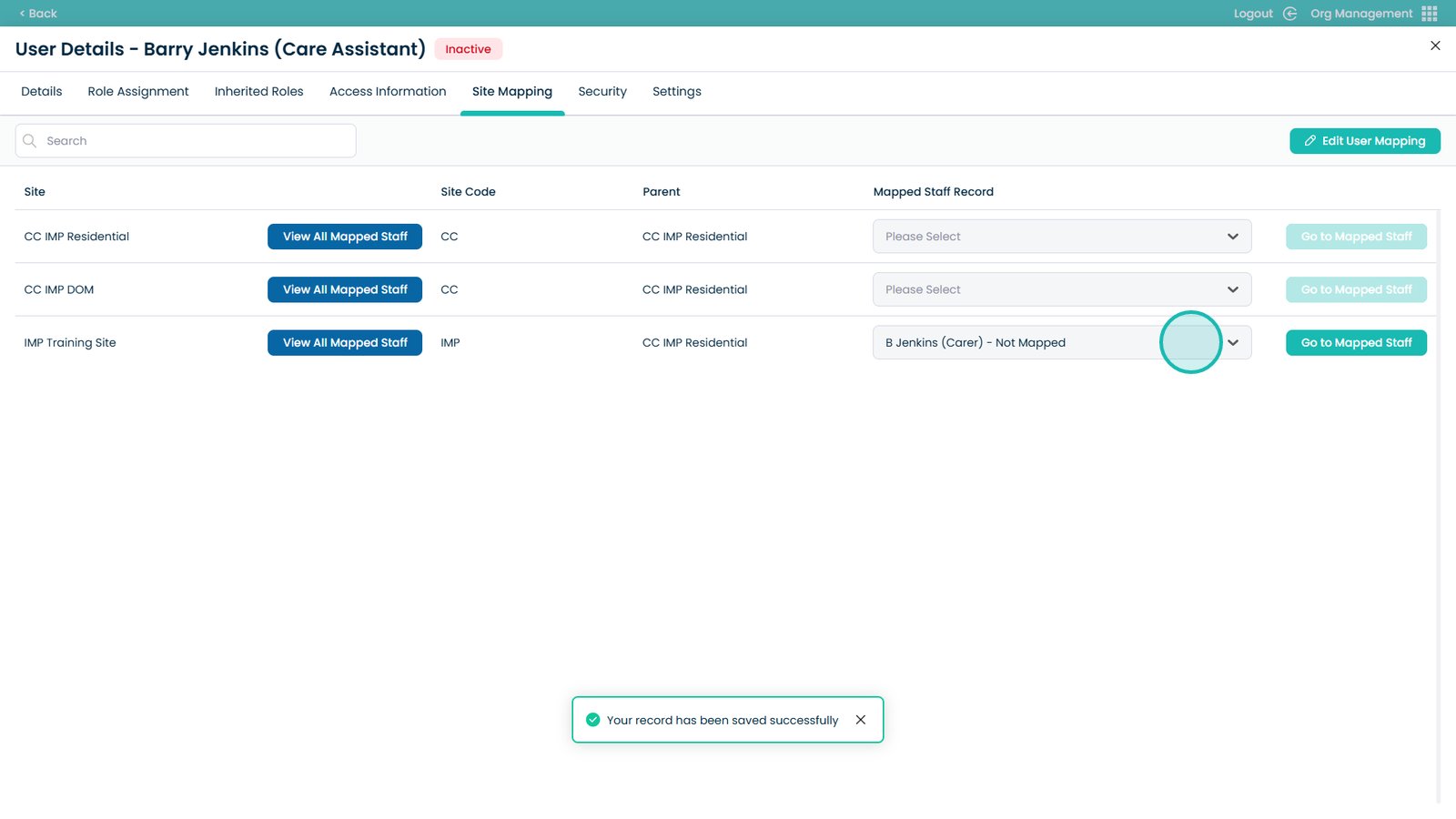
Edit the user mapping if needed
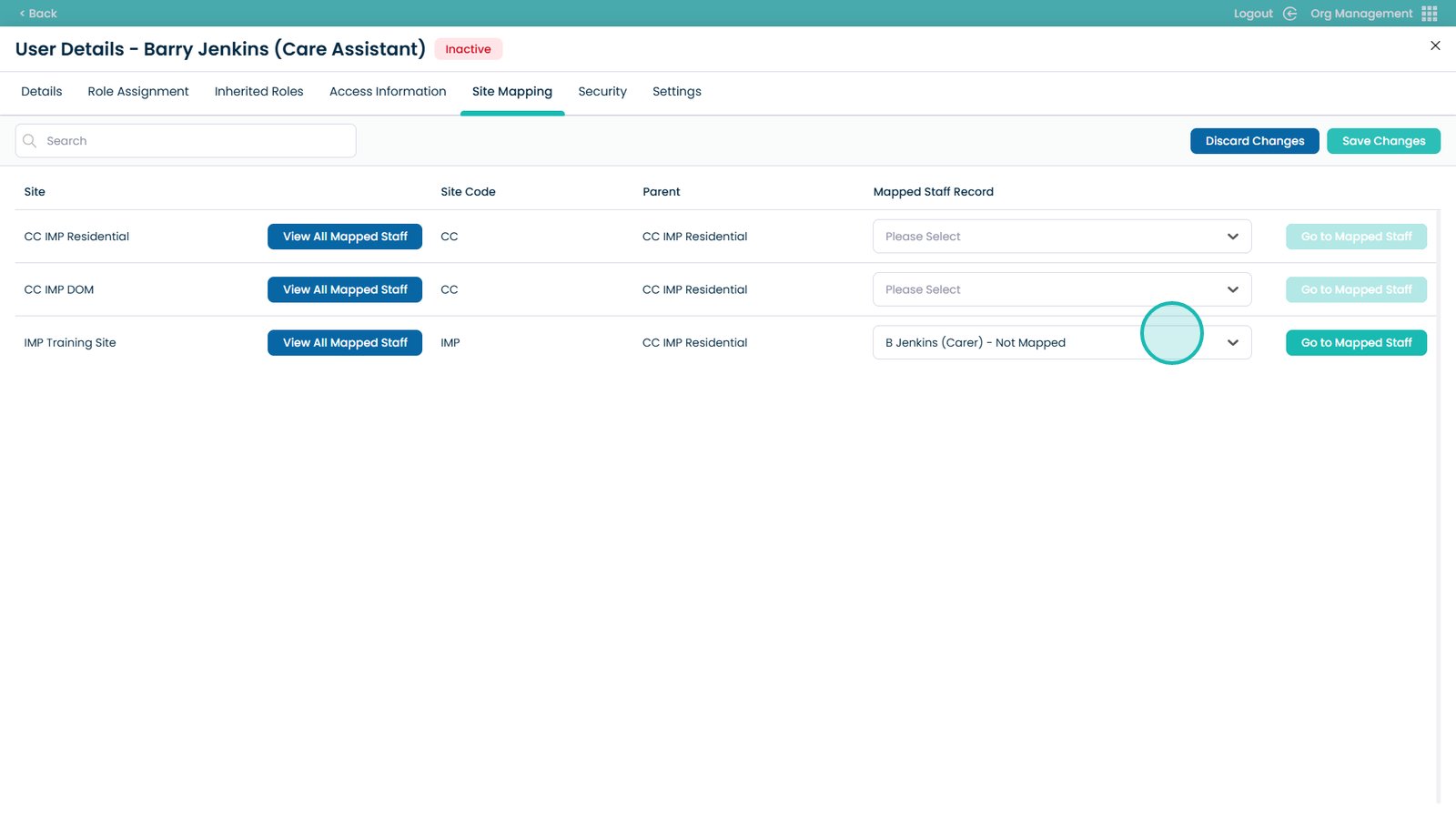
Open the dropdown
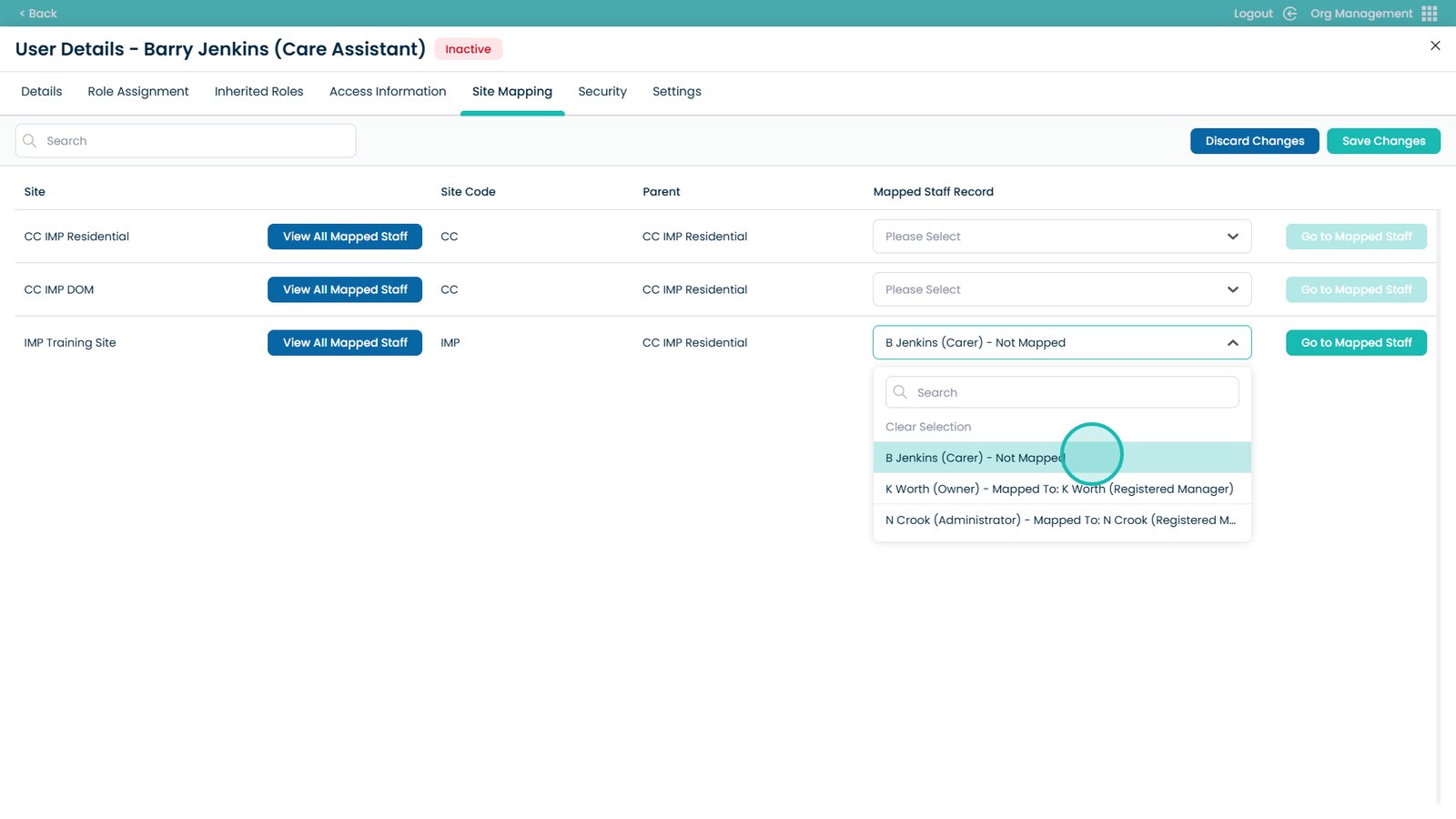
Select the staff member
Save changes to finish