View Categories

How to Add a Sleep In Pay Rate Indicator

This guide explains how to configure a Sleep In pay rate at company level by creating a new pay rate indicator and enabling the Sleep Shift option.

Takes 4 minutes
For: Managers
Updated: 30th July 2026

Introduction

The Company Level Pay Rates area allows you to configure standard pay rates that can be used across your organisation. You can create a new Sleep In pay rate, define its value, and enable the Sleep Shift option so payroll calculations are processed correctly.

In this guide you'll learn how to:

  • Open the Company Level Pay Rates settings
  • Add a new pay rate
  • Select the Sleep In indicator
  • Configure the Sleep In pay rate
  • Enable the Sleep Shift option and save the new rate

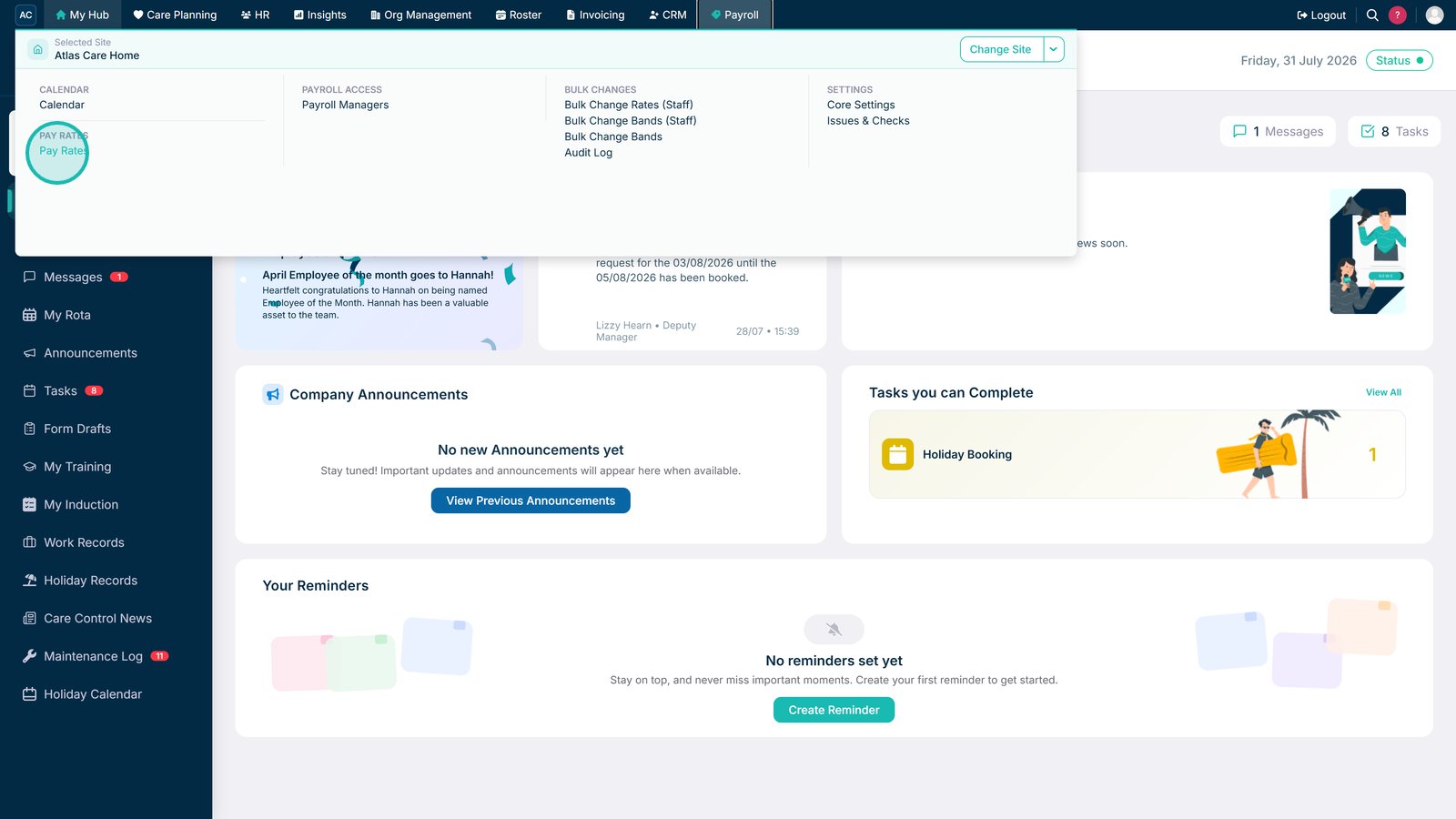
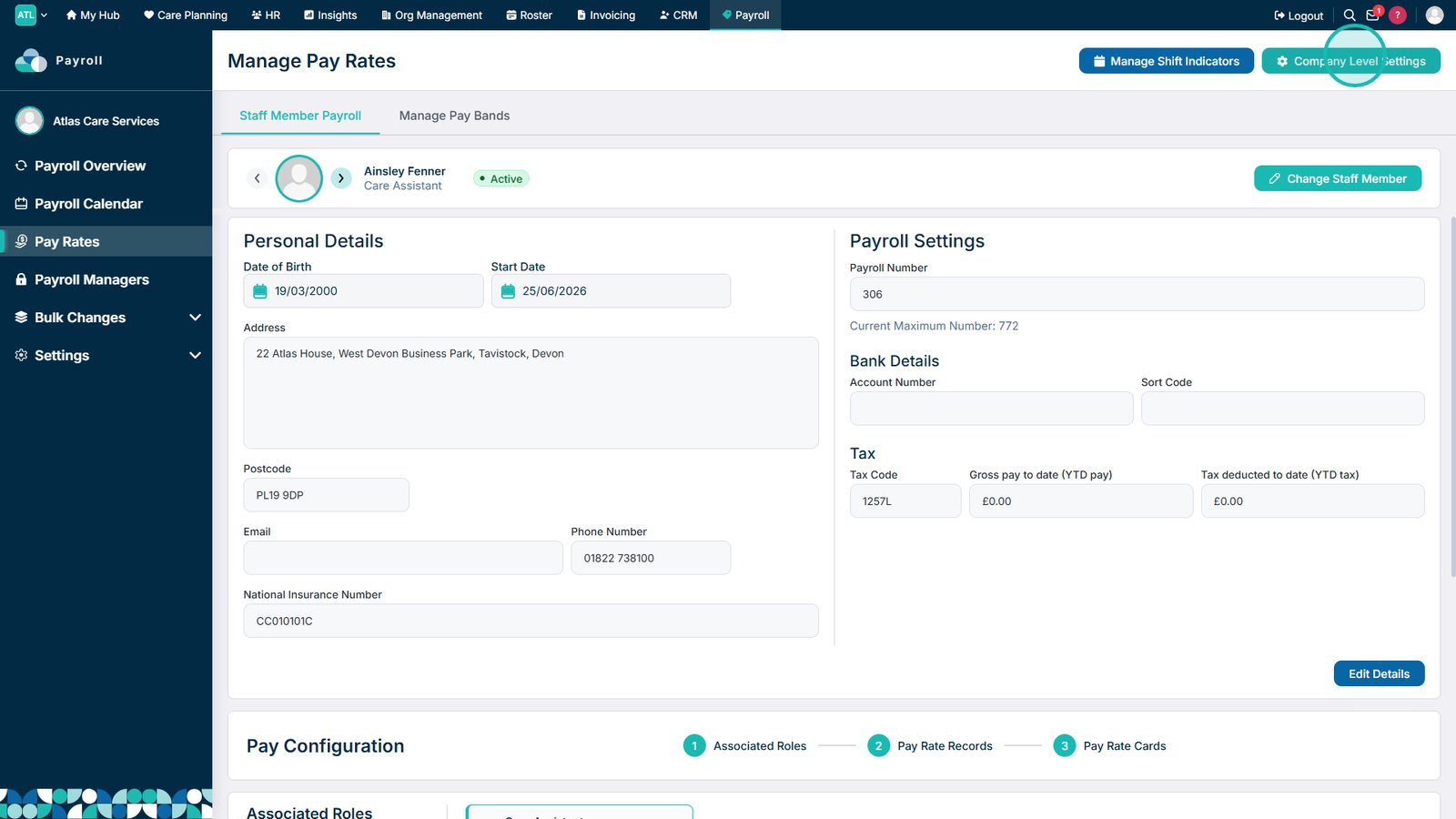
Open Pay Rates from the Payroll menu.

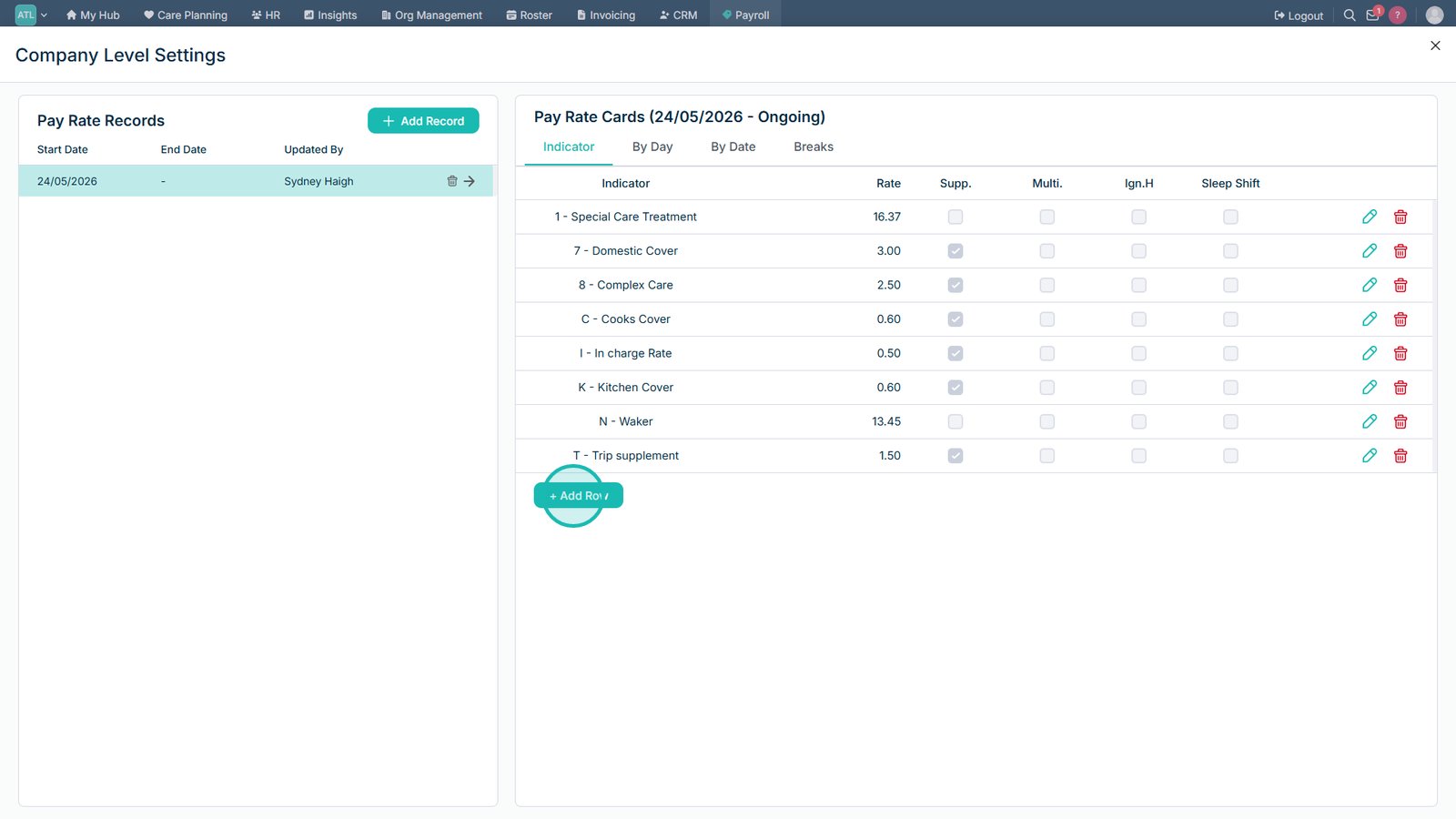
Select Company Level Settings.

Select Add Row to create a new pay rate.

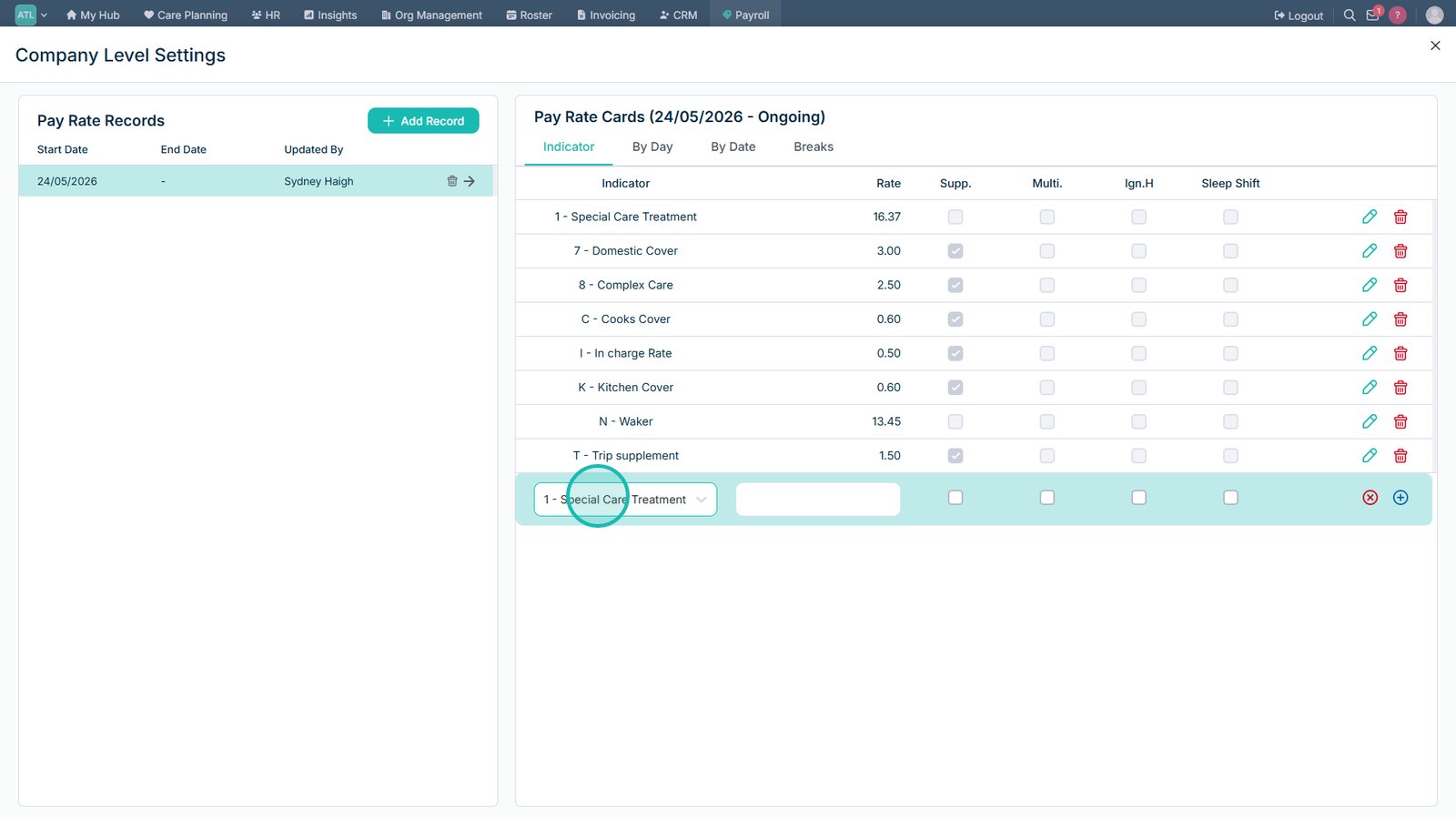
Open the Indicator drop-down list.

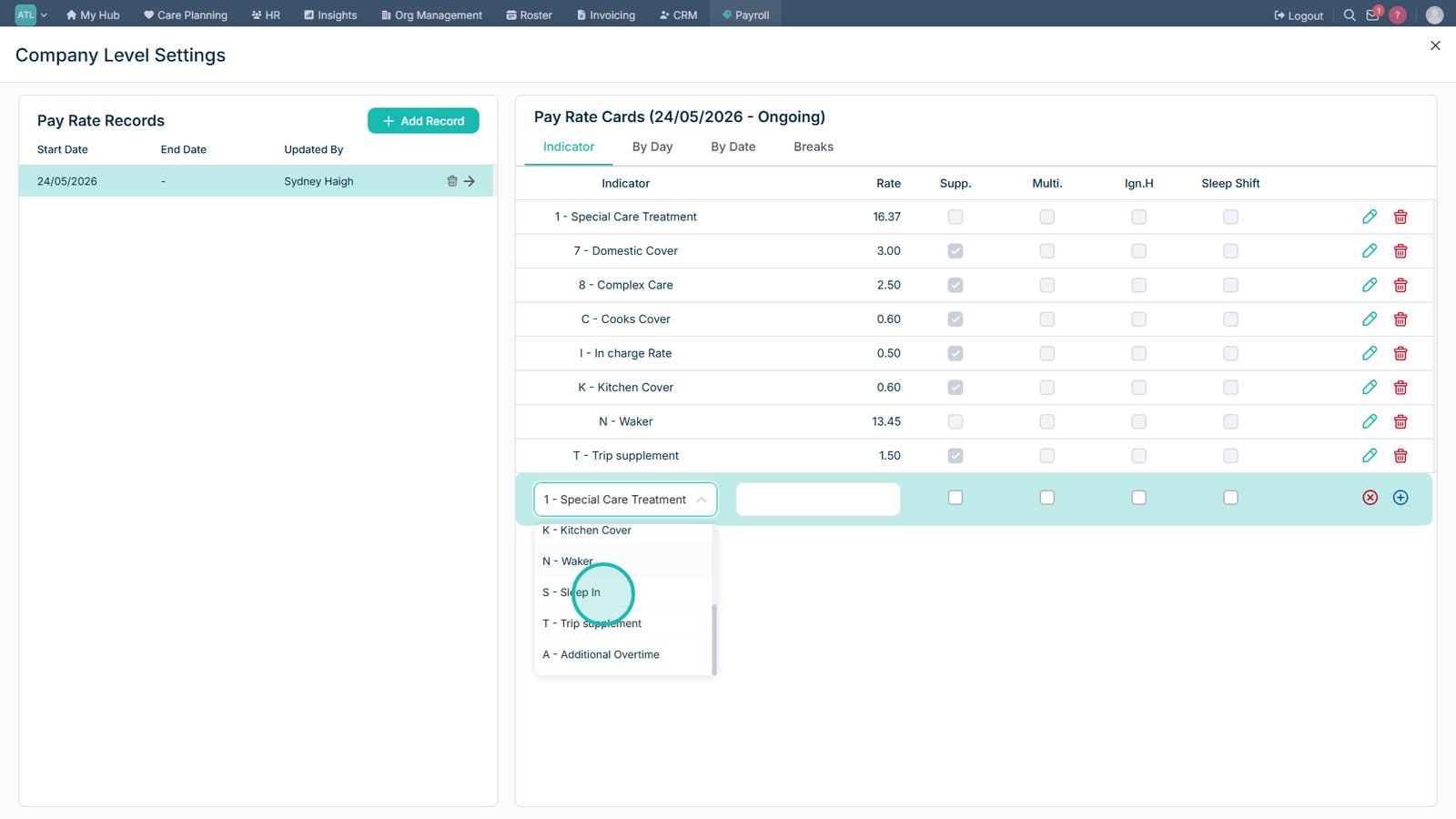
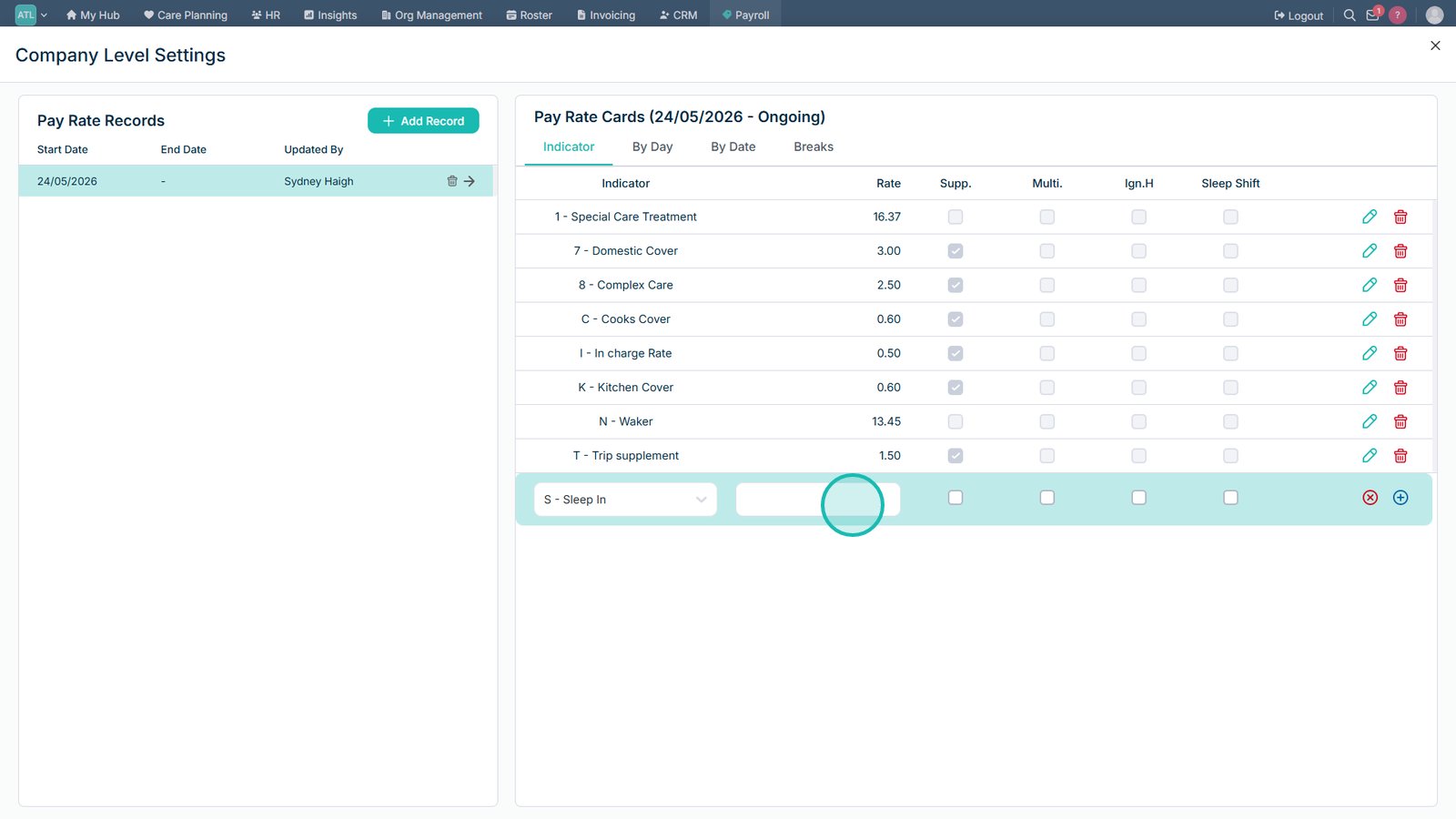
Select the S - Sleep In indicator.

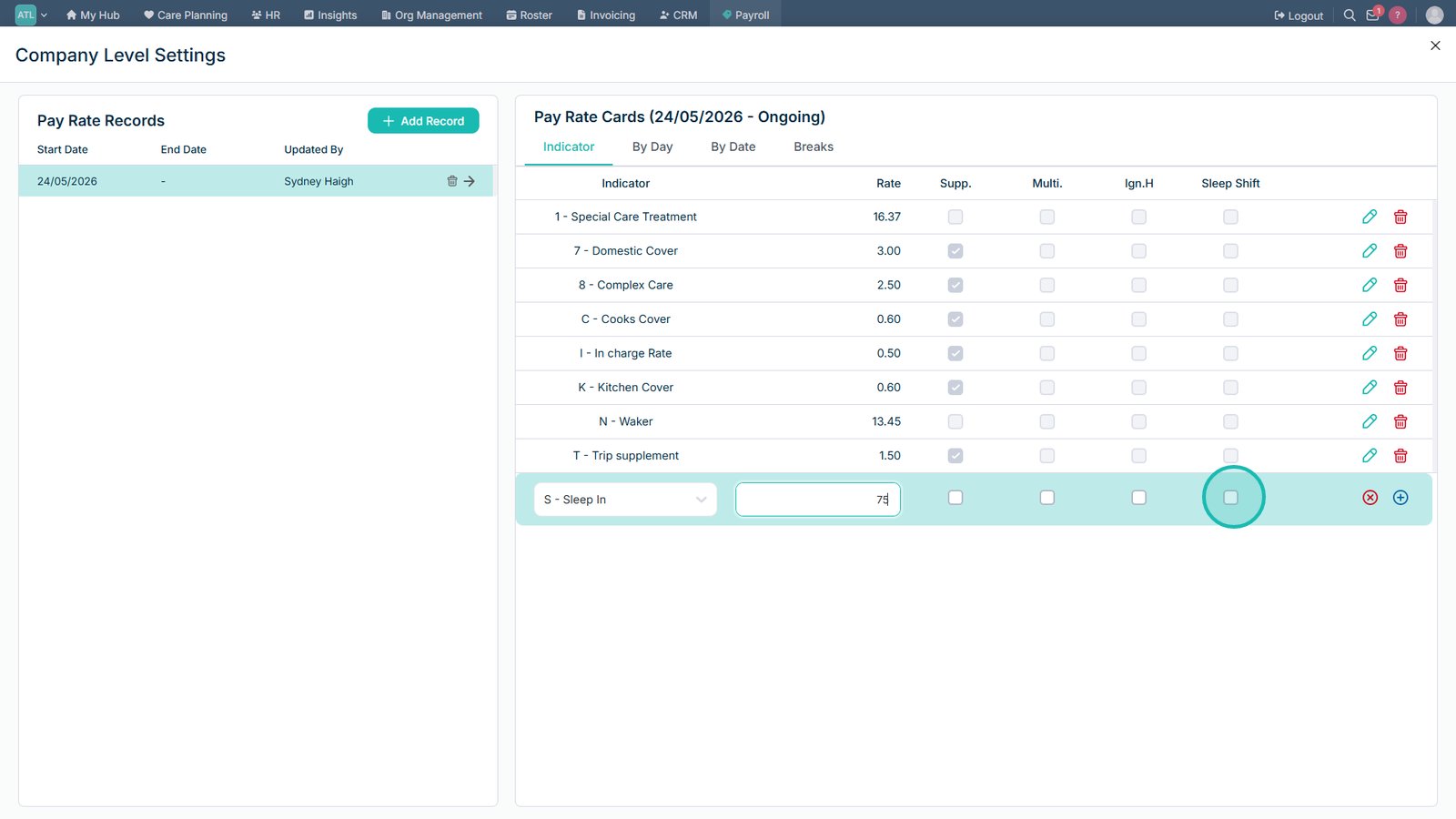
Enter the required Sleep In pay rate.

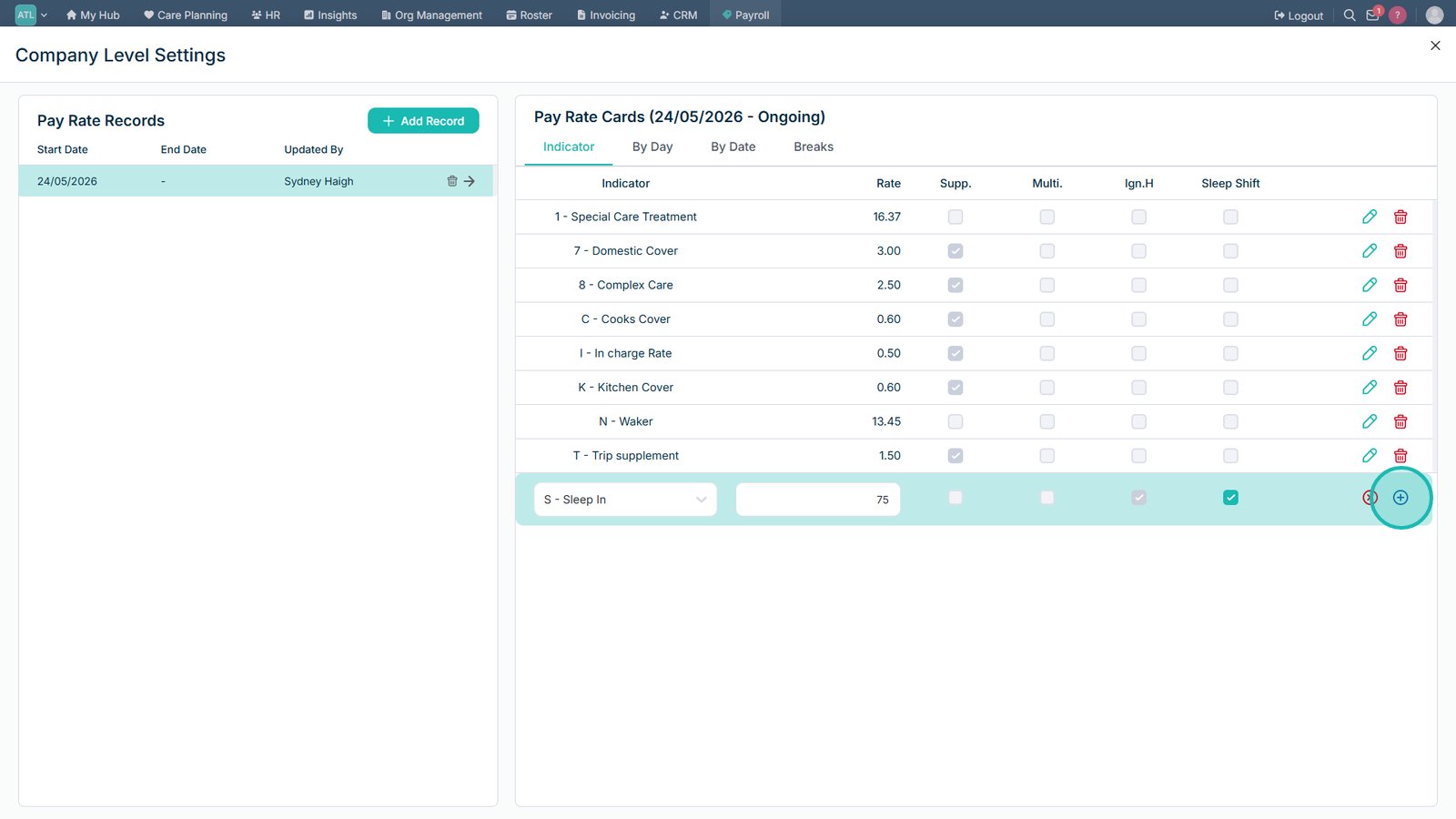
Enable the Sleep Shift option.

Select the Add icon to save the new Sleep In pay rate.

Top tip

Ensure the Sleep Shift option is enabled on the pay rate so sleep-in shifts are calculated correctly during payroll processing.

Was this guide helpful?

Need more help?

Can't find what you're looking for? Our support team is here to help.

Contact Support

Or call us on

On this page