
How to Set Up Care Control Intelligence
Learn how to set up Care Control Intelligence for the first time. This guide covers registering your device with a one-time code, verifying your access, choosing which areas and sites to monitor, and personalising your daily briefing with MargoAI.
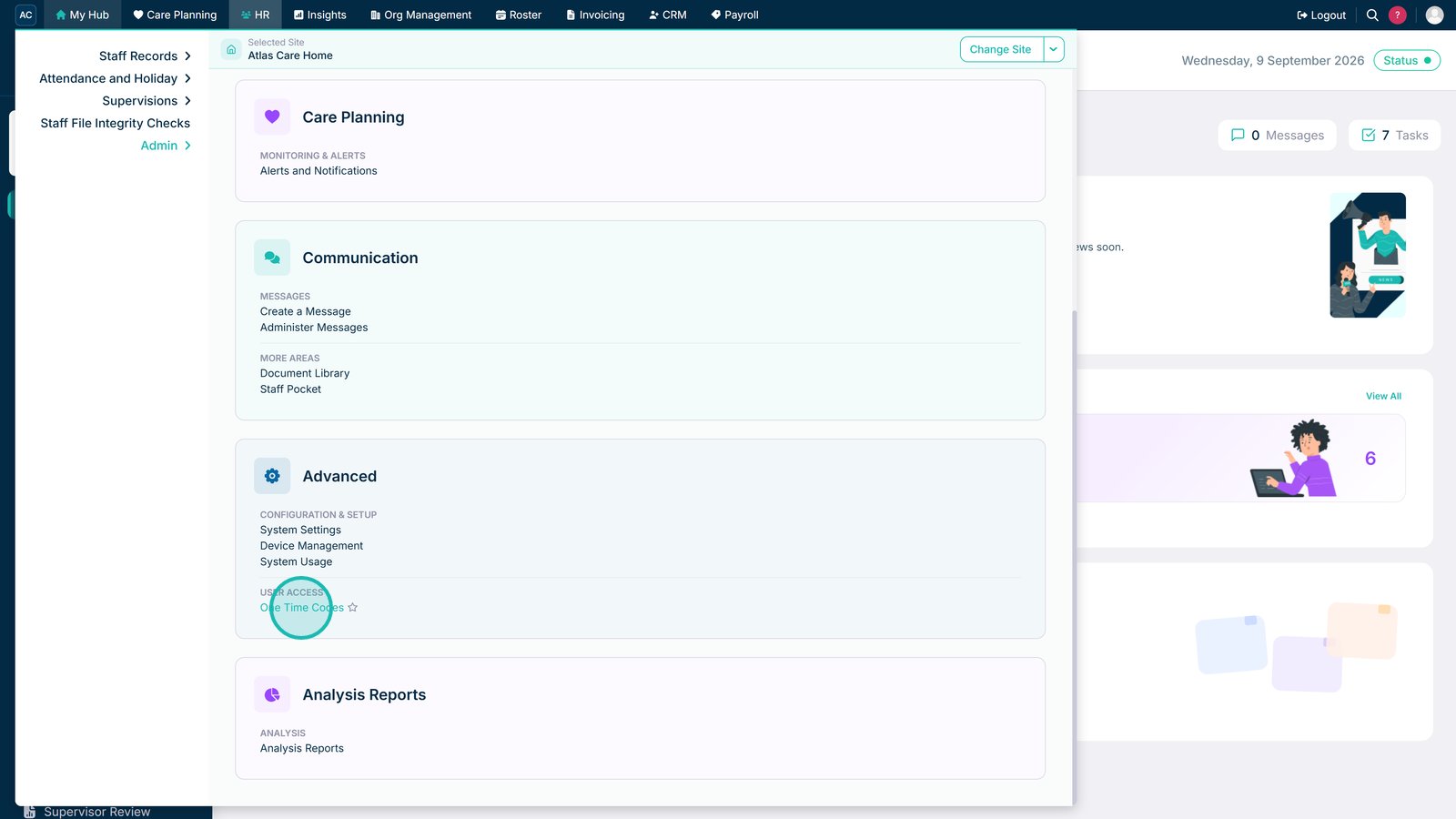
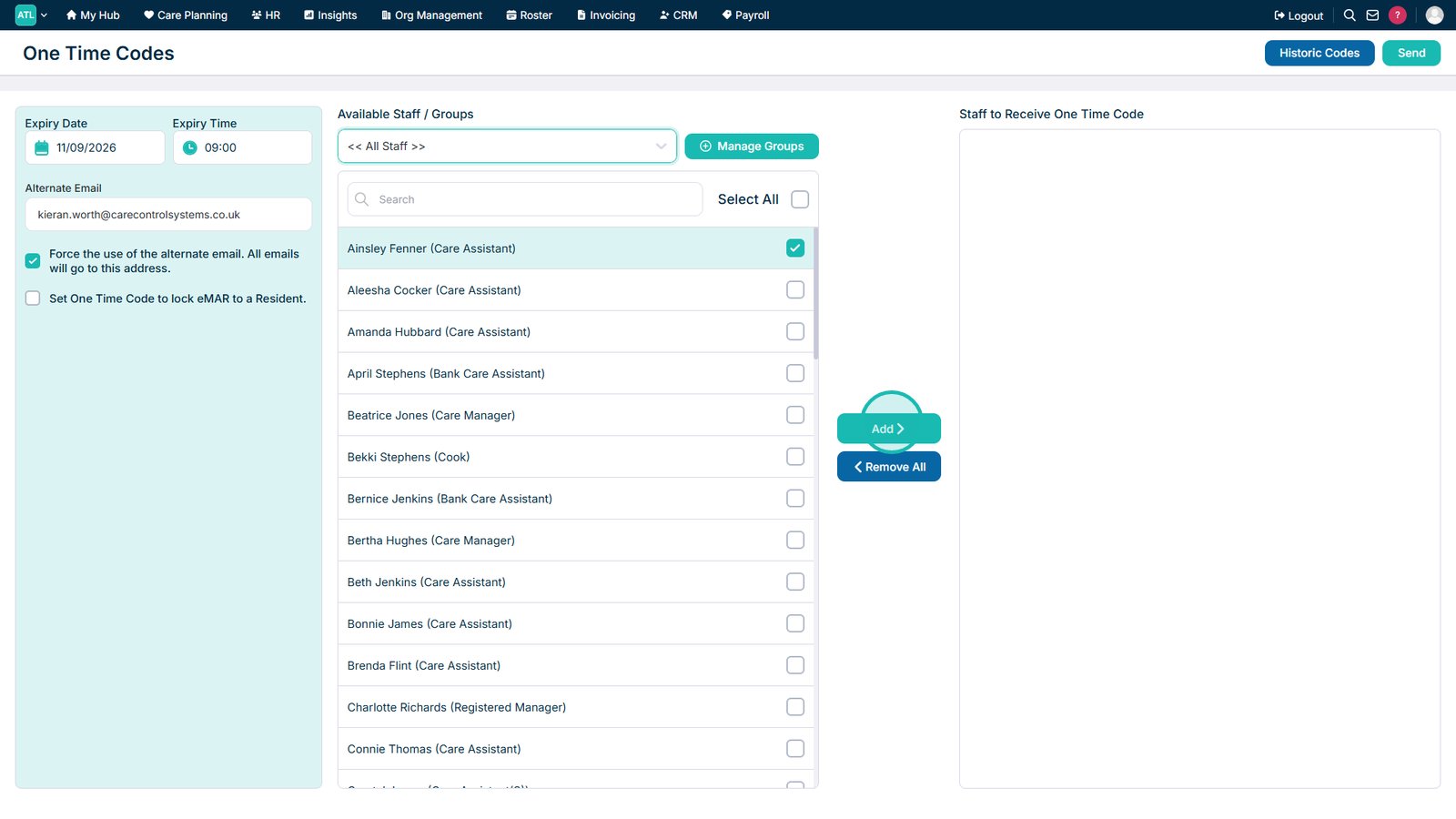
Open One Time Codes in Care Control Cloud
Before setting up Intelligence, you'll need a One-Time Code.
An authorised user can generate this by opening HR Advanced in Care Control Cloud and selecting One Time Codes.
If you've already received your One-Time Code, you can skip ahead to the device registration steps.
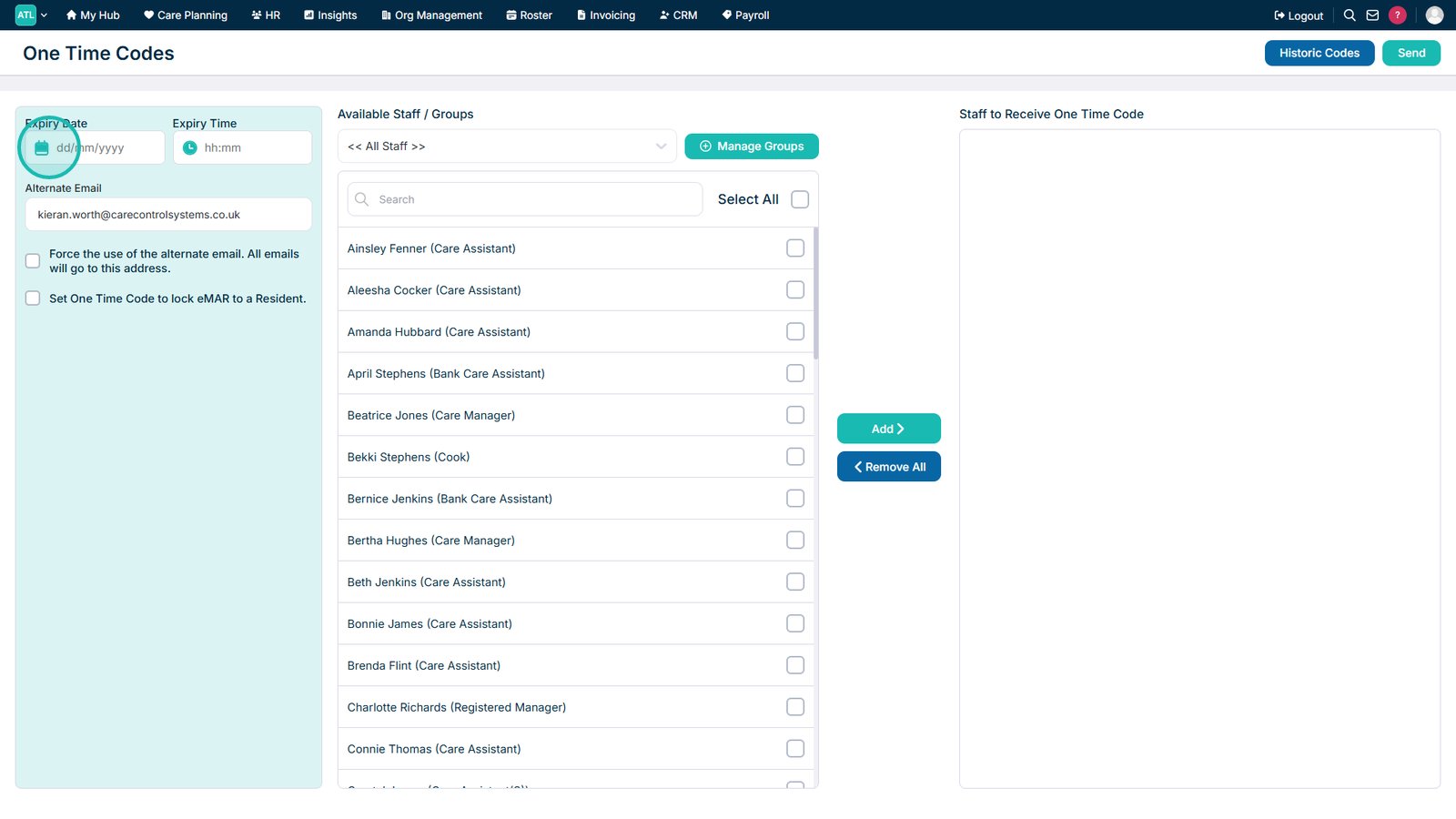
Set the Code's Expiry Date and Time
Select the calendar icon to choose the date when the One-Time Code will expire.
Make sure the expiry date gives the recipient enough time to register their device.
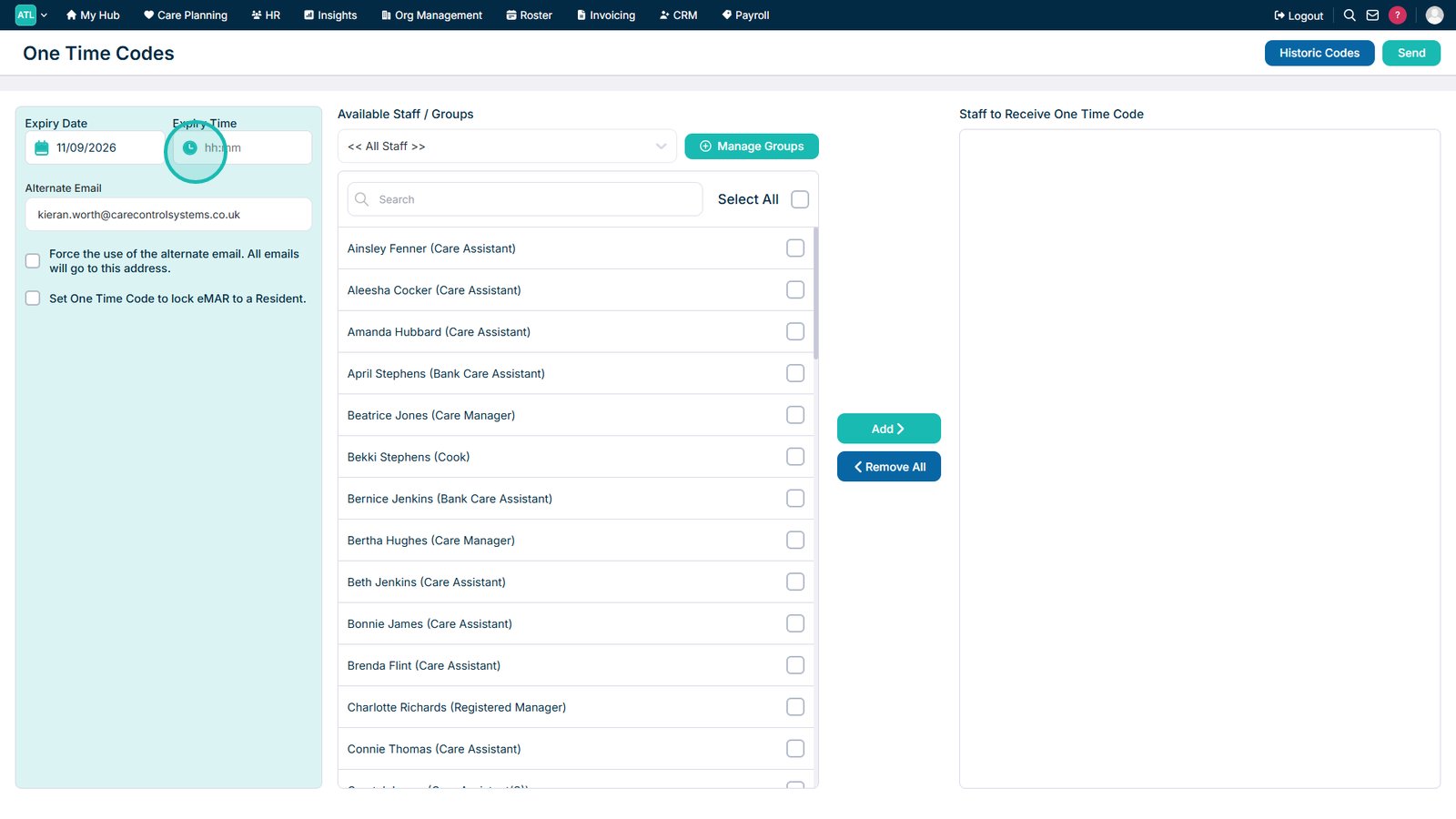
Next, select the clock icon to set the expiry time.
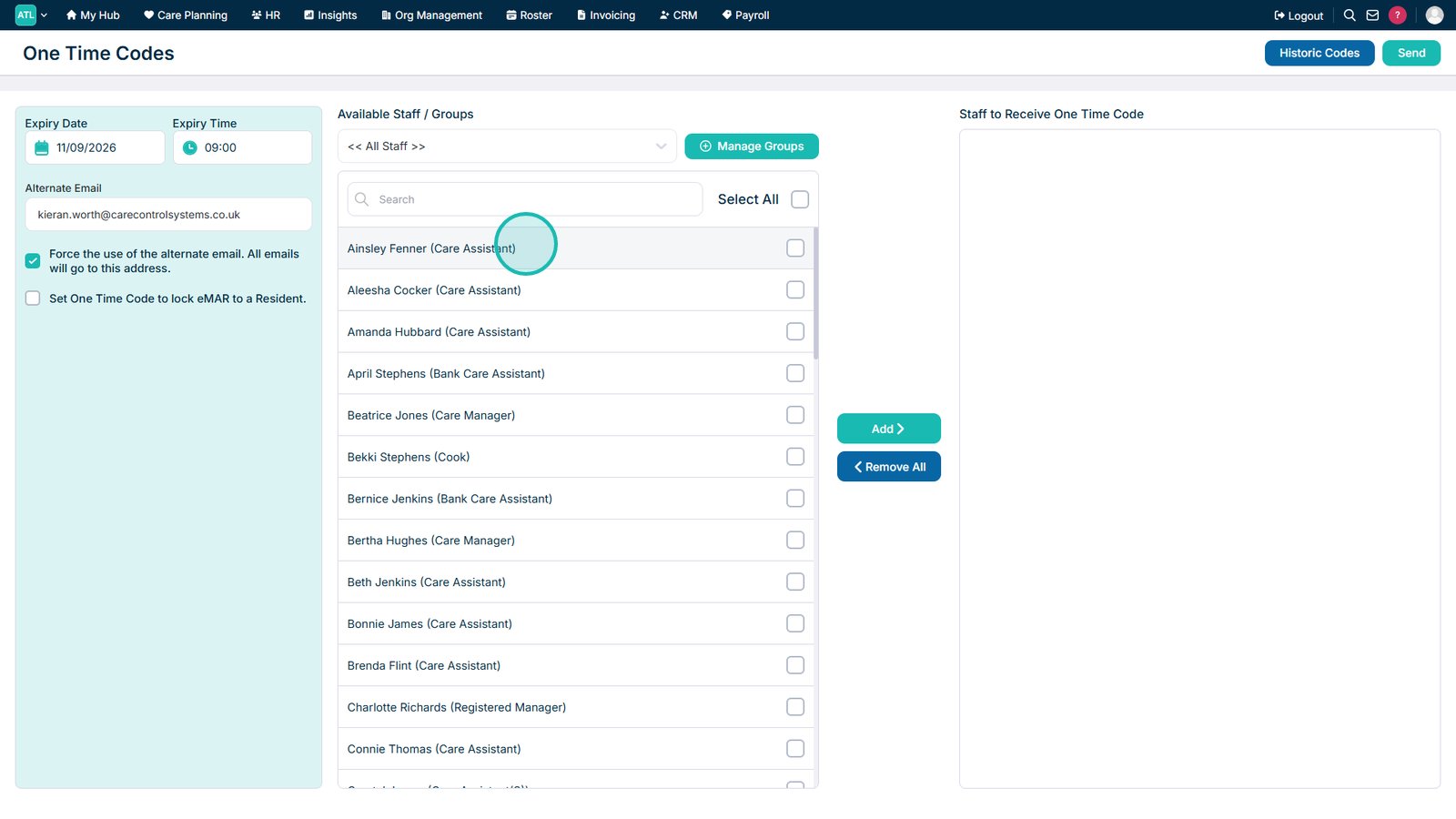
Select the Staff Member
Use the Group drop-down list if you need to filter the available staff members.
Select the staff member who needs the One-Time Code. You can select multiple staff members if required.
Add the Selected Staff Members
Select Add to include the selected staff members in the recipient list.
Generate and Send the One-Time Code
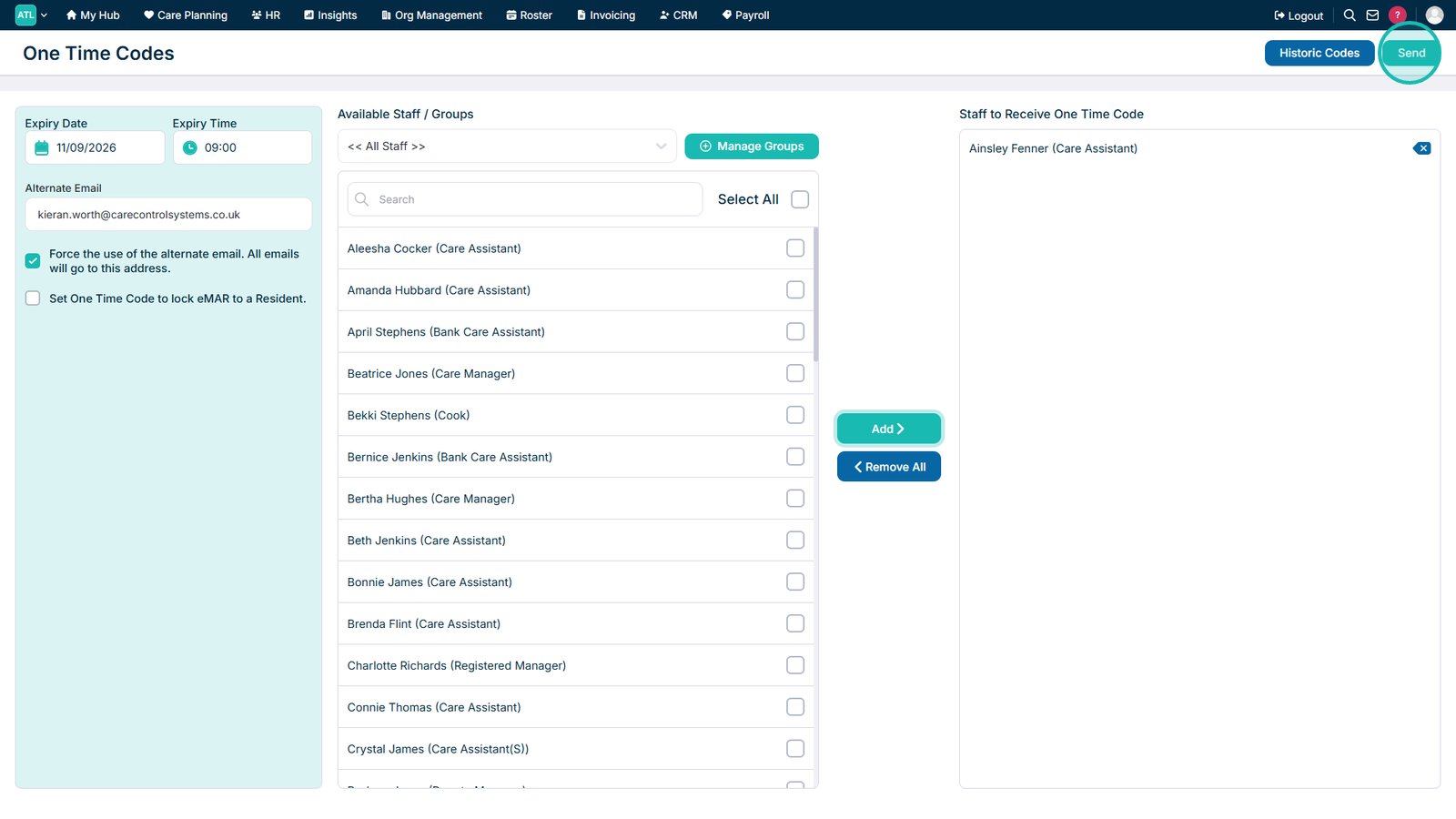
Select Send to generate the One-Time Code and send it to the selected staff members.
Once you've received your code, you can use it to register your device in Care Control Intelligence.
Download and Install Care Control Intelligence
Open the Apple App Store or Google Play Store on your device and search for Care Control Intelligence.
Find the application and select Install or Get to download it onto your device.


Open Care Control Intelligence
Once the installation is complete, select Open from the app store page to launch Care Control Intelligence.
You'll now be ready to register your device using the One-Time Code generated earlier.


Enter Your One-Time Code
Open Care Control Intelligence on your device.
Enter the One-Time Code you received into the box provided.

Continue to Device Registration
Once you've entered your code, select Next to continue.

Name Your Device
Enter a device name to help identify your device.
Choose a name that will make it easy to recognise, particularly if your organisation uses multiple devices.

Confirm Your Device Name
Once you've entered your device name, select Next to continue.

Enter Your Staff PIN
Enter your staff PIN to sign in and verify your access to Care Control Intelligence.

Review the Automatic Locking Information
For security, Care Control Intelligence will automatically lock when you leave the application.
Review the information displayed and select Continue.

Confirm Your Account Details
Check that your account and access details are correct.
If everything looks correct, select Looks Right to continue.

Review the Available Areas
You'll now be able to choose which areas of Care Control Intelligence you would like to use.
Review the available options and consider which areas are most relevant to your role and responsibilities.

Choose Which Areas to Include
Tap an area to select or deselect it.
Areas with a tick will be included in your Intelligence experience. Untick any areas you do not wish to see.

Continue with Your Selected Areas
Once you're happy with your choices, select Continue.

Review Your Available Services
You'll now see the care services available to you.
Choose which services you would like to receive information about. Services with a tick will be included in your Intelligence updates.

Choose Which Services to Monitor
Tap a service to remove its tick if you do not want to receive information about it.
Leave the services you want to monitor selected.

Continue with Your Selected Services
Once you've chosen which services to monitor, select Continue.

Choose Your Daily Briefing Time
Choose the time you would like to receive your daily briefing.
The default time is 8:00 AM, but you can change this to a time that works best for you.

Choose Your Briefing Notifications
Choose whether you would like to receive a push notification on your device when your daily briefing is ready.

Choose Whether to Receive Briefings by Email
You can also choose to have your daily briefing sent by email.
Enable this option if you would like to receive your briefing in your email inbox.

Choose How Margo Delivers Your Briefing
Choose whether you would like Margo to read your daily briefing aloud or whether you would prefer to read it yourself.

Select Your Preferred Briefing Length
Choose how long you would like your daily briefing to be.
Select the option that best suits the amount of information you would like Margo to provide.

Choose Which Alerts to Receive
Select the types of alerts you would like to receive in Care Control Intelligence.
You can choose between Critical Alerts, Important Alerts or All Alerts, depending on how much information you want to receive.

Choose Your Comparison Period
Select the comparison period you would like Margo to use when preparing your daily briefing.
This determines which period of information Margo will use when comparing results and highlighting changes.

Finish Setting Up Care Control Intelligence
Once you're happy with your preferences, select Finish Setup to complete your Care Control Intelligence configuration.
Your device is now registered and your preferences have been saved. You can begin using Care Control Intelligence to explore your services, review important information and receive personalised briefings from Margo.
