You could win a £250 Amazon gift card! All you need to do is spare us 3 minutes of your time. Click here to find out more!
This guide will go over the creation of new positions and how to edit existing positions.
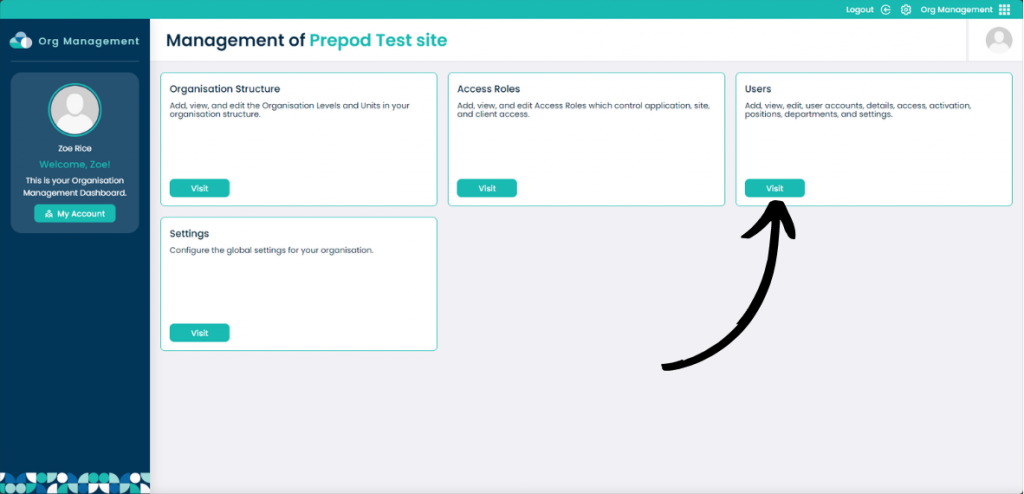
From within the Organisational Management app select Visit on the Users box.
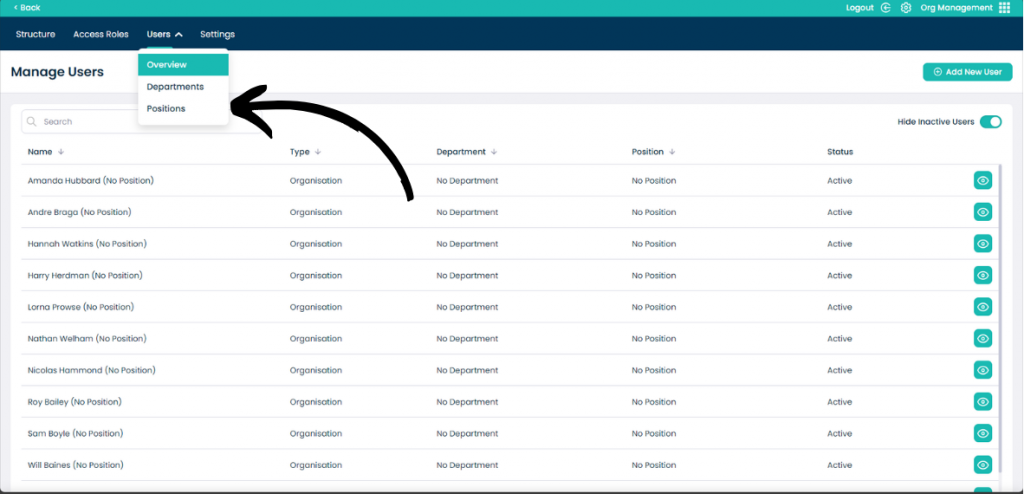
Click the Users drop down menu and then select Positions.
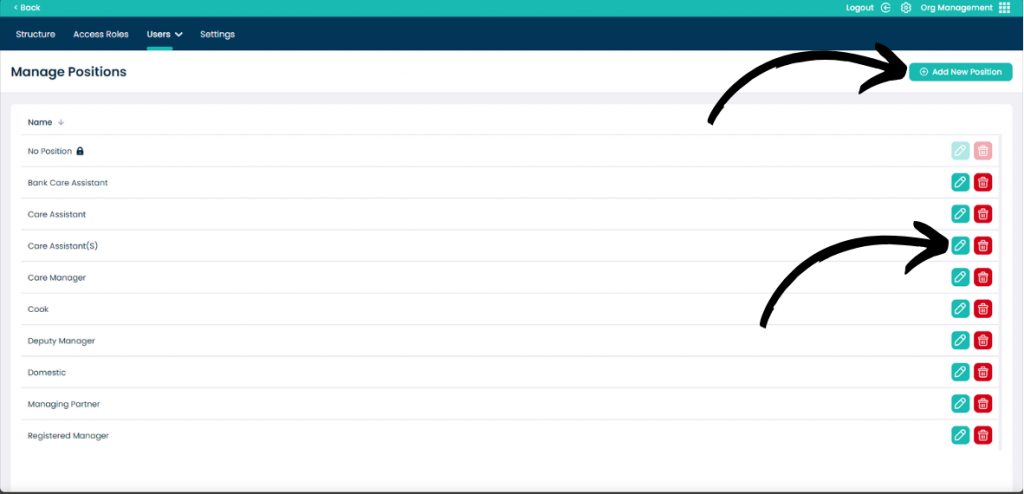
To create a new position click Add New Position.
To modify an existing position select the Pencil icon next to the name.
You can also remove the position by selecting the Bin Icon.
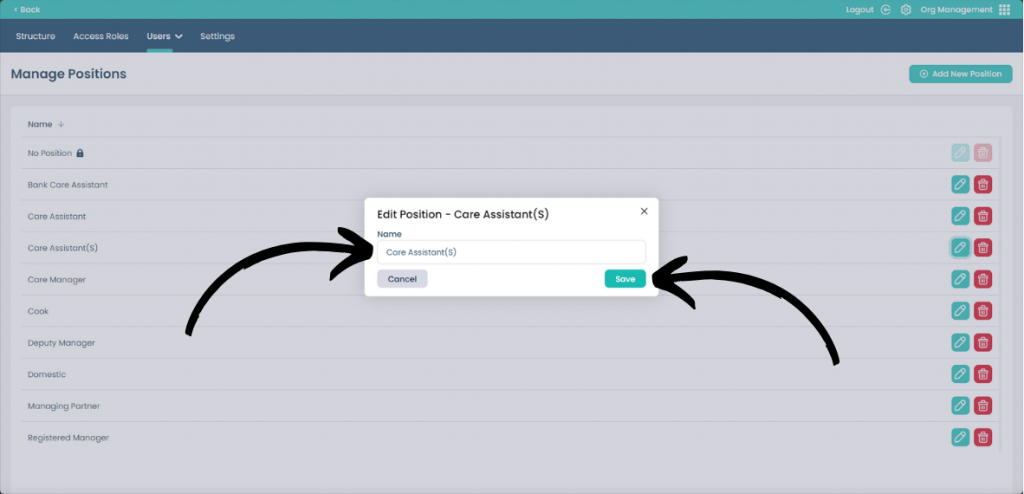
After clicking either Add New Position or Edit Position this box will appear.
You can enter or modify the Name of the position and when happy, click Save. If you don’t want to save your changes, click Cancel or the X on the box.