This guide will cover how to access and amend the Personal Details section of a service user’s Care Plan. This includes how to create custom sections to record information in.
1
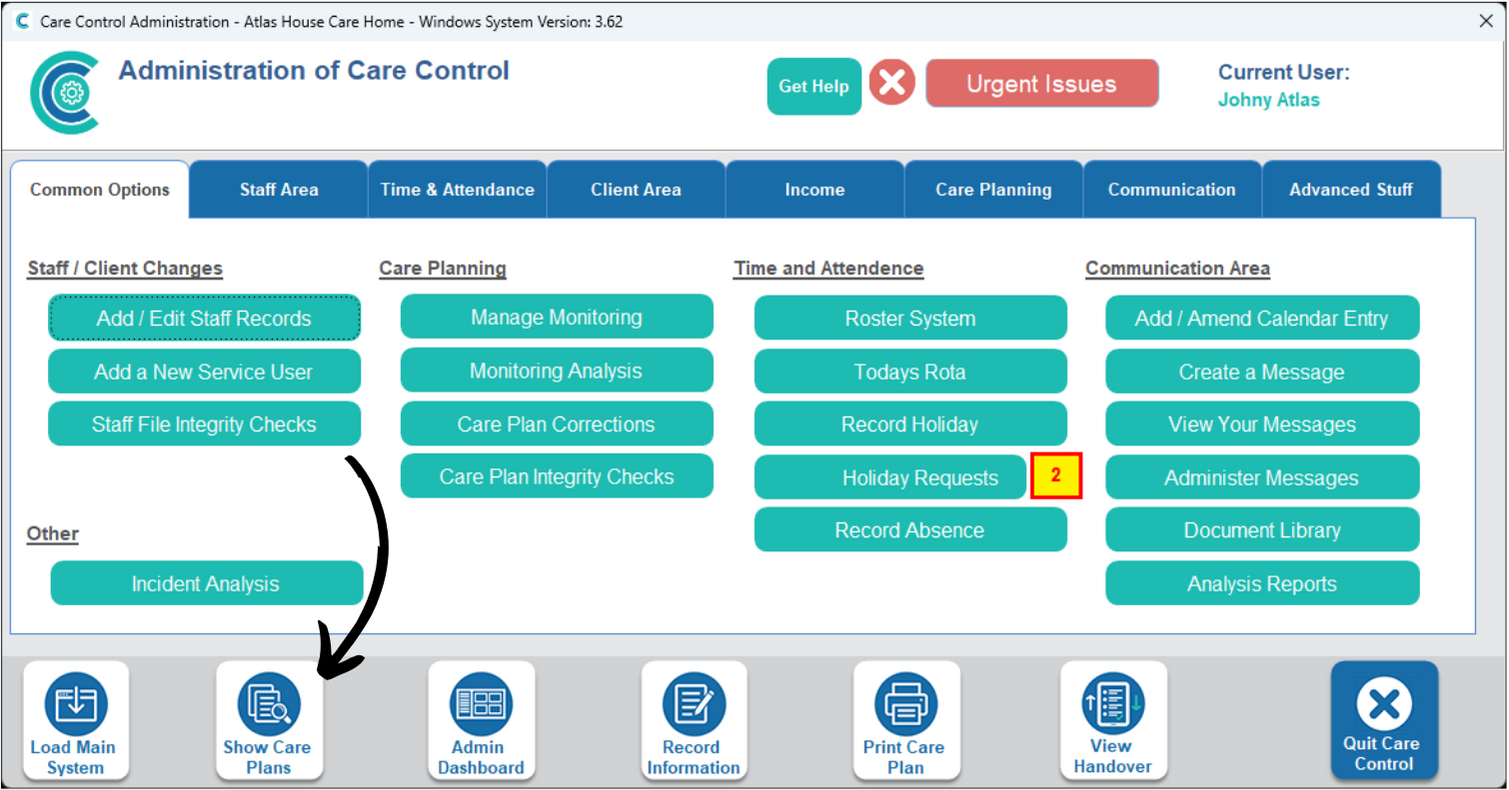
In the Administration of Care Control Windows, select the Show Care Plans tool, which can be found at the bottom of the screen.
2
Select your service user, then choose Personal Details from the right hand side.
3
The Personal Details page will open for the selected service user.
It is split into 3 main tabs – Personal Details, Further Details and Personal Appearance.
Press Click to Edit Care Plan at the top of the window to amend the details.
4
When a yellow border shows in the window, it is in edit mode.
You can add, remove and edit the information here. This part of the care plan contains some crucial and important information for the service users, including things like GP & Doctors Surgery, Allergies, DNR options and much more.
Press Click to Save Changes after making any amendments.
5
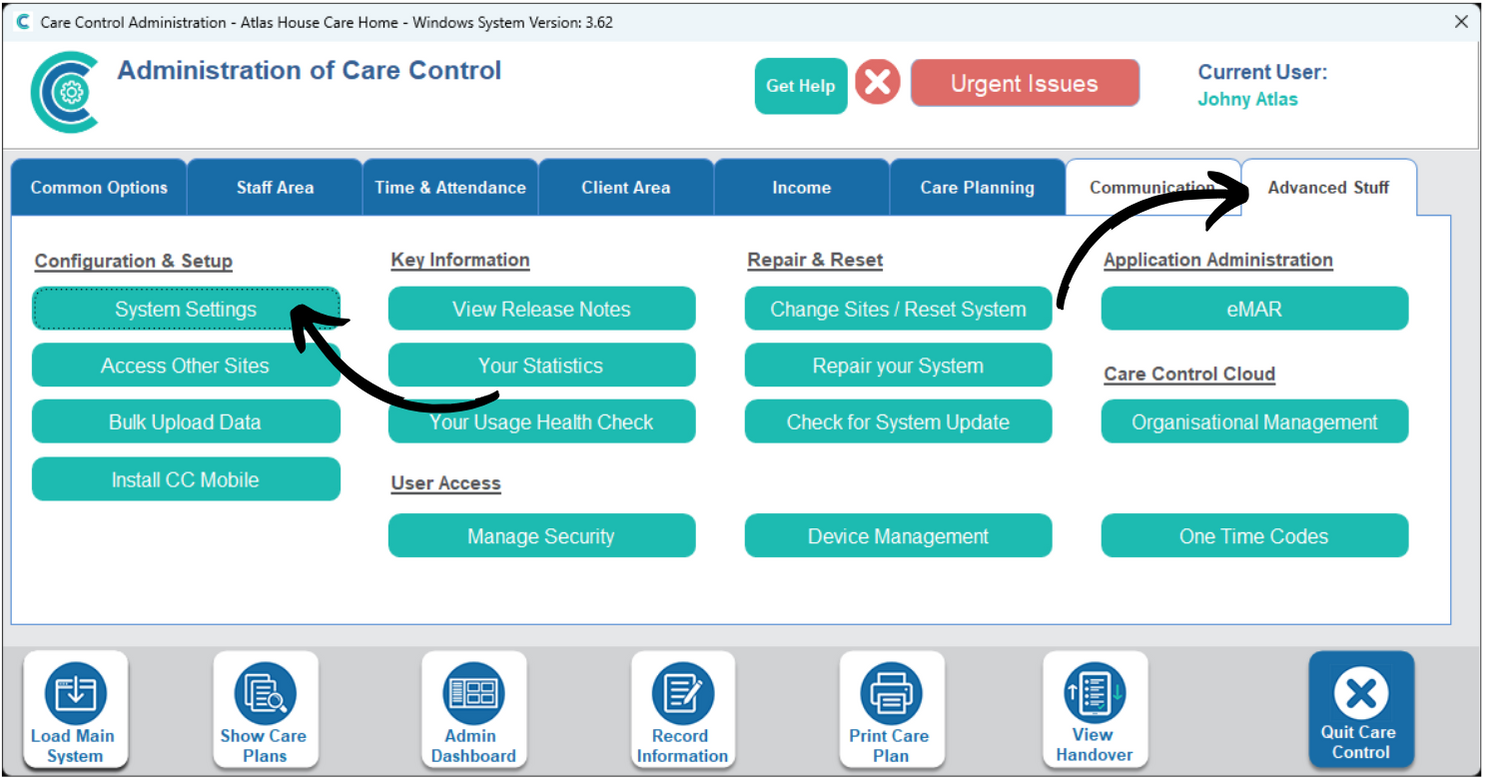
To create custom fields for information within the Personal Details area of the Care Plan, begin by opening the System Settings, which can be found under the Advanced Stuff tab.
6
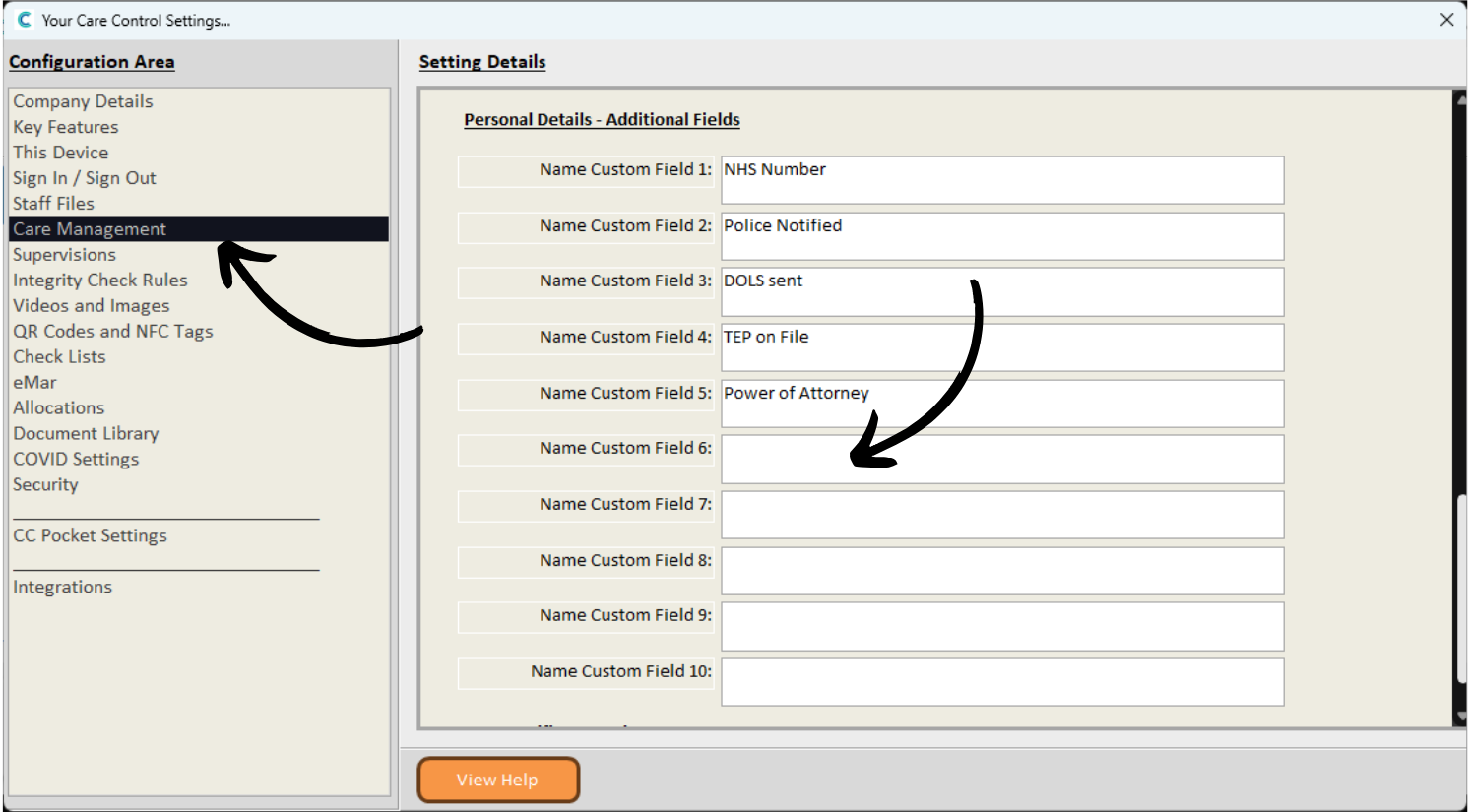
A new window will open. Here, select Care Management from the options on the left hand side. Then, scroll down to the section labelled Personal Details – Additional Fields.
As you can see, we already have some set-up. To create a new one, simply type the Name of the custom field in the empty text box.
7
In this example, we will simply enter the text ‘This is a Test’.
Some examples of custom areas you might want to use are: names of further contacts, such as the bank branch your service user uses; the name of the service users pet; whether the service user prefers morning or evening visits etc.
Make sure to Save Changes after updating any fields.
8
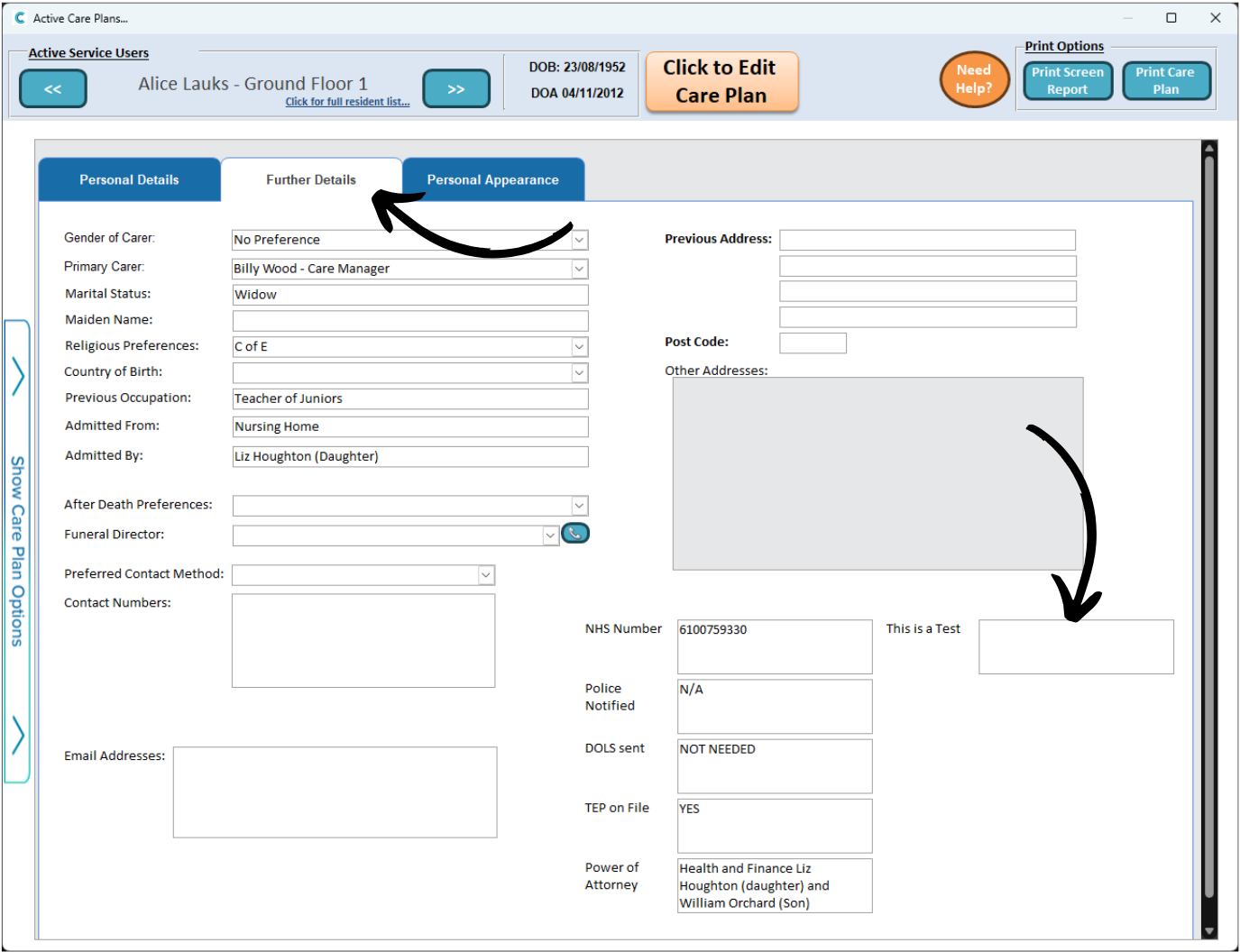
As you can see, now in the Further Details tab of the Personal Details page on the Care Plan, there is a new text entry field, labelled ‘This is a Test’.
This is where your new area would show. In the same way as in Step 3, you can press Edit to enter information into the new box.