Bank Holiday Closure Notice: We will be closed on the 3rd April for the Easter bank holiday, so our customer service team will not be available on this day. If you need to get in touch, you can still use our customer contact form and we will get back to you as soon as possible. Even better, Margo will still be available on our phone lines to help with your queries whenever you need support. We hope you have a lovely Easter weekend 🐣
View Categories
Assigning a Checklist to Multiple Staff
This guide will cover one method to assign a checklist to multiple staff members. This method allows staff to collaborate on the same checklist and complete the same one together.
1
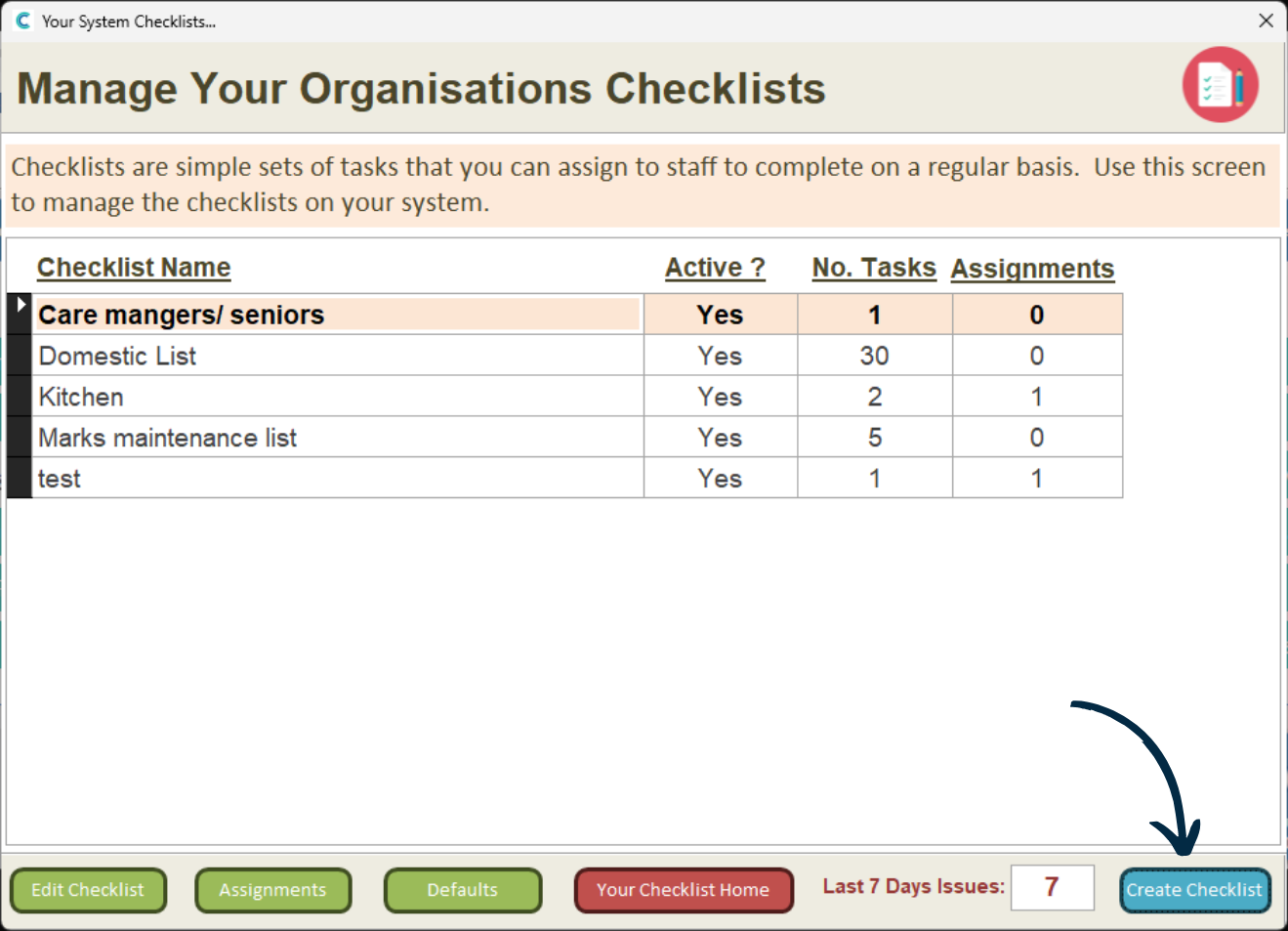
In the Administration of Care Control Windows, navigate to the Checklists tool, which can be found under the Communication tab.
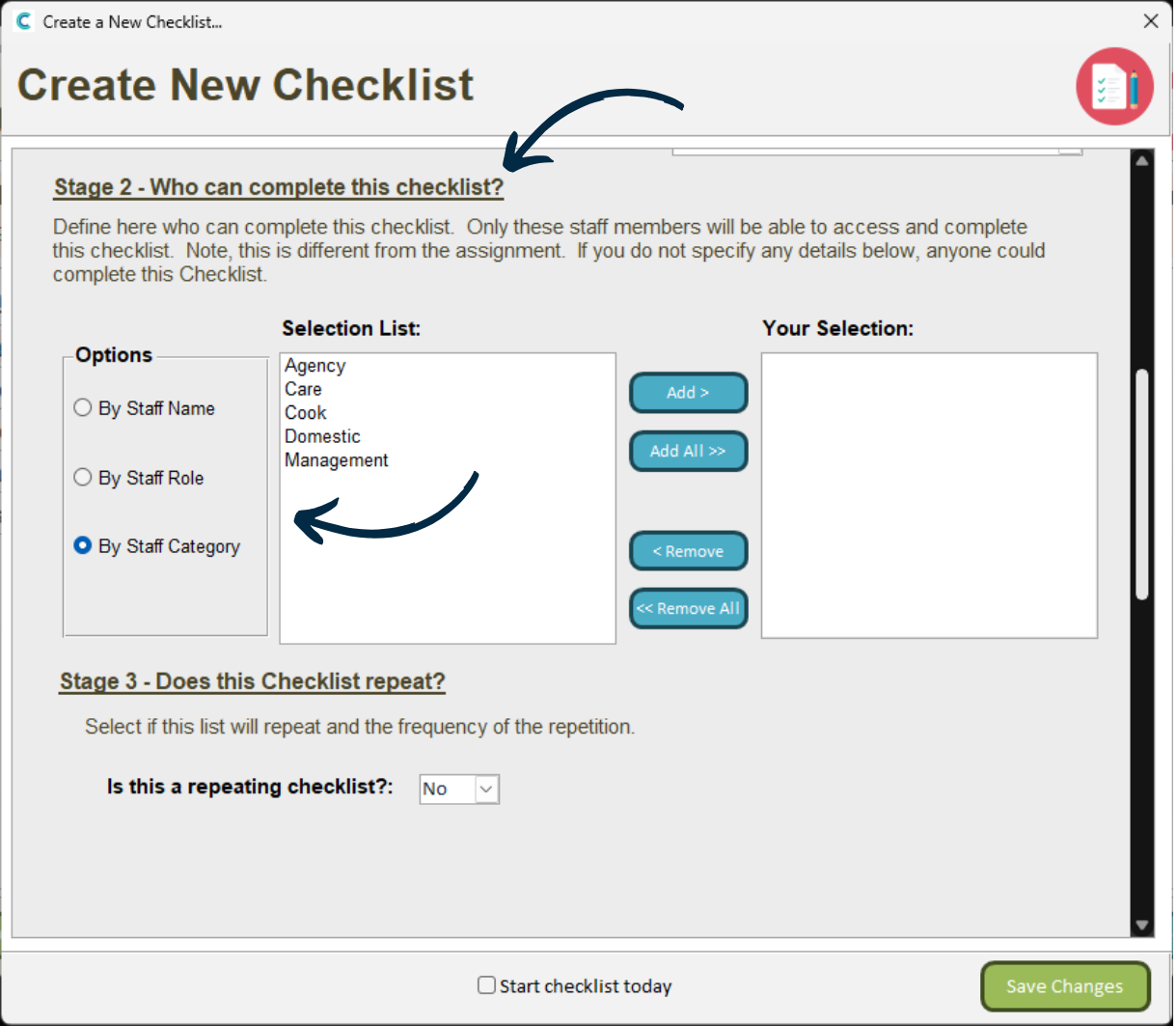
In Stage 2, choose the category or role of the staff you want to be able to collaborate on this checklist.
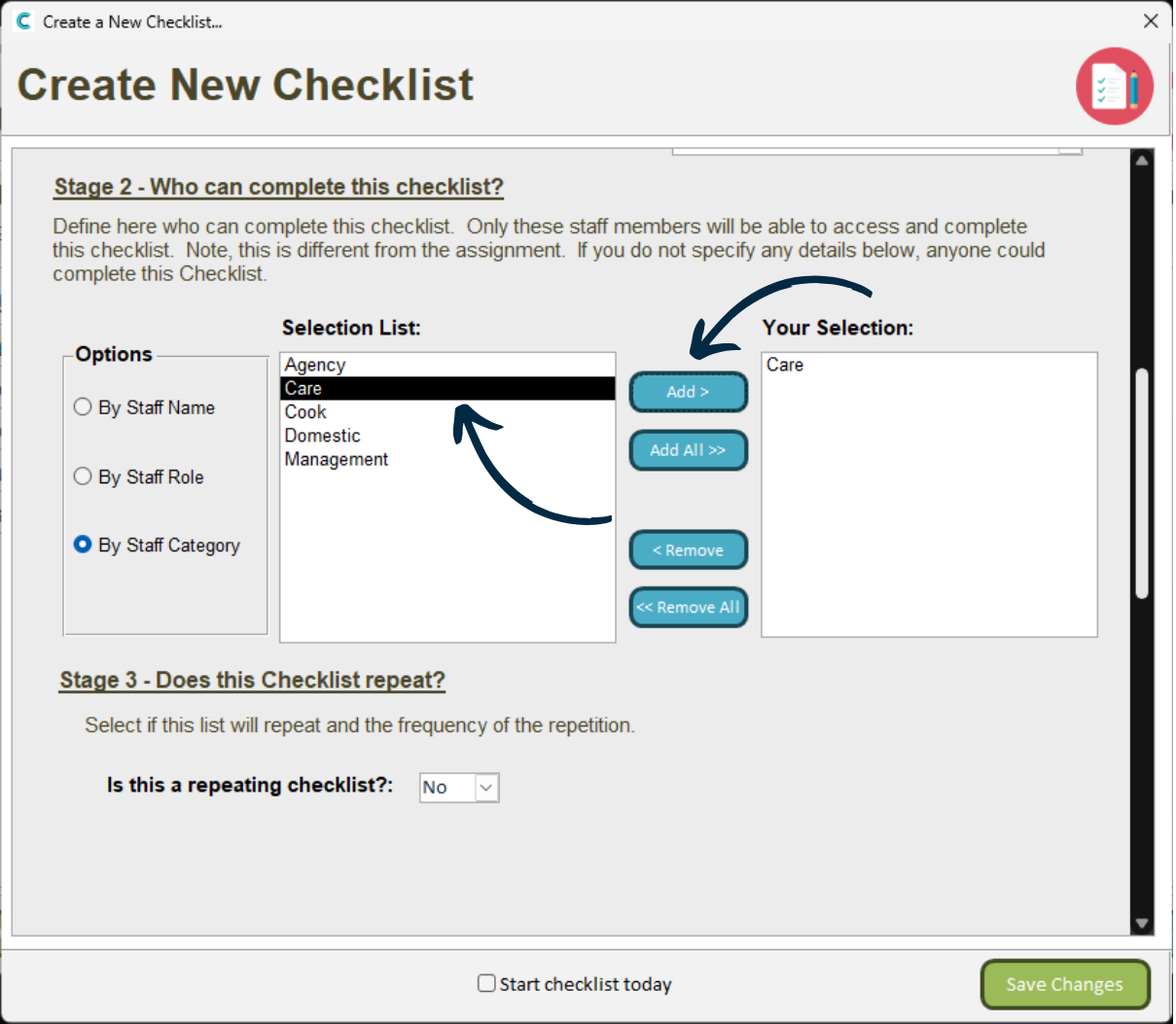
For example, if you want all Carestaff to be able to work on this checklist, select them and press Add.
4
After doing so, continue to complete your new checklist, then, press Save Changes.
5
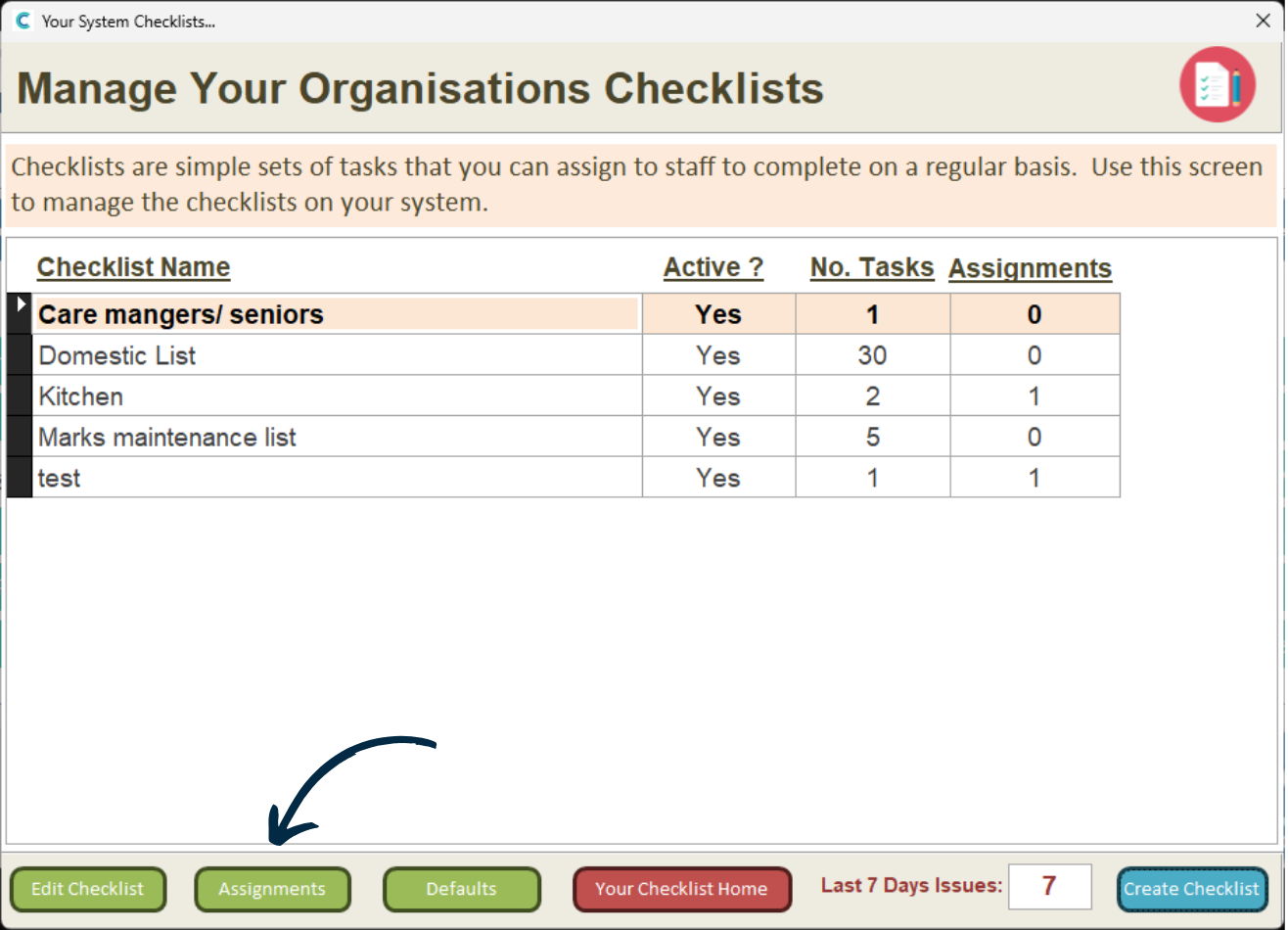
From the Checklists tool homepage, press Assignments from the options along the bottom of the window.
6
Then, press Add New to create a new assignment.
7
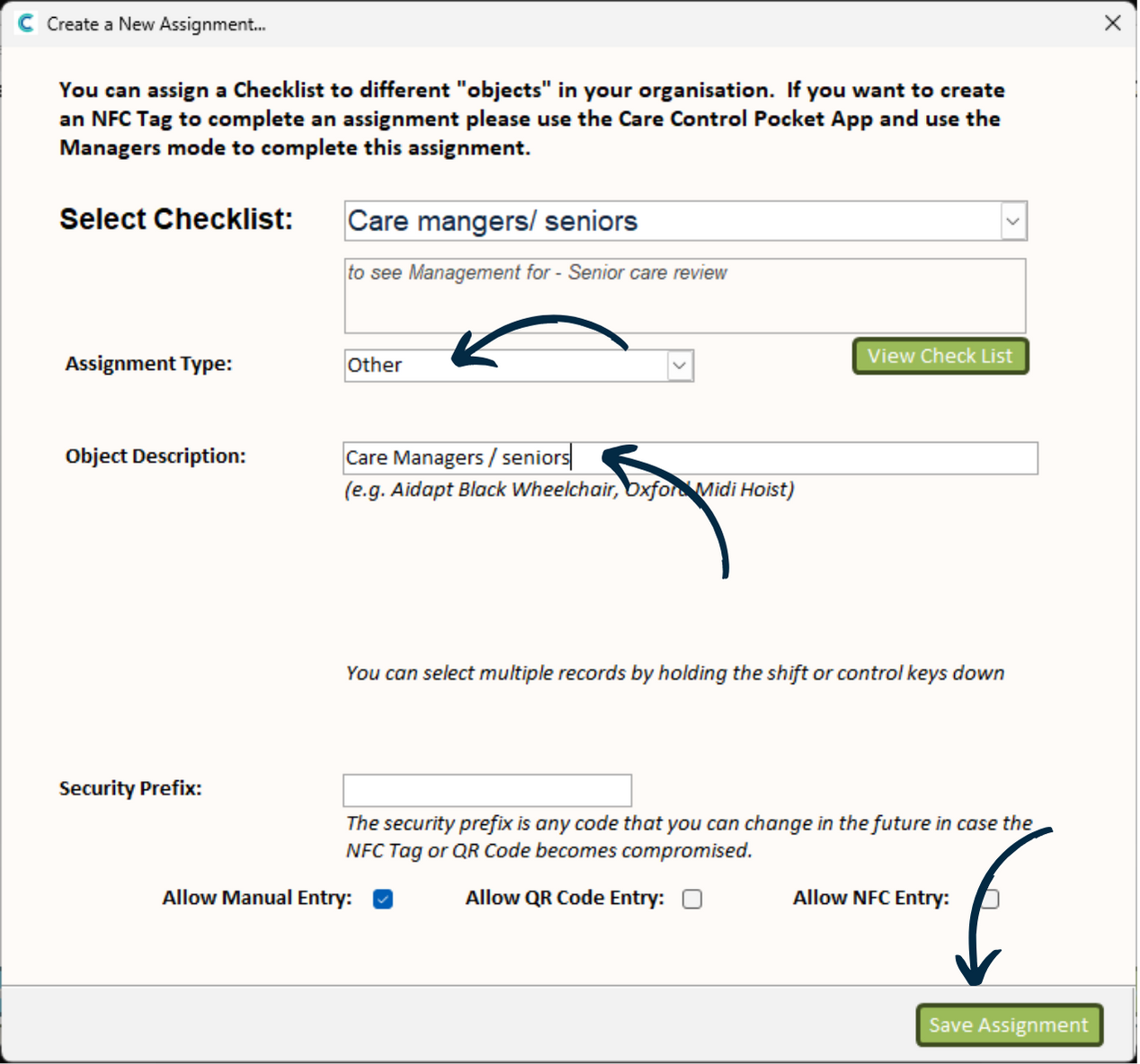
A blank form will open. Begin by choosing your checklist from the drop-down list.
Then, from the Assignment Type drop-down list, select Other.
8
Finally, enter the name of the checklist into the Object Description text box.
Press Save Assignment to complete the process.
9
Your new assignment will now appear in the list. This will allow any staff members with the chosen role / category to work on the same instance of a checklist, meaning they can collaborate to complete it.