Bank Holiday Closure Notice: We will be closed on the 3rd April for the Easter bank holiday, so our customer service team will not be available on this day. If you need to get in touch, you can still use our customer contact form and we will get back to you as soon as possible. Even better, Margo will still be available on our phone lines to help with your queries whenever you need support. We hope you have a lovely Easter weekend 🐣
View Categories
Assigning an Induction to a Staff Member
This guide will cover how to assign a staff member an induction to complete via Care Control Windows. These inductions contain topic areas which need to be signed off before the induction can be completed. This might include policies about the workplace or information about training.
1
In the Administration of Care Control Windows, navigate to the Staff Records tool, which can be found under the Staff Area tab.
2
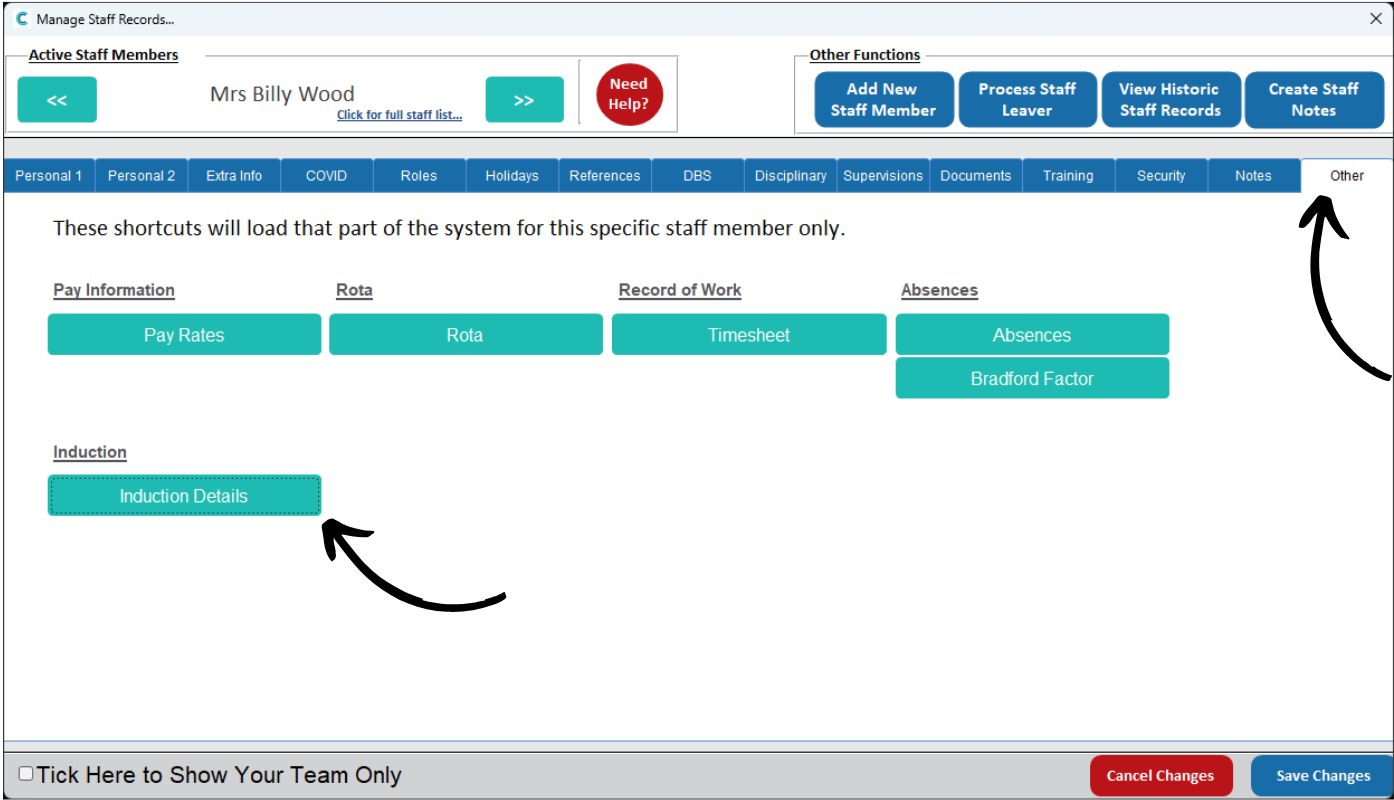
Find the staff member you wish to assign an induction for via the options at the top of the window.
Then, select the Other tab from the staff record sections. Here, press Induction Details.
3
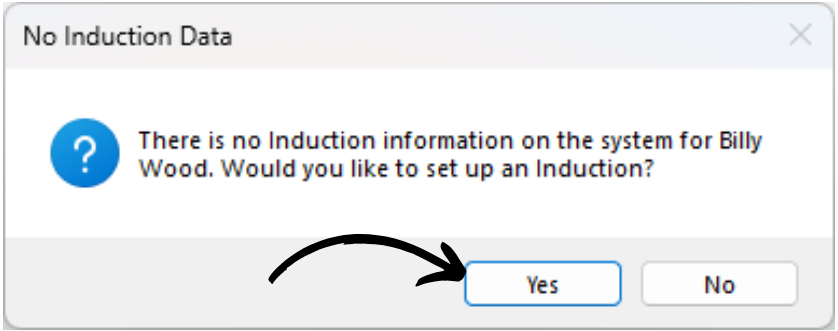
Since you are assigning a new induction, this message will appear.
Press Yes.
4
Select the induction you wish to assign from the drop-down list and press Set Induction. You can view a summary of the induction before assigning it via the Induction Summary button.
5
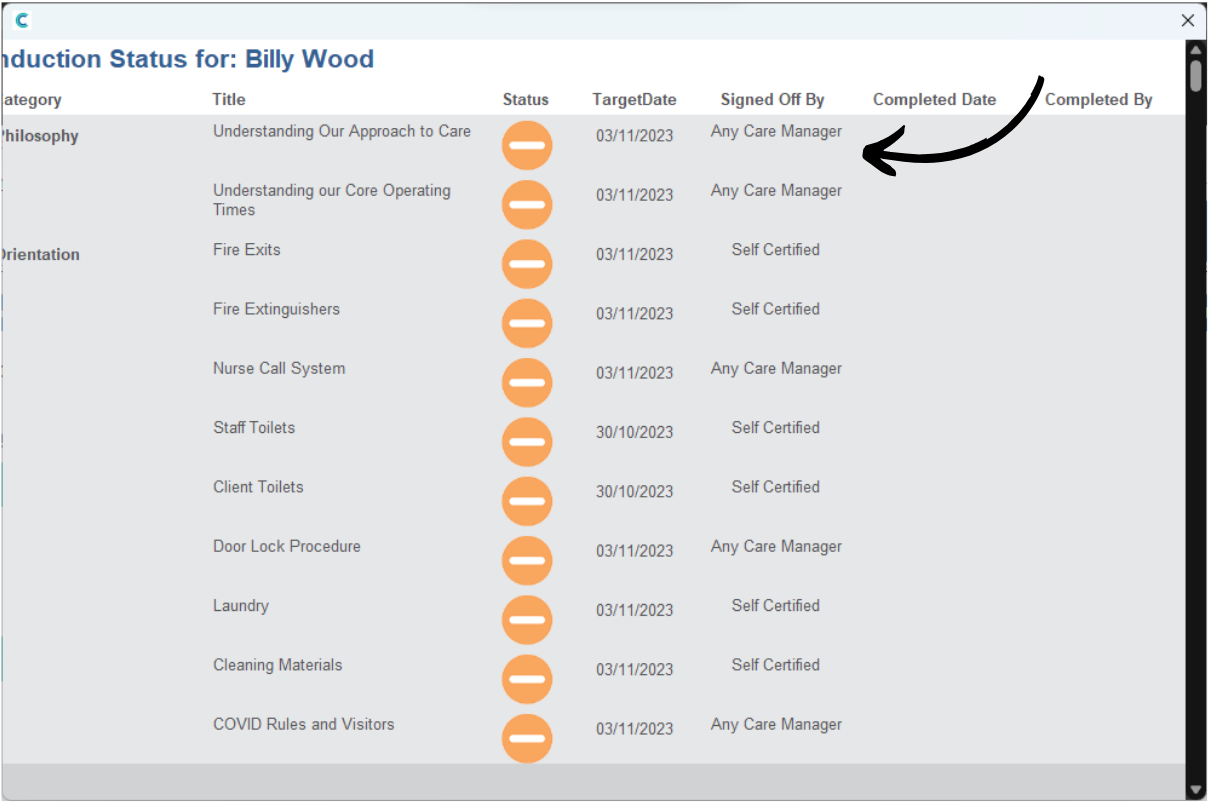
Now, when you press Induction Details on the staff profile, a progress summary window will open.
6
Here, an overview of the assigned induction will be displayed, including the progress the staff member is making.