Bank Holiday Closure Notice: We will be closed on the 3rd April for the Easter bank holiday, so our customer service team will not be available on this day. If you need to get in touch, you can still use our customer contact form and we will get back to you as soon as possible. Even better, Margo will still be available on our phone lines to help with your queries whenever you need support. We hope you have a lovely Easter weekend 🐣
View Categories
Changing the Layout of Monitoring on Mobile
This guide will cover how to edit the layout of the monitoring icons when selecting a recording option on Care Control Mobile. This can be useful when certain monitoring areas are not relevant to your care environment and allows you to put important ones at the start.
1
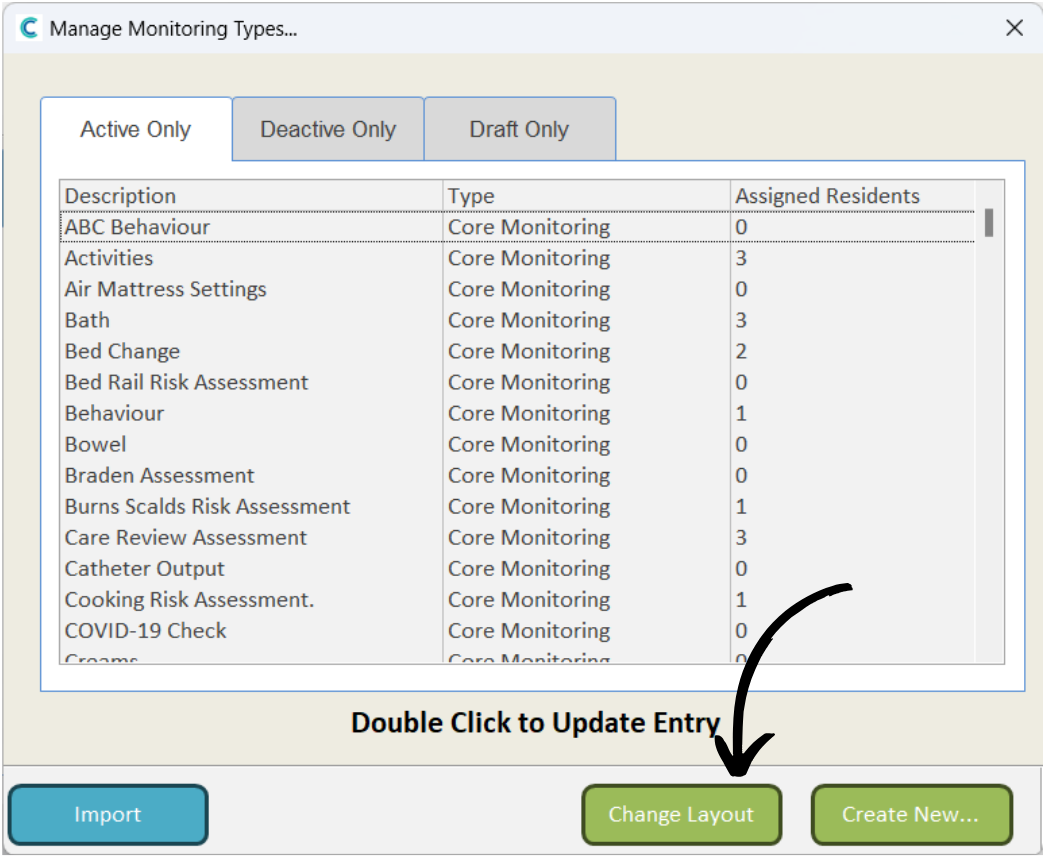
In the Administration of Care Control Windows, navigate to the Monitoring Types tool, which can be found under the Care Planning tab.
2
A new window will open, here, select Change Layout.
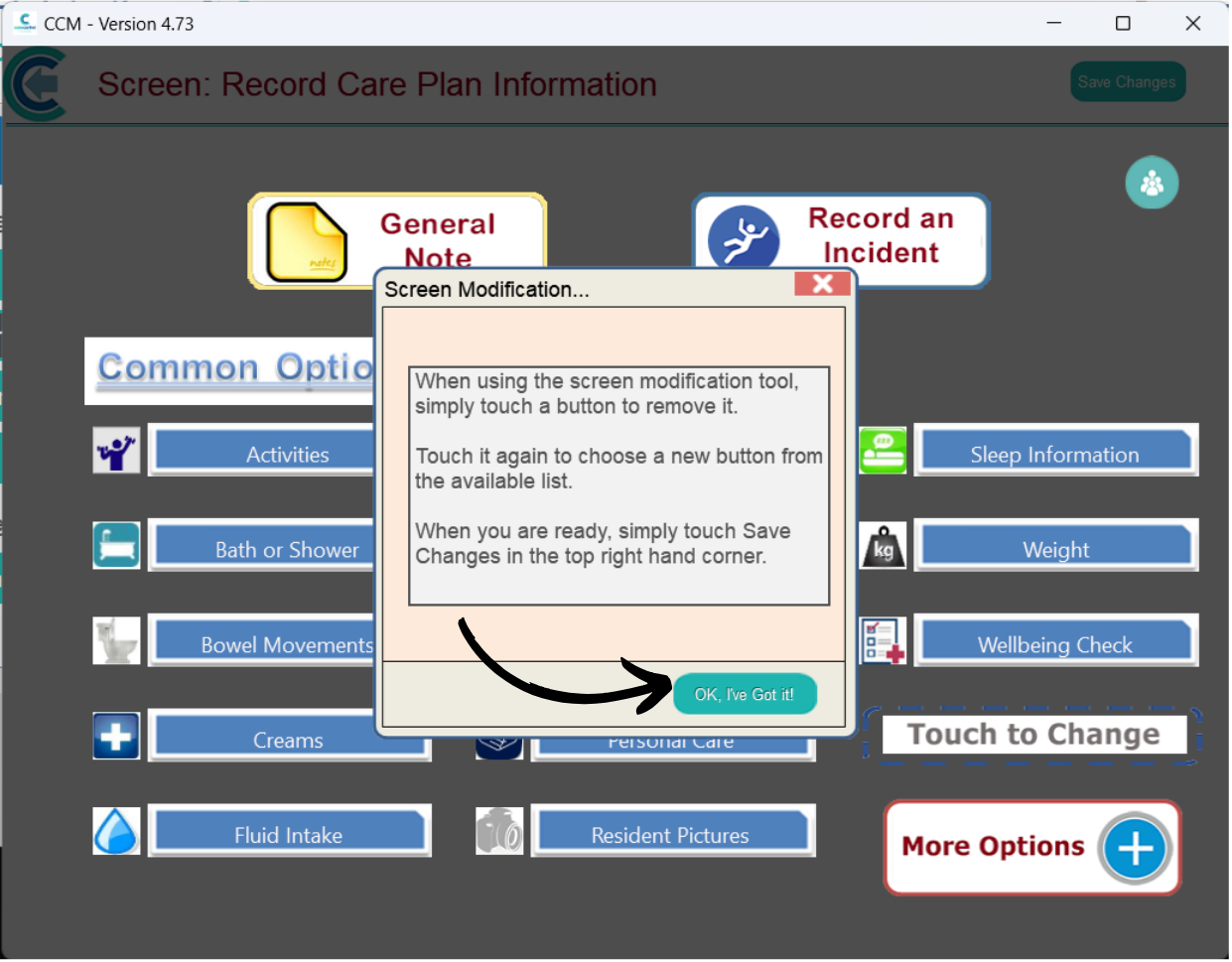
This will open CC Mobile on your laptop / computer. Make sure that you have the application installed and set up already.
3
Care Control Mobile will open in edit mode. Read the instructions and press OK.
4
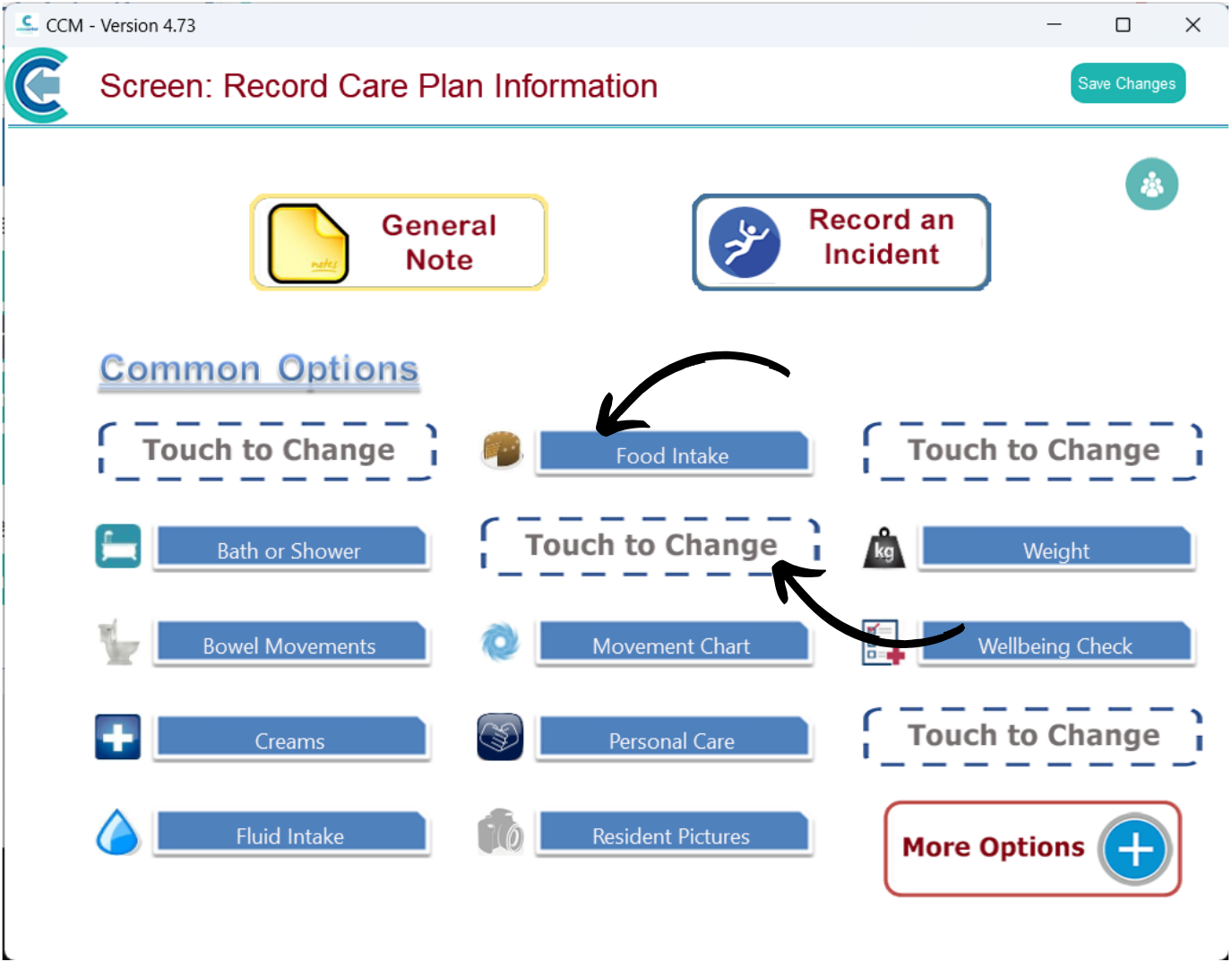
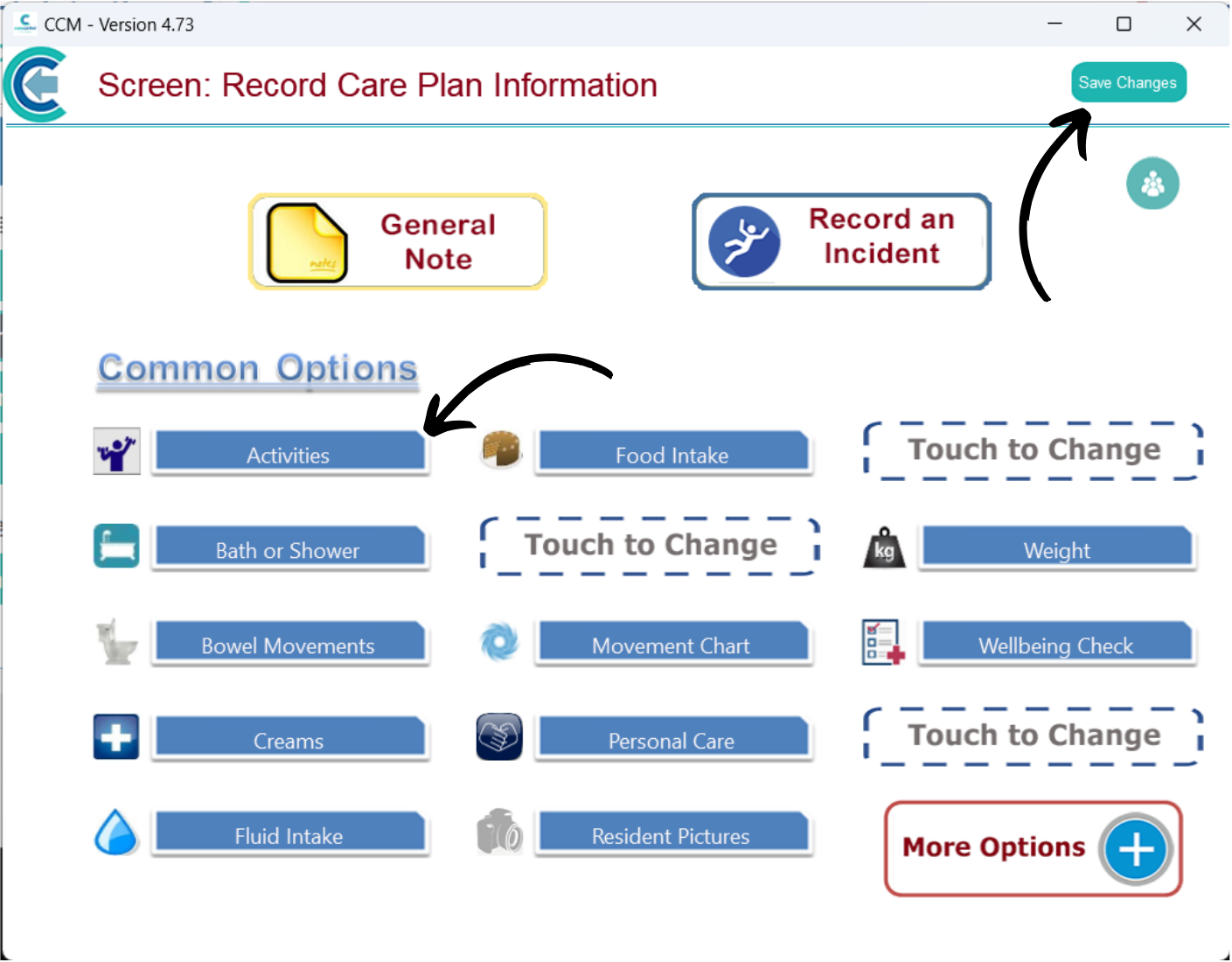
You can simply tap on recording options to remove them from this list.
Then, tap in the empty spaces labelled ‘Touch to Change‘.
5
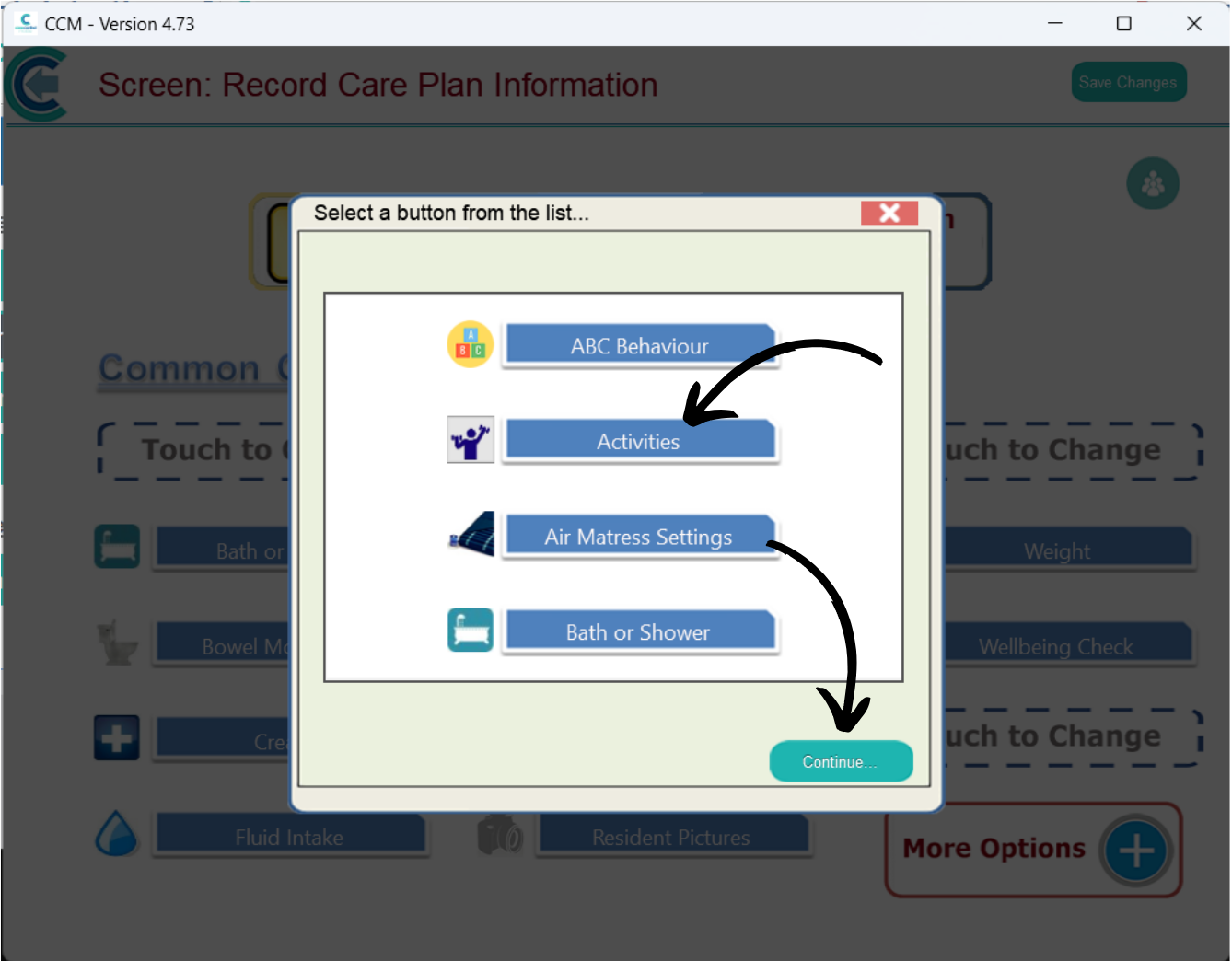
A list of the common recording options will be displayed. Here, select the recording area you want to add and press Continue.
6
The gap will be filled with the selected recording area.
After you are happy with your layout, press Save Changes.