
Covering a
Shift on the Live Rota
This guide will cover how you can cover shifts on Care Control Windows that are flagged in the Rota Issues section of the Roster System.

1
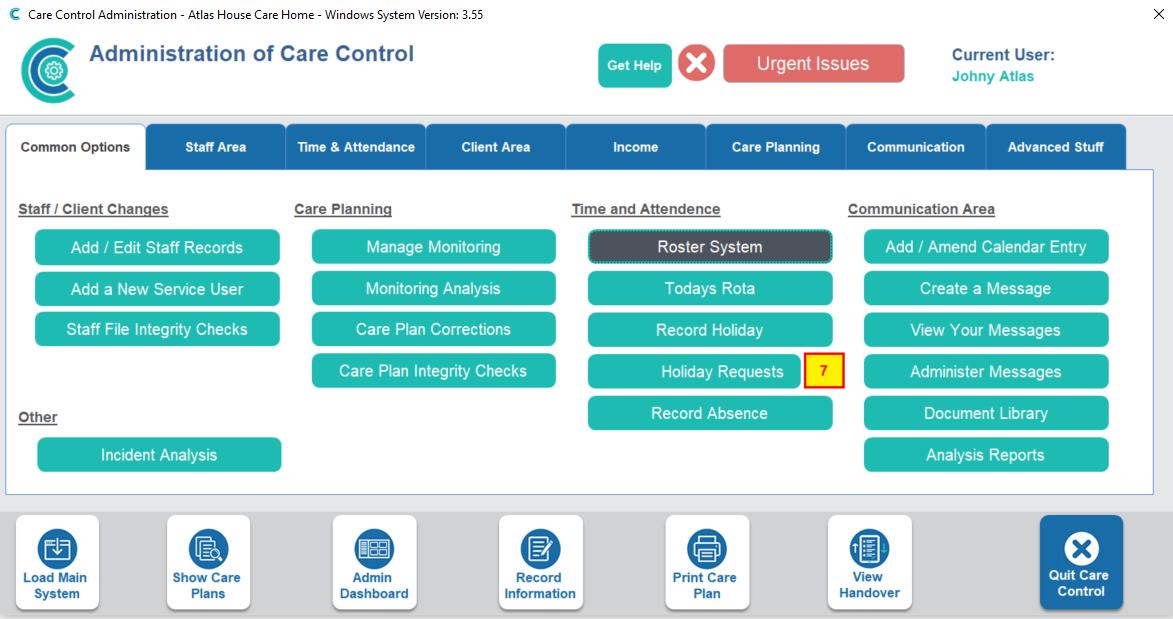
In the Administration of Care Control Windows, navigate to the Roster System which can be found in the Common Options and Time and Attendance tab.
2
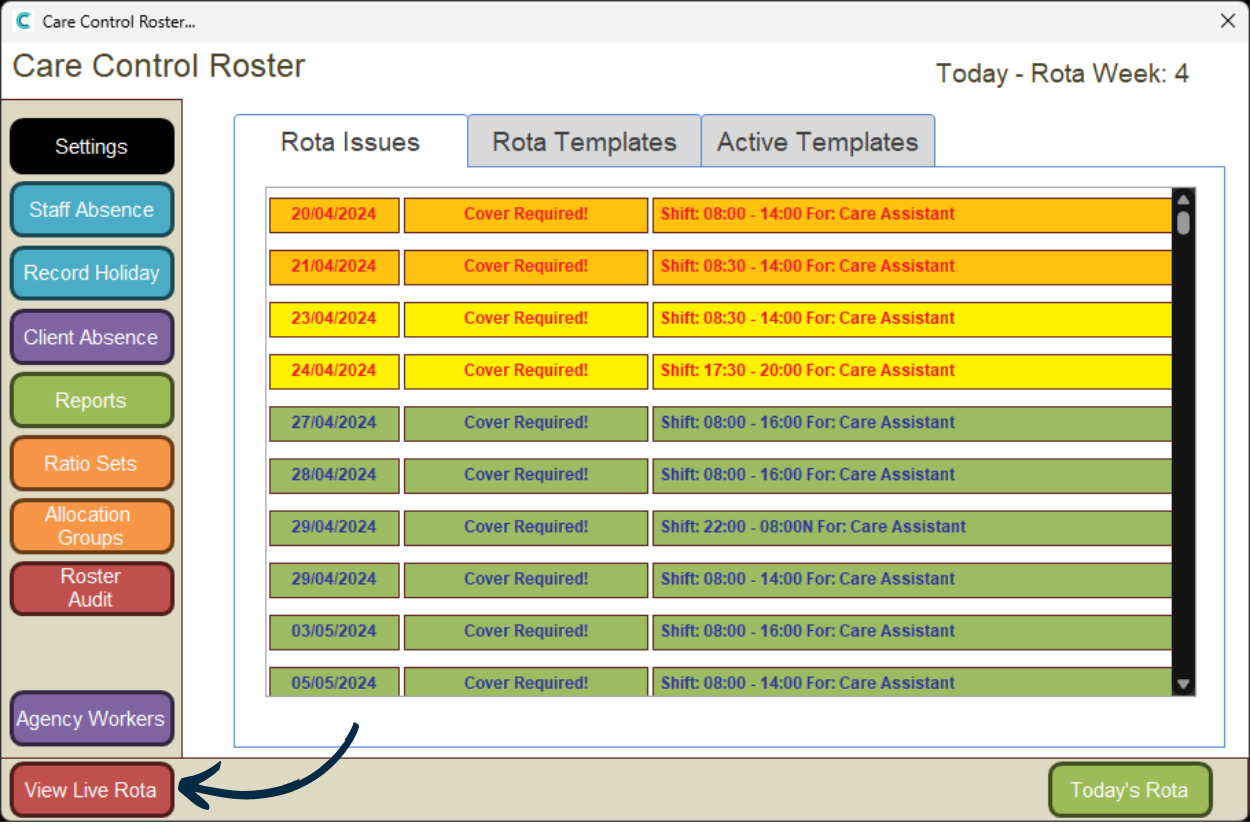
The homepage of the Roster System shows Rota Issues. This is where shifts are highlighted that need covering:
- Red indicates the shift is either today or tomorrow
- Orange indicates the shift is within 3 or 4 days
- Yellow indicates the shift is between 1 and 2 weeks away
- Green indicates the shift is more than 2 weeks away
To being the cover process, select the shift you wish to allocate from this list.

3
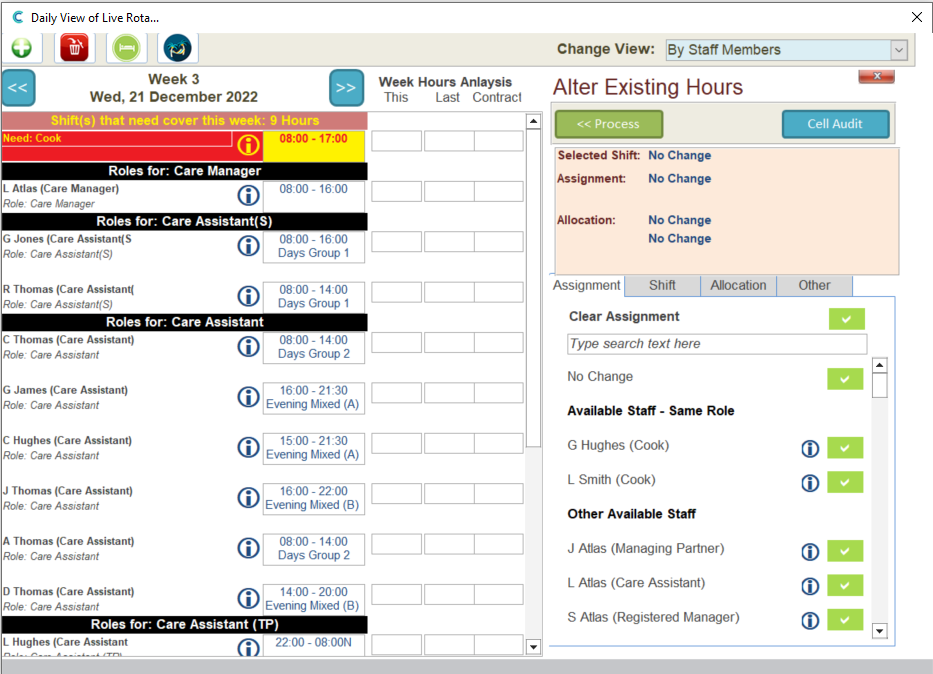
This will open a new window showing the rota for the date of the shift. Clicking on the shift will display the options for covering on the right-hand side of the window.
The first step in covering a shift is to select a staff member. The Assignment tab of the options panel will show staff members in order of relevance to the shift:
- Most Suitable Staff – same job role, available
- Other Available Staff – different job roles, available
- Available Agency Staff – agency staff, available
- Unavailable Staff, Matching Role
- Unavailable Staff, Different Role
Select a staff member by pressing the green tick next to their name.
4
Next, select the Shift tab. Here you can select:
- No Change – the shift time will remain the same
- User Defined – you can change the time of the shift if, for example, only partial cover is available.
- Predefined Shifts – you can select a new shift time from your shift templates.
Choosing User Defined will open a new window in which you can enter new times for the cover shift.
After selecting a staff member, and making any necessary changes to the time, click Process.
Your changes will be saved and added to the rota. The rota issue will be removed from the homepage of the Roster System.

5
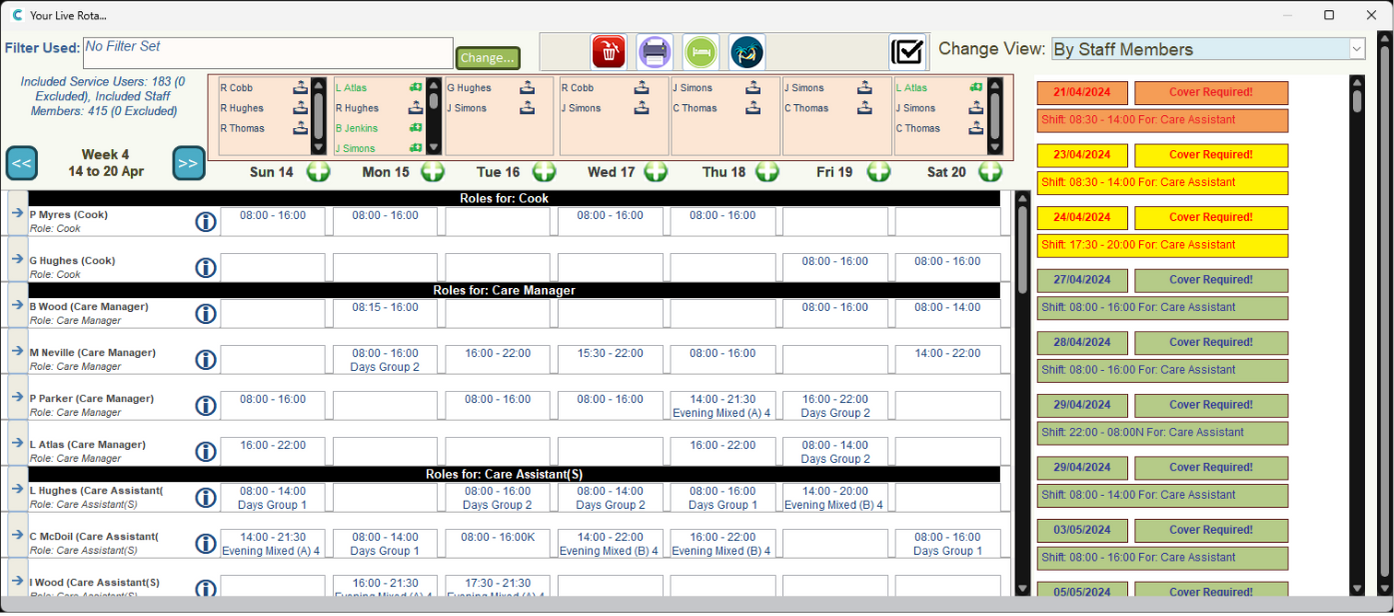
You can also cover shifts from within the Live Rota itself.
Press View Live Rota to begin.
6
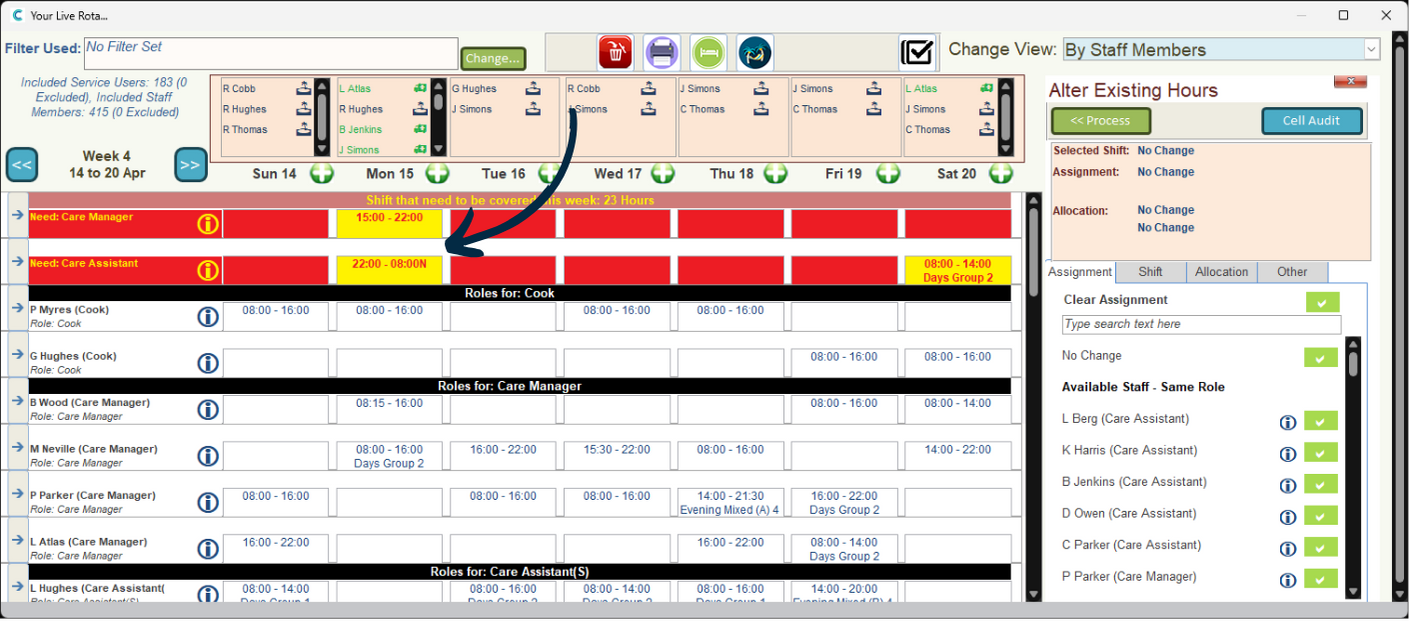
You can cover multiple shifts at once by ticking the multi-select box.

7
Now, select the shifts you wish to cover.
8
Finally, select a staff member to cover them from the right hand side of the window. Press Process to complete the changes.

9
Your Live Rota will update and the cover shifts will no longer appear in red.