This guide covers how to cover a shift using agency staff in Care Control Windows.
1
Agency shifts which need assigning will appear in the Roster System of Care Control Windows as a purple bar under the Rota Issues. Simply click on it to begin the process.
2
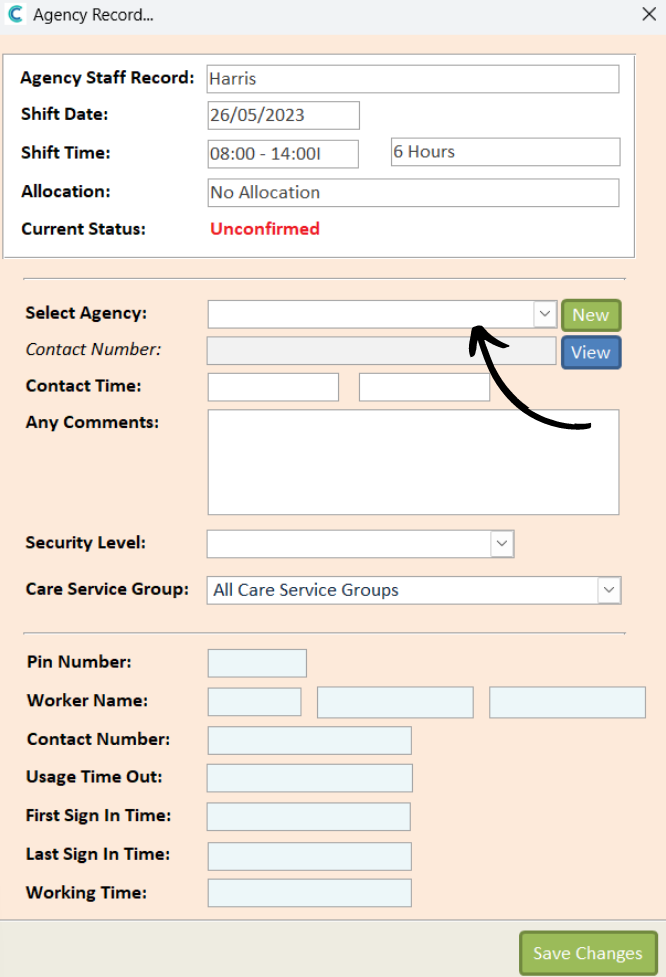
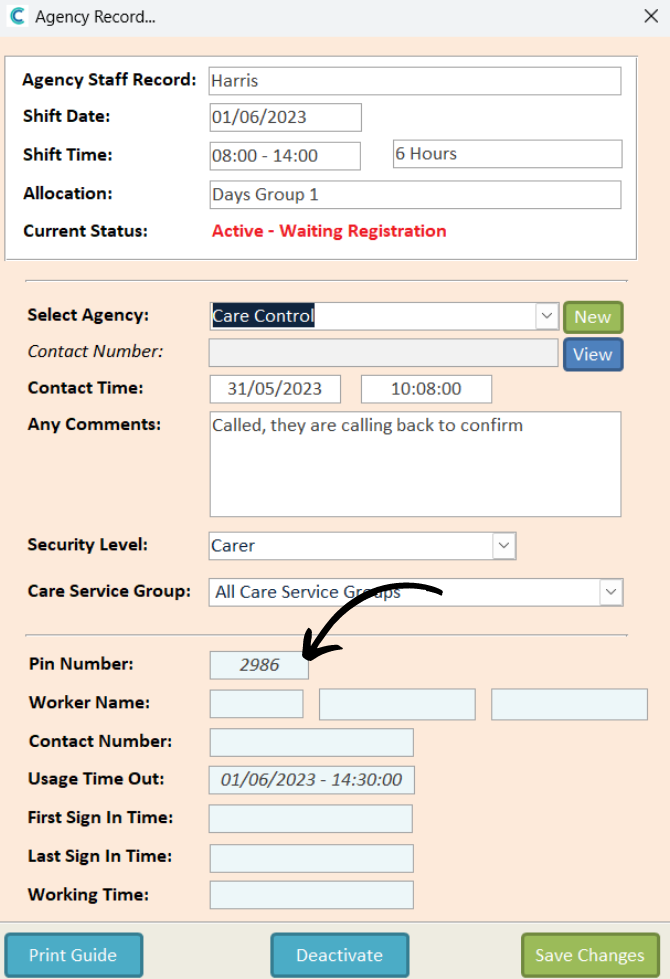
An Agency Record form will open. First, select the Agency using the drop-down list.
3
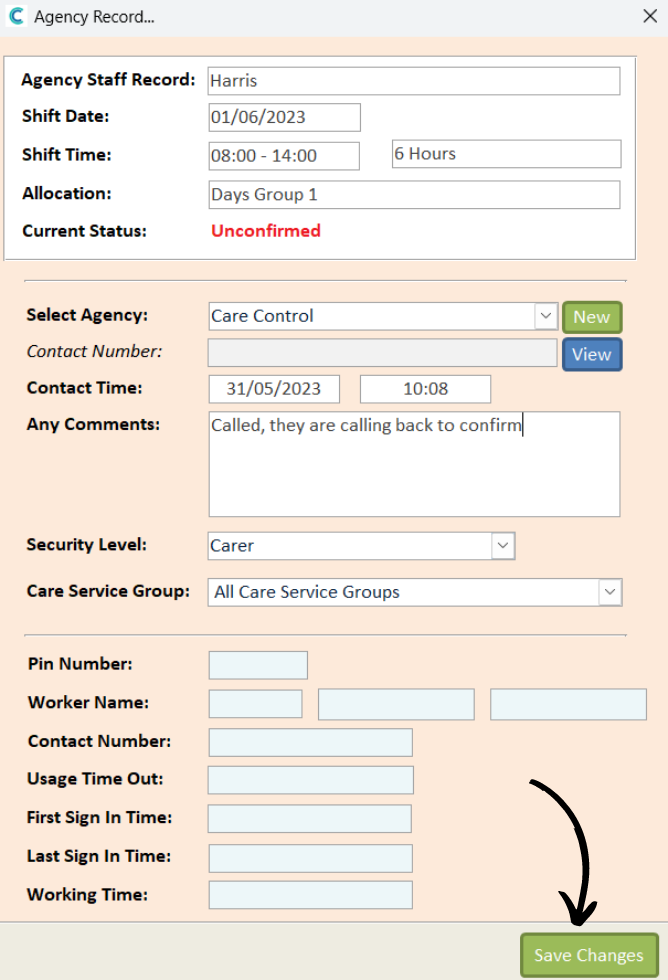
Some of the fields will auto-populate with information. You can add a Comment as well as amend the Security Level and CSG assignment for the agency staff member.
Press Save Changes.
4
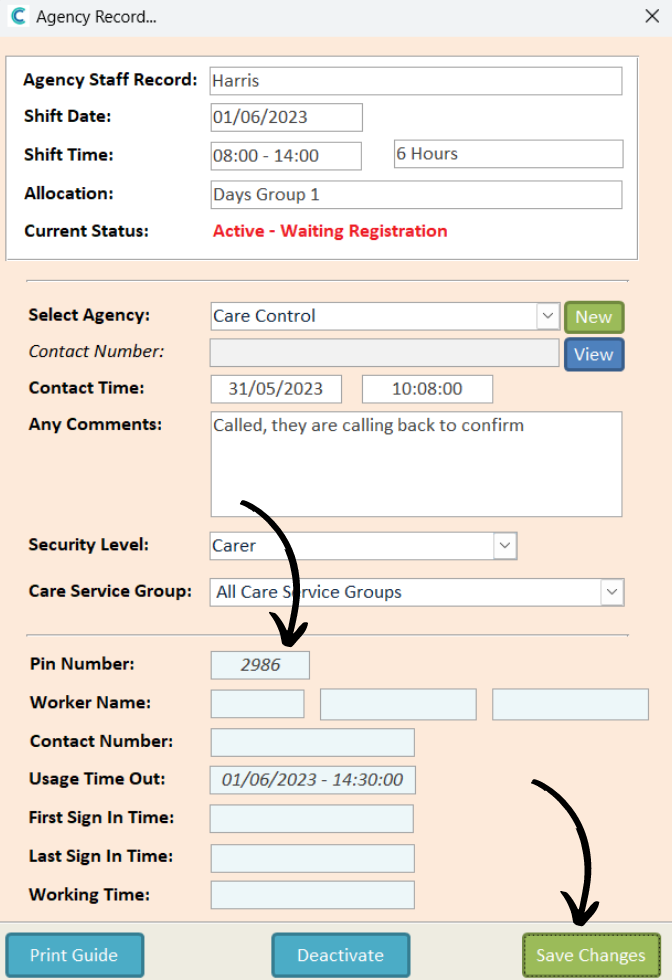
The form will stay open and the bottom half of it will auto-populate with some more information, crucially, the PIN for the agency staff member to use.
Press Save Changes again to complete the process and assign the shift.
5
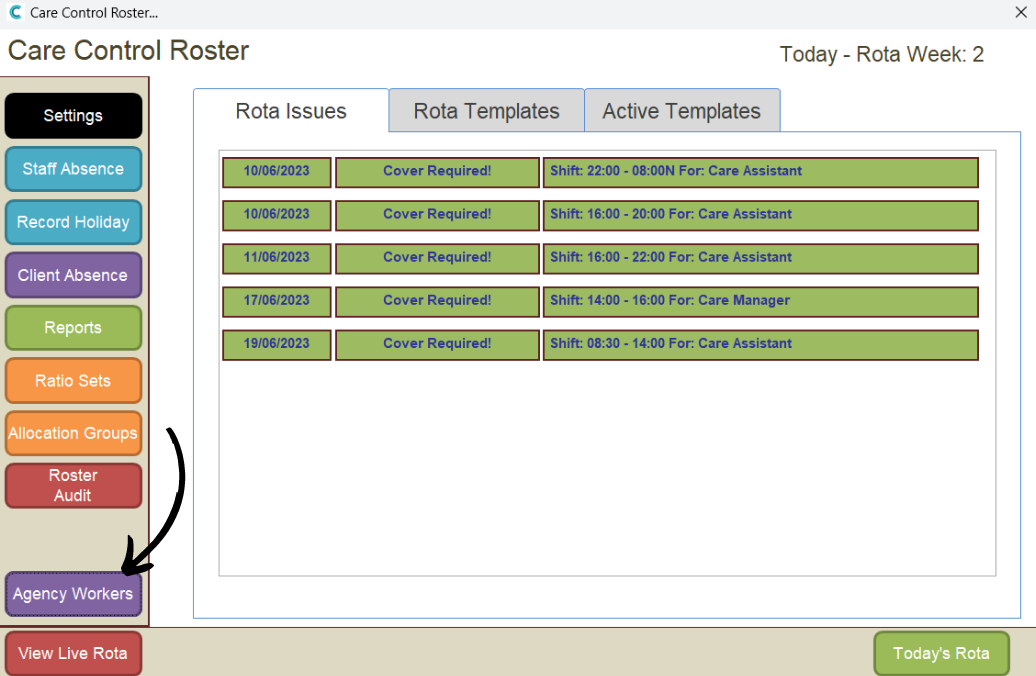
The shift will disappear from the Rota Issues. To review the agency shift, perhaps to obtain the PIN again, press Agency Workers from within the Roster System.
6
Select Agency Usage from the tabs along the top of the window. Here, the covered shift will be displayed.
Press View Record to see more information.
7
The Agency Record page will open, as seen earlier.