This guide will cover how to record cream administration on Care Control Cloud. Bulk recording for multiple service users can be completed at once.
1
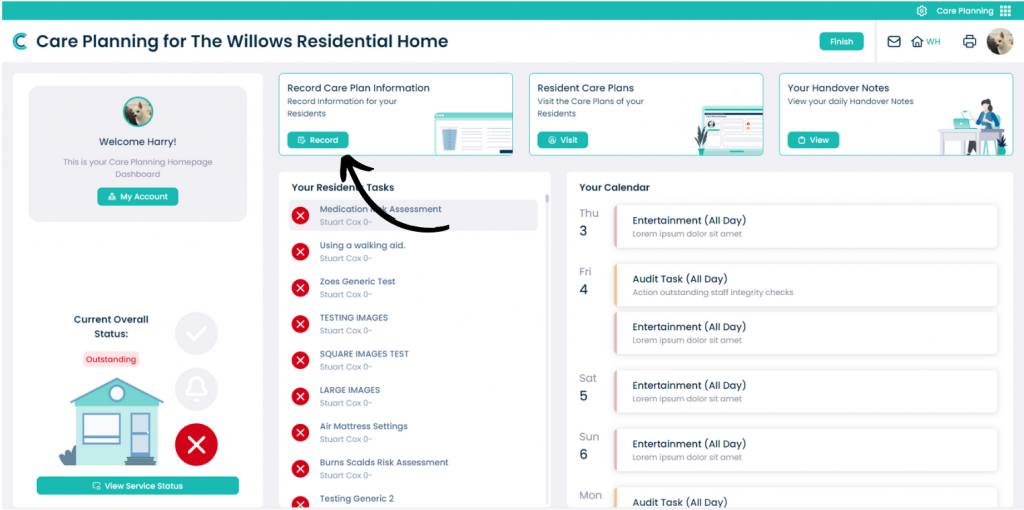
In the Care Planning application of Care Control Cloud, select Record Care Plan Information.
2
A list of common recording options will be displayed. Here, select Creams.
3
You will be presented with a list of creams assigned to different service users.
First, select the creams administered via the checkbox. Then, add a Cream Application Comment from the drop-down list and finally, press Save Changes.
You can also change the date and time of the cream recording from the drop-down list in the top left corner of the screen.
Note – if recording more than one cream at a time, the Cream Application Comment will be the same for all selected. Therefore, if one cream needs a different comment, it must be recorded separately.
4
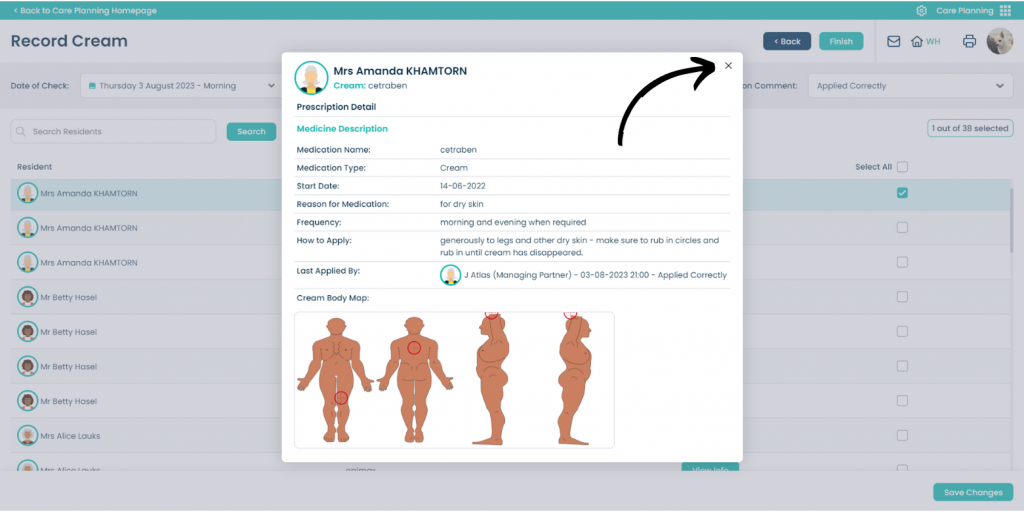
Pressing the ‘View Info’ button in each row of the cream list will open a small window containing more information about the cream selected, including specific application recommendations and a body map.