You could win a £250 Amazon gift card! All you need to do is spare us 3 minutes of your time. Click here to find out more!
To make further rotas in Roster Cloud you need to follow these simple steps.
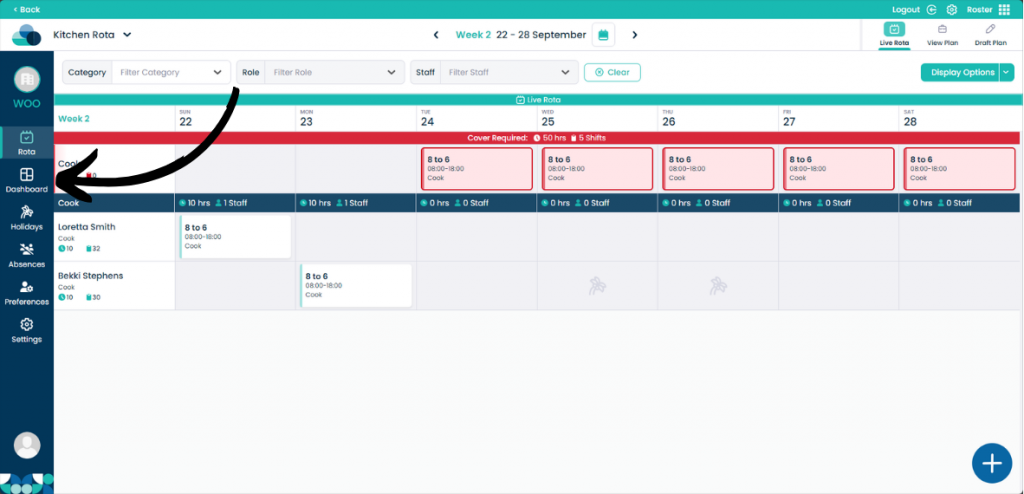
When looking at the rota screen, click the Dashboard button on the left hand pane.
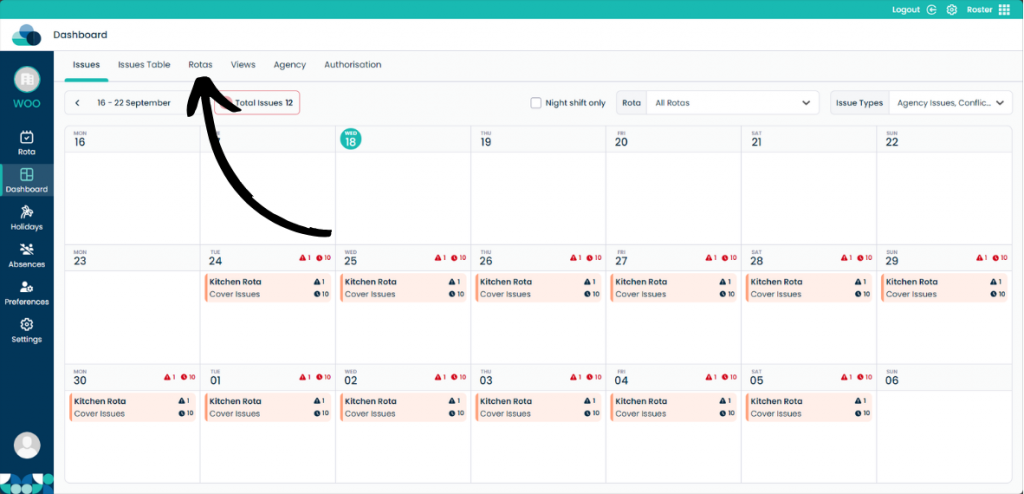
On this page, click Rotas on the menu.
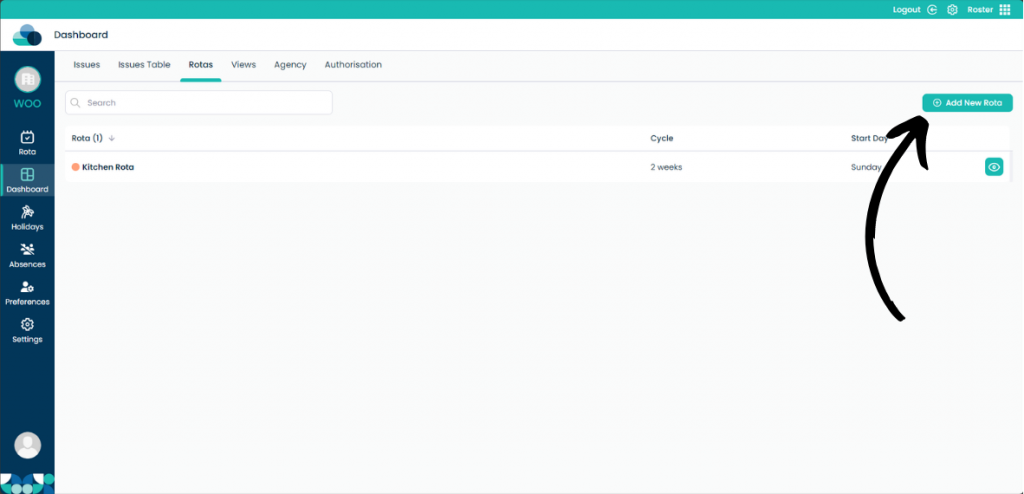
Click Add New Rota.
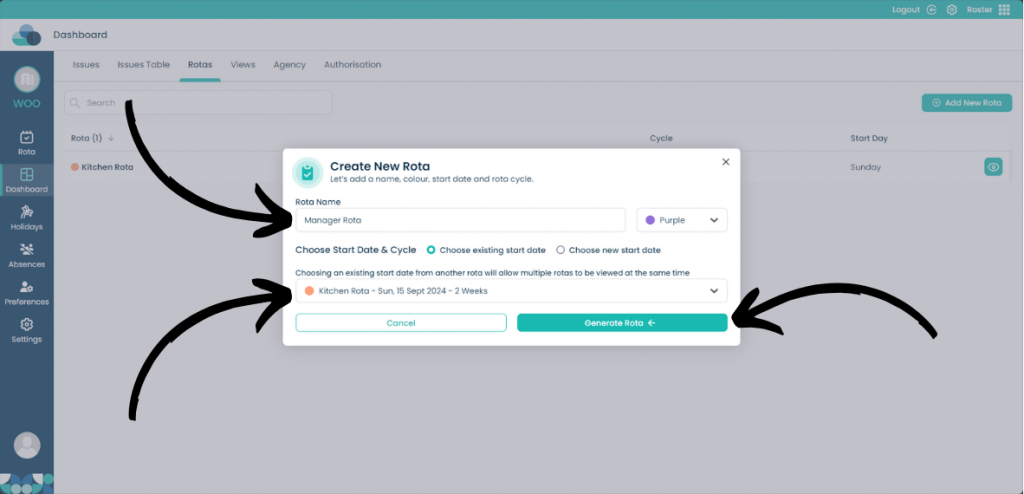
The same menu when you created your first rota will appear. Input all of the information for the new rota.
On this page you can select Choose existing start date. This will start the rota at the same time as your already made rota.
Once you are happy with the settings, click Generate rota.