Shift templates help you to manage your shifts to suit your roster. Completely customisable and easy to manage.
Step 1:
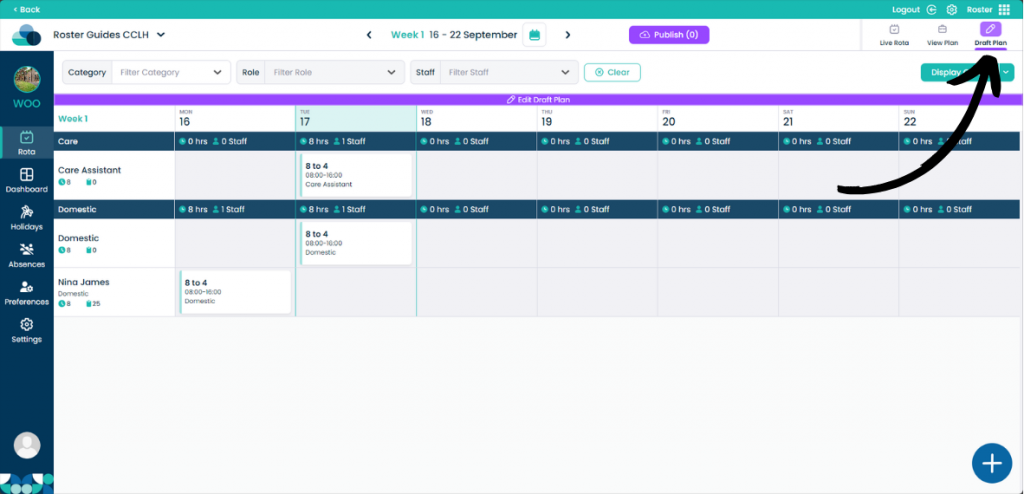
When on your rota screen, select Draft Plan and then Edit Draft Plan.
Step 2:
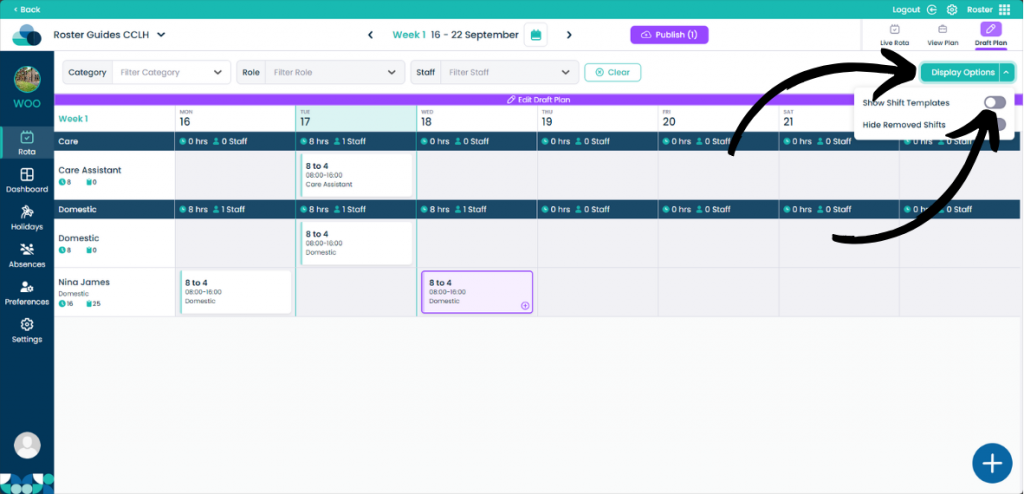
Ensure that the Show Shift Templates option is enabled under Display Options.
Step 3:
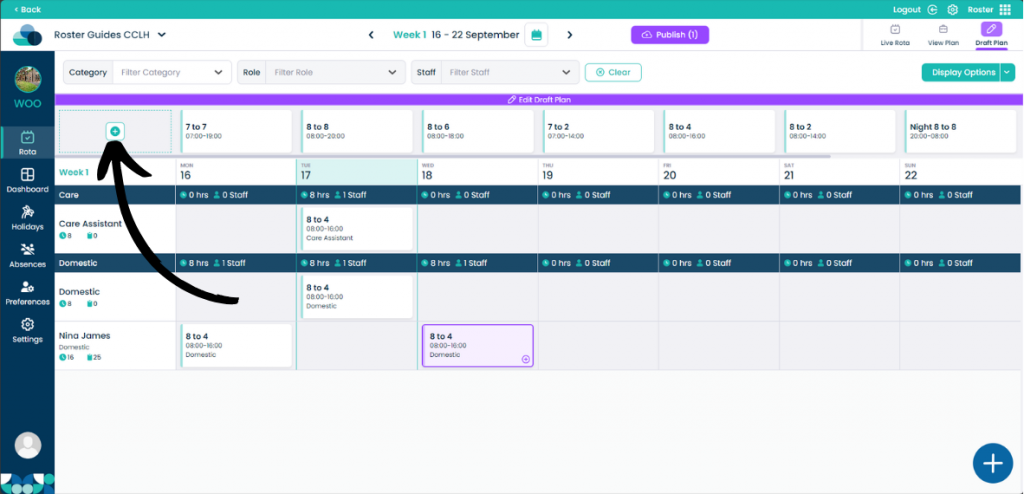
Select the Plus Button in the Shift Templates row.
Step 4:
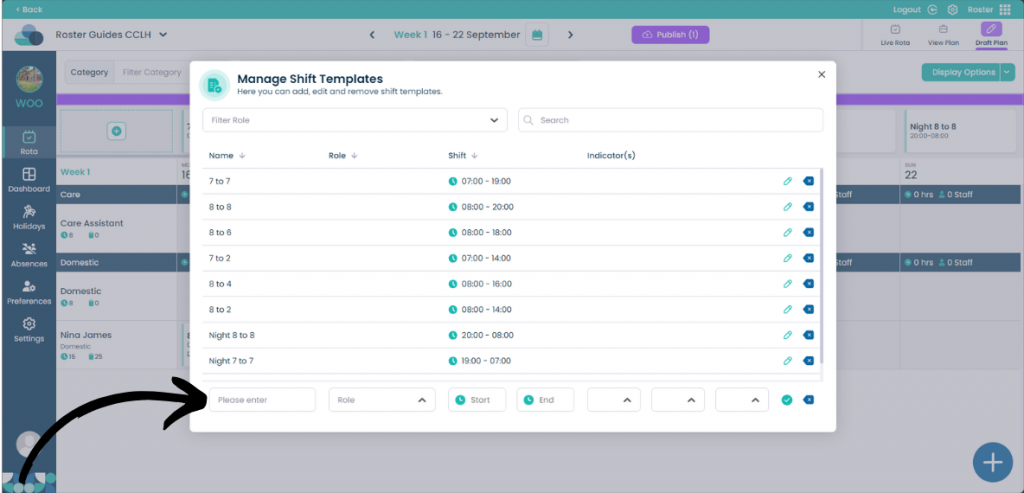
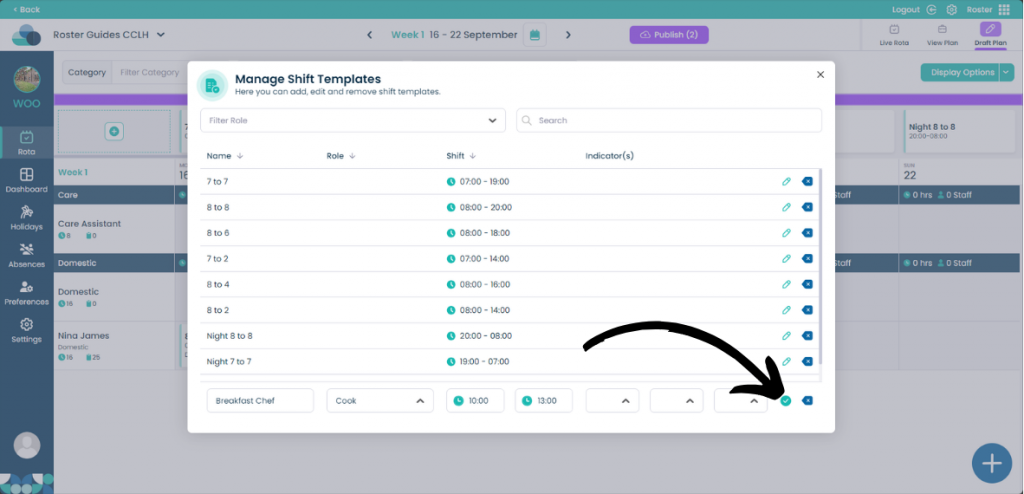
Enter the name of the Shift Template you wish to add. You can select a Role if the shift is role specific. Then select a Start time for the shift and an End time for the shift. You can also provide Indicators to help identify the shift if required.
Step 5:
When happy with the Shift Template click the Checkmark icon to create the new template.