⚠️ System update: We are aware of an issue affecting certain areas and user roles within the system following the new Navigation Menu release. Please note that Super Admin access is working as expected. Our Development Team is actively investigating the issue and working to implement a resolution as quickly as possible. We appreciate your patience and understanding while we work to restore full functionality.

View Categories

Creating a new rota in Cloud

This guide will cover the creation of a rota in Care Control Cloud.

Step 1:

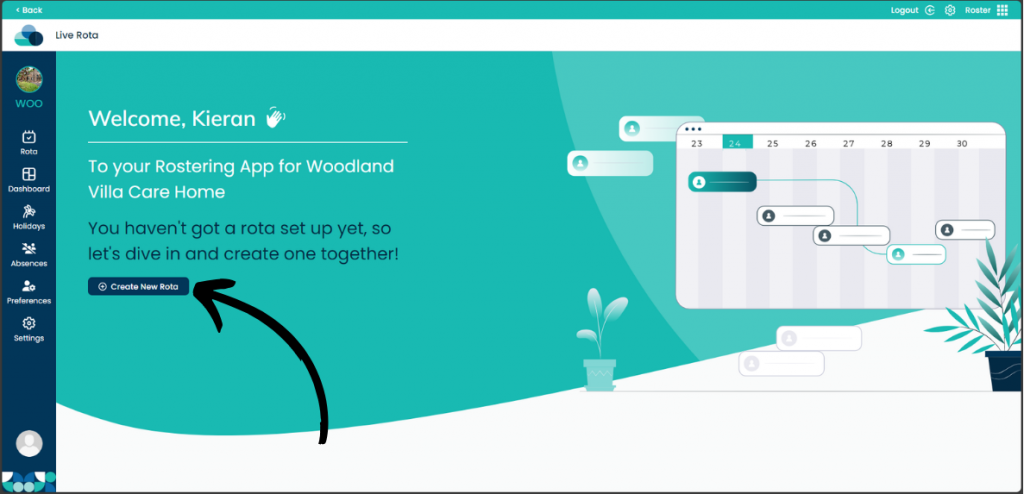
To create your rota you must select Roster from the application selection on Care Control Cloud.

Once you are within the Roster screen select Create New Rota.

Step 2:

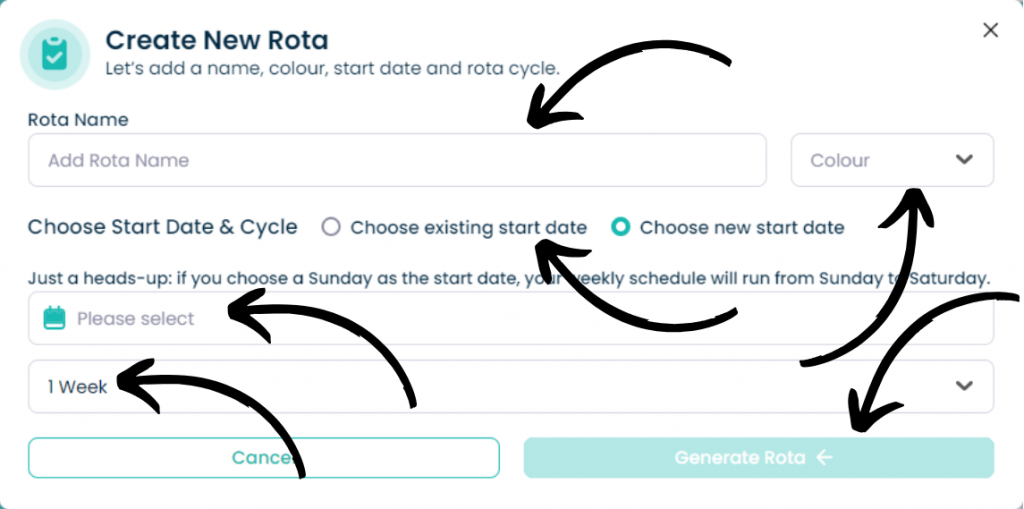
The Create New Rota pop-up will appear.

Enter your Rota Name within the box. Select which Colour you would like the rota to be from the drop-down menu.

Select Choose new start date, as this rota is your first, you cannot select Choose existing start date.

Next you have to choose which date you would like the rota to start, this can be any time in the past, but not in the future.

Now choose from the drop-down menu how many weeks you would like your rota to roll over. This goes from 1 to 12 weeks.

Once you are happy, click Generate Rota.