Shift templates help you to manage your shifts to suit your roster. Completely customisable and easy to manage.
Step 1:
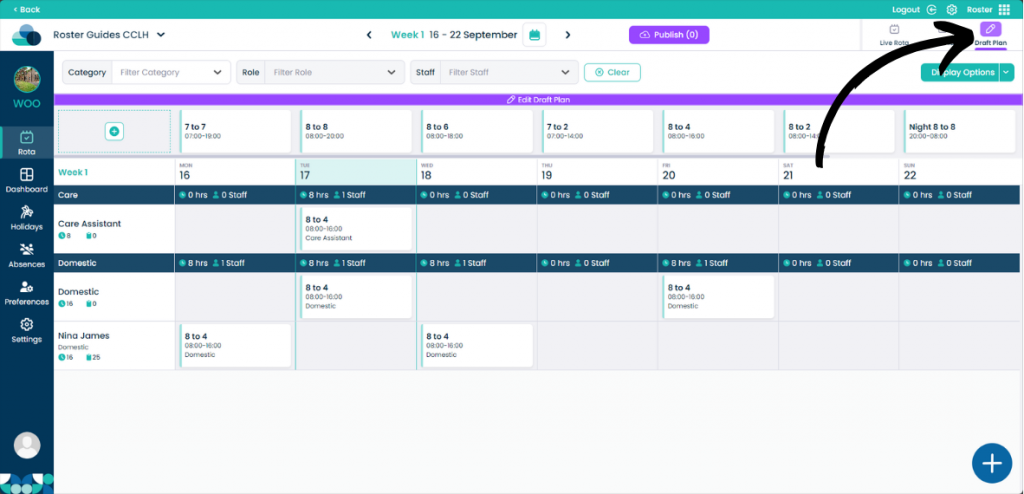
When on your rota screen, select Draft Plan and then Edit Draft Plan.
Step 2:
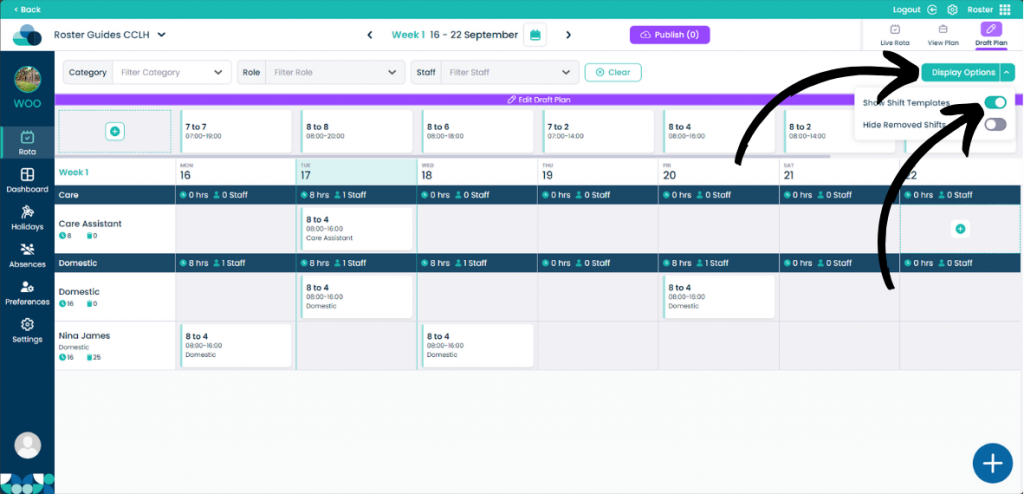
Select Display Options and then toggle Show Shift Templates by clicking on it.
Step 3:
You will now see the Shifts from your templates appear on the top of your rota. You can now drag your shift into the cell by holding left click on the shift and releasing left click on top of the cell.
Step 4:
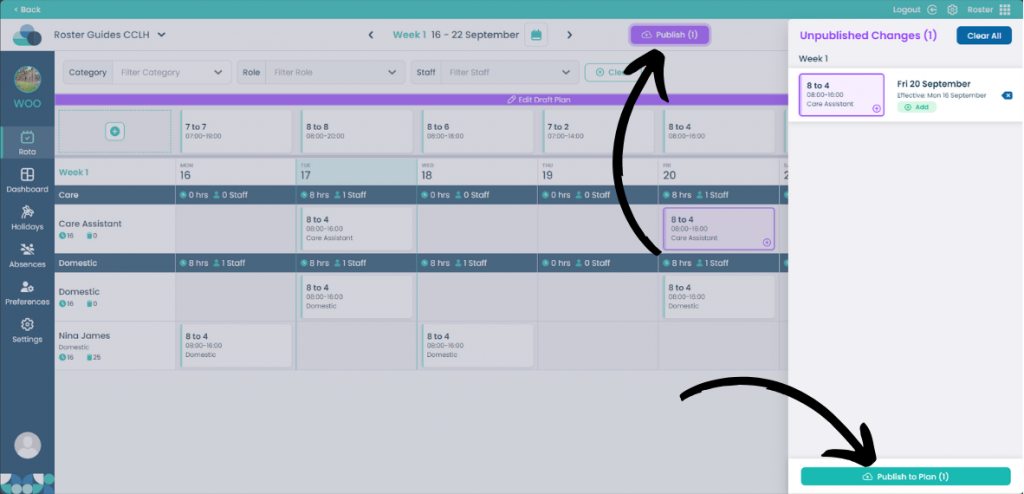
Select Publish once your shifts are in the correct place and then Publish to Plan to save your rota.