You could win a £250 Amazon gift card! All you need to do is spare us 3 minutes of your time. Click here to find out more!
In this guide we will cover how to view and add stock reasons to eMar within Care Control Cloud.
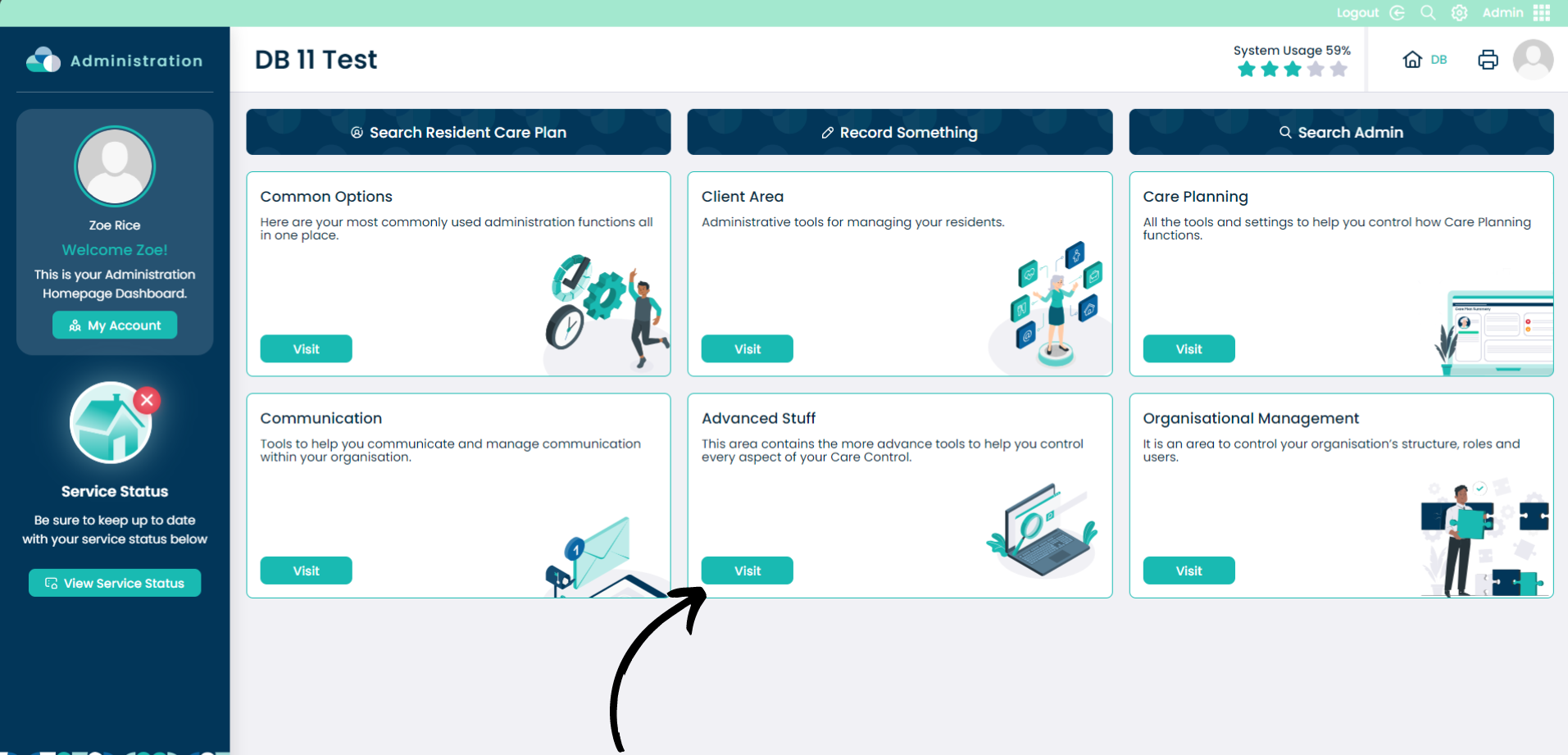
To access the eMAR section, click Visit within the Advanced Stuff box on the Administration page.
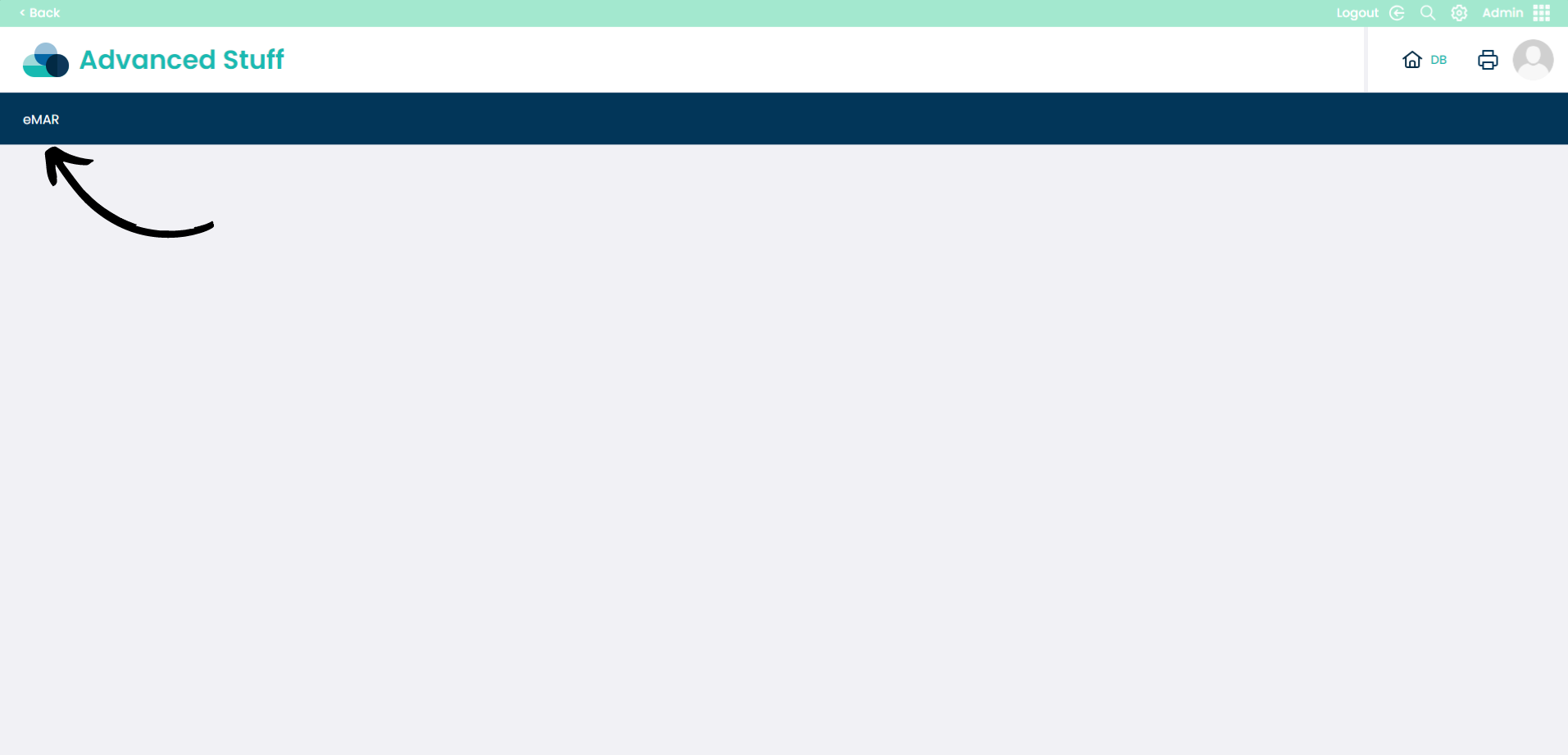
Select eMAR from the banner.
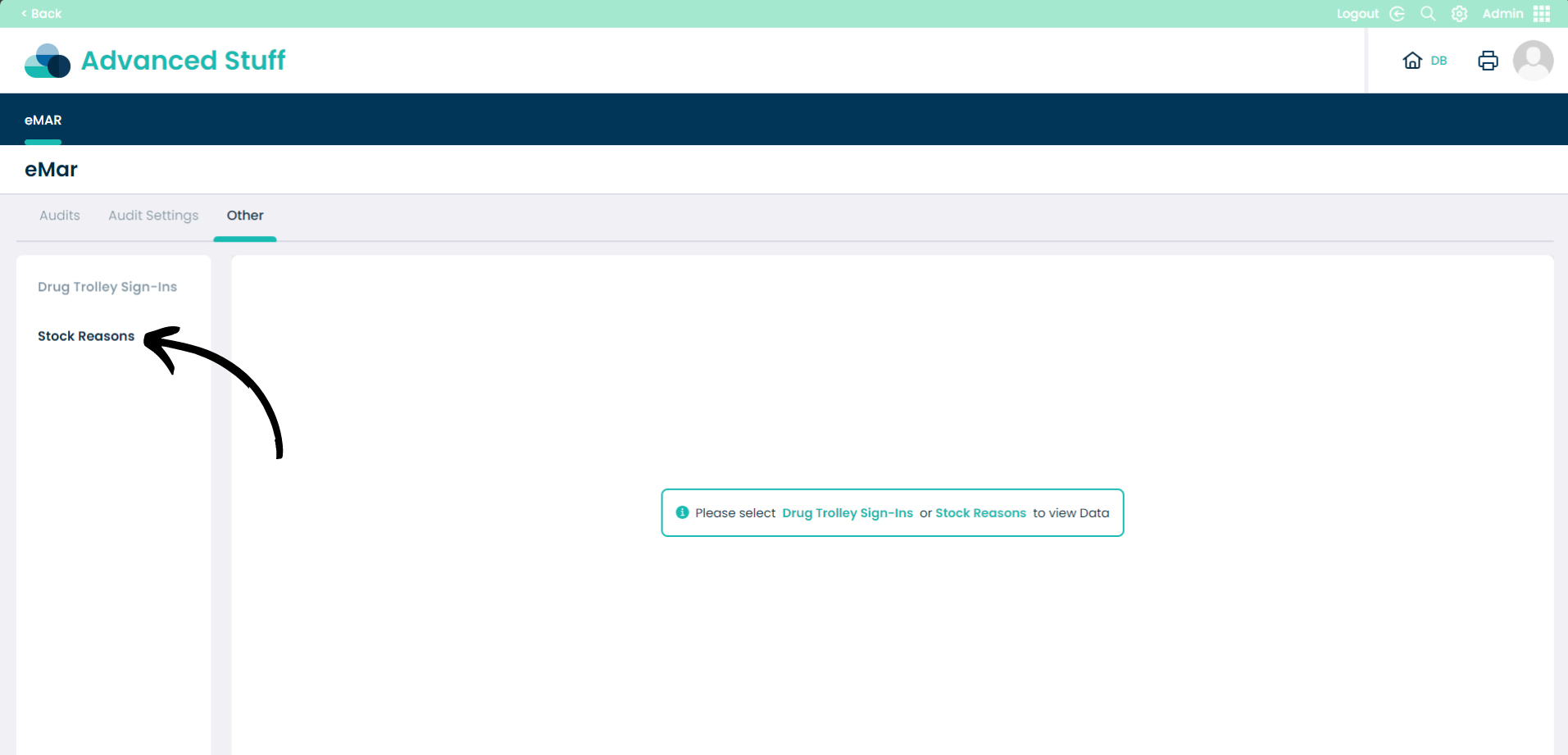
Select Other then Stock Reasons to view and add the Stock Reasons.
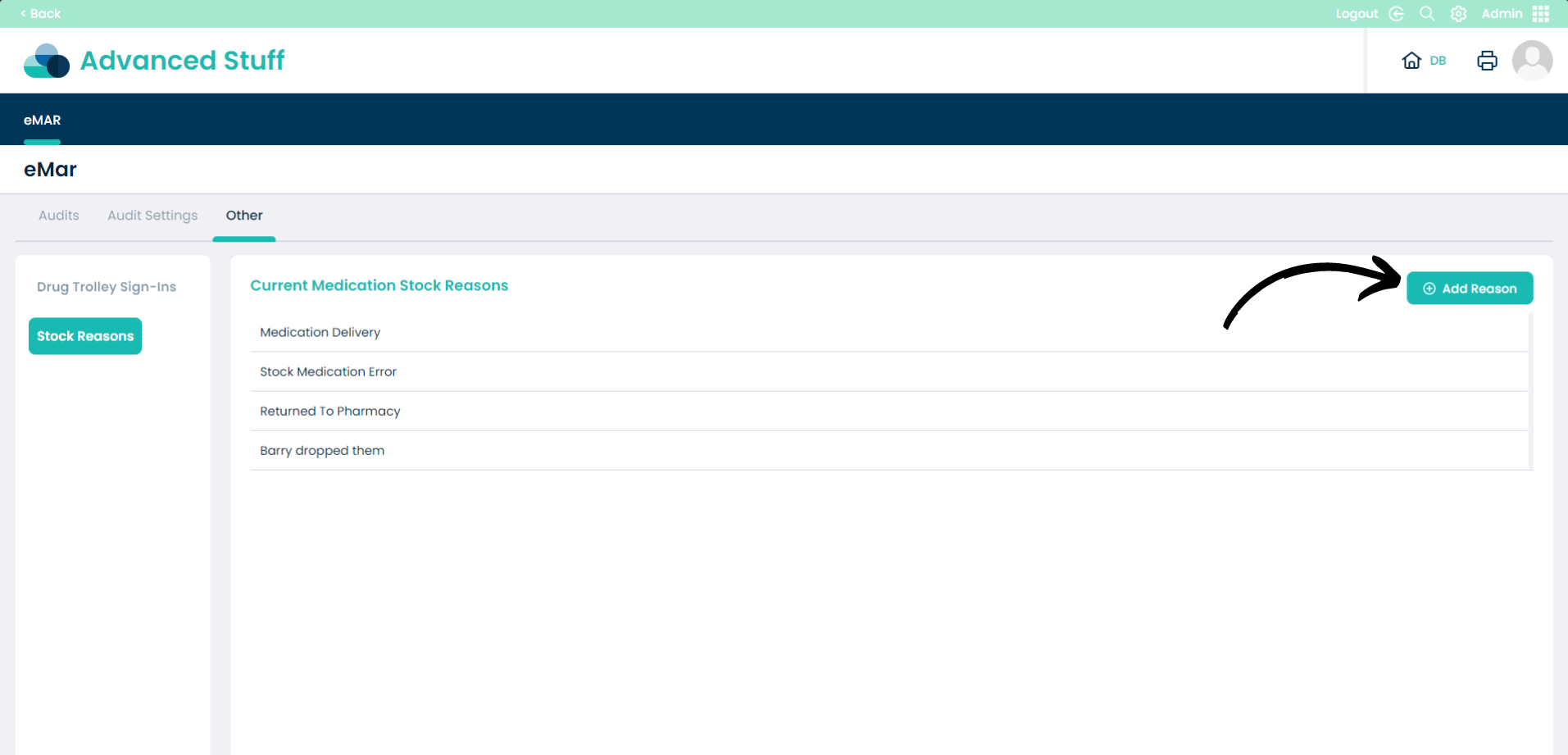
Here you can see all of the Current Medication Stock Reasons.
Click Add Reason to create a new reason.
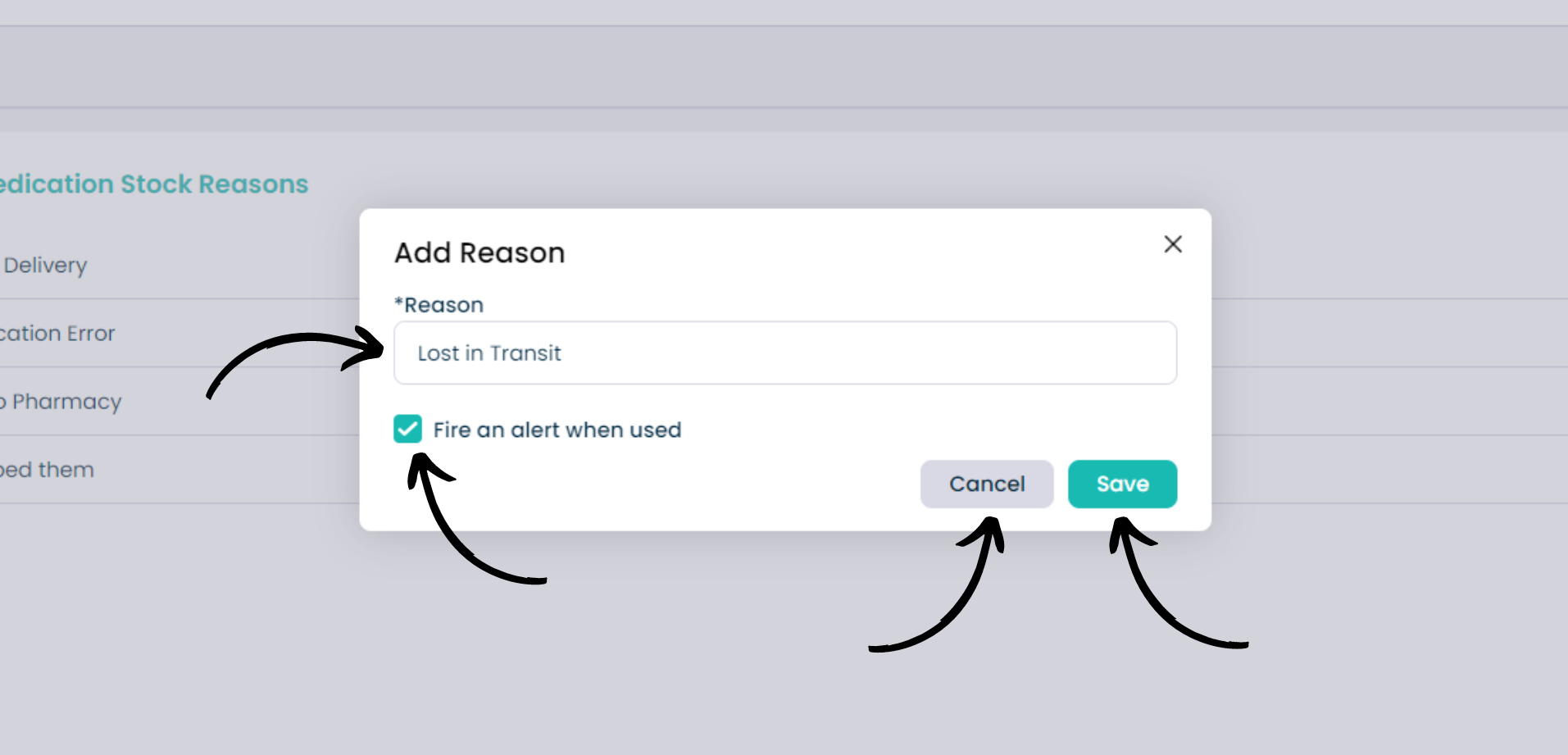
The Add Reason pop up will appear. Enter your reason in the Reason box.
You can select to Fire an alert when used to give notifications to those who have permissions when the reason is used.
Click Save to confirm the new reason or Cancel.