This guide will cover how to add a one-off shift (ad-hoc) to your rota – this can be useful when an extra staff member is needed, or there is a temporary change in shift times or patterns.
1
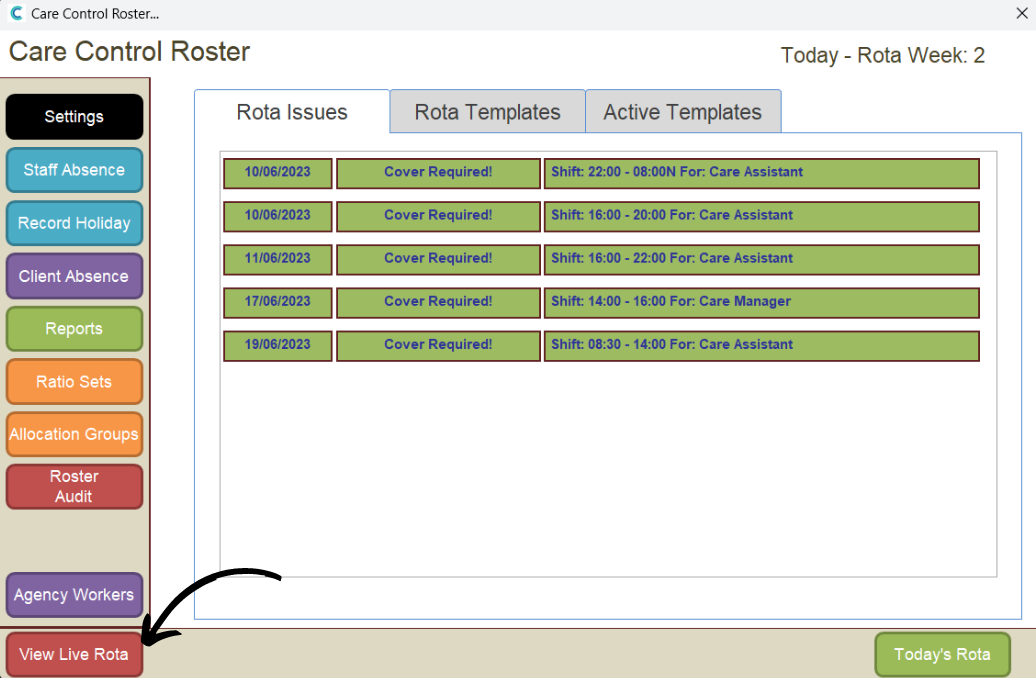
In the Administration of Care Control Windows, open the Roster System, which can be found under the Common Options and Time & Attendance tabs.
2
Press View Live Rota.
3
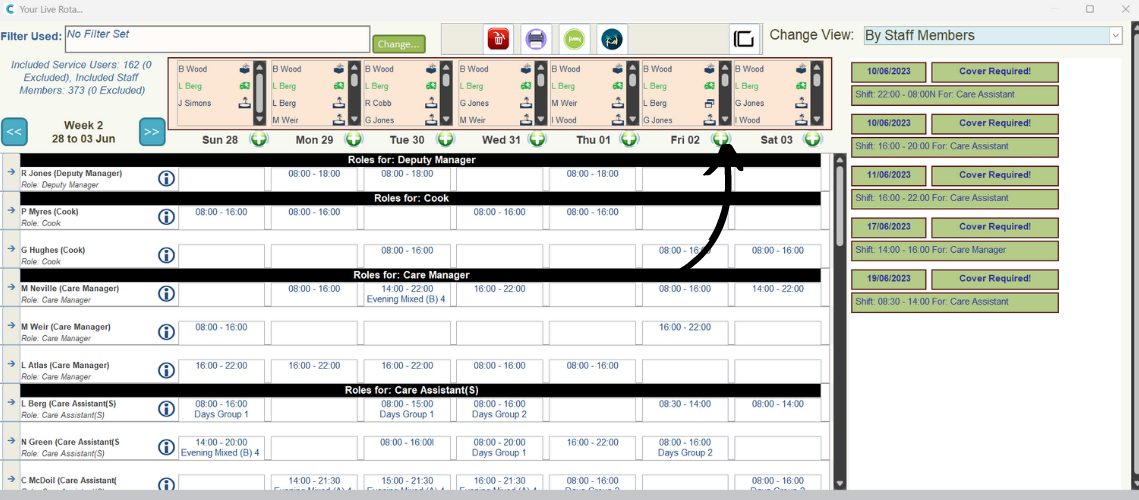
Click the green + symbol next to the date you wish to add the shift.
4
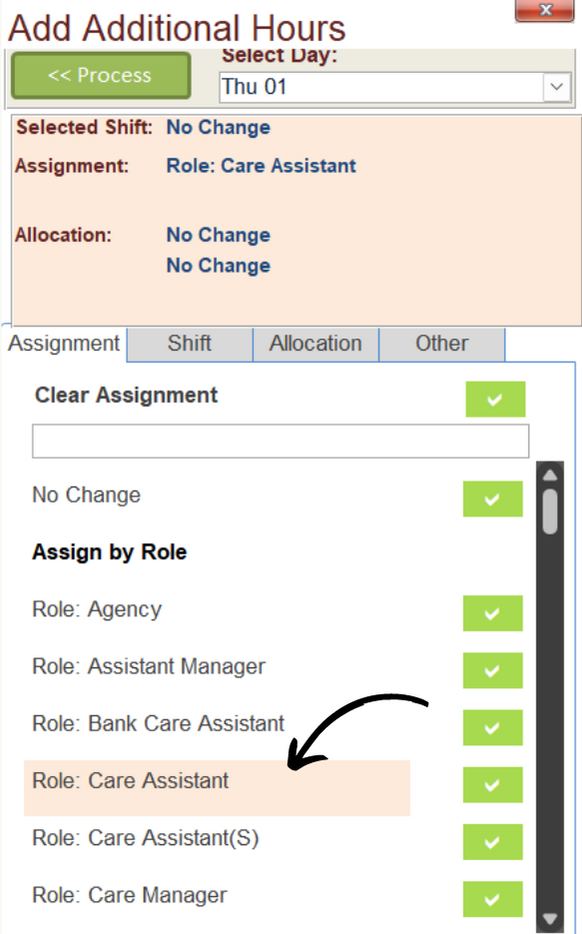
A box will open on the right-hand side of the rota. Here, you can build your shift.
Begin by selecting the Assignment – this could be a specific staff member, or just a role.
5
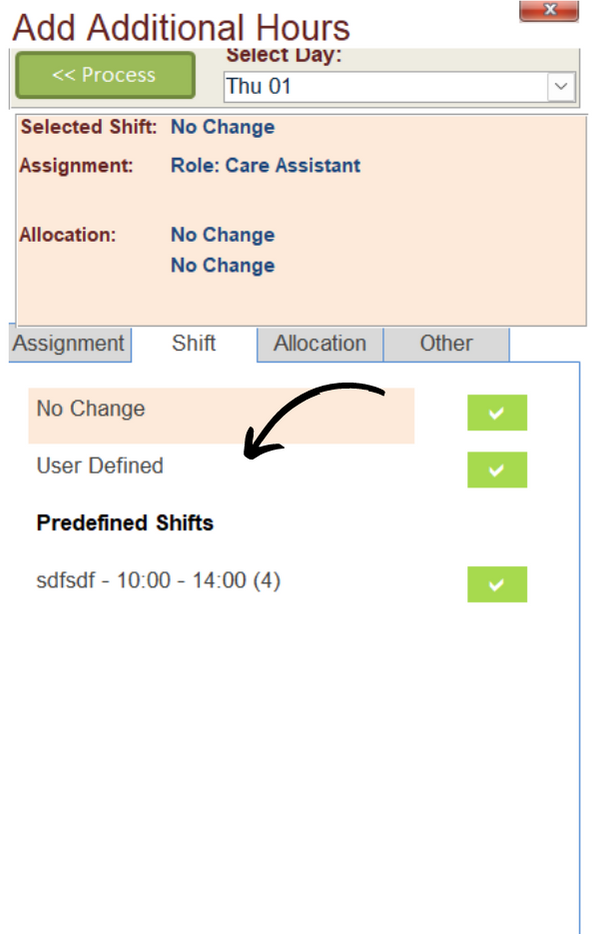
Next, set the times for the shift in the Shift tab. You can use a Predefined Shift or select times manually by pressing User Defined.
6
The next tab deals with Allocation. Select one from the drop-down list if required.
7
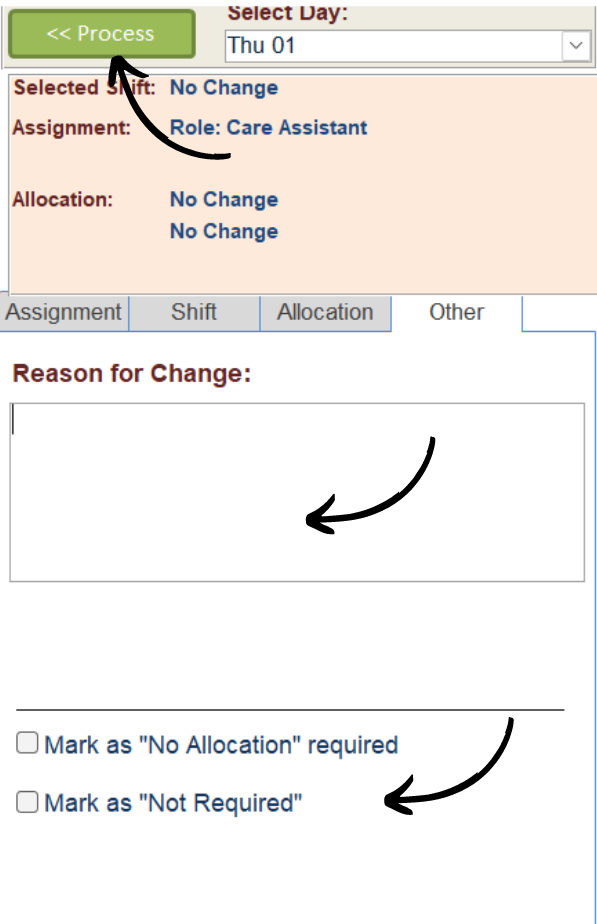
Finally, in the Other tab, you can enter a reason if required, as well as set some other shift options.
After completing the set-up, press Process to add the shift to your rota.