View Categories

How to Register a Device to use Gateway

Learn how to generate a one-time code and use it to register a device with Care Control Gateway. This guide covers creating a code, selecting recipients, configuring device settings, and completing the registration process.
Takes 5 minutes
For: Managers
Updated: 5th Aug 2026

Introduction

One Time Codes provide a secure way to register devices with Care Control Gateway. Administrators can generate a temporary code, send it to authorised staff, and use it to configure a new device for access.

In this guide, you'll learn how to:

  • Generate a one-time code with an expiry date and time.
  • Select staff members who should receive the code.
  • Send and retrieve the one-time code.
  • Register a device within Care Control Gateway.
  • Configure the device as either Kiosk Mode or Single User Mode.

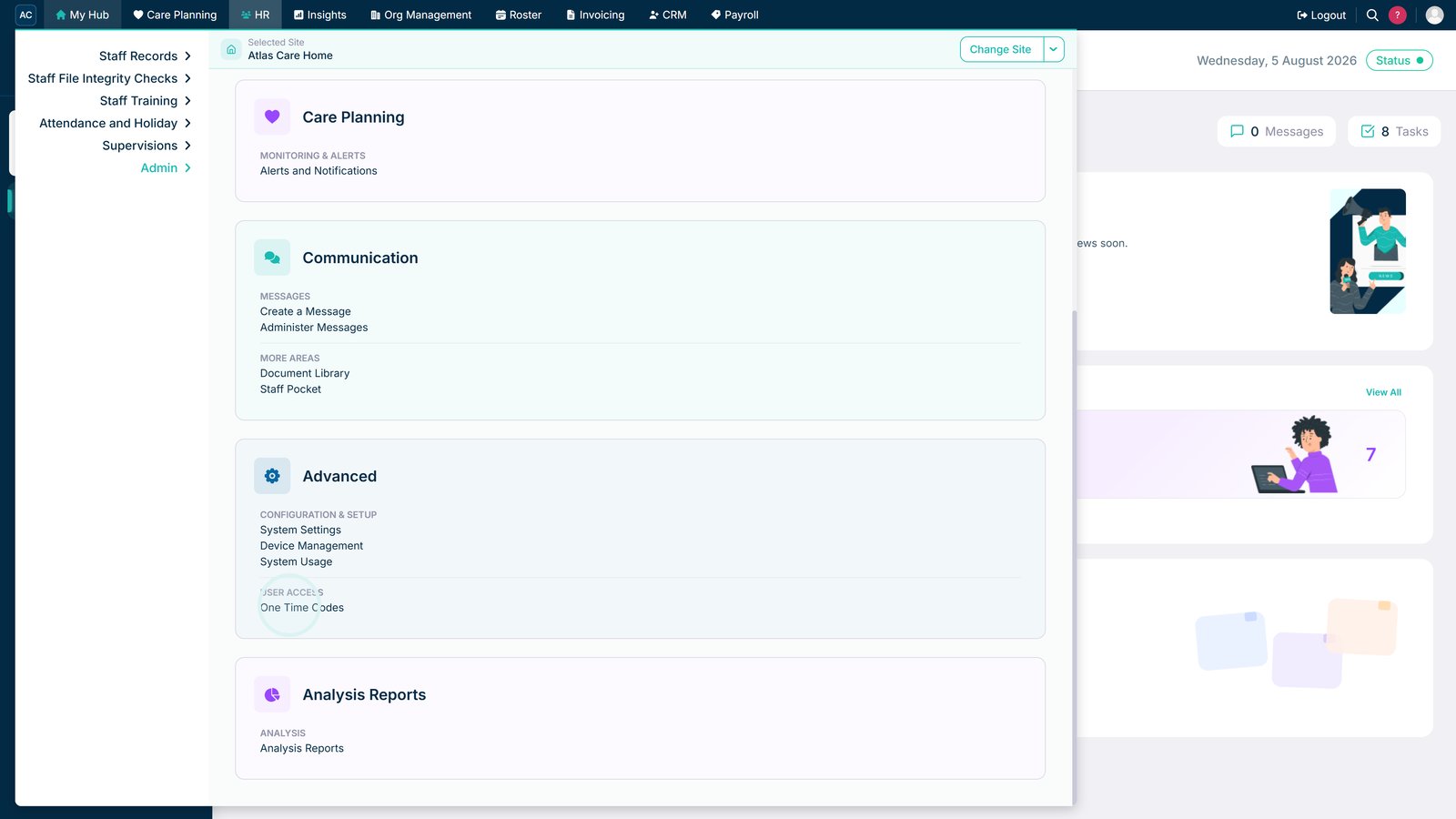
Open One Time Codes from the Advanced settings.

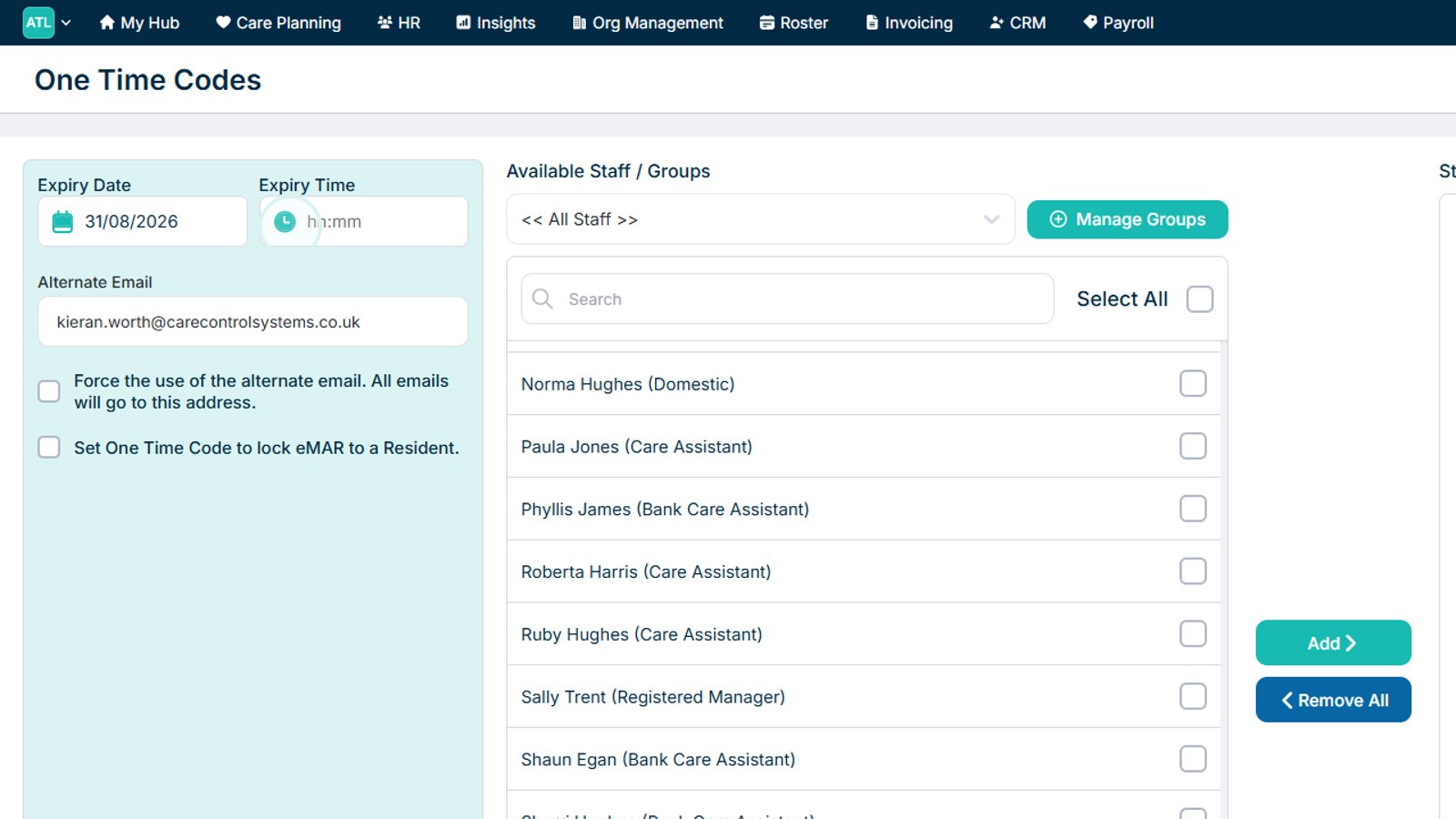
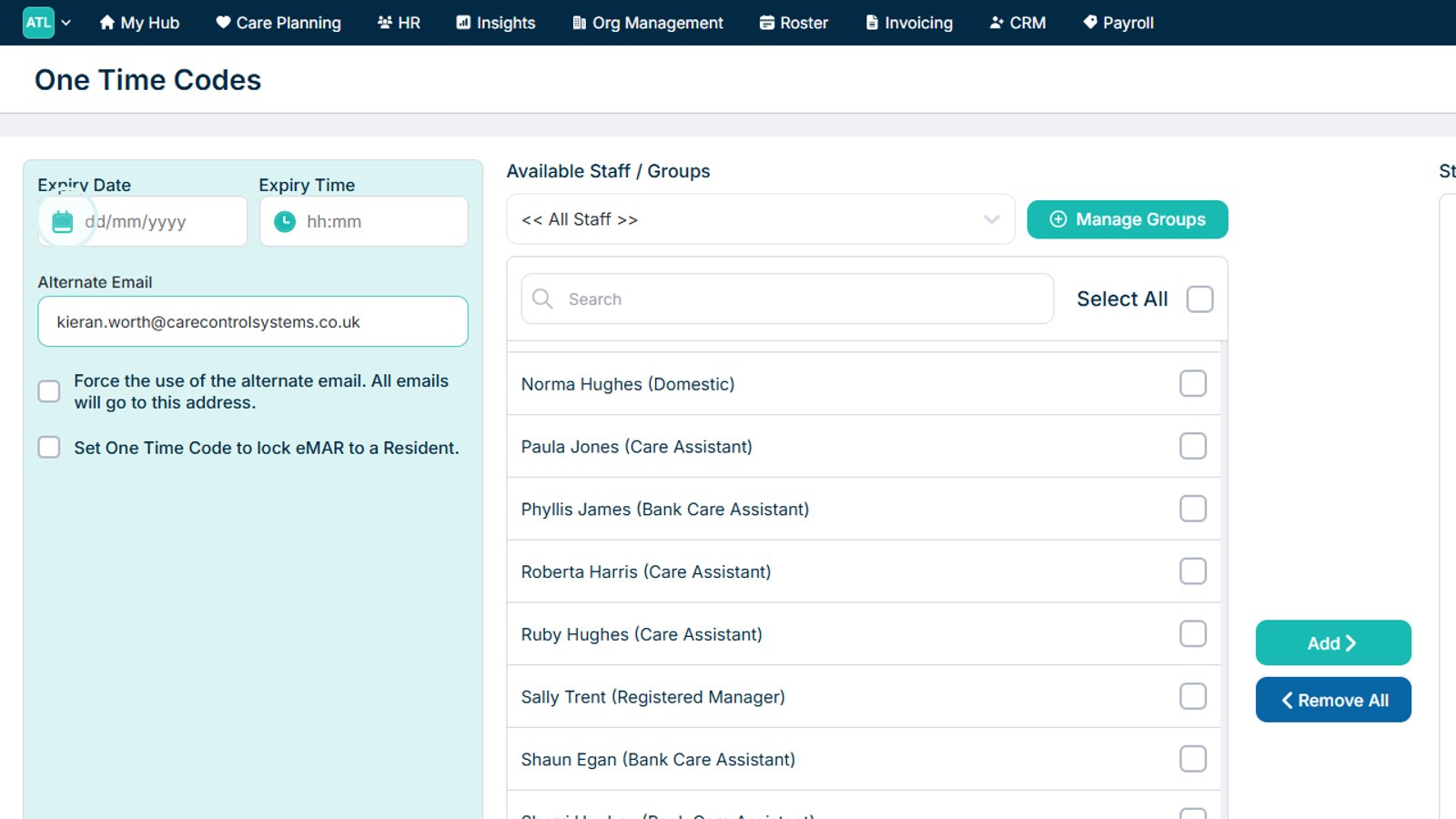
Open the date picker and select the code expiry date.

Use the clock icon to set the code expiry time.

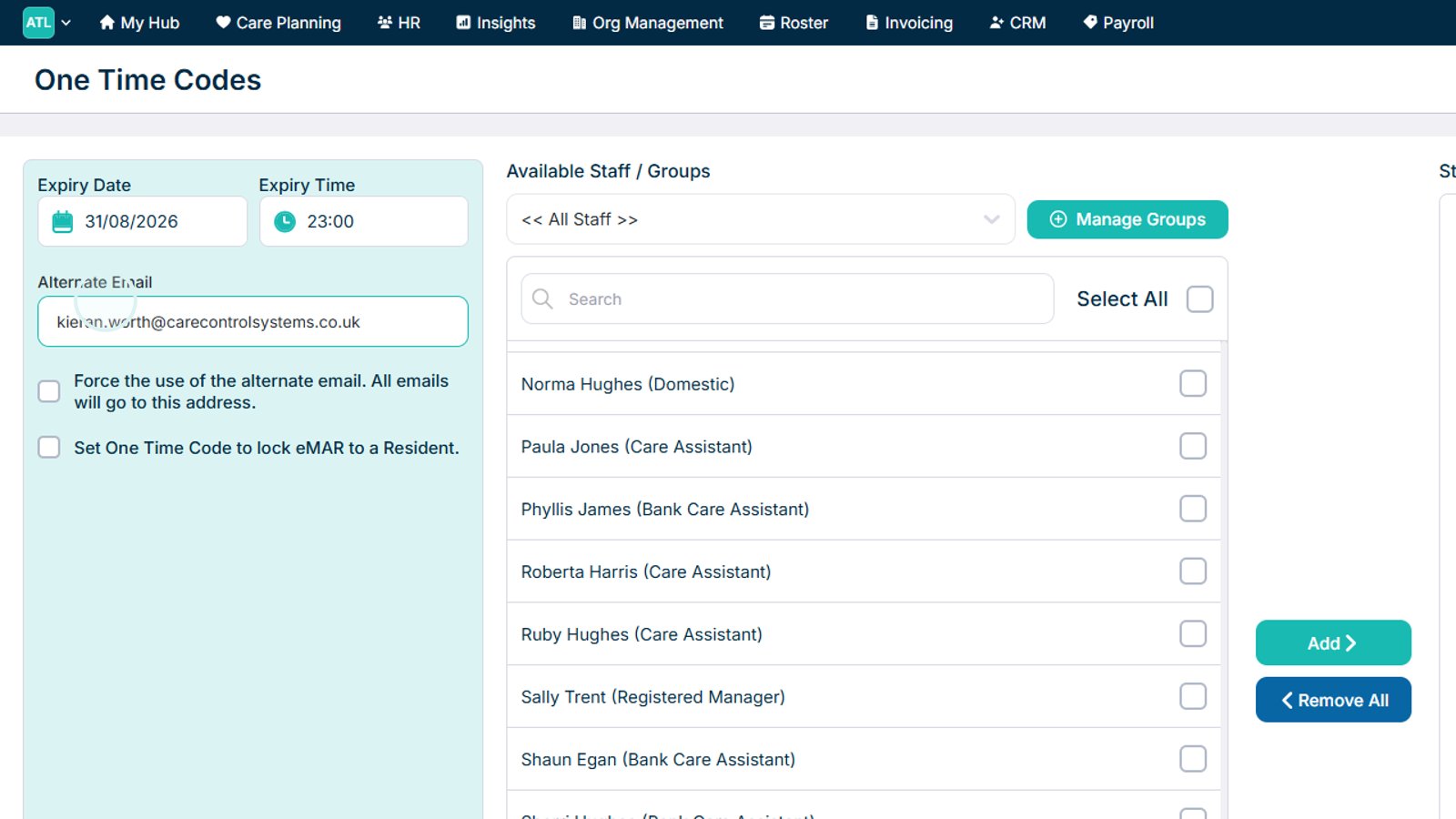
Enter an alternative email address if required.

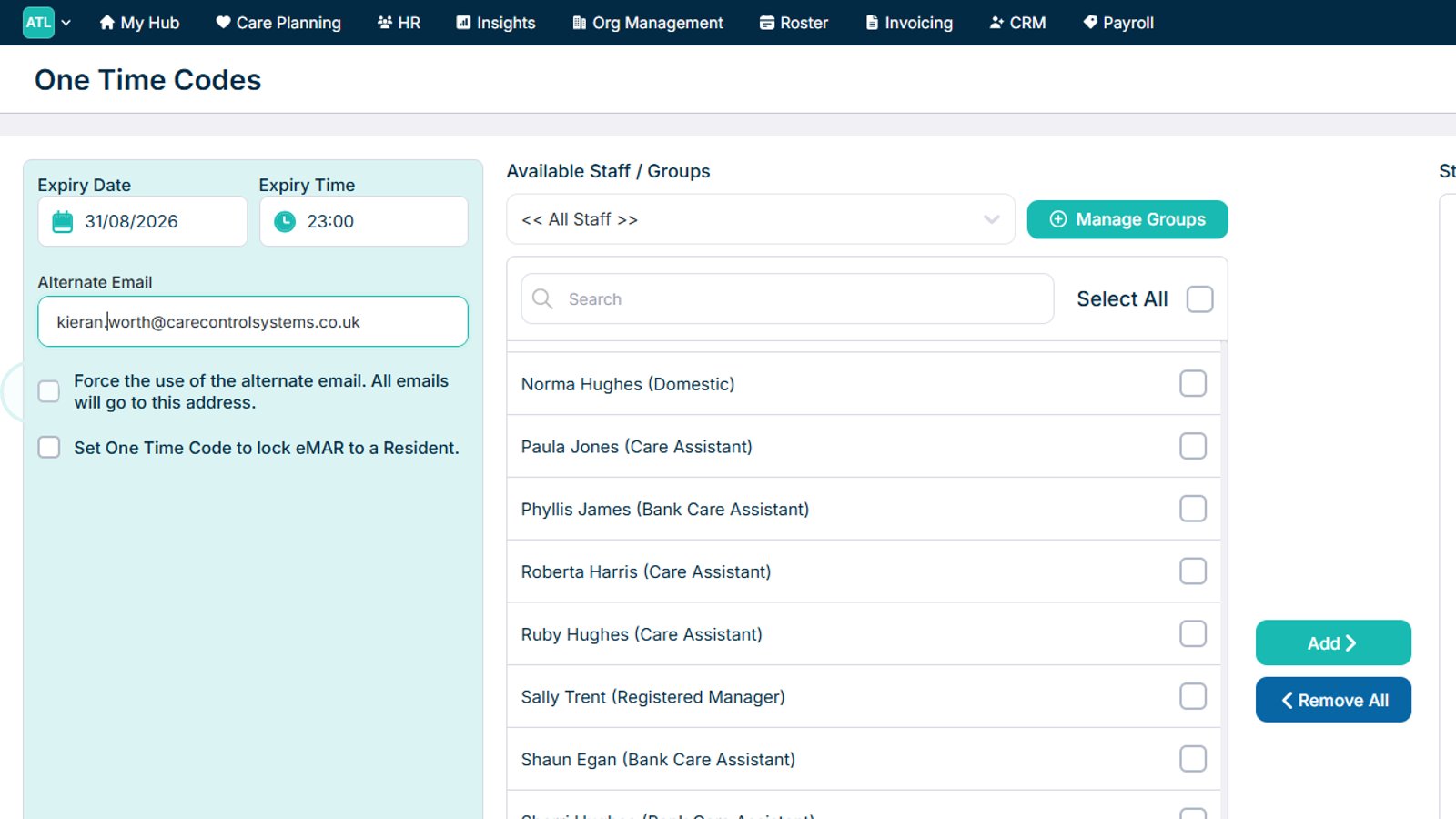
Select the option to send all code-related emails to the alternative email address.

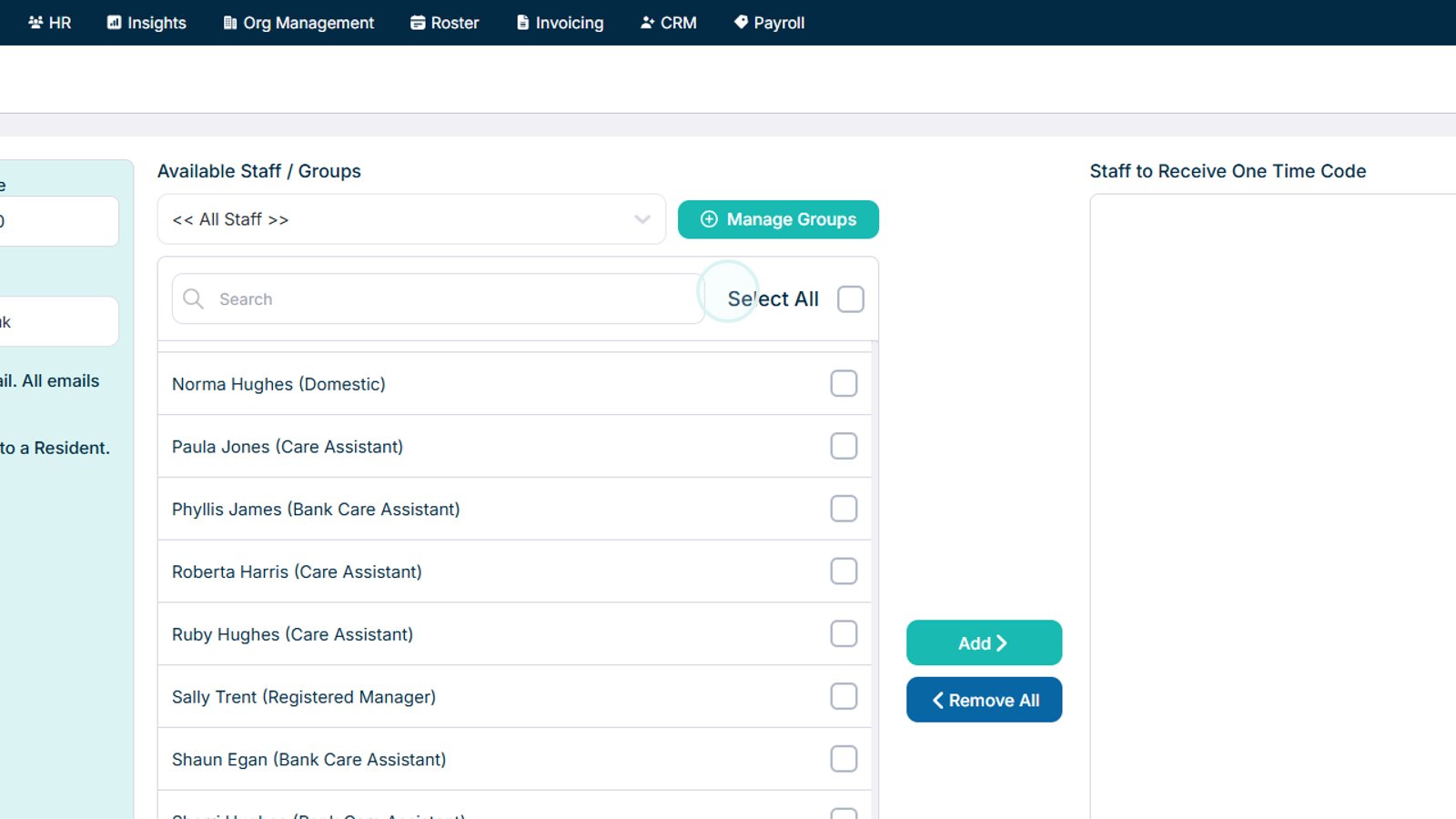
Search for the staff member or group that requires the code.

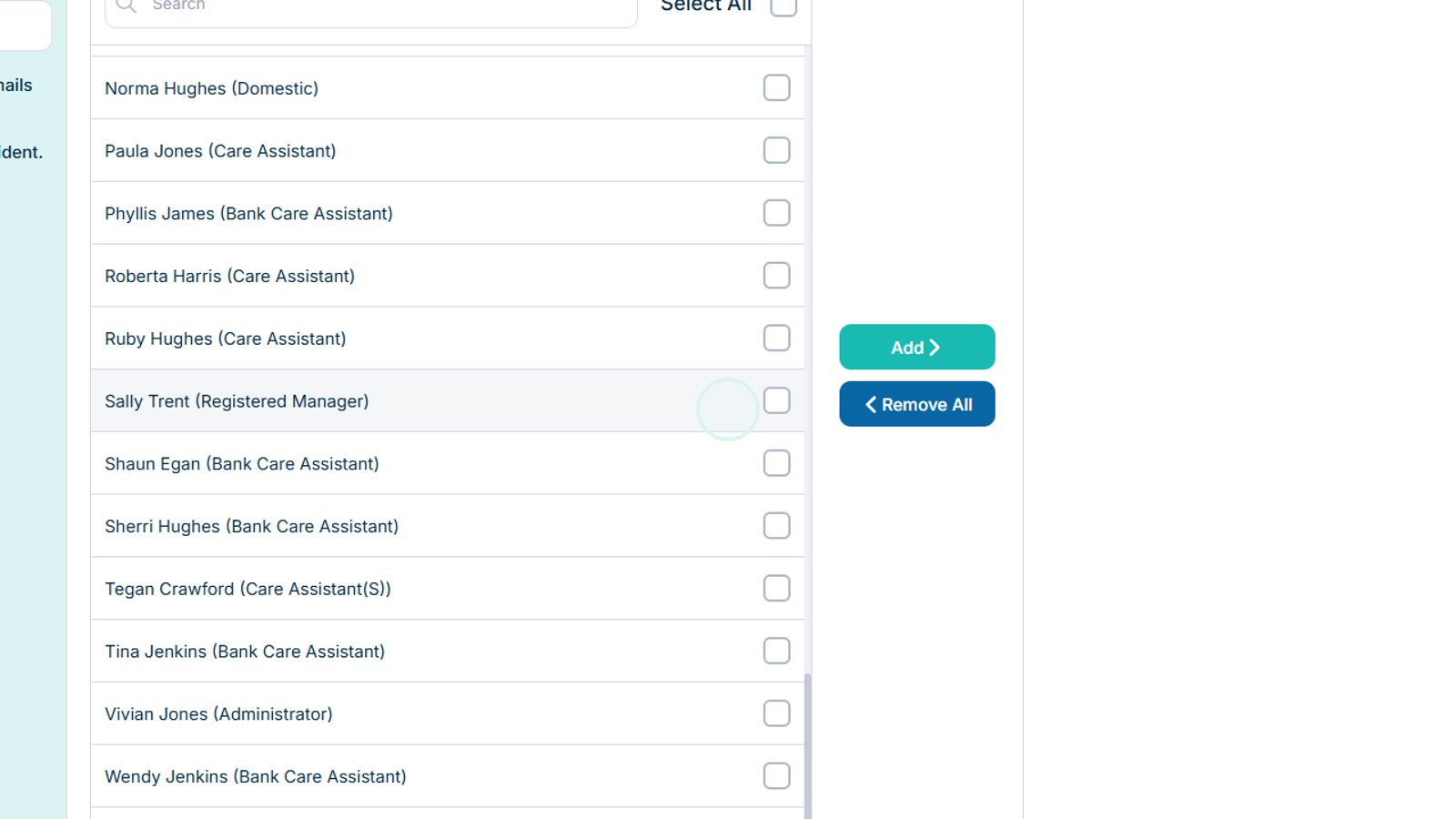
Select one or more staff members from the list.

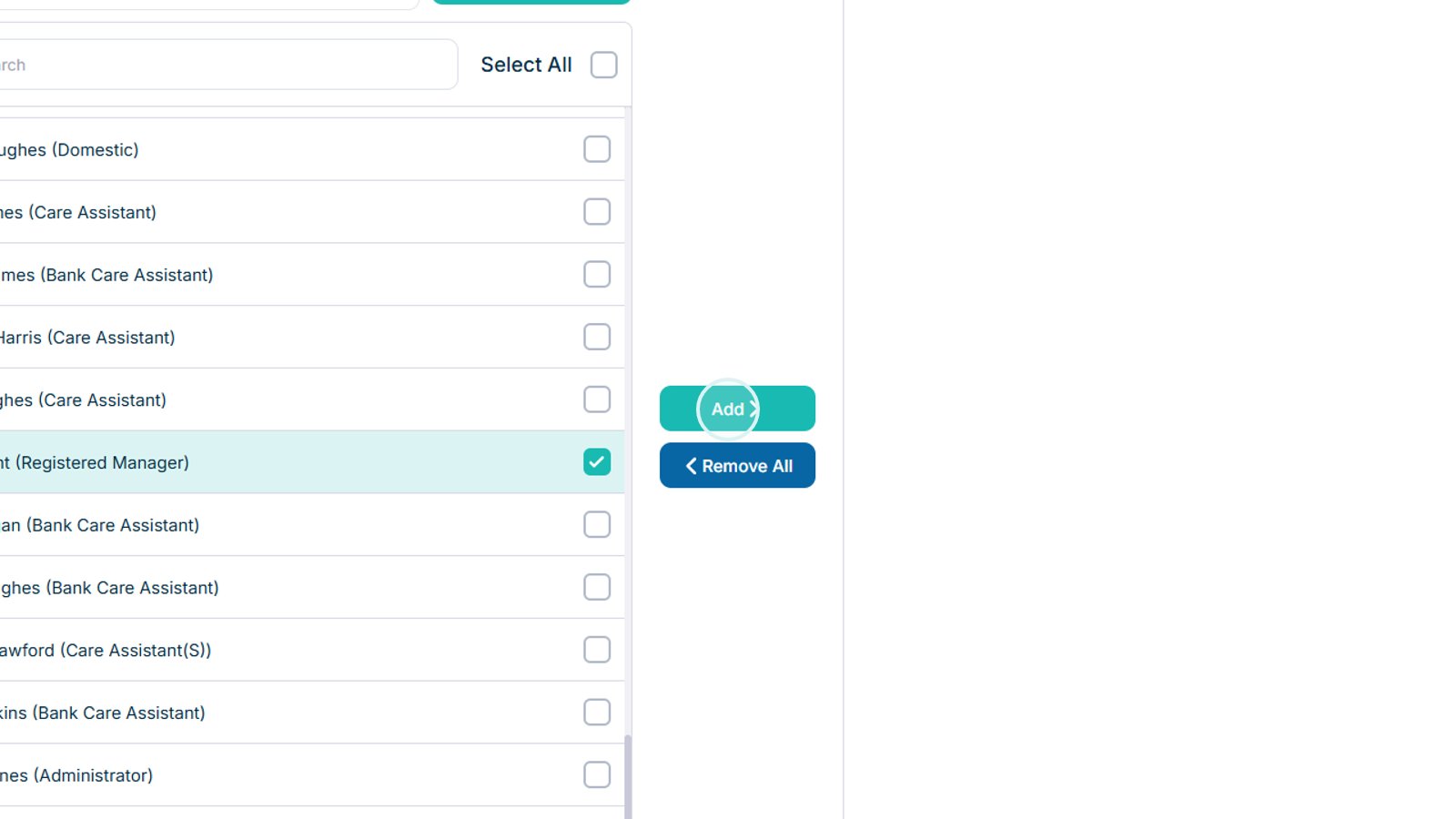
Select Add to include the selected staff members as recipients.

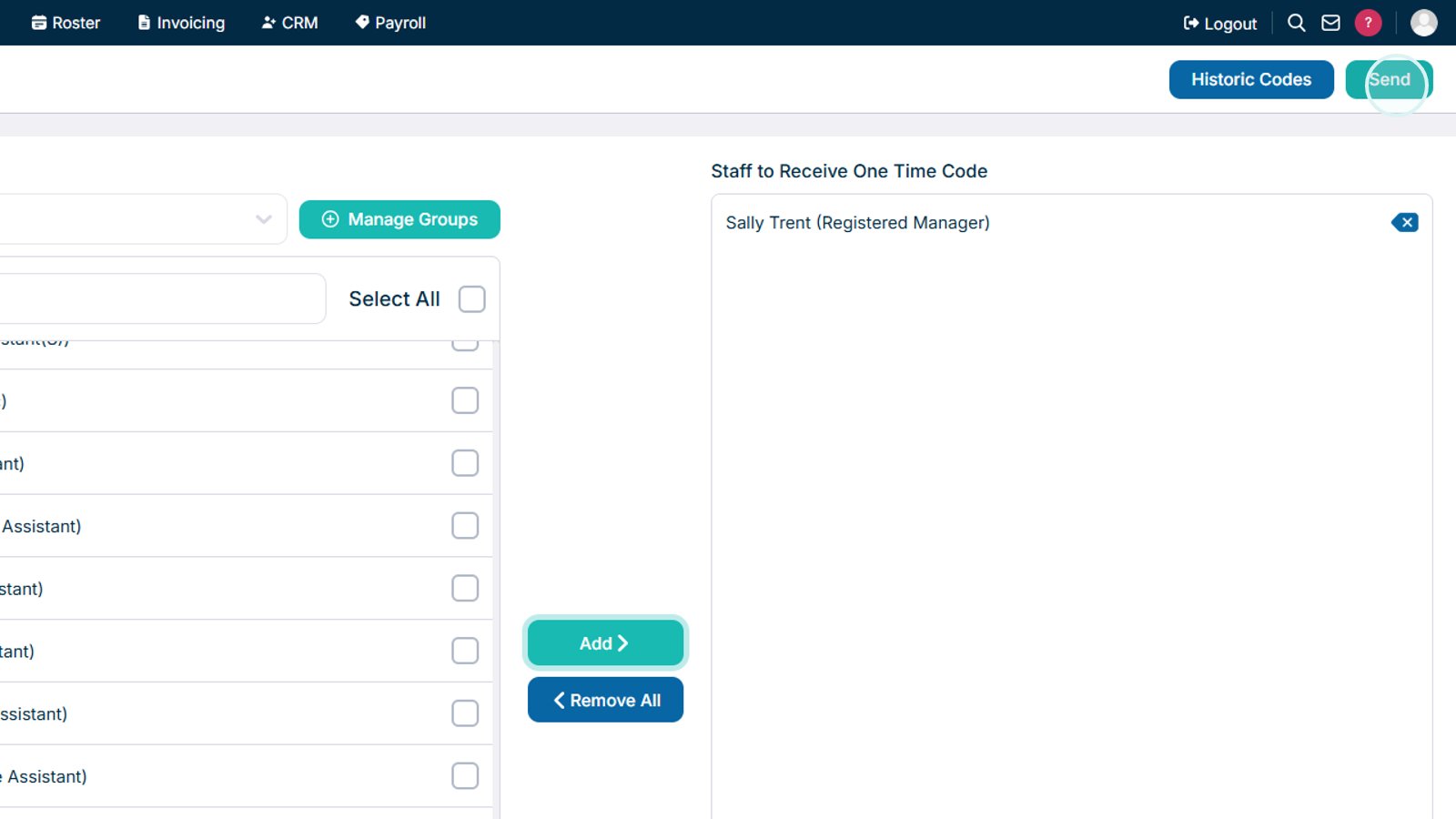
Select Send to generate and email the one-time code.

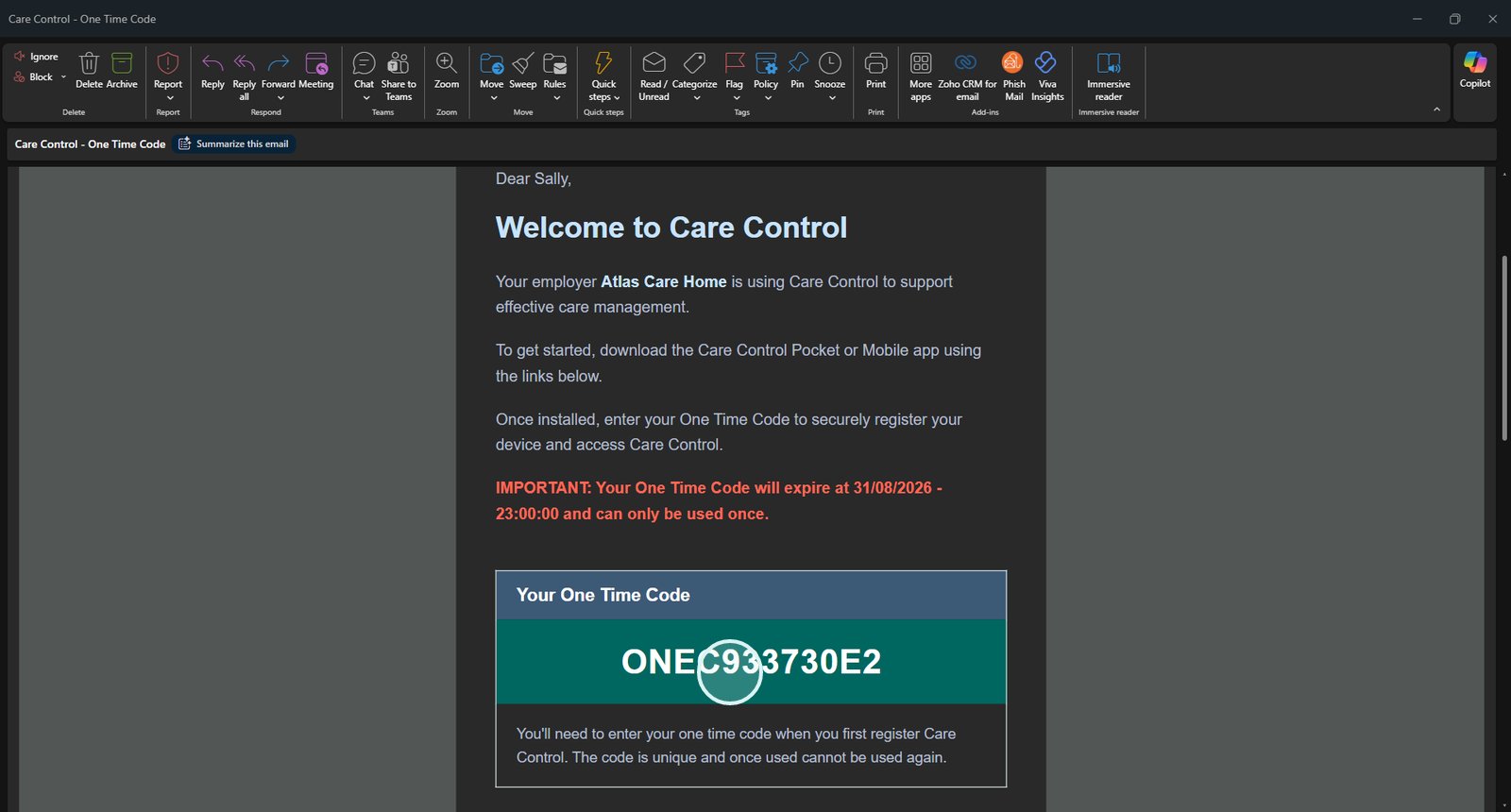
Open the email and copy the one-time code.

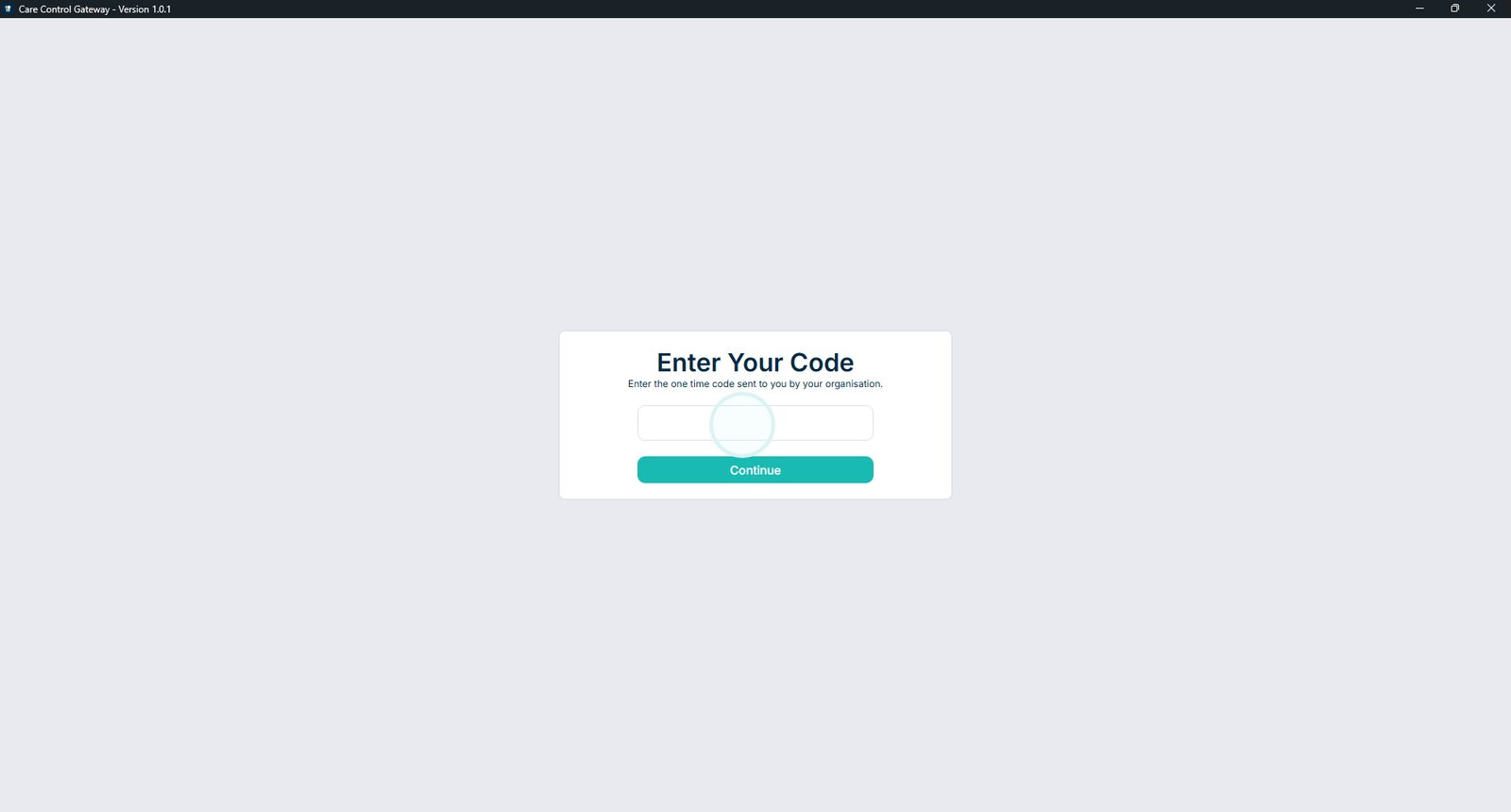
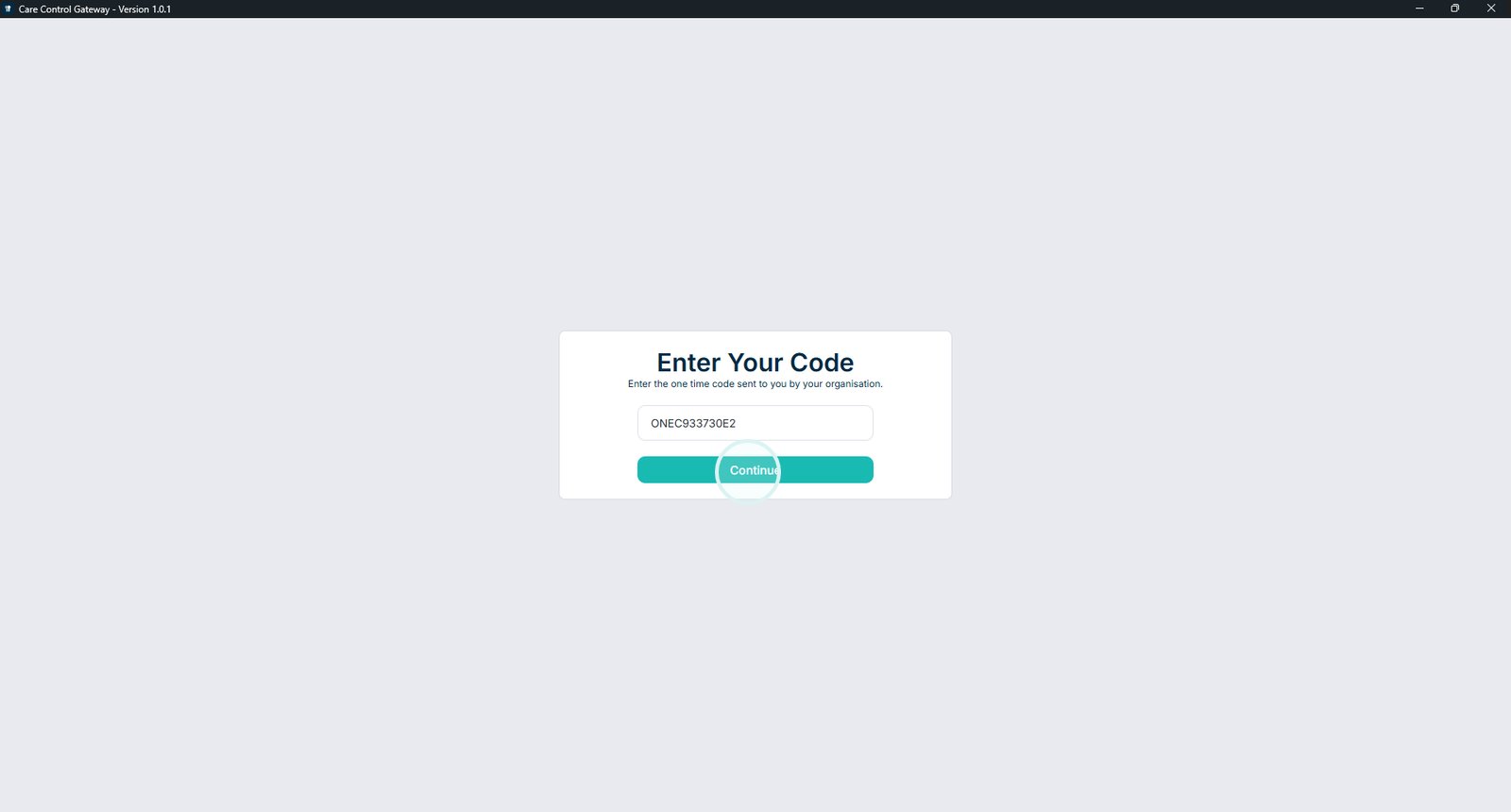
Open Care Control Gateway and enter the one-time code.

Select Continue to proceed.

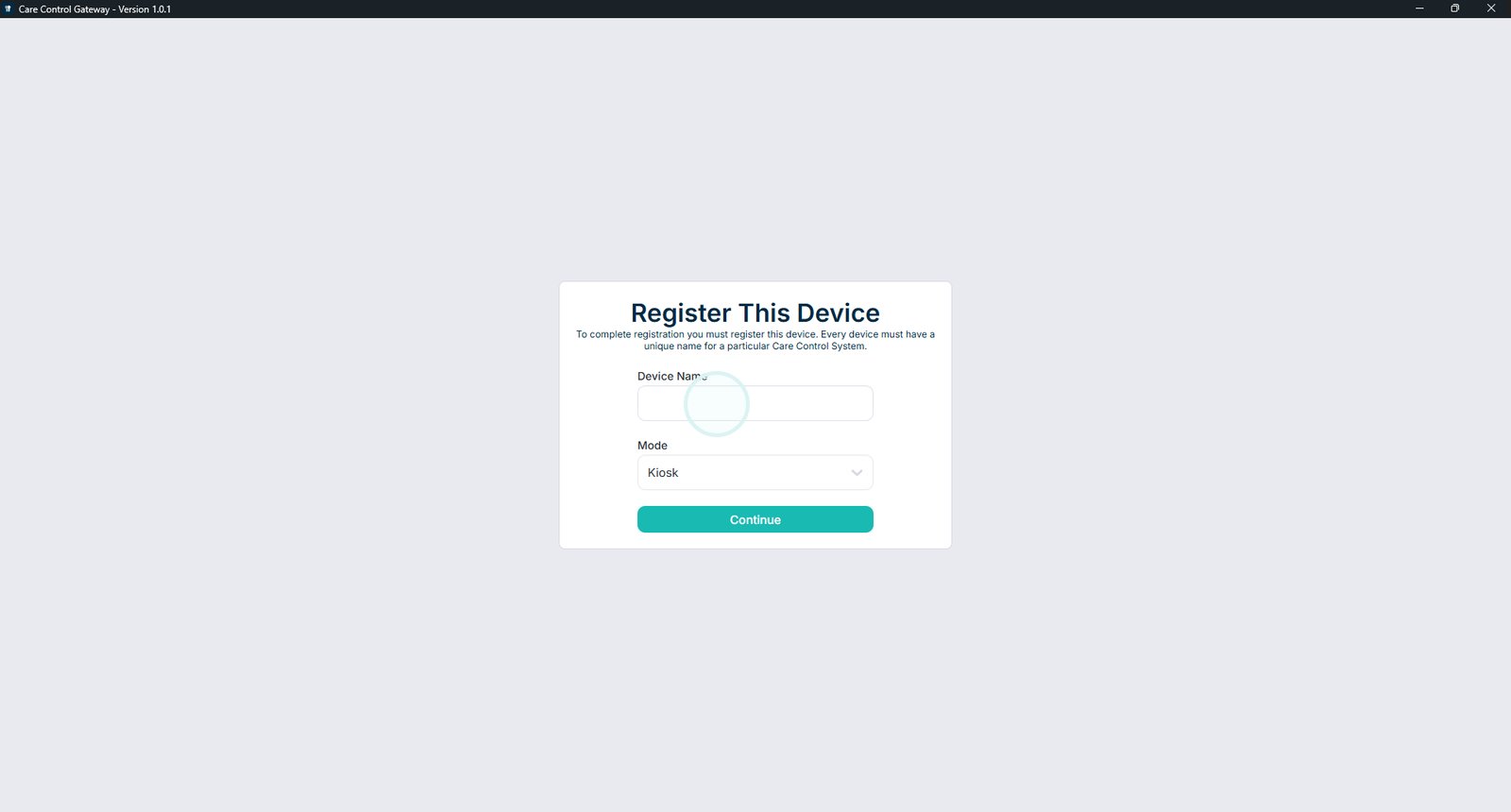
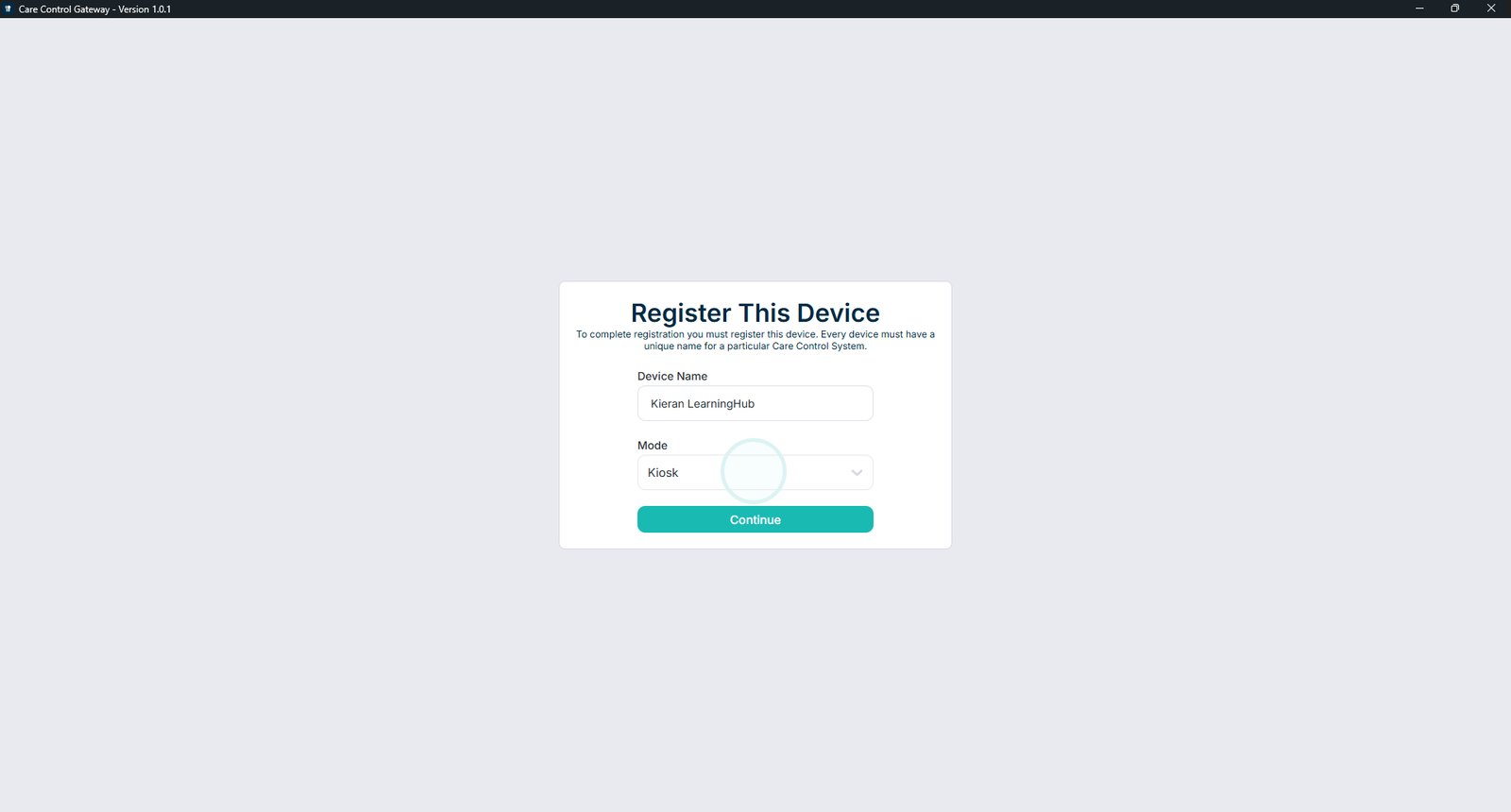
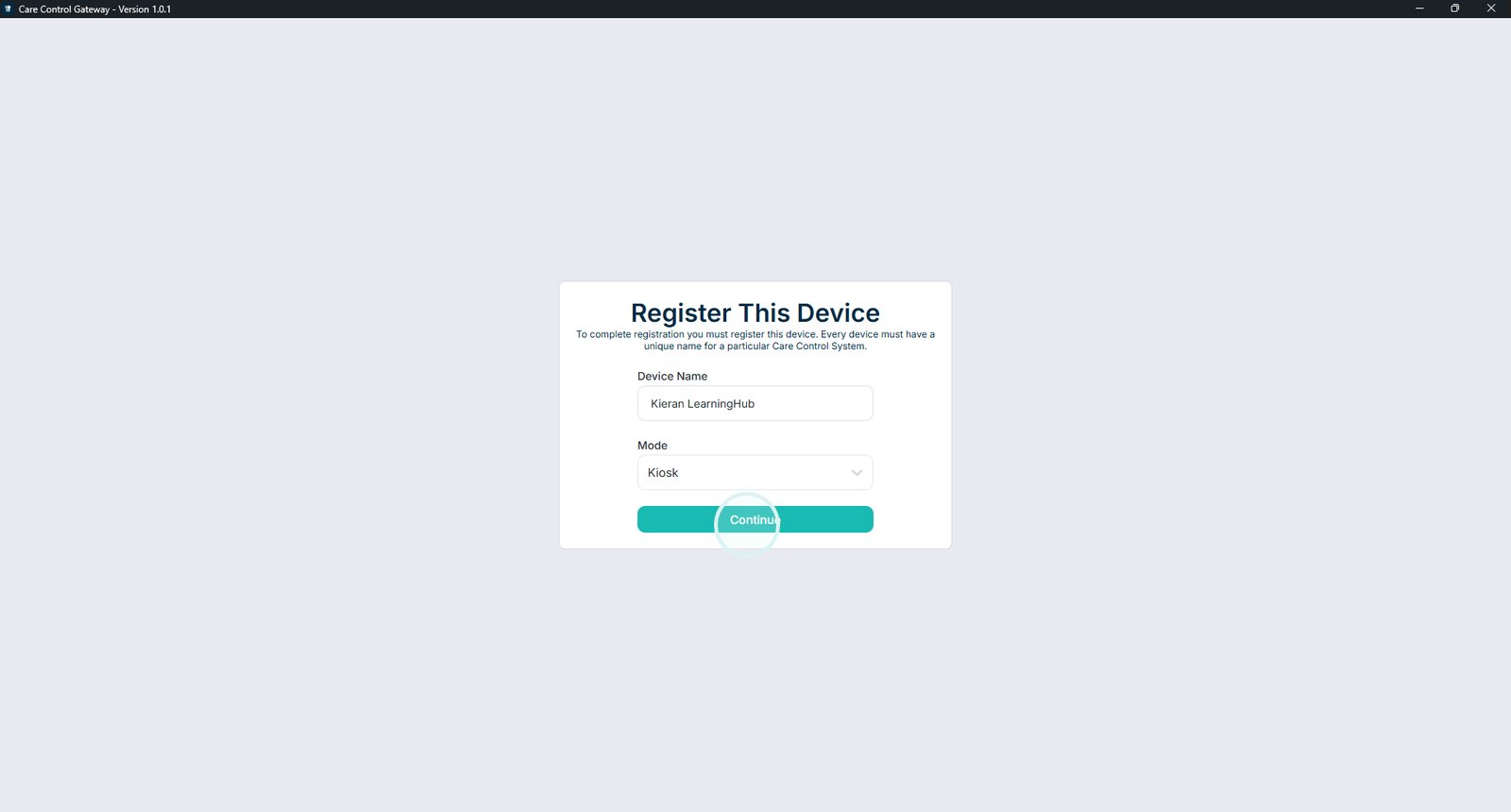
Enter a recognisable name for the device.

Select Kiosk Mode or Single User Mode.

Select Continue to complete the device setup.

Top tip

Choose Kiosk Mode for shared devices used by multiple staff members, or Single User Mode for devices dedicated to one individual.

Was this guide helpful?

Need more help?

Can't find what you're looking for? Our support team is here to help.

Contact Support

Or call us on

On this page