
How to Set Up Care Control Verify
Learn how to configure facial recognition, update staff profile pictures, generate a One-Time Code and register a device to use Care Control Verify.
Open System Settings
In Care Control Cloud, navigate to Advanced Org Management Admin and open System Settings.

Open Sign-In/Out Settings
Select Sign-In/Out to review and configure how staff sign in and out of your care service.

Change the Staff Sign-In Method
Locate the current staff sign-in method and select it to view the available options.

Select Facial Recognition
Choose Facial Recognition as the staff sign-in method.
This allows staff to use facial capture alongside their usual PIN when signing in and out through Care Control Verify.

Open Staff Personal Details
Navigate to Personal Details in Care Control Cloud to review and update staff profiles.

Select a Staff Member
Find and select the staff member whose profile picture you want to update.

Edit Personal Details
Select Edit Personal Details to make changes to the staff member's profile.

Update the Profile Picture
Locate the staff member's profile picture and select the edit icon above the image.

Upload a New Profile Picture
Select the upload area or drag and drop a new profile picture into the available space.
Use a clear, recent photograph that shows the staff member's face.

Save the Profile Picture
Once you've selected the new photograph, select Save to confirm the profile picture.

Save Changes to Personal Details
Select Save Changes to apply the updates to the staff member's personal details.
Repeat this process for any other staff members whose profile pictures need updating.

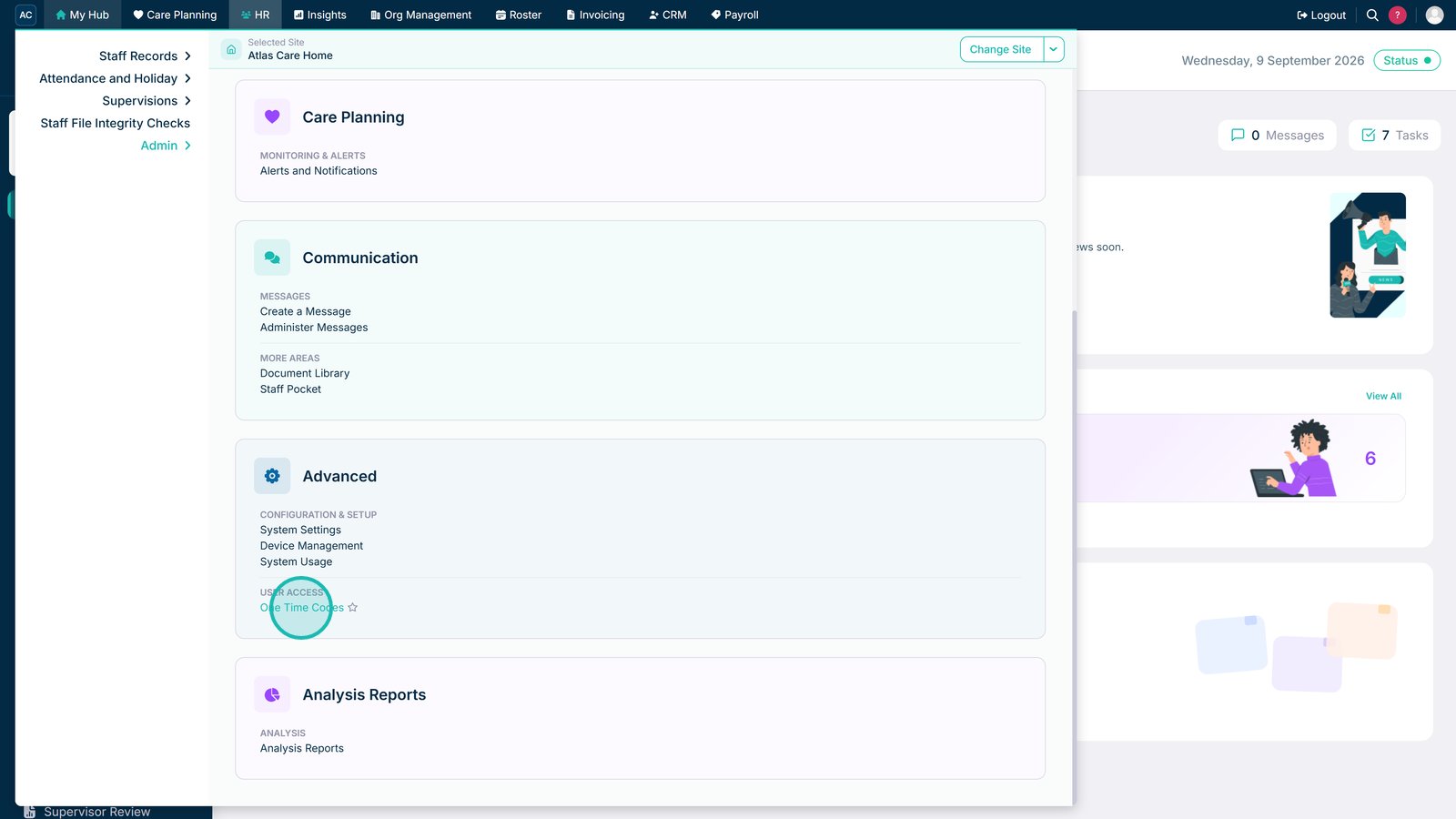
Open One Time Codes
In Care Control Cloud, navigate to HR Advanced and open One Time Codes.
This allows an authorised user to generate a temporary code for registering the device.
Set the One-Time Code Expiry
Choose the expiry date and time for the One-Time Code.
Make sure the code remains valid long enough for the device registration to be completed.


Select the Staff Member
Find and select the staff member who should receive the One-Time Code.
You can use the available staff filters to help locate the correct person.

Add the Selected Staff Member
Add the selected staff member to the list of recipients for the One-Time Code.

Generate and Send the One-Time Code
Once you've selected the recipient and confirmed the expiry details, generate and send the One-Time Code.
Keep the code available, as you'll need it to register your Care Control Verify device.

Download Care Control Verify from the Google Play Store
On your tablet, open the Google Play Store and search for Care Control Verify.
Find the application and select Install to download it onto your device.
Please note: Care Control Verify is currently only available through the Google Play Store for Android tablet devices.

Open Care Control Verify
Once the installation has finished, select Open on the Google Play Store page to launch Care Control Verify.
You'll now be ready to register your tablet using the One-Time Code generated earlier.

Enter Your One-Time Code
Open Care Control Verify on the device you want to register.
Enter the One-Time Code generated in Care Control Cloud into the field provided.

Name Your Device
Enter a device name that makes it easy for your team to identify.
We recommend choosing a memorable name that reflects where the device will be used, such as the room or location.

Register Your Device
Once you've entered the One-Time Code and chosen a device name, select Register Tablet.
This completes the device registration process.

Start Using Care Control Verify
Your device is now registered and ready to use.
Staff can begin signing in and out using their usual staff PIN and facial capture.
