How to Sign In and Sign Out of Gateway
Learn how to sign in and out of Care Control Gateway using Kiosk Mode. This guide covers logging in with your PIN, accessing Care Control Cloud, viewing the Service Status page, and signing out while reviewing any outstanding tasks.
Takes 5 minutes
For: Everyone
Updated: 6th Aug 2026
Introduction
Care Control Gateway allows staff to quickly sign in to Care Control Cloud using their PIN, making it easy to access the information and tools needed during a shift. When your work is complete, you can safely sign out and review any outstanding tasks before ending your session.
In this guide, you'll learn how to:
- Sign in using your PIN.
- Access Care Control Cloud.
- Open the Service Status page.
- Sign out safely and review outstanding tasks.
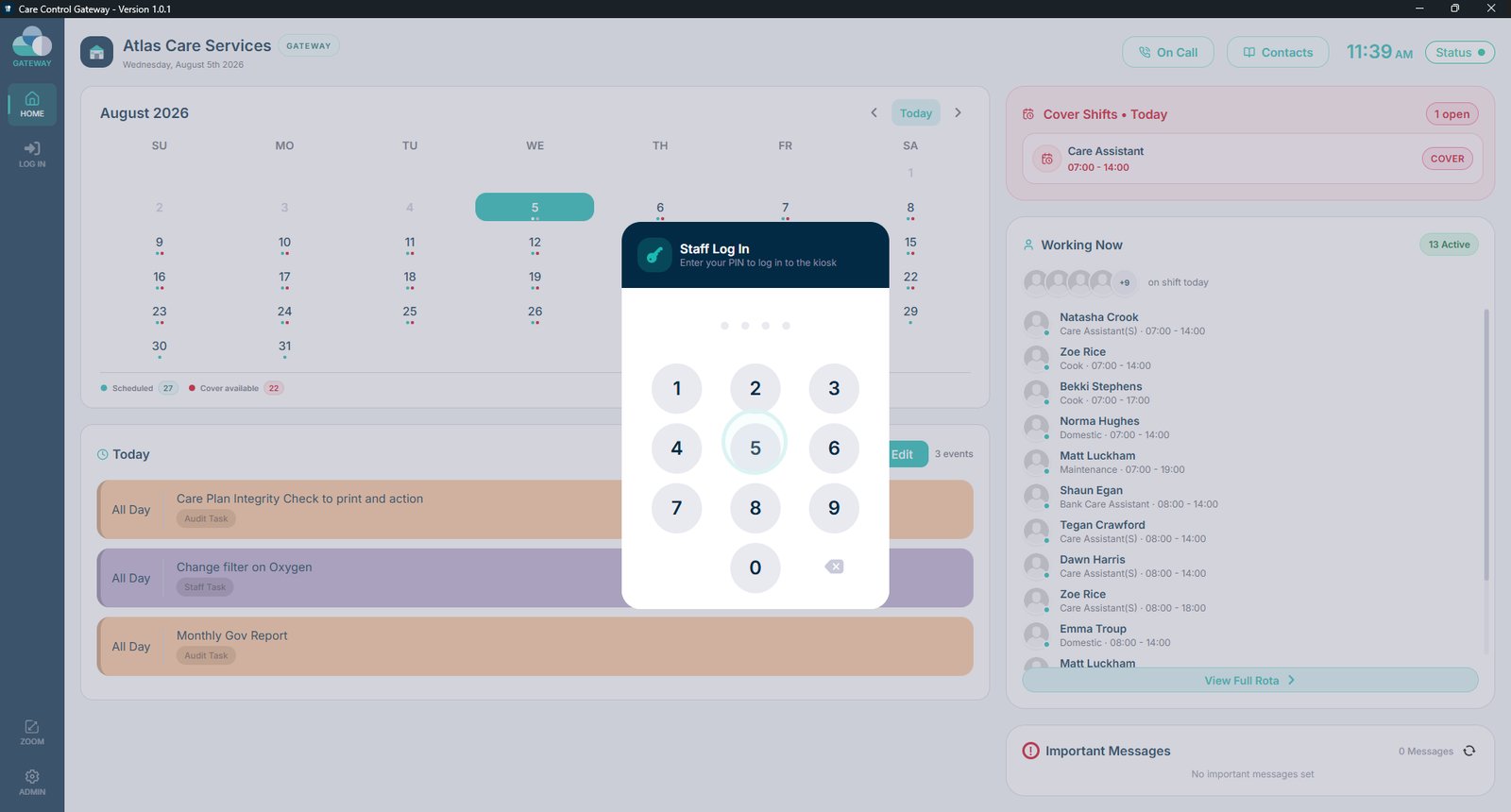
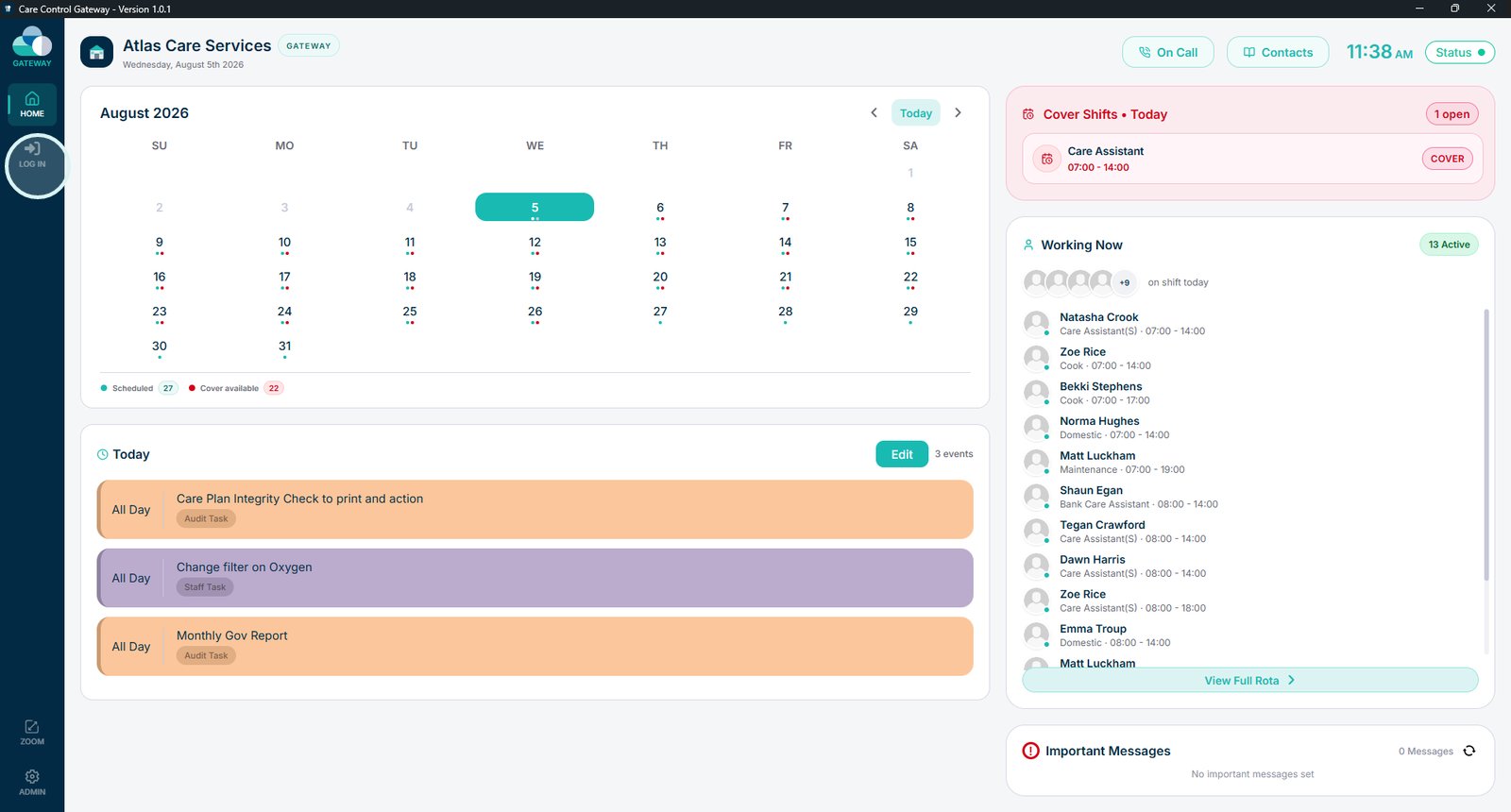
Select Log In to sign in to Care Control.

Enter your PIN as you normally would.

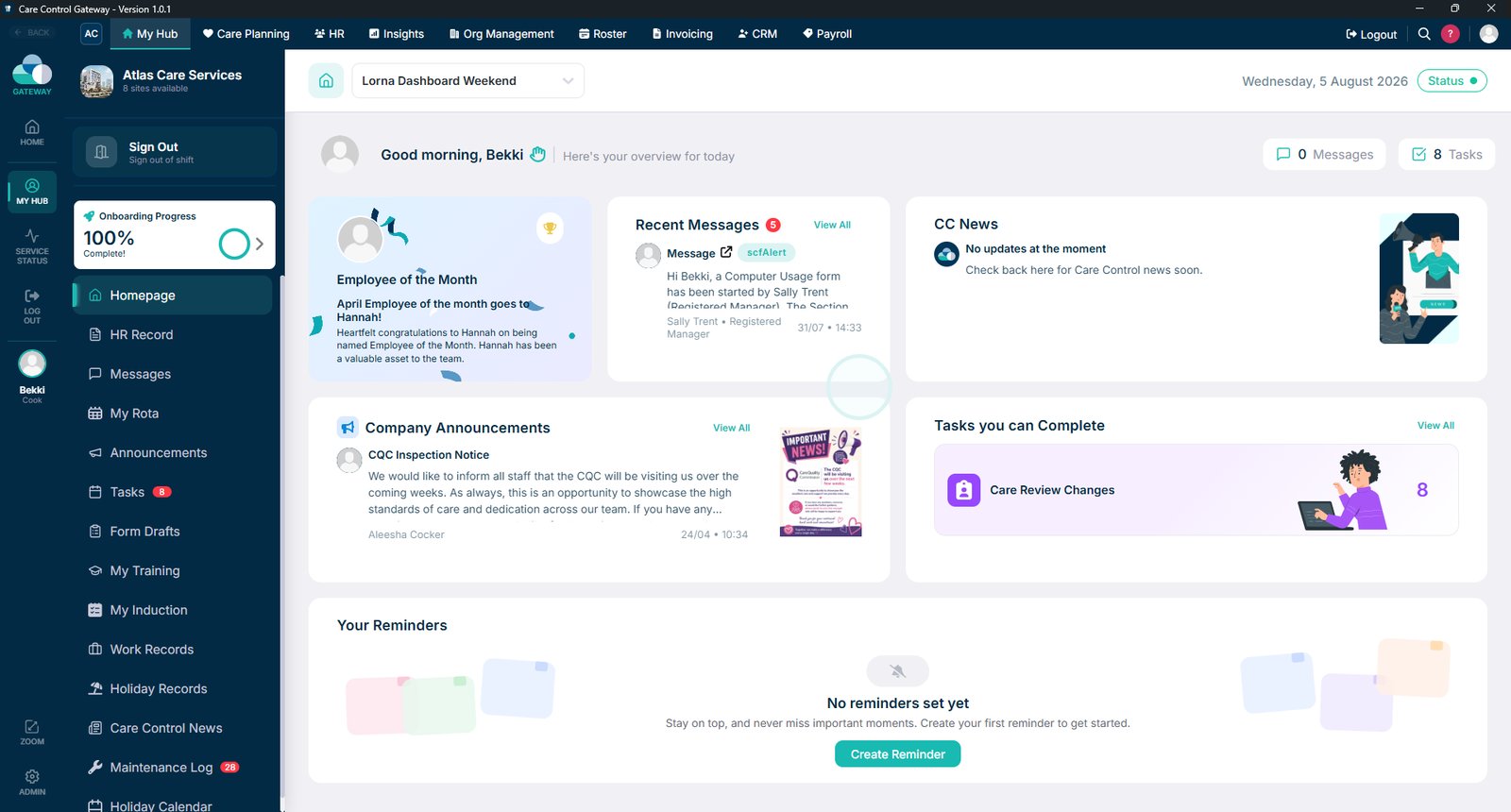
You can now access Care Control Cloud as normal.

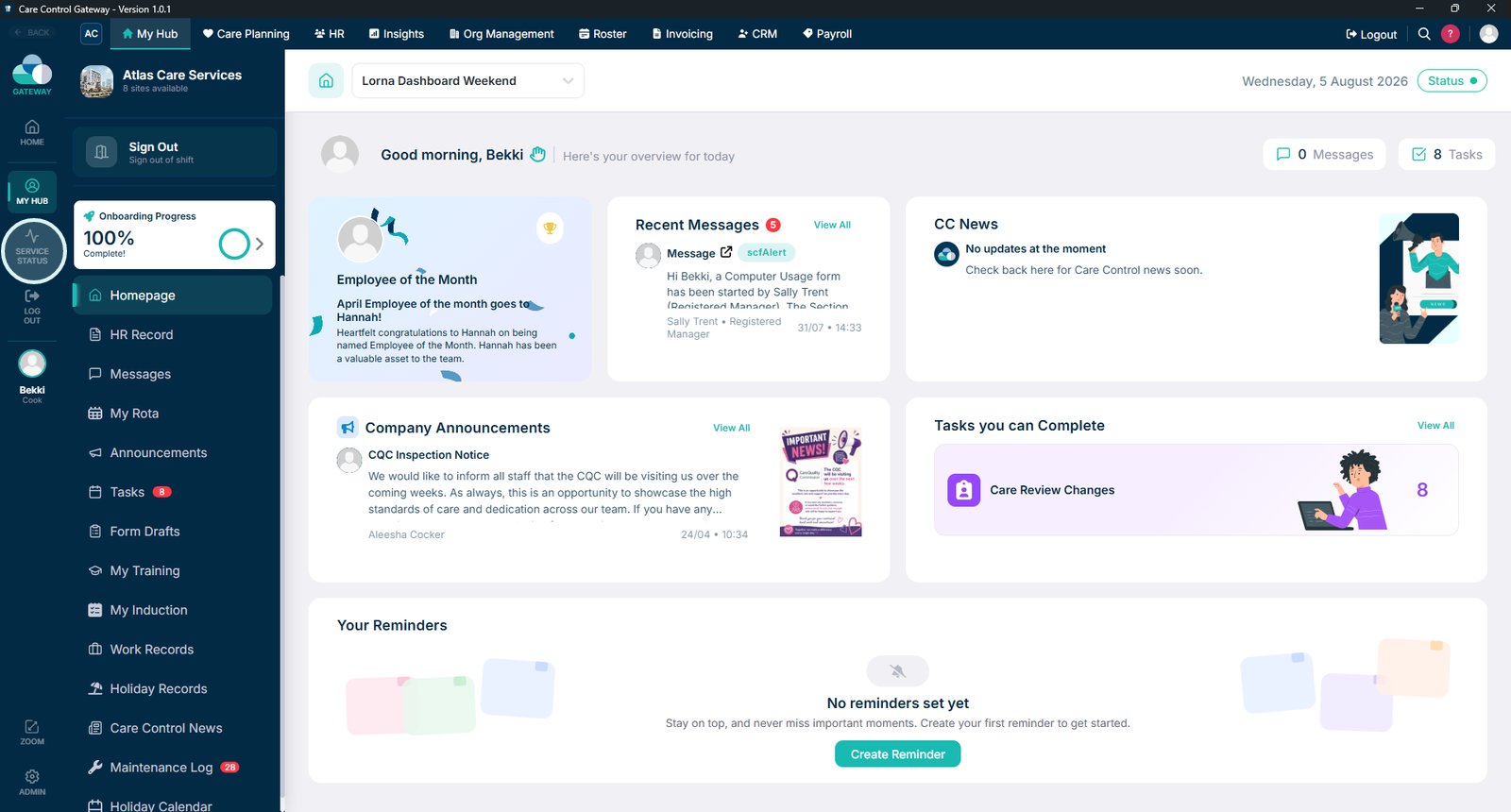
Select Service Status to open the Service Status page.

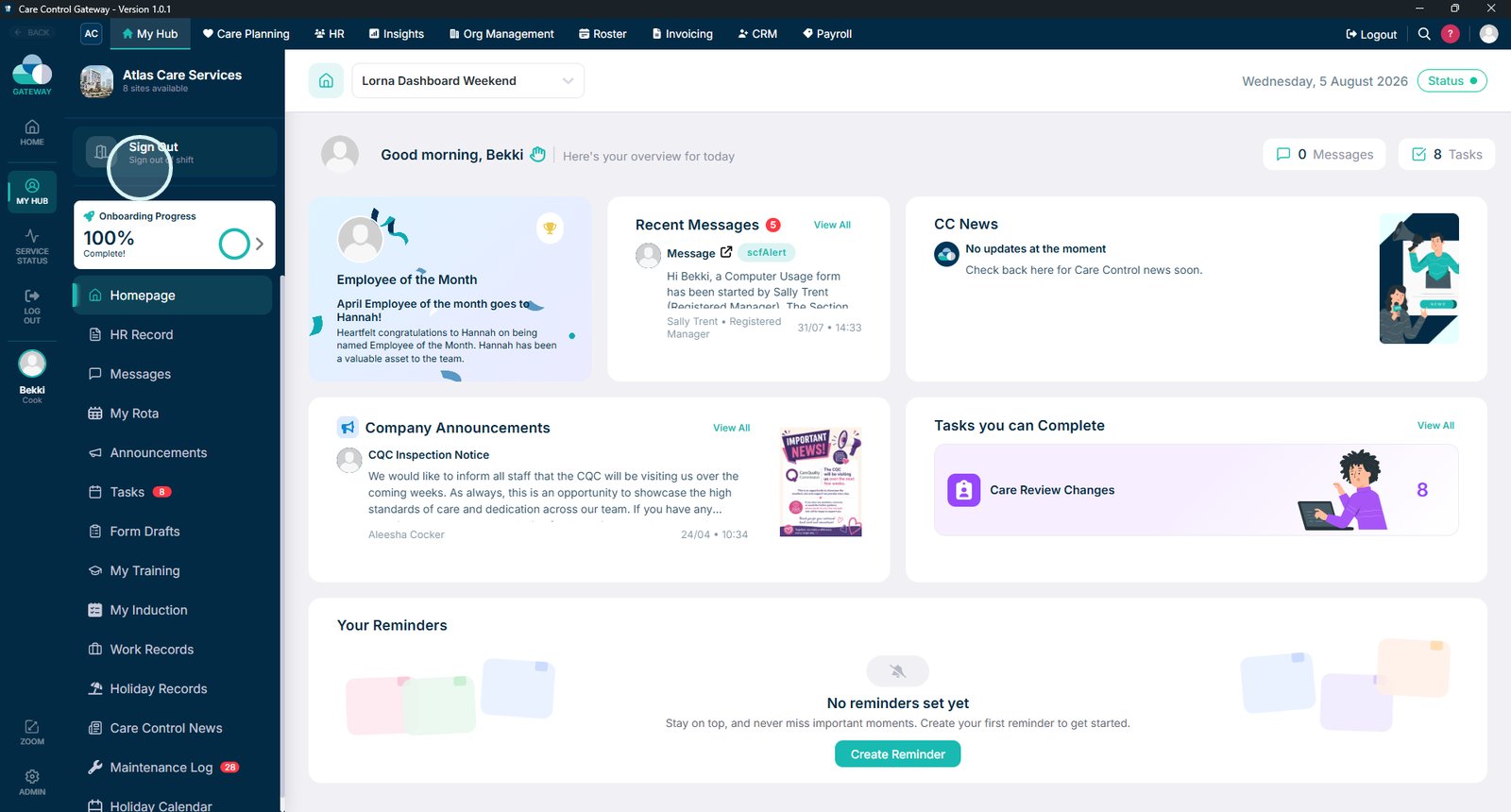
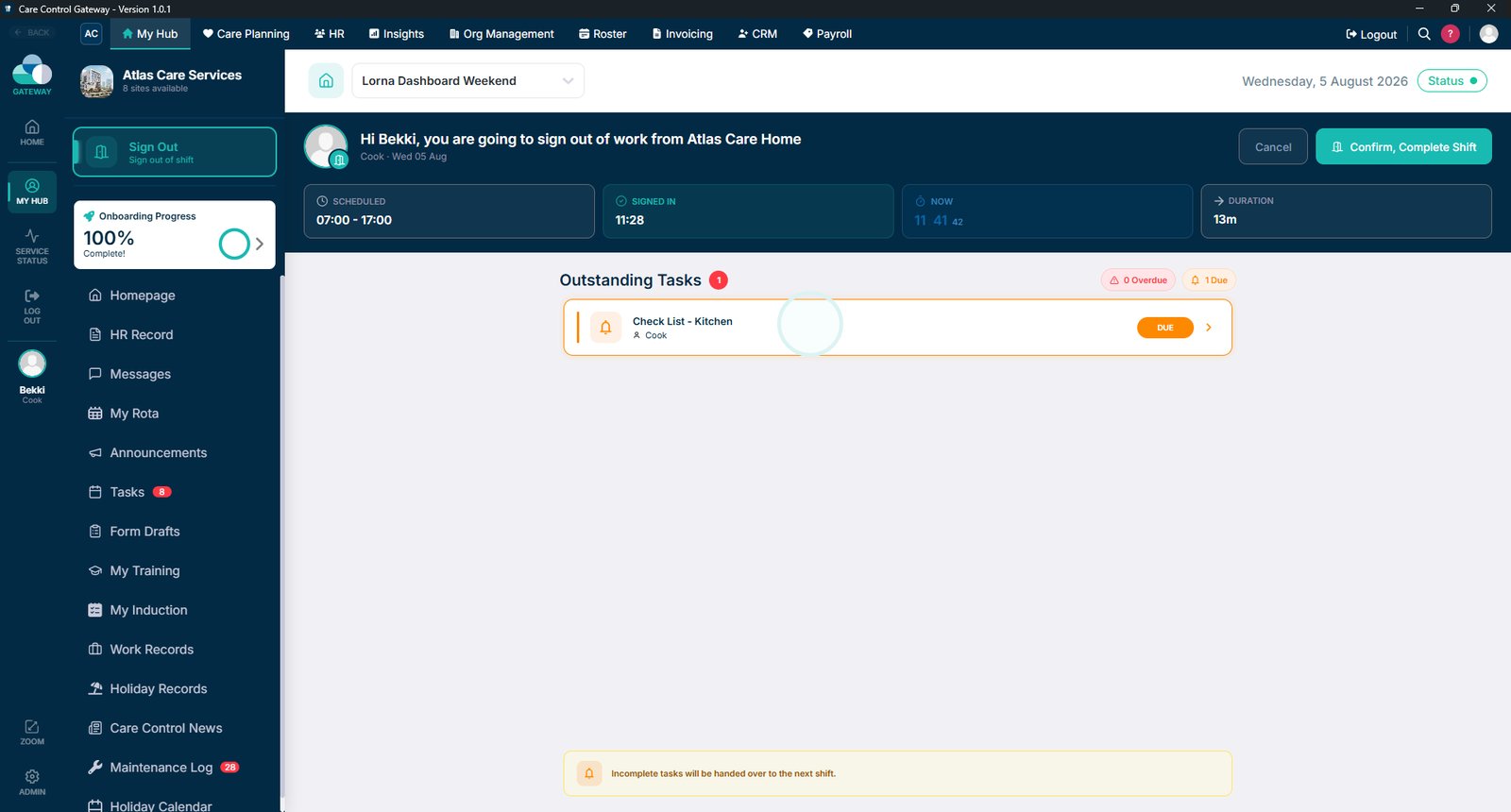
When you've finished, select Sign Out.

Any outstanding tasks will be displayed before you sign out. Select a task to open and complete it if required.

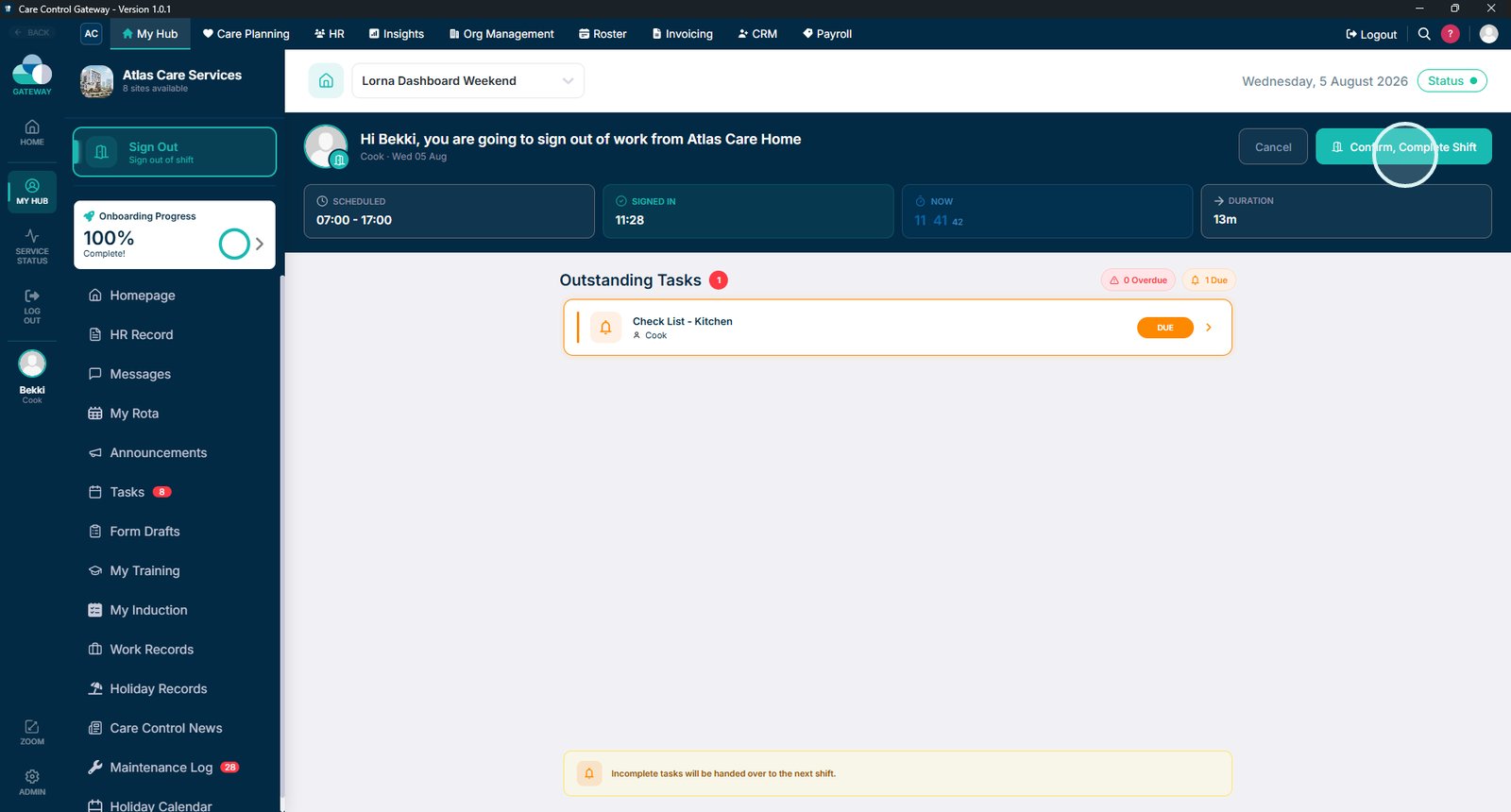
When you're ready, select Confirm, Complete Shift to sign out and return to the Kiosk home screen.

Top tip
Before signing out, check any outstanding tasks displayed on screen. Completing them before ending your shift helps keep resident records up to date.
Need more help?
Can't find what you're looking for? Our support team is here to help.
Contact SupportOr call us on