How to Utilise Single Custom Form Workflows
This guide explains how to complete a Single Custom Form workflow, including starting the form, completing available sections, assigning remaining sections to other staff members, claiming sections, and reviewing who completed each part.
Takes 5 minutes
For: Everyone
Updated: 31st July 2026
Introduction
Single Custom Form workflows allow different staff members to complete assigned sections of the same form. Staff can complete the sections available to them, submit their work, and pass the remaining sections to other authorised users.
In this guide you'll learn how to:
- Open and begin a Single Custom Form
- Complete the sections available to you
- Check who can complete each remaining section
- Claim and edit assigned sections
- Submit the completed form and review the workflow
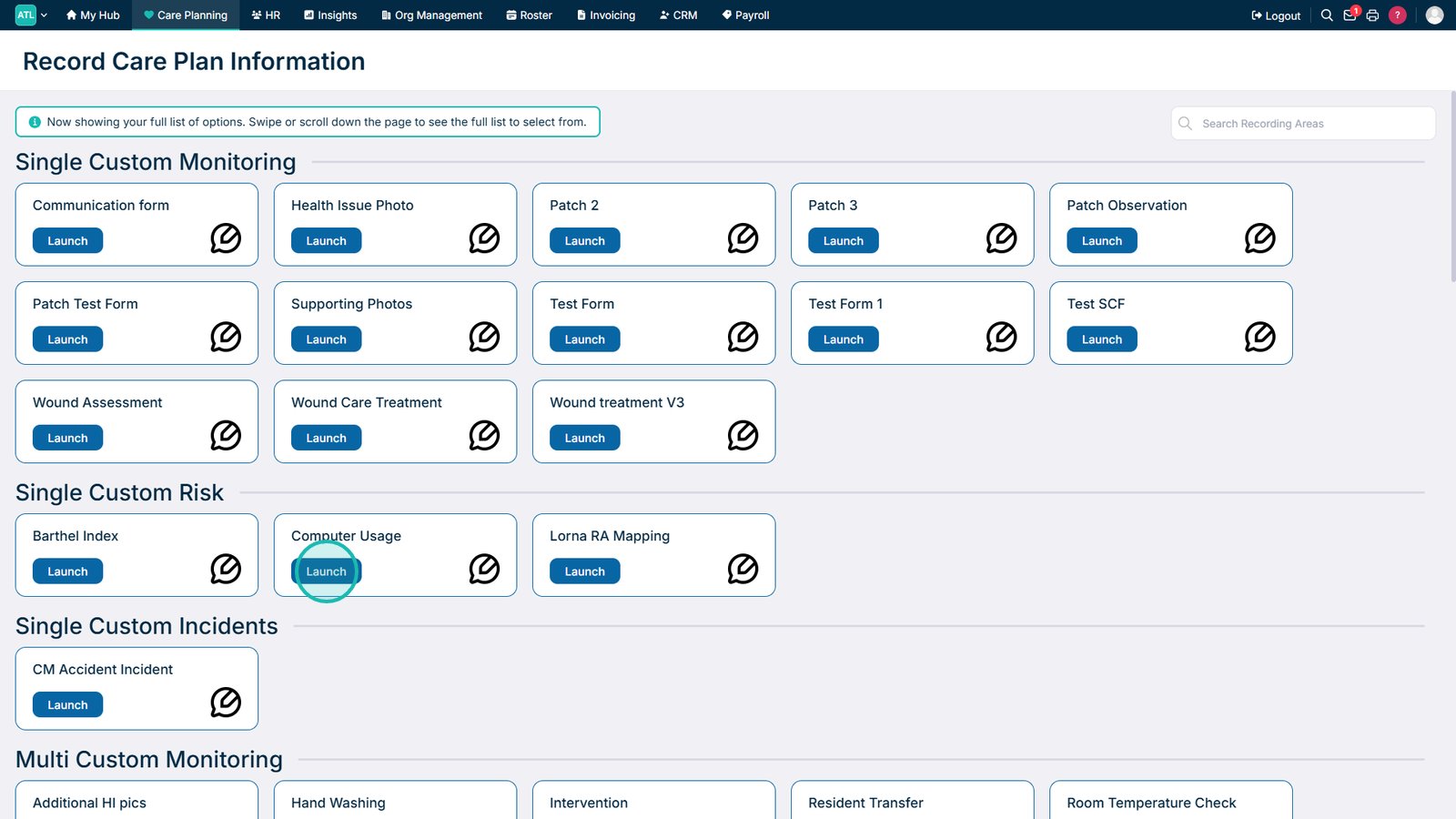
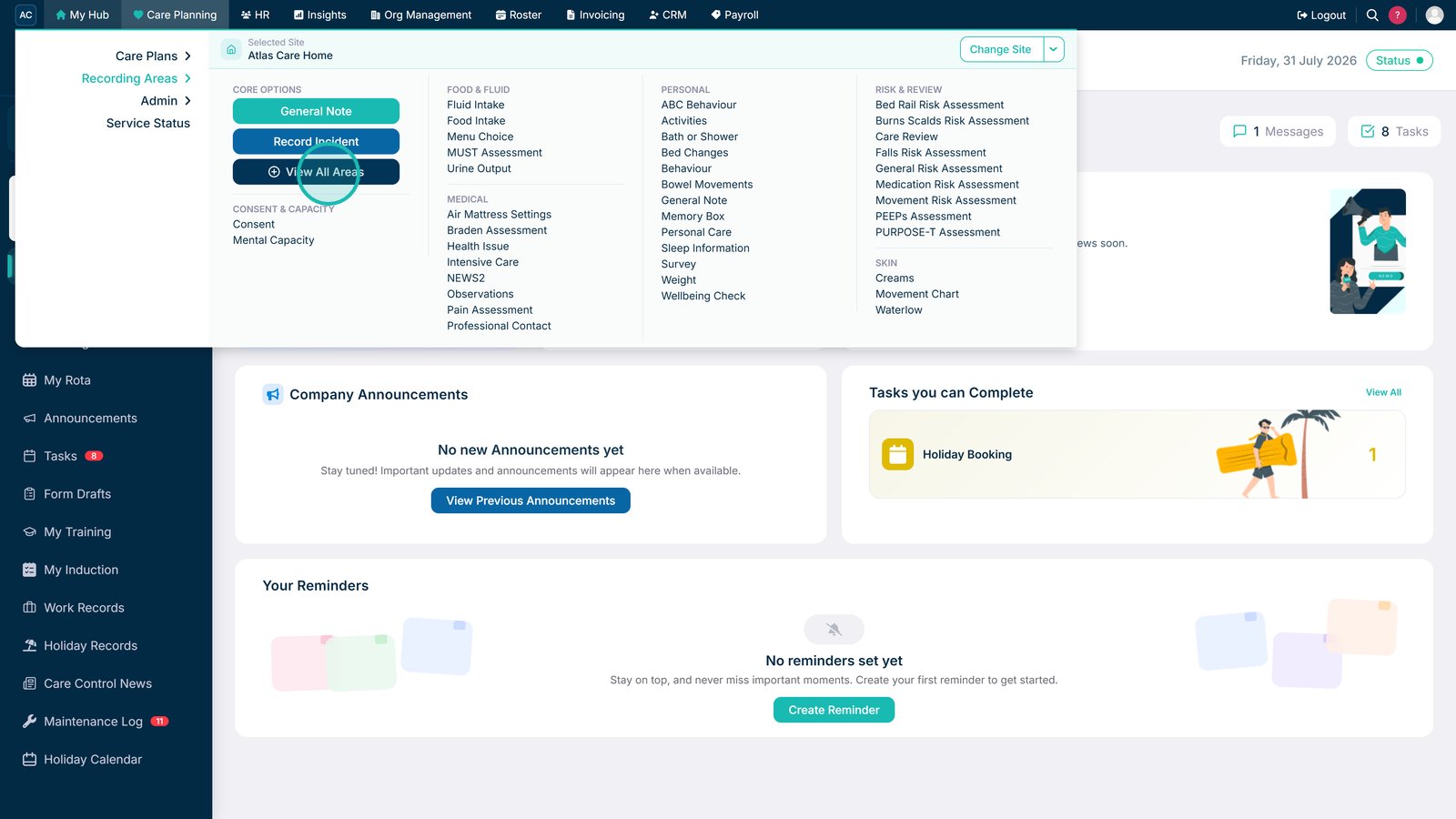
Select View All Areas to access every care record category.

Open the required custom form.

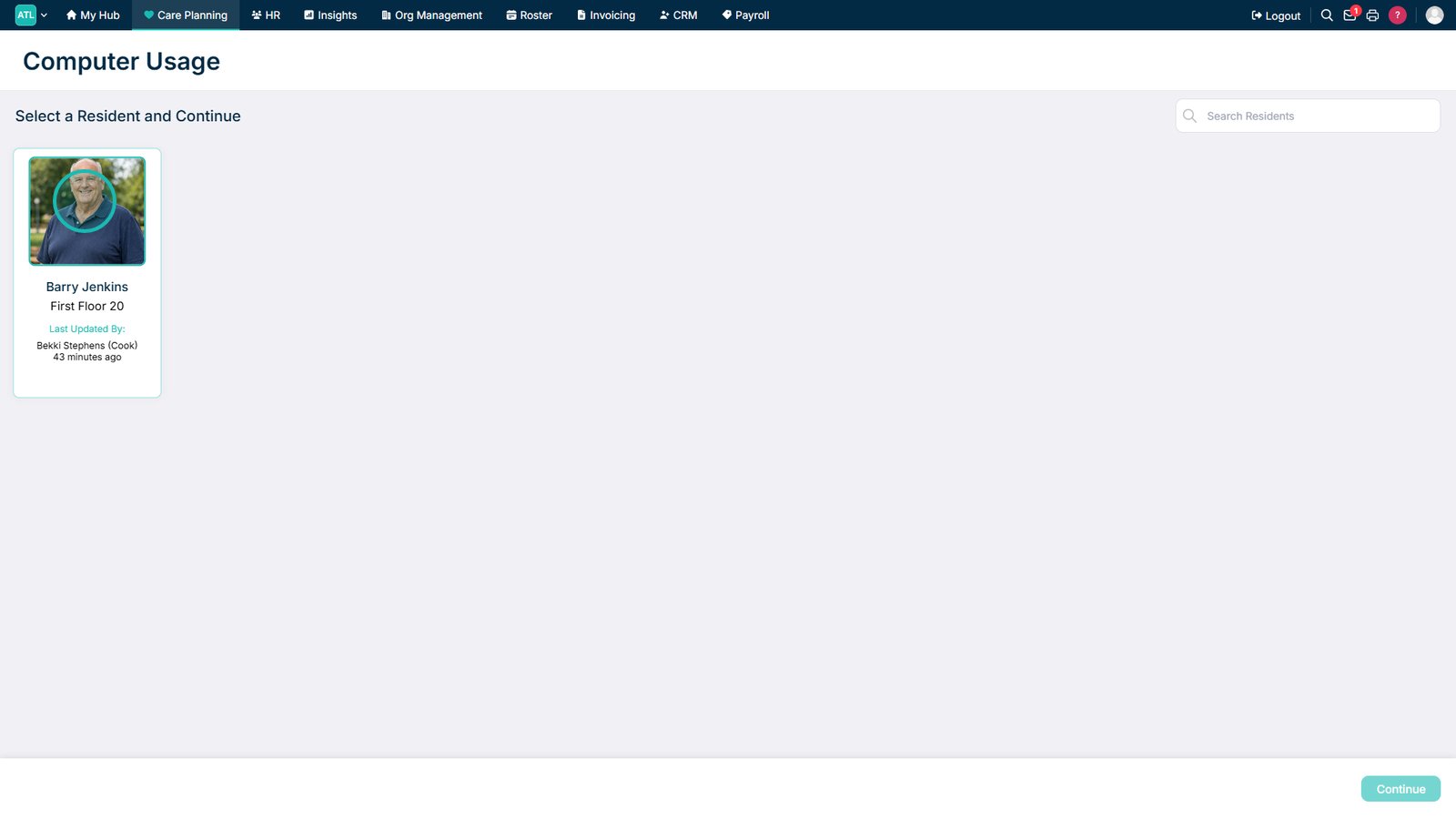
Select the required service user.

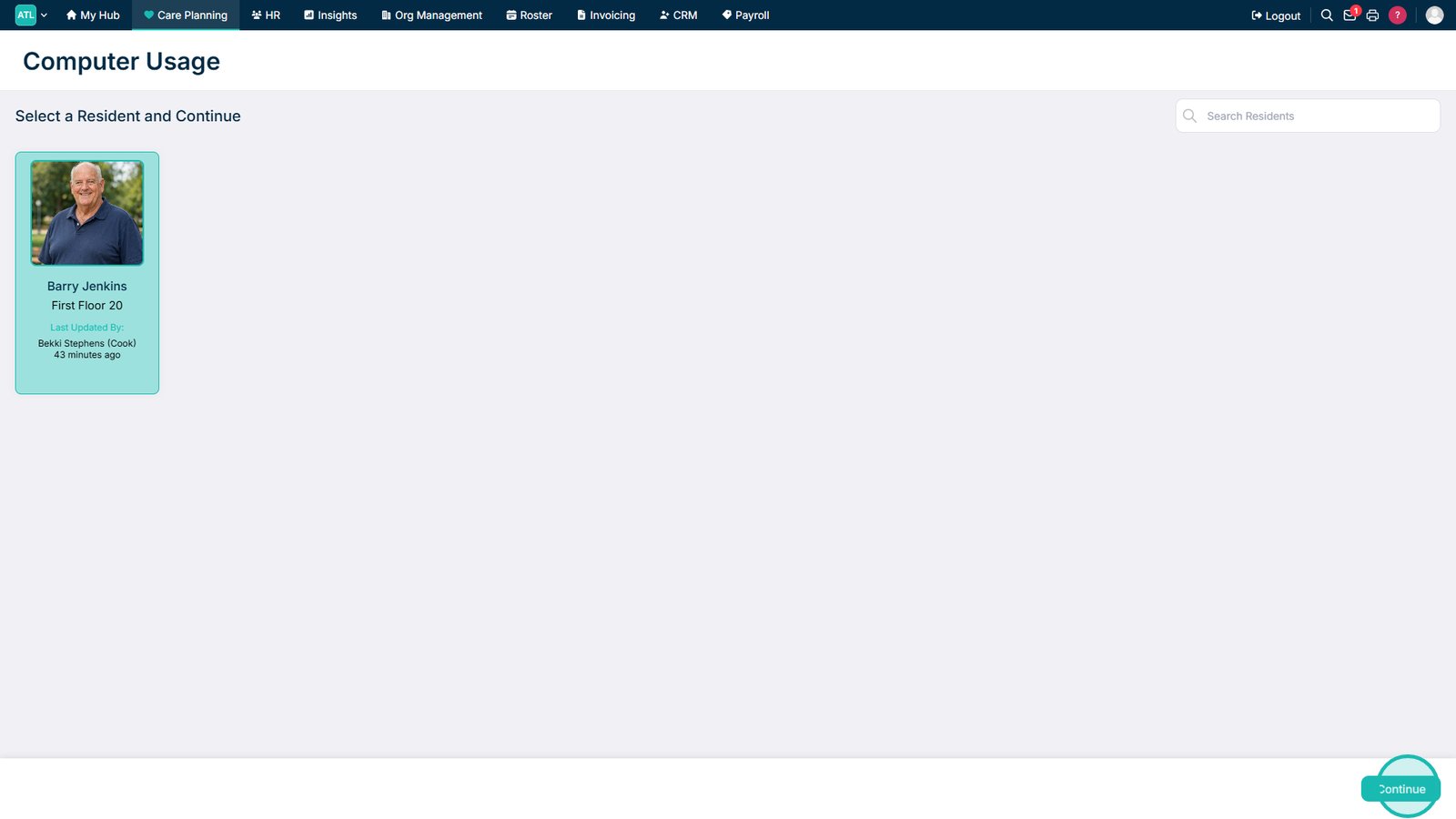
Select Continue.

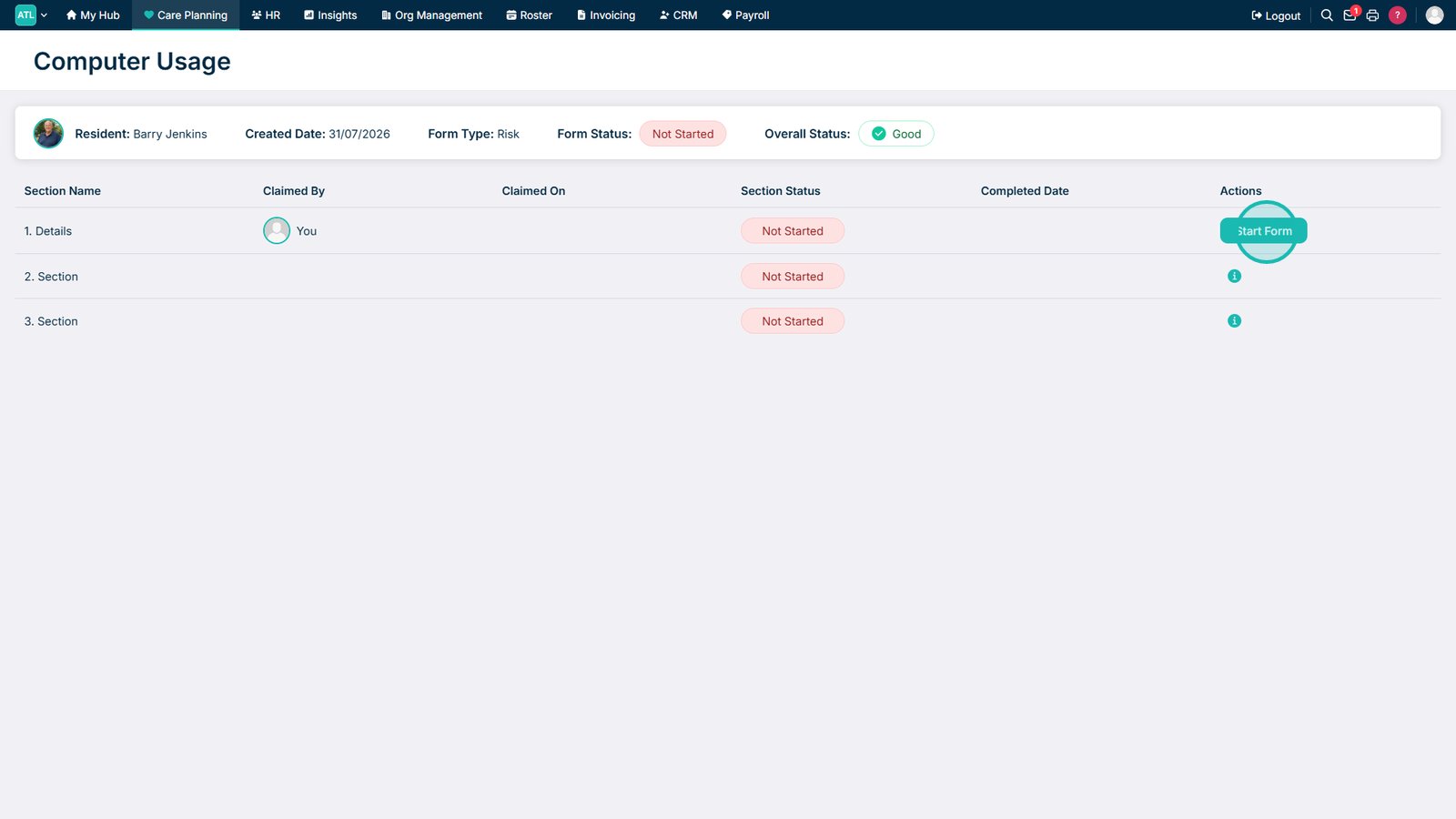
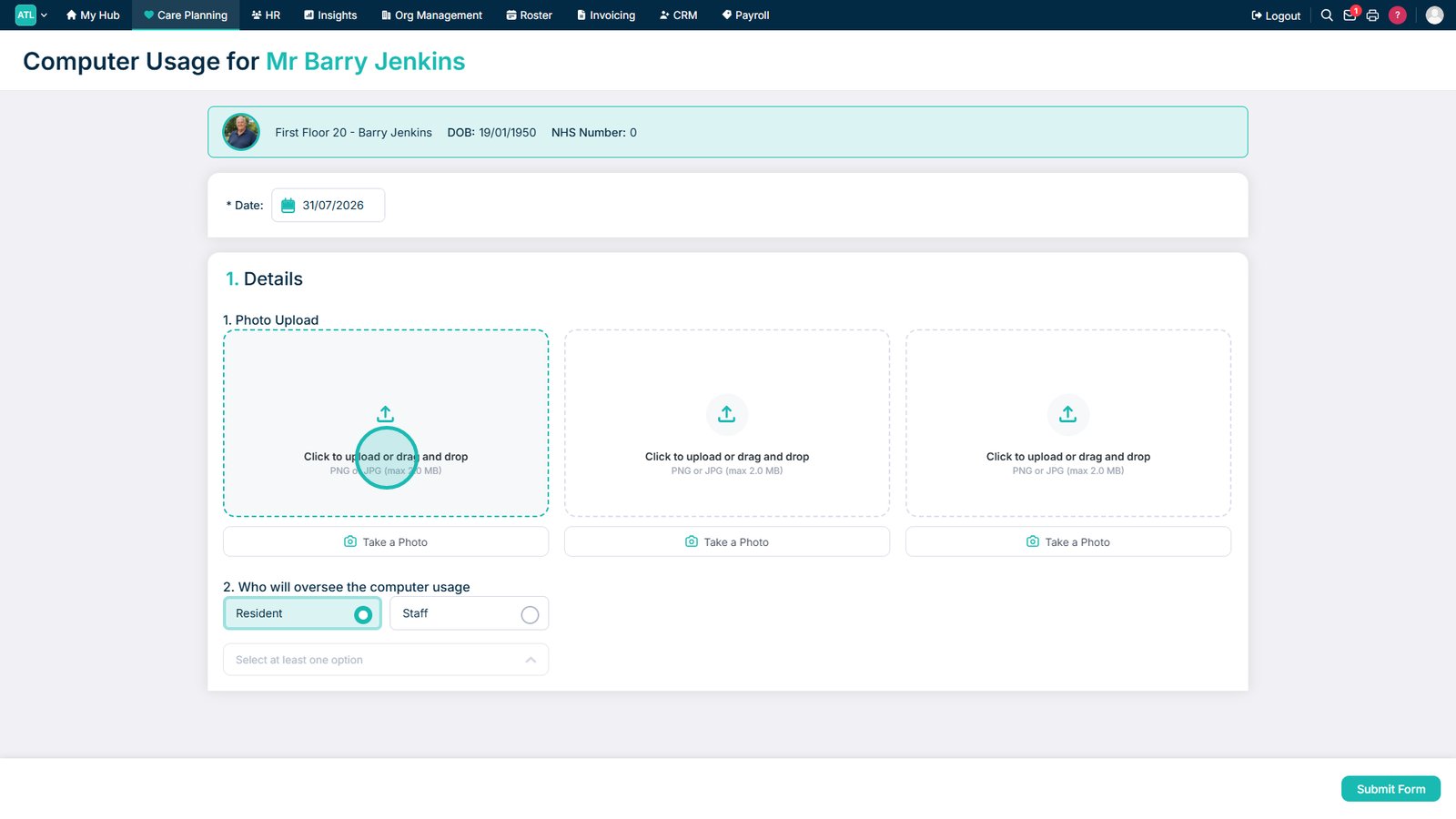
Begin the section of the form that is available to complete.

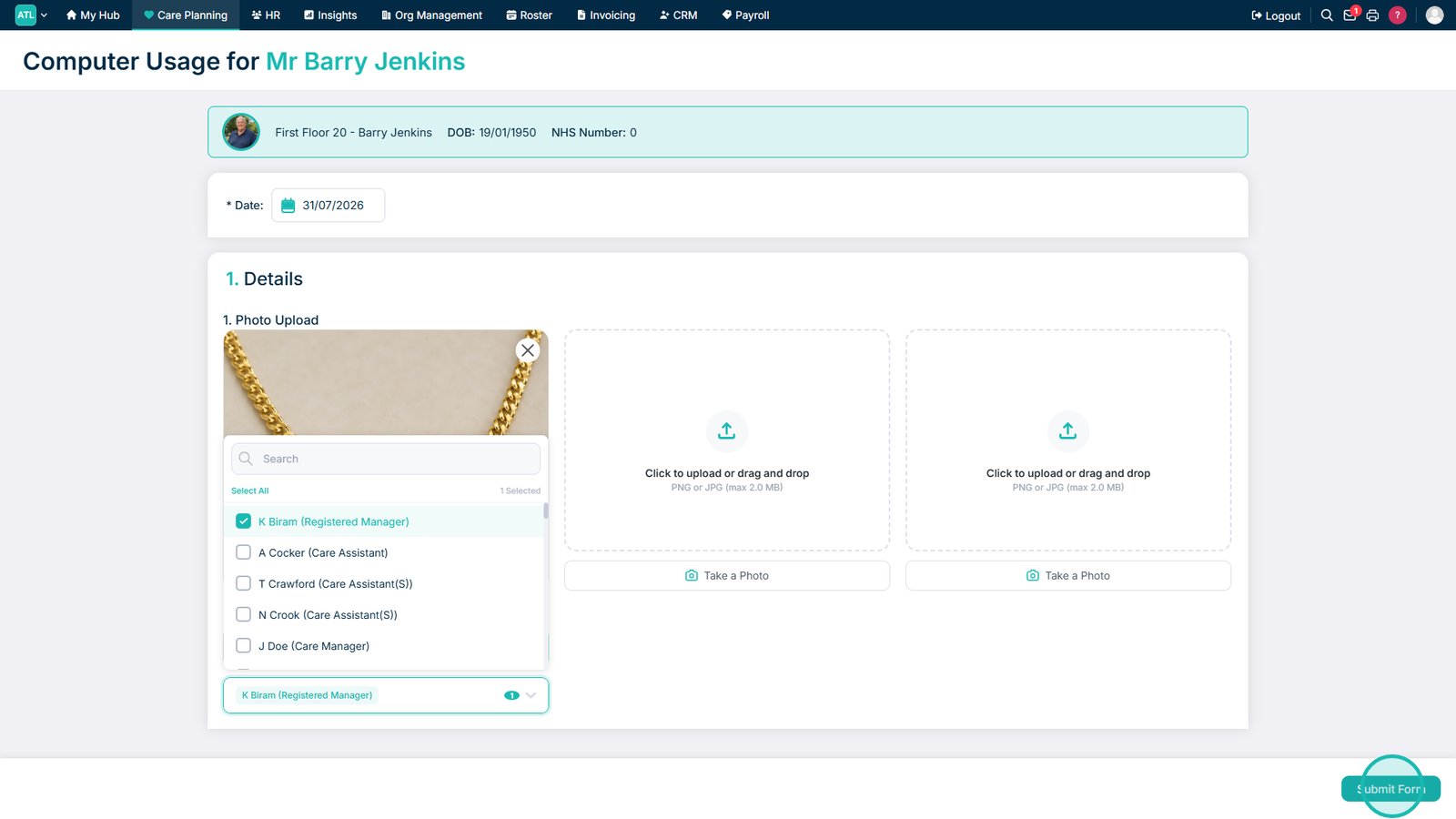
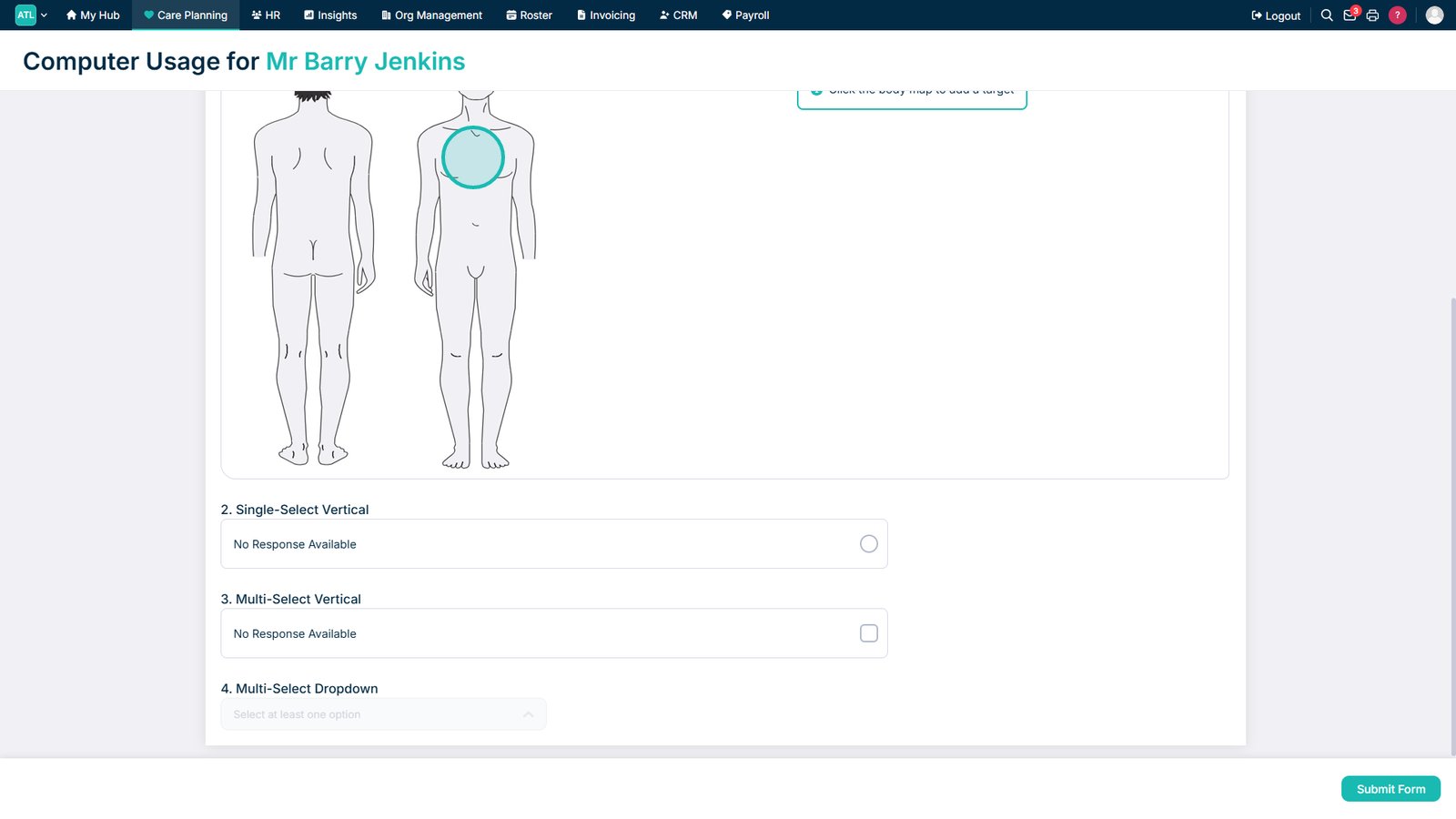
Complete the required information within the section.

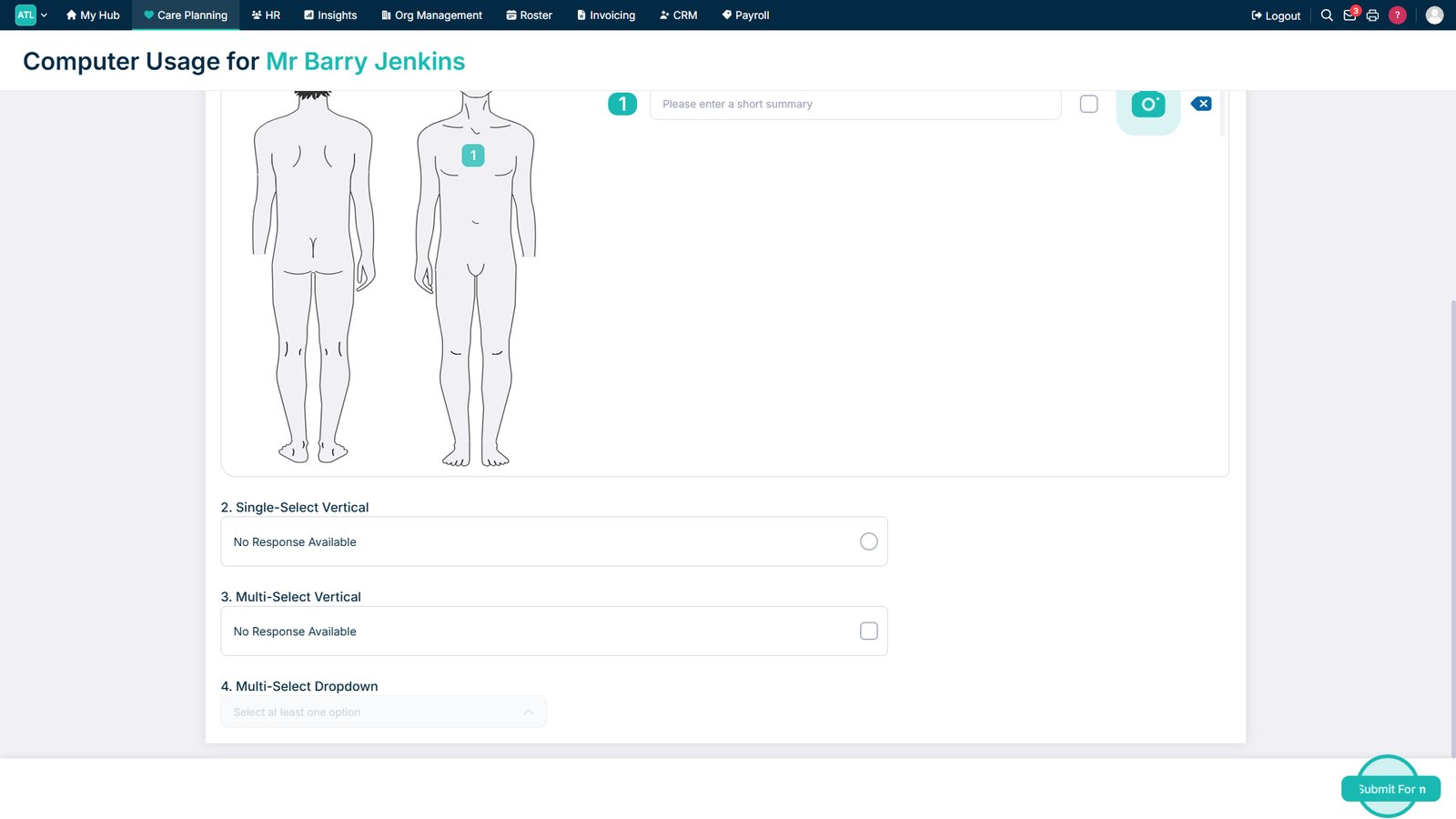
Select Submit Form when the section is complete.

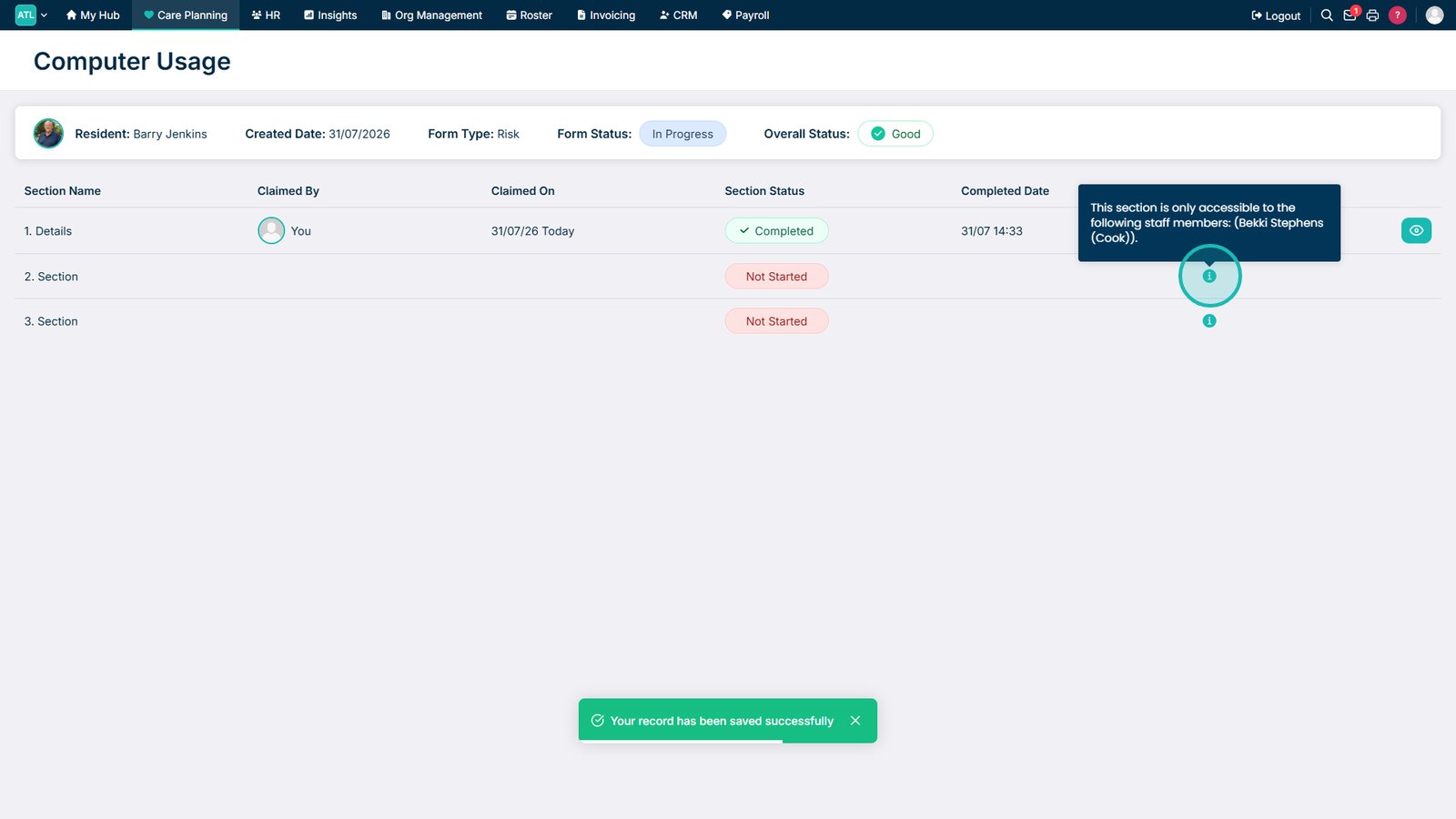
Hover over the information icon to see who can complete the remaining sections.

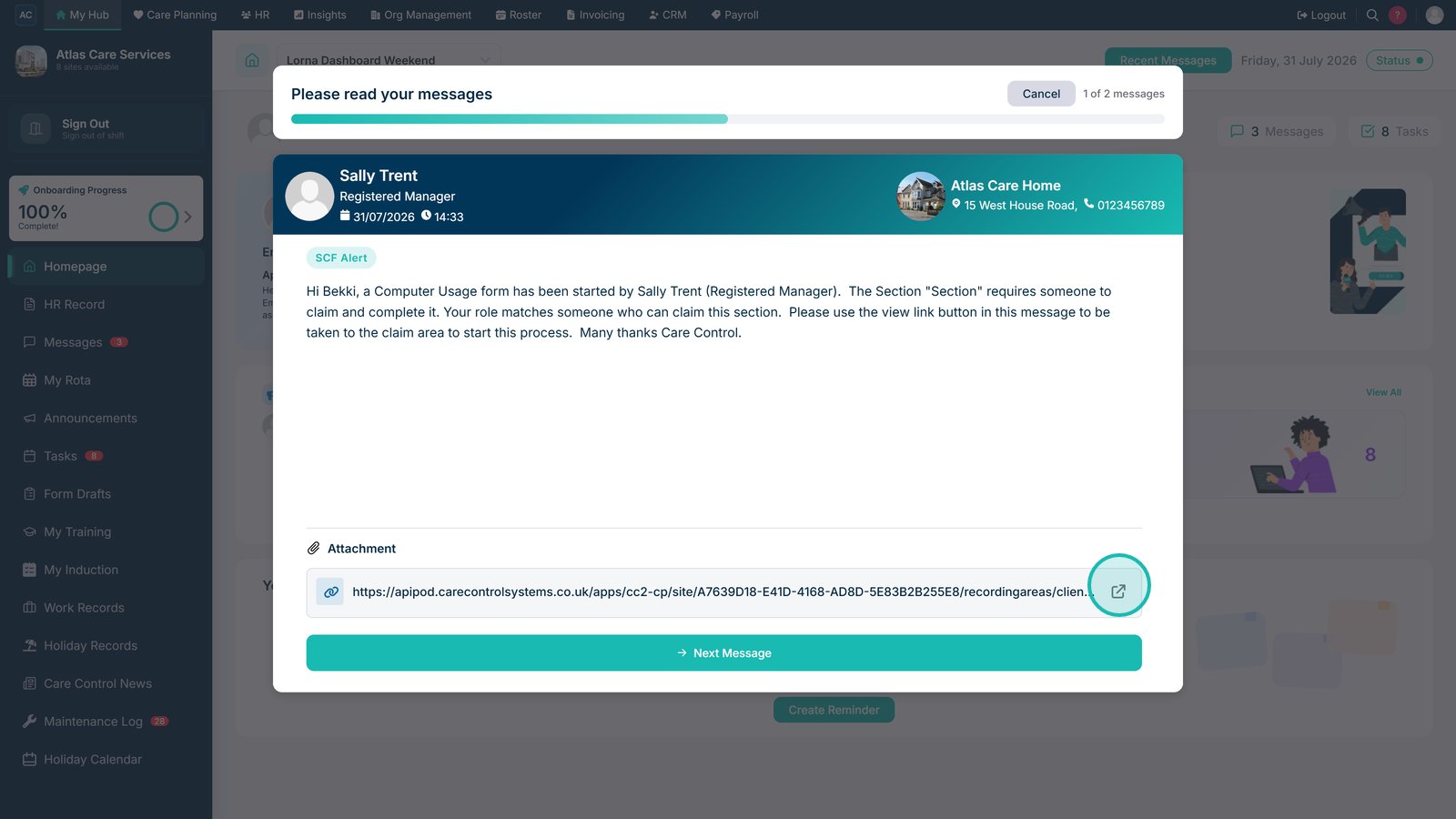
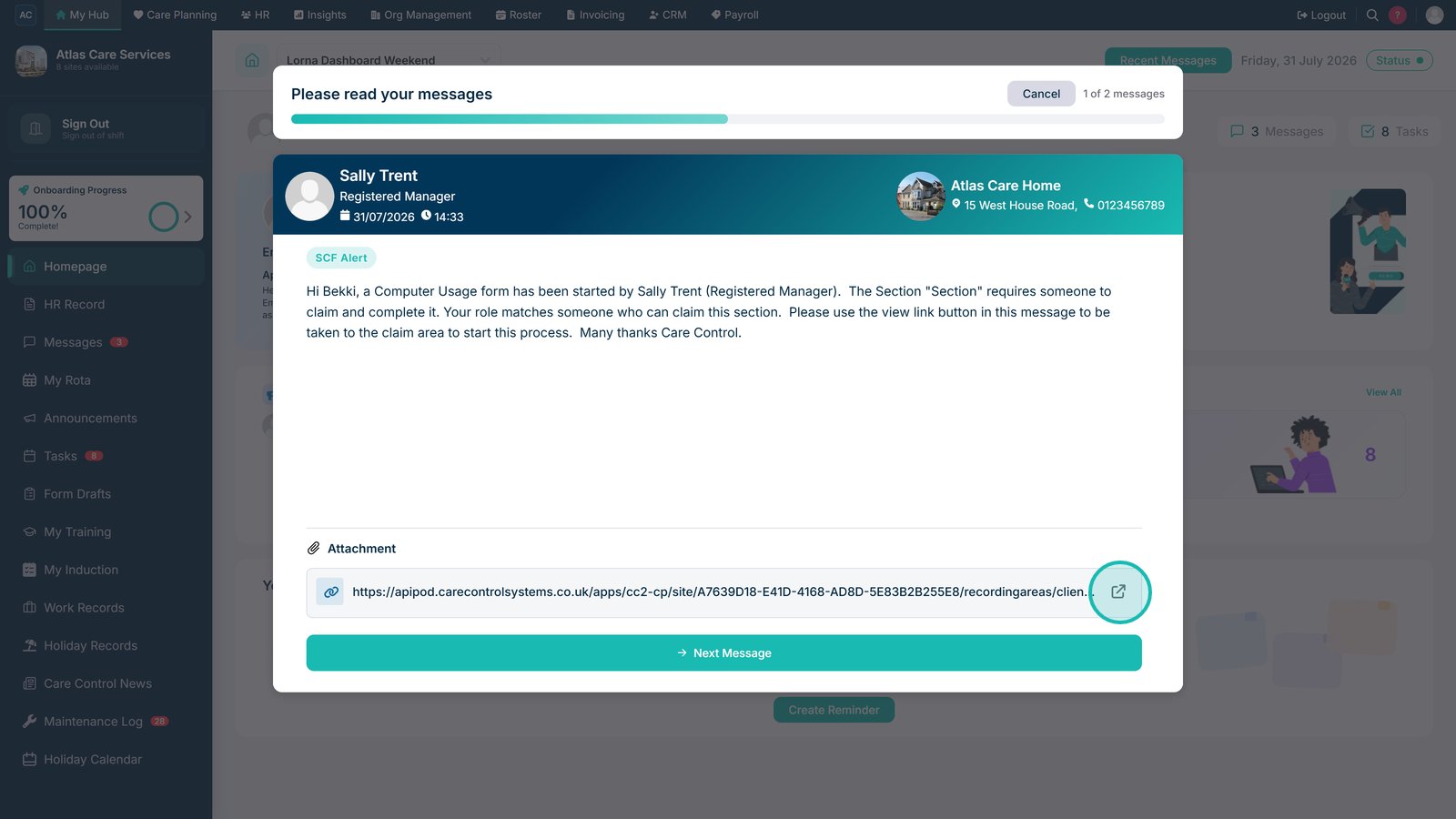
The authorised staff member will receive a message when they sign in.

Select the form icon within the message to open the form.

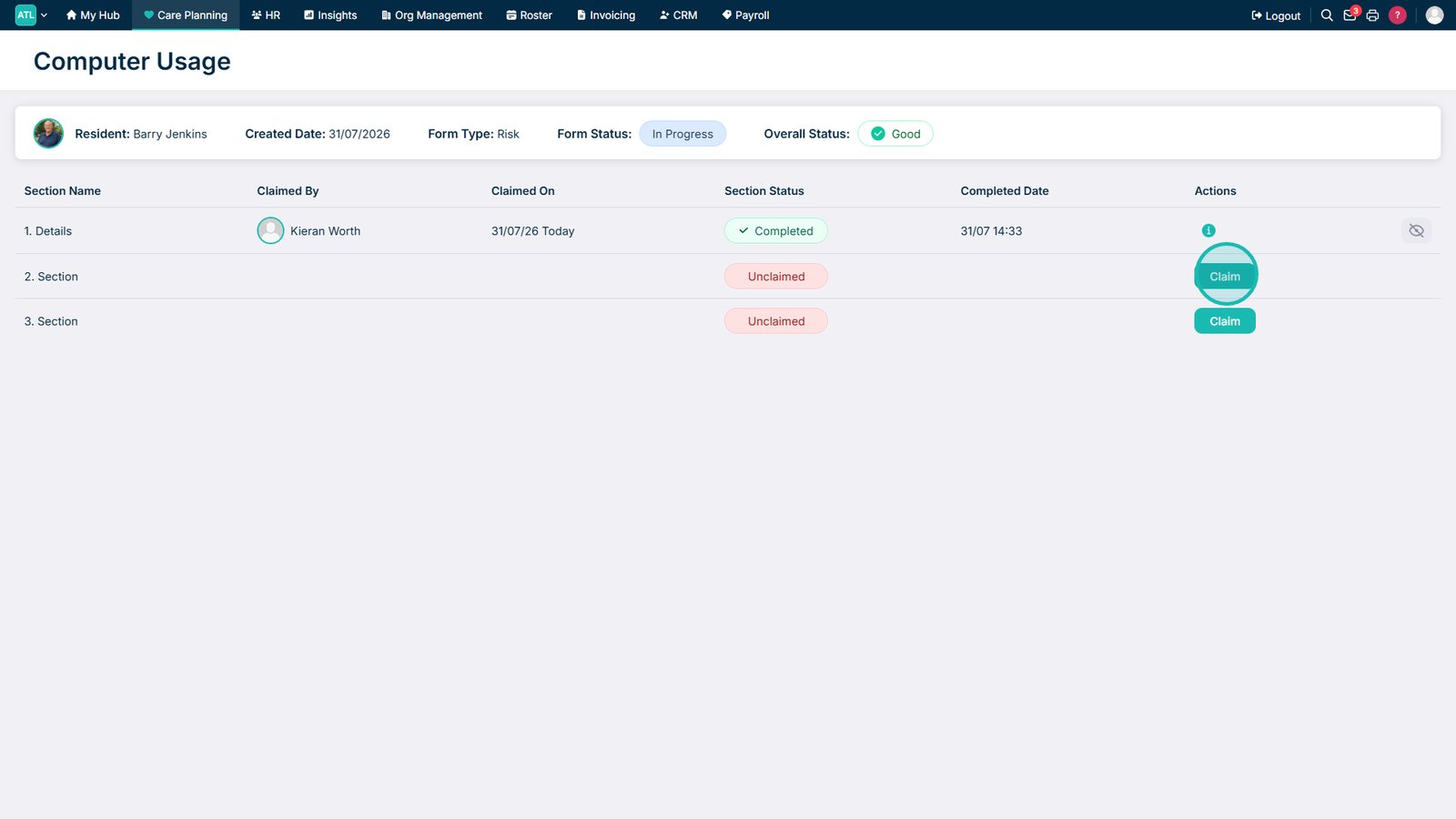
Select Claim to take responsibility for a section.

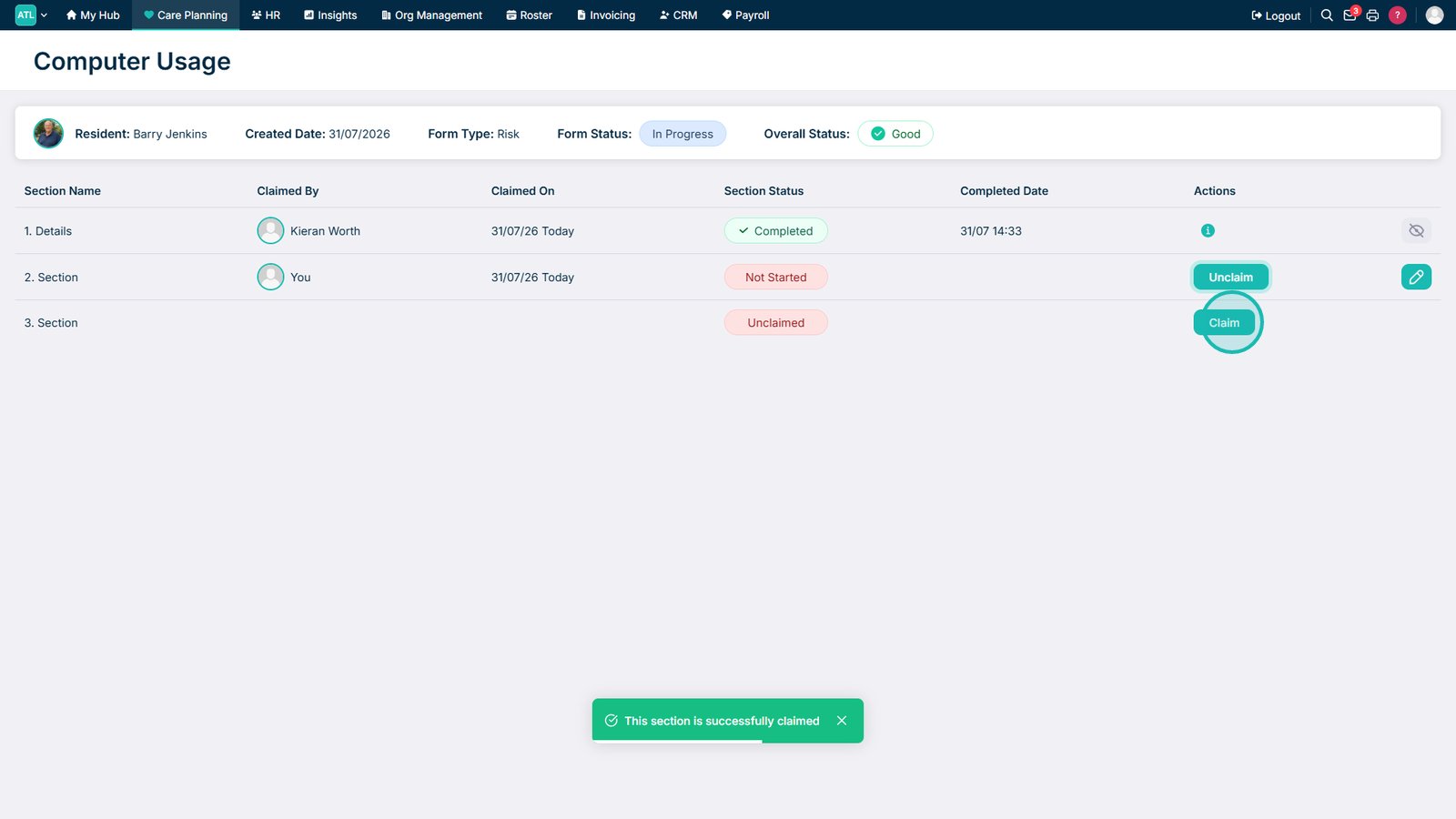
Claim any additional sections that you need to complete.

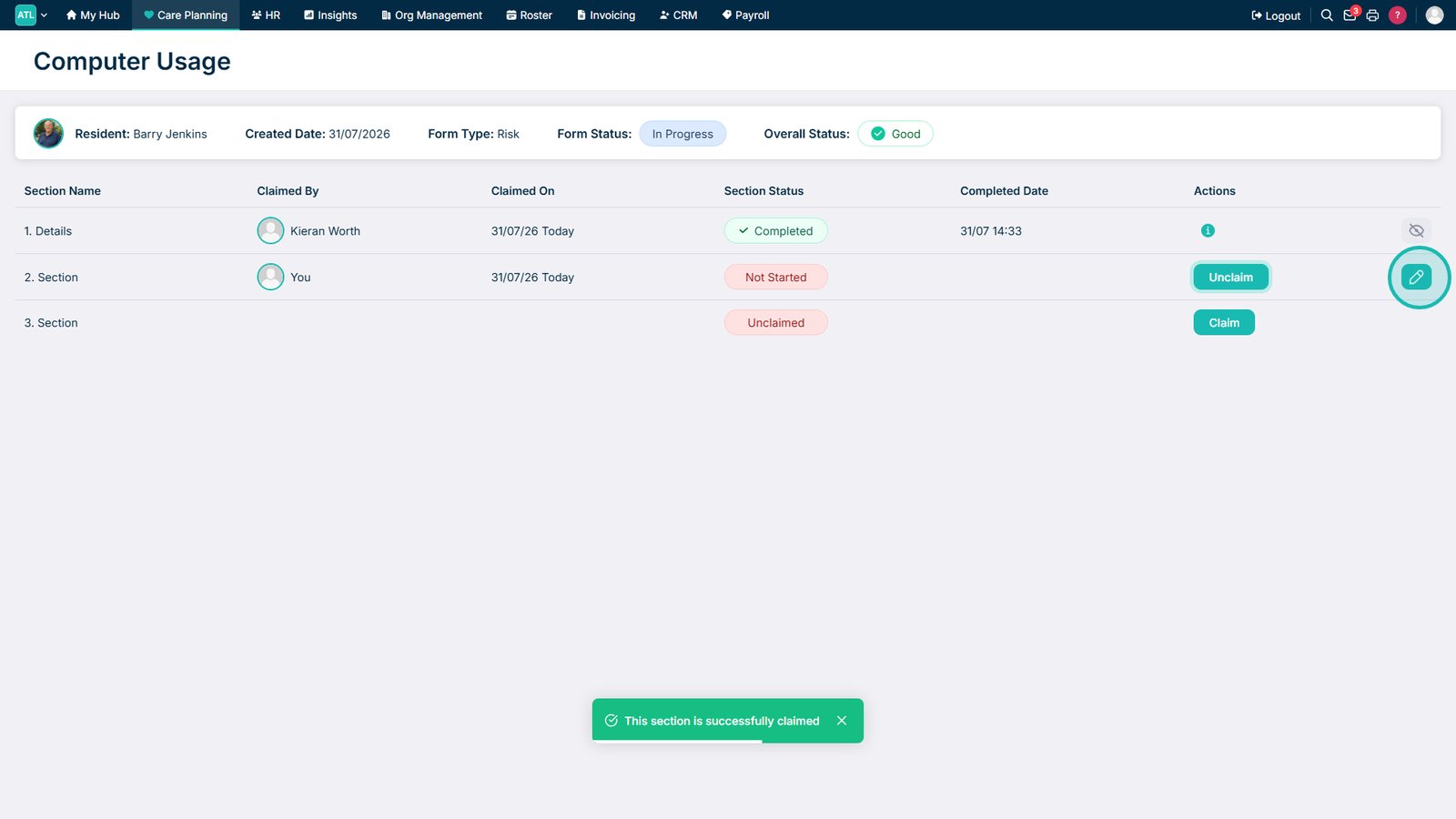
Select the edit icon to begin completing the claimed section.

Complete the remaining form information.

Select Submit Form to save the completed section.

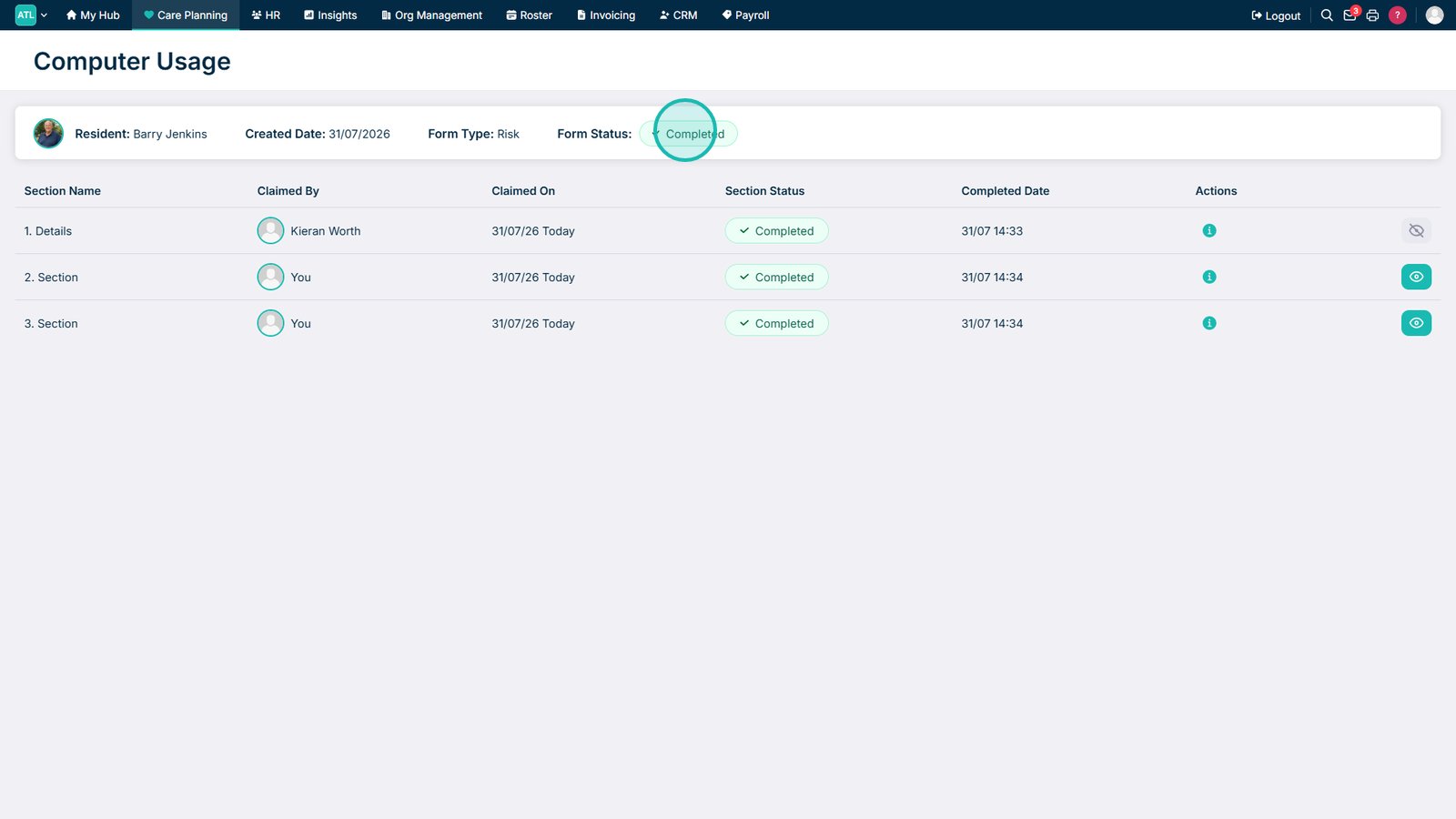
Review the completed form and see who completed each section.

Top tip
Hover over the information icon to check which staff members can complete each section before submitting the form.
Need more help?
Can't find what you're looking for? Our support team is here to help.
Contact SupportOr call us on