This guide will cover how to access and amend the Payroll Settings on Care Control Windows. These settings can be customised so that your payroll system works for you and your organisation.
1
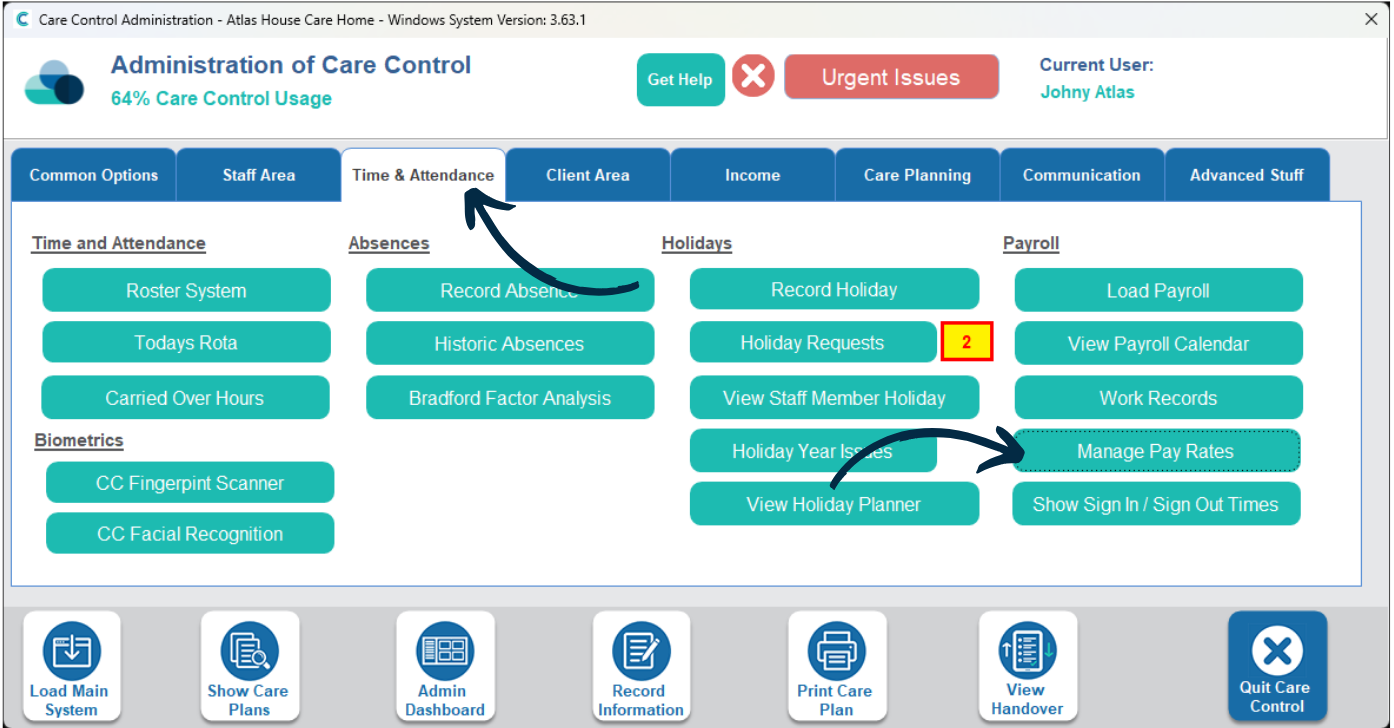
In the Administration of Care Control Windows, navigate to the Manage Pay Rates tool, which can be found under the Time & Attendance tab.
2
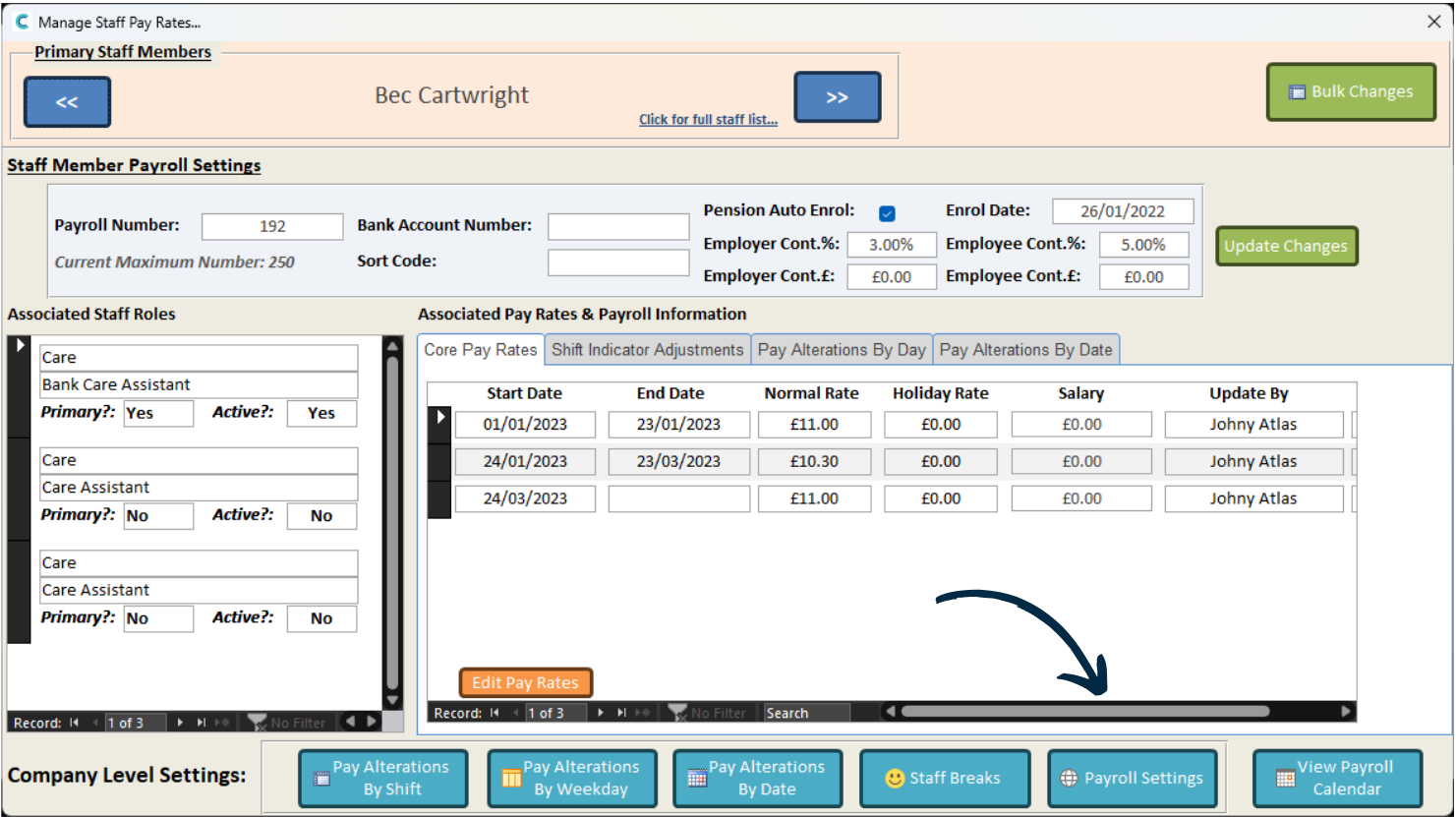
A new window will open. Here, select Payroll Settings from the options along the bottom of the page.
3
Your payroll settings will open. The first section of options relate to the Core Settings for your system.
Here, you can:
– Set what the minimum dataset for irregular hours holiday calculation is.
– Choose to include hours on the finalised report.
– Toggle unpaid breaks on or off.
– Set an induction rate for new staff members.
4
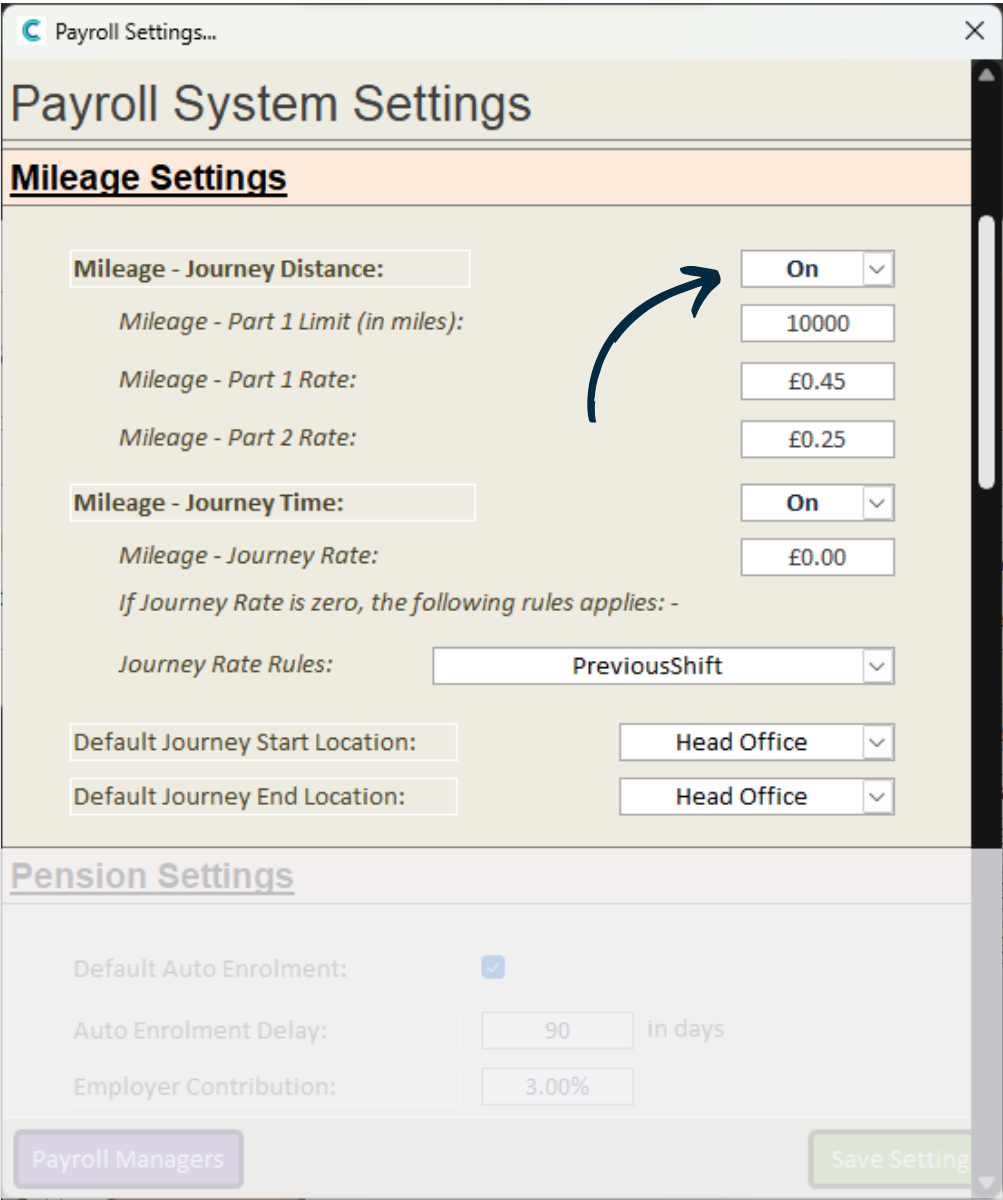
The next section, Mileage Settings, includes options related to journey distance and time, and how these interact with the payroll system.
Journey Distance pay can be turned on or off. You can have different rates for longer journeys via the Part 1 Limit. This means that if a journey is over the limit, the Part 2 rate will be applied for the distance over the limit.
Journey Time pay can also be turned on or off. When turned on, the time of a journey is estimated via Google Maps and the Journey Rate is applied to it.
You can also set the Default Journey Start / EndLocations.
5
The Pension Settings section contains options related to your staff pensions.
New staff ca be Auto-Enrolled via the checkbox, and an Enrolment Delay can be used if necessary.
You can then set the Employer and Employee Contributions as a percentage, as well as the Lower and Upper Earnings Limit.
Finally, you can choose a Tax Relief Level as a percentage.
6
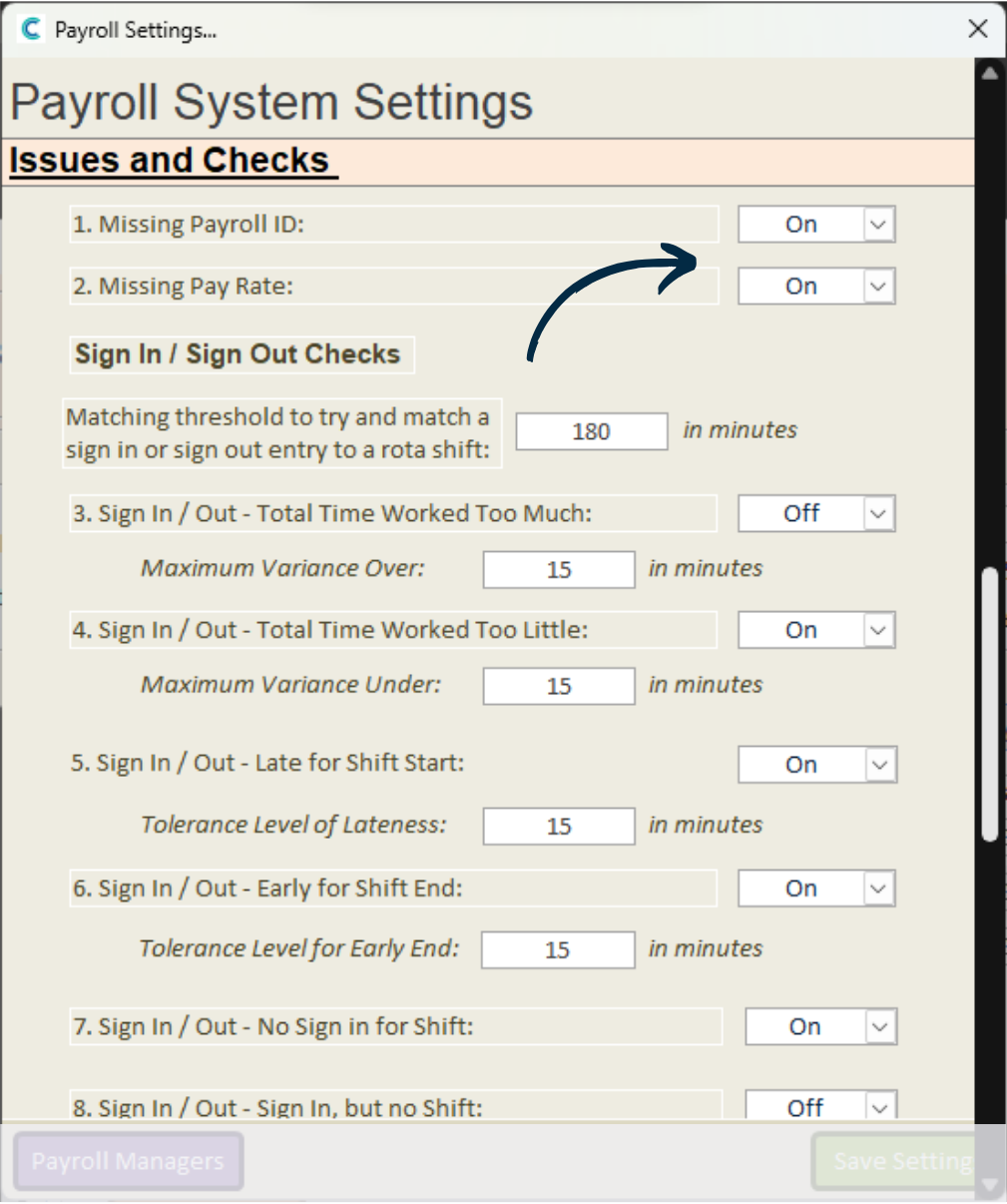
The following section relates to settings for Issues and Checks.
These checks are automatically run by the system before a payroll is finalised in order to highlight any potential issues so that they can be dealt with accordingly.
All the checks can be turned on or off, and customised to suit your requirements if they are turned on.
7
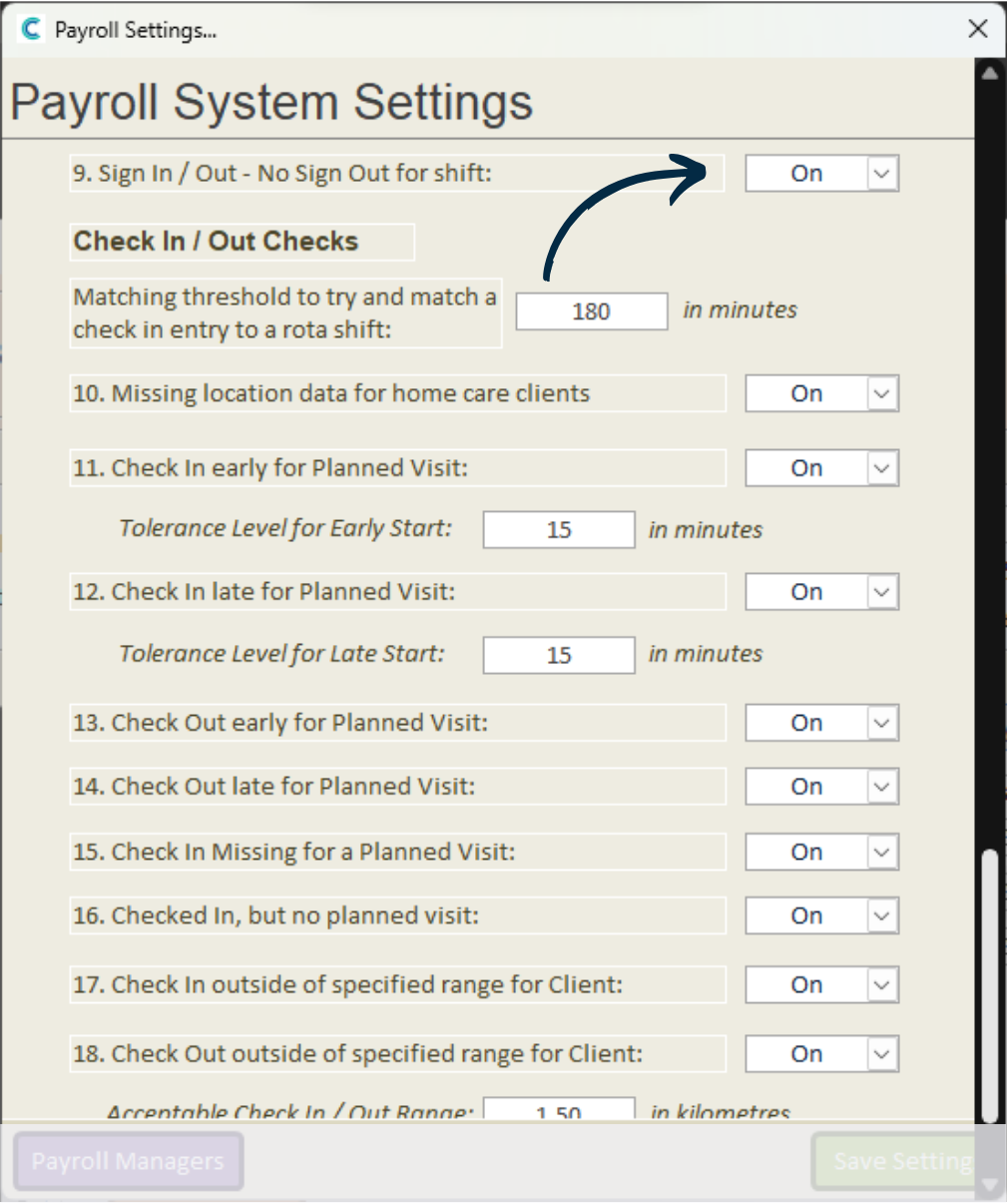
These checks continue as you scroll down the settings.
Read each one carefully to understand its function and whether or not your organisation requires is.
8
Finally, at the bottom of the window, you can Remove the Last Finalised Payroll.
This can be useful is you identify errors or mistakes in your payroll reports.
After making any changes, make sure to press Save Settings.