This guide will cover how to record a medical visit for a service user via Care Control Windows.
1
In the Administration of Care Control Windows, navigate to the Record Information button which can be found along the bottom of the screen.
2
A new window will open. Here, find the Medical Visit option under the Common or Medical tabs.
3
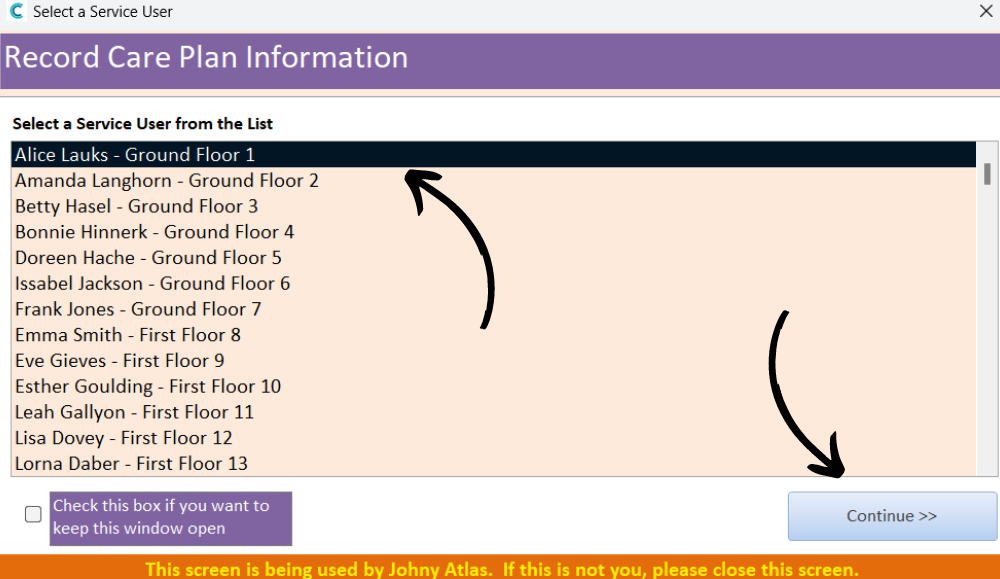
Next, select a service user from the list and press Continue.
4
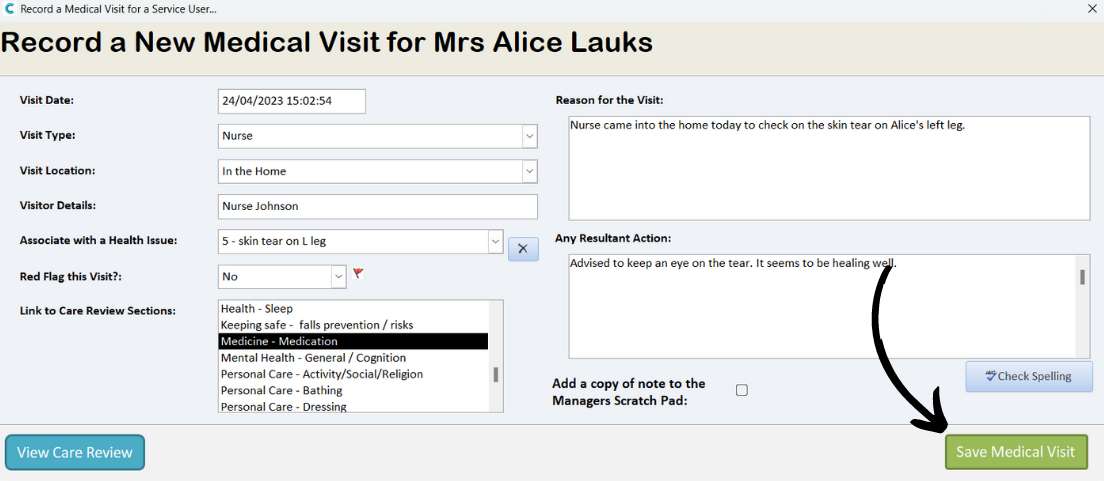
A blank form will be displayed. Complete the form, including the date and visit details. You can also associate the visit with an existing health issue, link to a care review domain and red flag the note.
Finally, enter the reason and resultant action of the visit.
5
After completing the form, press Save Medical Visit.