This guide will cover all the supervision tools available on Care Control Windows, including settings up templates, creating new supervisions and actioning active supervisions. This tool allows for communication between staff and management regarding the workplace and staff progress.
1
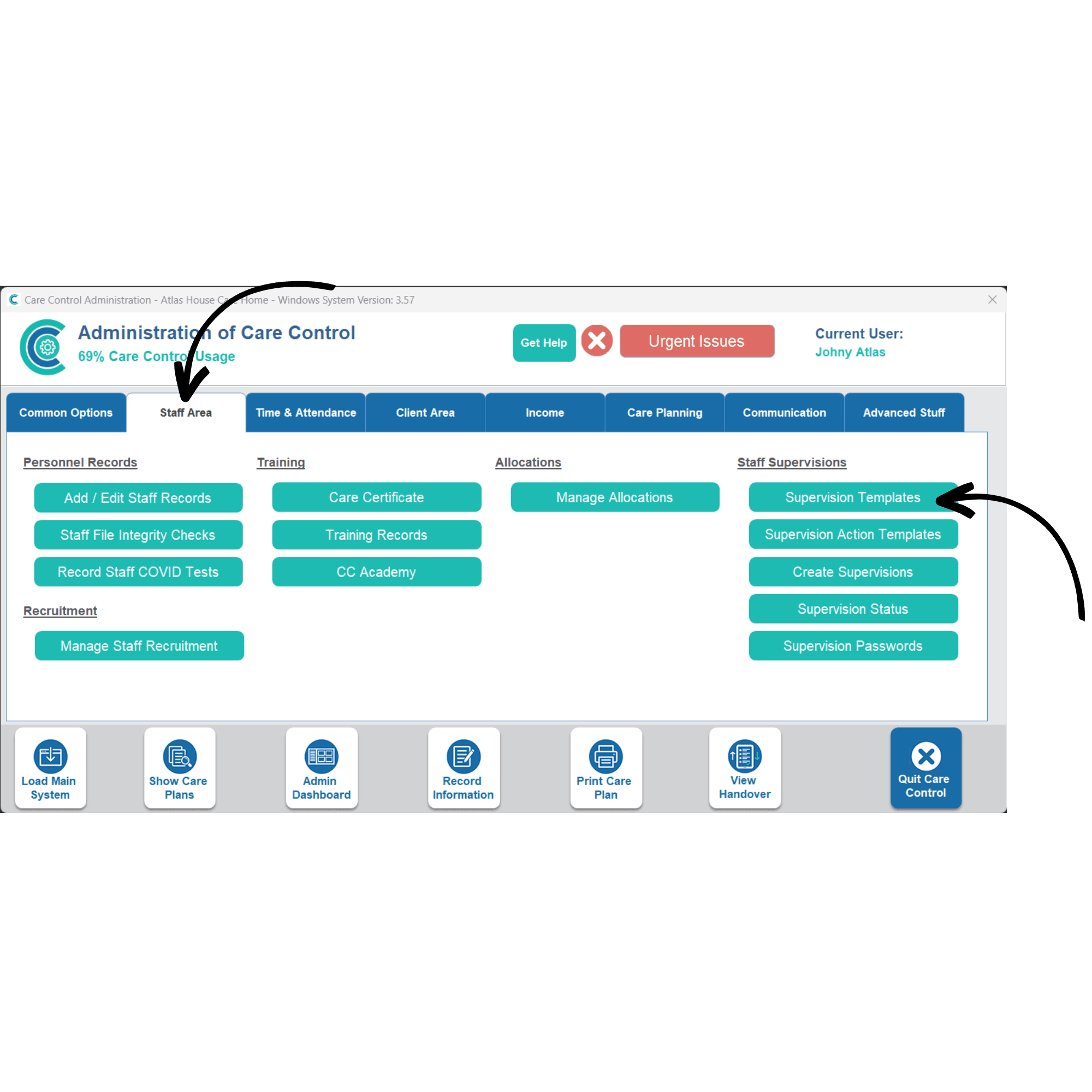
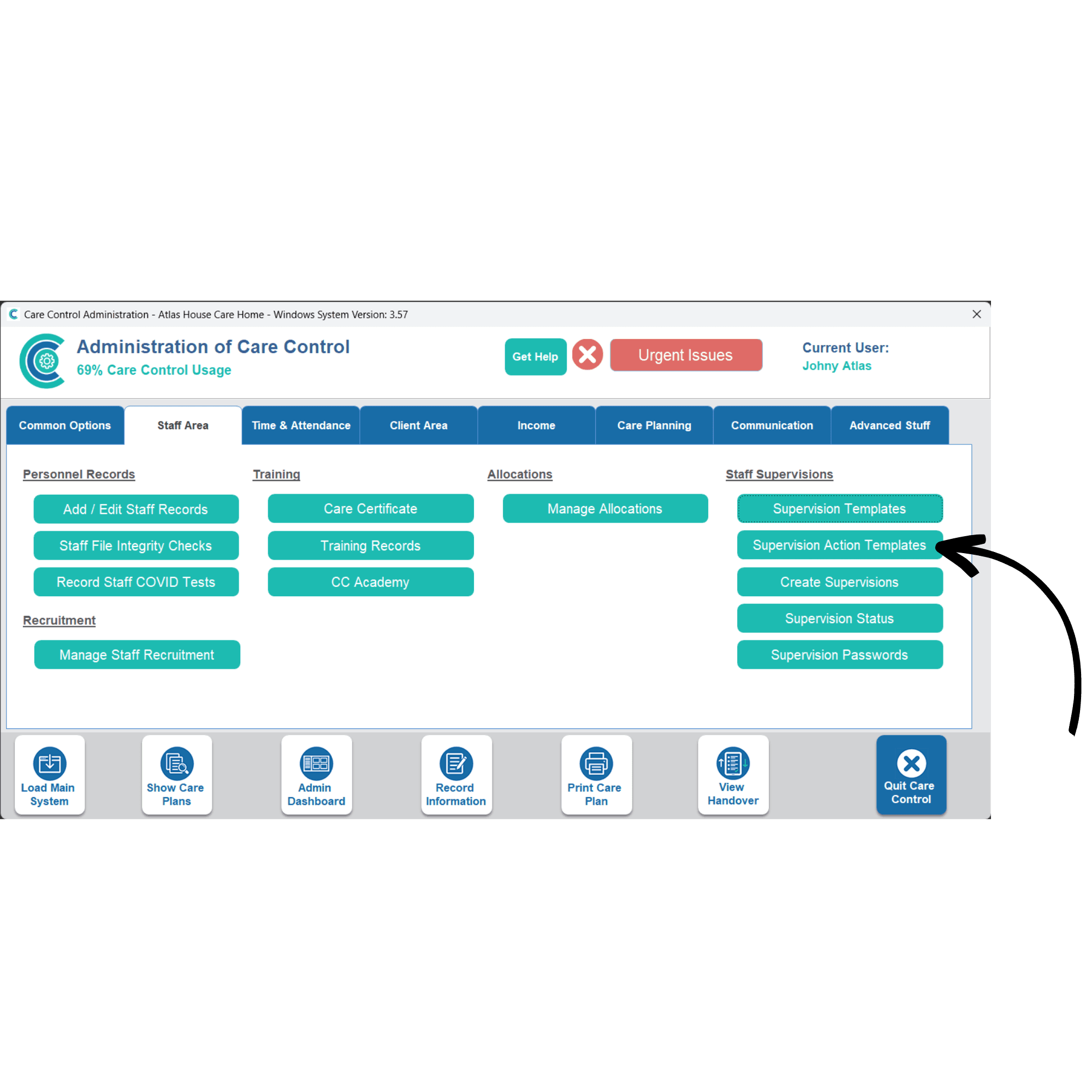
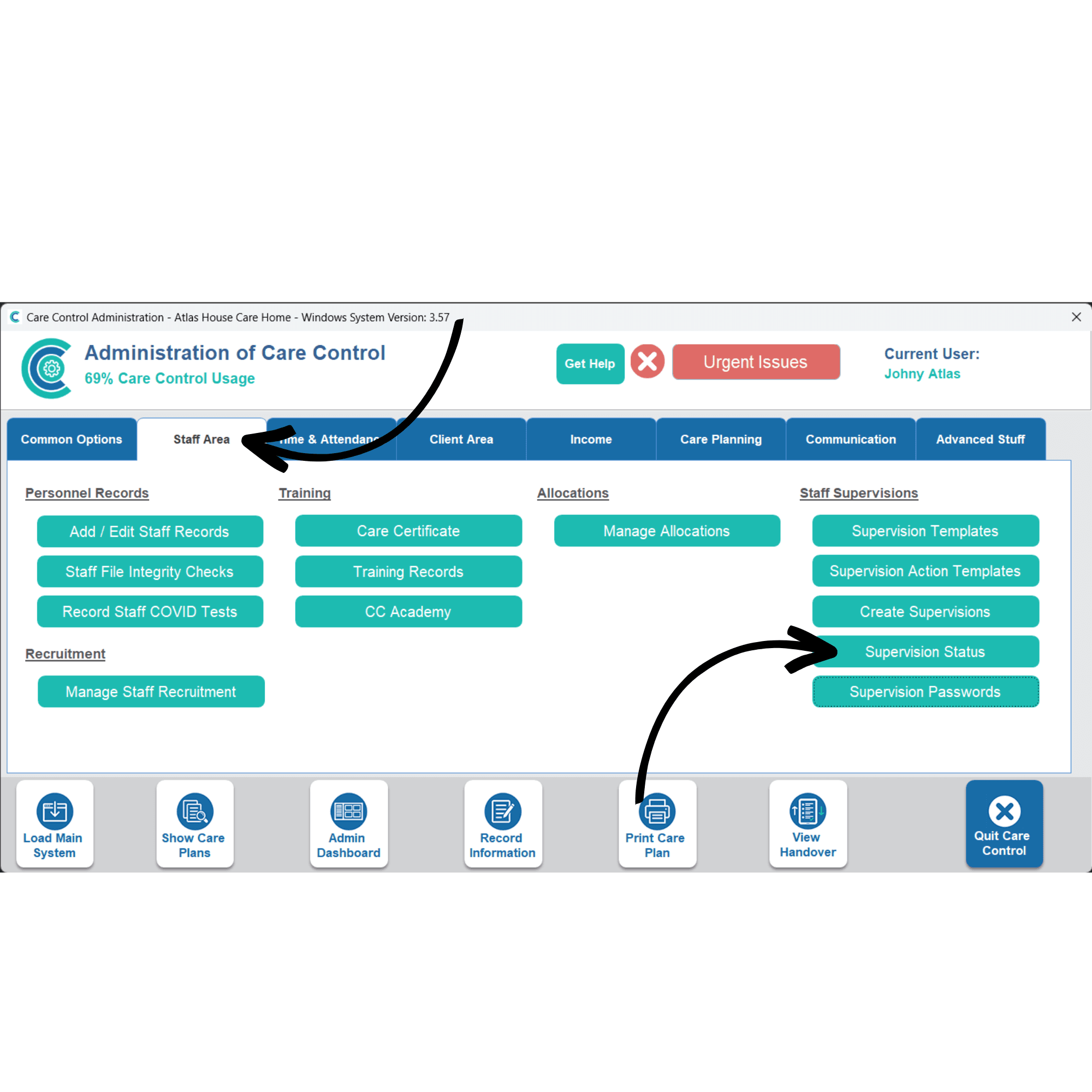
In the Administration of Care Control Windows, the Staff Supervision tools can be found under the Staff Area. First, select Supervision Templates.
2
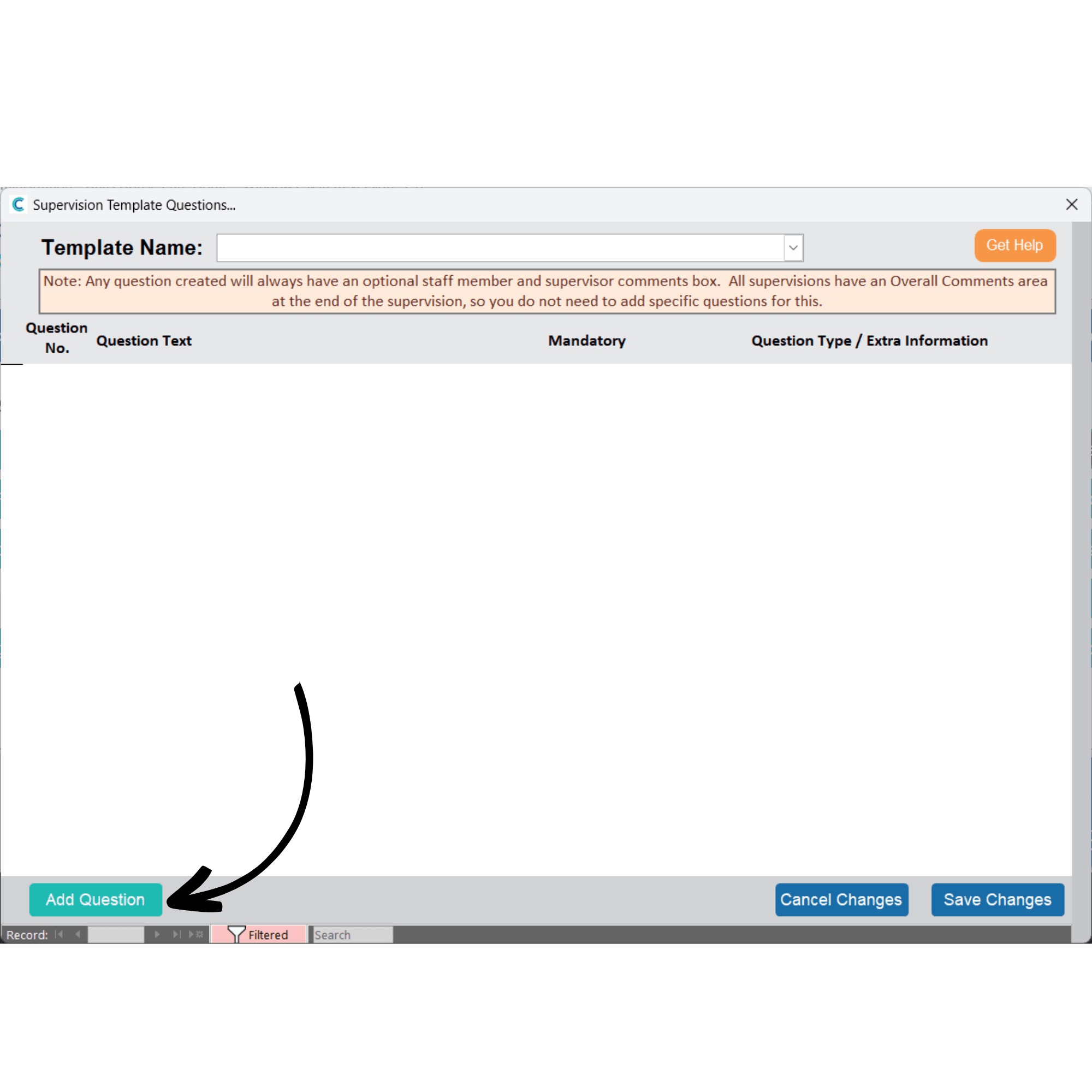
A new window will open. You can select existing templates from the drop down list at the top of the window. Alternatively, you can create a new one by pressing Add Question.
3
Select Add Question to a New Template and enter a template name in the text box.
Then, press Continue.
4
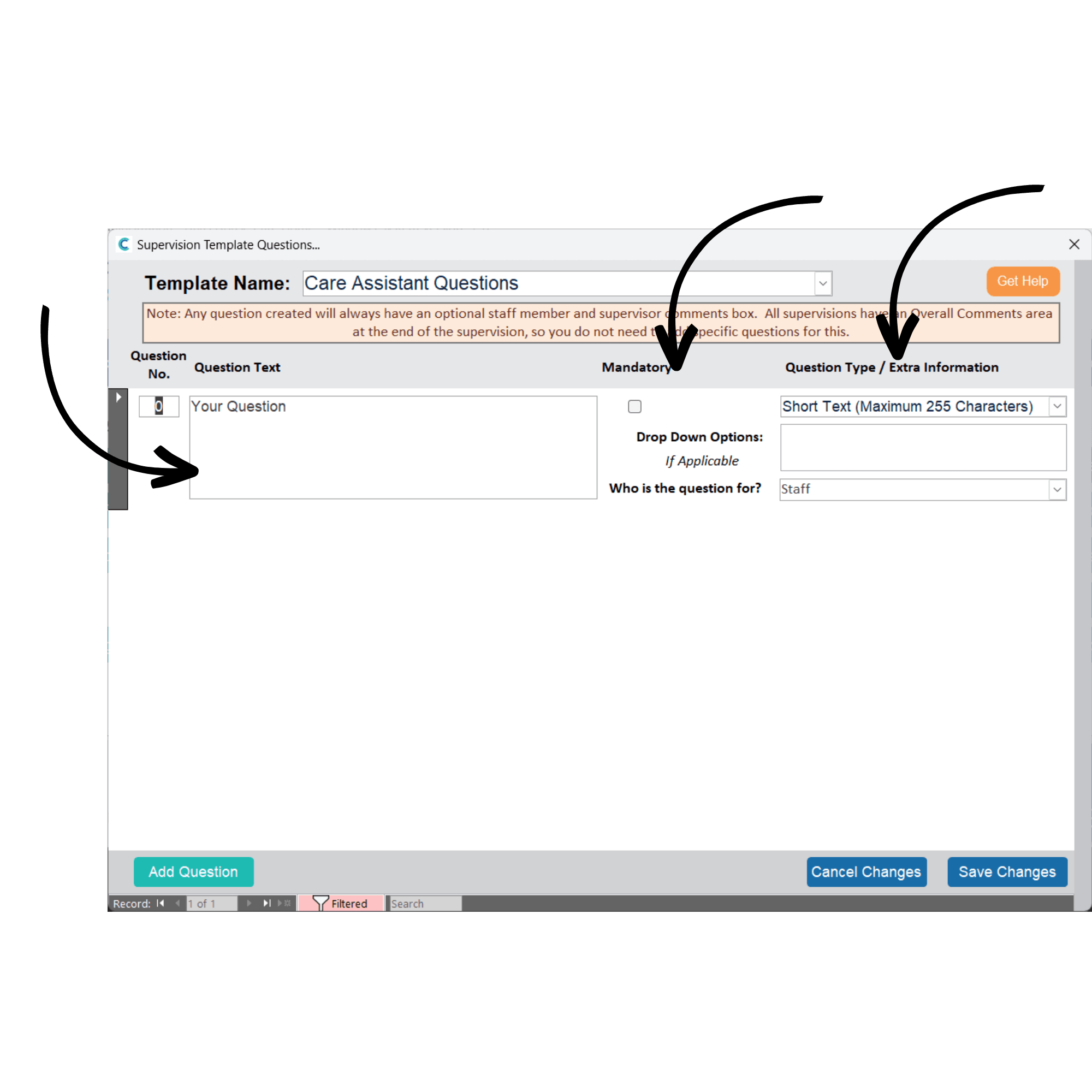
A new question box will be added. Enter the contents of the question in the Question Textbox. You can make the question Mandatory by ticking the box. This will mean the supervision cannot be completed until the question is completed. Next, select a Question Type from the drop-down list:
If you choose the Drop-Down option, enter the list’s contents in the Drop-Down Optionsbox and separate the options with commas.
Finally, select who the question is for. It can be aimed at the staff member or the supervisor.
-Short Text – free text up to 255 characters
-Memo Text – free text with no character limit
-Drop Down – A list of pre-determined answers given in a drop-down menu
-Score out of 10 – scoring from 1-10
-Score out of 5 – scoring from 1-5
-Yes/No – selection of yes or no
-Yes/No/NA – selection of yes, no or N/A
5
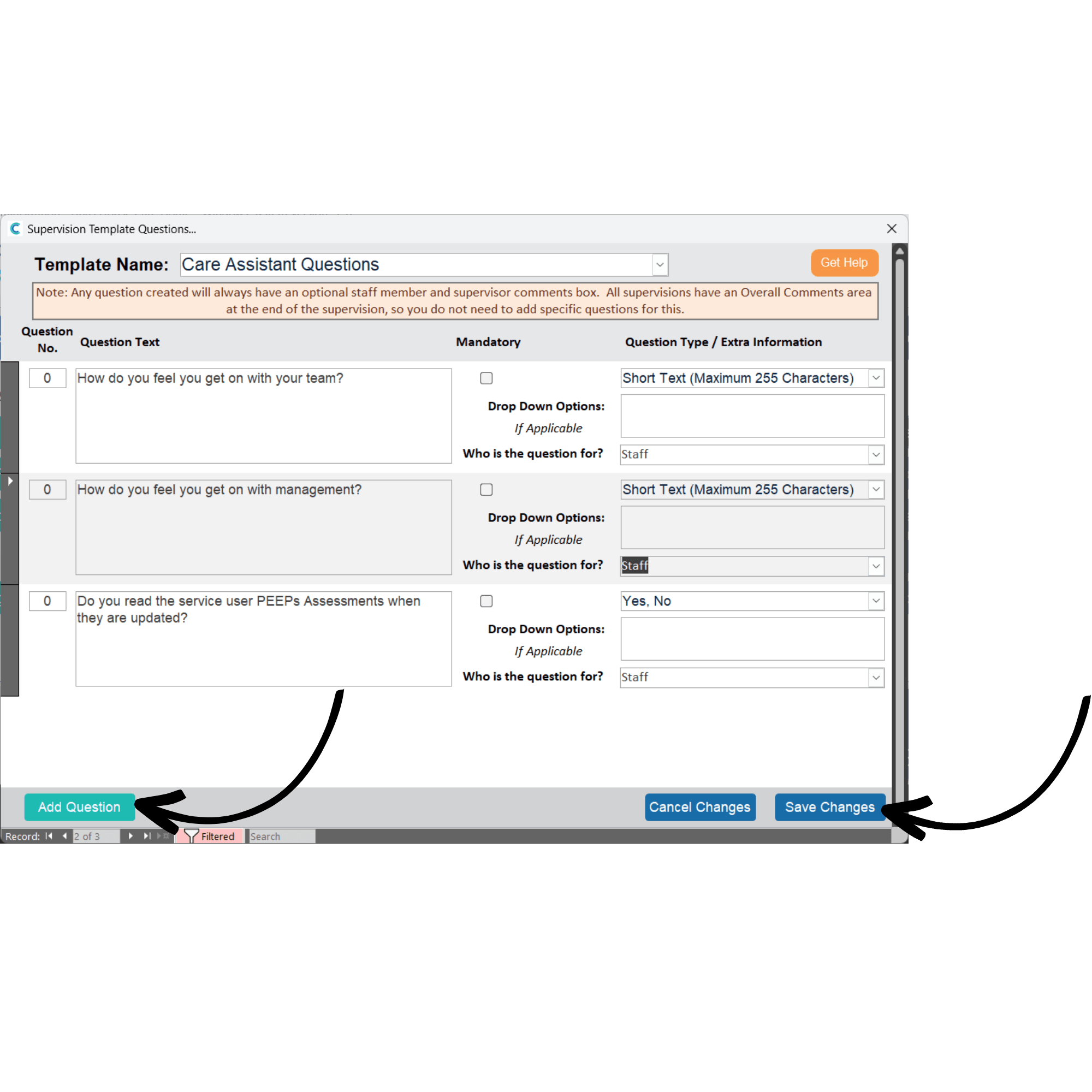
You can add more questions to the supervision by pressing Add Question. You can delete a question by selecting the grey box on the left of the question and pressing Deleteon your keyboard.
You can save the supervision by pressing Save Changes.
6
Supervision Actions are tasks which need to be completed as part of a supervision, such as reading a document to complete training.
You can add, amend, or view actions by opening the Supervision Actions Templates.
7
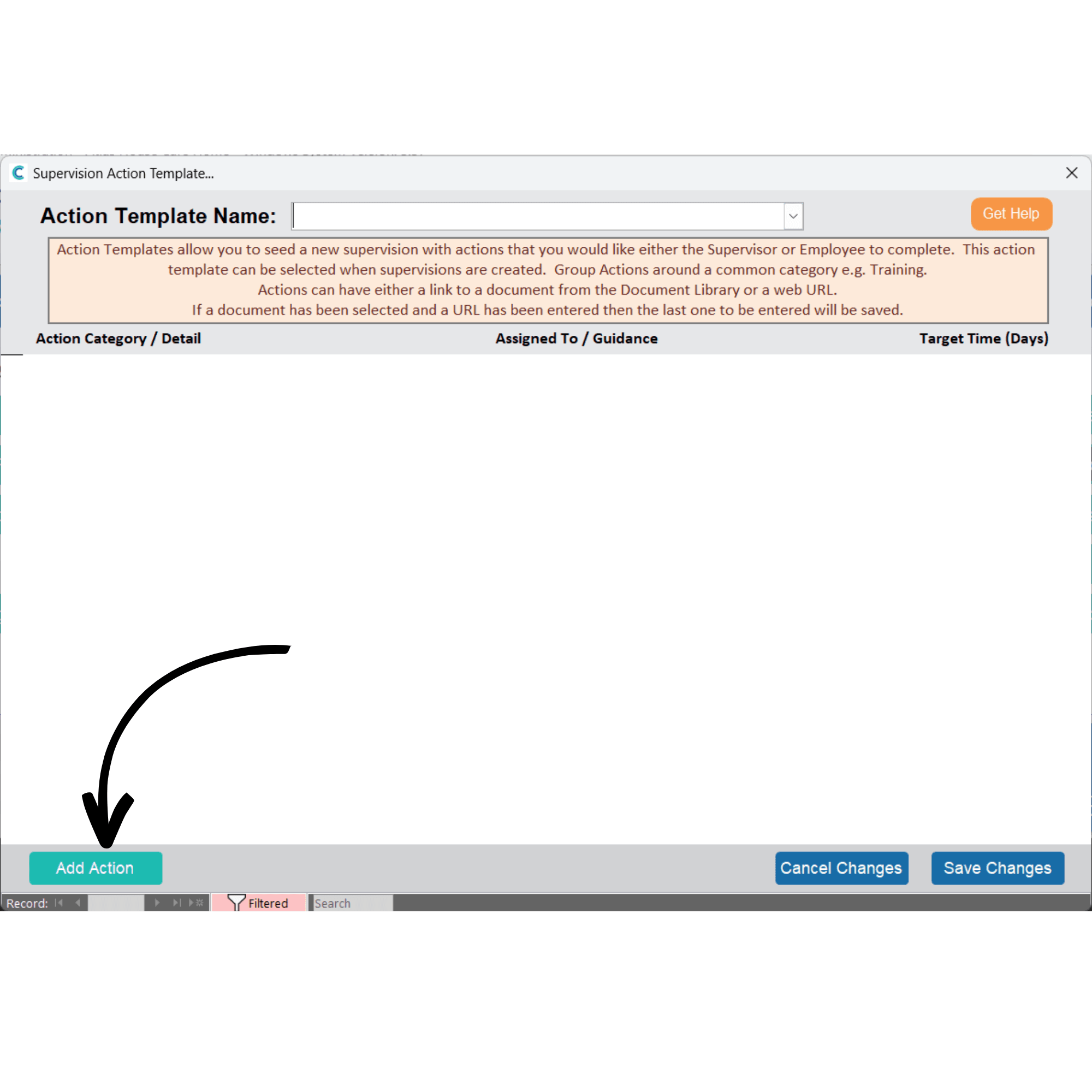
A new window will open. To create a new action template, press Add Action.
8
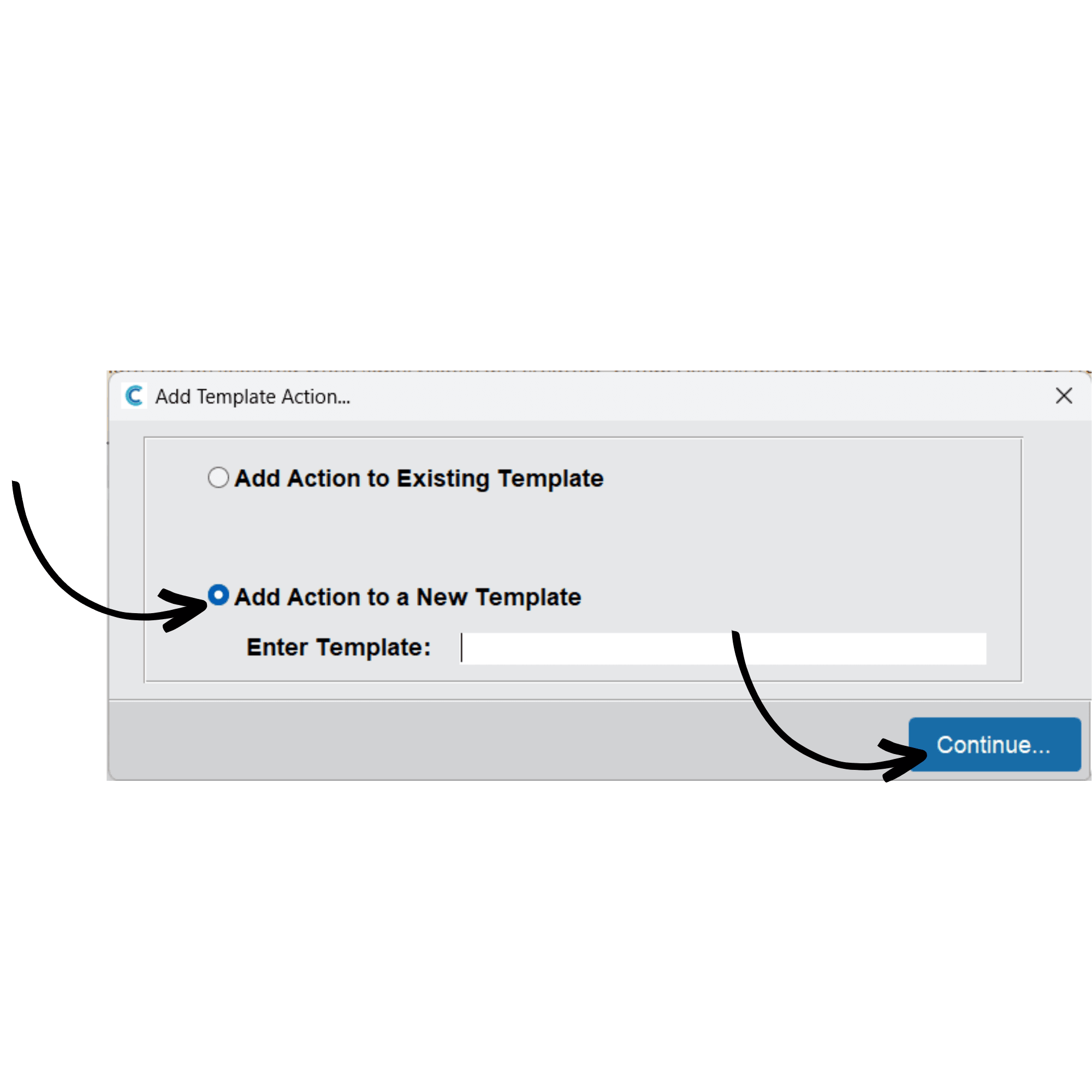
Select Add Action to a New Template and enter the template name in the text box.
Press Continue.
9
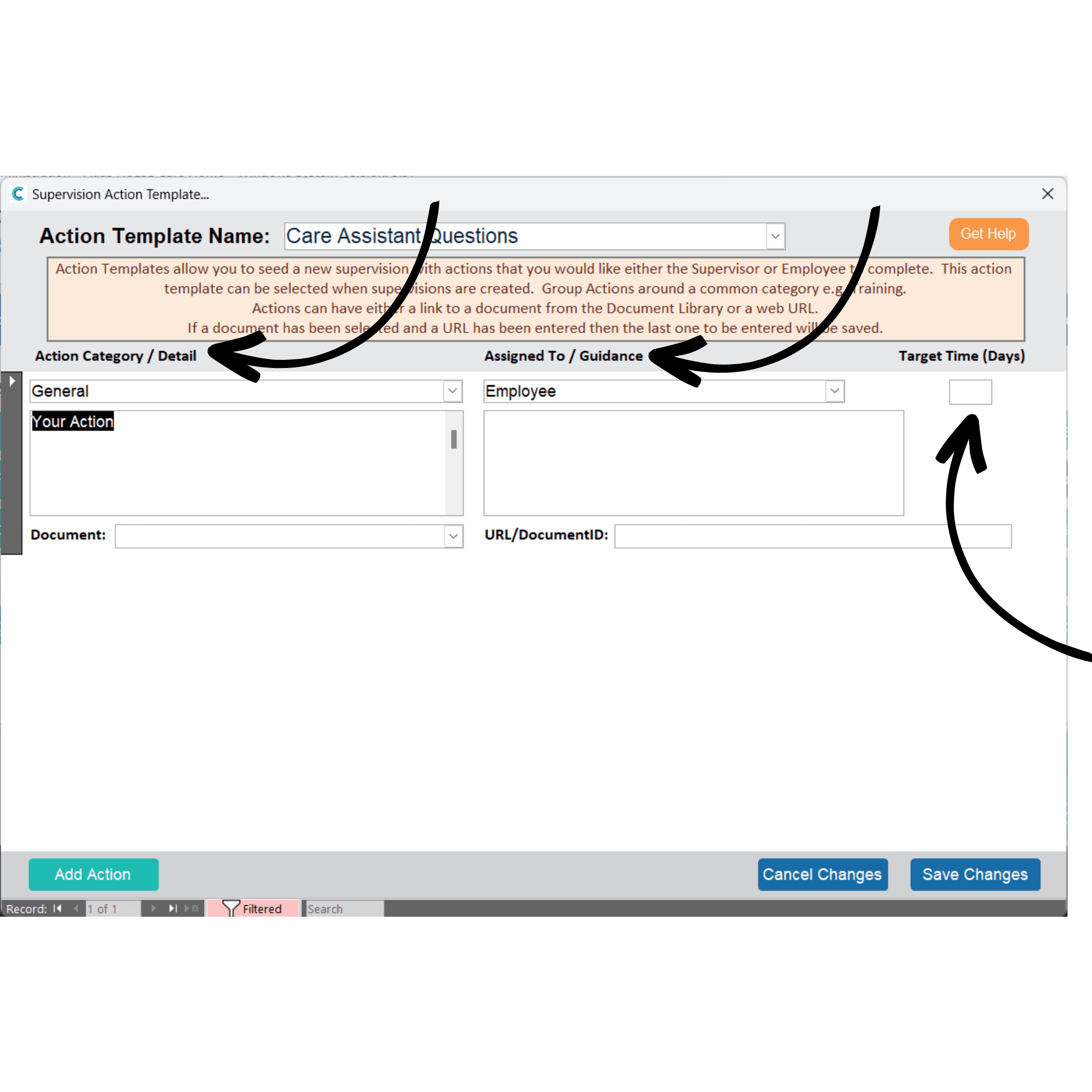
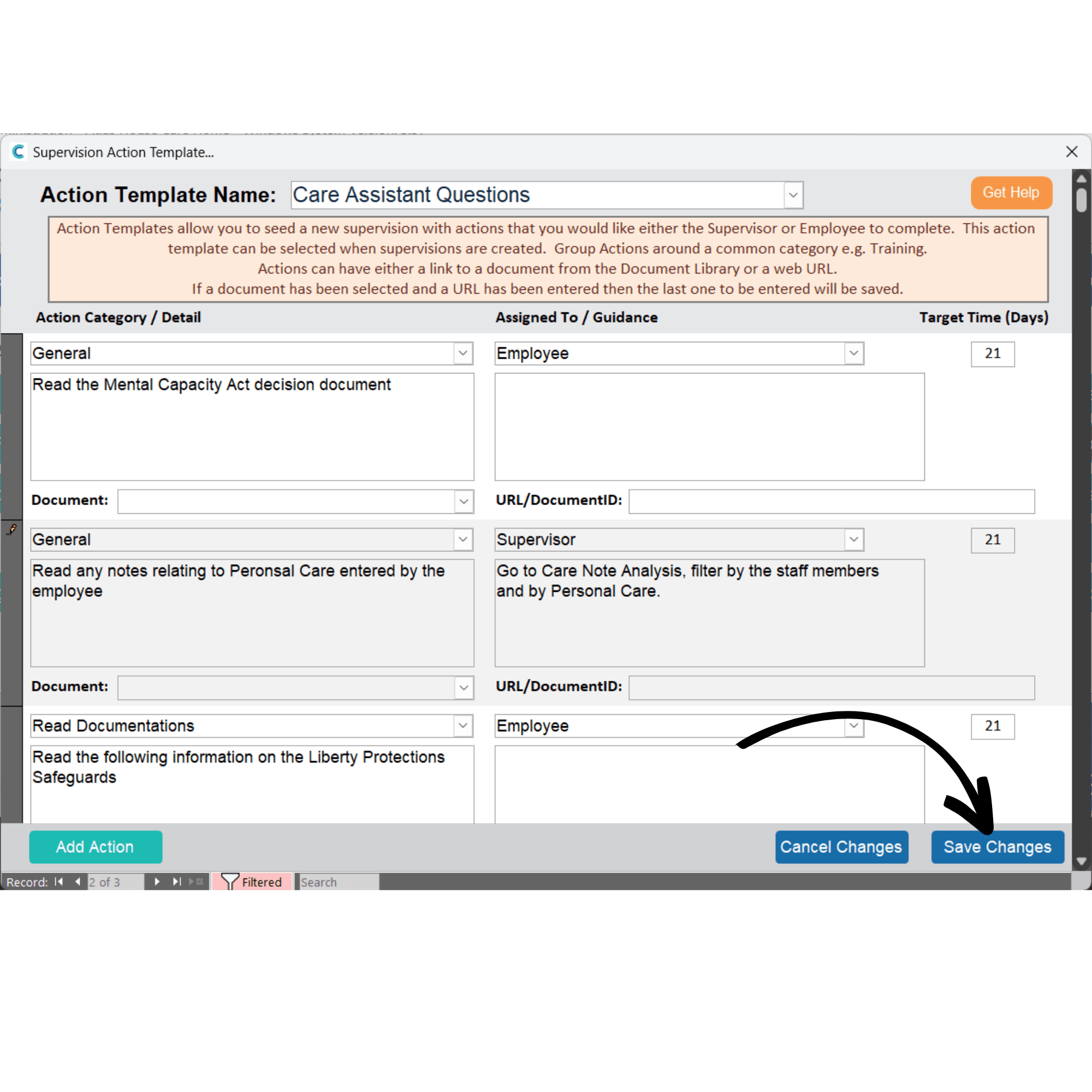
A new action box will be added. Select an Action Category from the drop-down list, or type in a new one, then add the Action Detail in the text box below.
Next, select who the action is Assigned To from the drop-down list – this can be for staff or the supervisor. You can enter any guidance for the action in the text box on the right-hand side and also add any accompanying documents or URLs in the dedicated boxes.
Finally, select a Target Time for the action (in days).
10
After completing the action template, press Save Changes.
11
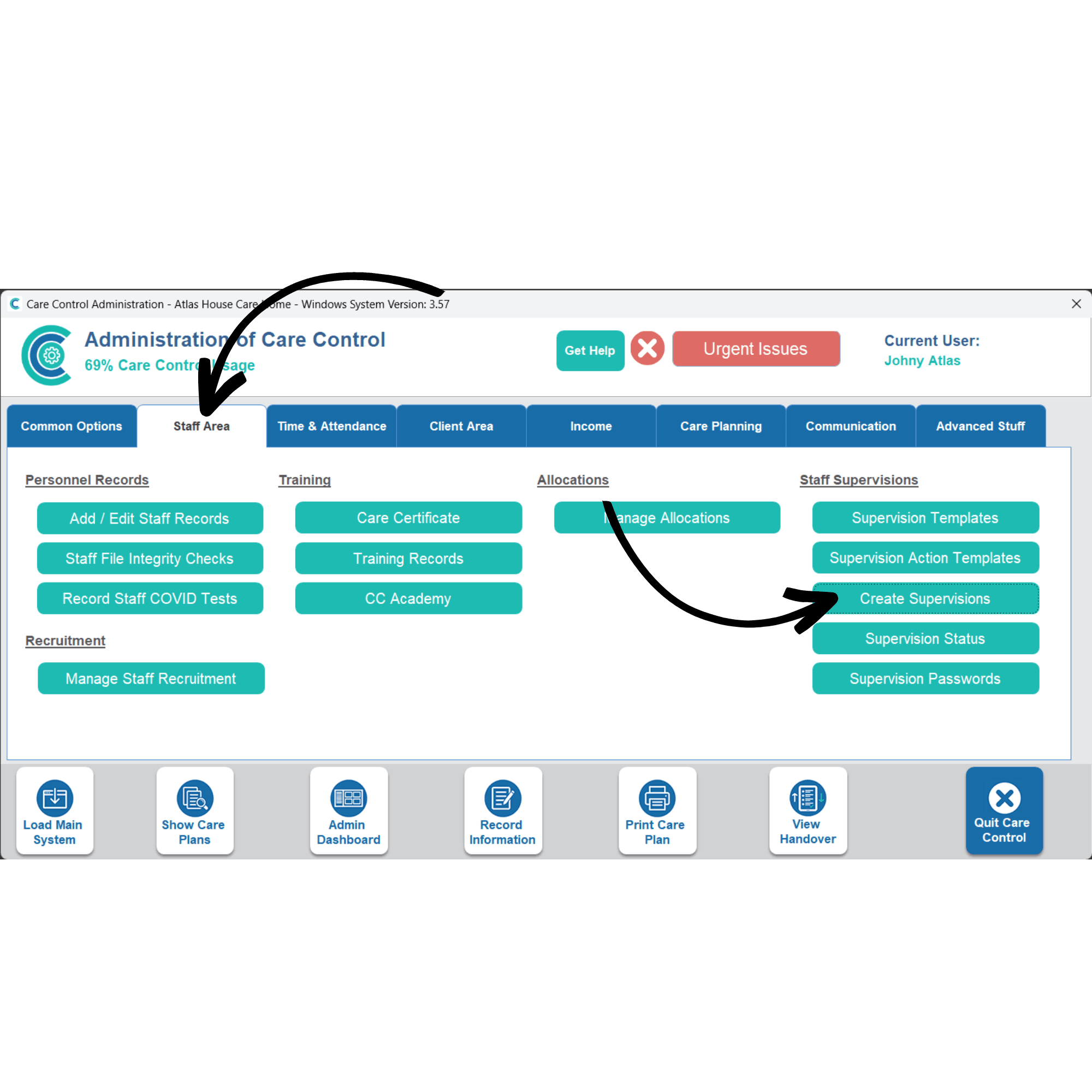
After creating a question and action template, select Create Supervision from the options under the Staff Area tab.
12
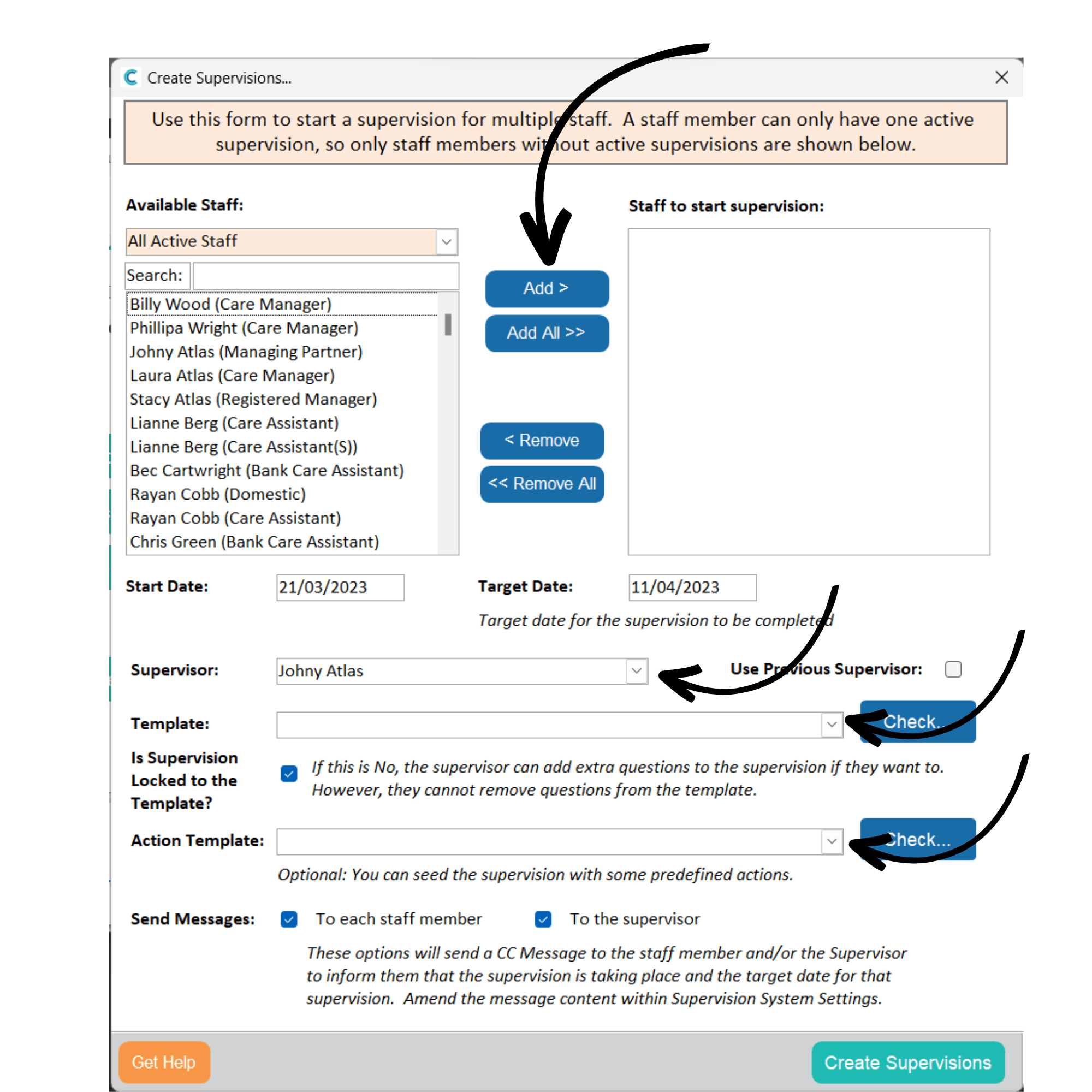
A new window will open. Here, you can start a supervision for multiple staff members at once.
First, select the staff members from the list and press Addto move them to the right-hand list. You can filter the staff list by all active staff, staff due a supervision, staff with no previous supervisions and by staff who have completed a supervision.
You can then enter the start and target dates for this supervision. Next, select a Supervisor, Template and Action Template from the drop-down lists.
You can choose to lock the supervision using the checkbox. If unlocked, the supervisor can add questions after the supervision has started. Finally, choose whether to Send Messages to the staff members and supervisors selected.
13
After filling out the form, press Create Supervisions.
14
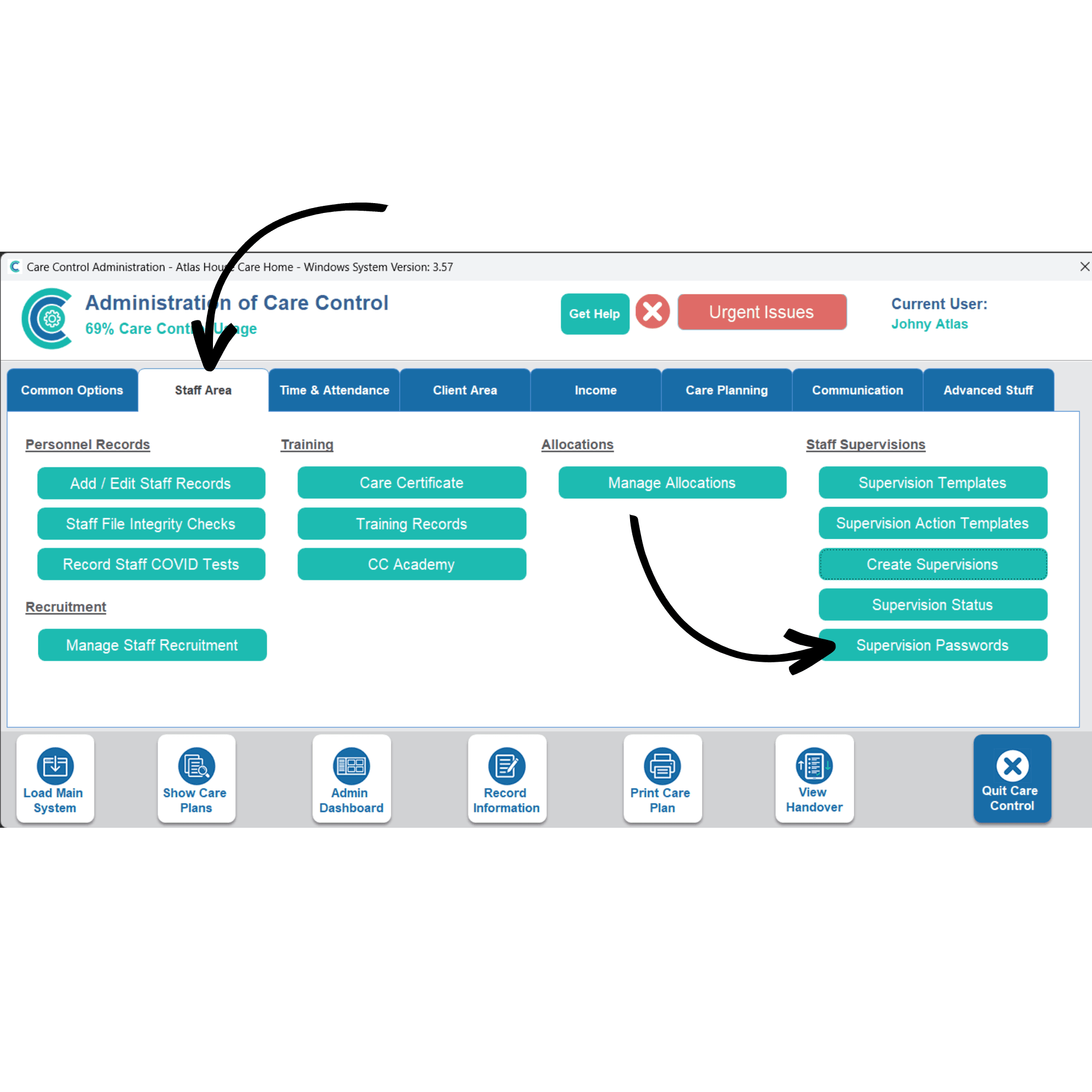
In order to access their supervisions, staff members and supervisors will require a password. These are unique to the staff member, and not the supervision. You can view and edit passwords by pressing the Supervision Password button under the Staff Area tab.
15
A new window will open with a list of your active staff members. To create a password, select a staff member using the grey box on the left of the window, then, enter a password in the New Password box and press Update.
16
To view information on active or historic supervisions, press the Supervision Status button under the Staff Area tab.
17
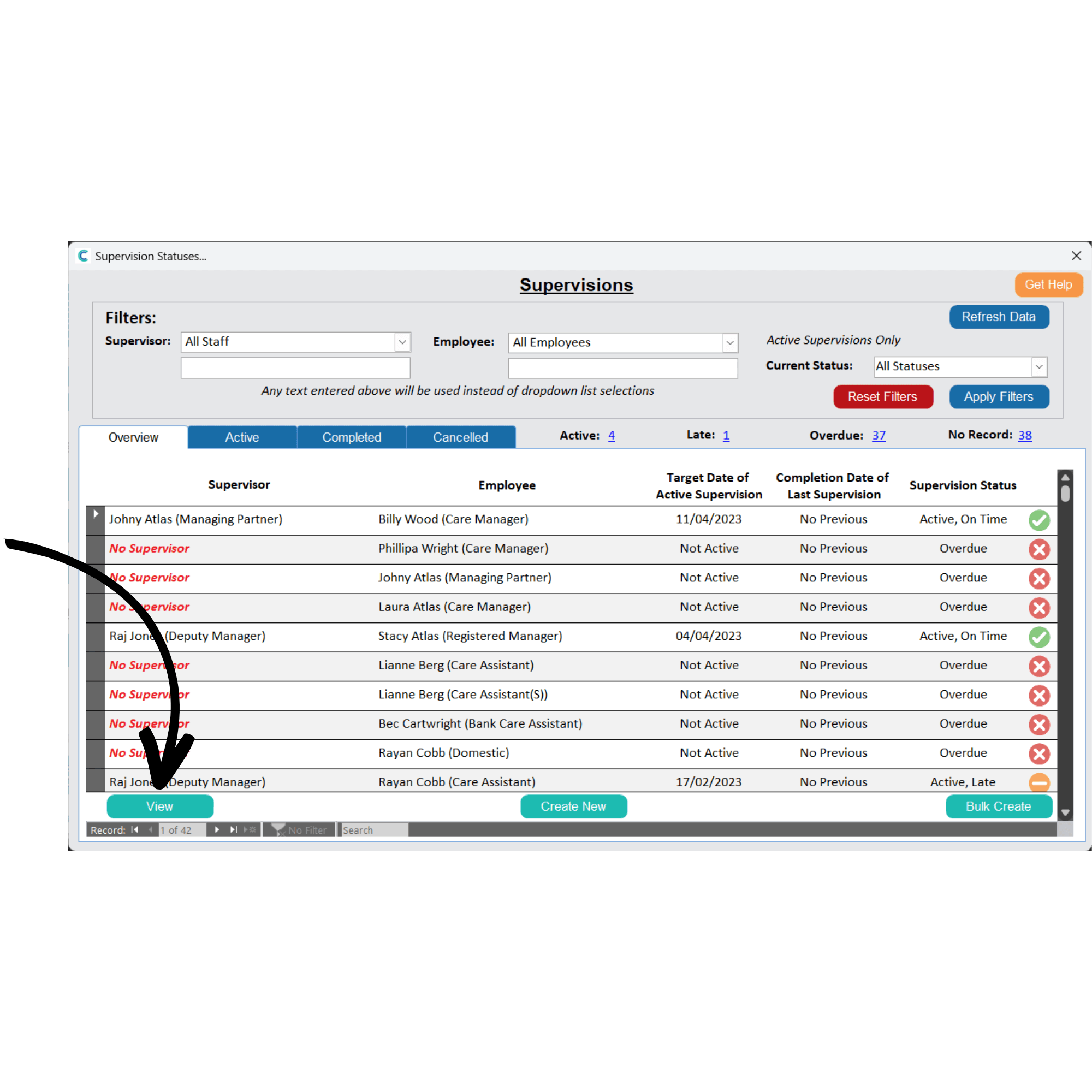
A new window will open, here an overview of all staff and their supervisions will be displayed. It will show their supervisor, active supervision target date, completion of their last supervision and a supervision status.
You can view further details about a staff member by selecting them via the grey box on the left of the window and pressing View.
18
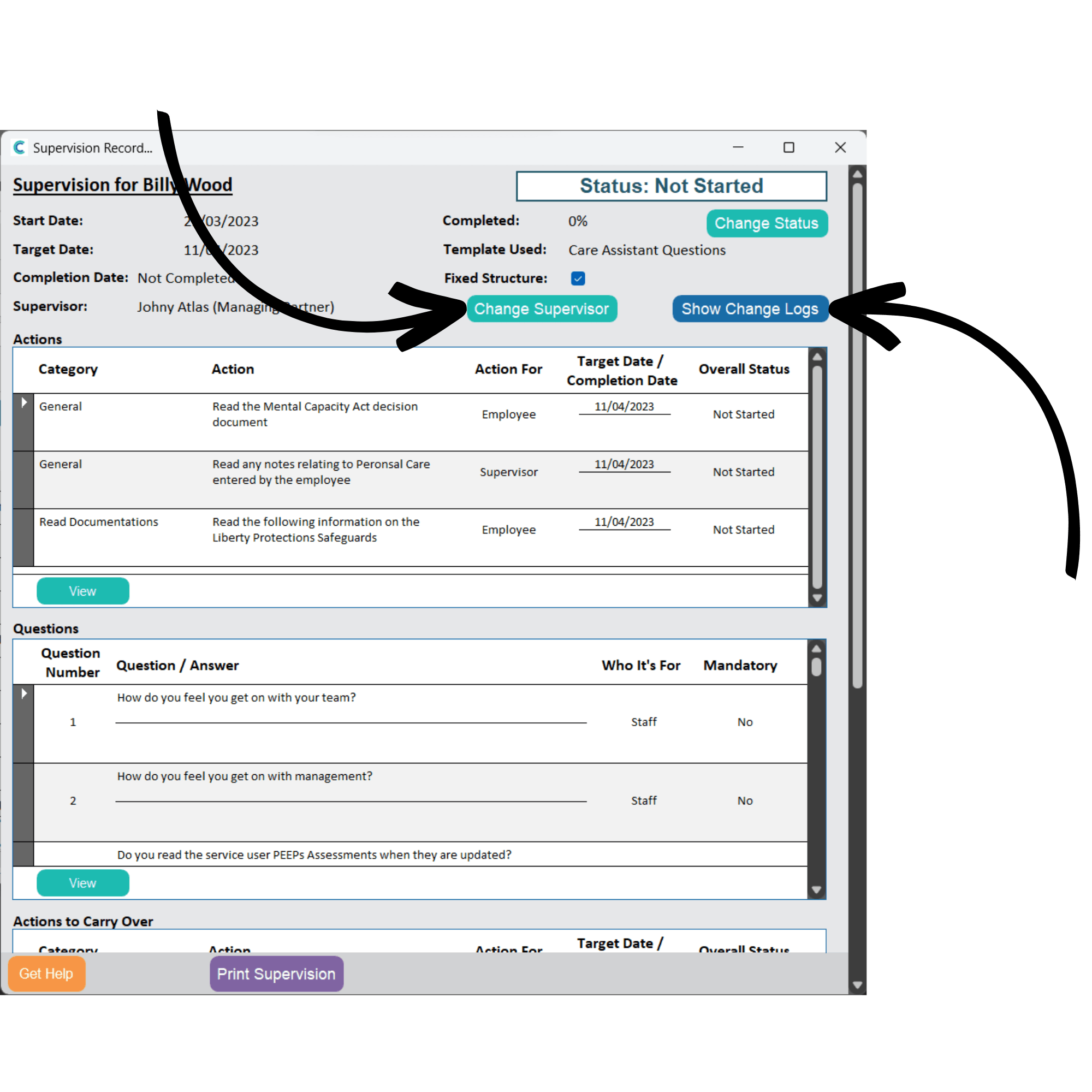
An overview of the supervision will open. Here, you can view the details of the supervision and the actions and questions associated with it. You can change the supervisor by pressing Change Supervisor.
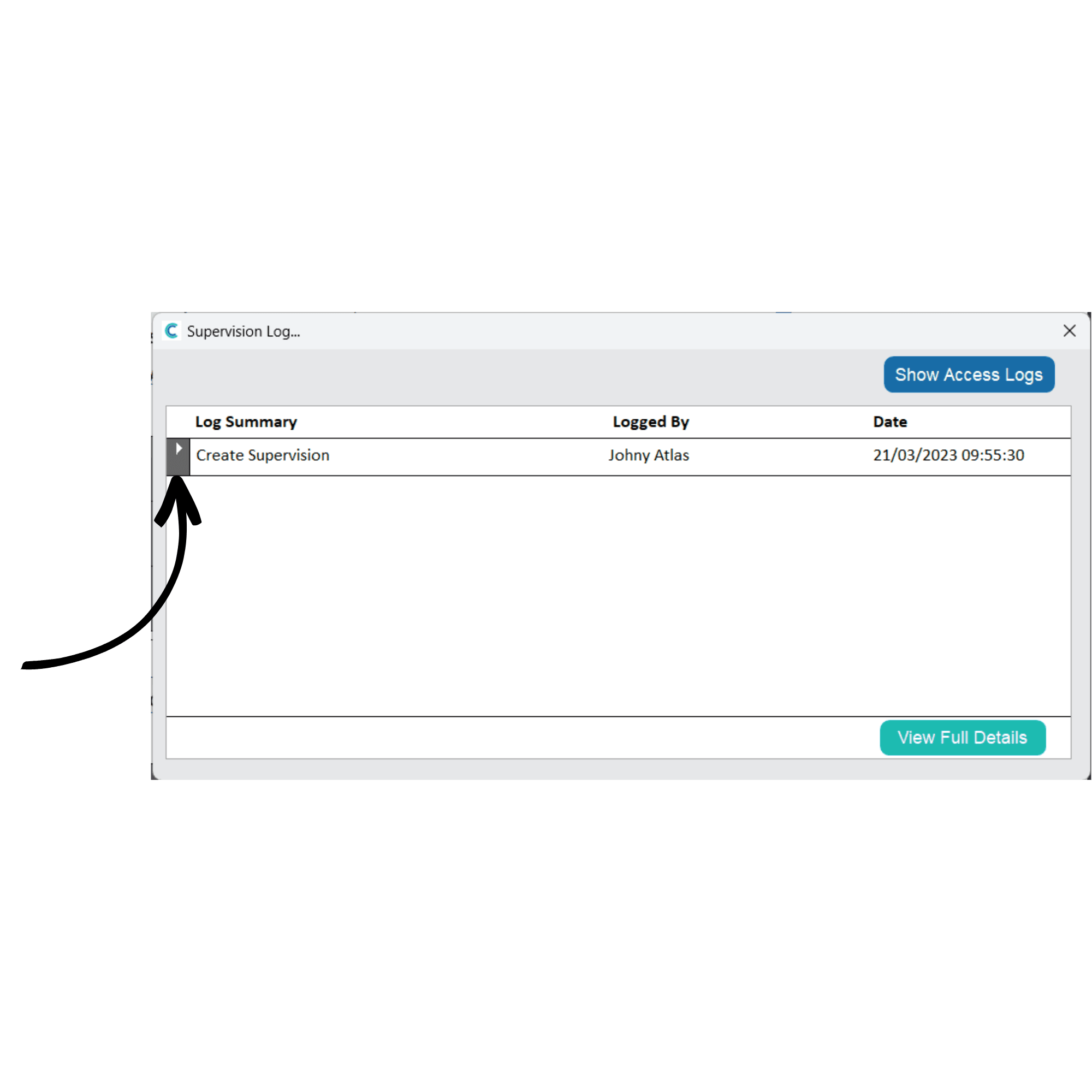
You can also view the supervision logs (changes, edits, etc.) by pressing Show Change Logs.
19
The change log will open. Close this window to return to the Supervision Status.
20
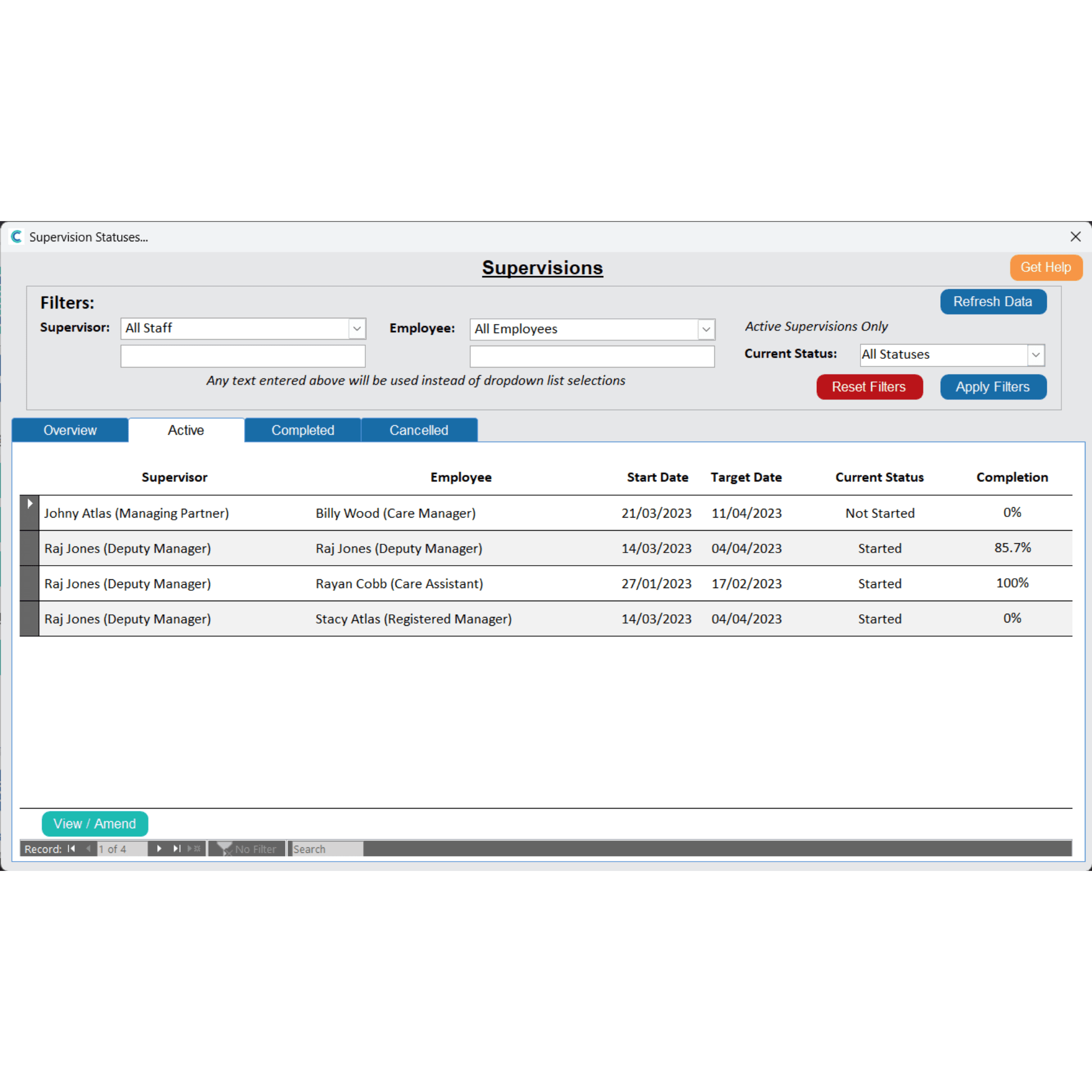
You can filter the supervision list by Active, Completed, and Cancelled supervisions via the dedicated tabs.
Open an active supervision by selecting the grey box on the left side of the window and pressing View/Amend.
21
Open a question or action by selecting the grey box on the left side of the window and pressing View.
22
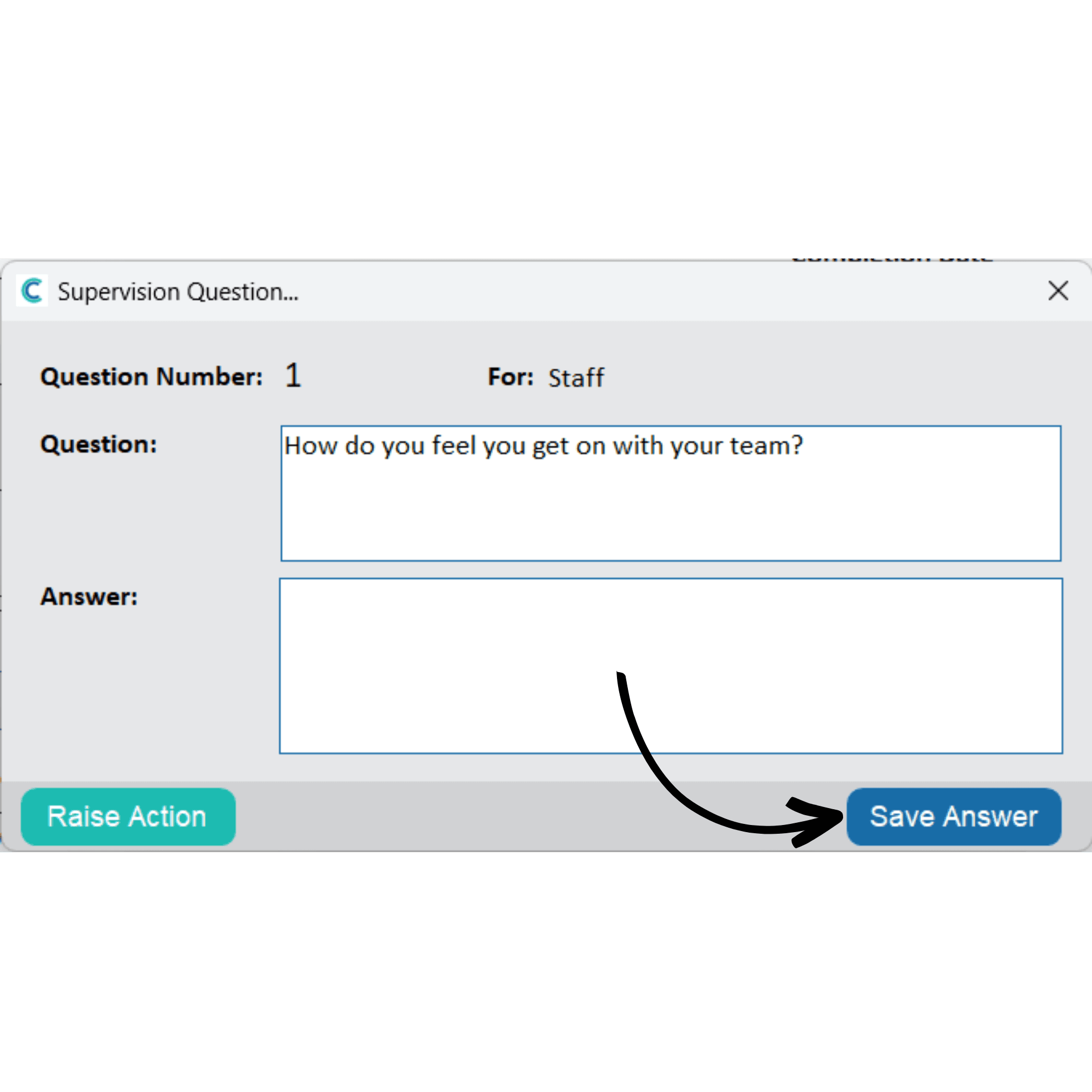
A new window will open with the question or action detail. You can amend the question content or add an Answer.
If viewing a question, you can Raise an Action via the dedicated button. If no action is required, press Save Answer.
23
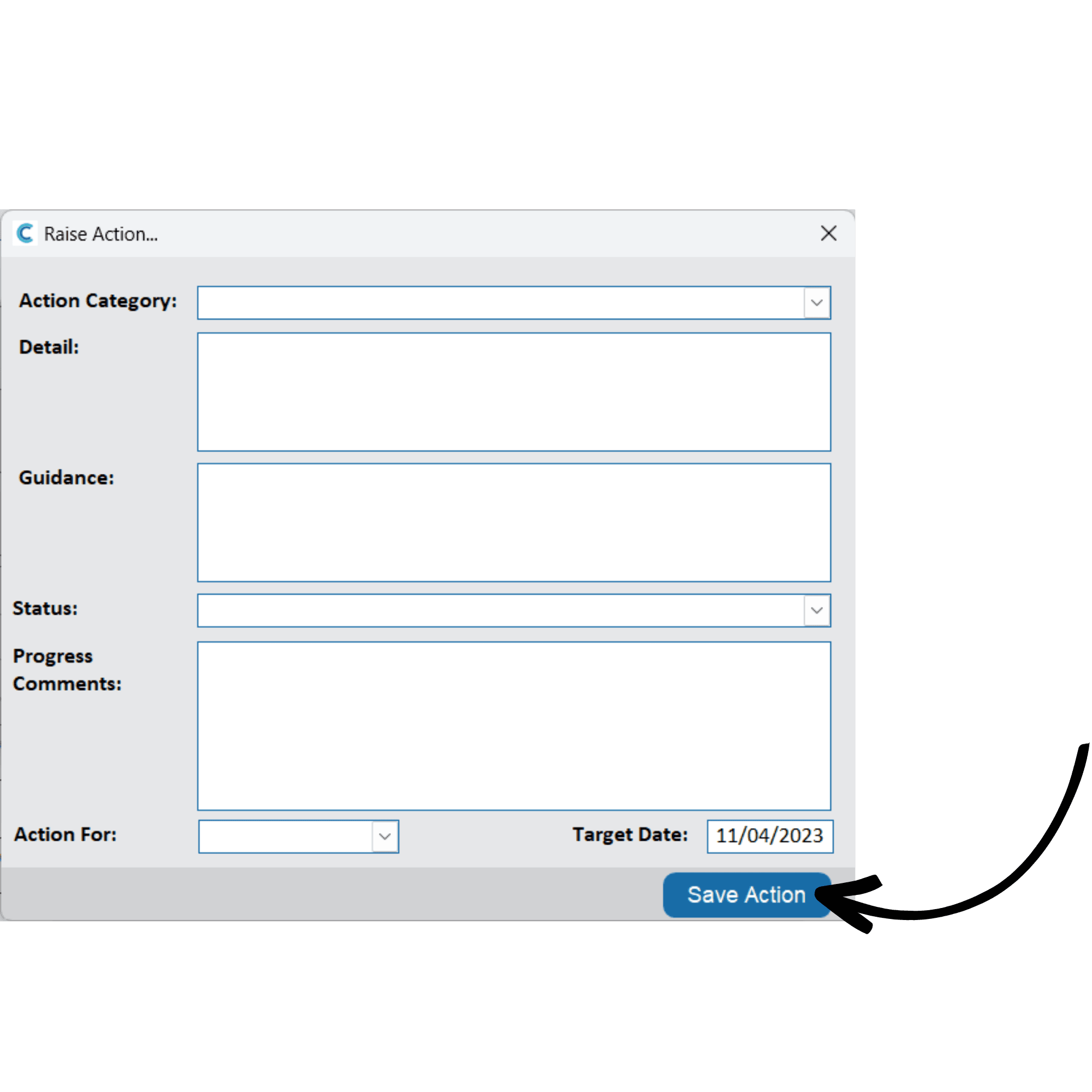
Fill out the action form as completed earlier in the guide. This will create a new action for the supervision. Press Save Action.
24
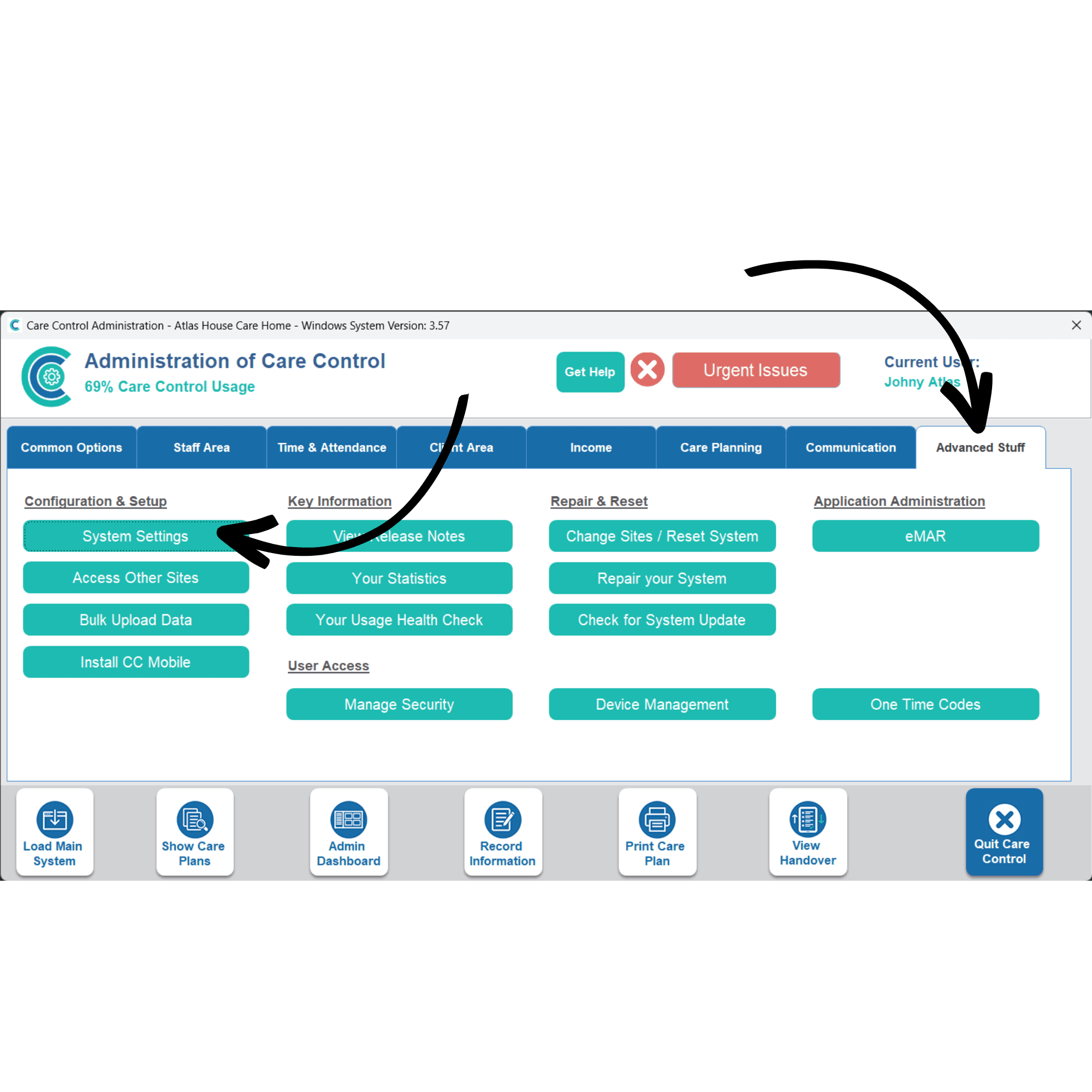
There are some dedicated settings to the supervision on Care Control. Open the System Settings, which can be found under the Advanced Stuff tab.
25
Here, choose Supervisions from the options on the left-hand side. You can amend the default frequency, target date, apps for completion and some parameters regarding messages which are sent to staff and supervisors about the supervision.
26
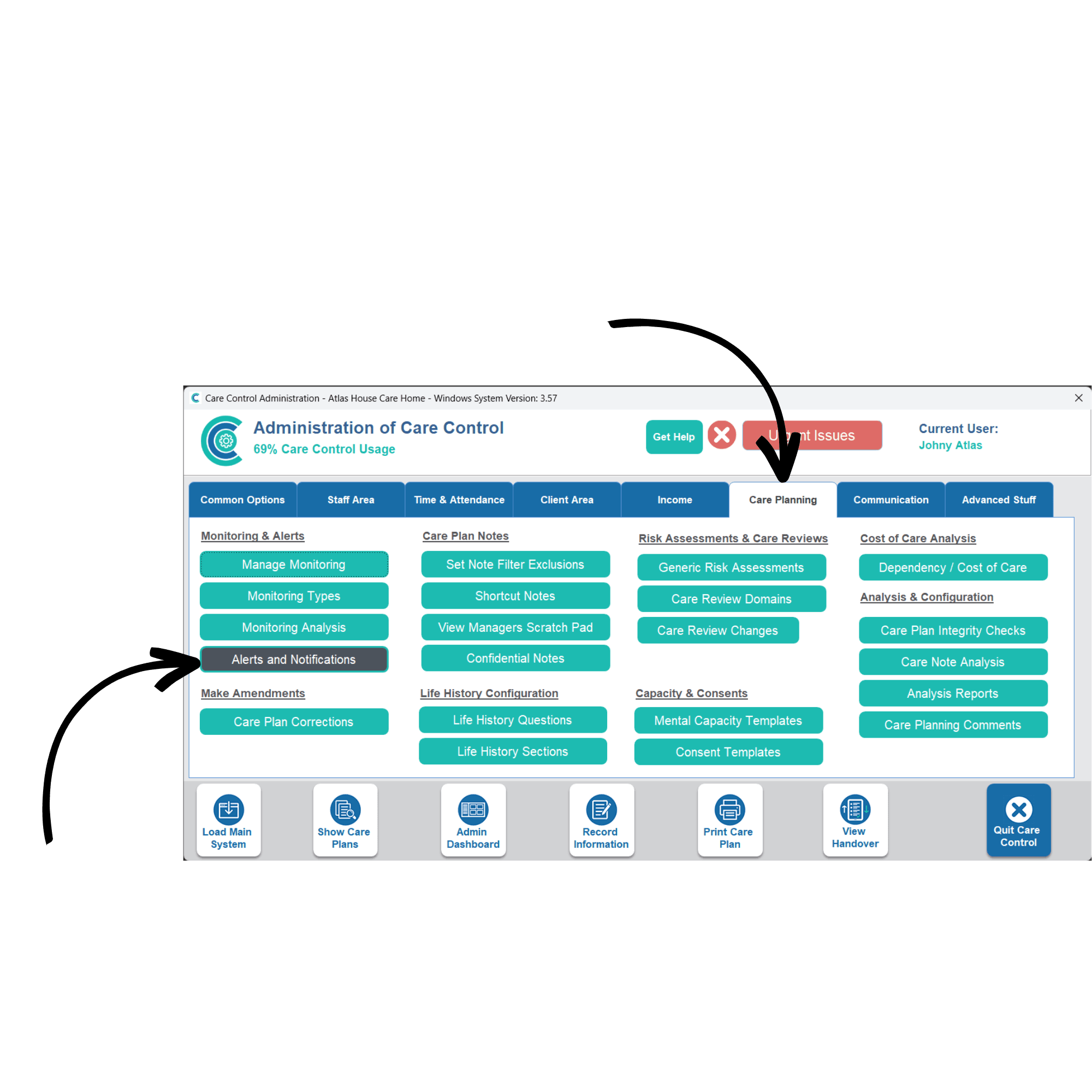
There are some dedicated alerts for supervisions on Care Control. Open Alerts and Notifications, which can be found under the Care Planning tab.
27
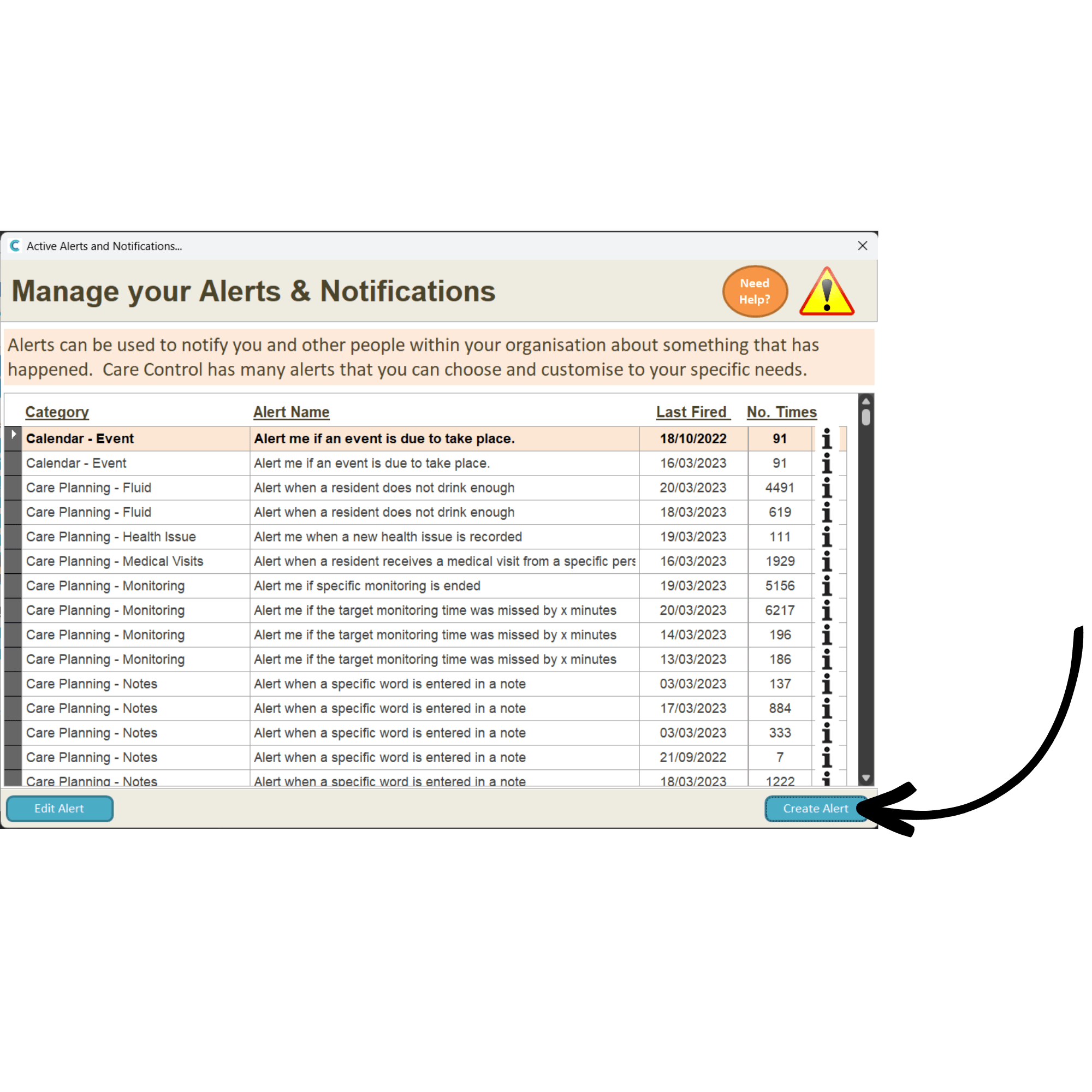
Here, press Create Alert.
28
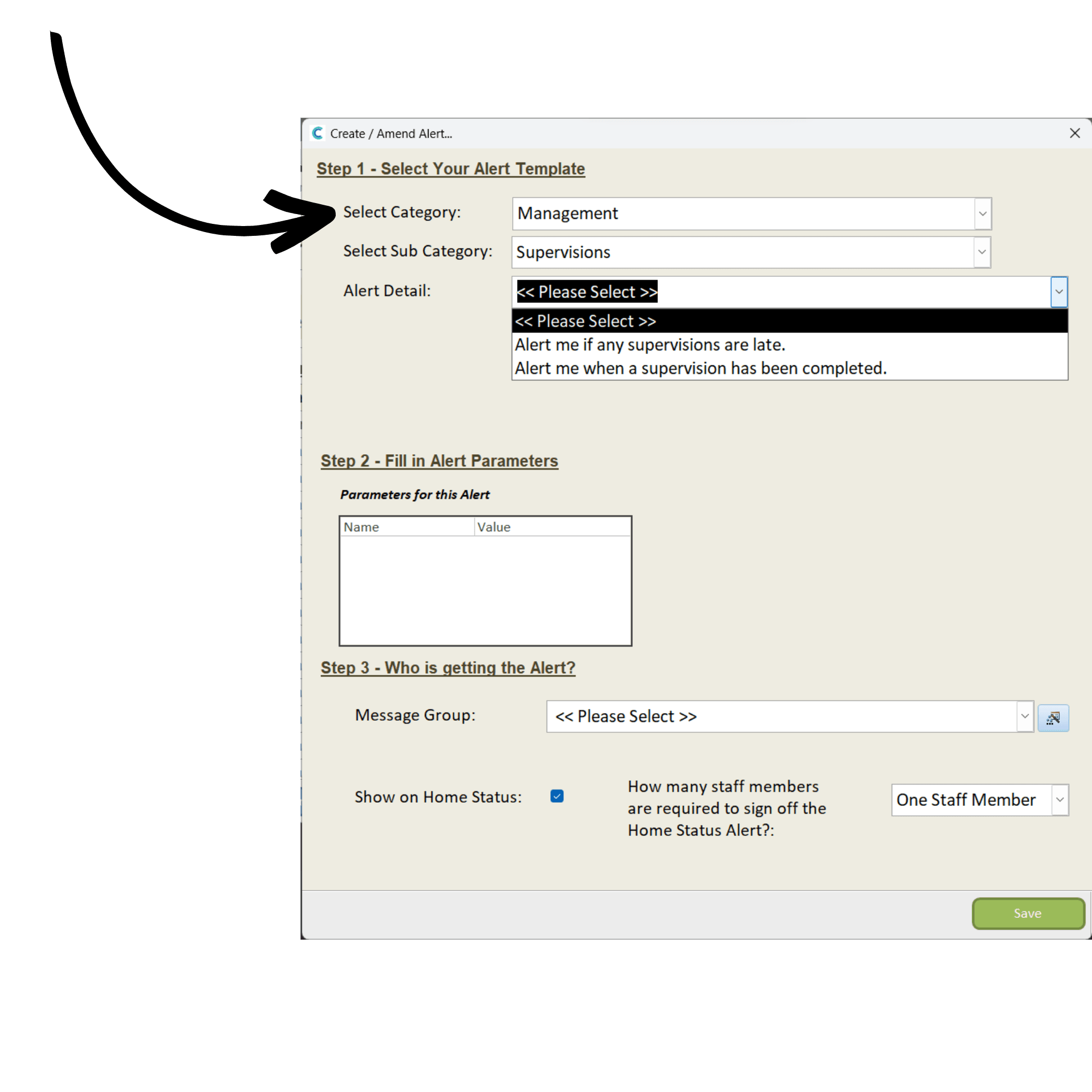
You can find the supervision alerts under the Management category. Two alerts are available:
-Alert is triggered if supervision is late
-Alert is triggered when the supervision is completed
29
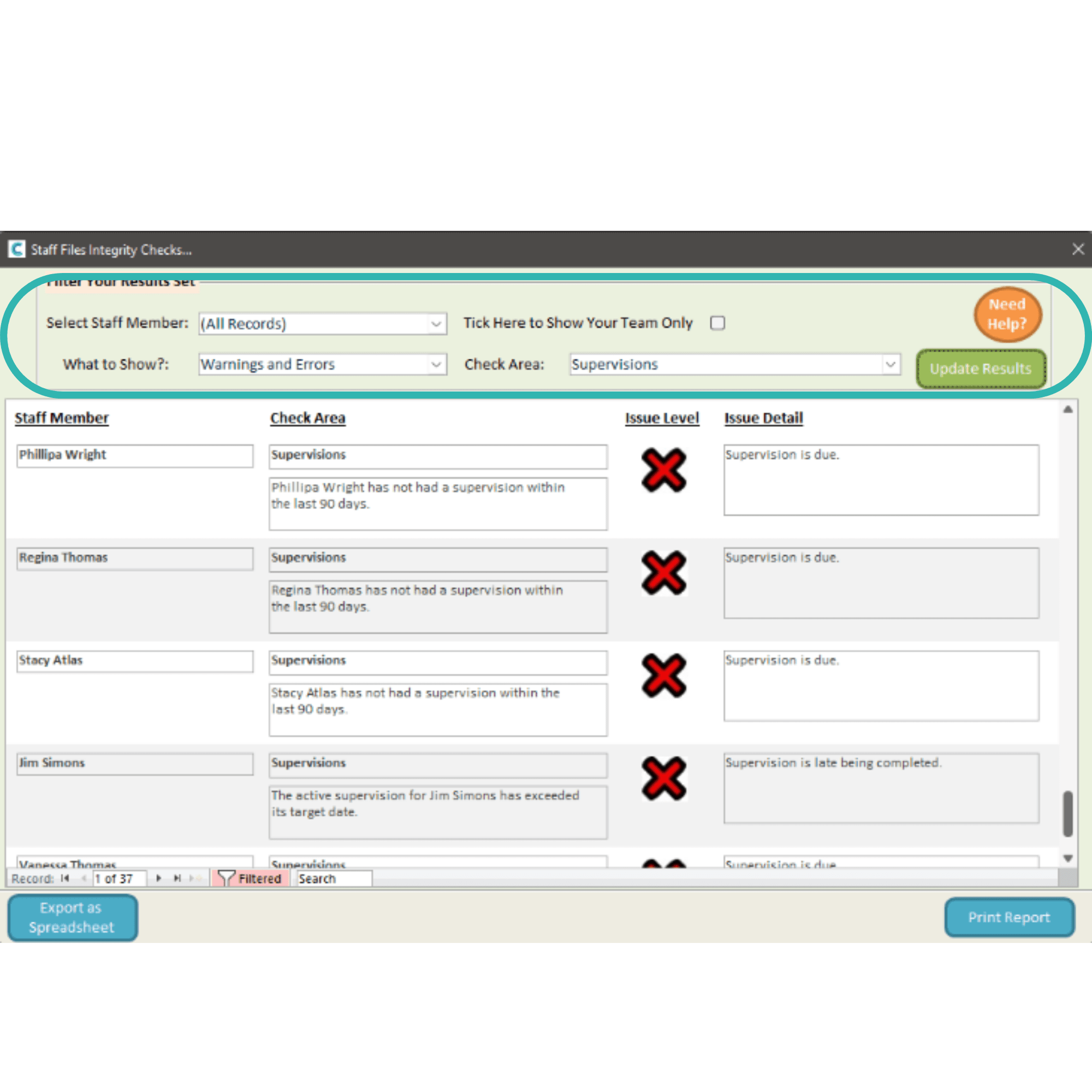
Supervisions can also be viewed from Staff File Integrity Checks. Here, active supervisions can be tracked and will be flagged if they are late.
You can filter the integrity checks by Supervisions under the Check Area drop-down list.
30
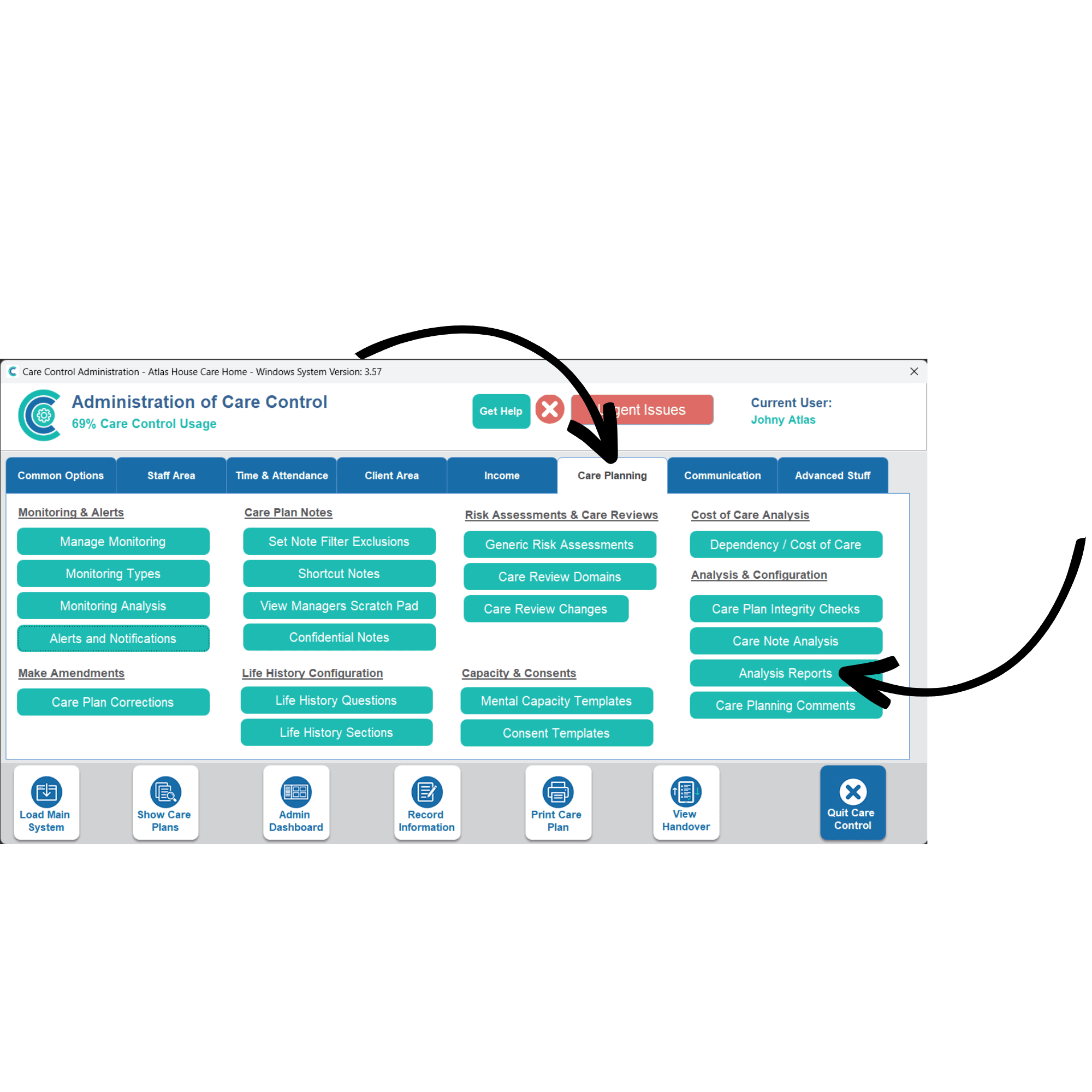
Care Control also contains reports to analyse your supervisions. Open Analysis Reports, which can be found under the Care Planning tab.
31
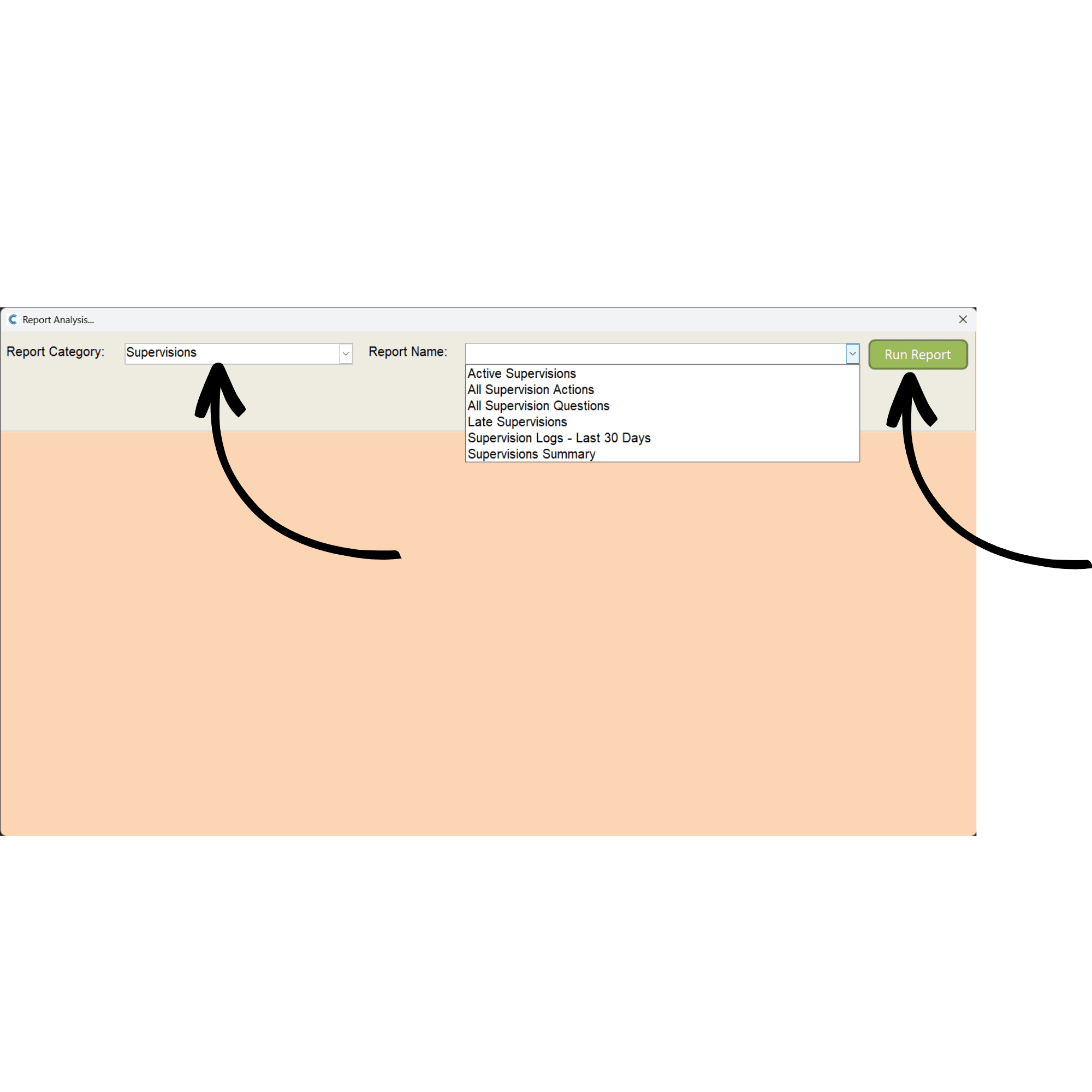
Choose Supervisions in the Report Category drop-down list. Six reports are available: