Bank Holiday Closure Notice: We will be closed on the 3rd April for the Easter bank holiday, so our customer service team will not be available on this day. If you need to get in touch, you can still use our customer contact form and we will get back to you as soon as possible. Even better, Margo will still be available on our phone lines to help with your queries whenever you need support. We hope you have a lovely Easter weekend 🐣
View Categories
Uploading a Document to a Staff Record
This guide will cover how to upload a document to a staff members record. This could be an employment contract, record of training or CV.
1
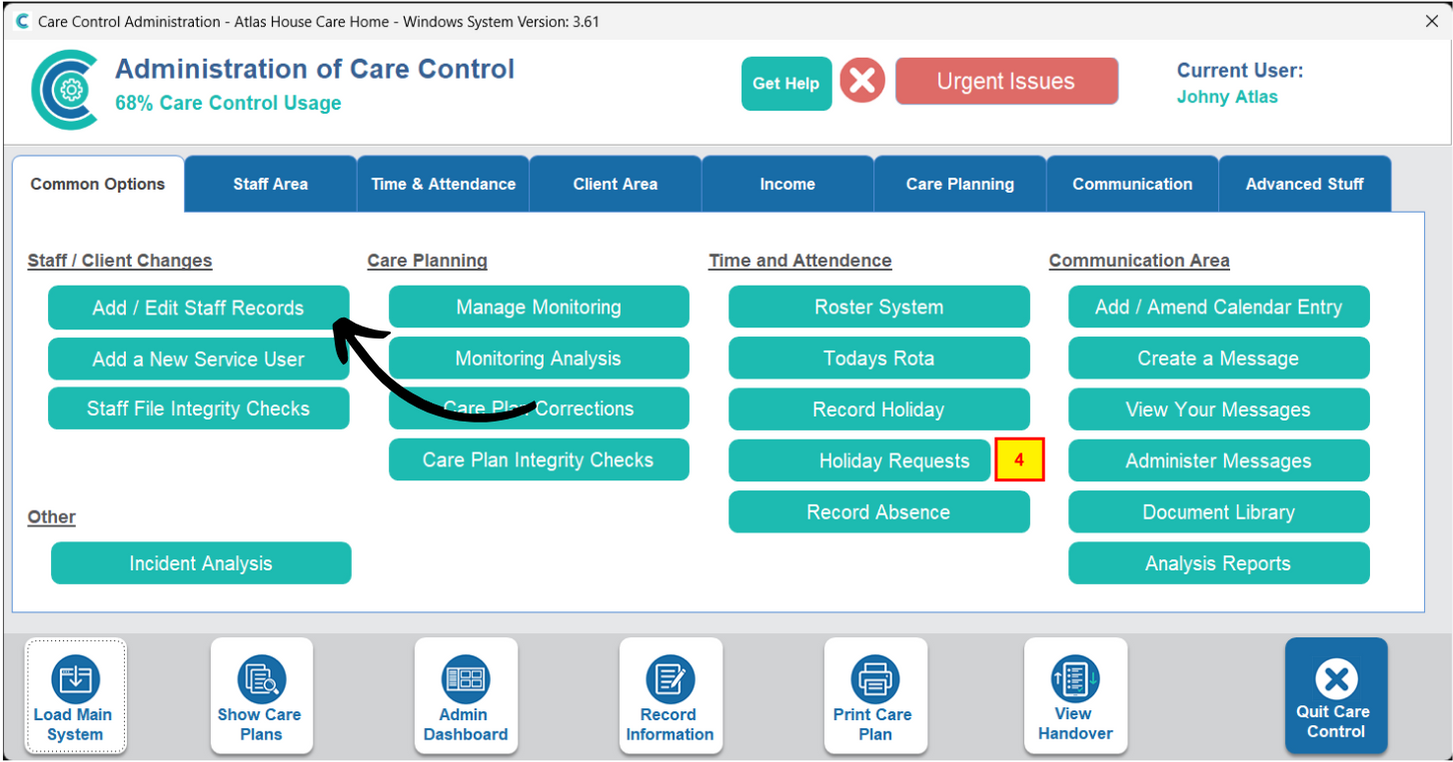
In the Administration of Care Control Windows, navigate to the Staff Records tool, which can be found under the Common Options tab.
2
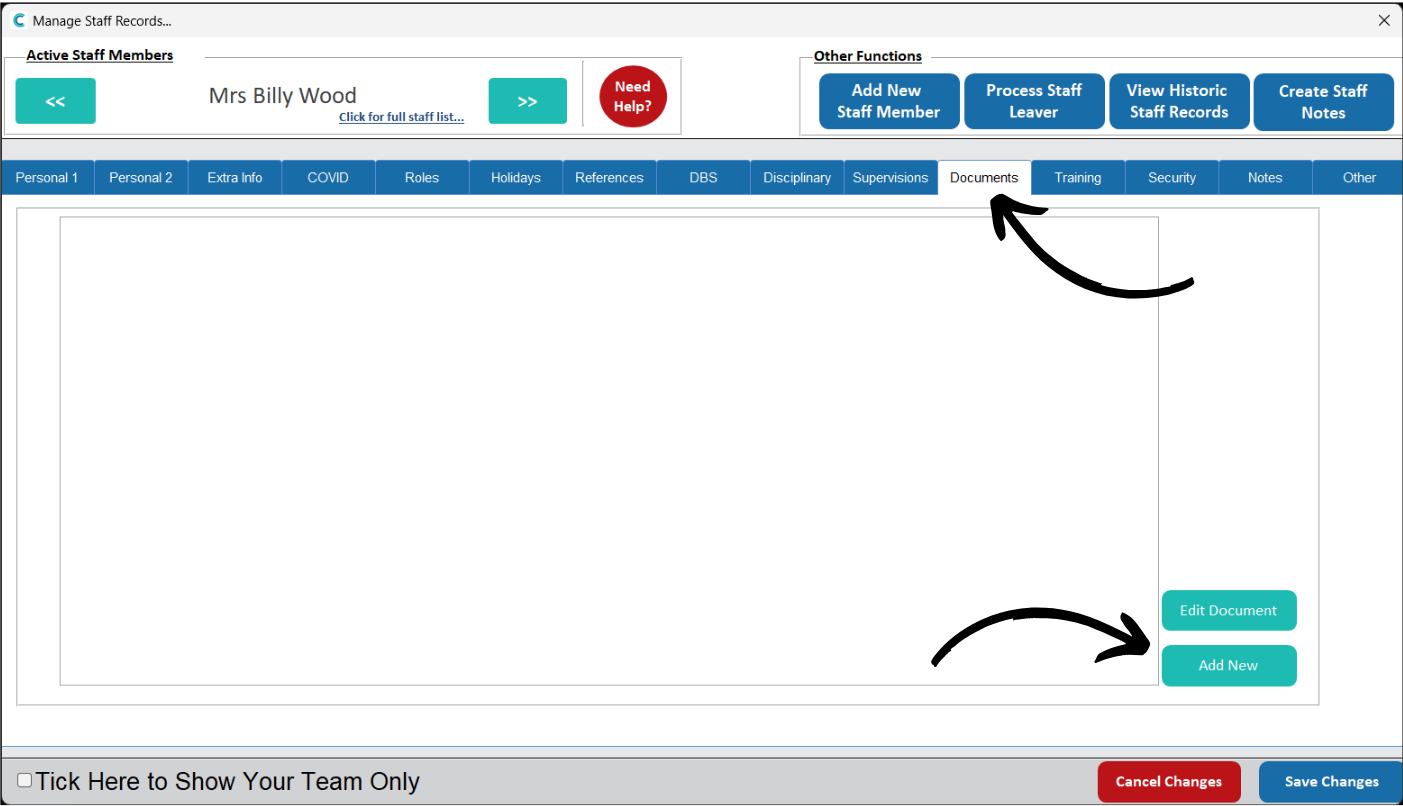
Find the staff member you wish to upload a document for and select the Documents tab from the options along the top of the record.
Then, select Add New.
3
The document upload form will open.
Begin by entering the details of the document – the Name, Description and Document Type.
You can add a Password to the document which will be required when viewing it in the future.
Finally, select the document by pressing Browse.
4
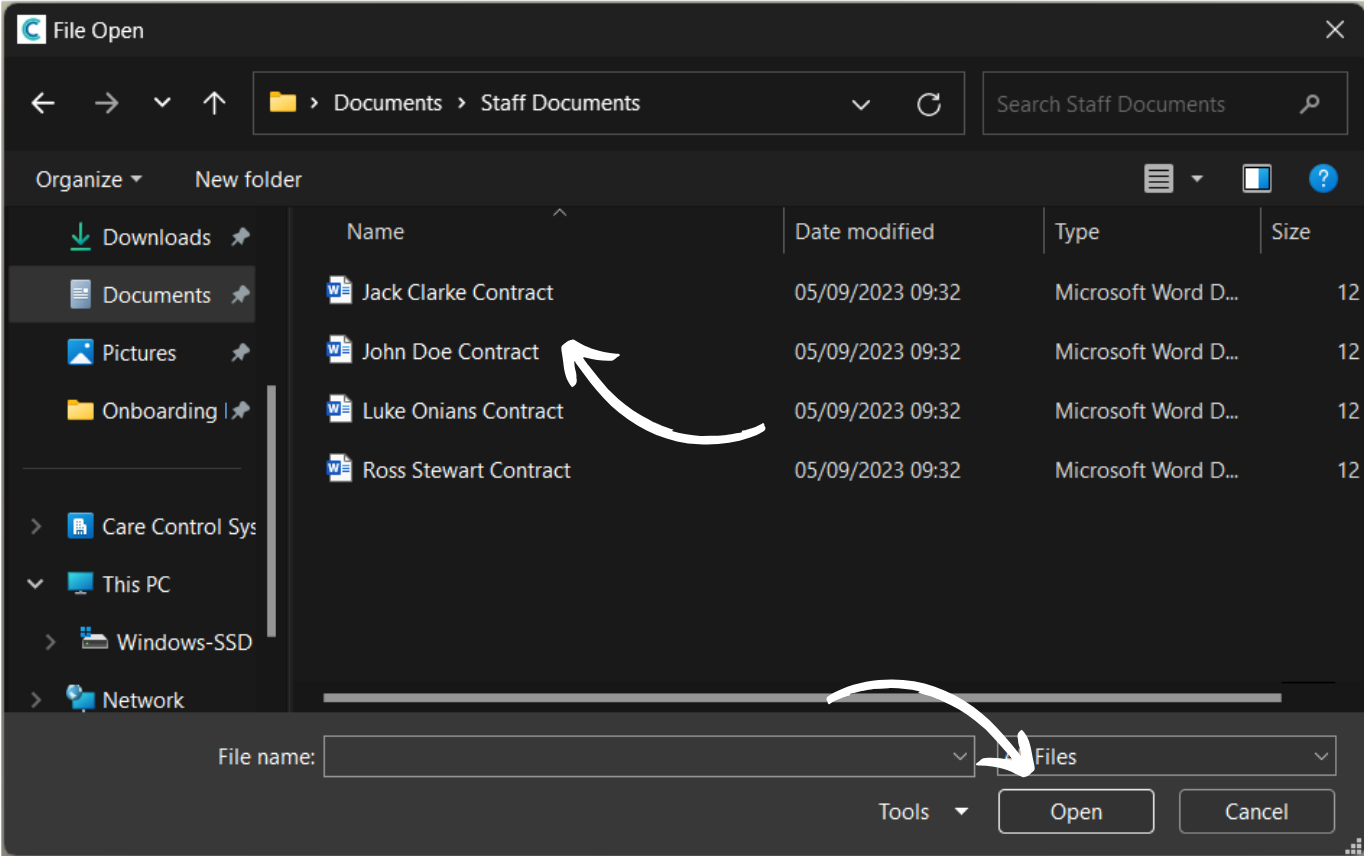
This will open your file directory on your PC. Find the document, select it and press Open.
5
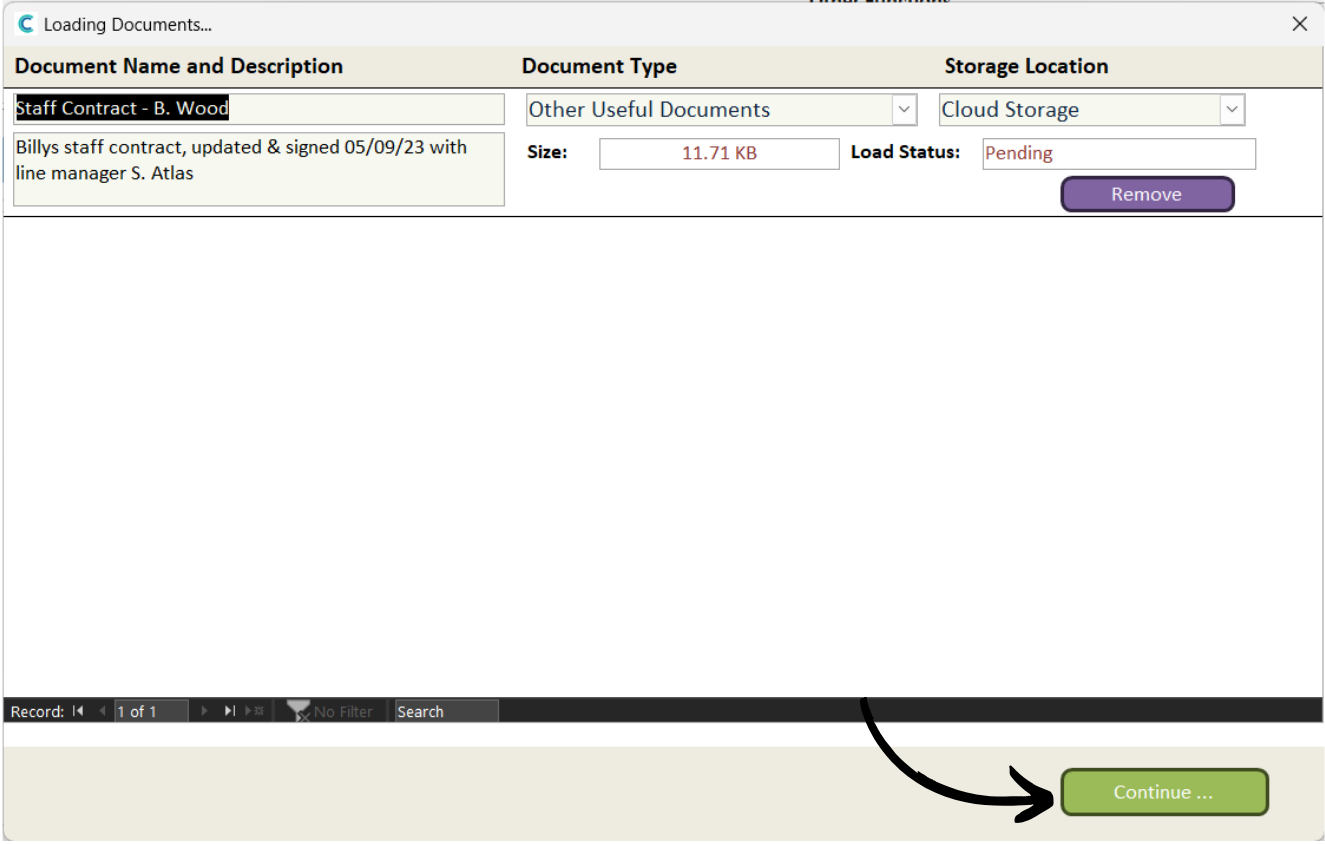
After completing the form, press Continue.
6
An upload summary window will open. Here, you can confirm the details are correct.