This guide covers how to allocate shifts to a Care Service Group (CSG) within the Roster System of Care Control Windows.
1
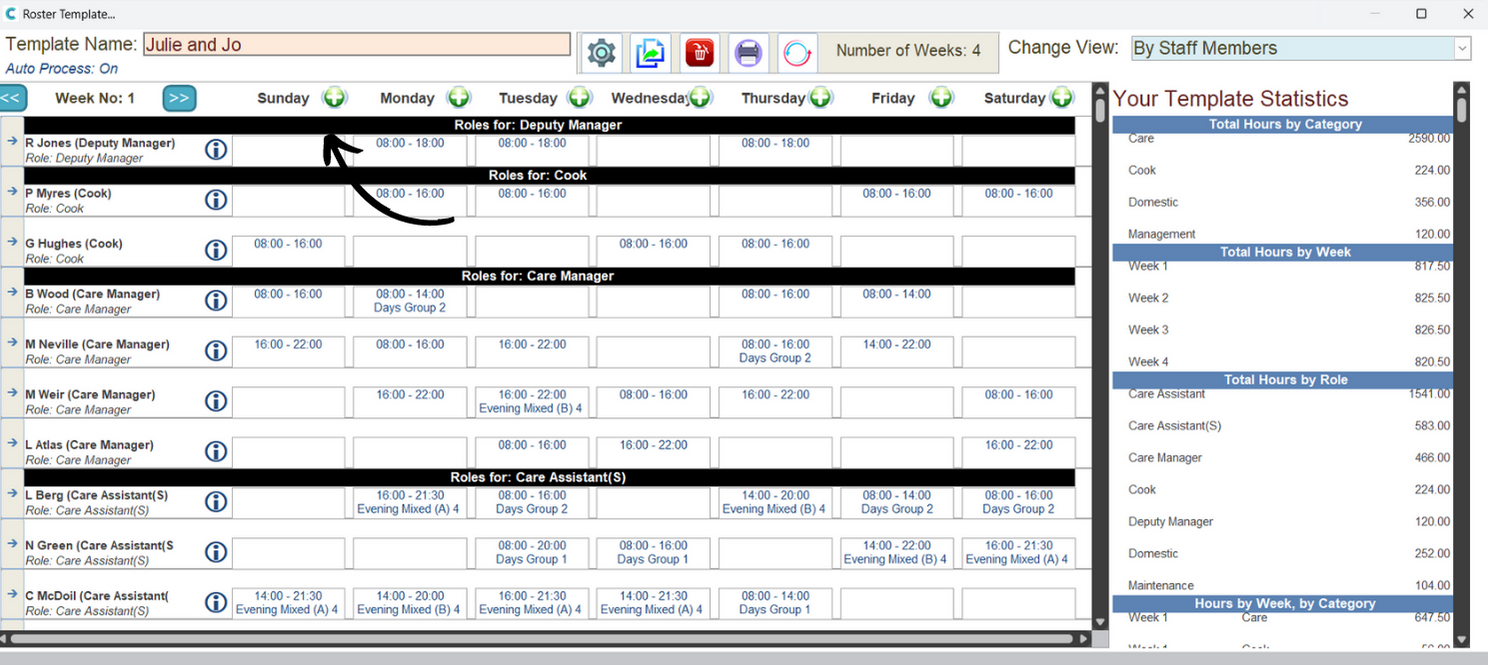
Open your active roster template or the live rota. Begin by adding a new shift via the green + symbol.
2
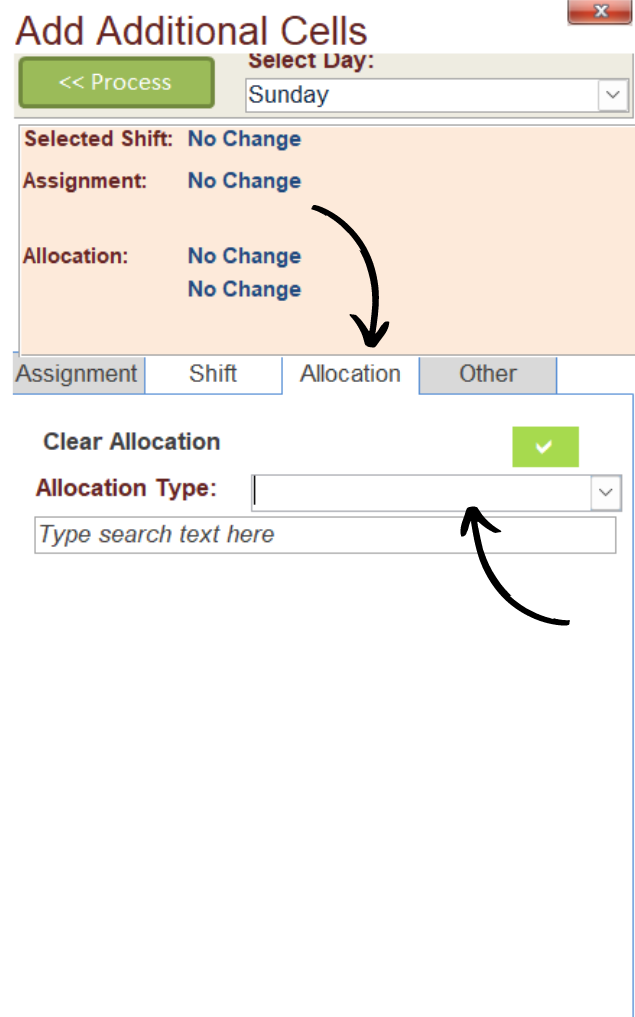
The shift creation section will open on the right-hand side of the window. Here, navigate to the Allocation Tab.
3
From the Allocation Type drop-down list, select Care Service Group and select the CSG you wish to assign the shift to.
4
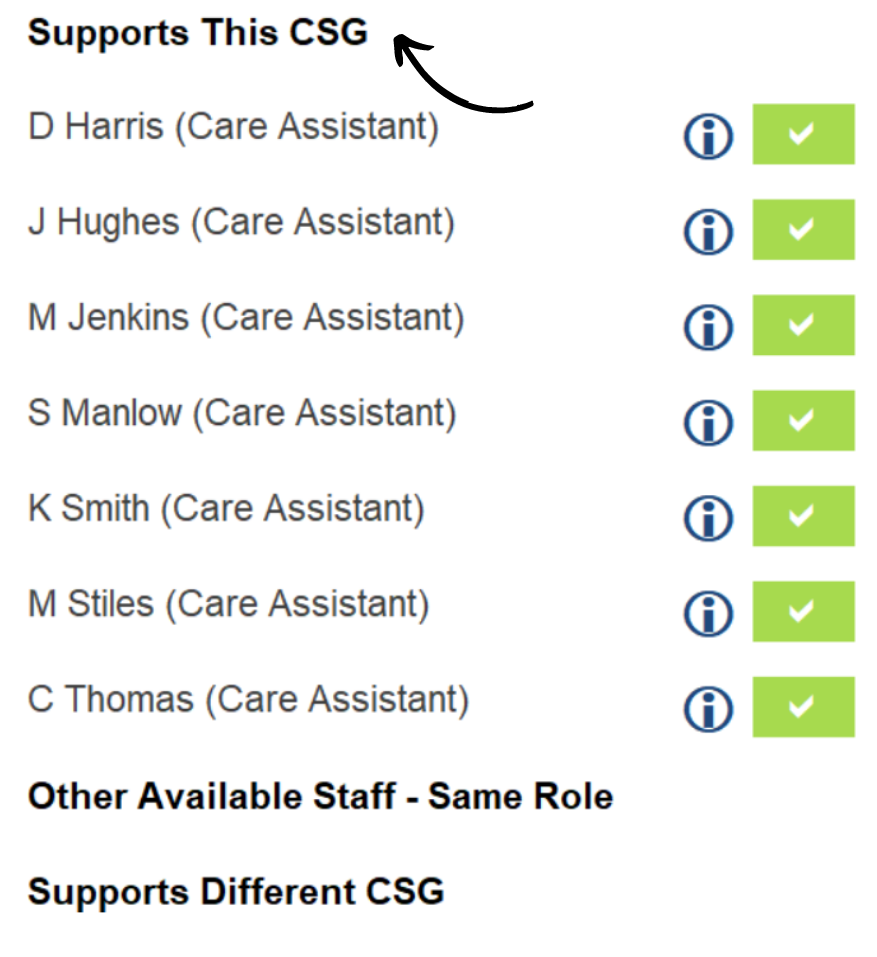
You can then proceed to complete the other sections of the shift (hours, staff member etc.). From the staff selection, staff members who can support the CSG will be shown.