This guide will cover the basics of the Care Certificate, how to set one up and how staff can access one.
1
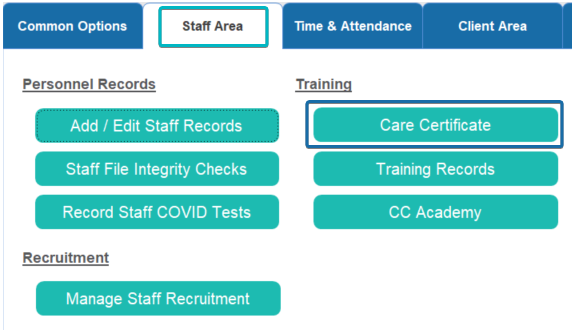
Where? – Staff Area > Training
2
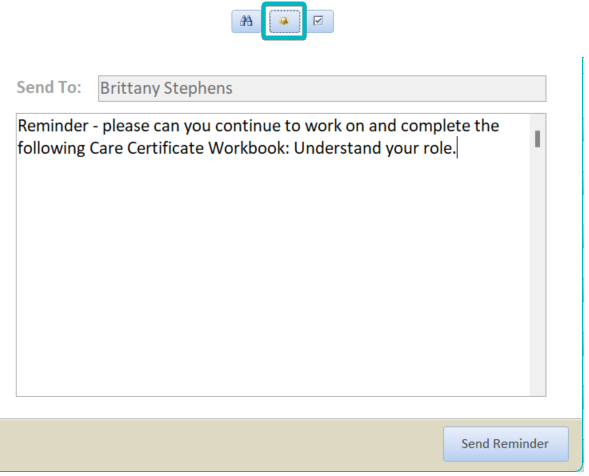
Reminders – Select the bell icon to pull up a reminder > this will then be sent to the member of staff. To access this message they will need to go into Work with Messages.
3
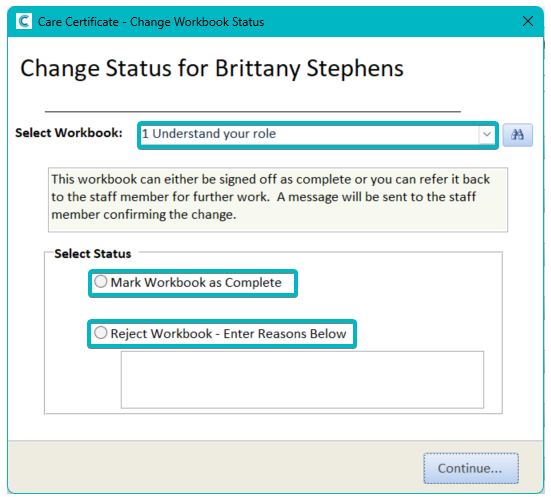
Marking – Select the staff member > View Staff Detail > Select the tick at the right hand side
4
At the top you can select which Workbook you are marking off. Underneath you are presented with 2 options, either:
Mark Workbook as Complete– this will change the Employer Status to a green tick.
Reject Workbook – Enter Reasons Below – The reasons which have been entered will be sent in a message to the member of staff. To access this message they will need to go into Work with Messages.
5
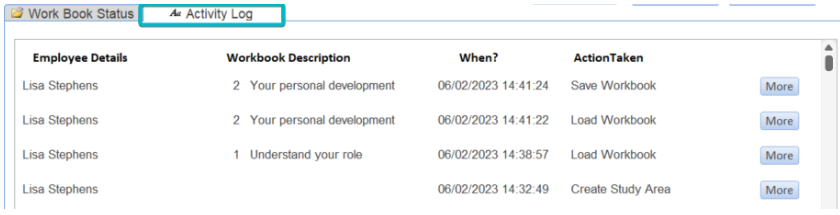
Checking progress – To view the staff members progress click onto the Activity Log, this will display information about when the workbook was access, the workbook description and the action taken
6
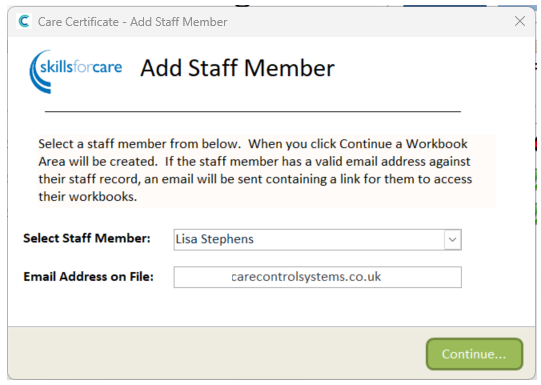
Staff set up – Add New Staff Member > select the staff member > enter their email address
7
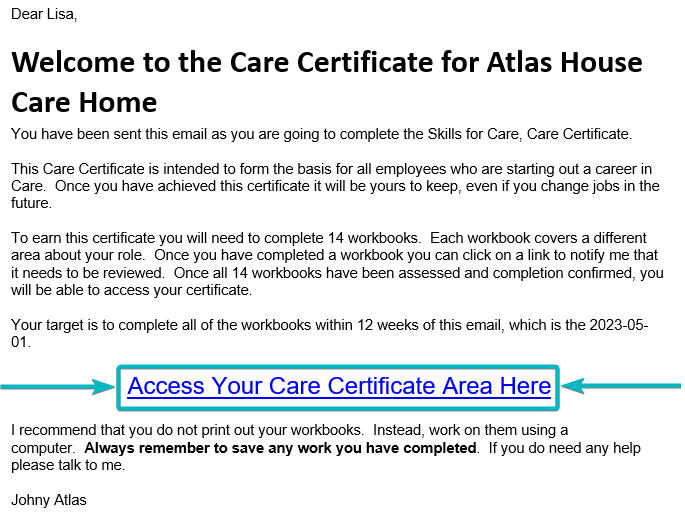
This is an example of what the staff member should receive in the inbox of the input email.
8
Upon clicking the link, this page will load up, in order to complete each section the staff member will have to select Click to Access.
9
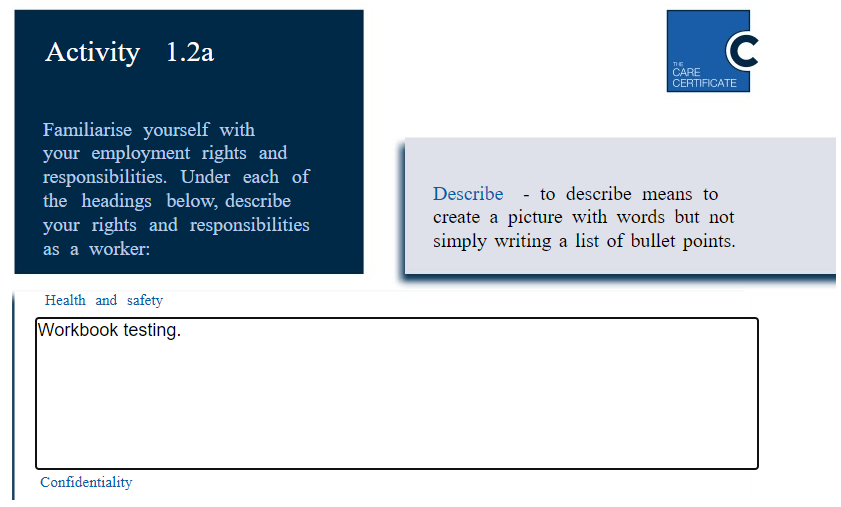
Each section can be filled in by clicking into the boxes and typing out answers.
In the top left of the workbook there is a button which allows the staff member to save their work as they work through the workbook.