Bring your payroll up to date, join our Cloud Payroll webinar
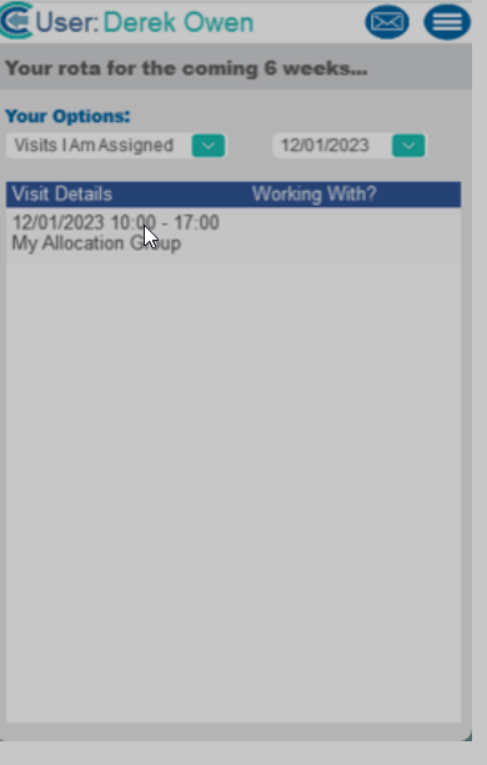
This guide will cover how to view an allocation group from the rota view of Care Control Pocket.
Note: please see the link below for our guide on setting the Pocket home screen to the staff rota.
Setting the Pocket Homepage to Staff Rota – Care Control Learning Hub (cclearninghub.co.uk)
After signing into Care Control Pocket, tap on your allocated visit.
You will then see the visit details. Press Continue to load the visit.
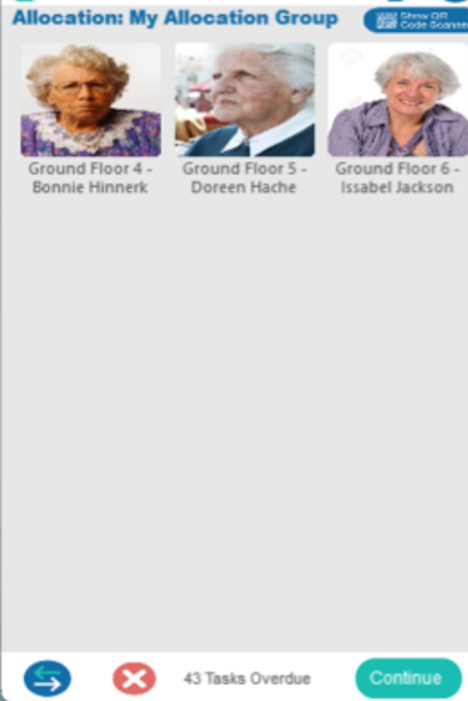
Here you will see your allocated service users. Tap on the photo and select Continue to load the service user.