🚀 UPCOMING WEBINAR:See Payroll in Care Control Cloud in action on Thursday 18th June and discover how to manage payroll more efficiently from one connected system. Click here to find out more!
View Categories
PainChek
This guide will introduce the new PainChek system and how it integrates with Care Control Windows.
1
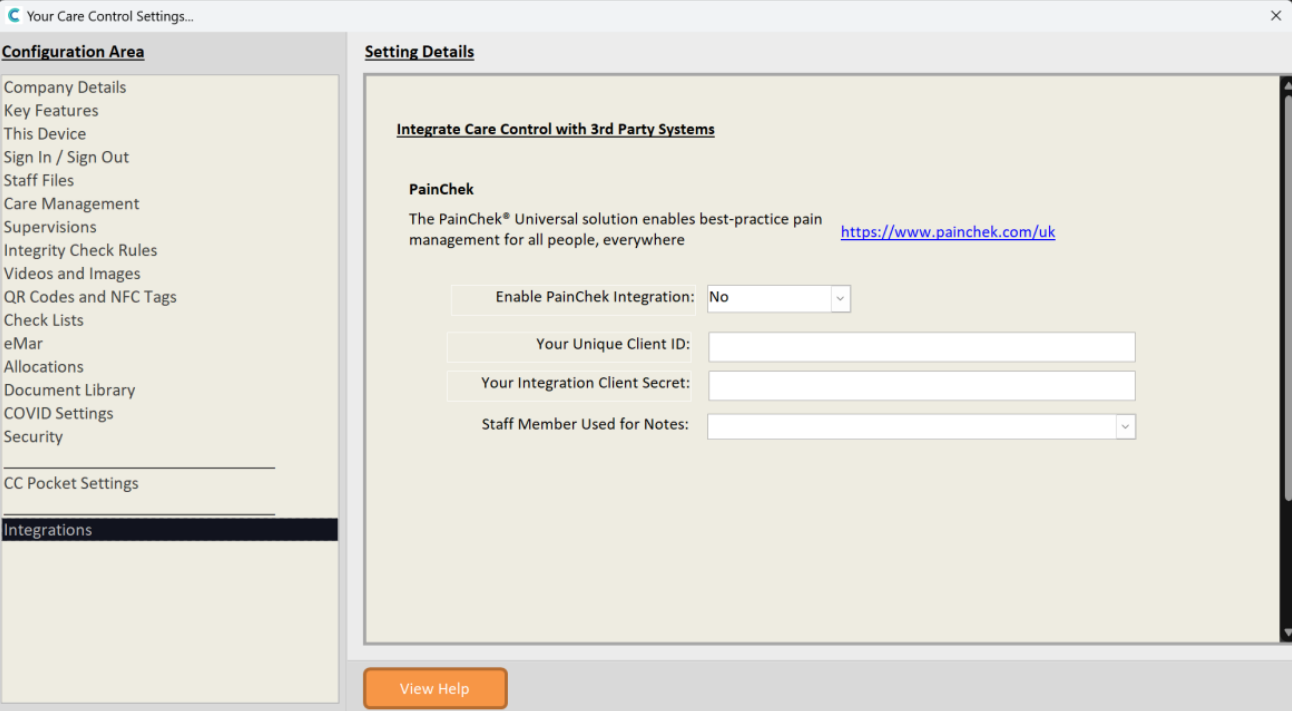
The PainChek Integration settings can be found within Advanced Stuff -> System Settings.
Enable PainChek Integration – This field needs to be switched to Yes
Your Unique Client ID – This will be the ClientID found from the PainChek Integration area.
Your Integration Client Secret – This will be the Client Secret found from the PainChek Integration area.
Staff Member Used for Notes – This is the Staff Member who will own the notes that come from PainChek, if you would like a central staff account for PainChek you could create a staff member for PainChek!
2
Once you have enabled PainChek you’re able to assign the PainChek monitoring via Manage Monitoring.
3
After starting the monitoring, we can see that the service user appears within PainChek.
4
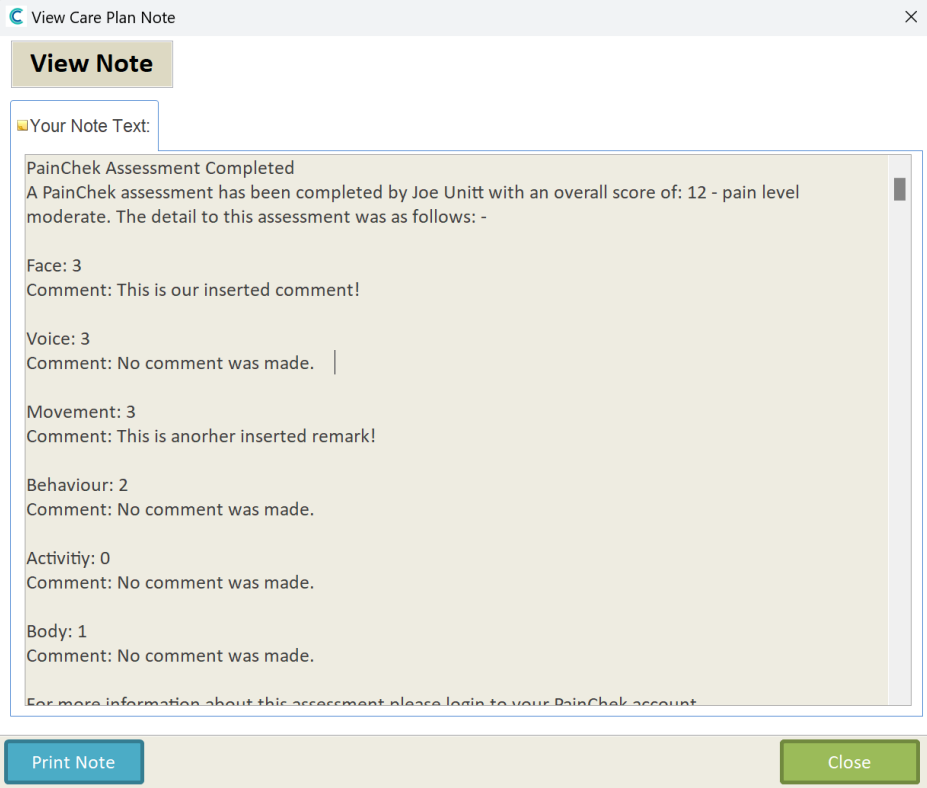
Once an assessment has been completed it’ll come through on Care Control as a note.