This guide will cover how to change the number of weeks on a rota template, as well as have different templates with different number of weeks.
1
In the Administration of Care Control Windows, open the Roster System, which can be found under the Common Options and Time & Attendance tab.
2
Select Settings from the options on the left-hand side.
3
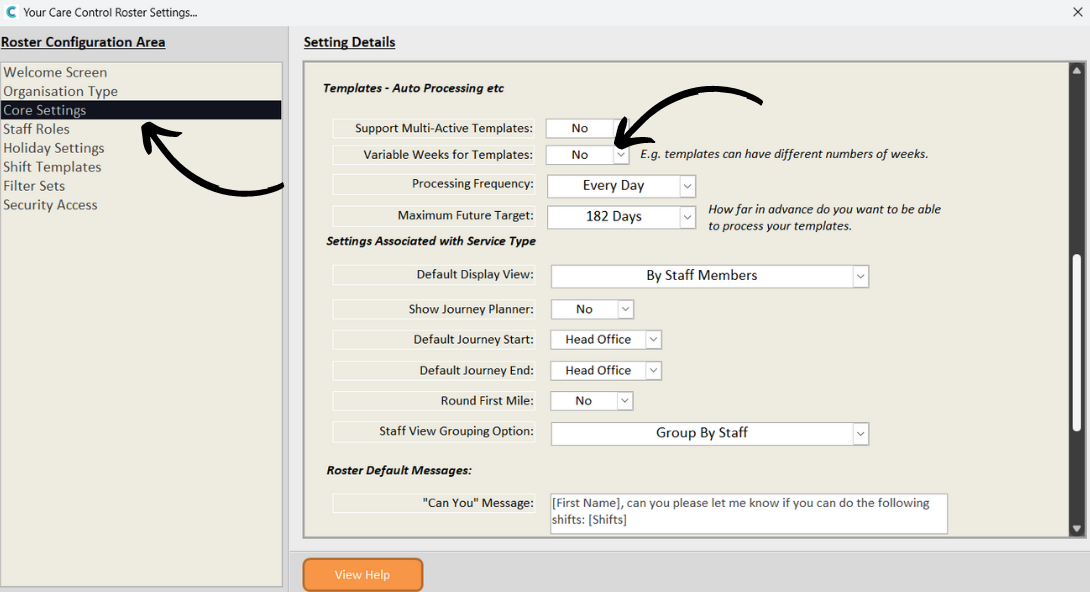
Next, select Core Settings from the menu and look for the setting called ‘Variable Weeks for Template’. Change this to Yes.
4
Now, in a rota template’s settings there will be an option to change the number of weeks for the template. This can now be different for different templates.