This guide will cover how to deactivate and remove a rota template from your system on Care Control Windows. This might be useful if a new template has been created.
1
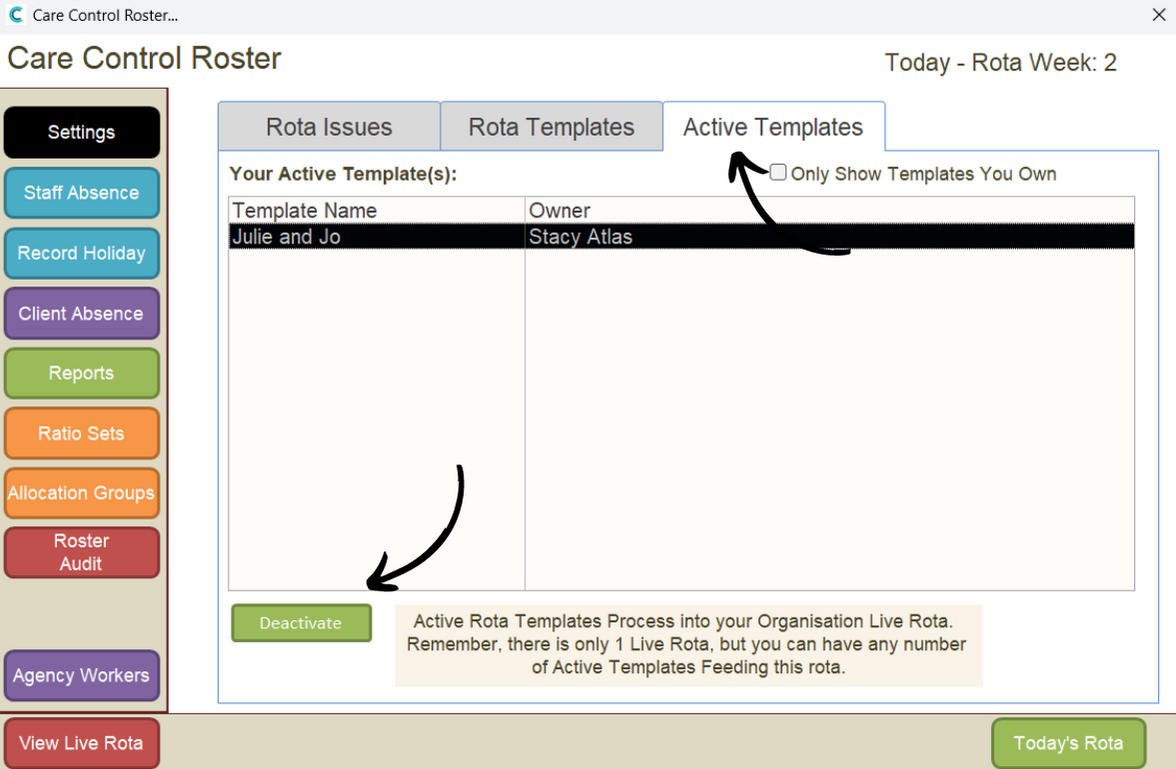
In the Roster System, select the Active Templates tab and select the template you wish to deactivate. Then, press Deactivate.
Skip this step if you wish to remove an inactive template.
2
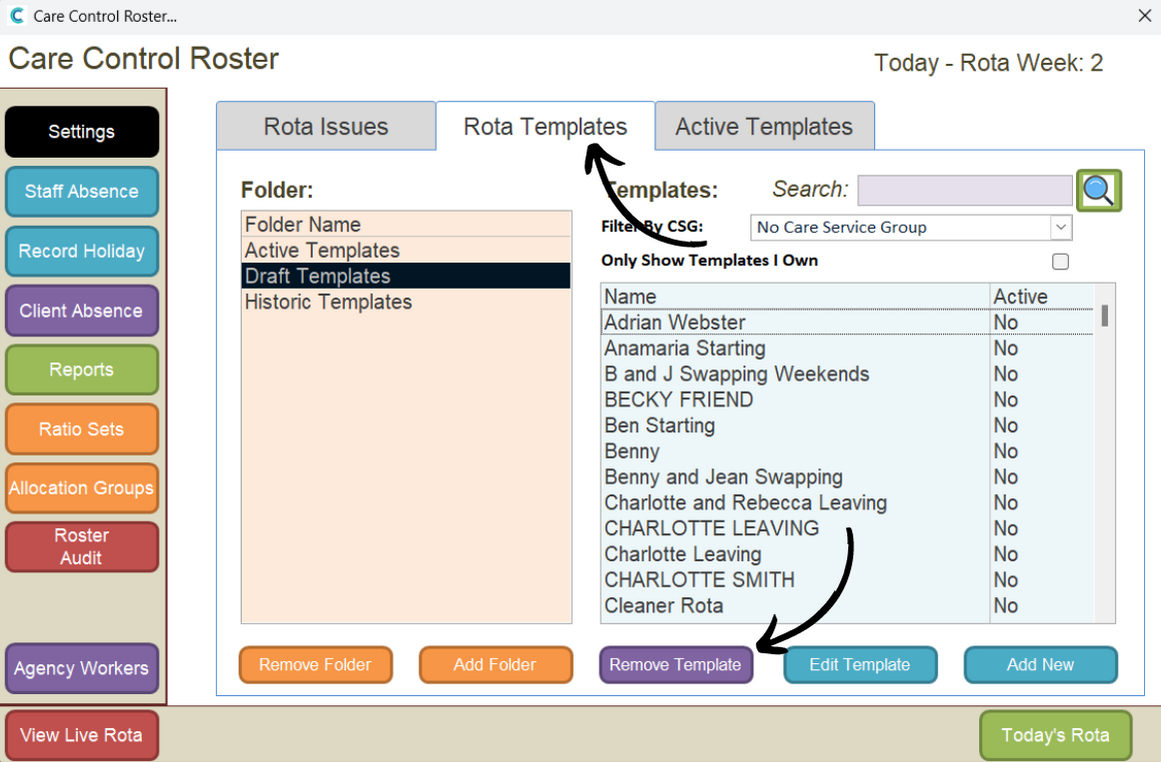
Next, navigate to the Rota Templates tab. Here, open Draft Templates, select the template and press Remove Template.
3
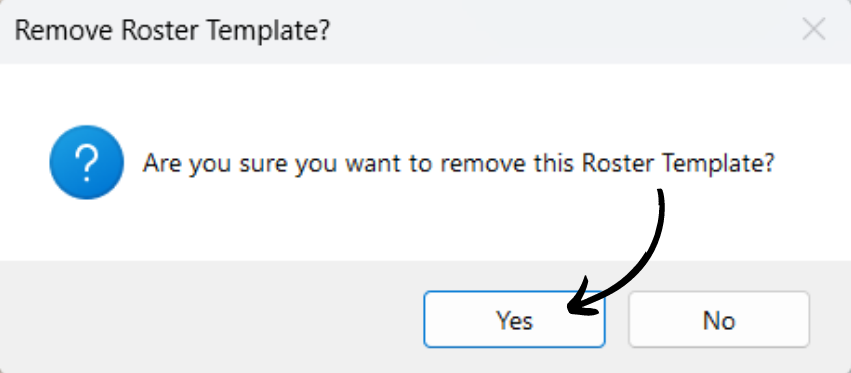
You will be prompted to confirm the change, press Yes.