This guide will cover how to begin and end monitoring areas for your service users on Care Control Windows.
1
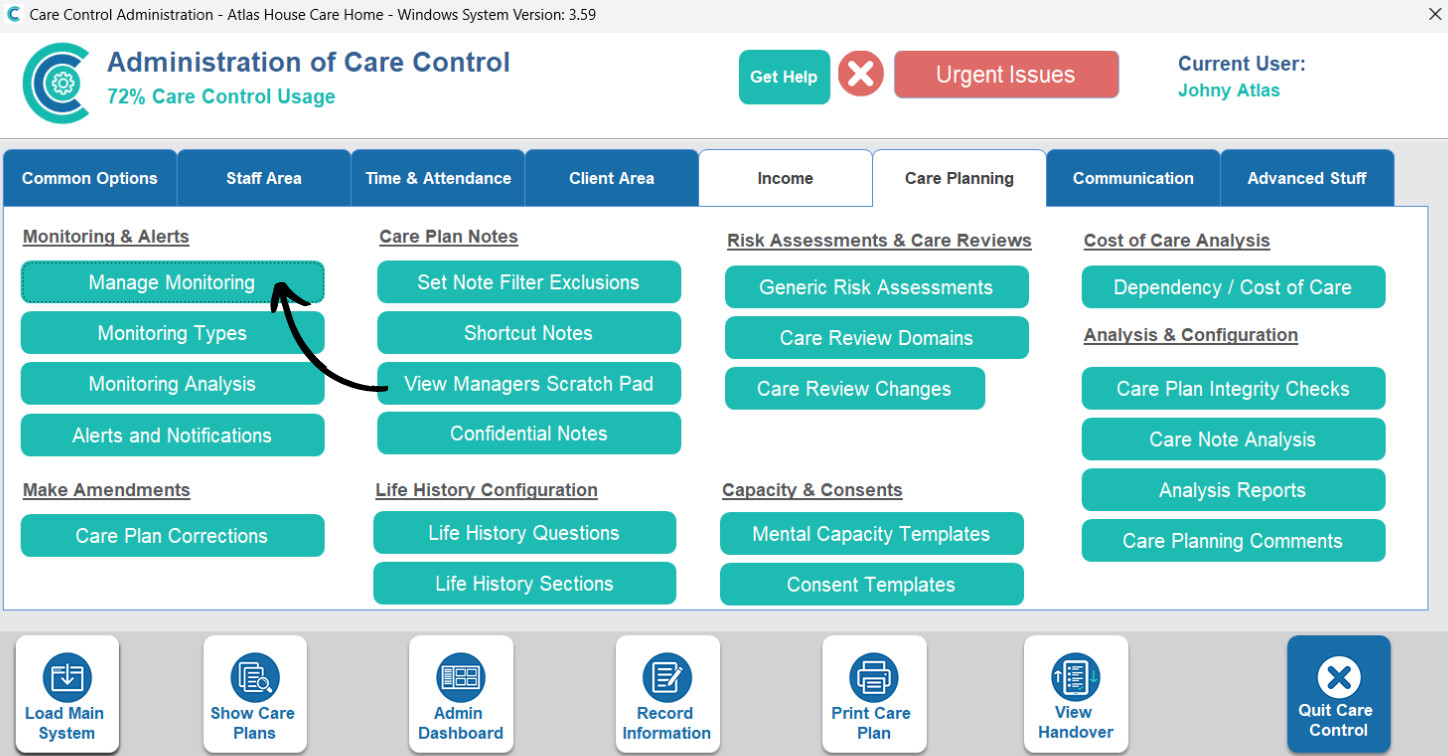
In the Administration of Care Control Windows, open the Manage Monitoring tool, which can be found under the Care Planning tab.
2
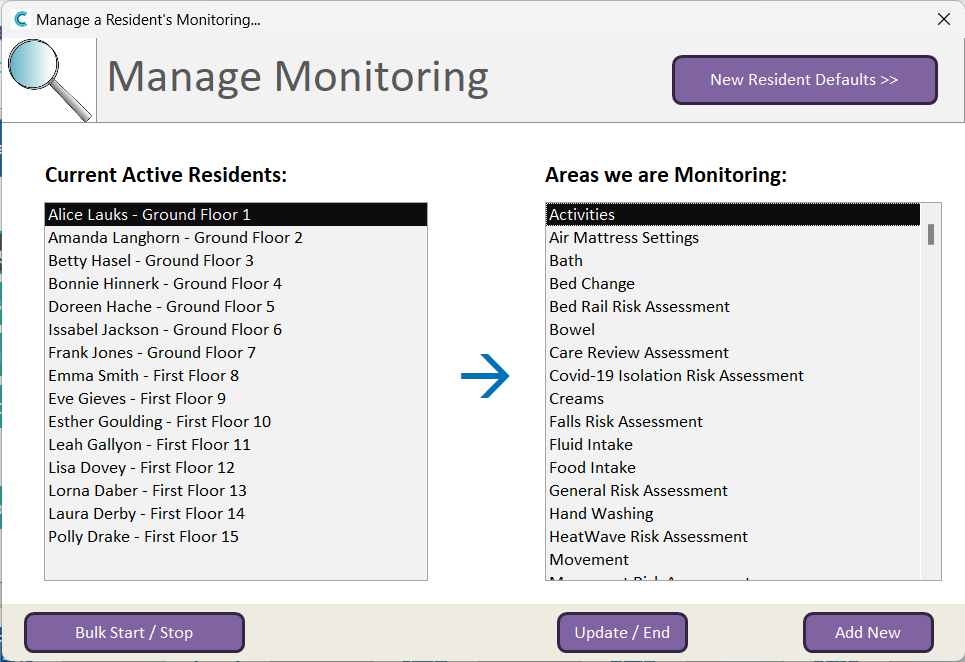
A new window will open. Here, select a service user from the left hand list, as well as a monitoring area from the right hand list. Then, press Update / End.
3
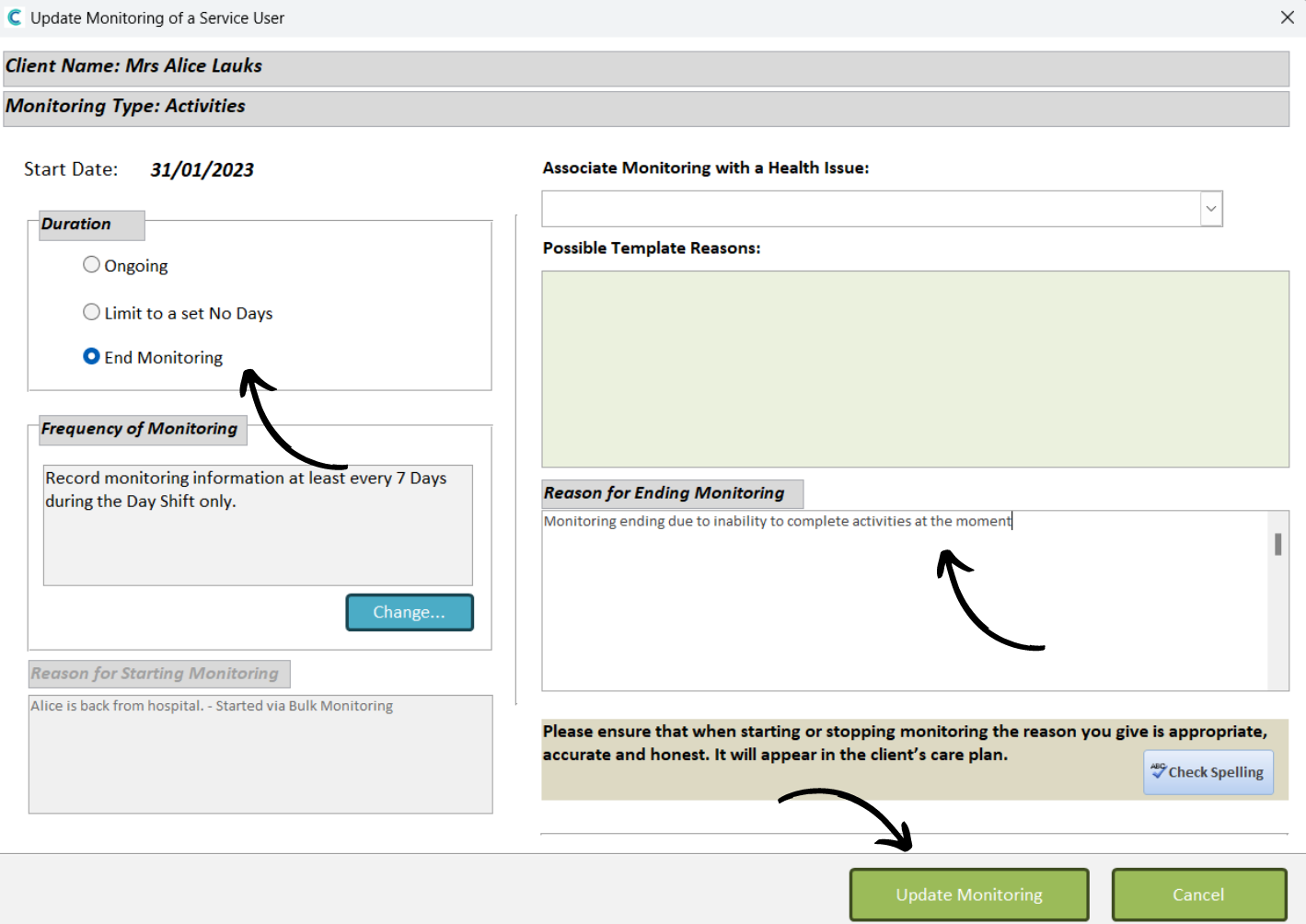
Tick the End Monitoring option and enter a Reason for the change. Then, press Update Monitoring.
4
To add monitoring, select a service user from the Manage Monitoring window and press Add New.
5
Select a new monitoring area from the drop down list and press Continue.
6
A new window will open. First set the Duration and Frequency of the monitoring, then, enter a Reason for the monitoring starting. Finally, press Start Monitoring to complete the process.