Bank Holiday Closure Notice:  We will be closed on the 3rd April for the Easter bank holiday, so our customer service team will not be available on this day. If you need to get in touch, you can still use our customer contact form and we will get back to you as soon as possible. Even better, Margo will still be available on our phone lines to help with your queries whenever you need support. We hope you have a lovely Easter weekend 🐣

View Categories

How to Create a Shortcut Note

This guide will cover how to create a shortcut note on Care Control Windows. Shortcut notes are pre-set sentences which can be used when recording monitoring to save time.

1

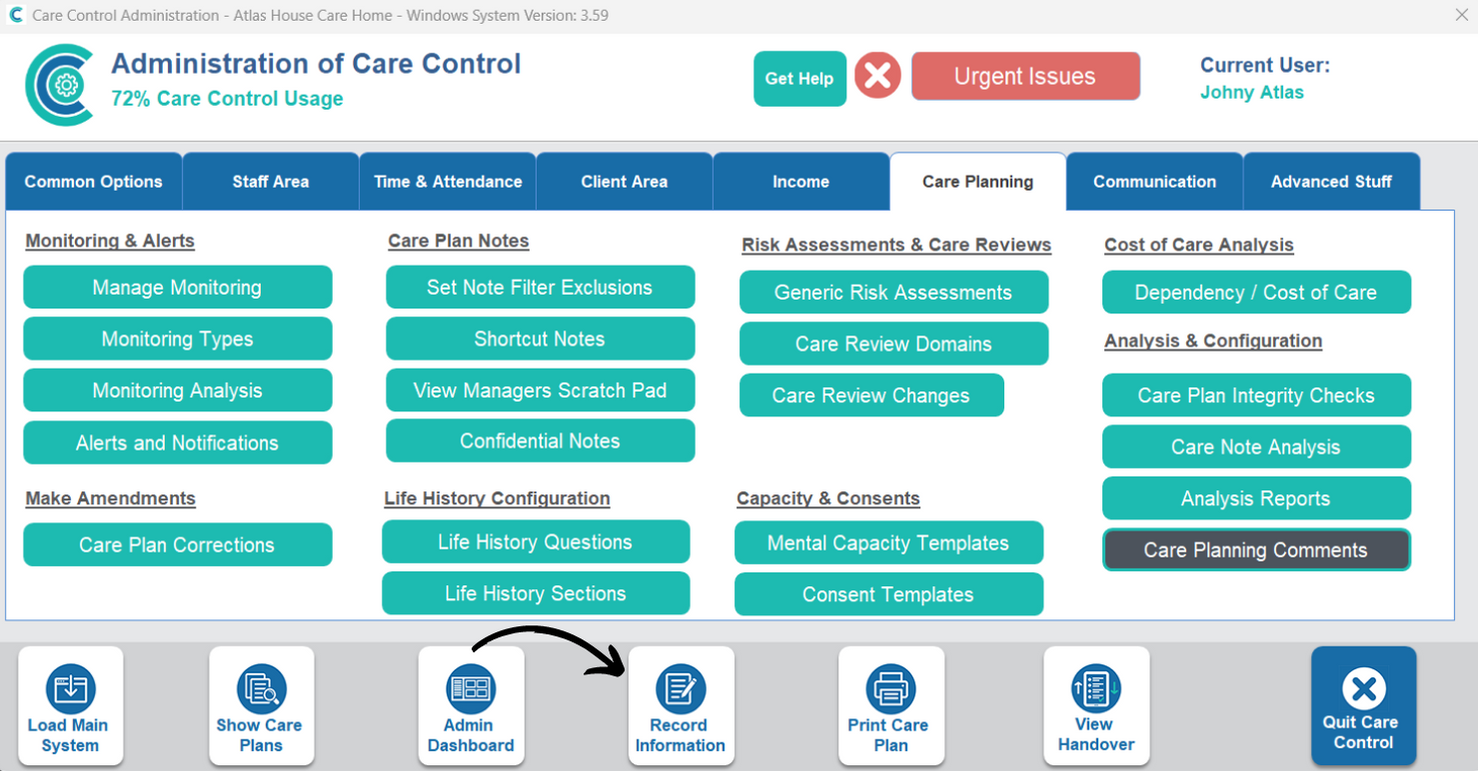
In the Administration of Care Control Windows, select Record Information from the options along the bottom of the window.

2

Select General Note.

3

A blank general note will open. The existing shortcut messages can be seen in the box on the right hand side. To add a new one, press Manage Shortcuts.

4

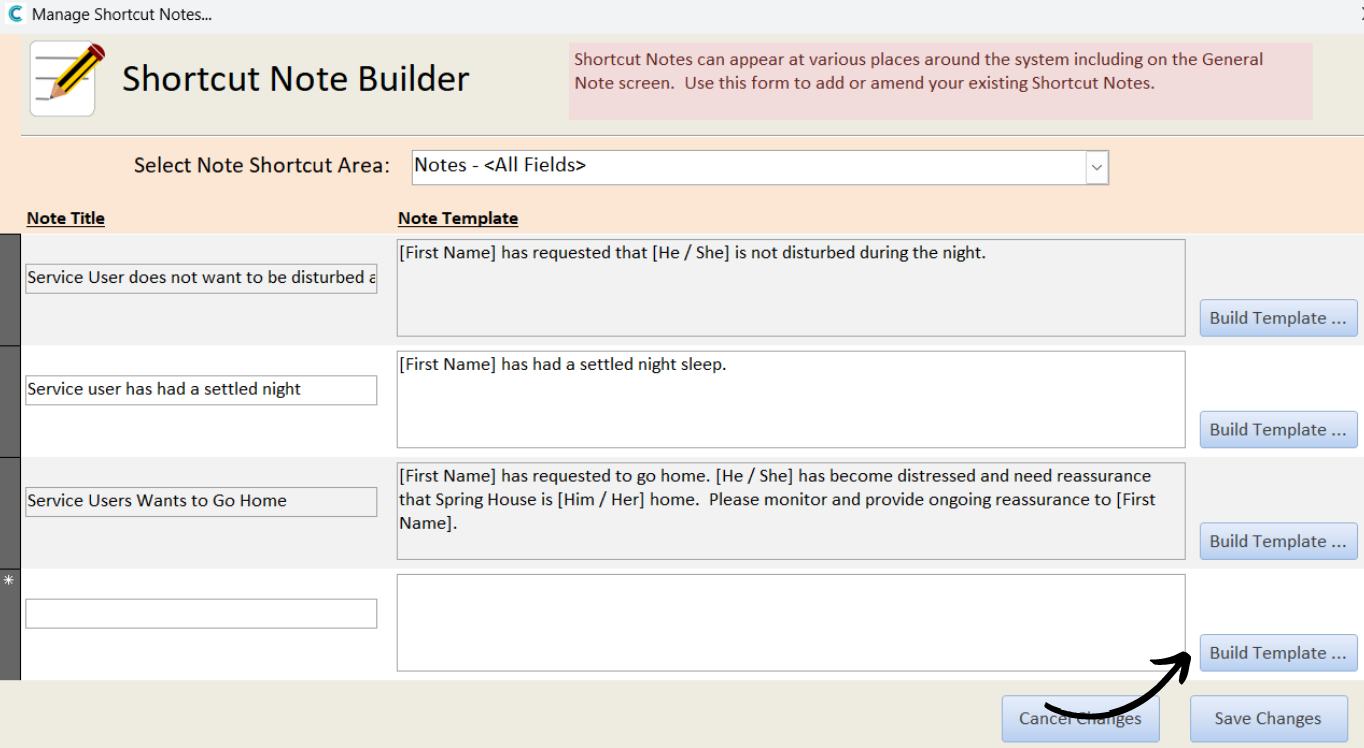
Scroll to the bottom of the list, here, you will find a blank row. Press Build Template to the right hand-side.

5

A new window will open. You can build the template by typing in the box at the top. Use the build functions on the right within the text to personalise the message.

Essentially, the functions chosen are replaced with the relevant data when the note is saved. For example, [Full Name] will be replaced with the service users name.

After completing the build, press Save Note Template

6

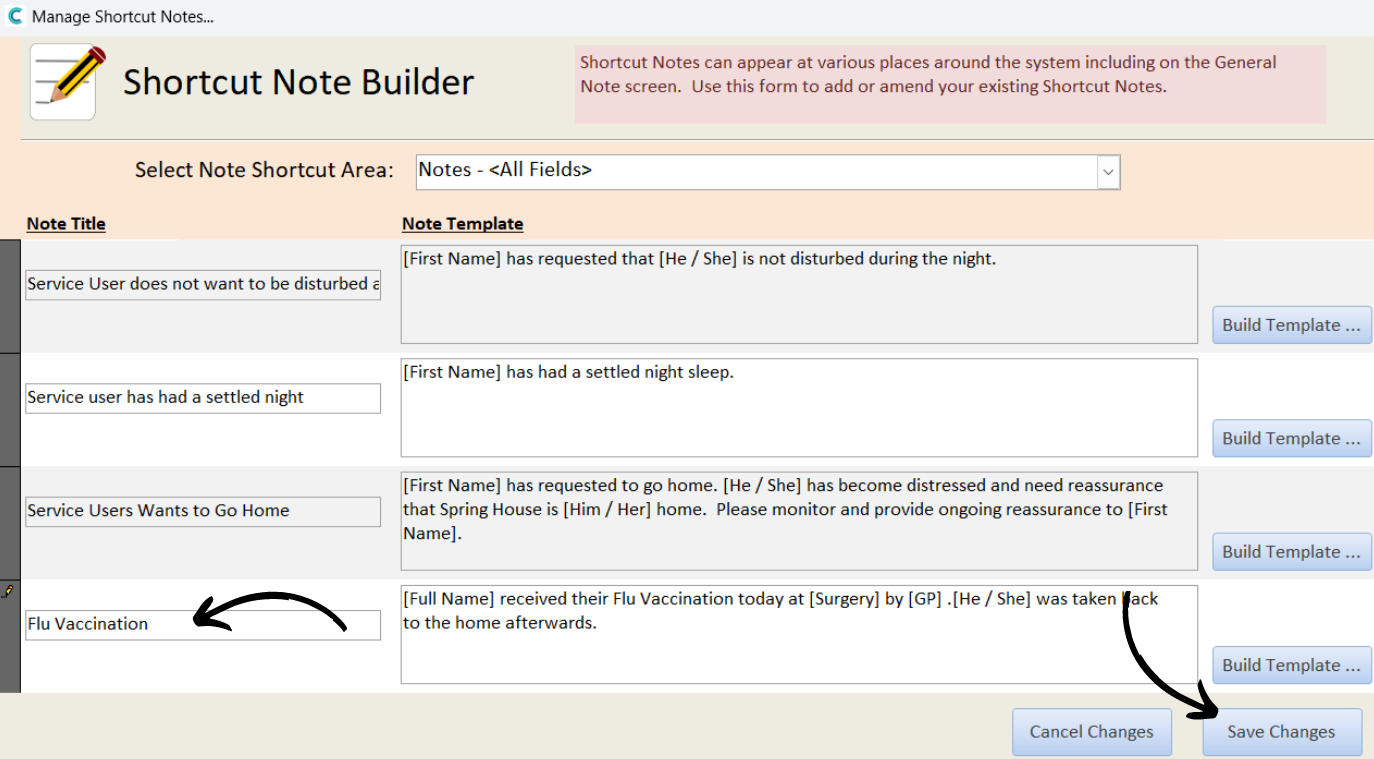
After saving the template built, enter a Note Title on the left hand side and then press Save Changes to complete the process.