This guide will cover how to upload a photo for your service user. This will show on their Care Plan and on service user selection screens across the Care Control apps.
1
In the Administration of Care Control Windows, select the Show Care Plans tool, which can be found from the options along the bottom of the window.
2
Select the Service User from the left hand list and choose Personal Details from the right hand list.
3
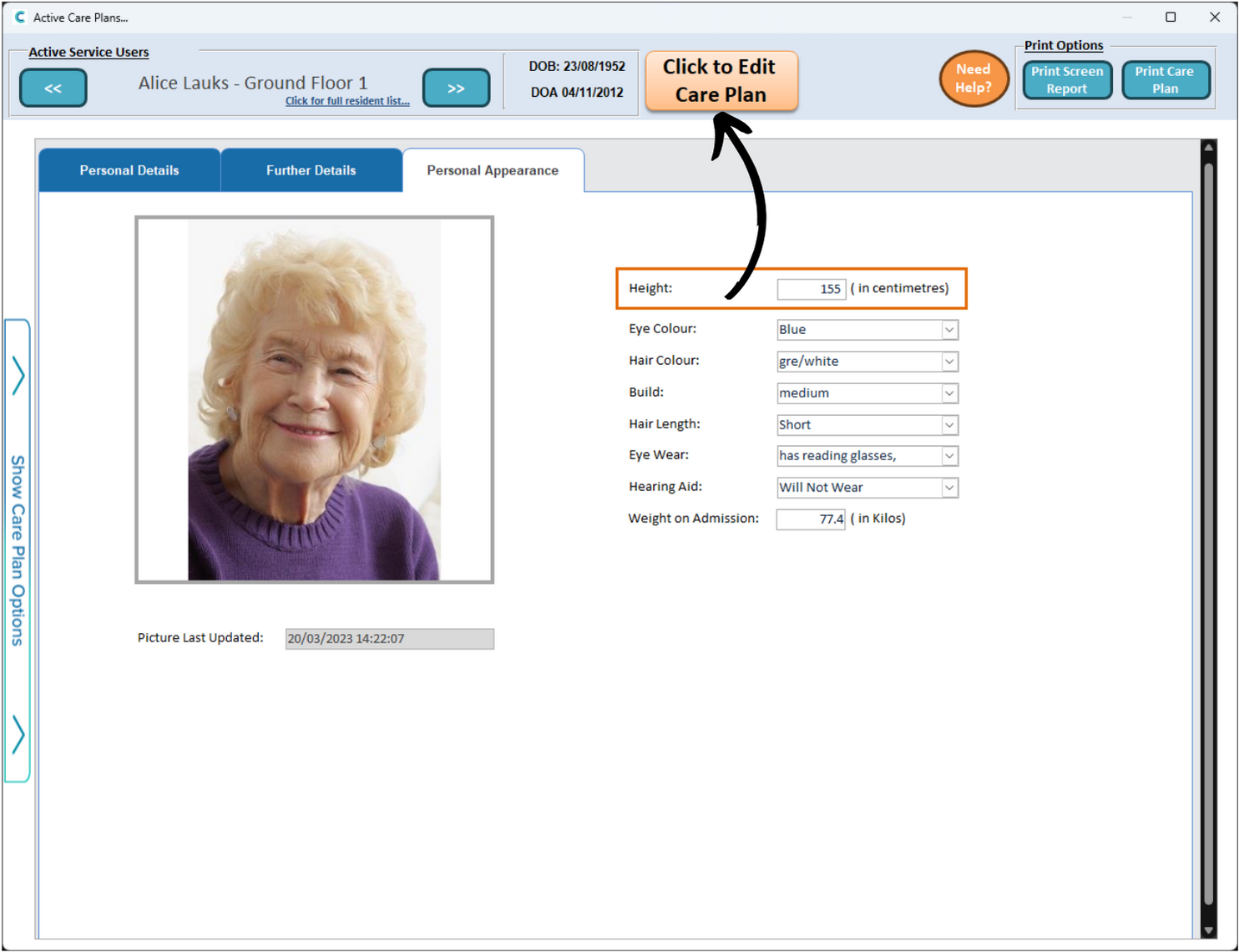
This will open the care plan on the Personal Details page.
Select the Personal Appearance tab, then, press Click to Edit Care Plan at the top of the window.
4
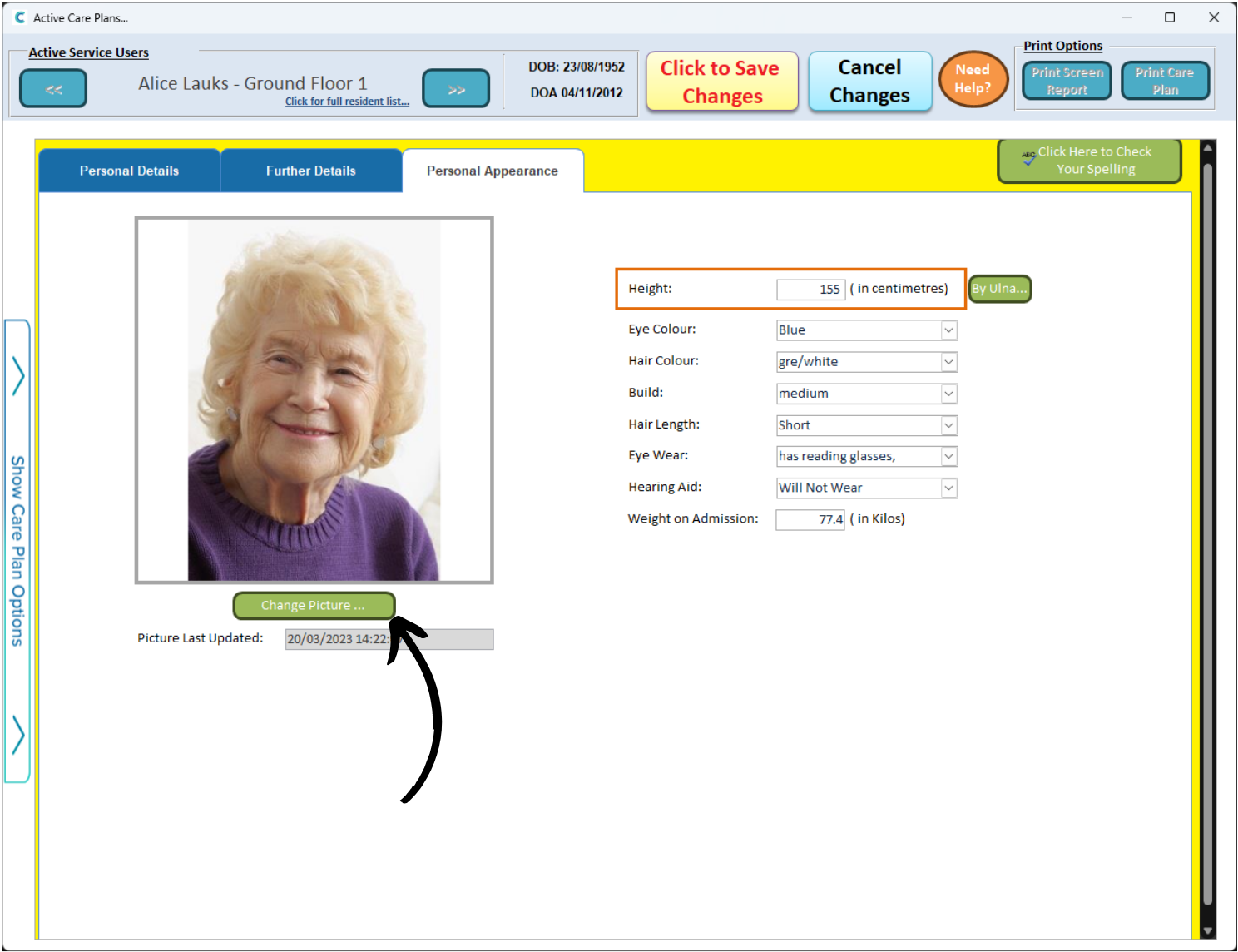
The care plan will enter edit mode. You may have to select the Personal Appearance tab again.
A green button labelled Change Picture should now be visible.
5
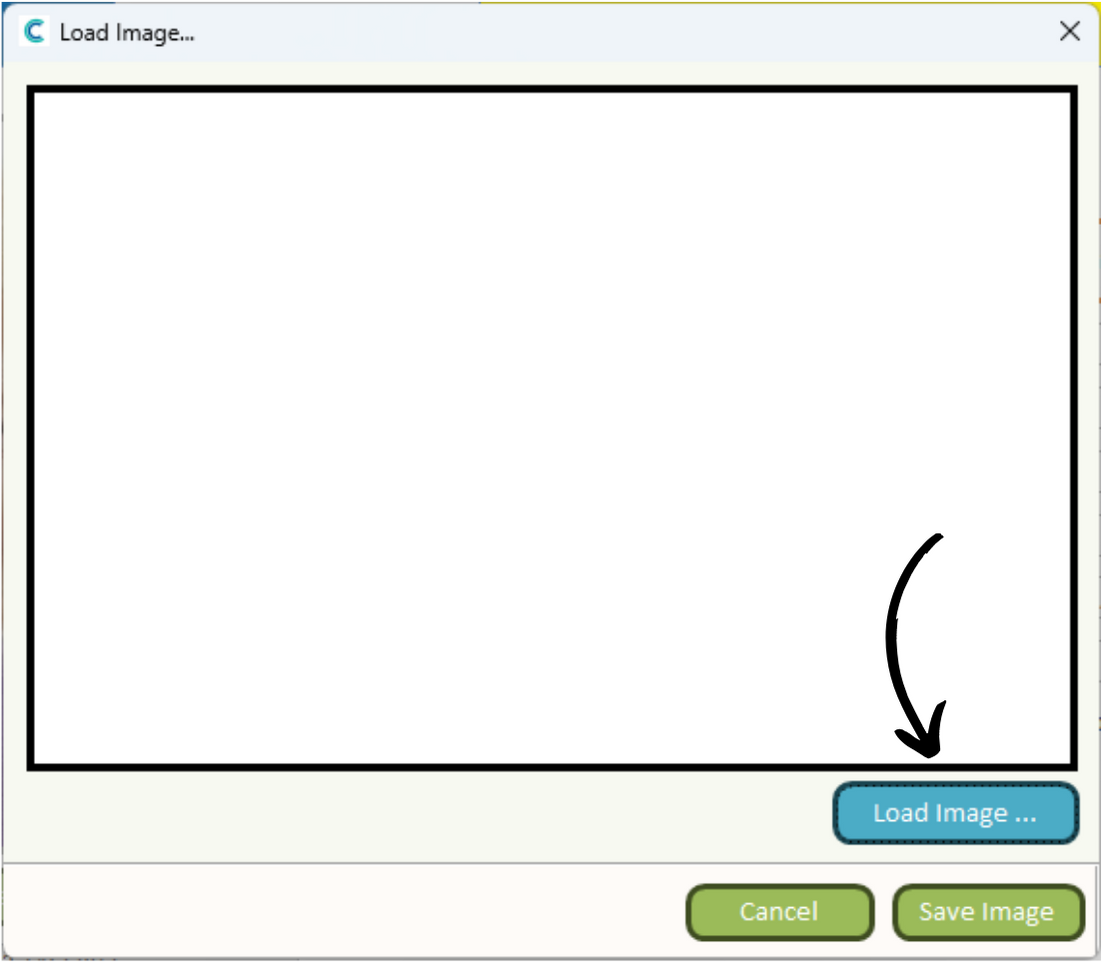
The image loader window will open. Select Load Image.
6
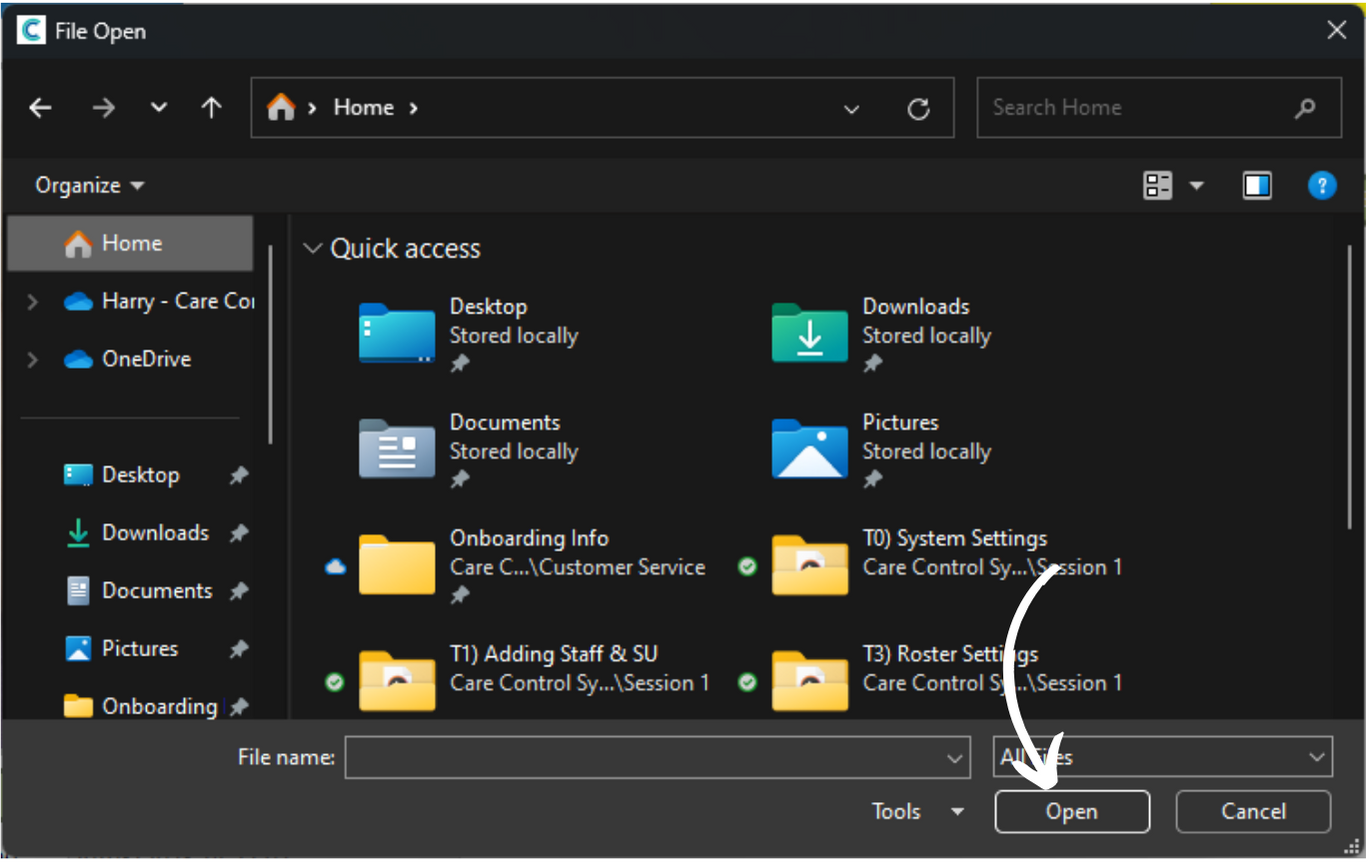
Your file browser on your PC / Laptop will open.
Navigate to where you have the image saved. After finding it, select it and press Open.
7
Your image should now display in the box.
Press Save Image.
8
Finally, press Click to Save Changes at the top of the window.