How to Export and Print a Care Plan
This guide explains how to export and print care plans for a service user, including selecting care plan areas, creating reusable print packs, and customising export options.
Takes 5 minutes
For: Care Staff
Updated: 31st July 2026
Introduction
The Care Plan printing feature allows you to export selected care plan areas for a service user. You can choose which sections to include, customise print options, save reusable print packs, and generate printed or exported care plans whenever required.
In this guide you'll learn how to:
- Open the Care Plan printing screen
- Select a service user and care plan areas
- Configure print and export options
- Create and use reusable Print Packs
- Print or export the completed care plan
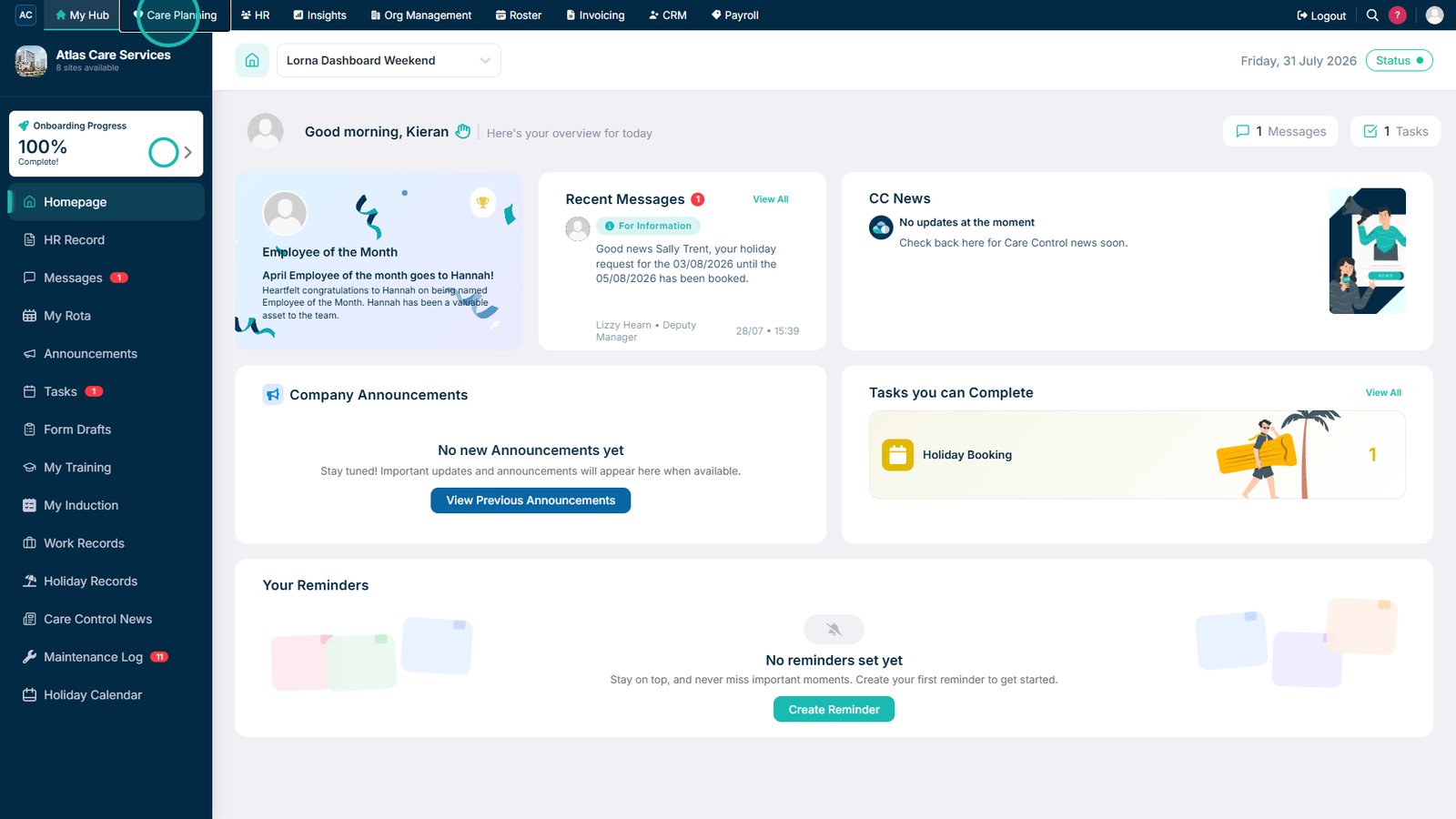
Open Care Planning from the main navigation bar.

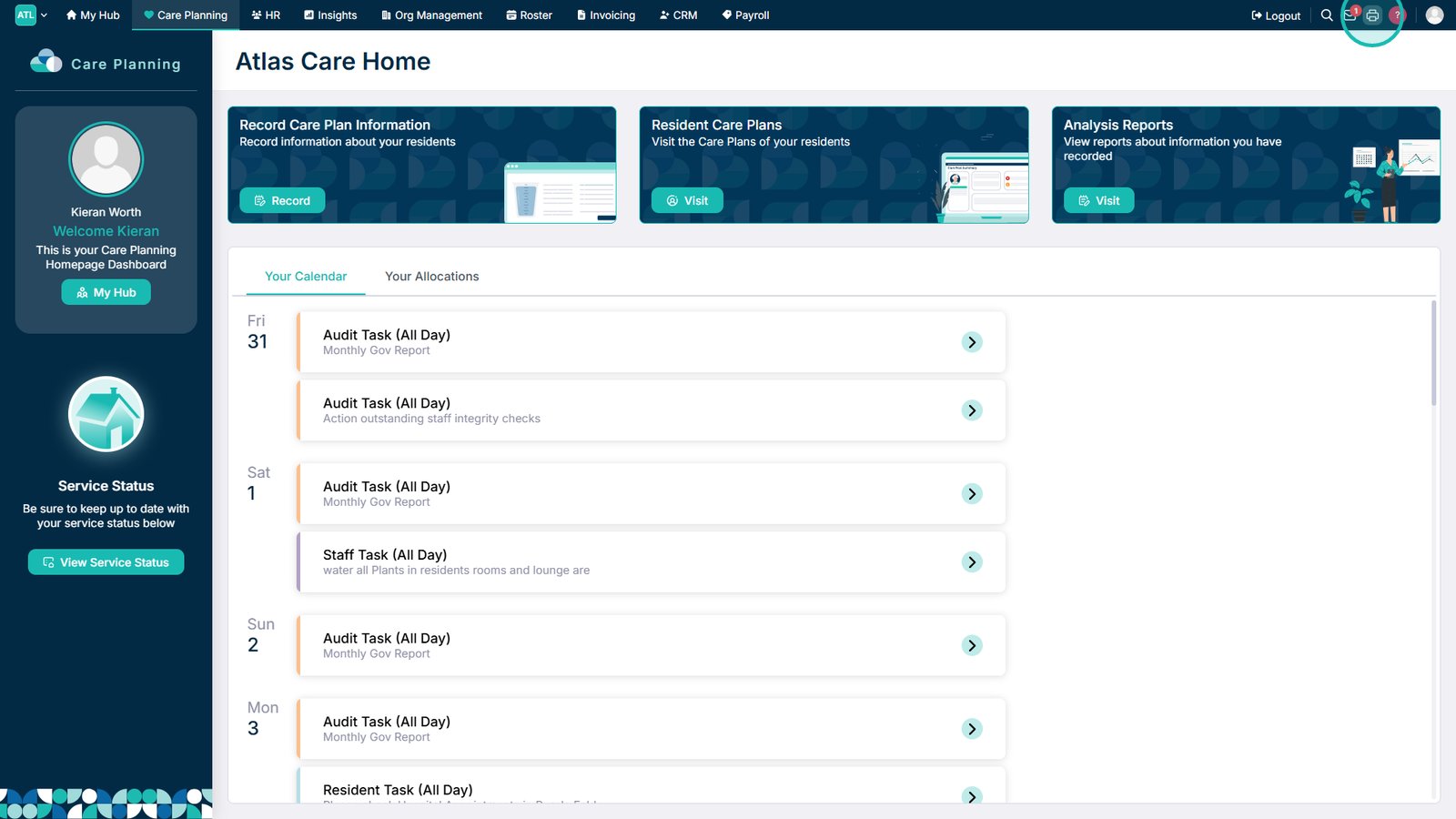
Select the print icon.

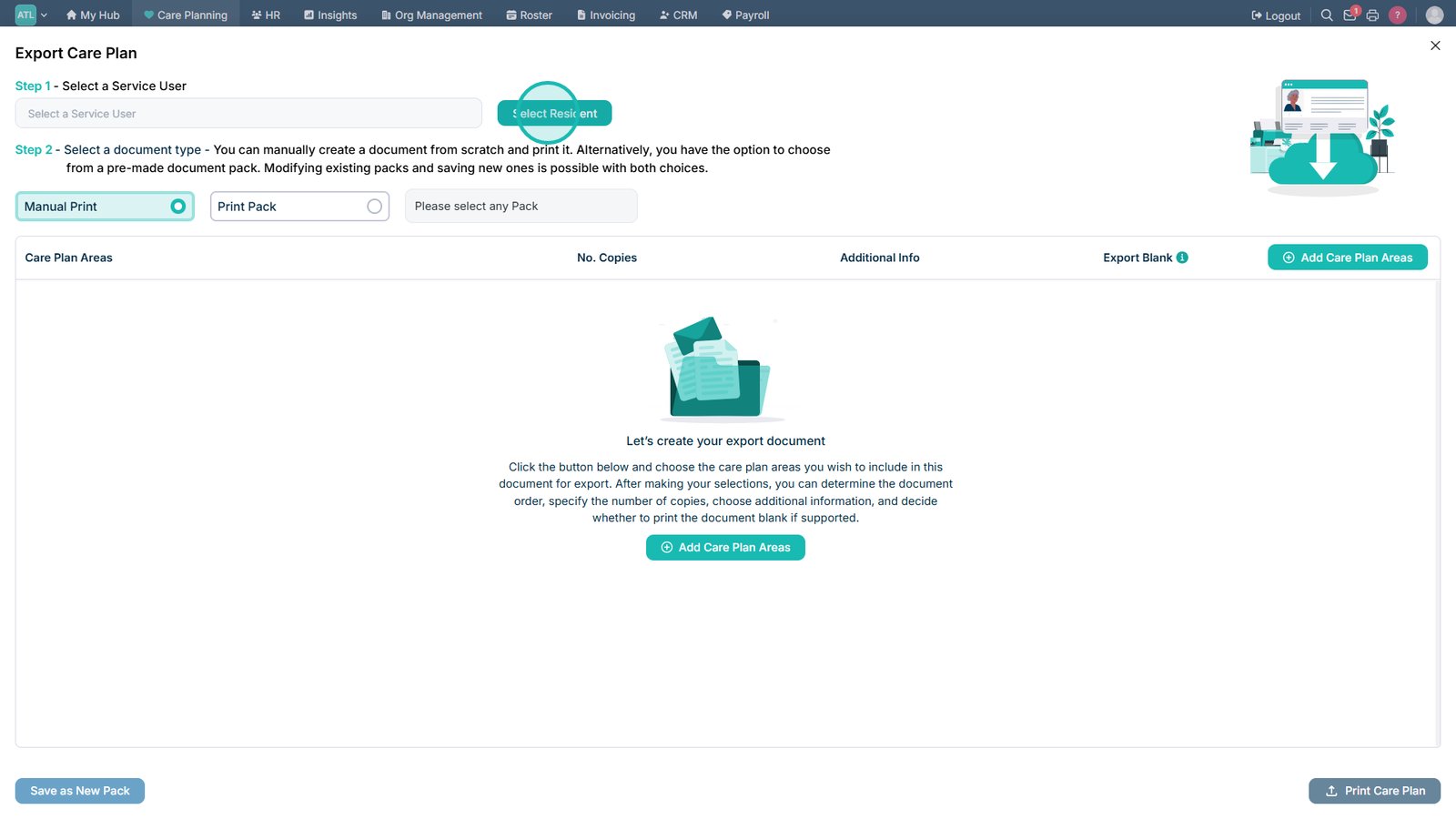
Select Select Service User.

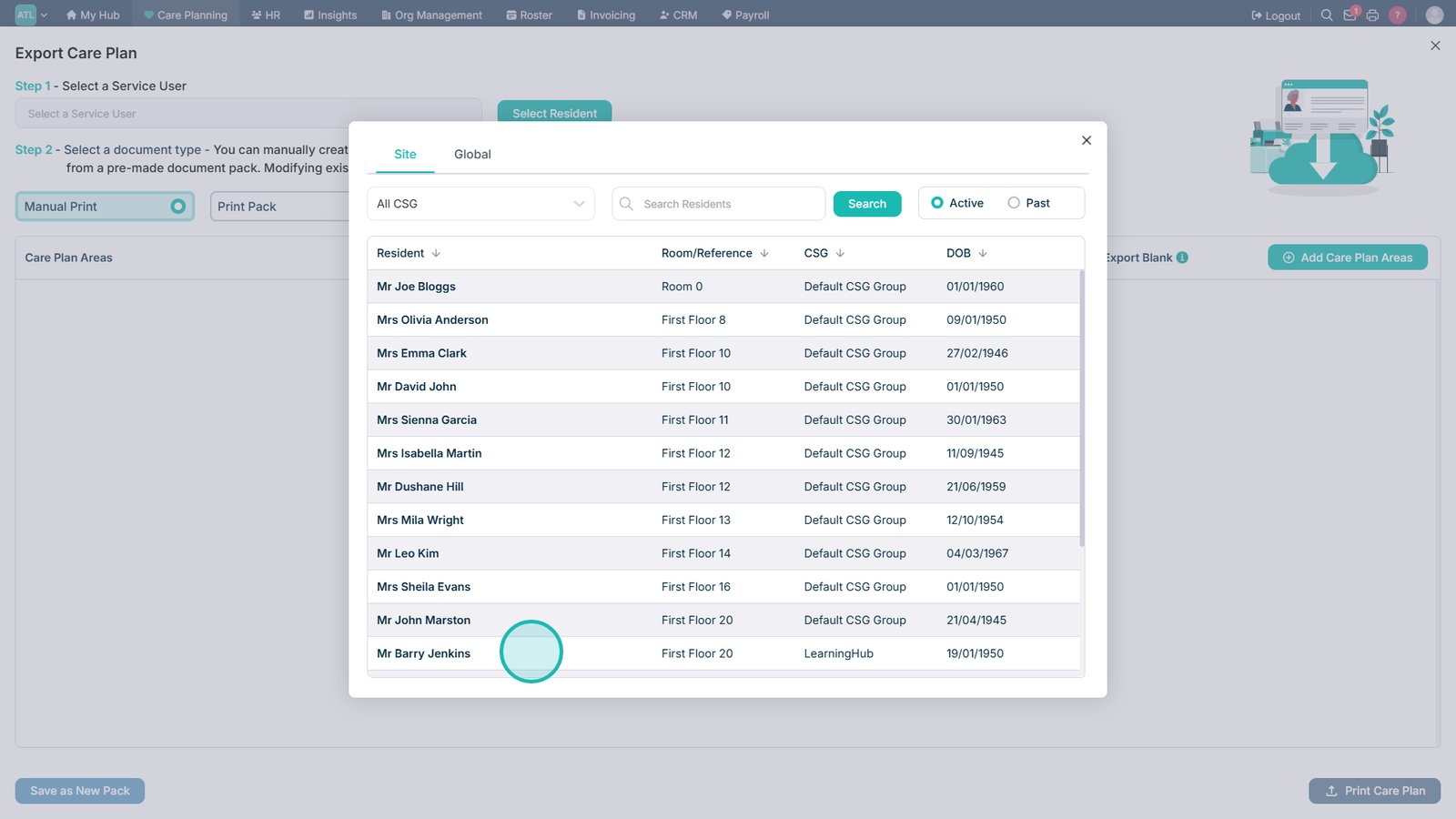
Select the required service user.

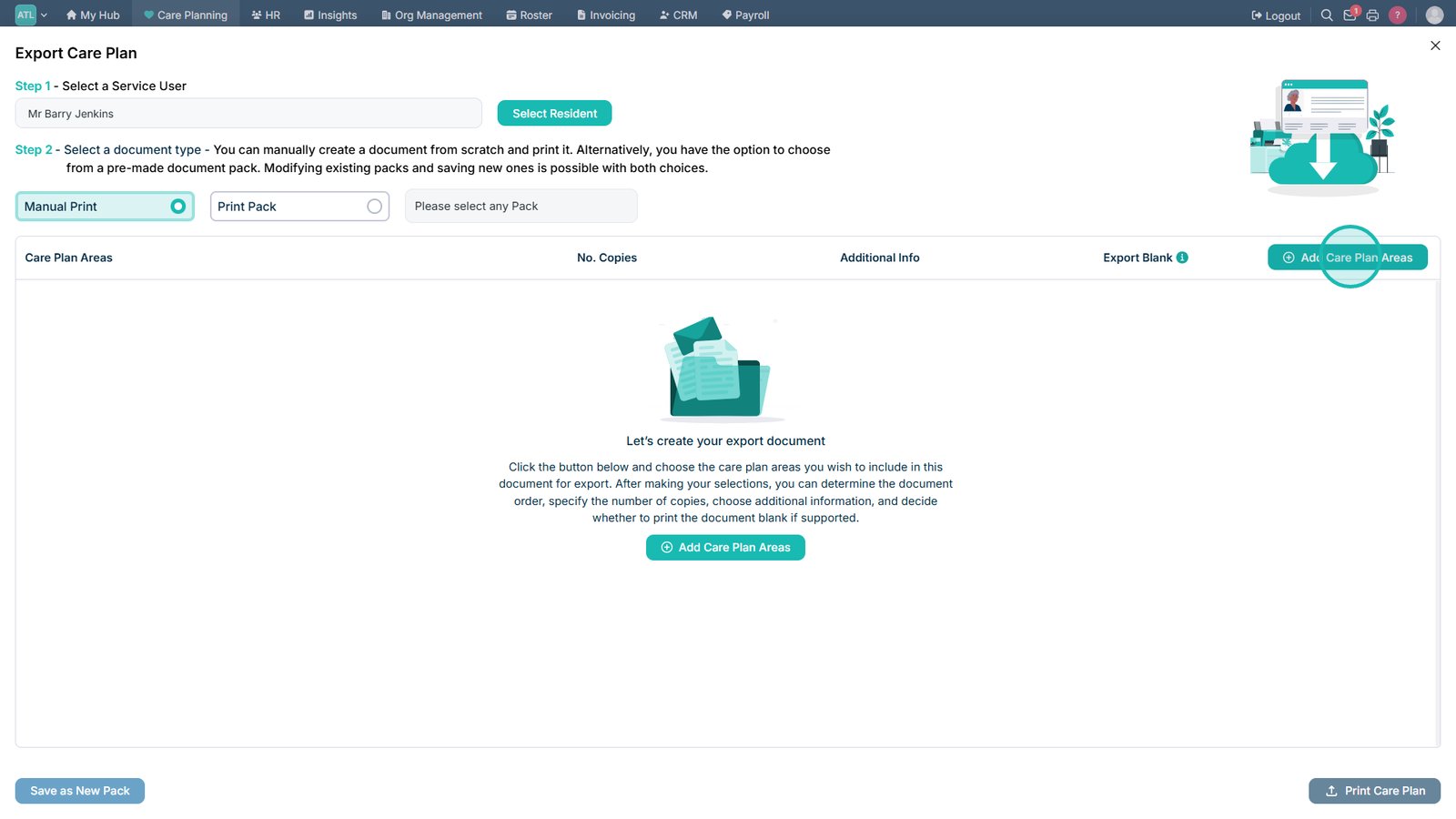
Select Add Care Plan Areas.

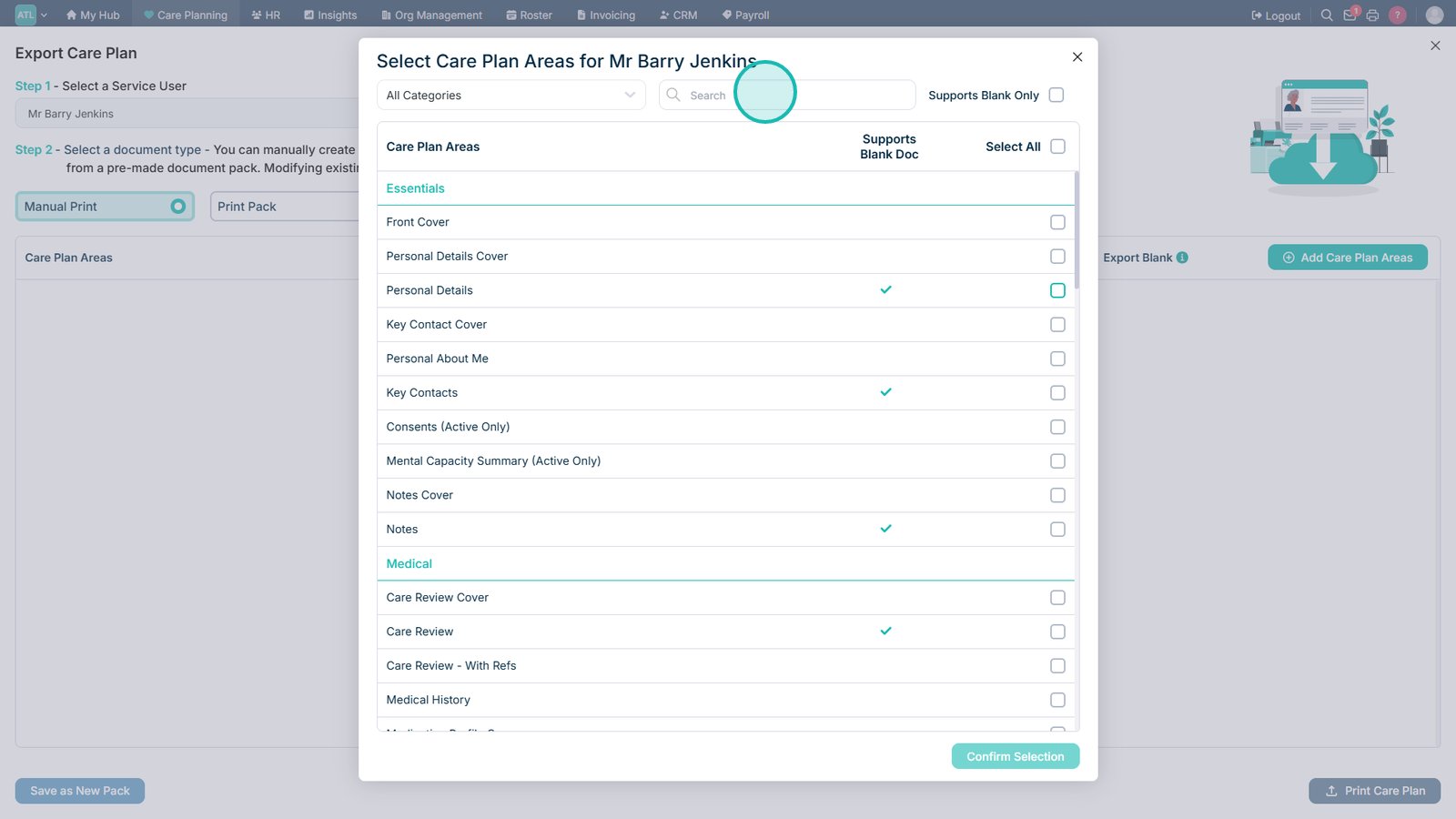
Use the search and filter options to find care plan areas.

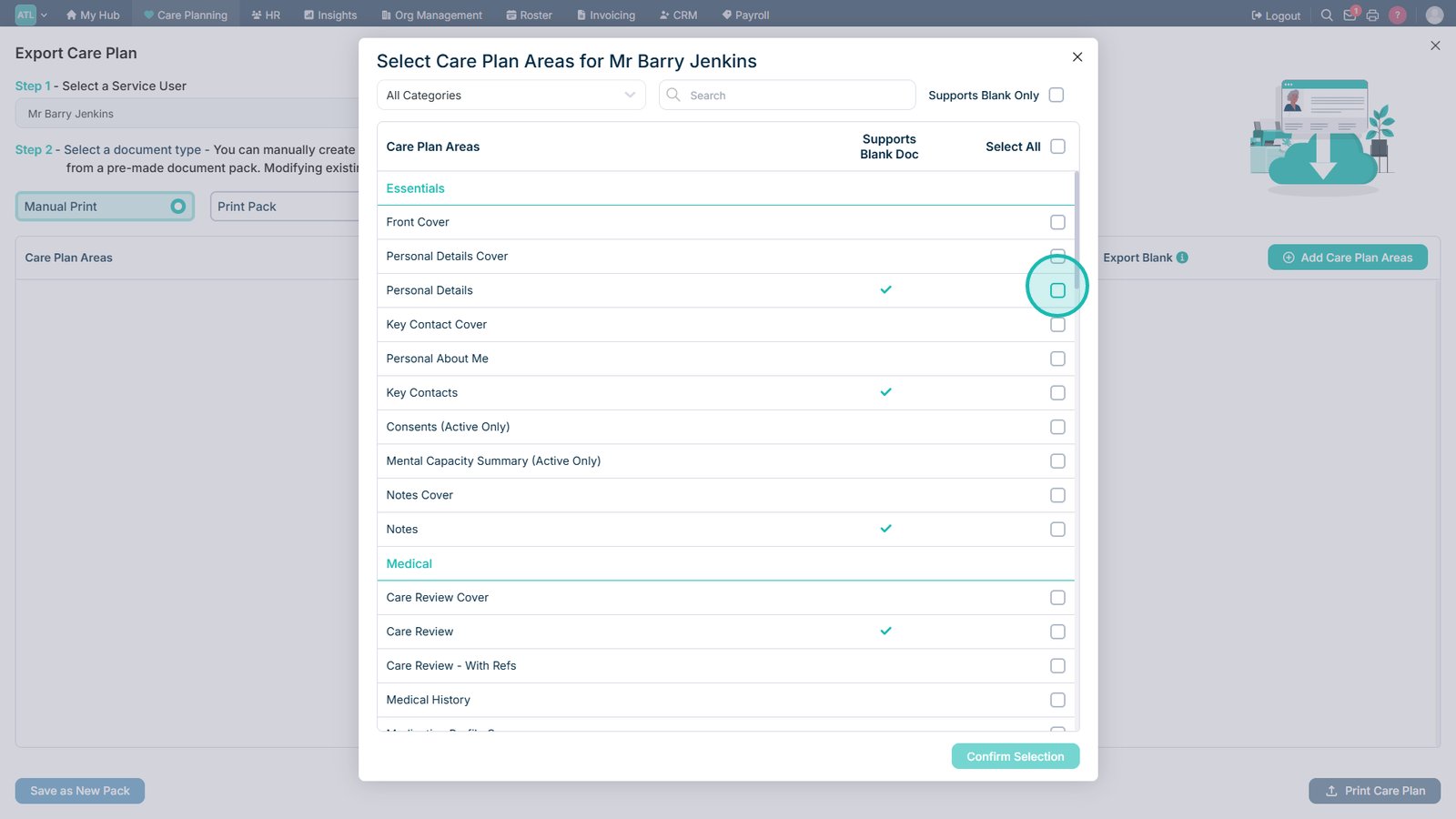
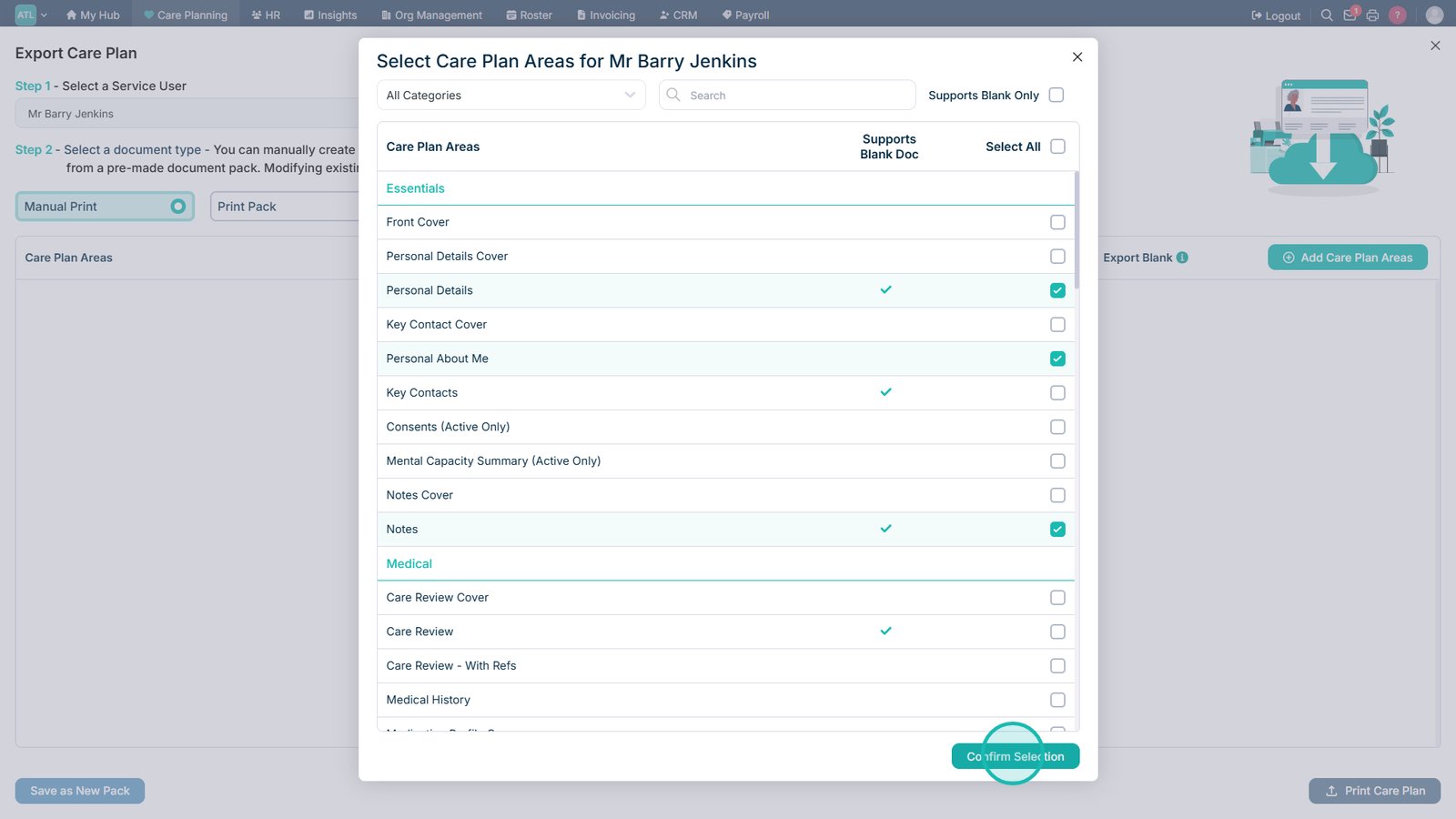
Select one or more care plan areas, or choose Select All.

Select Confirm Selection.

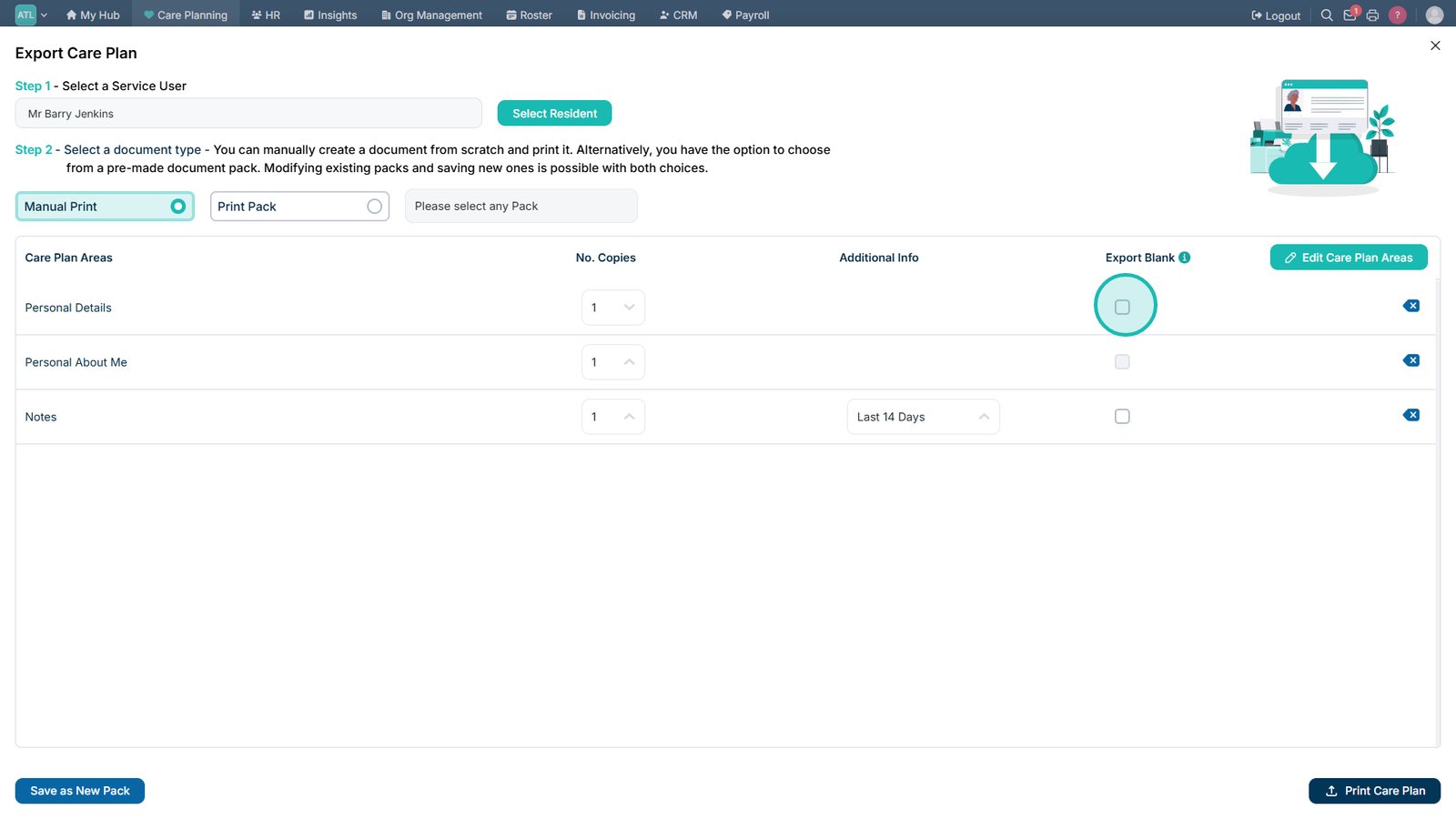
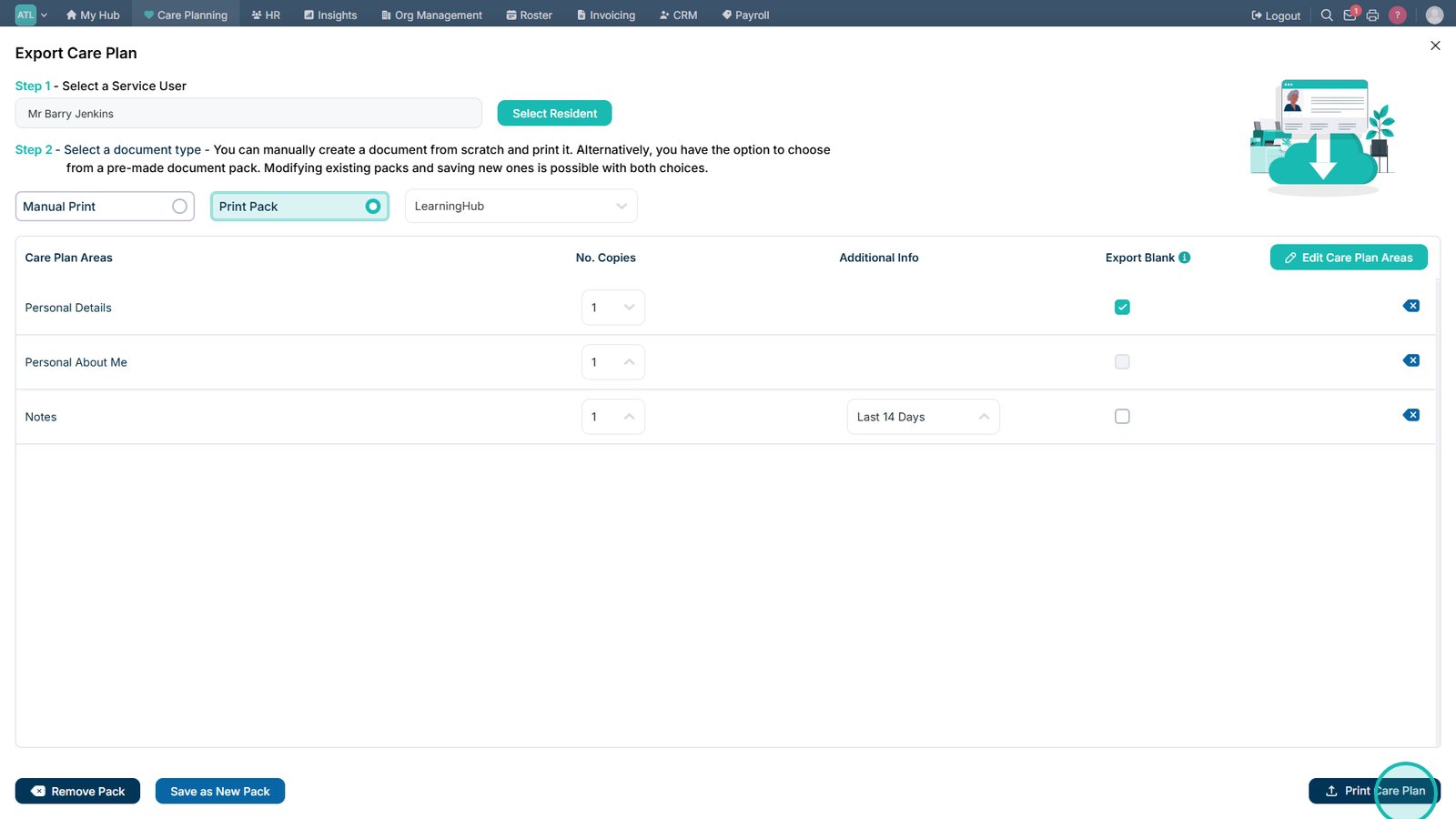
Select Export Blank to print blank care plan templates.

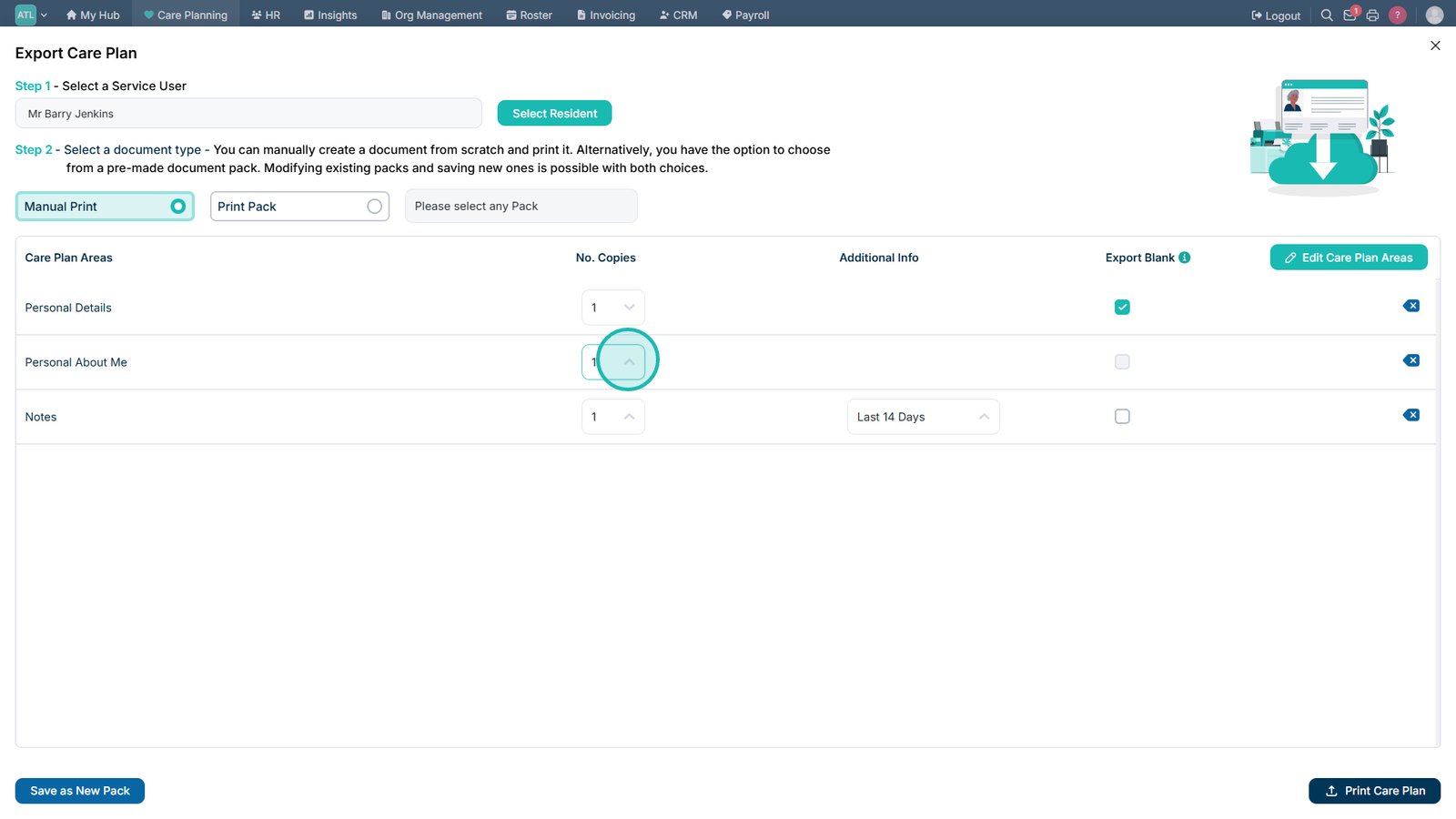
Set the number of copies required for each care plan area.

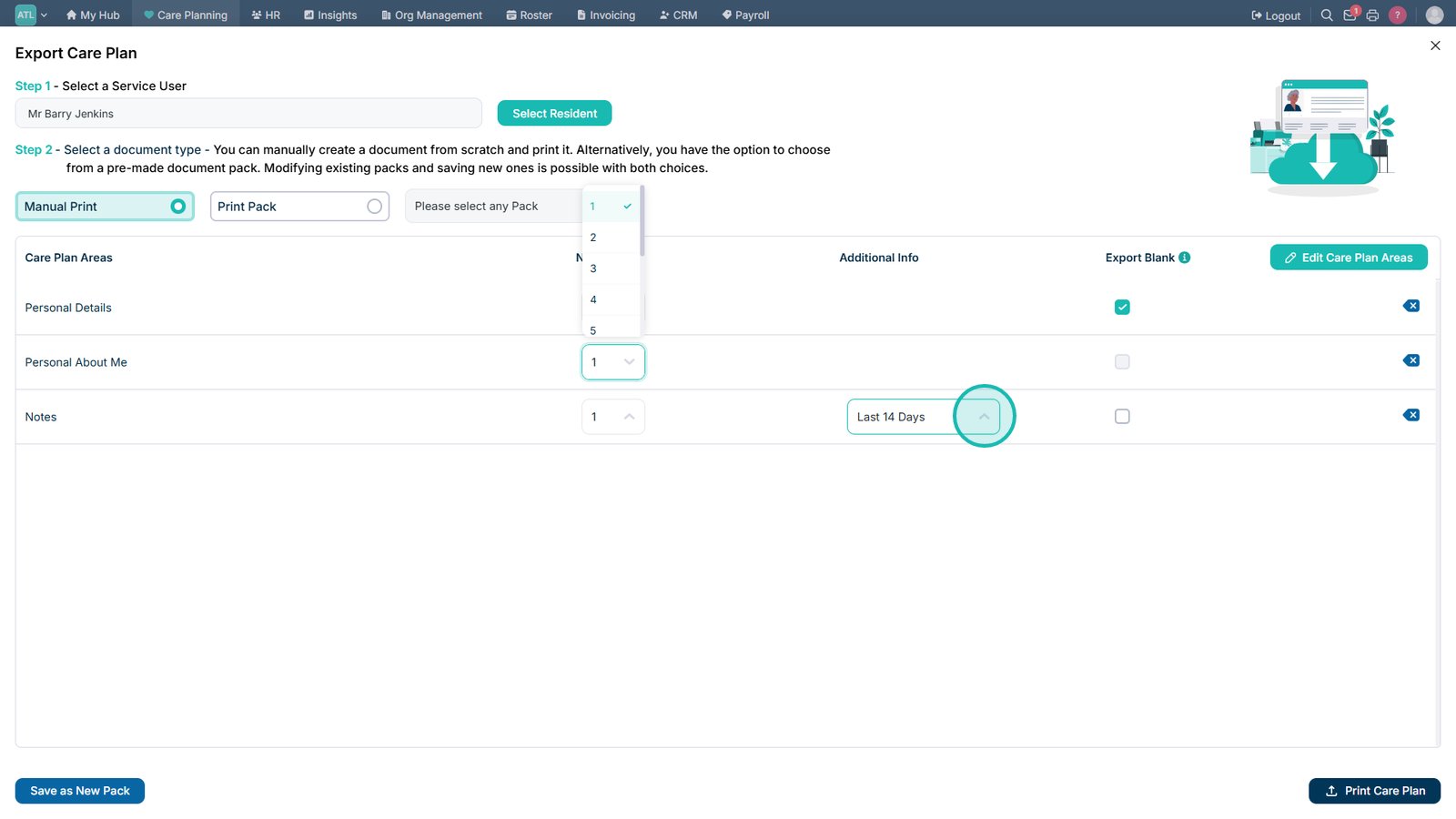
Configure any available date range options.

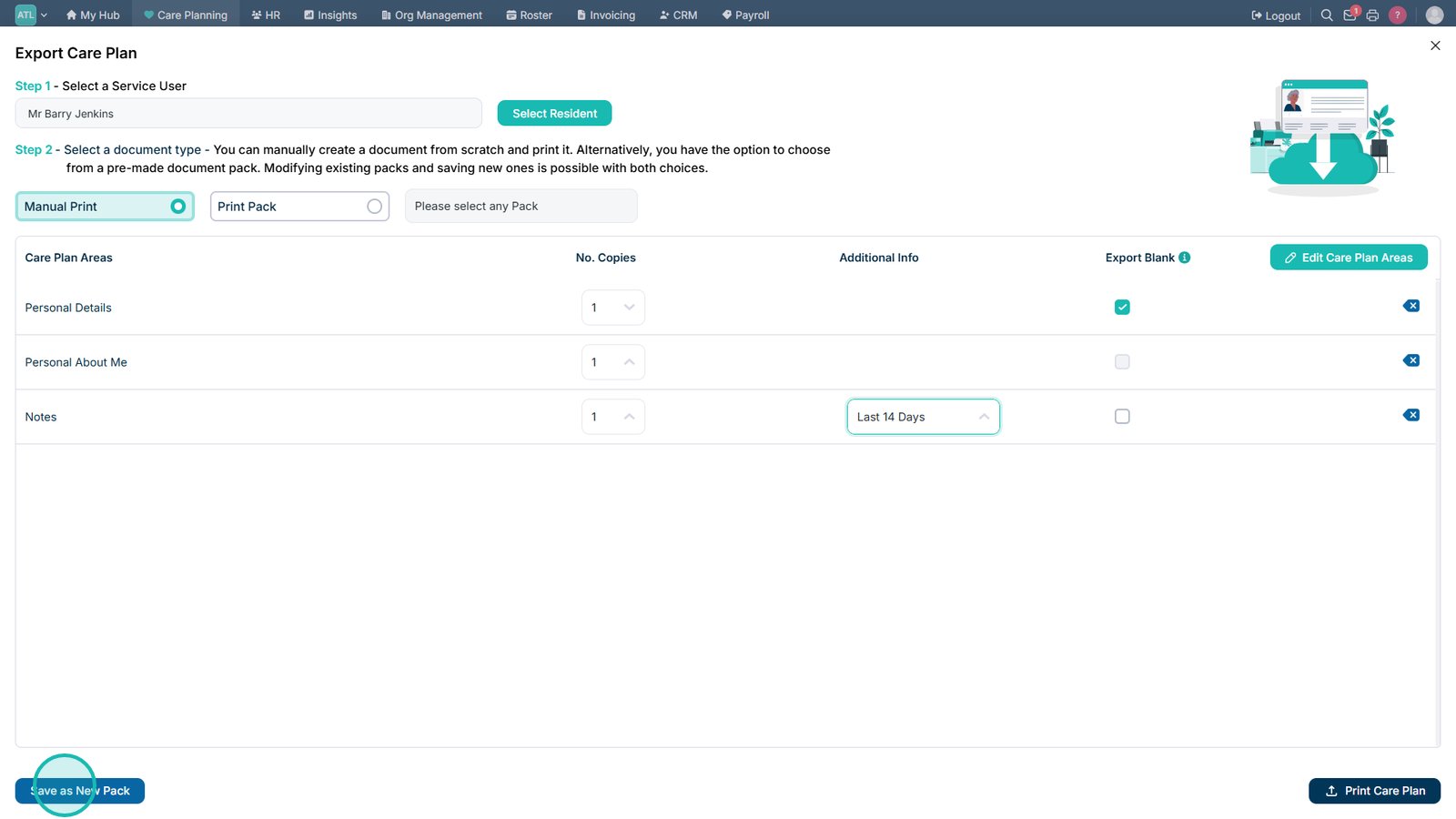
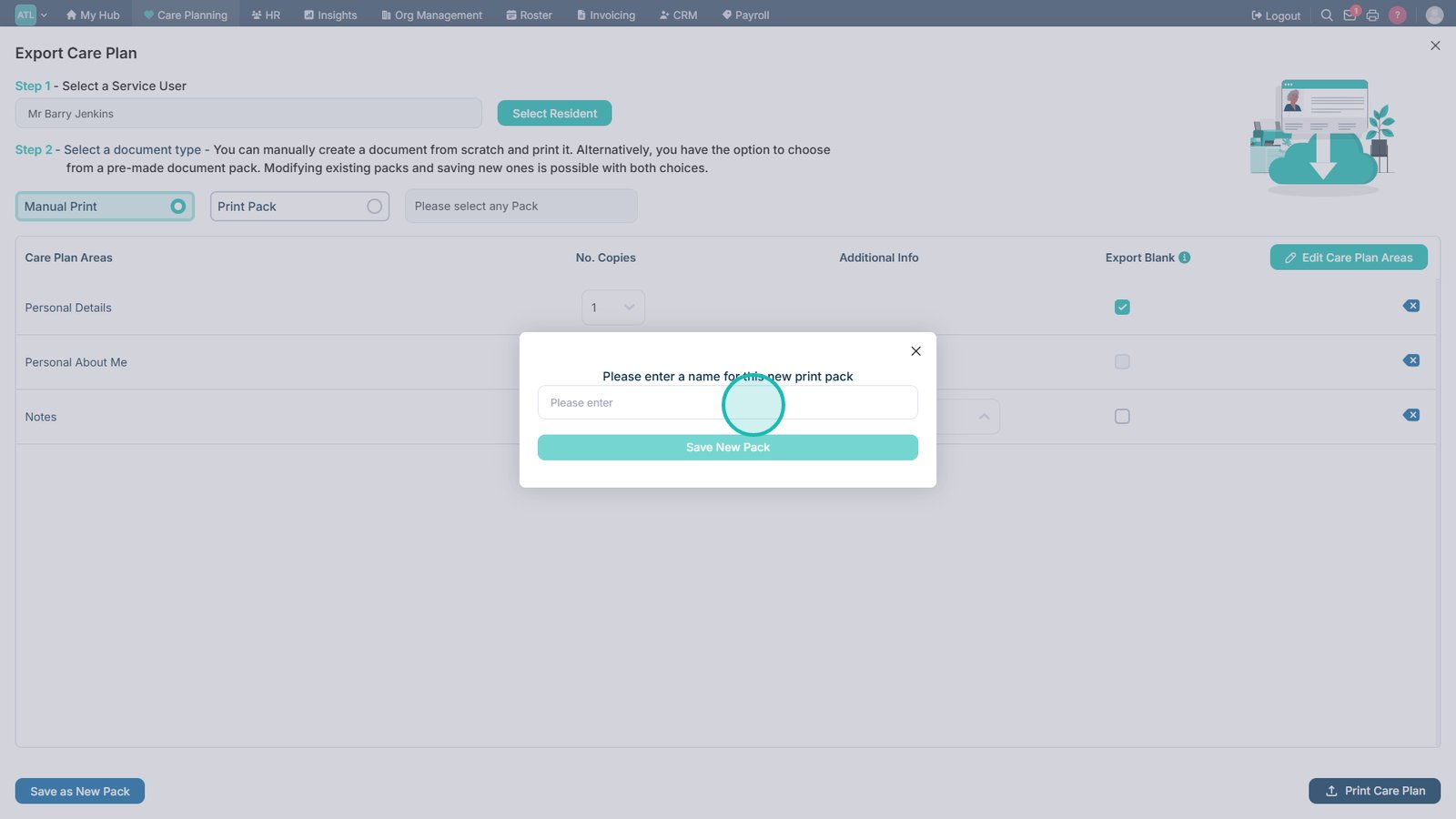
Select Save as New Pack.

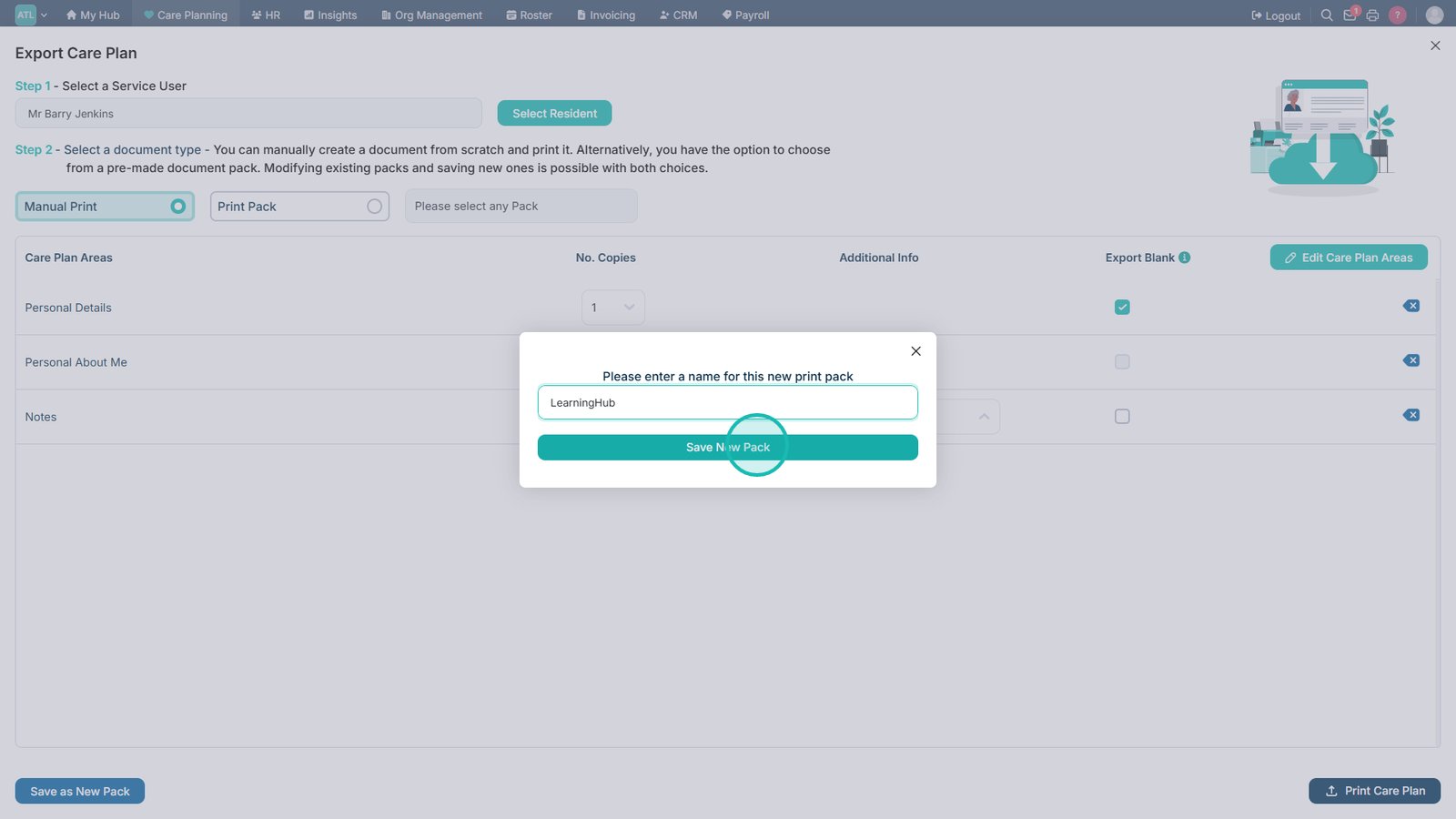
Enter a name for the new Print Pack.

Select Save New Pack.

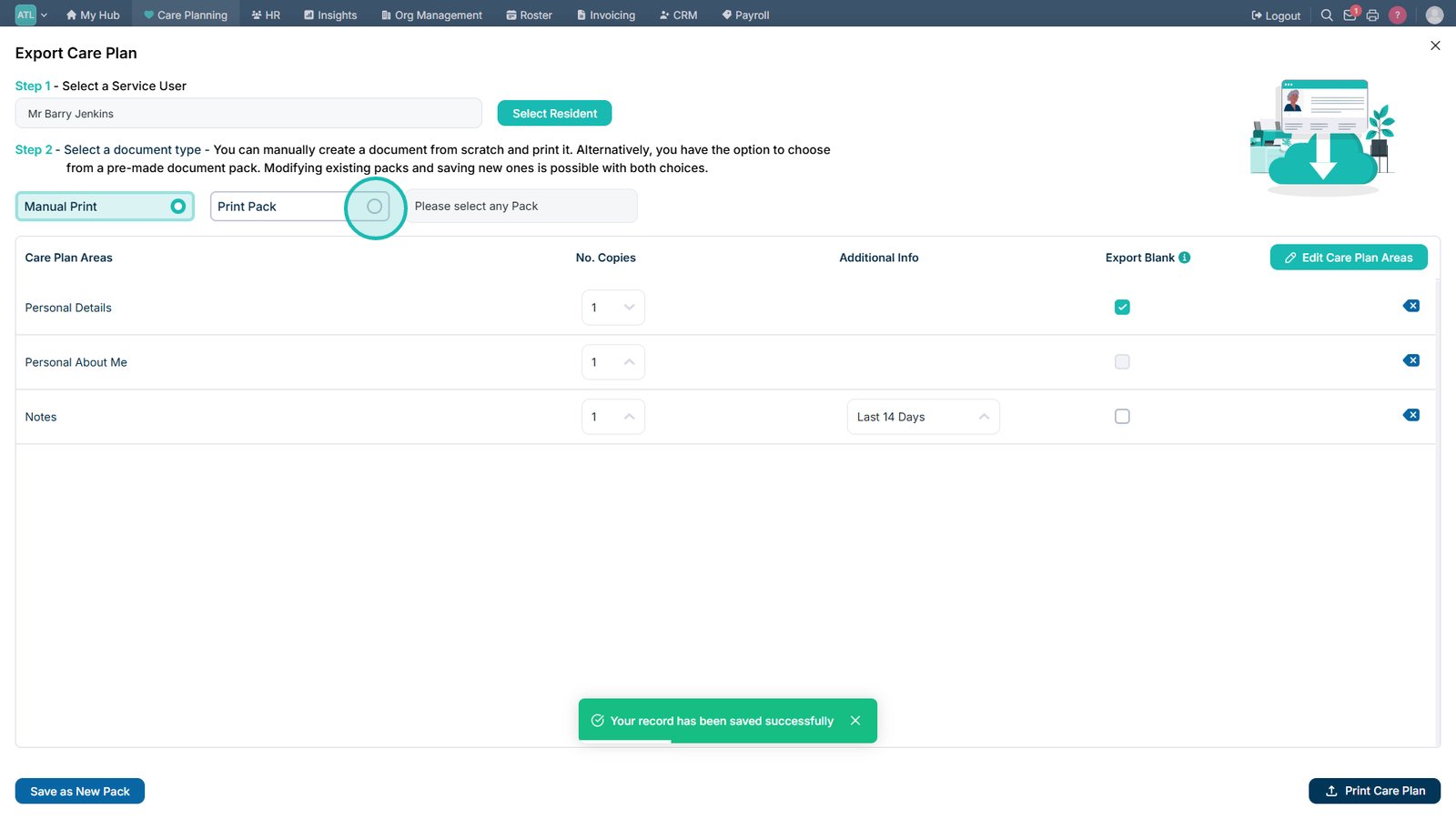
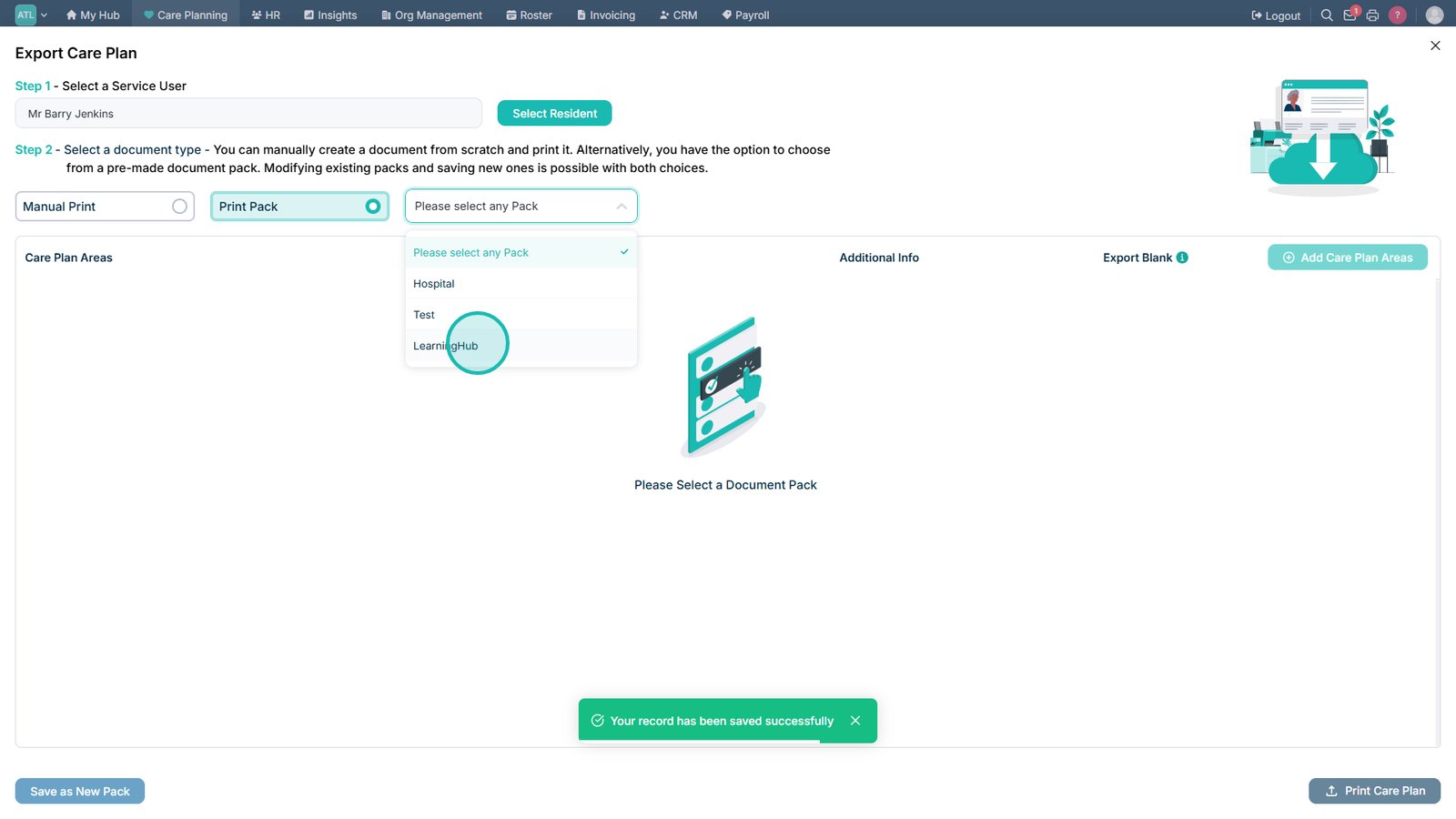
Select Print Pack.

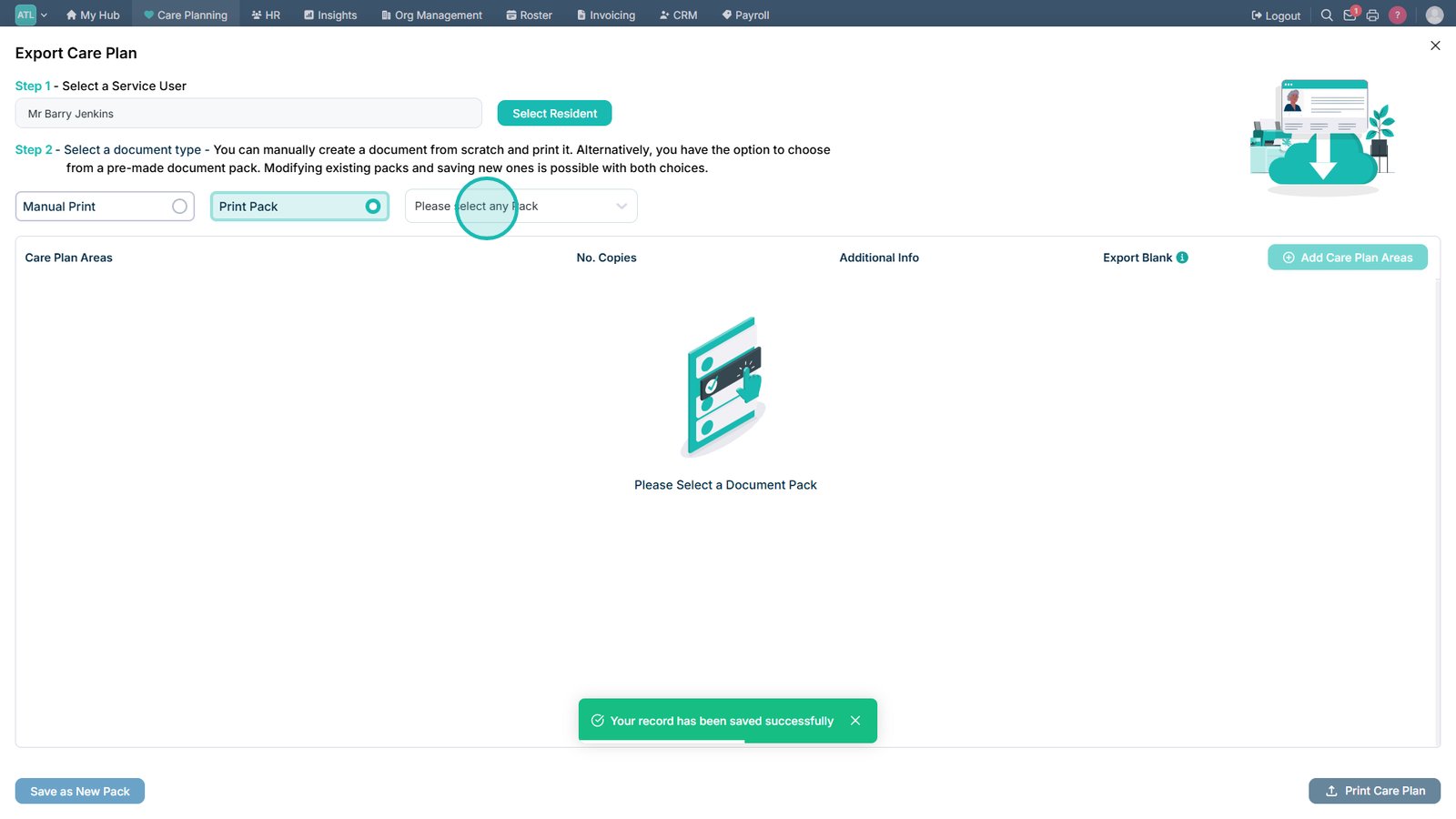
Select a saved Print Pack from the drop-down list.

Select the required Print Pack.

Select Print Care Plan to export or print the selected care plan.

Top tip
Save commonly used care plan selections as a Print Pack to quickly generate the same export in the future.
Need more help?
Can't find what you're looking for? Our support team is here to help.
Contact SupportOr call us on