How to view Site Level CRM Dashboard
The Site Level CRM Dashboard gives you a centralised view of everything happening at a specific site within Care Control Cloud. It allows you to quickly check home occupancy, bed details, and room availability, as well as track pre-assessment requests at every stage — from incoming requests through to completed and processed assessments. This guide walks you through how to navigate the CRM app, access the site dashboard, and make use of the tabs available to stay on top of your enquiries and admissions pipeline.
Interactive Guide
Text based guide
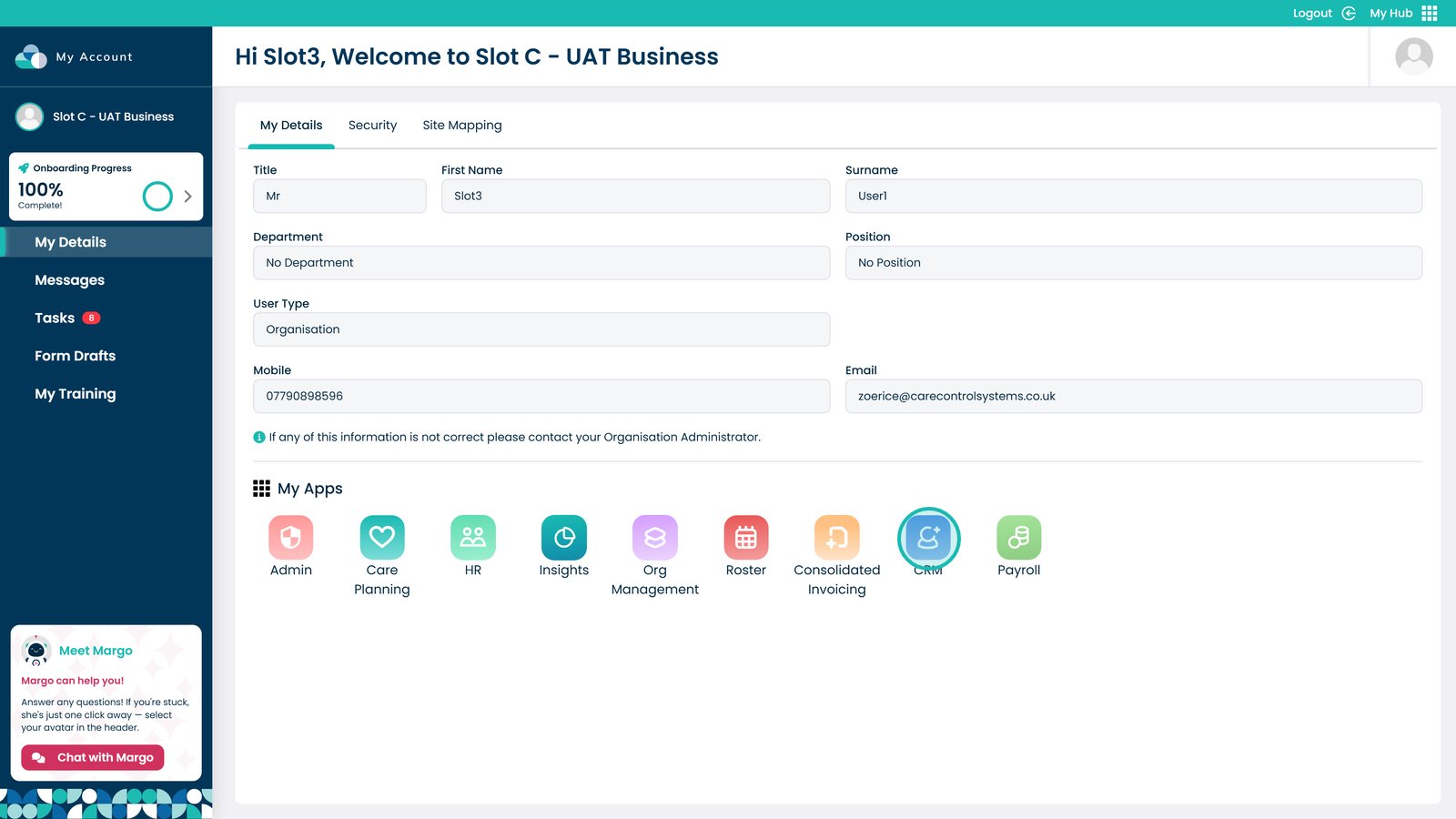
Open the CRM App

Â
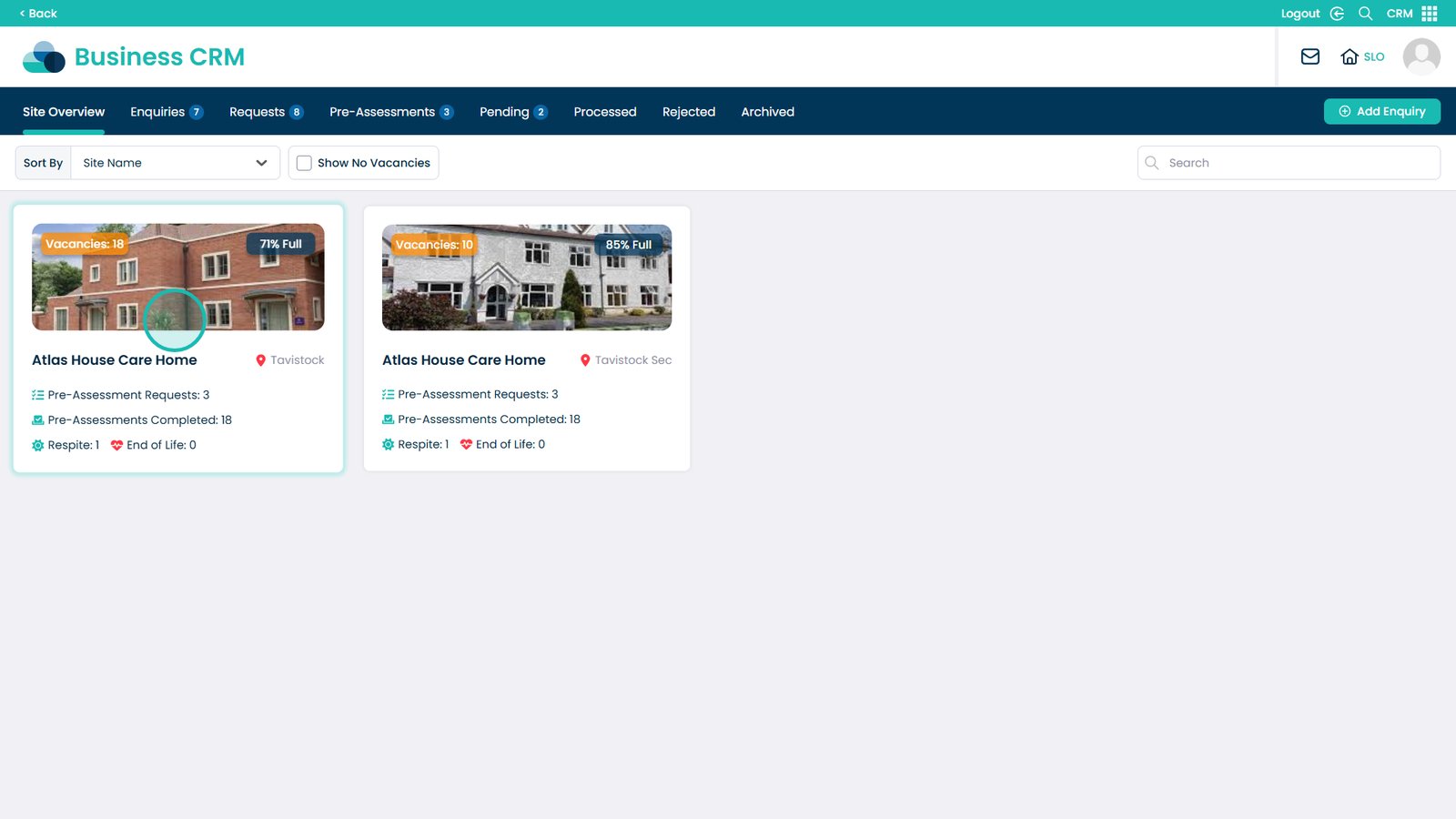
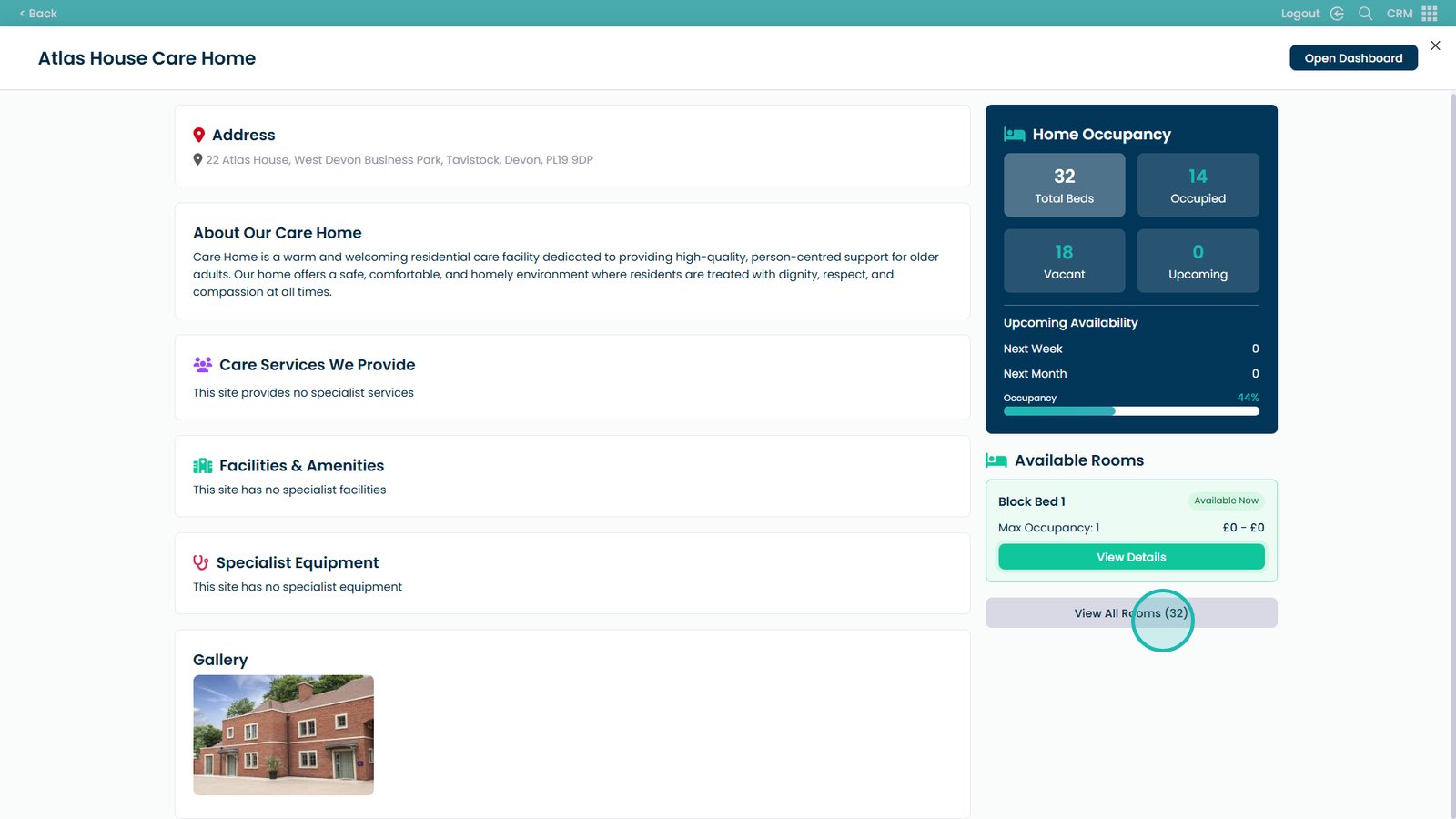
Select which site you want to view

Â
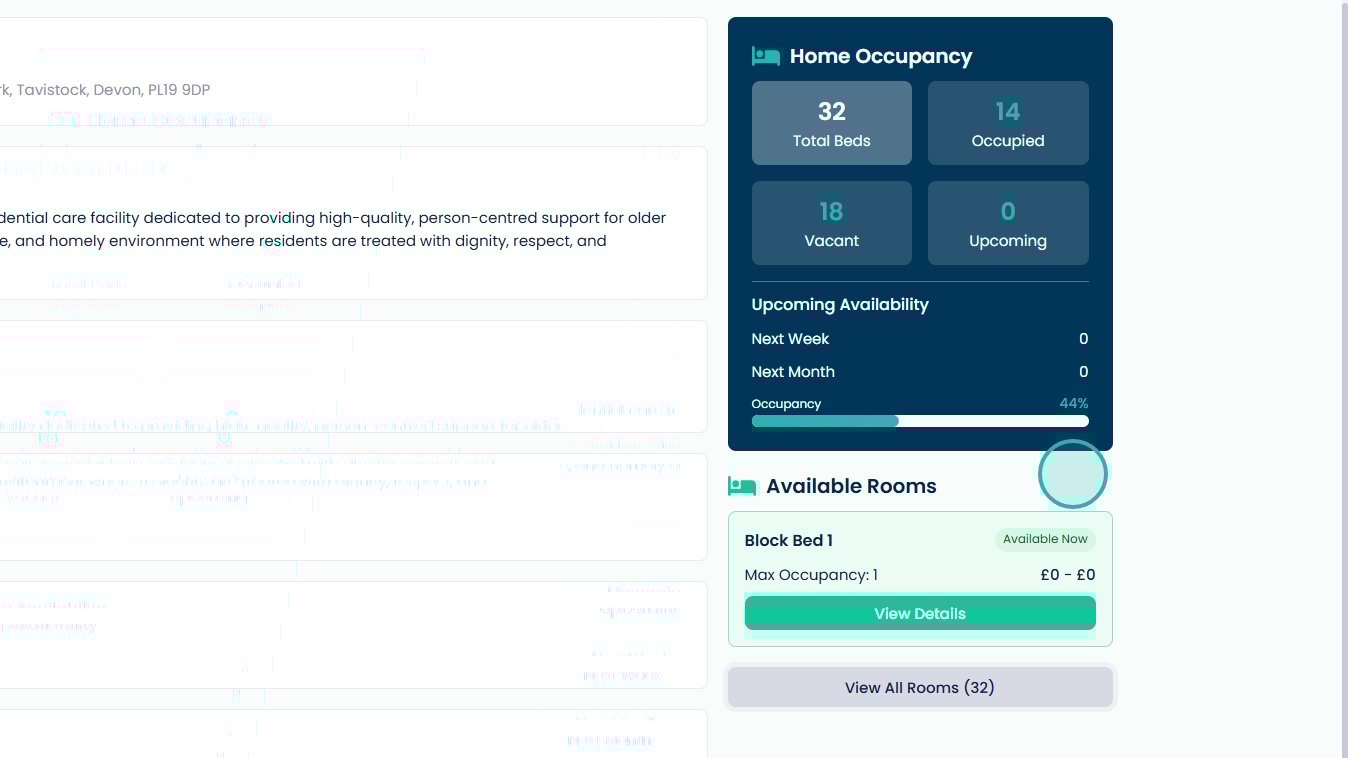
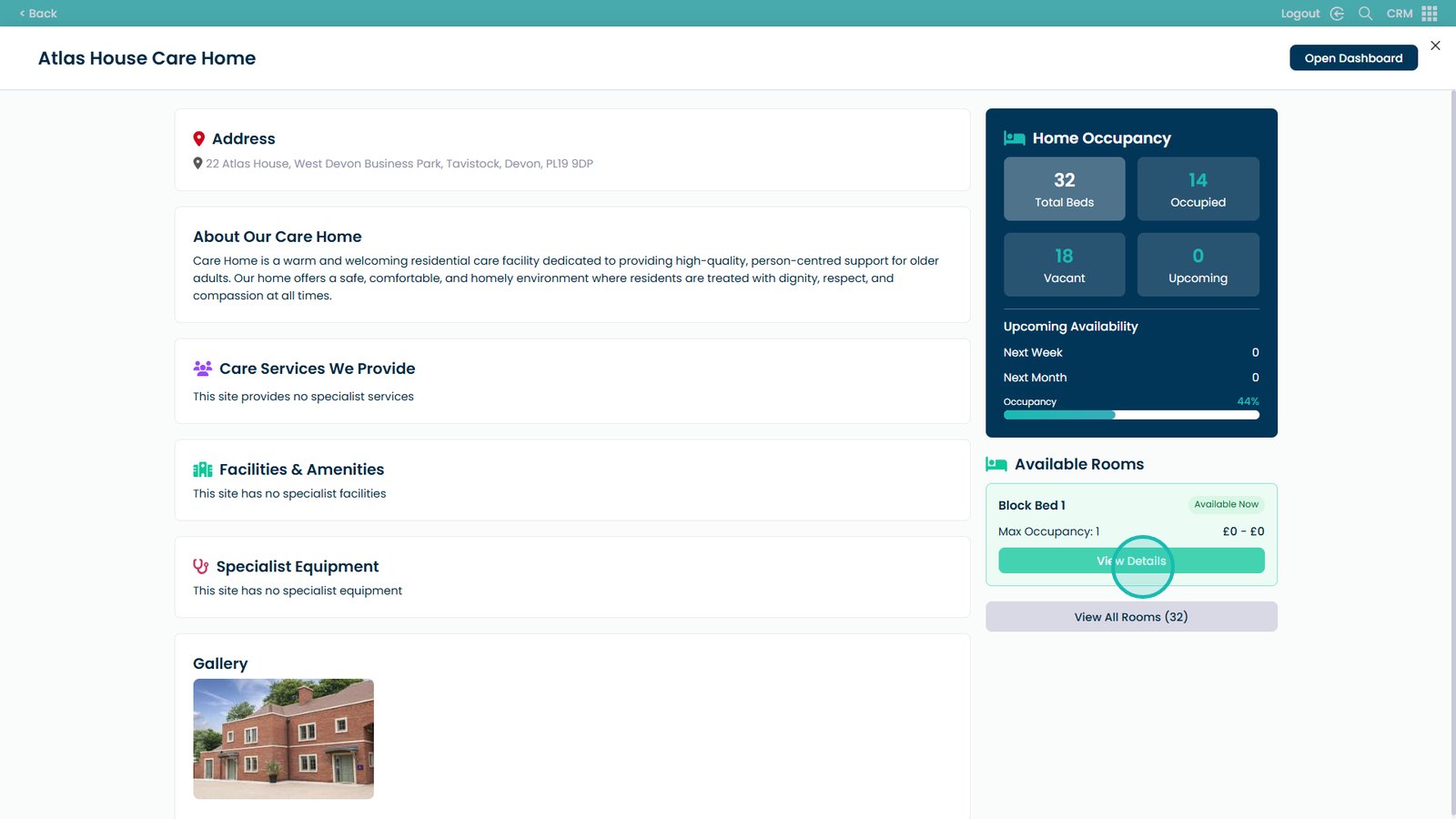
This quick overview will show you the Home Occupancy

Â
The bed details

Â
And the ability to view all the rooms

Â
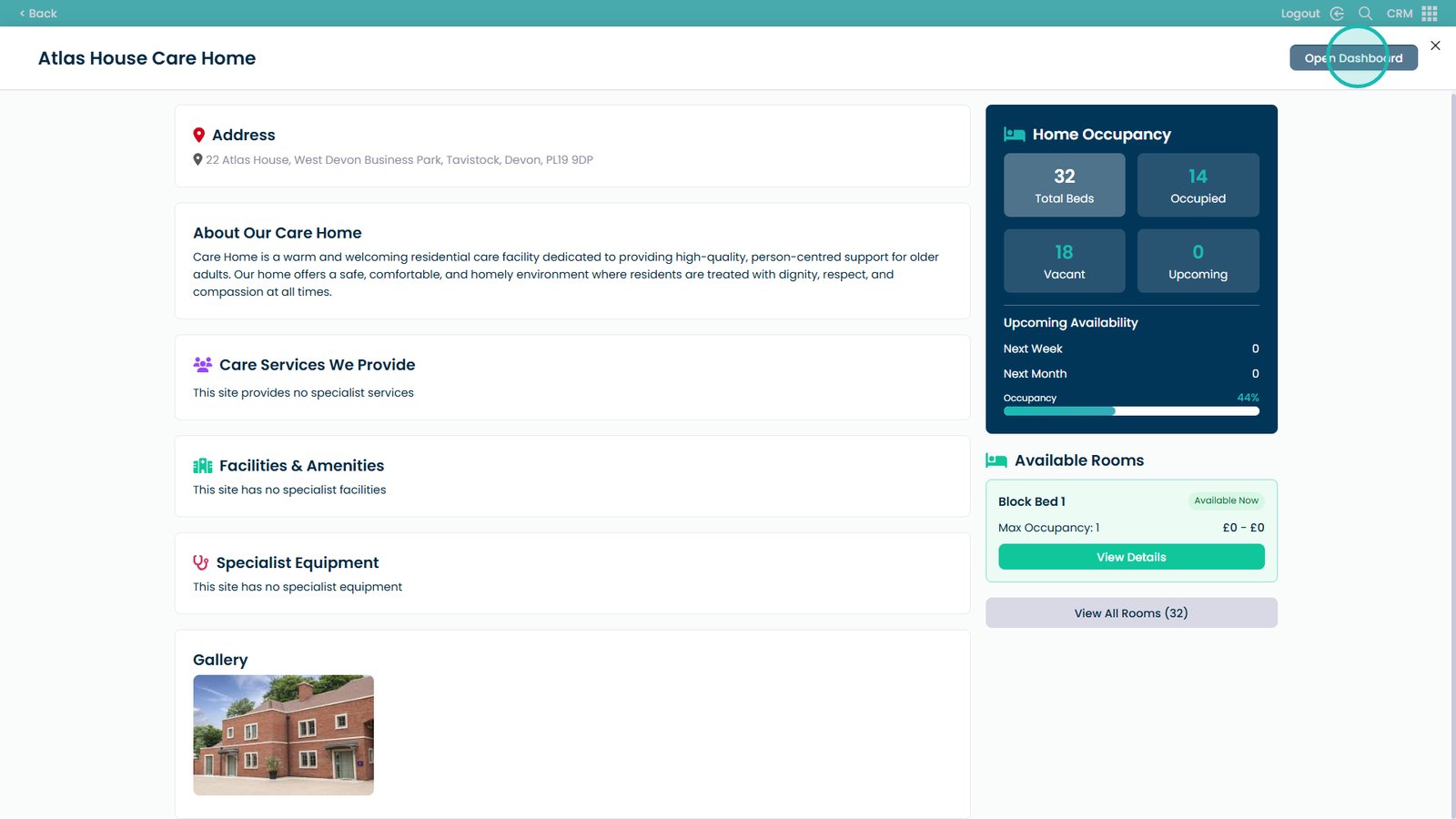
Click Open Dashboard

Â
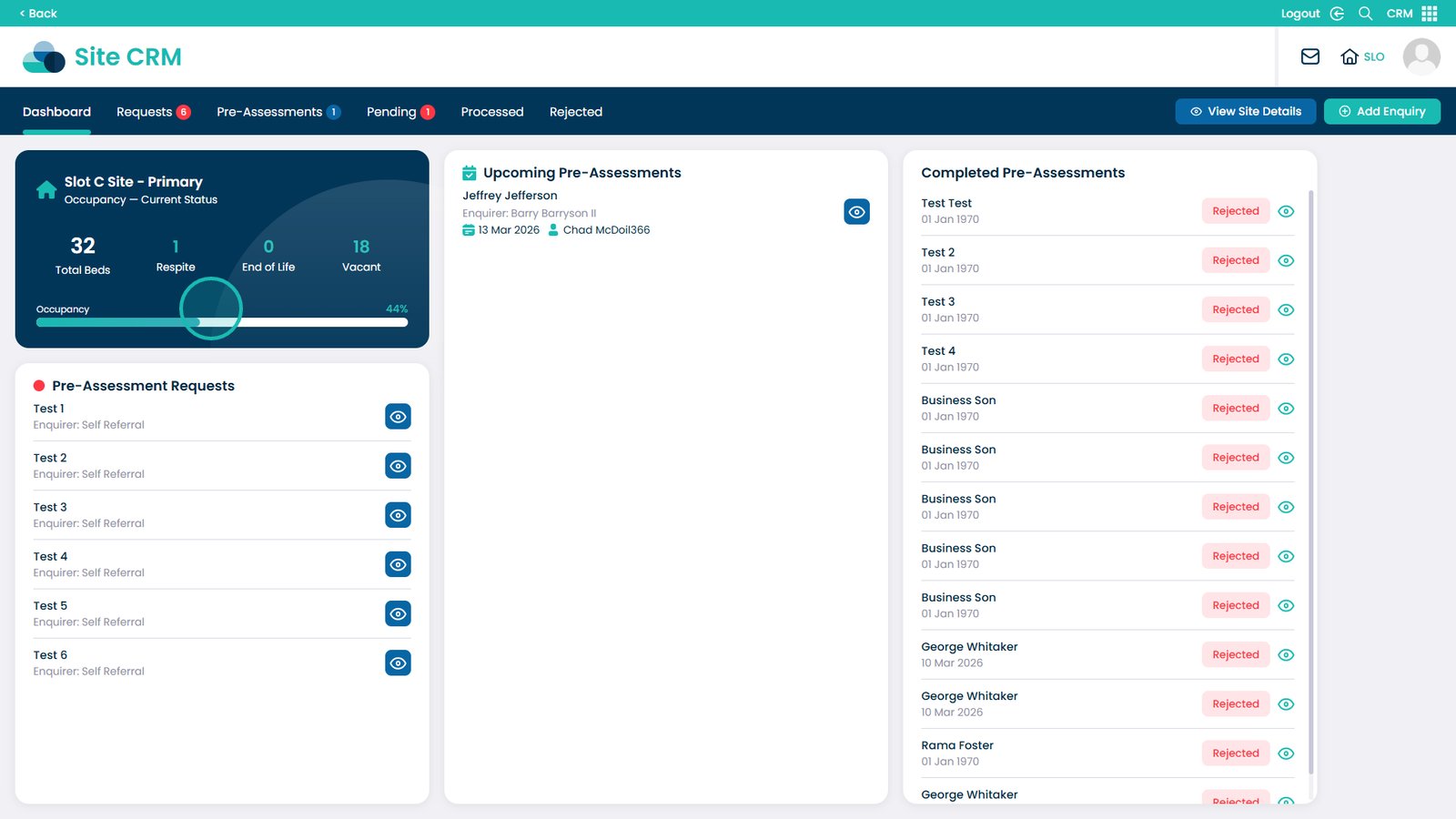
Here you can see a quick overview of the occupancy status

Â
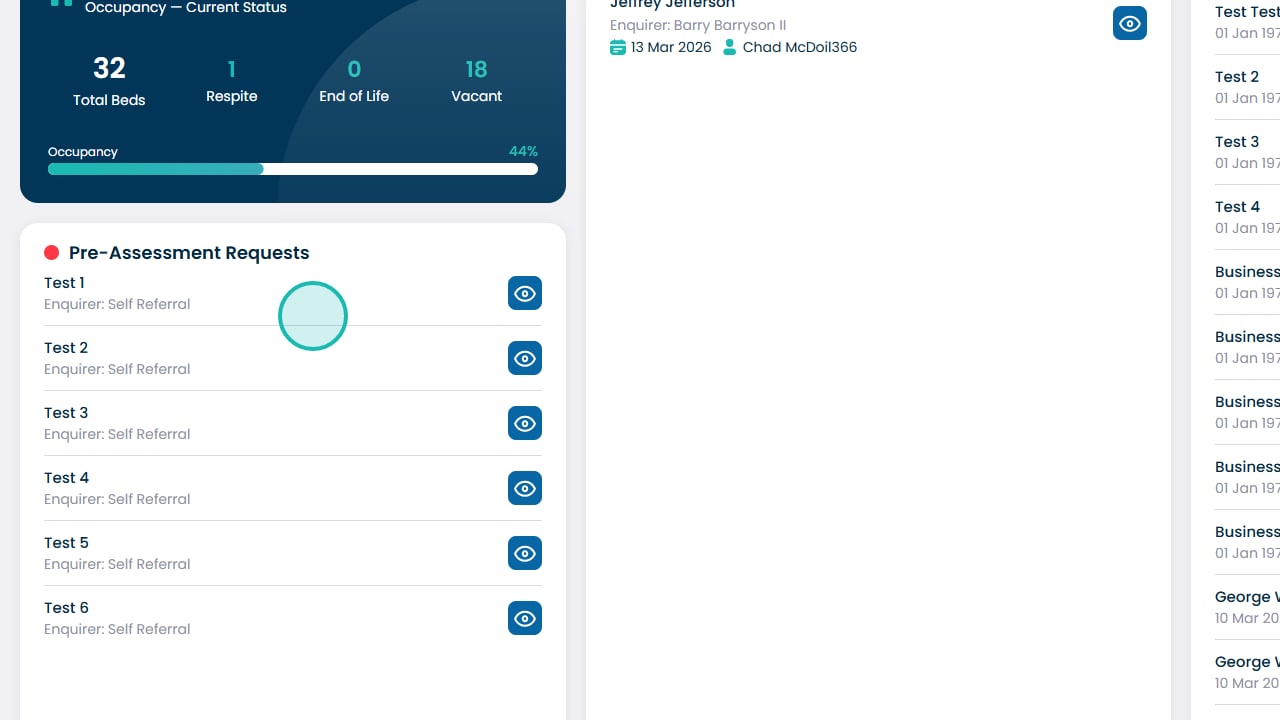
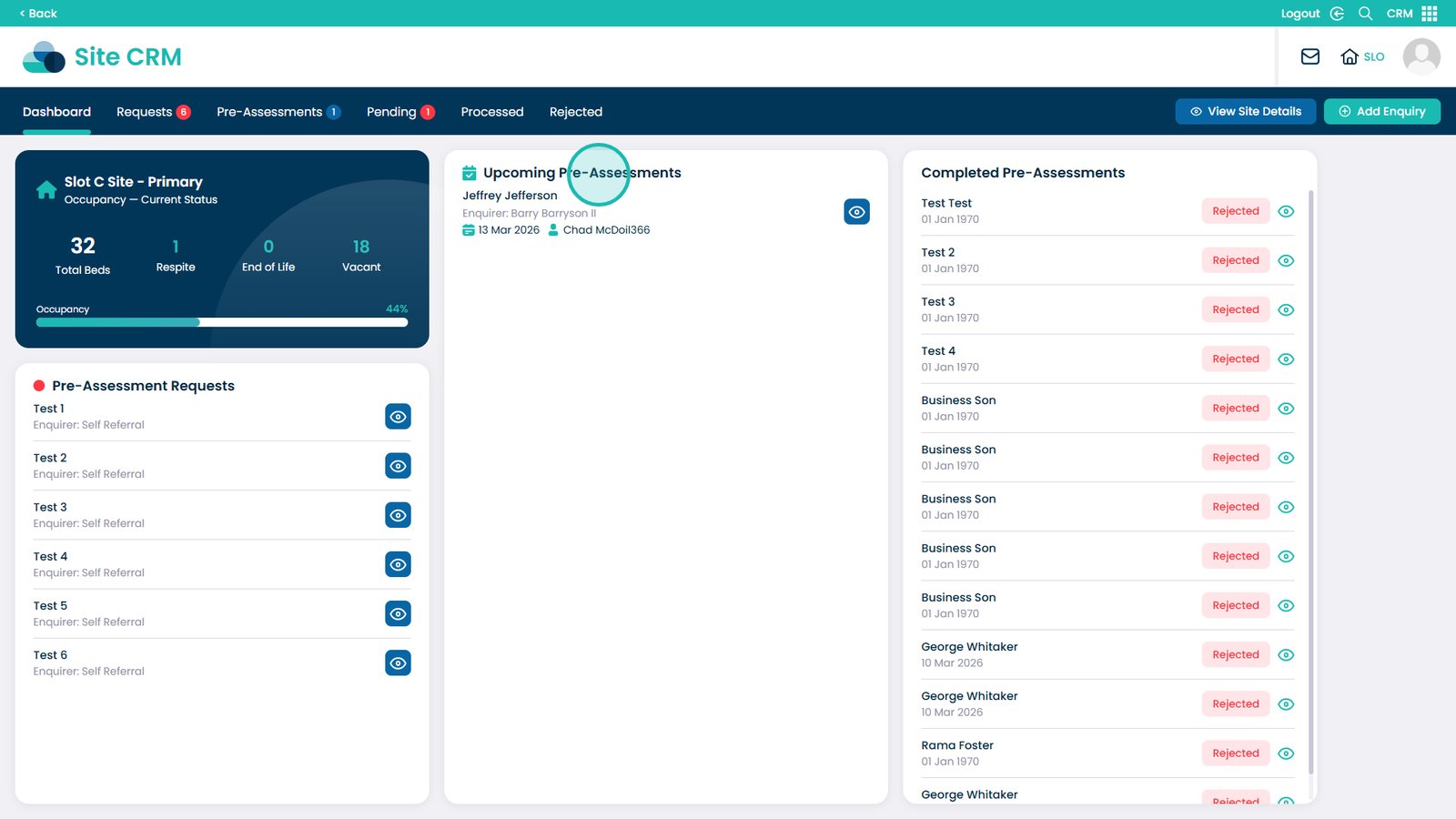
You can also view all of the pre-assessment requests

Â
All of the booked upcoming pre-assessments

Â
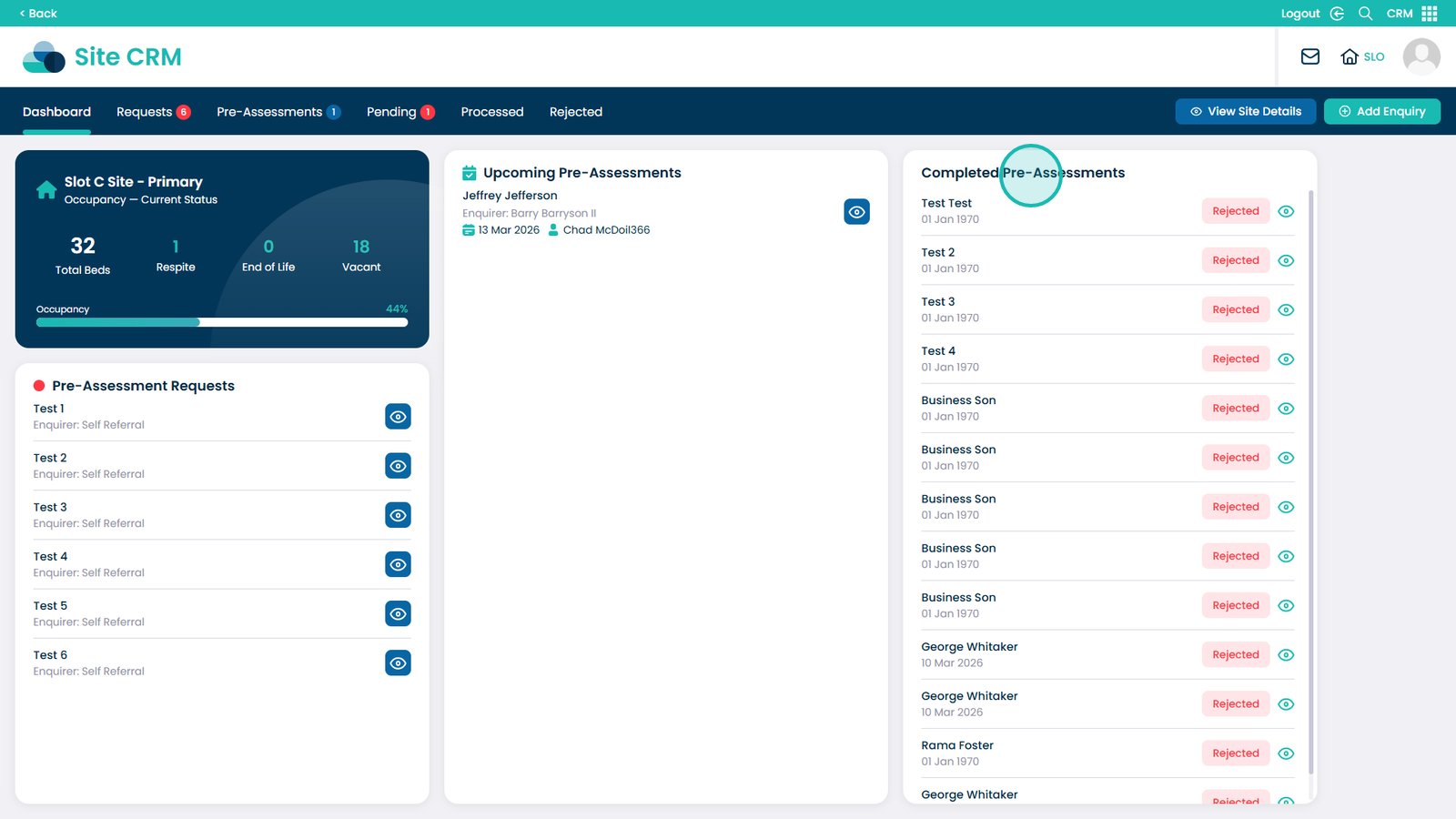
And all of the completed pre-assessments

Â
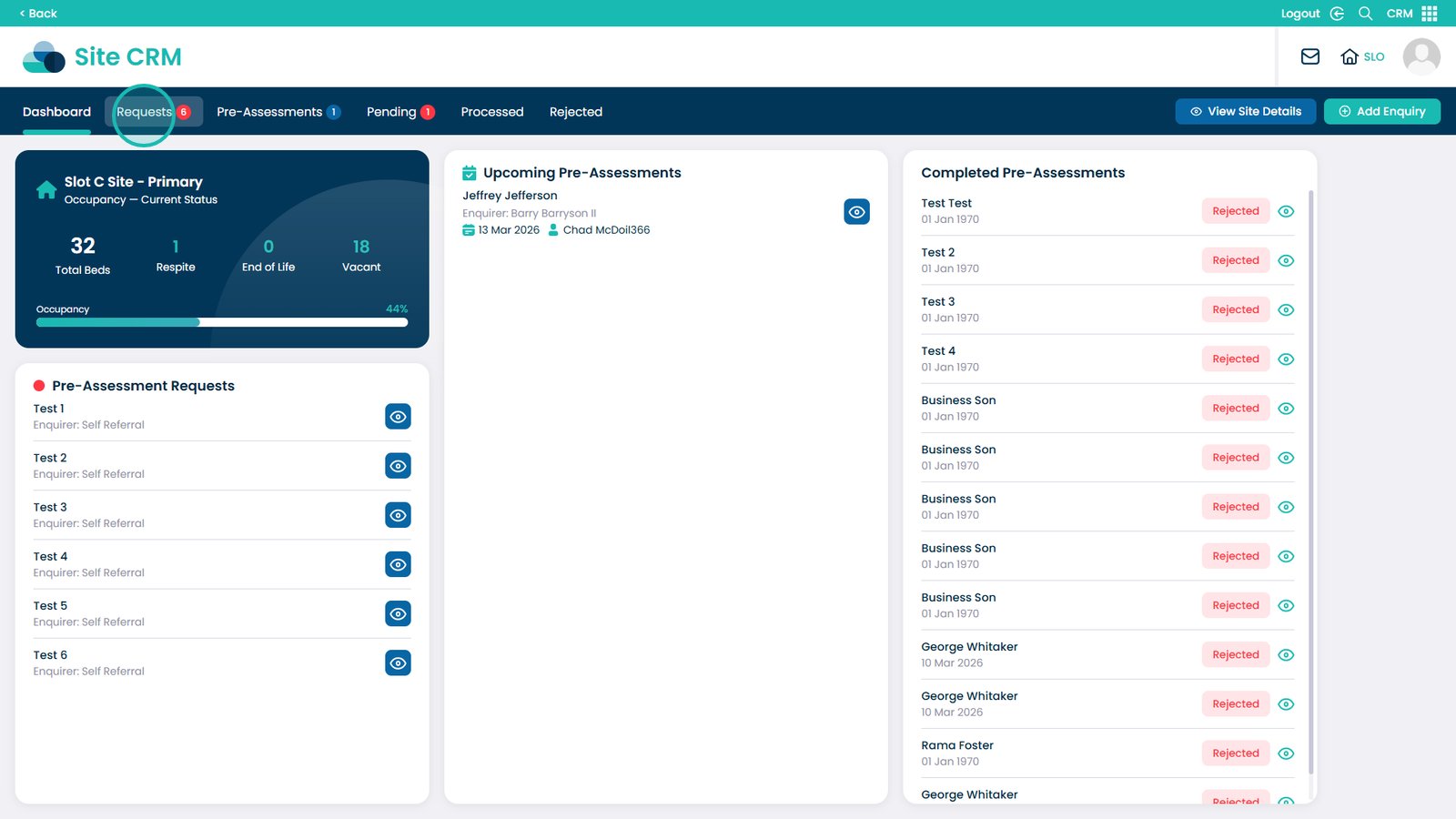
Click the Requests tab to view further details on the current requests

Â
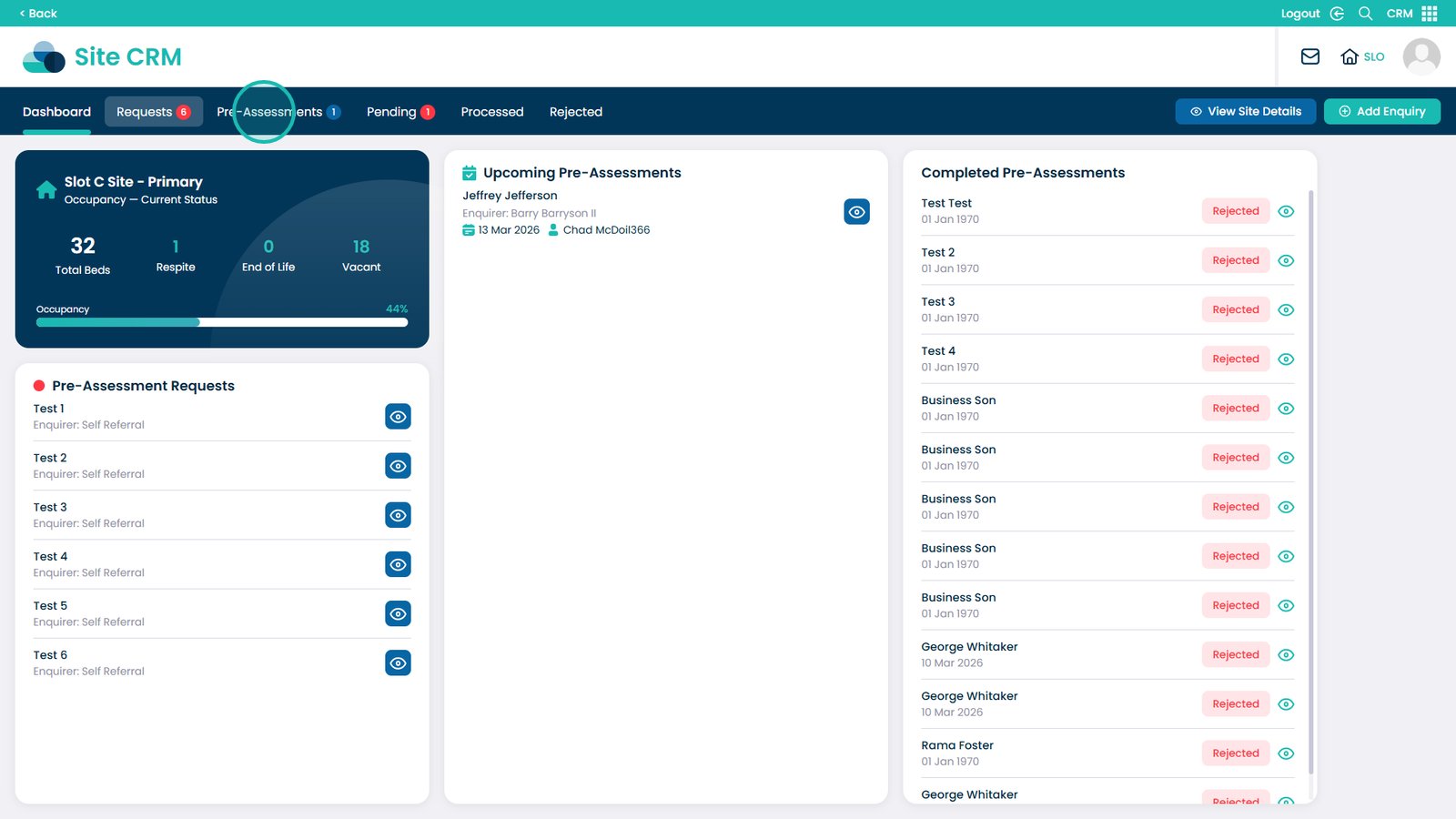
Click the Pre-Assessments tab to view further details on the current pre-assessments

Â
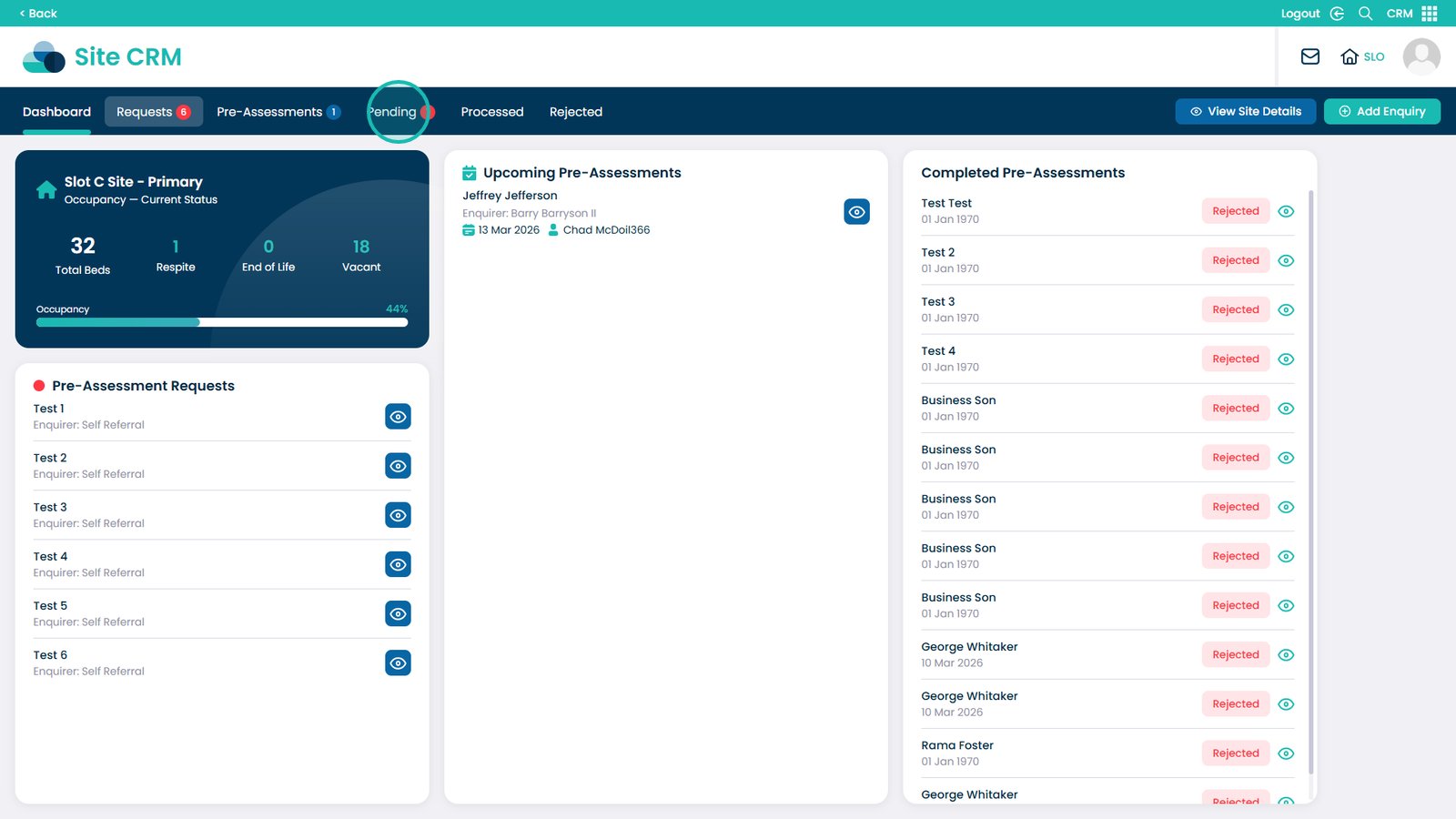
Click the Pending tab to view further details on the currently pending assessments

Â
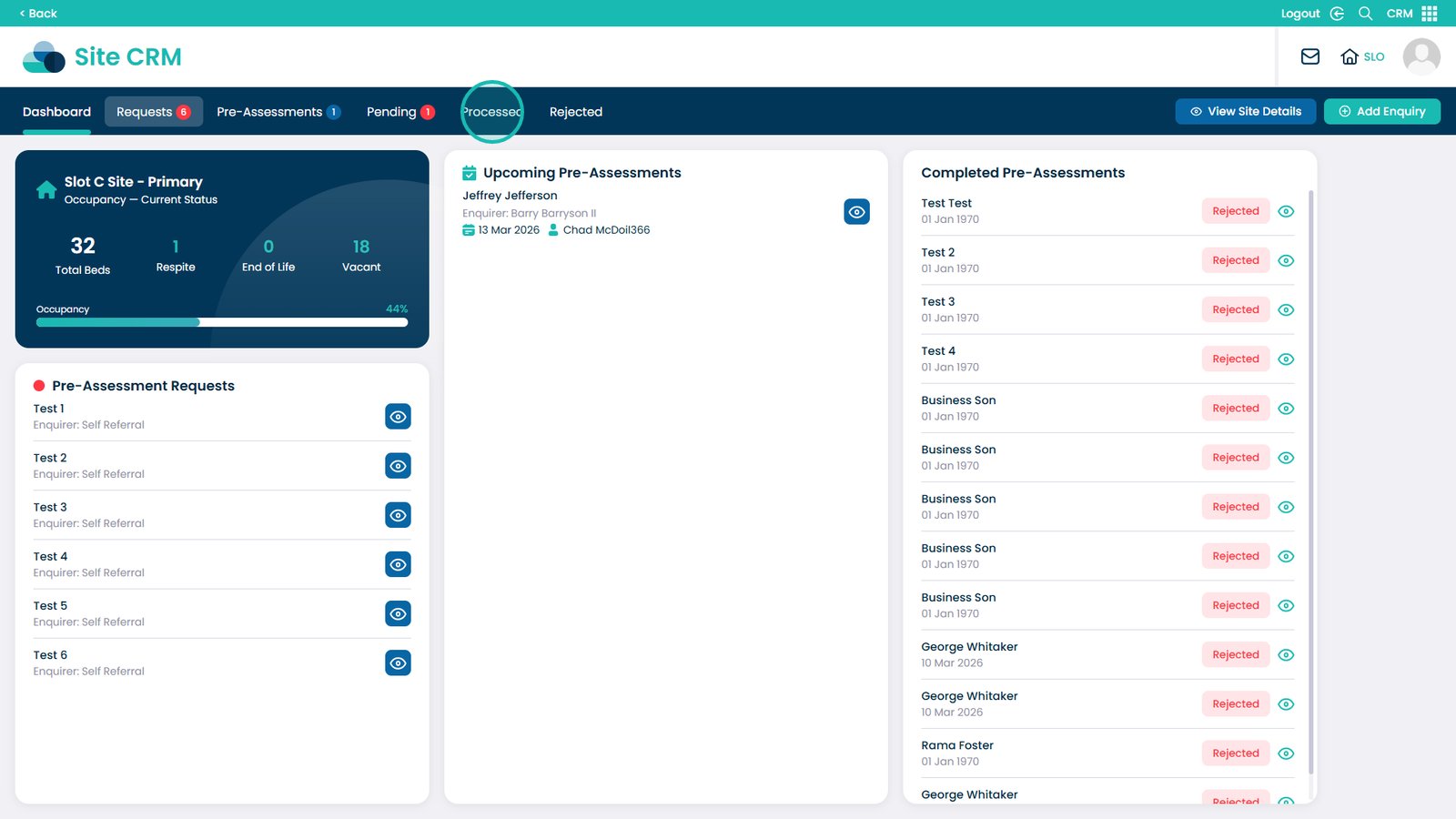
Click the Processed tab to view further details on all of the processed service users

Â
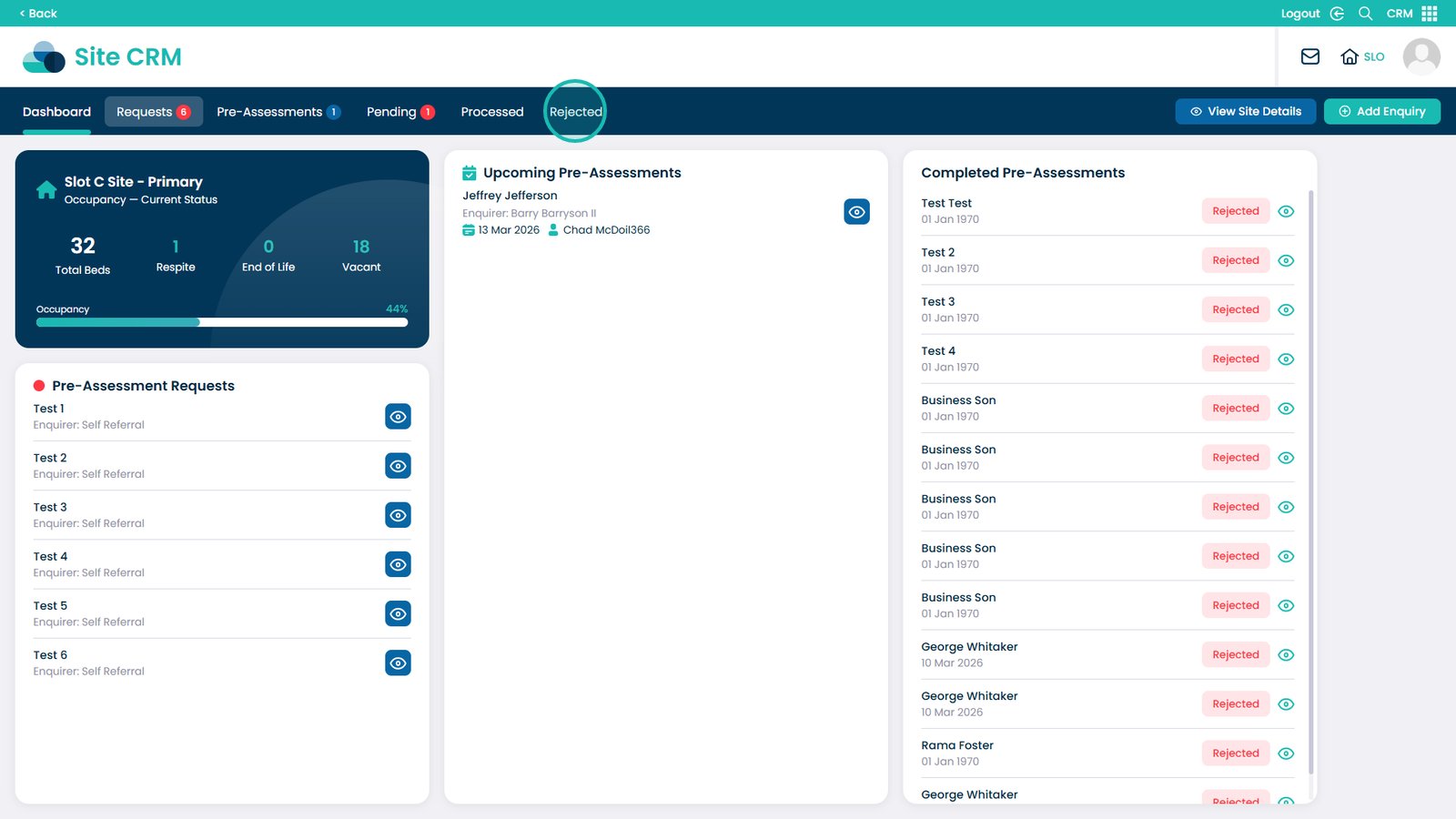
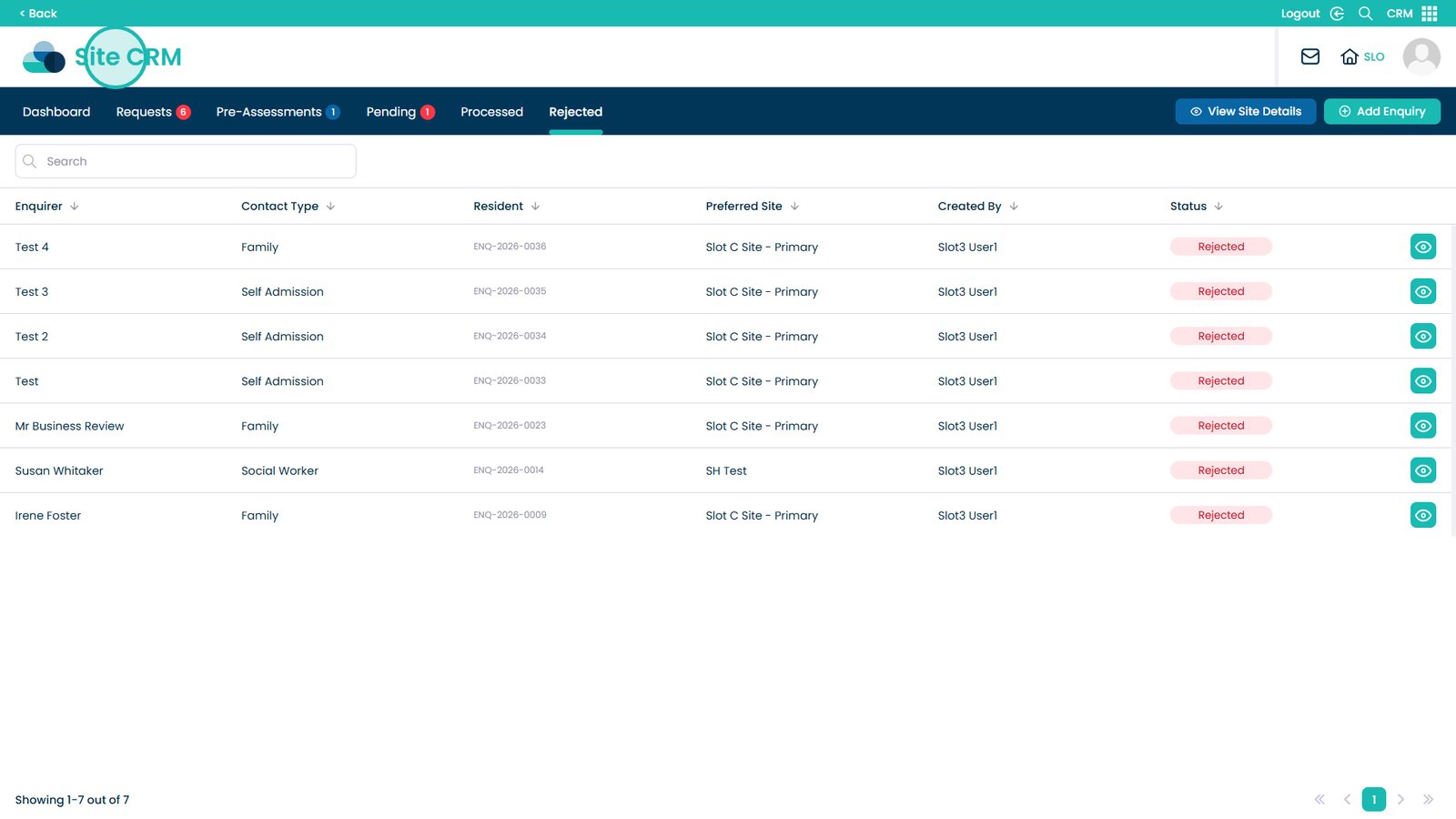
Click the Rejected tab to view further details on all of the rejected requests

Â
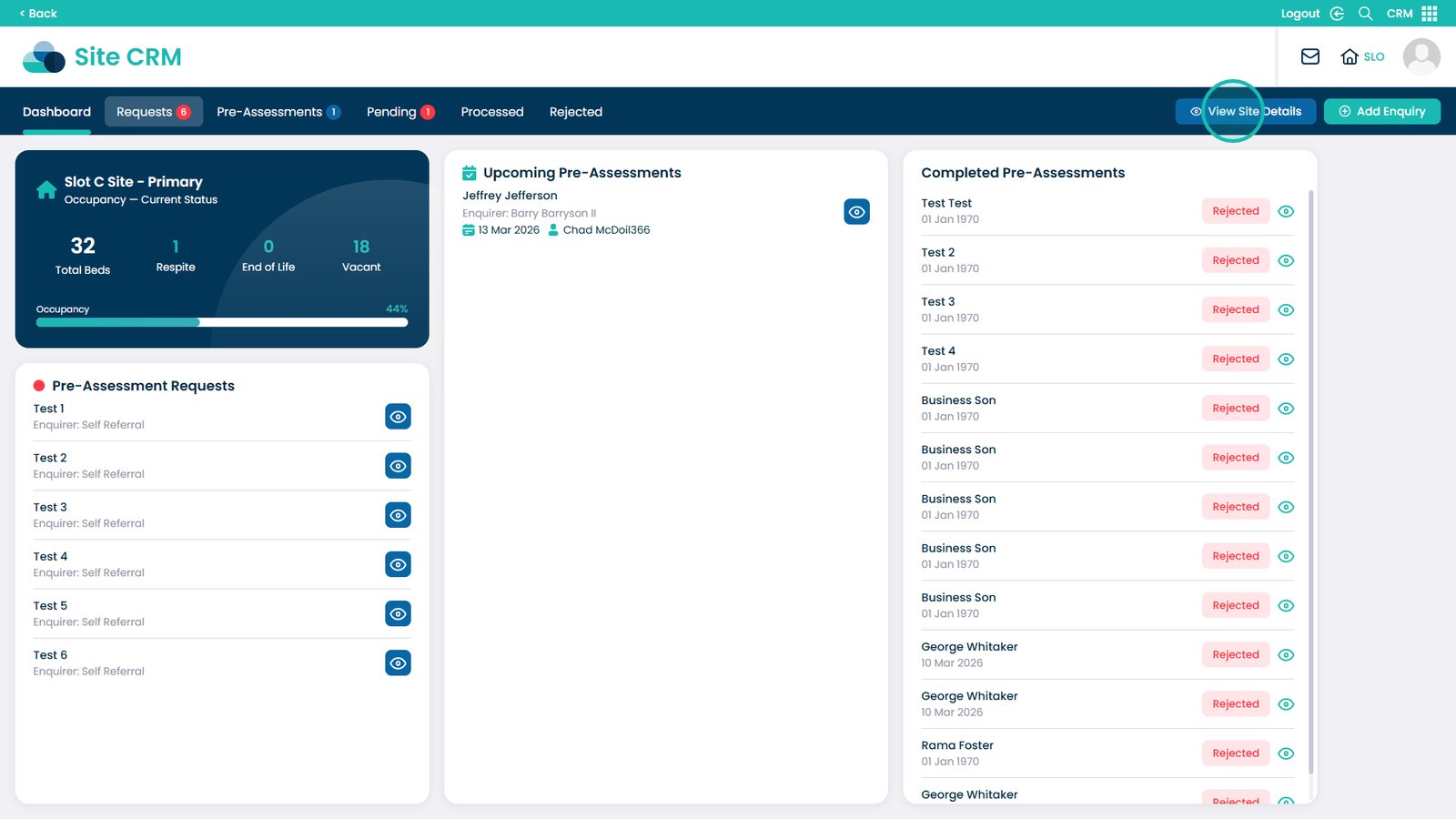
You can return to viewing an overview of the site by clicking View Site Details

Â
To return to the Business CRM view, click the Site CRM text