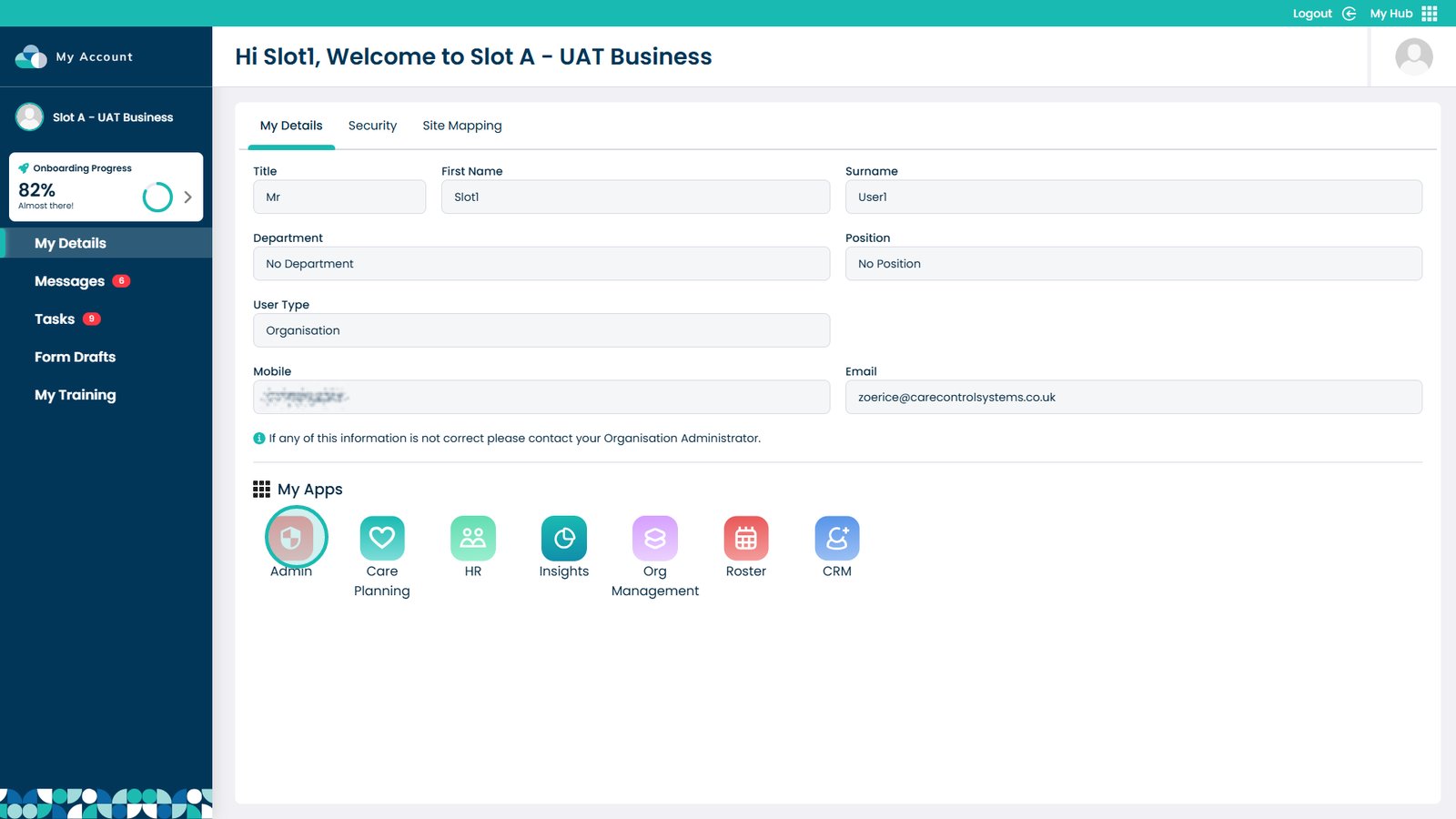
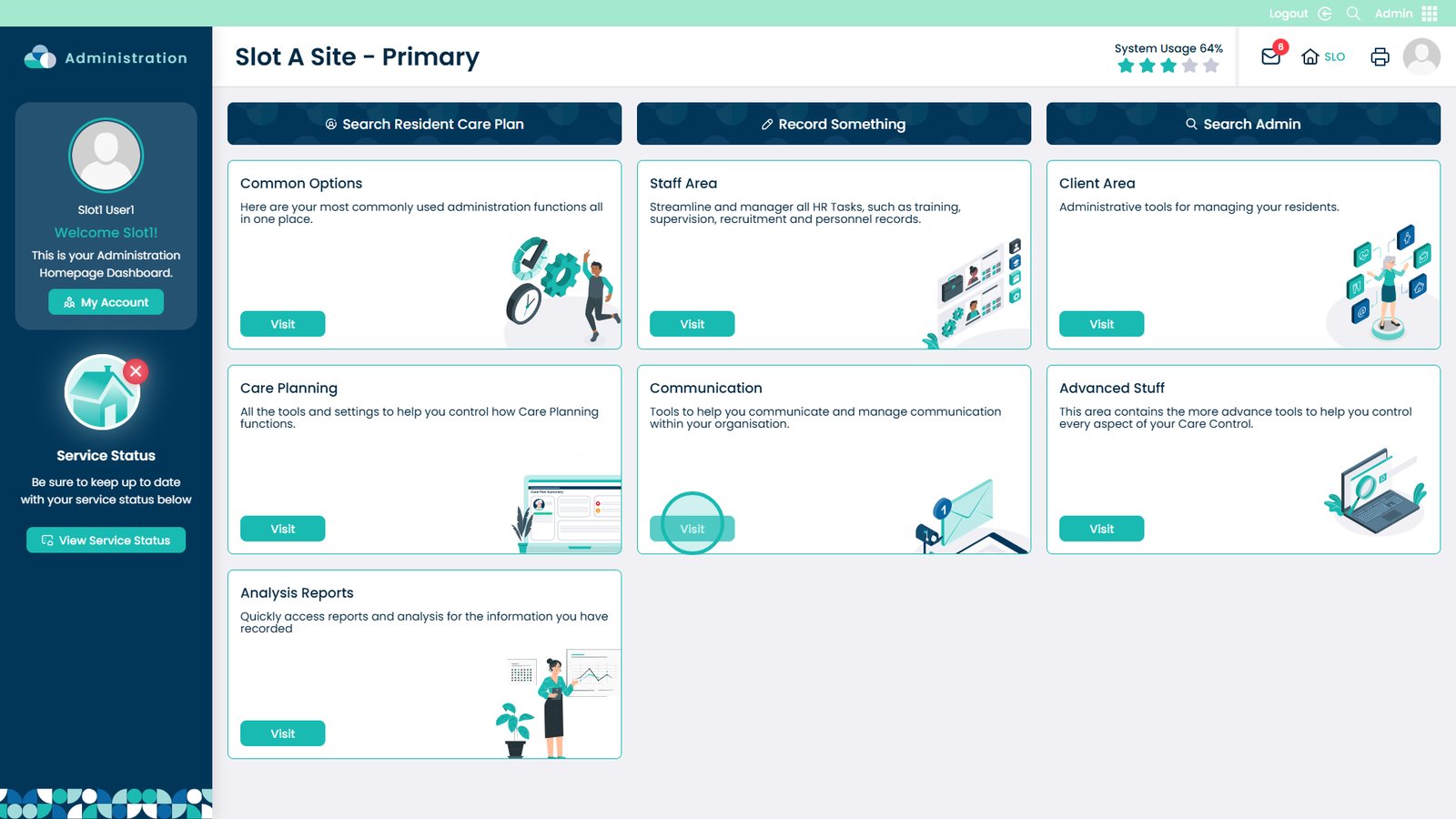
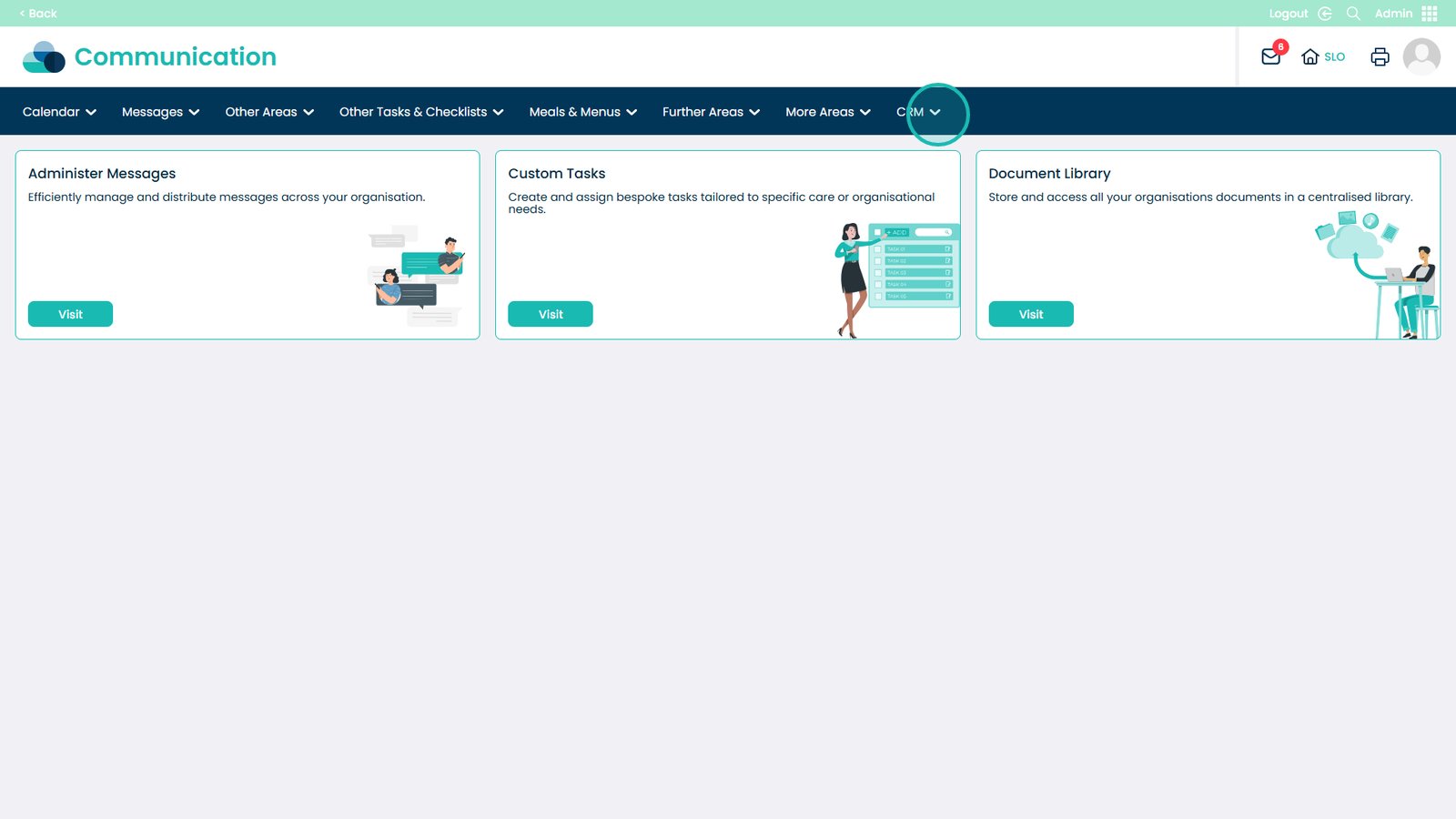
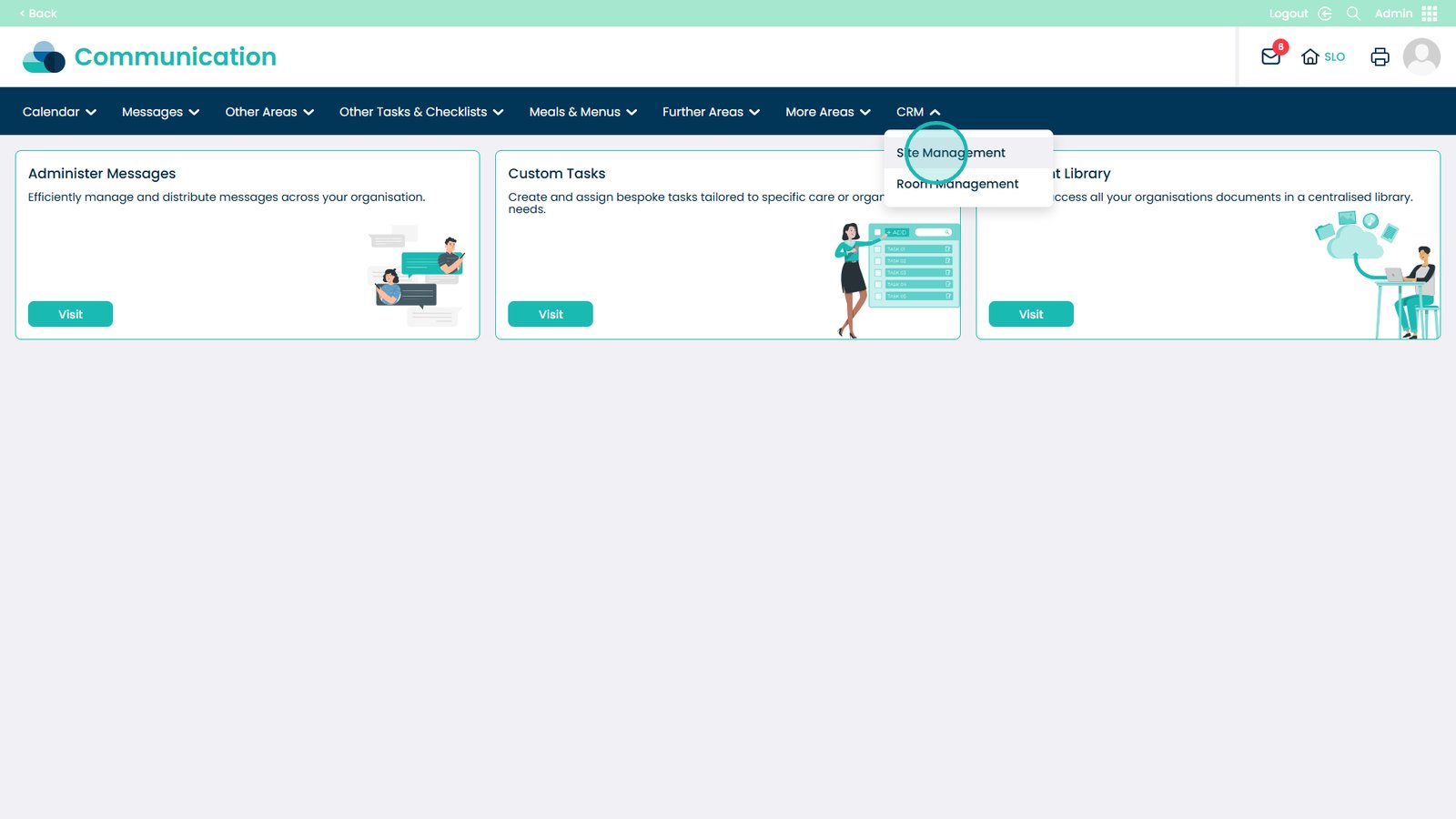
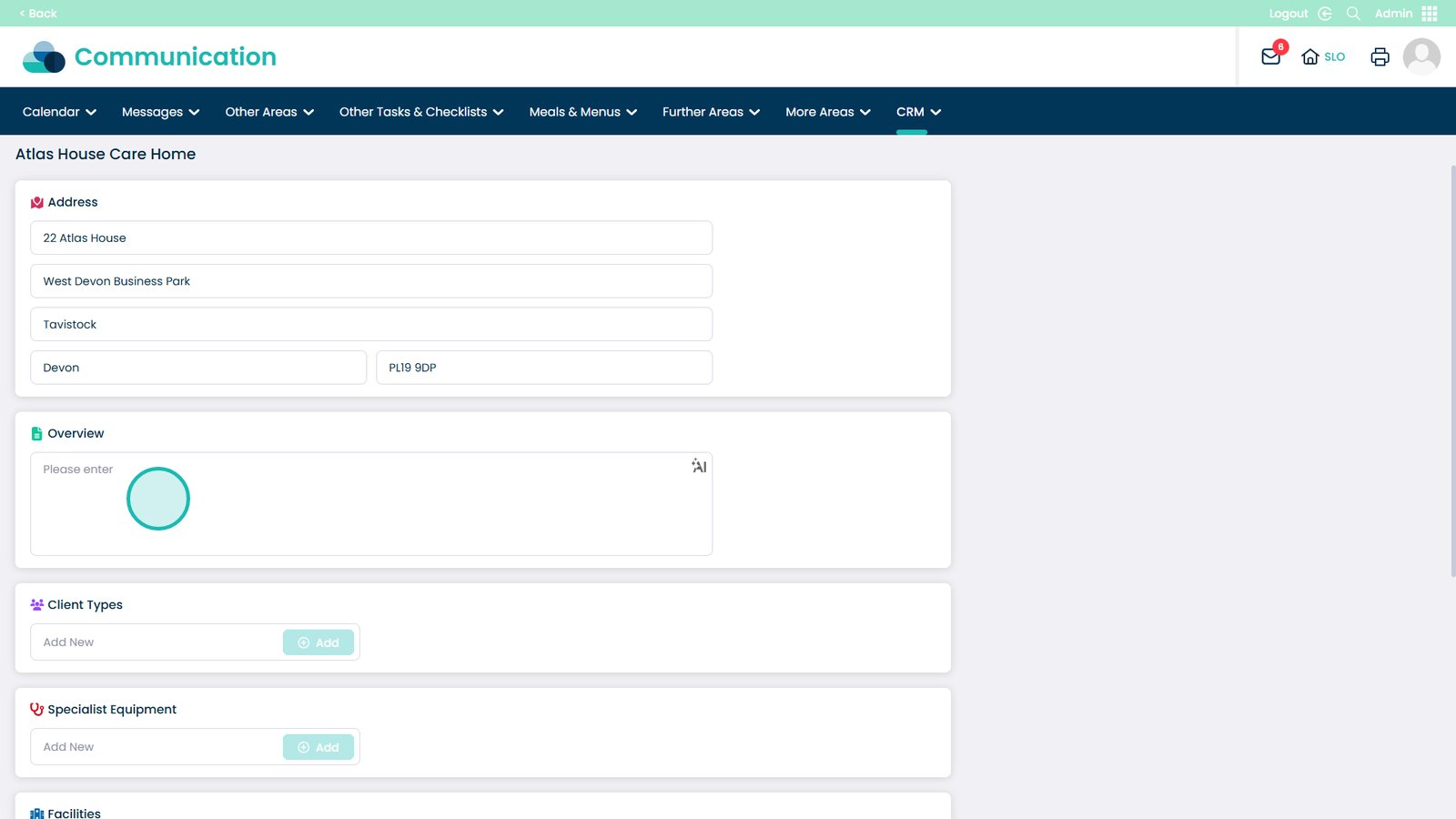
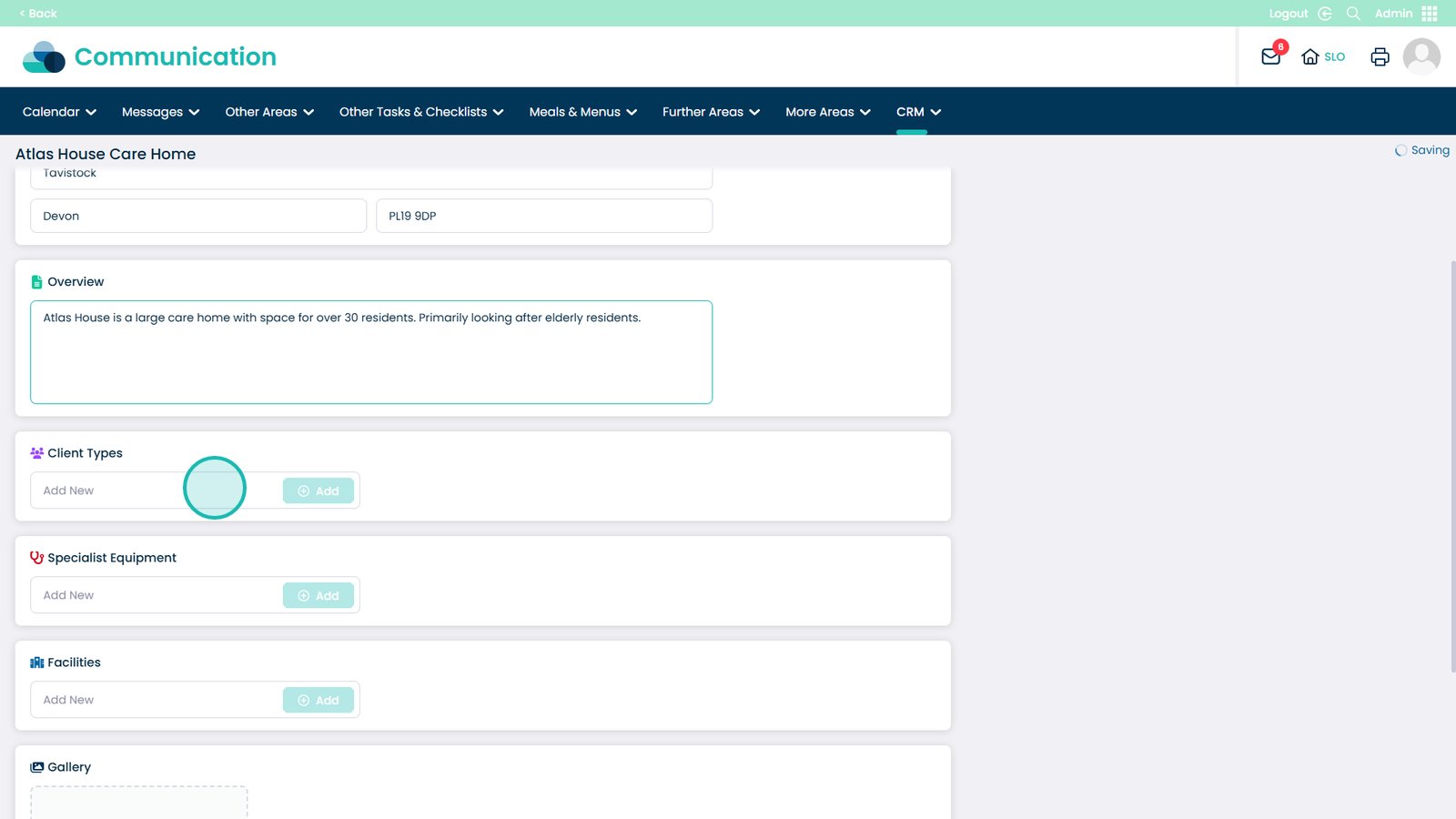
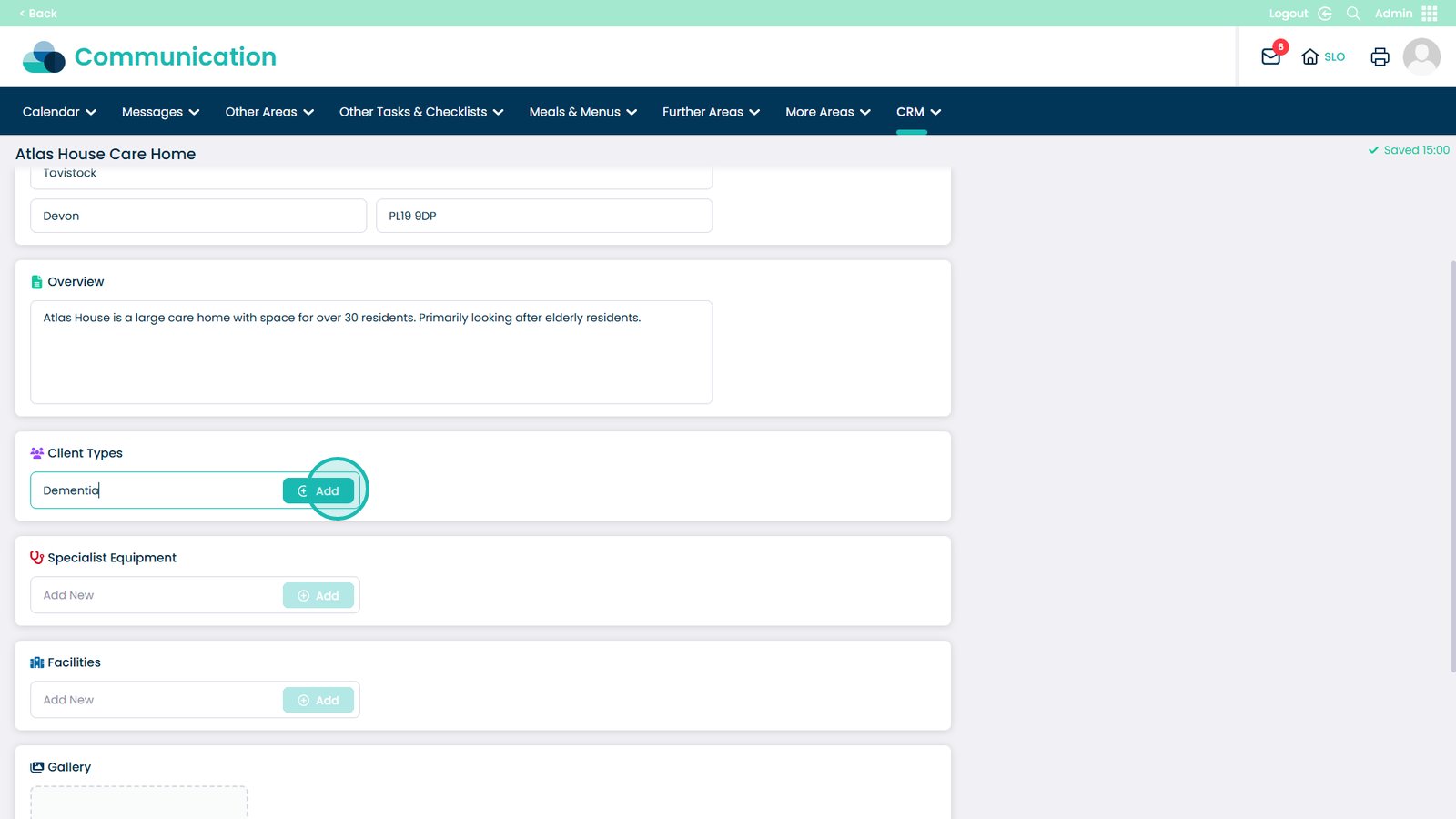
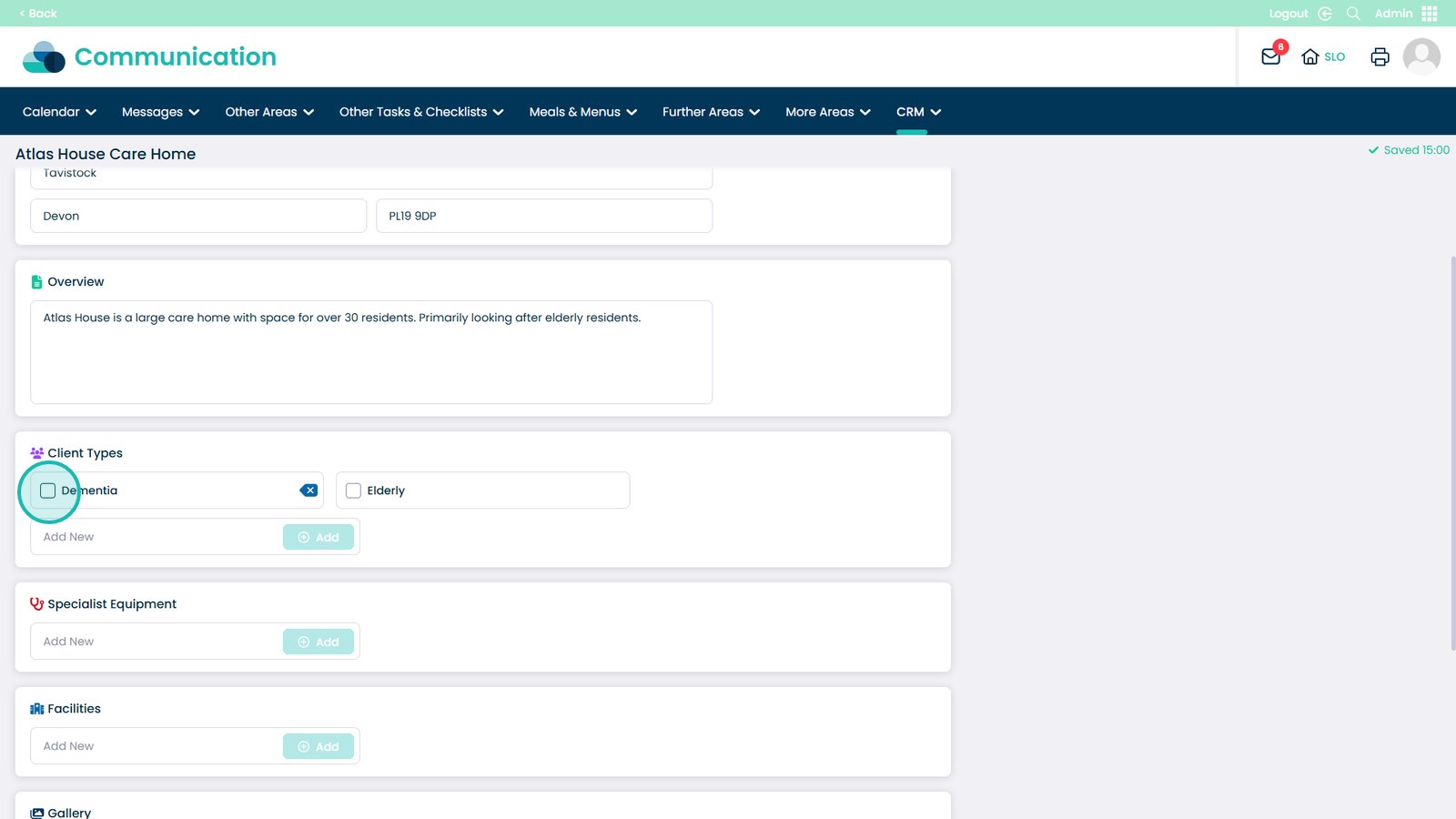
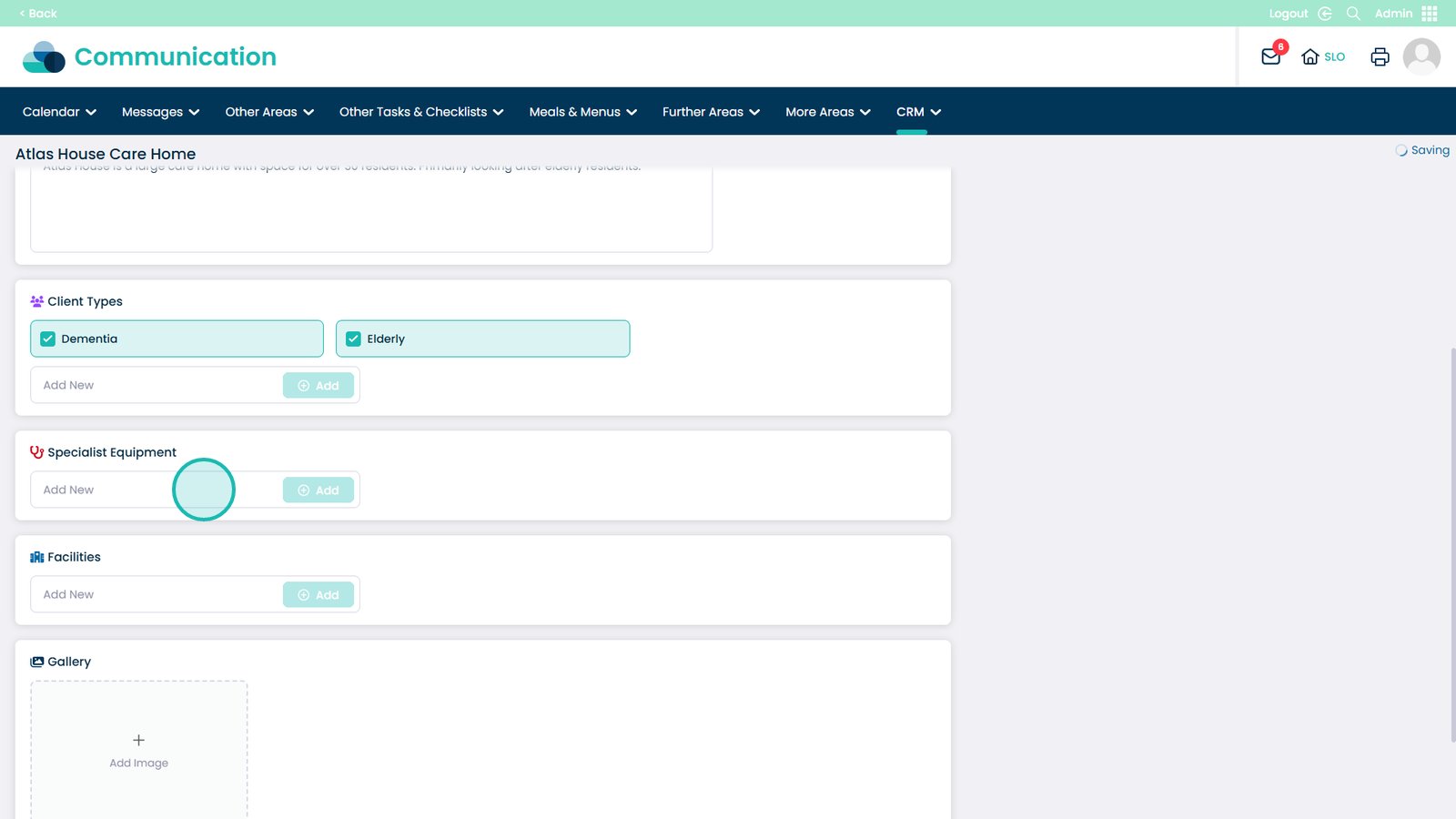
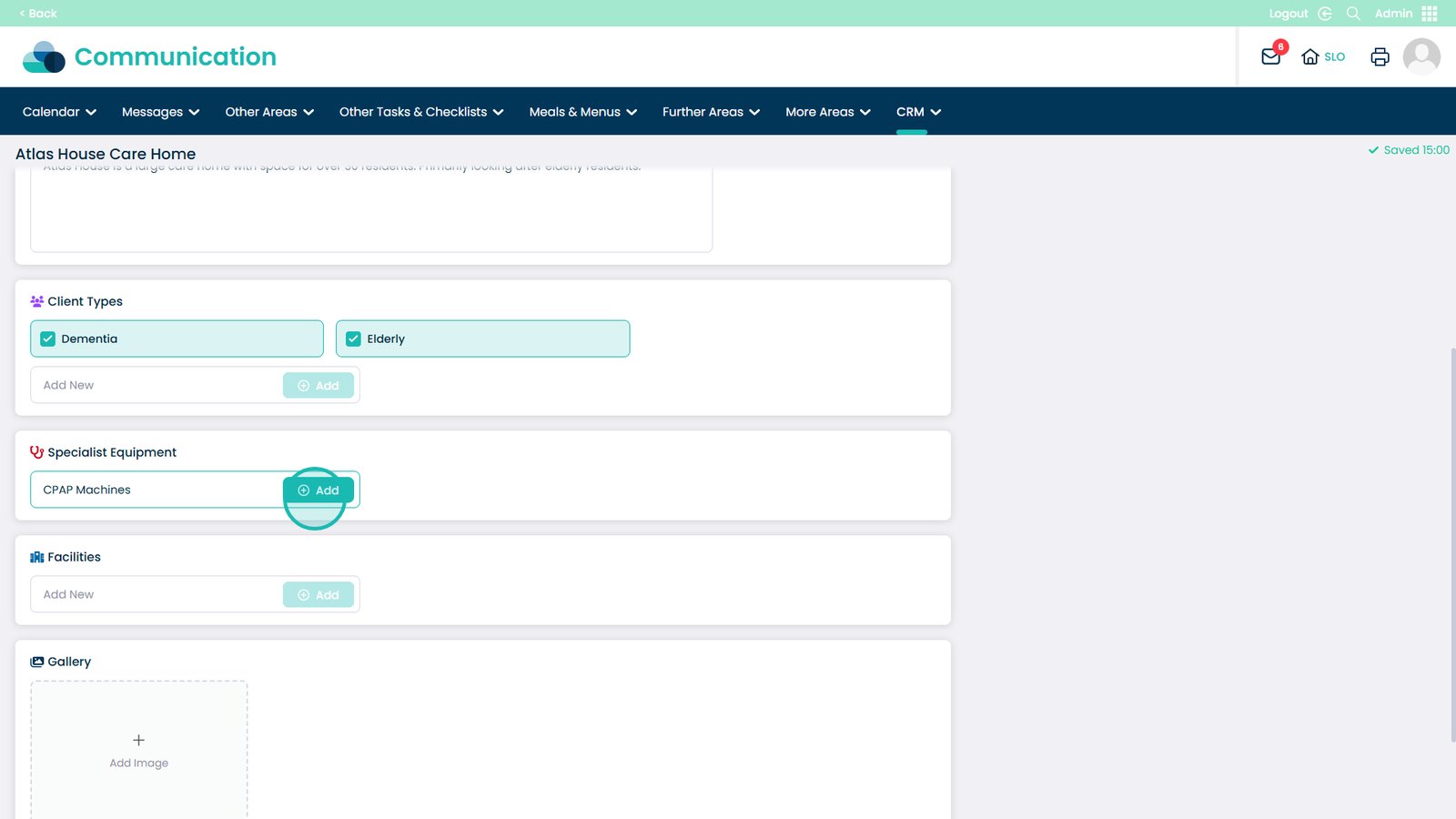
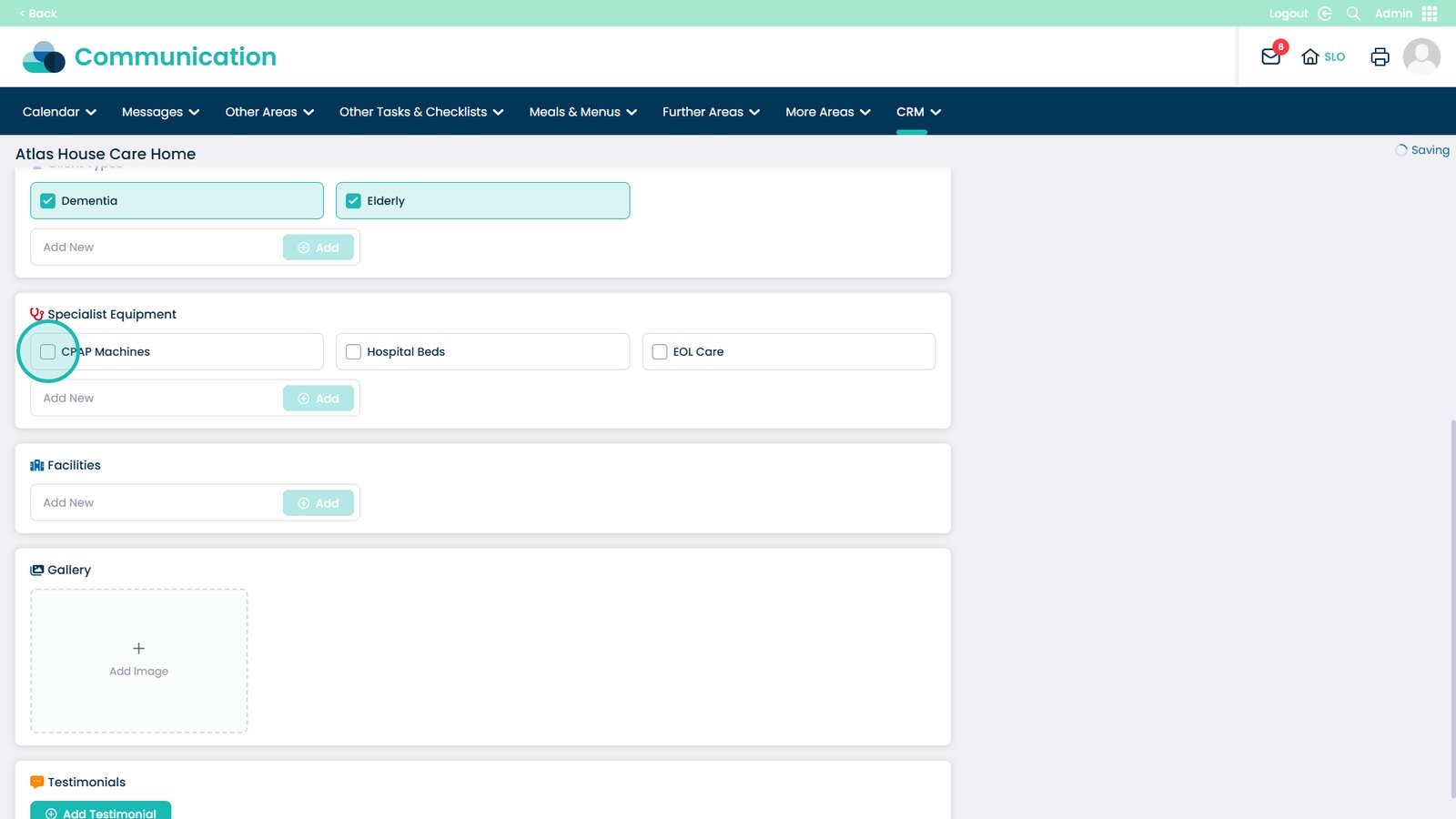
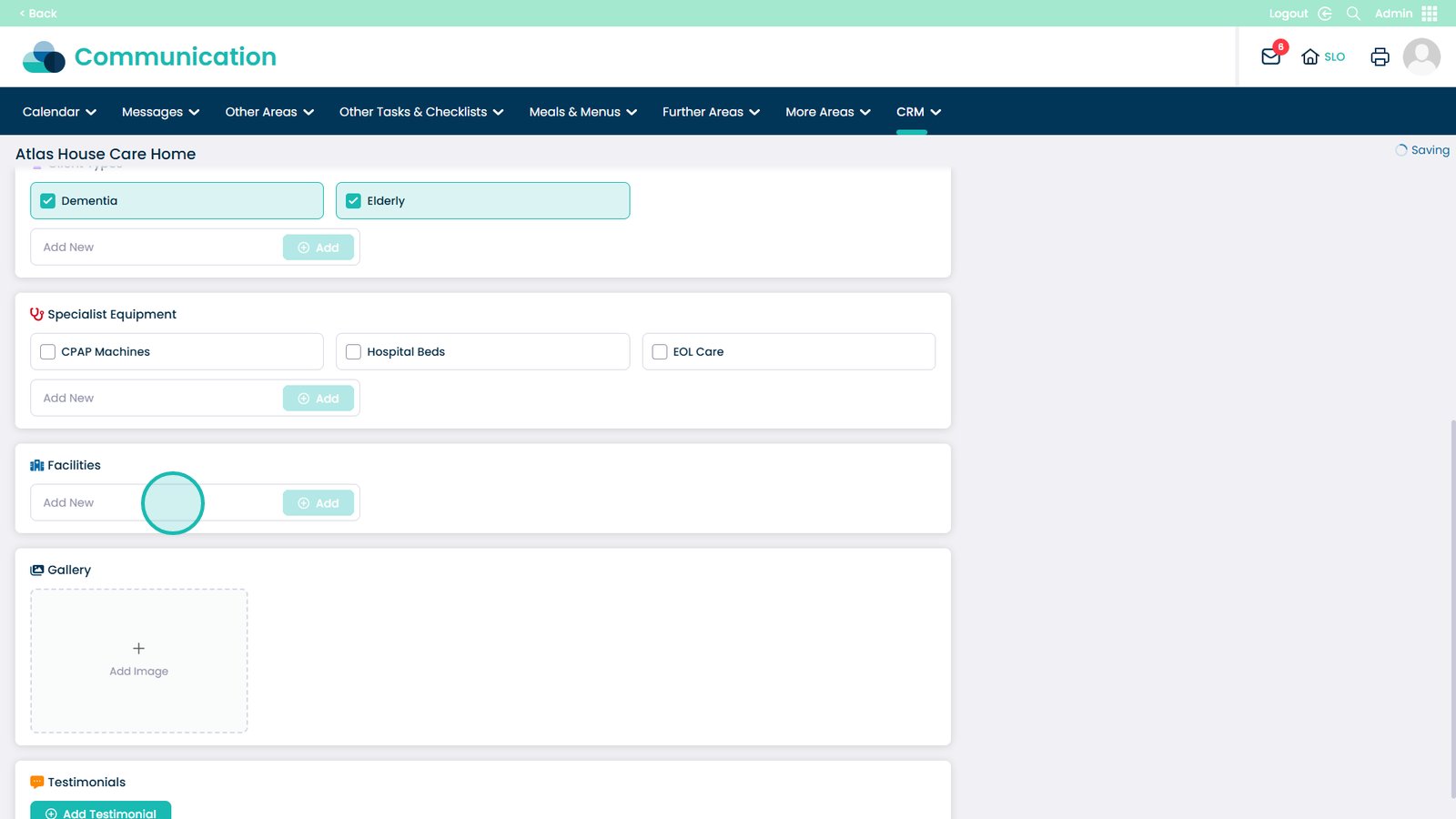
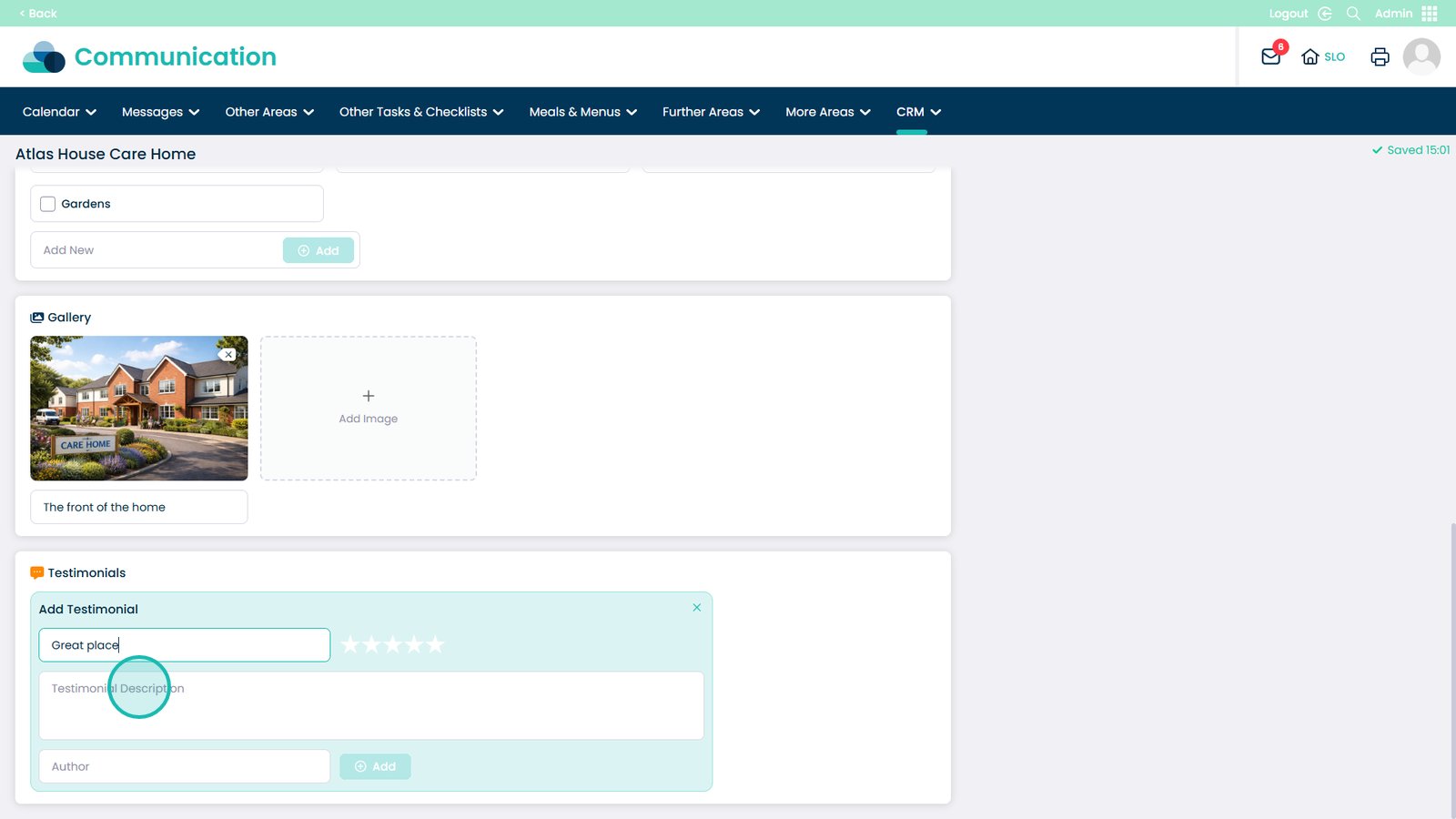
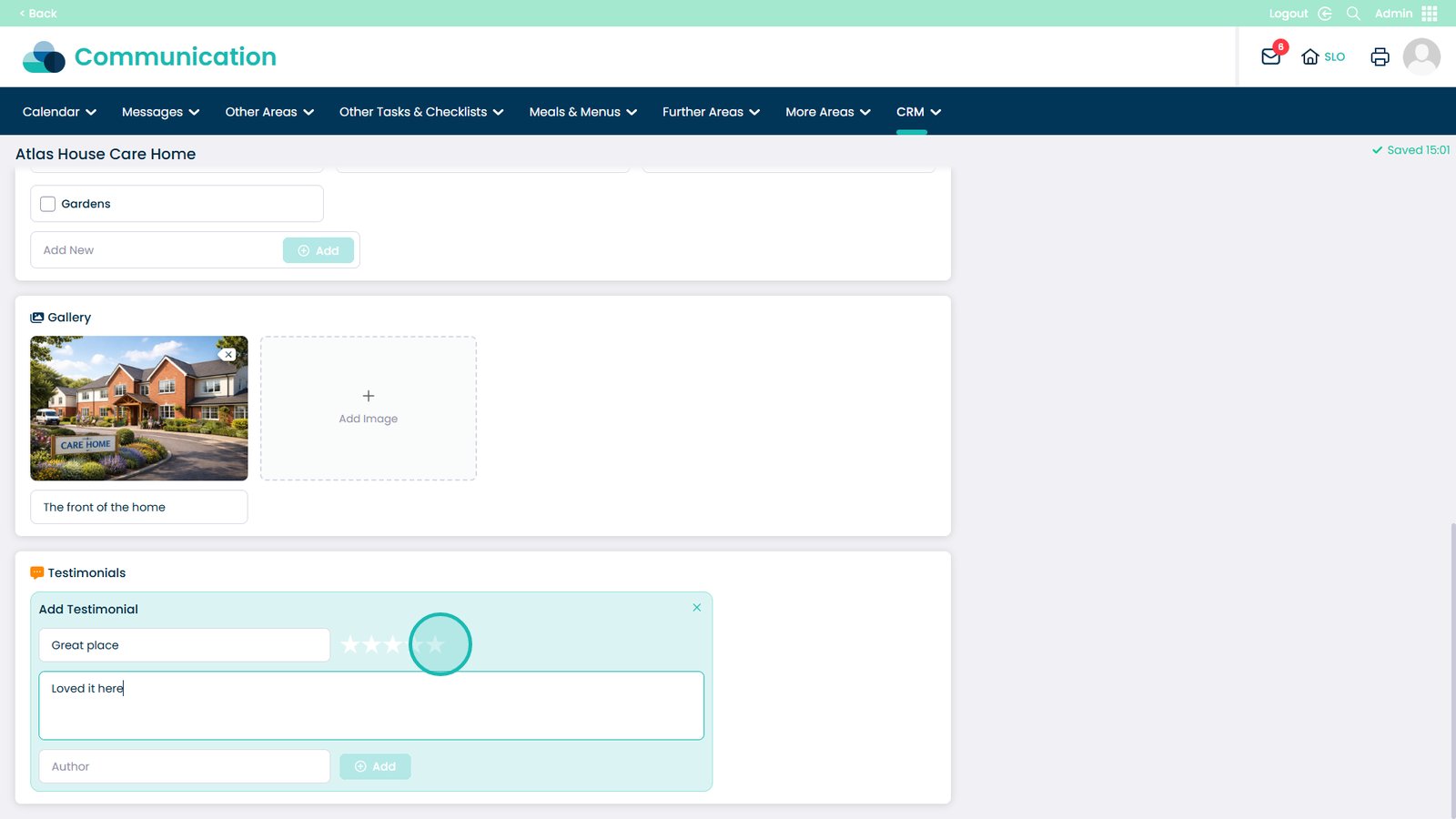
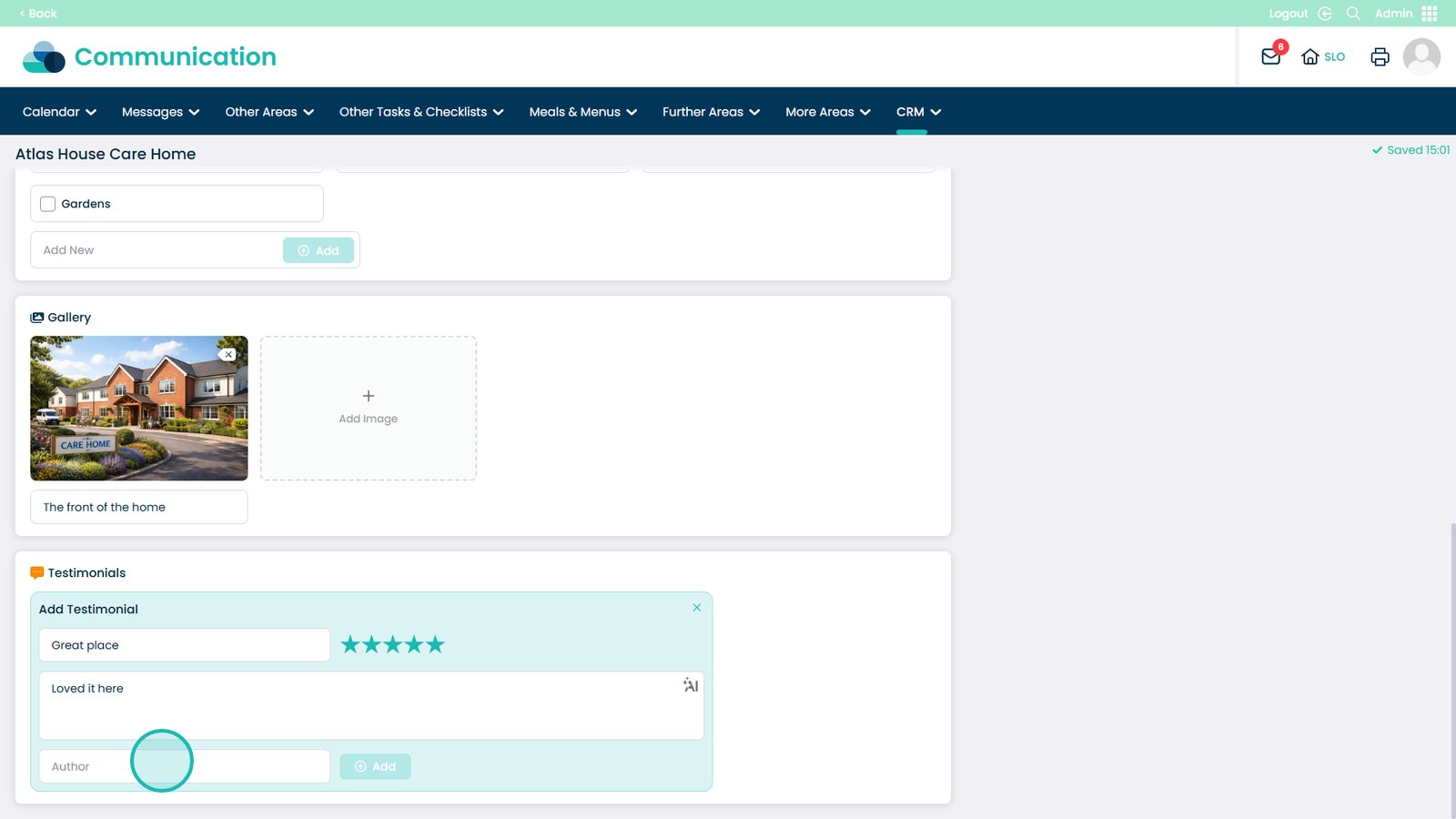
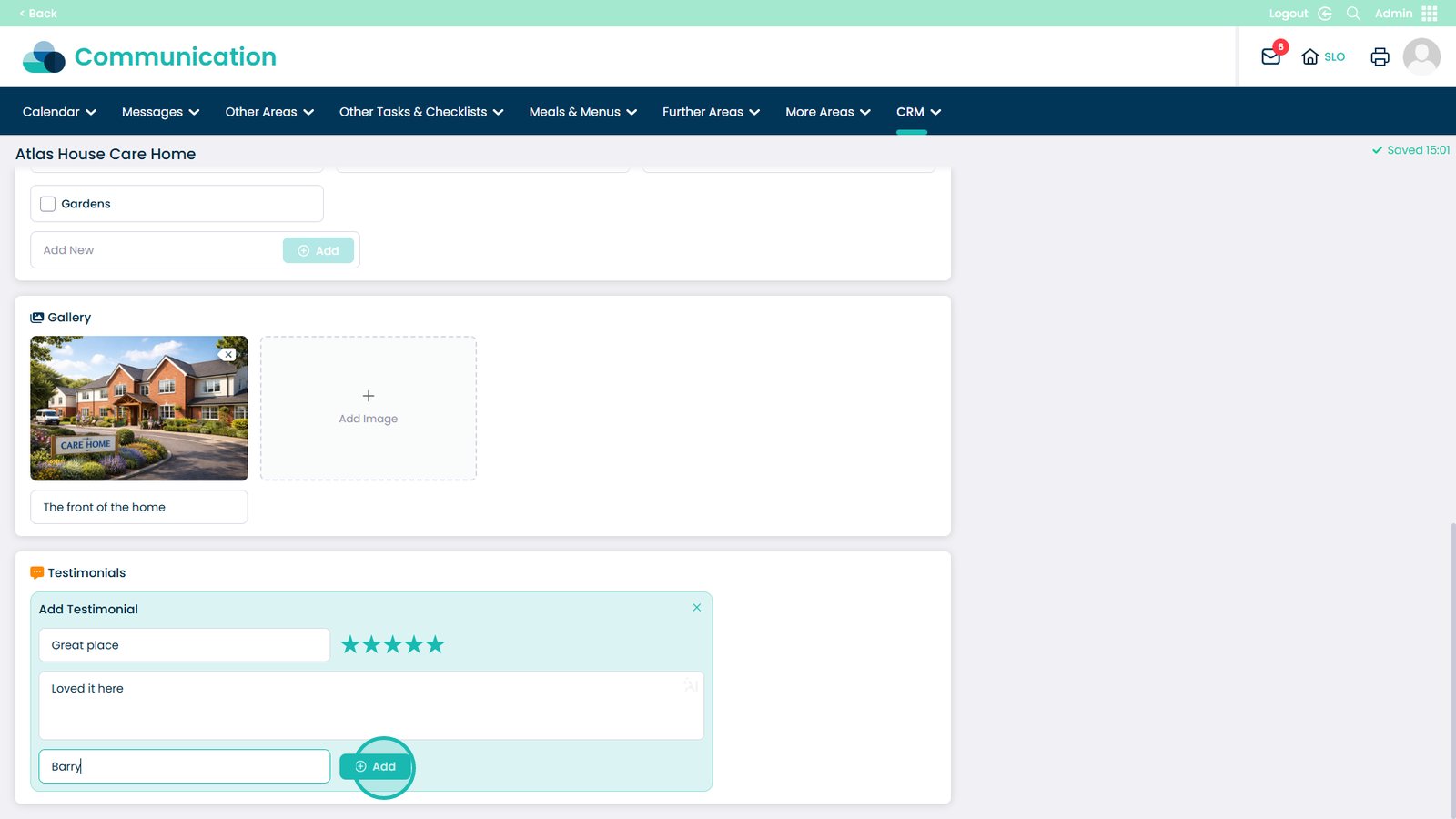
This guide explains how to update a site’s information using the CRM section within the Admin App. The CRM (Customer Relationship Management) area is used to manage key information about each care service, helping ensure that accurate and detailed site profiles are available for internal teams, referrals, and business development purposes.
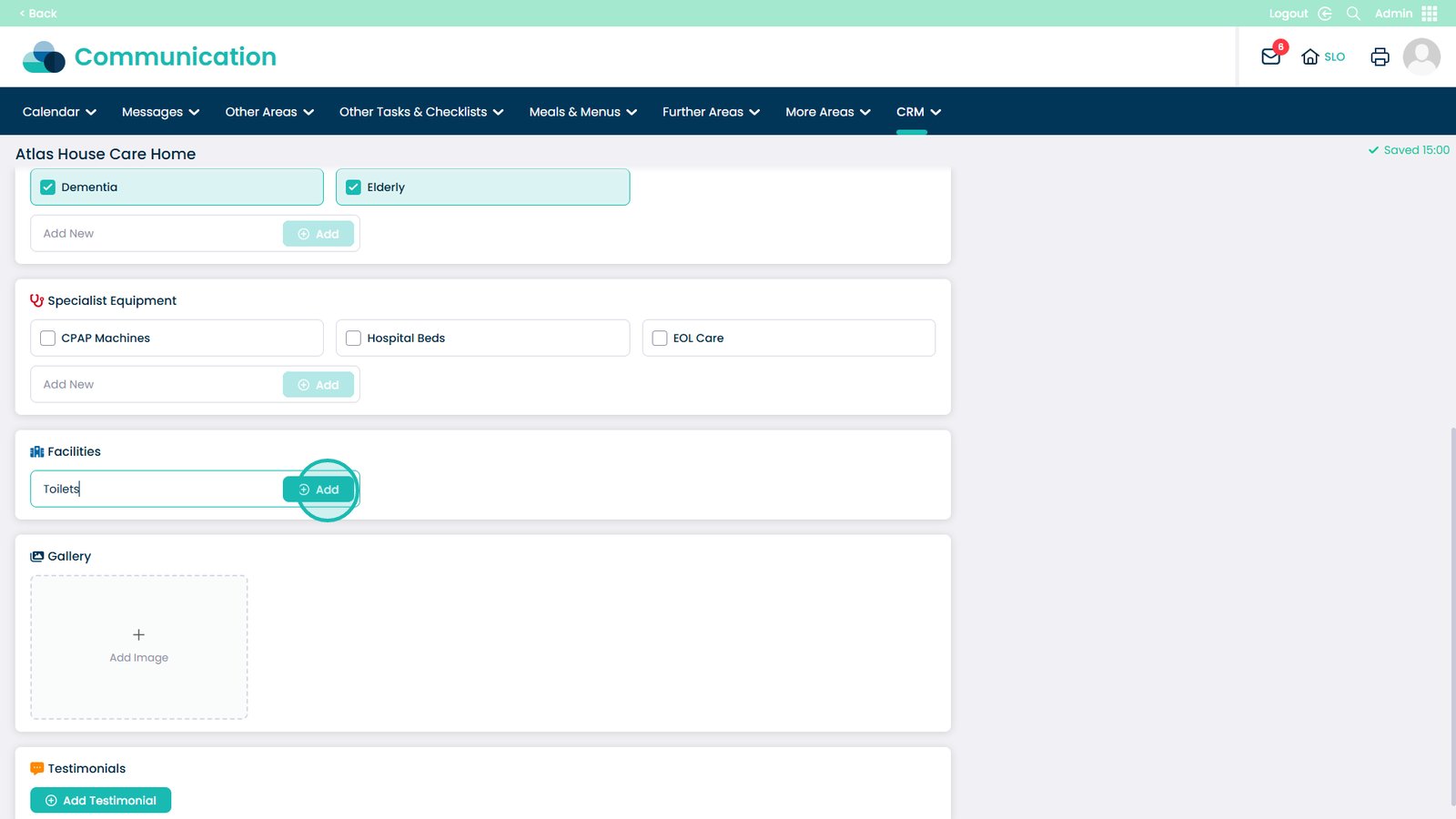
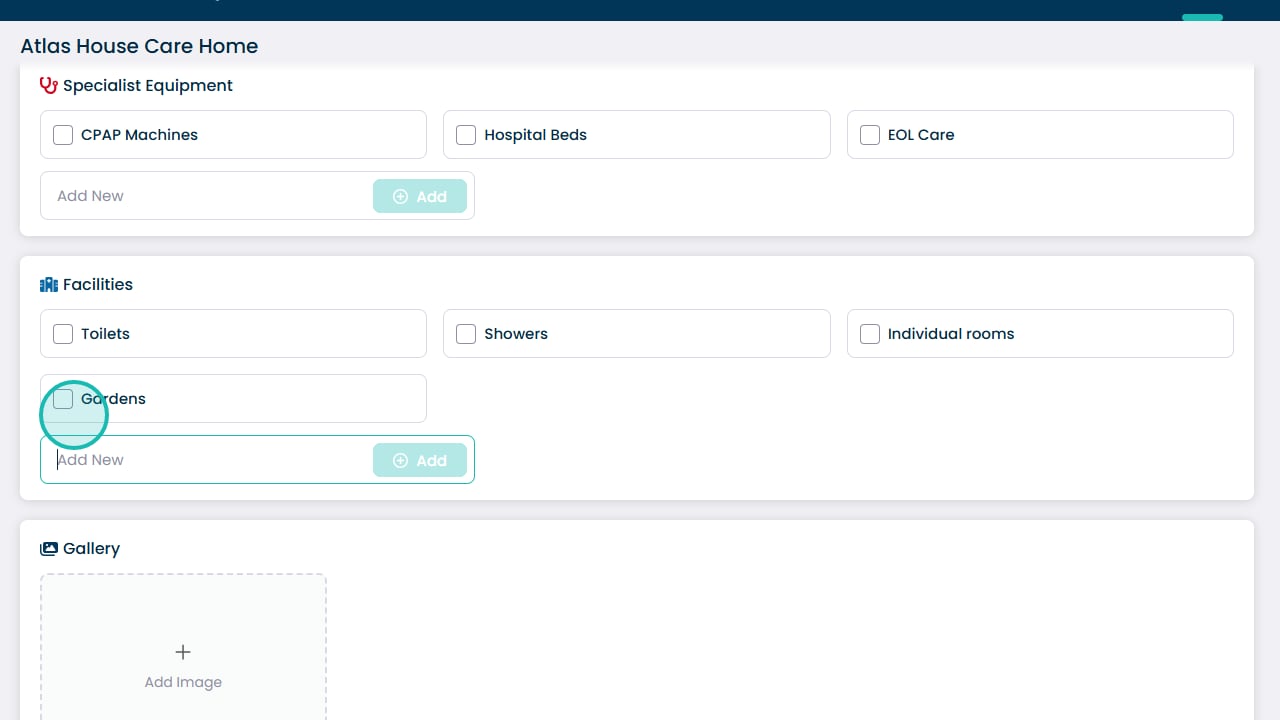
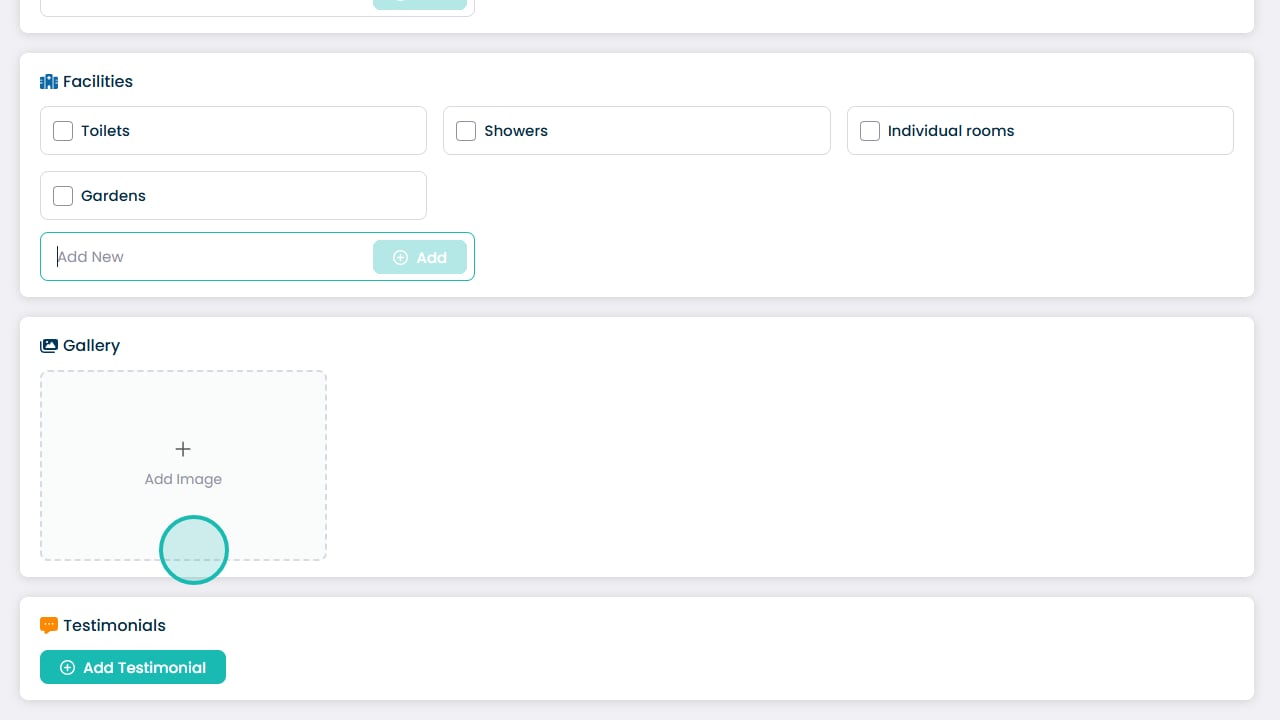
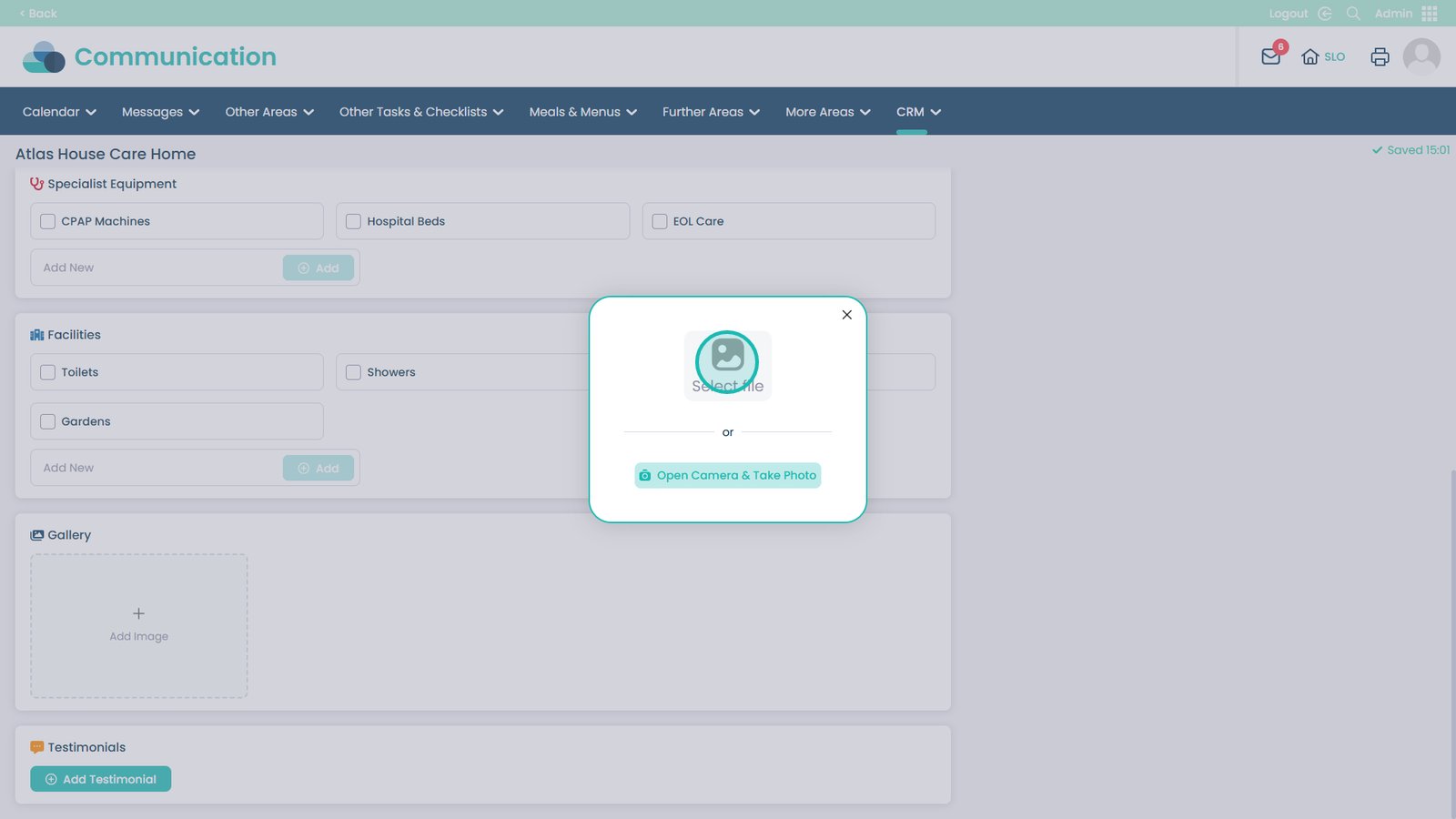
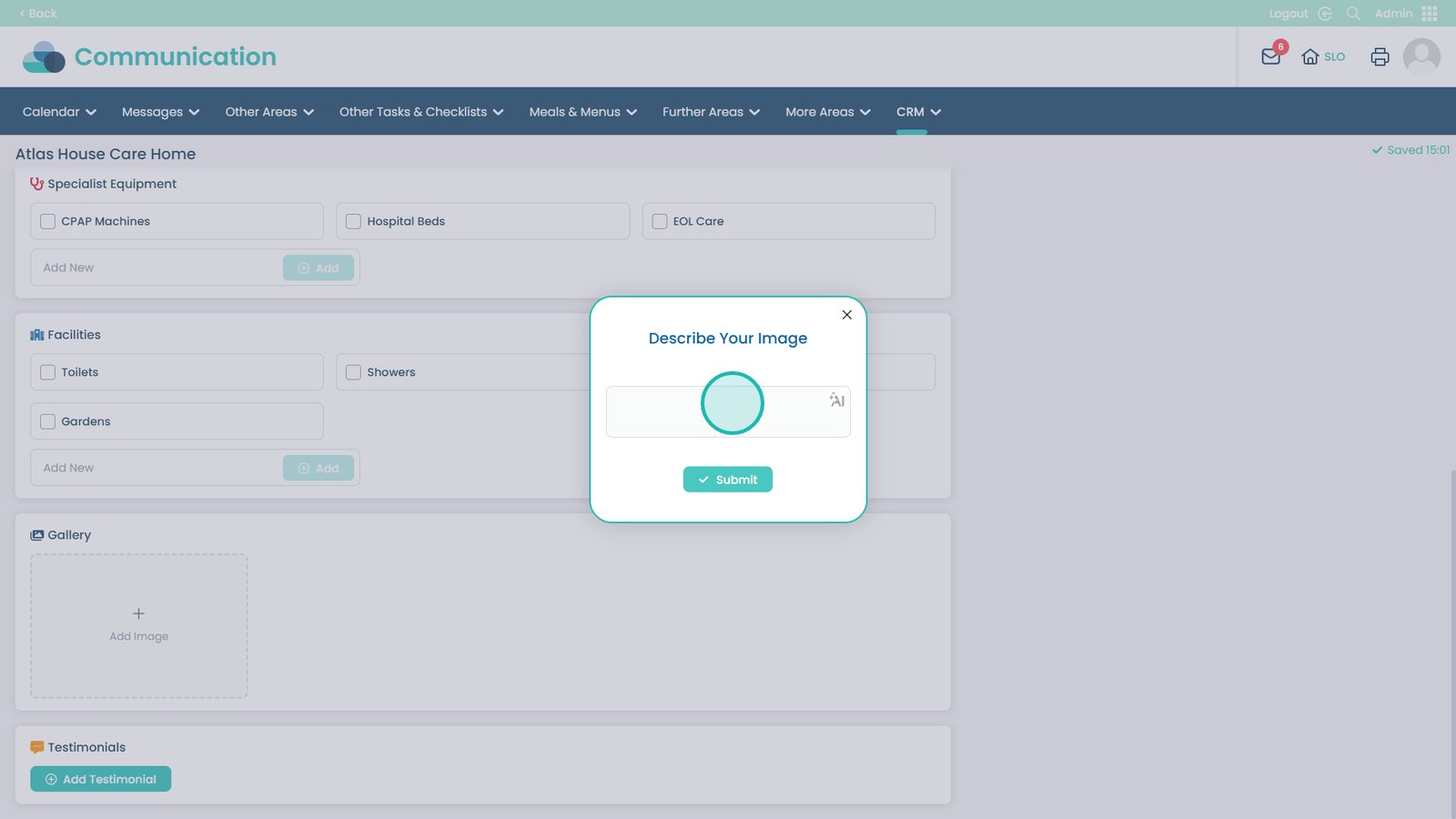
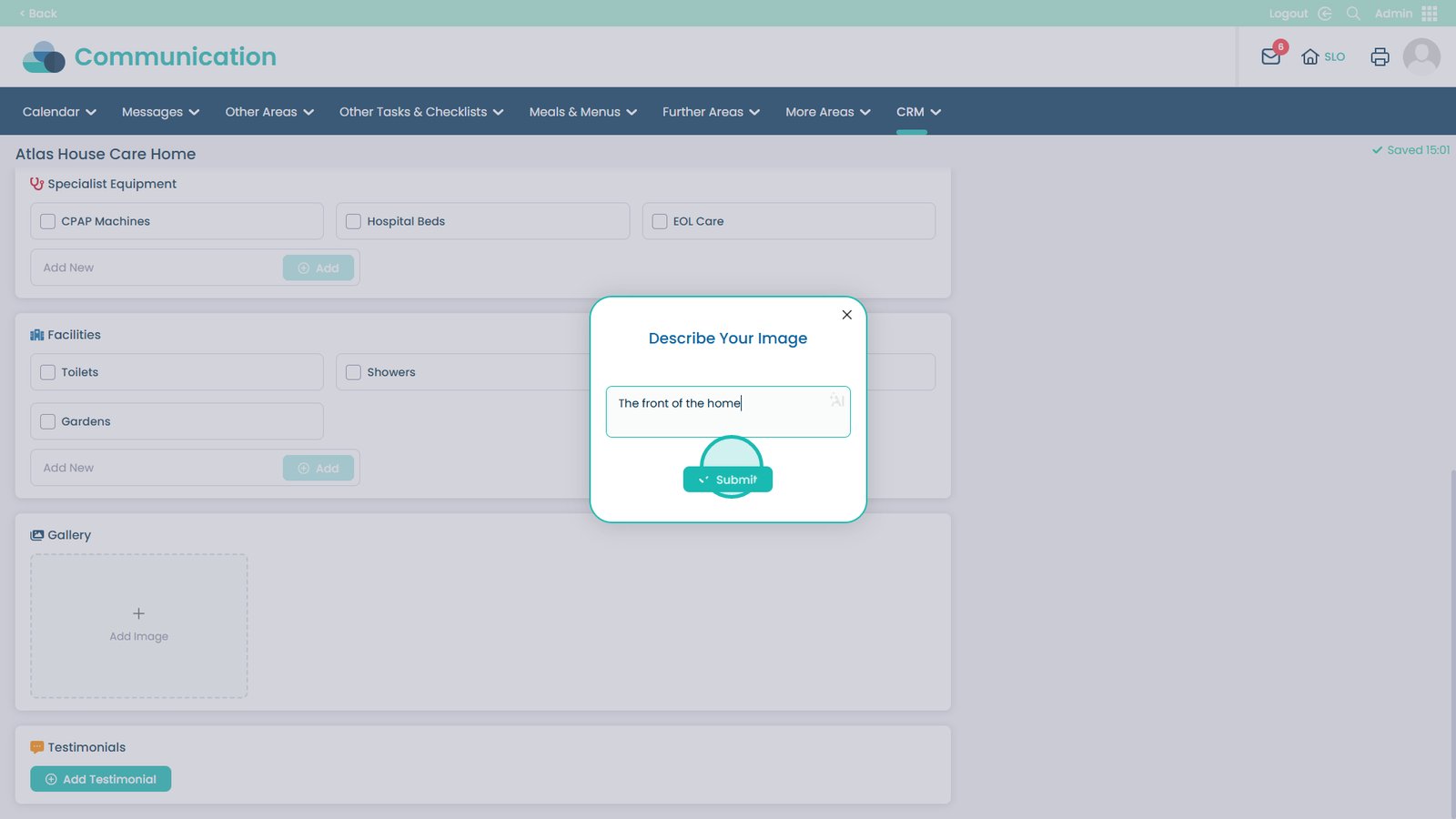
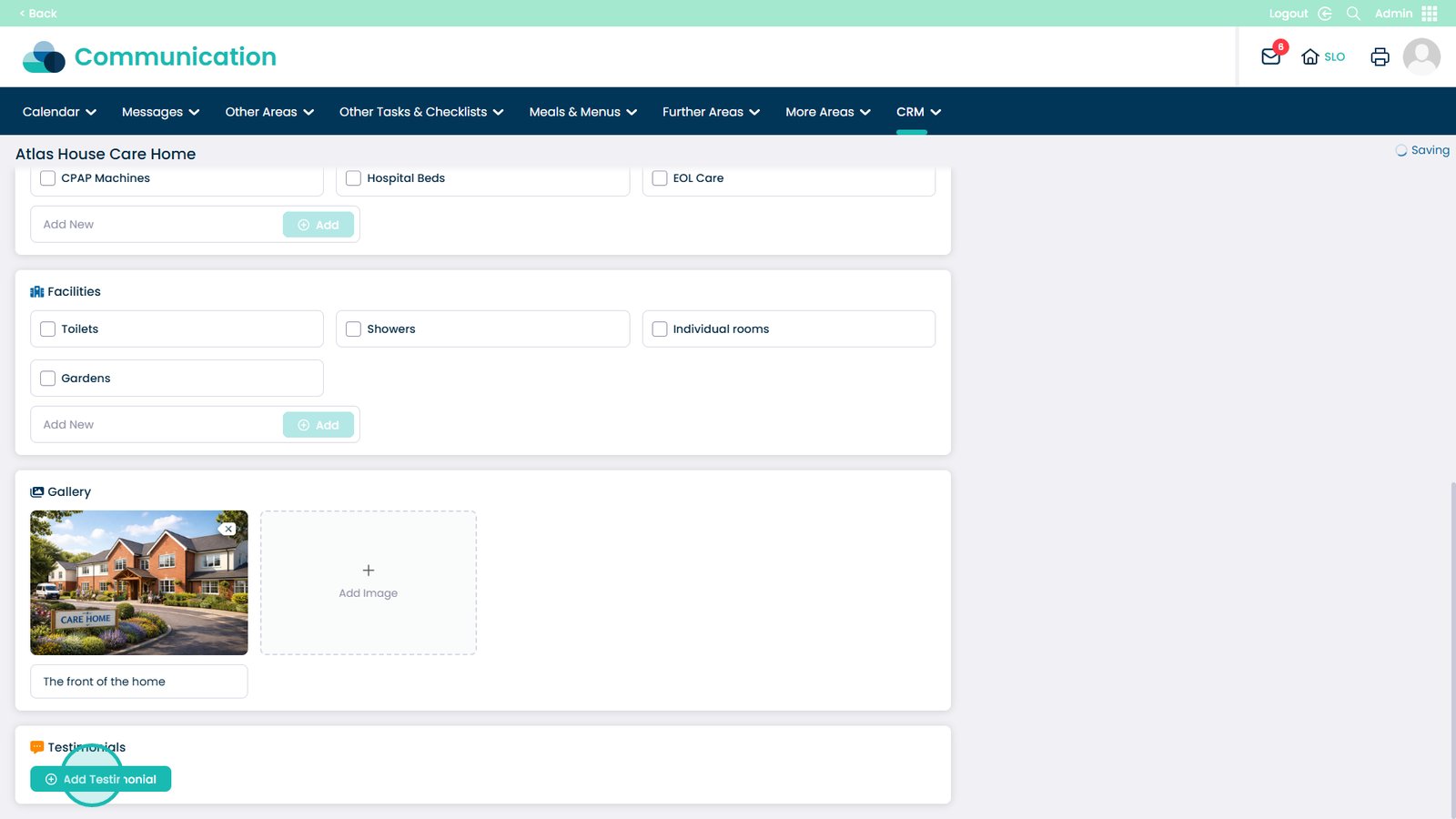
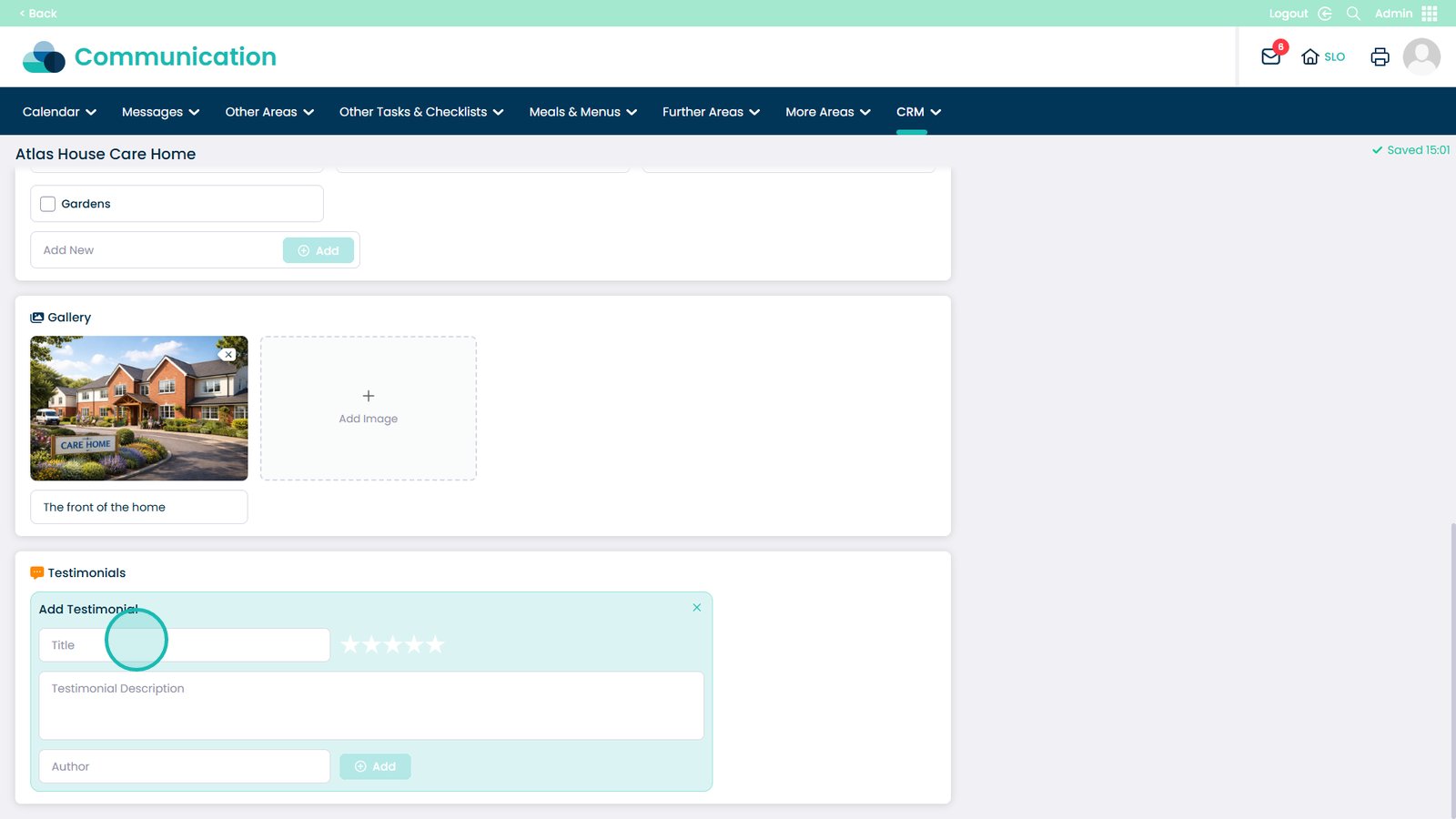
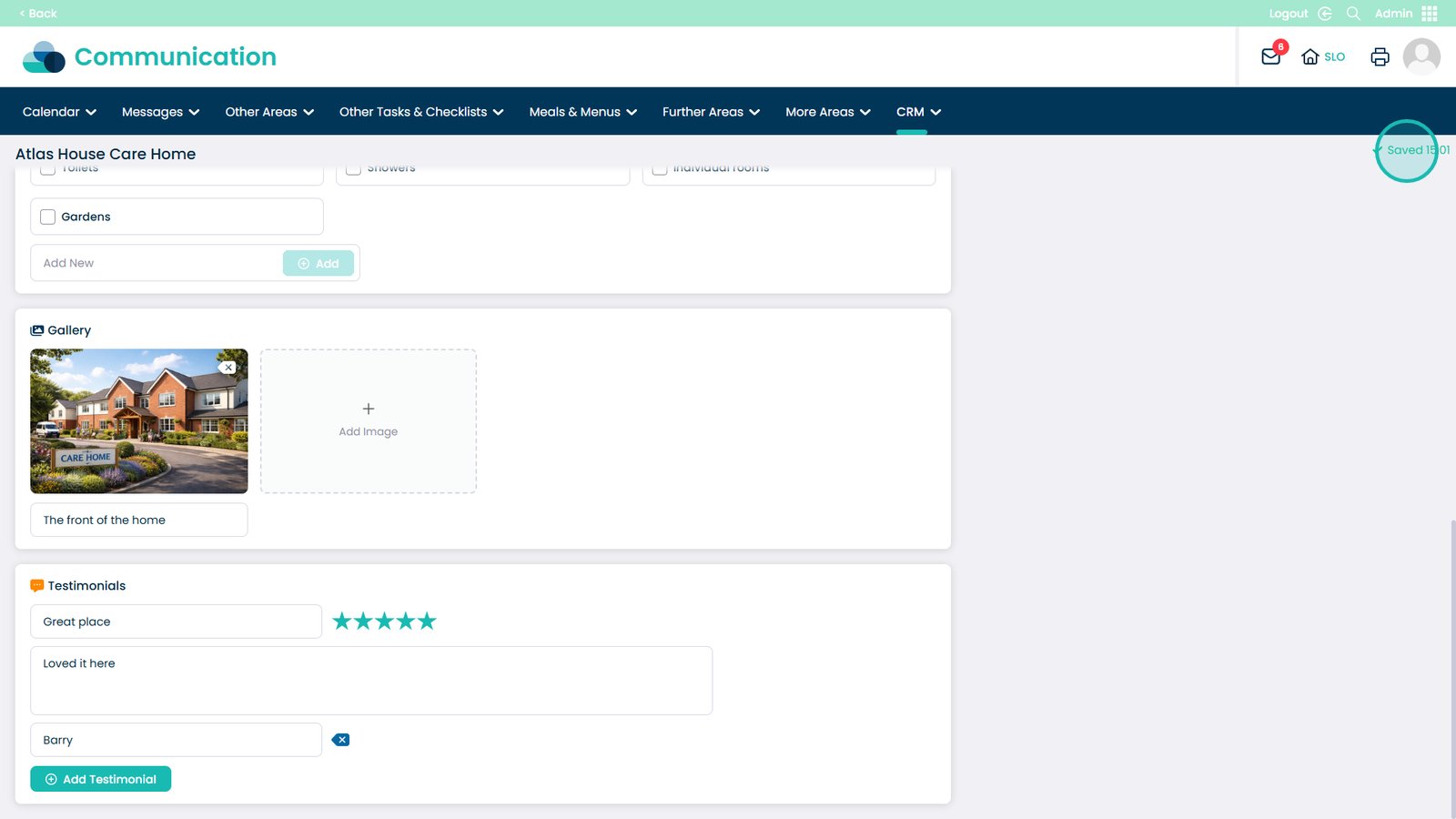
Within the Site Management section of the CRM, you can add and maintain important details about a service, including a site overview, the types of clients the service supports, specialist equipment available, and the facilities provided. You can also upload images and add testimonials, which help create a more complete profile of the site.
Keeping this information up to date ensures that the CRM reflects the most accurate representation of each service. This helps teams across the organisation quickly understand the capabilities of a site and supports better communication with partners, families, and professionals who may be looking for suitable care services.