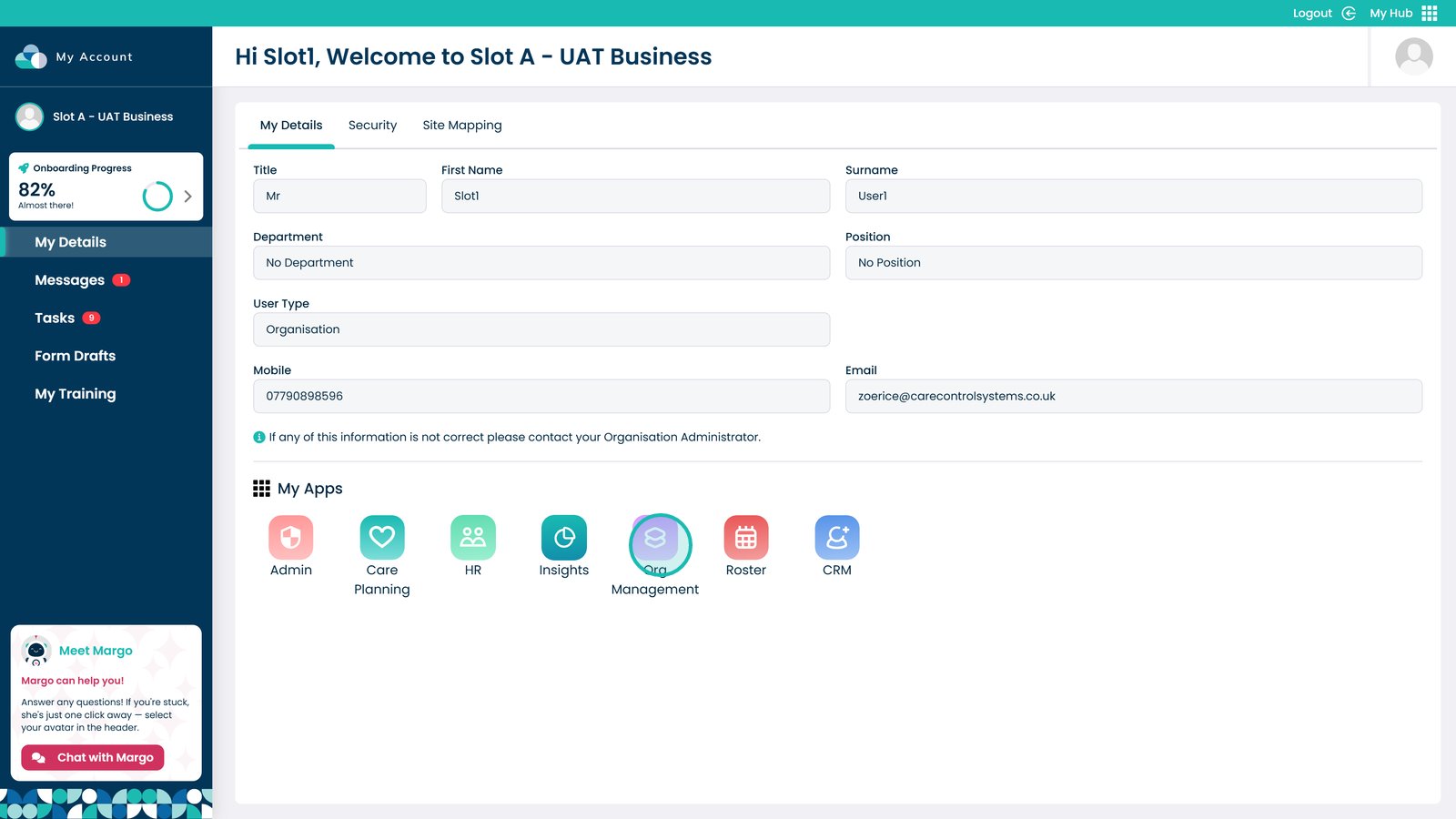
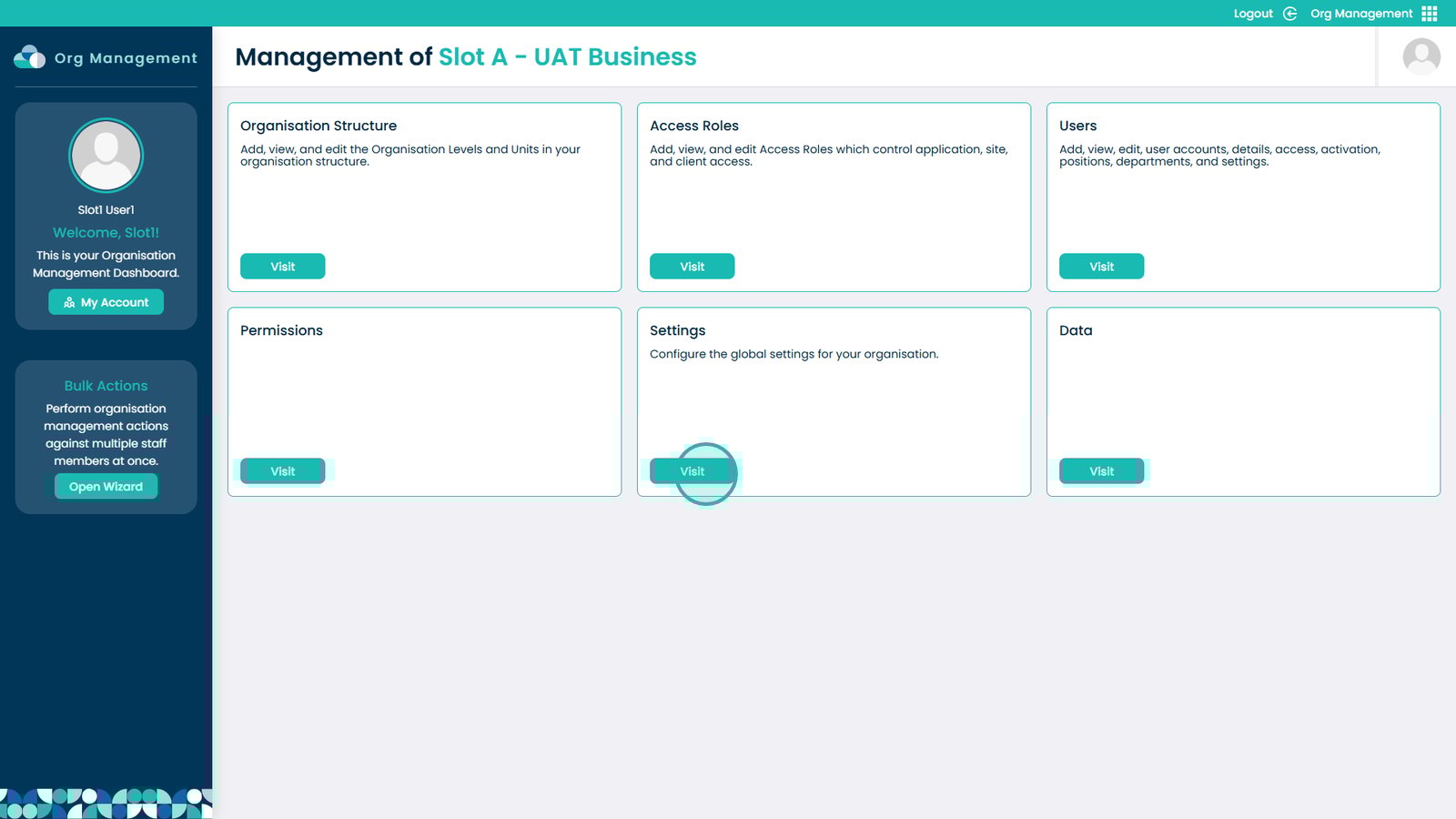
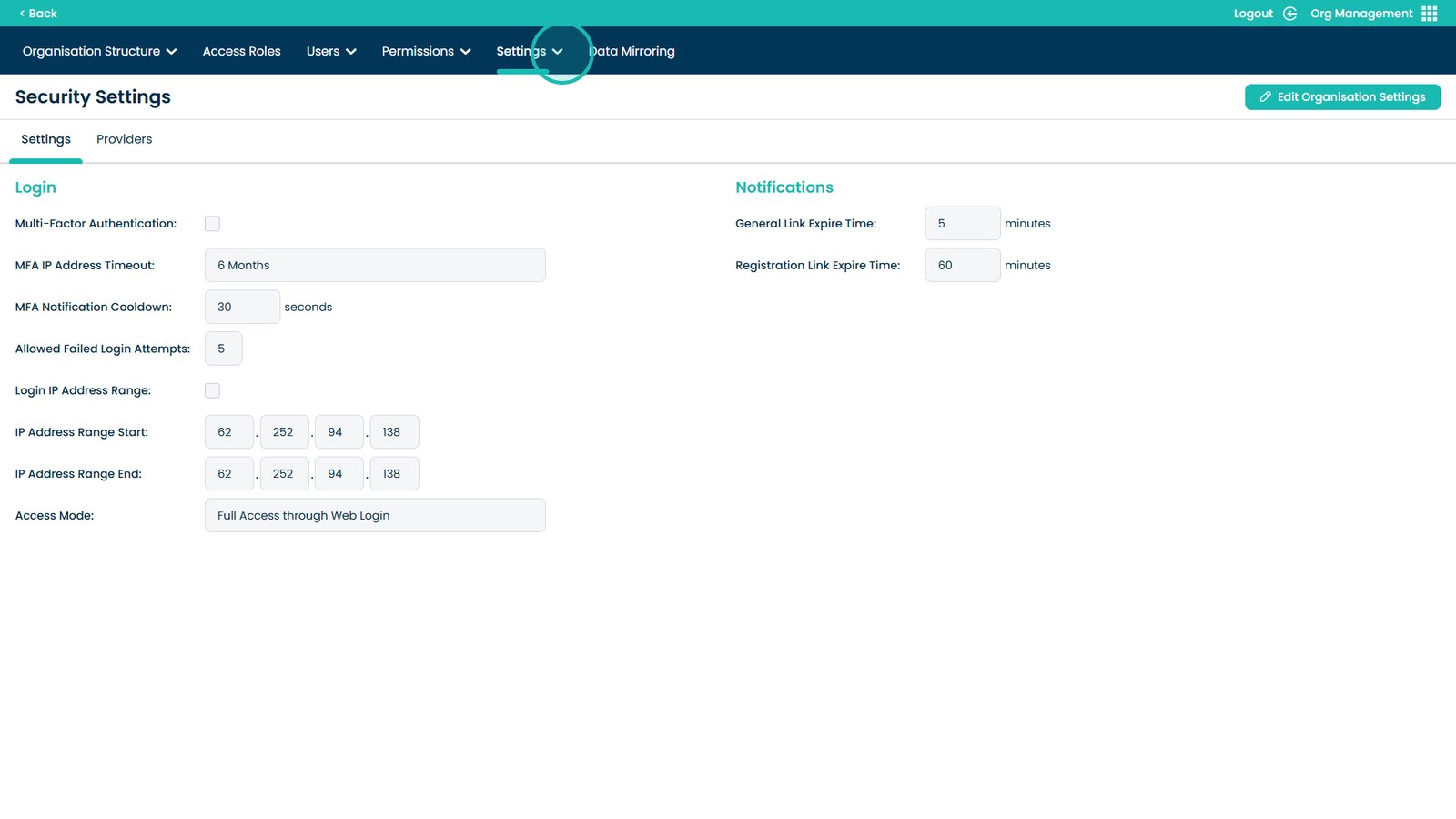
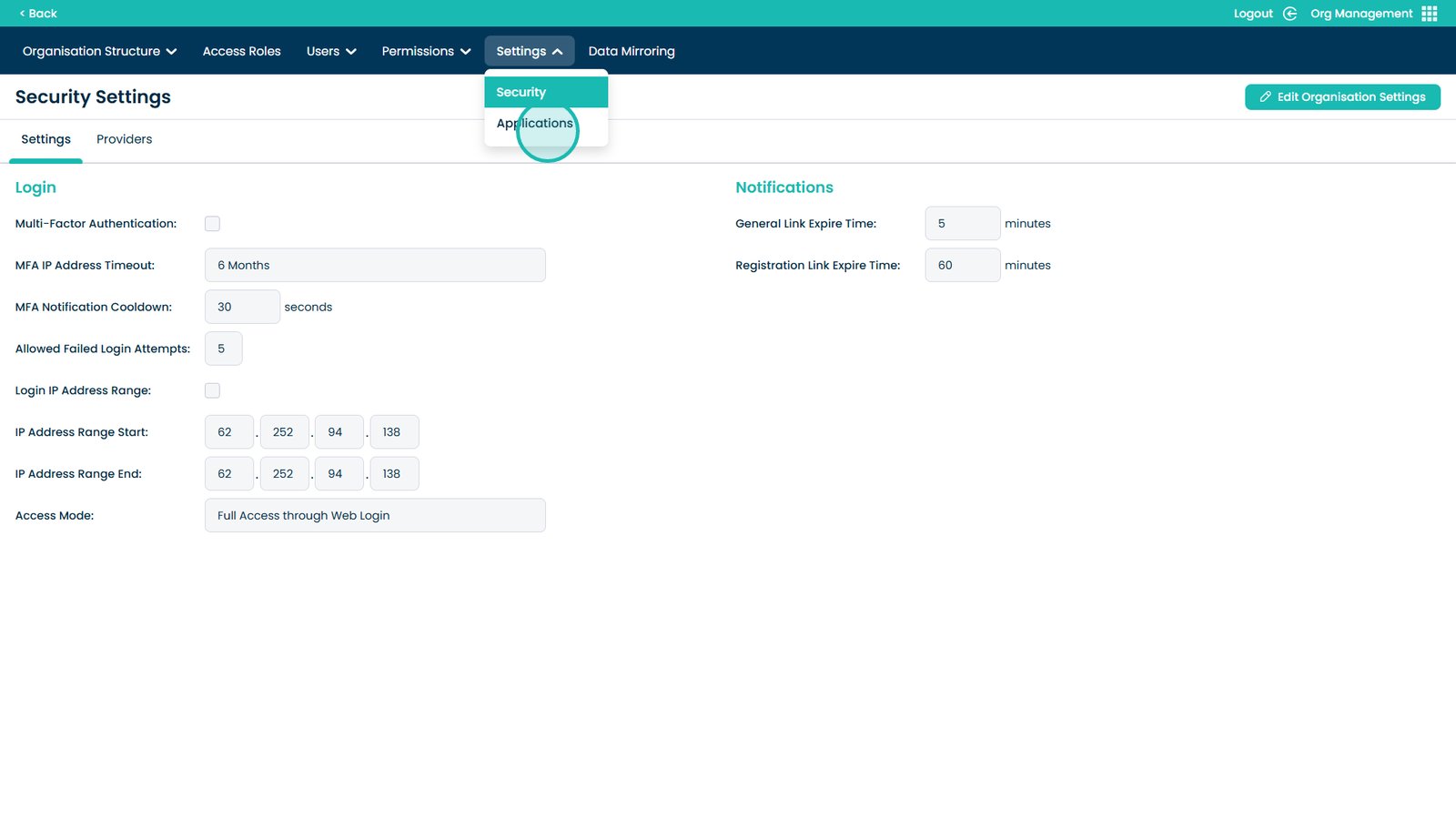
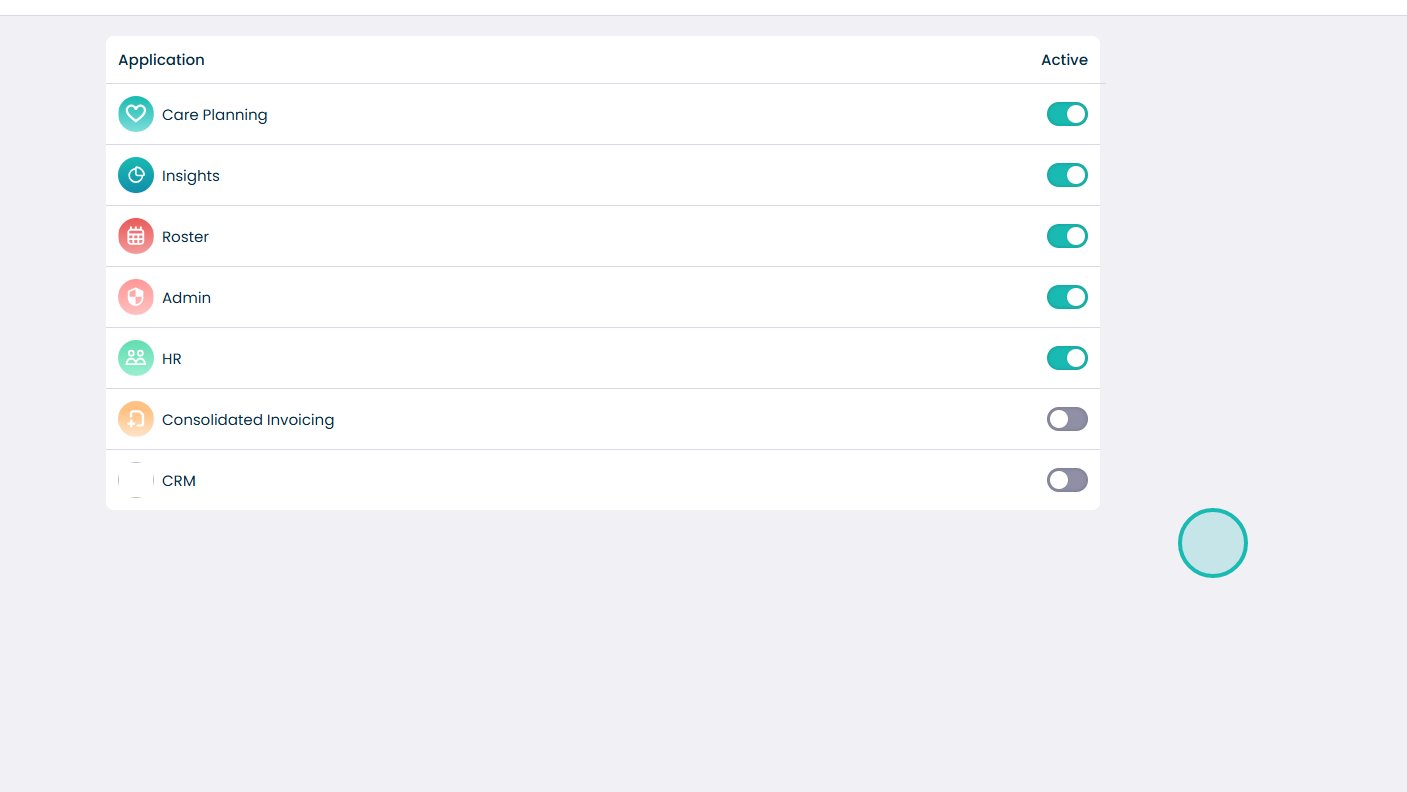
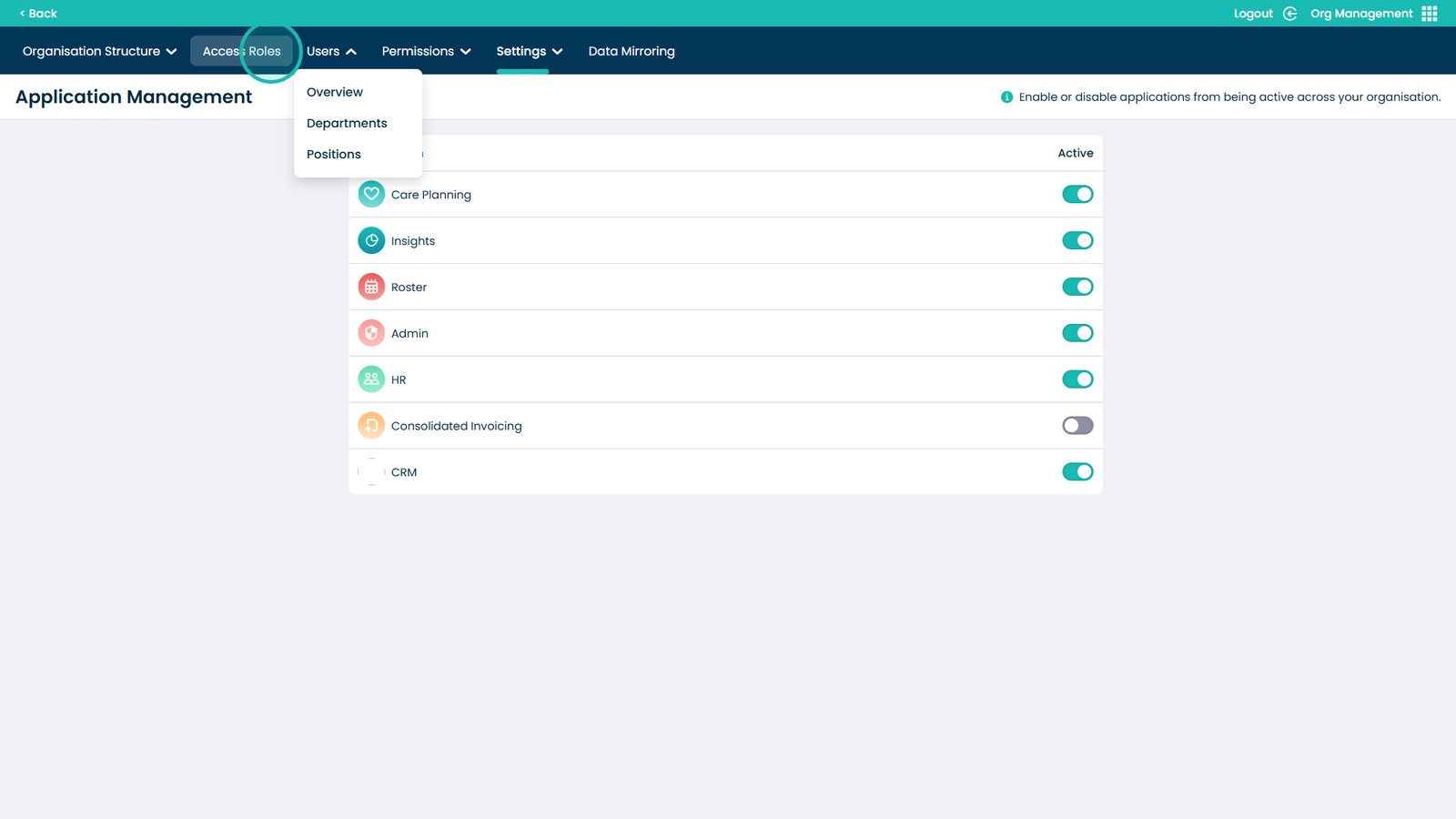
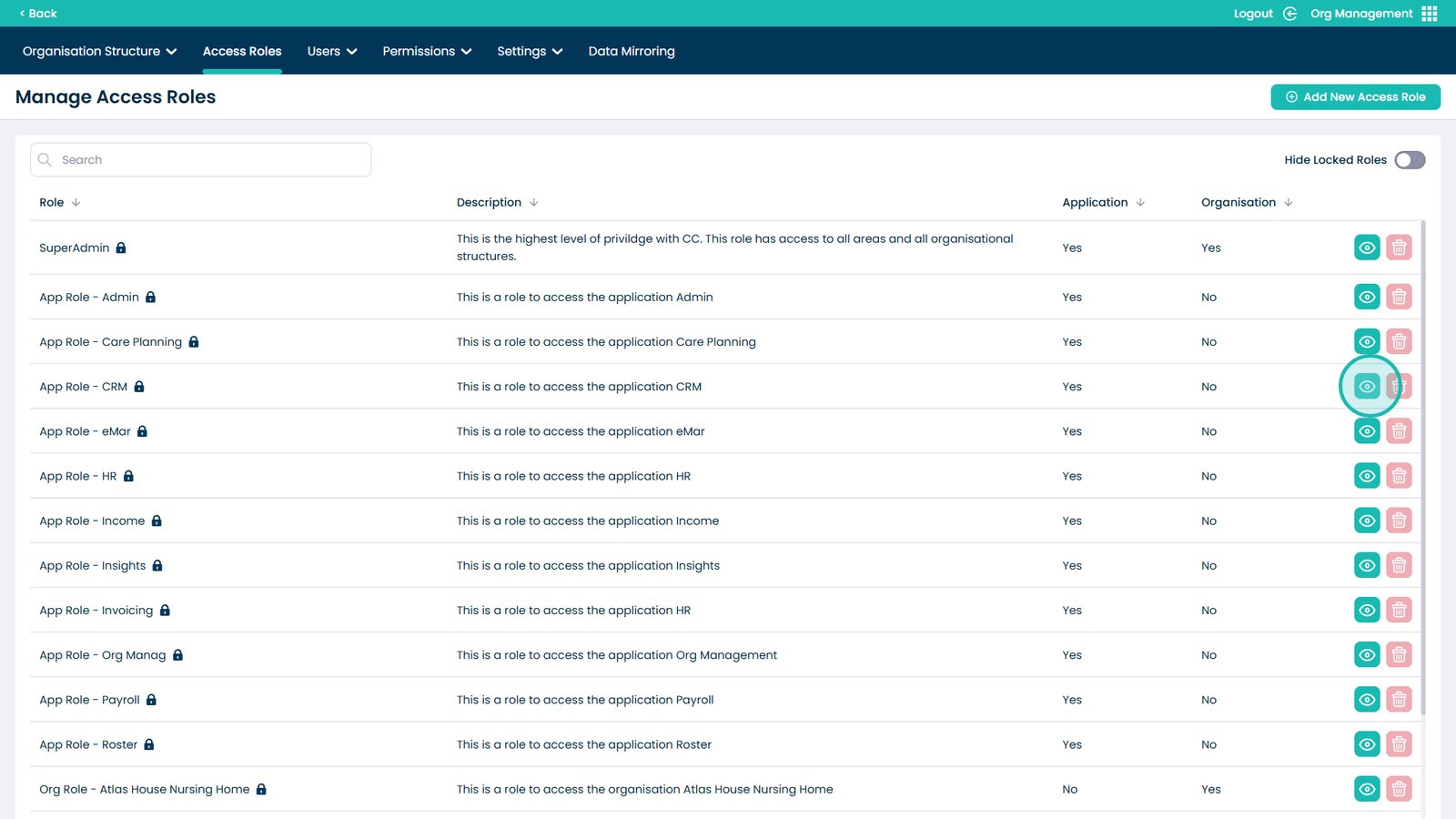
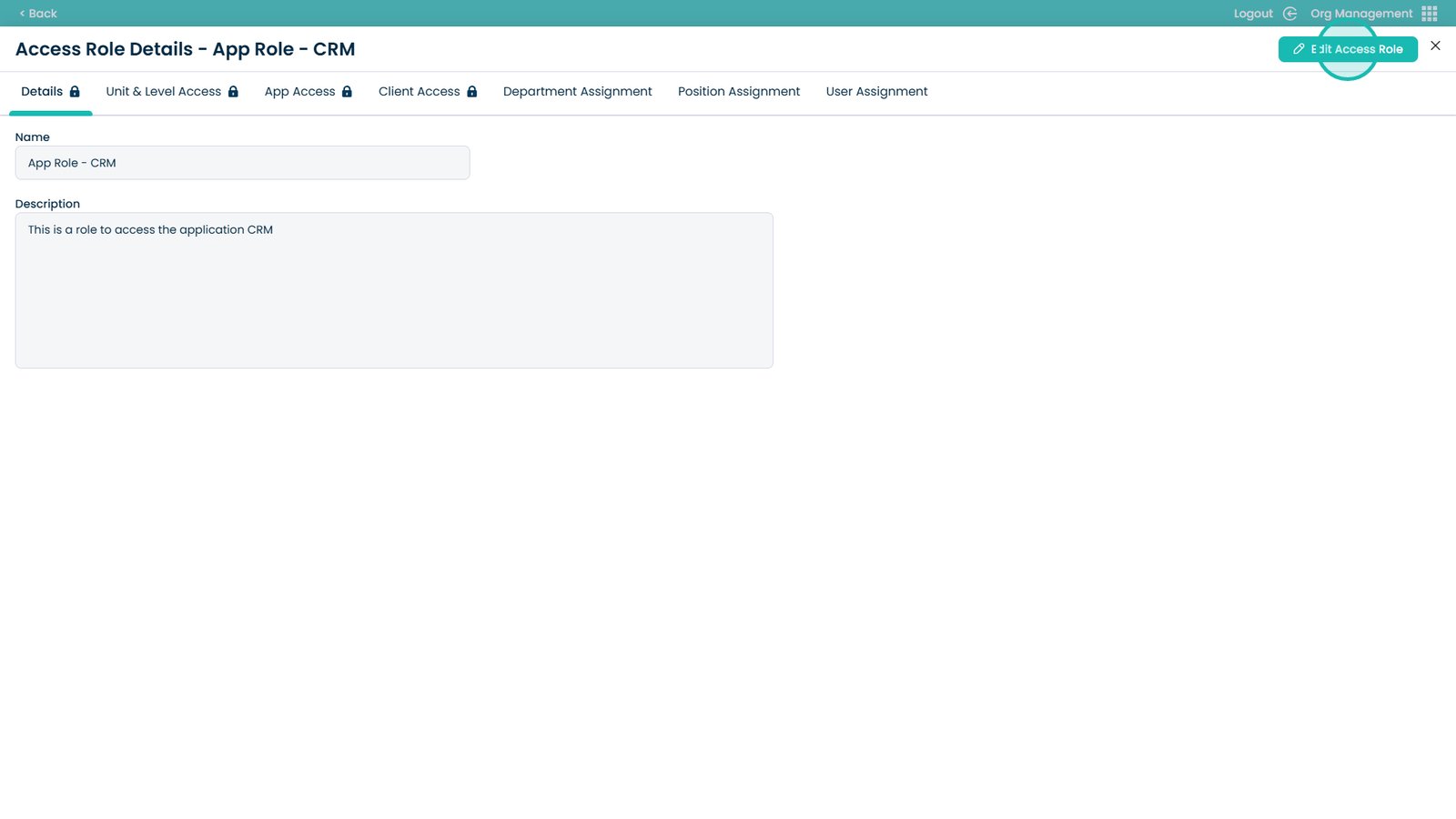
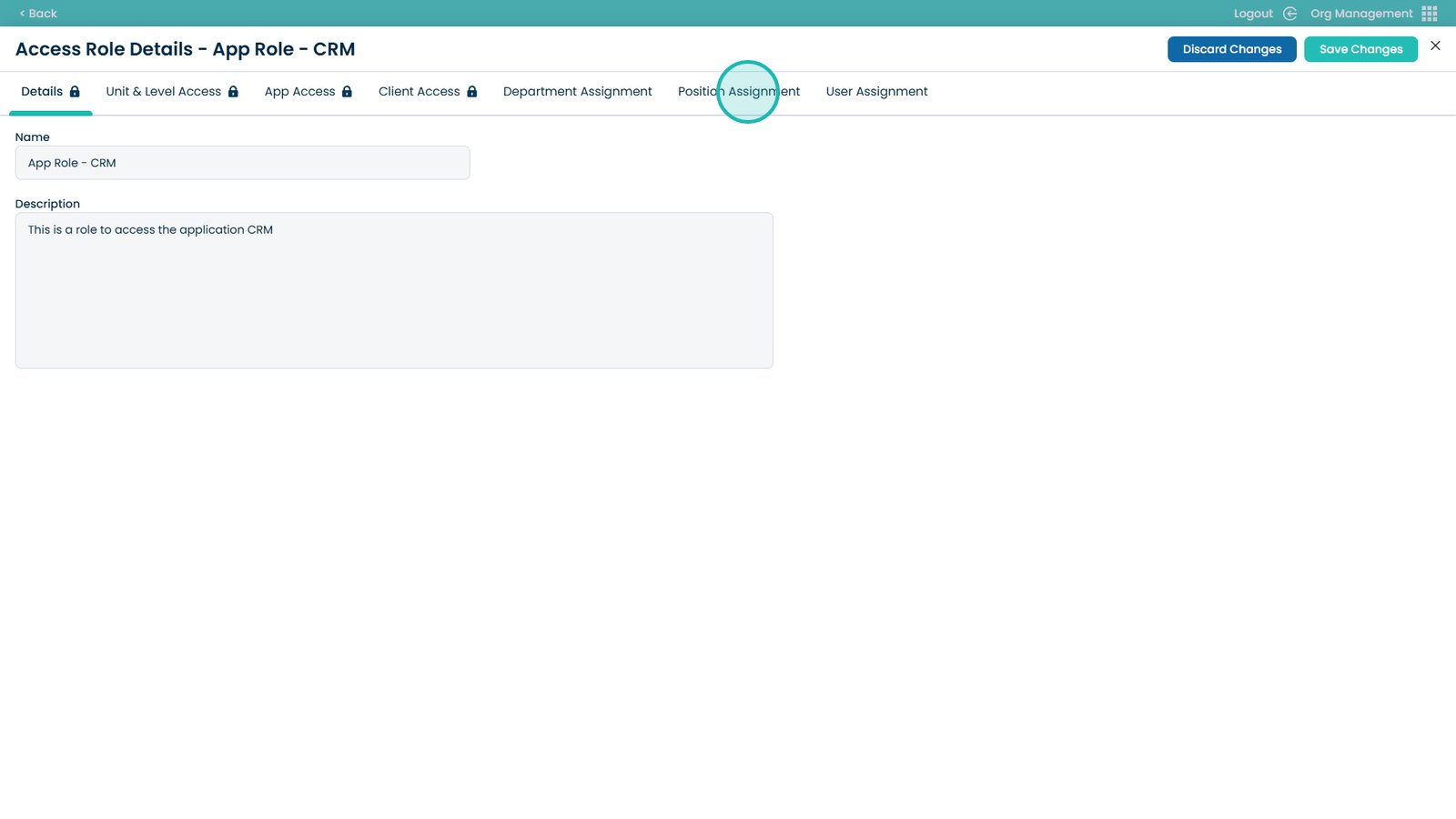
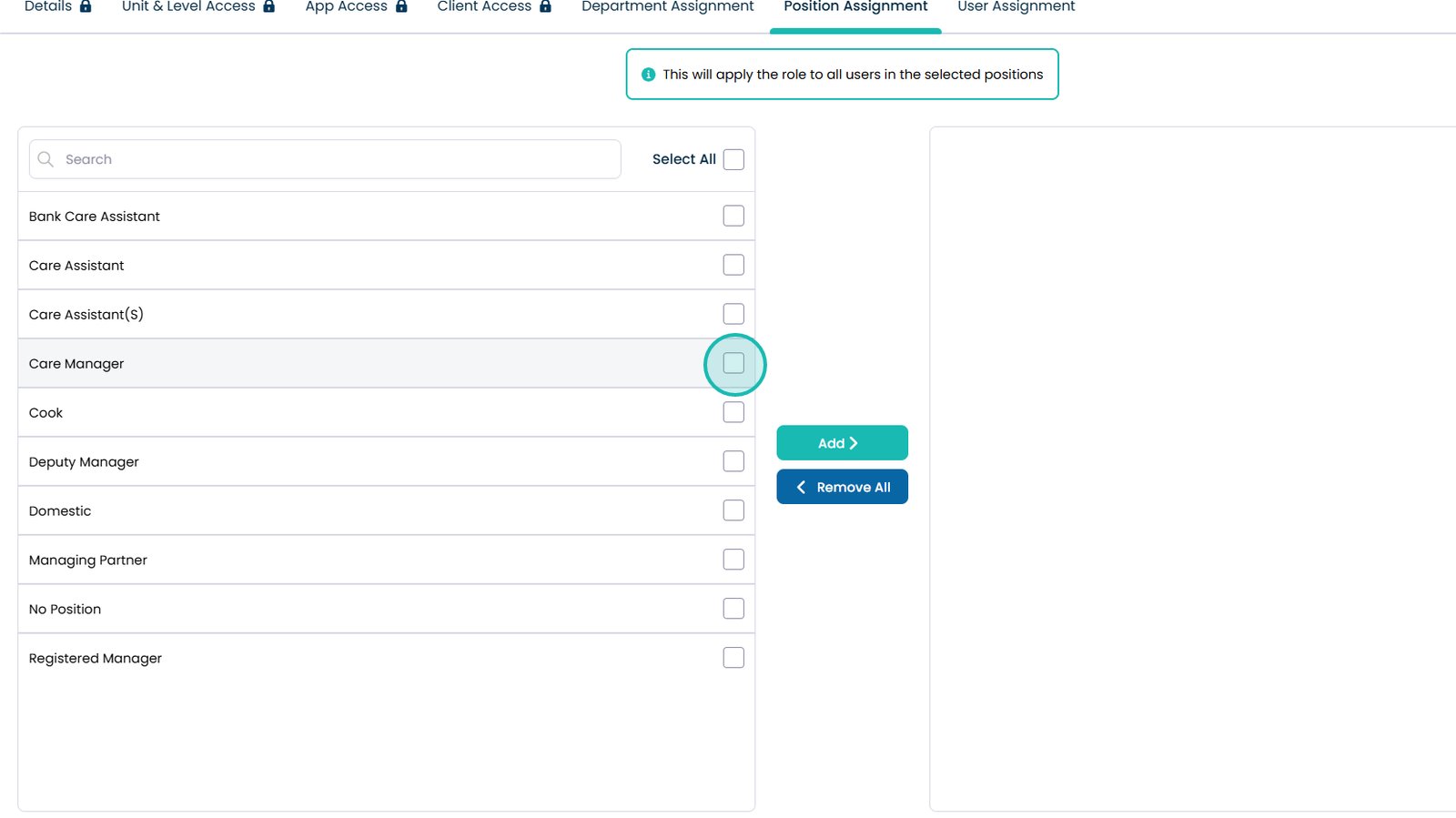
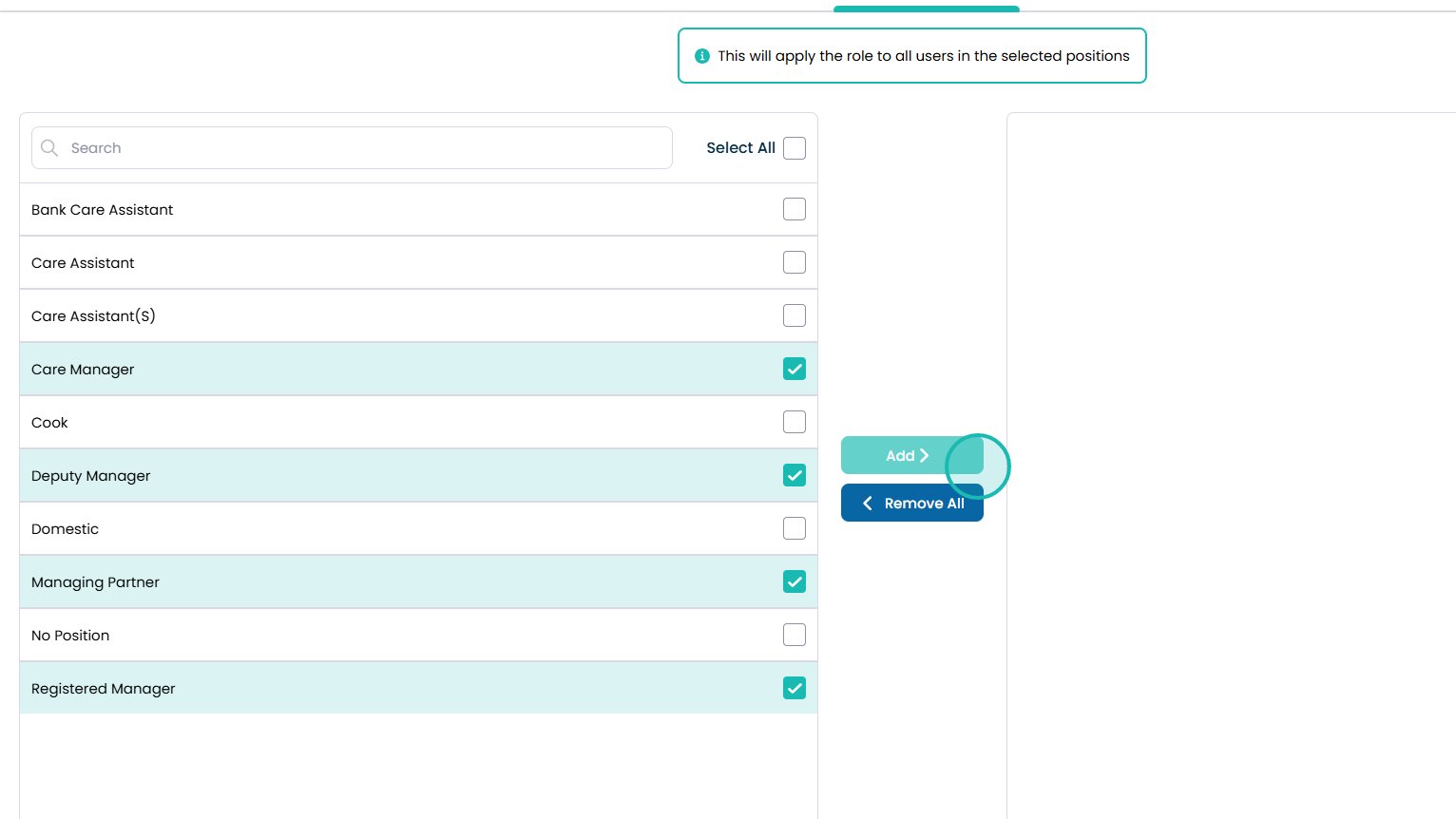
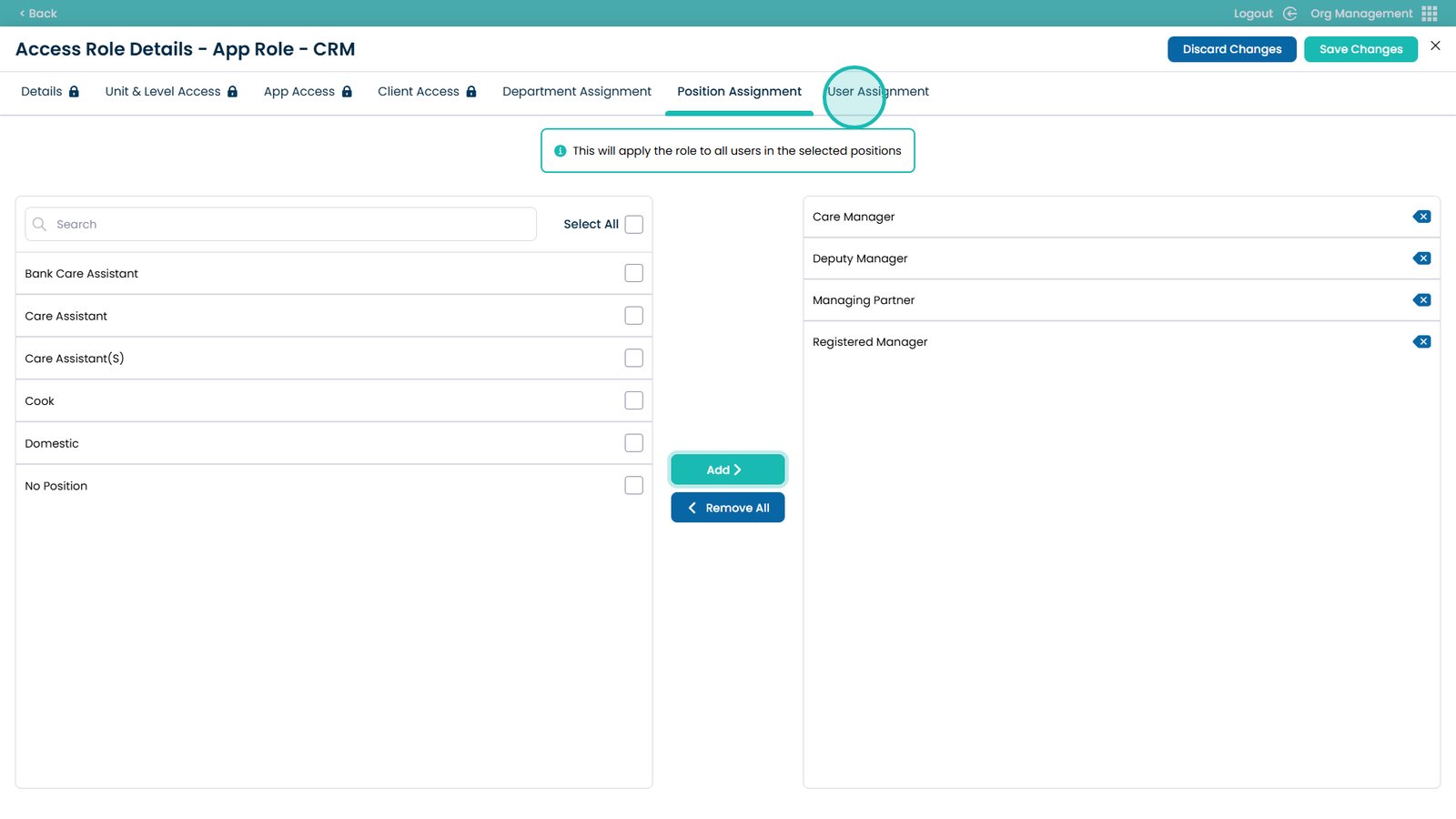
This guide explains how to enable and manage access to the CRM app within the Org Management App.
The CRM system in Care Control Cloud allows your organisation to manage enquiries, track admissions, and monitor occupancy in one place, helping to streamline your admissions process and improve visibility across your services.
To learn more about how the CRM supports enquiry management and occupancy, read the article below:
CRM in Care Control Cloud – Manage Enquiries and Maintain Occupancy
Before following this guide, please note that the CRM app must be activated for your organisation. To get the CRM app, please contact the Customer Service Team by emailing support@carecontrolsystems.co.uk.
Within your email, include your name, contact details, and the name of your company.
If you have more than one site, please specify whether you would like to activate CRM for all sites or only specific sites.
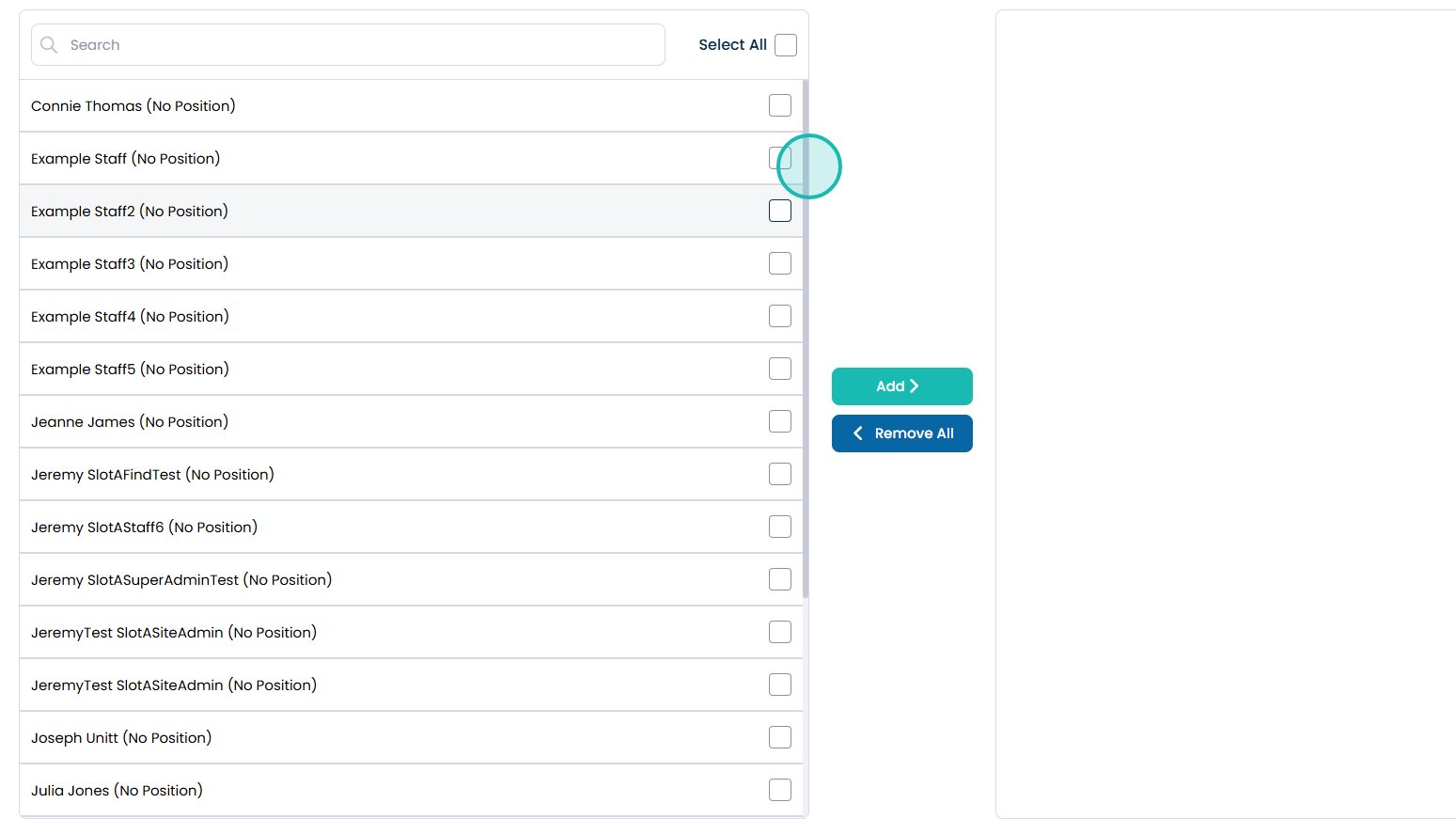
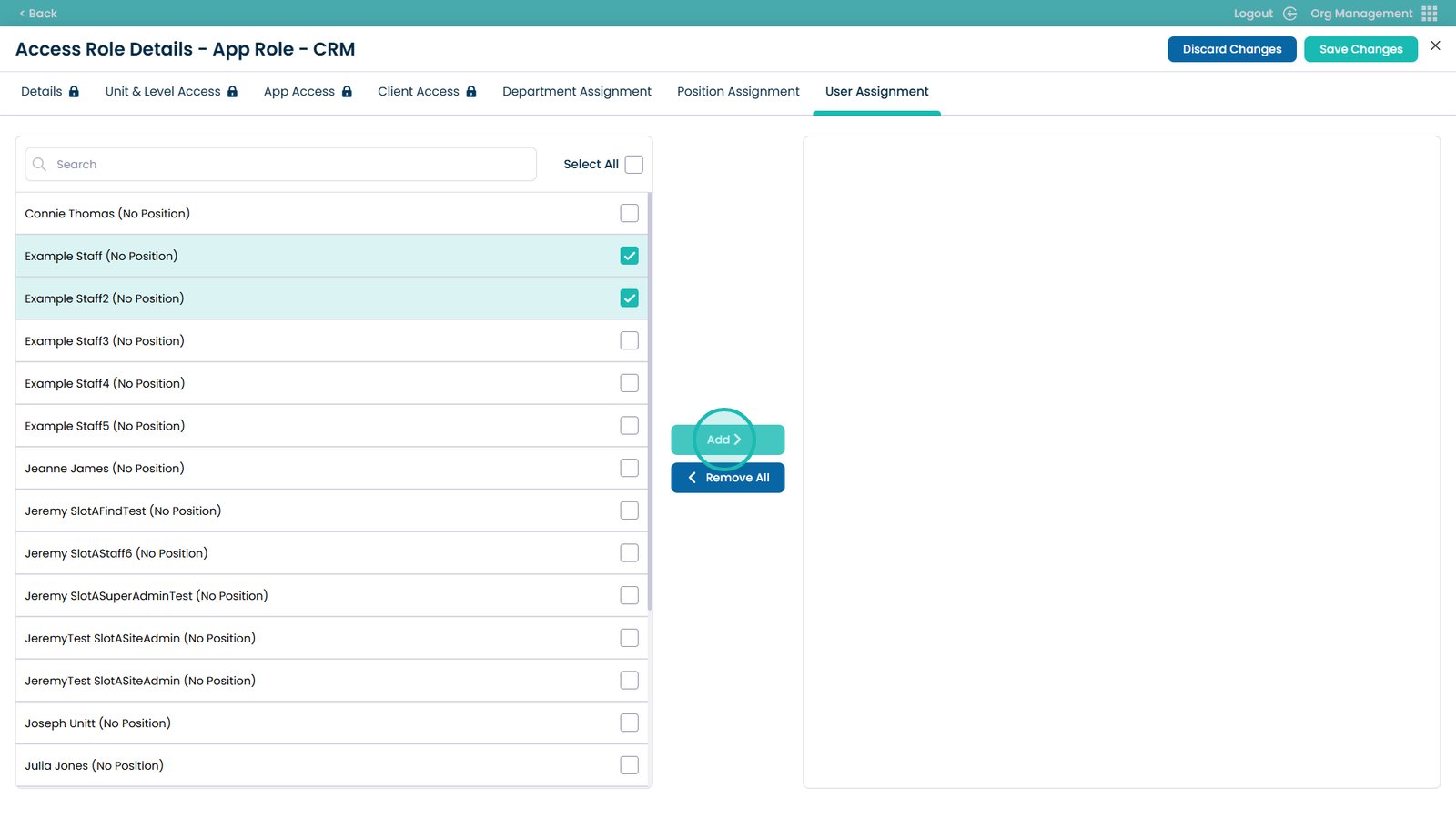
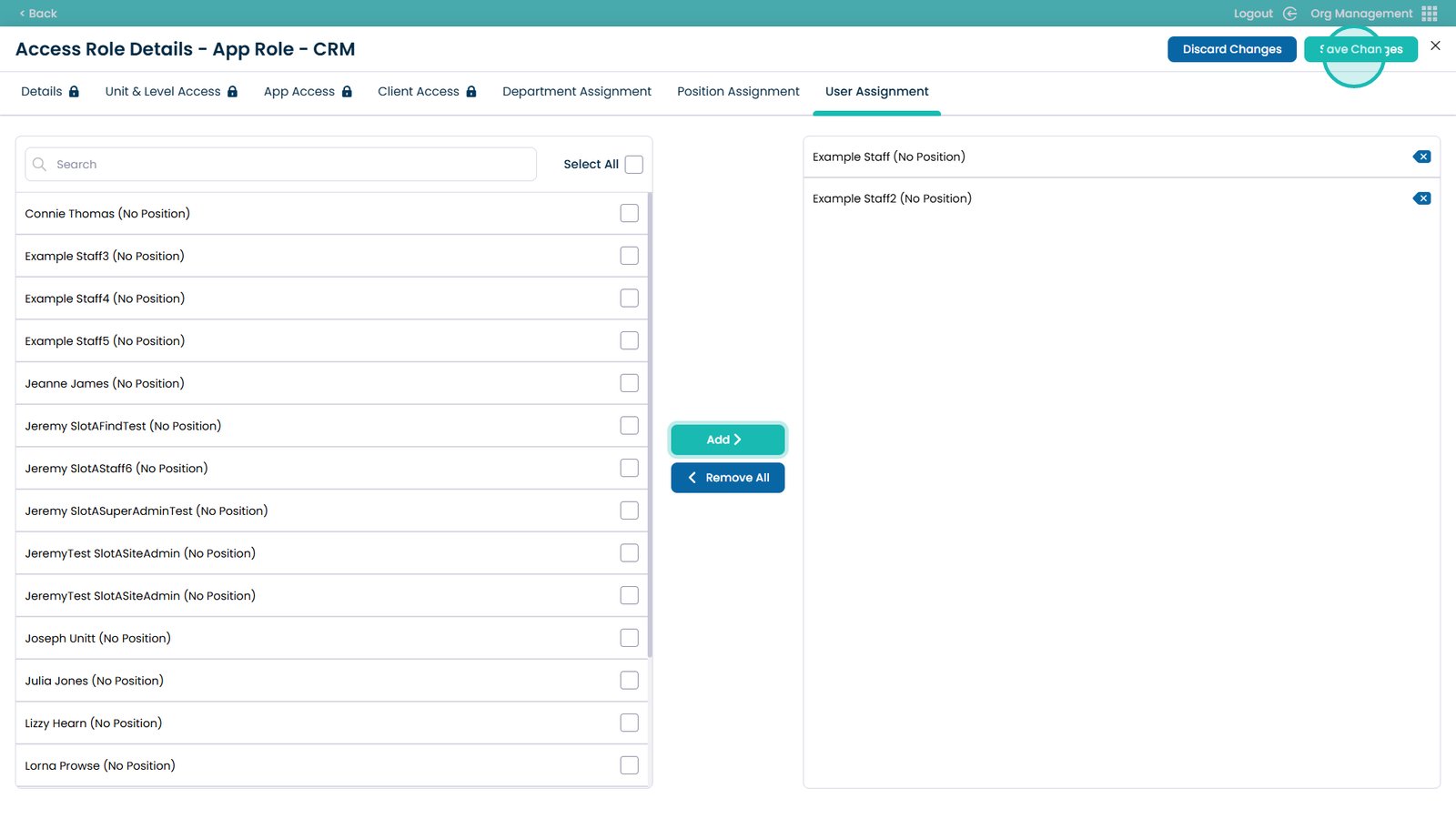
Once the CRM app has been enabled, you can follow the steps below to assign access to the appropriate roles and users within your organisation.