How to Navigate the MyHub Dashboard
This guide explains how to navigate and use the MyHub Dashboard to stay informed, manage tasks, and access key features within your Care Control system.
The MyHub Dashboard is designed to improve efficiency, centralise important information, and reduce the risk of missing critical updates. By bringing together announcements, tasks, messages, and reminders in one place, it helps staff stay organised and up to date with both site-specific and company-wide information.
By following this guide, you will learn how to:
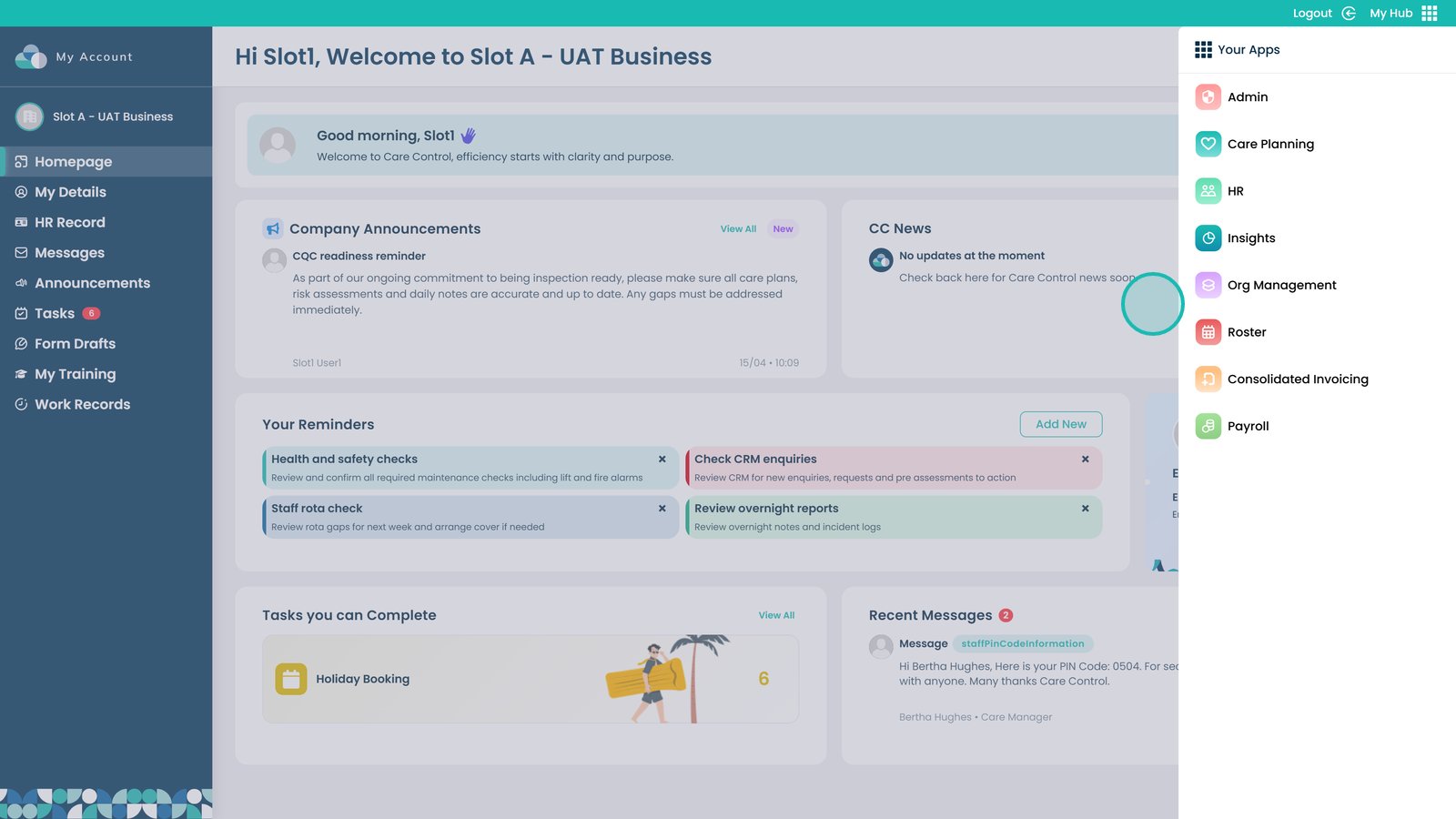
- Navigate the MyHub Dashboard and access different apps
- View and interact with announcements and company news
- Monitor tasks and access detailed task information
- Check recent messages and stay connected with your team
- Use dashboard widgets to stay informed and organised
This ensures you can confidently use the MyHub Dashboard to stay organised, informed, and in control of your daily responsibilities.
Interactive Guide
Text based guide
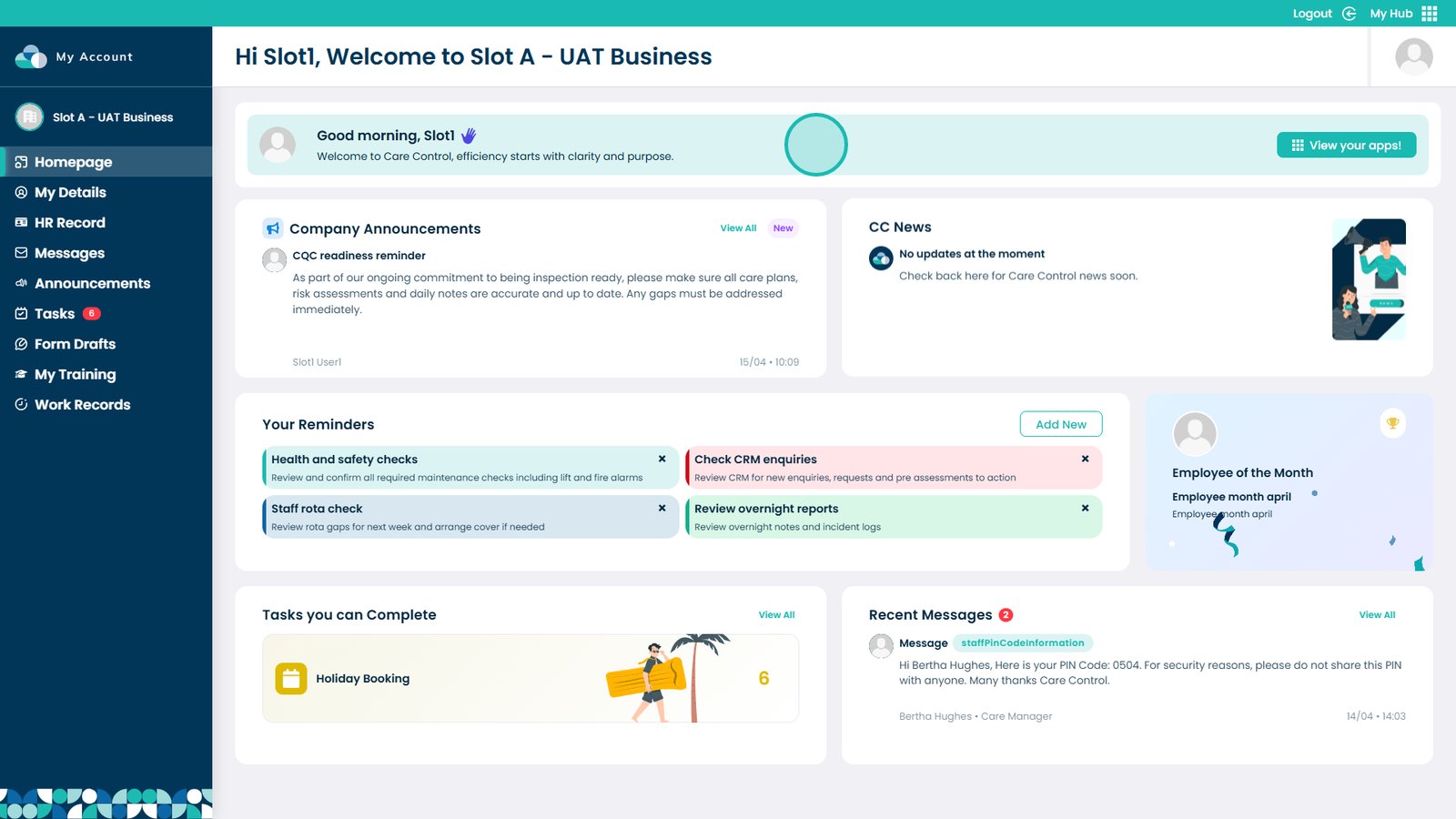
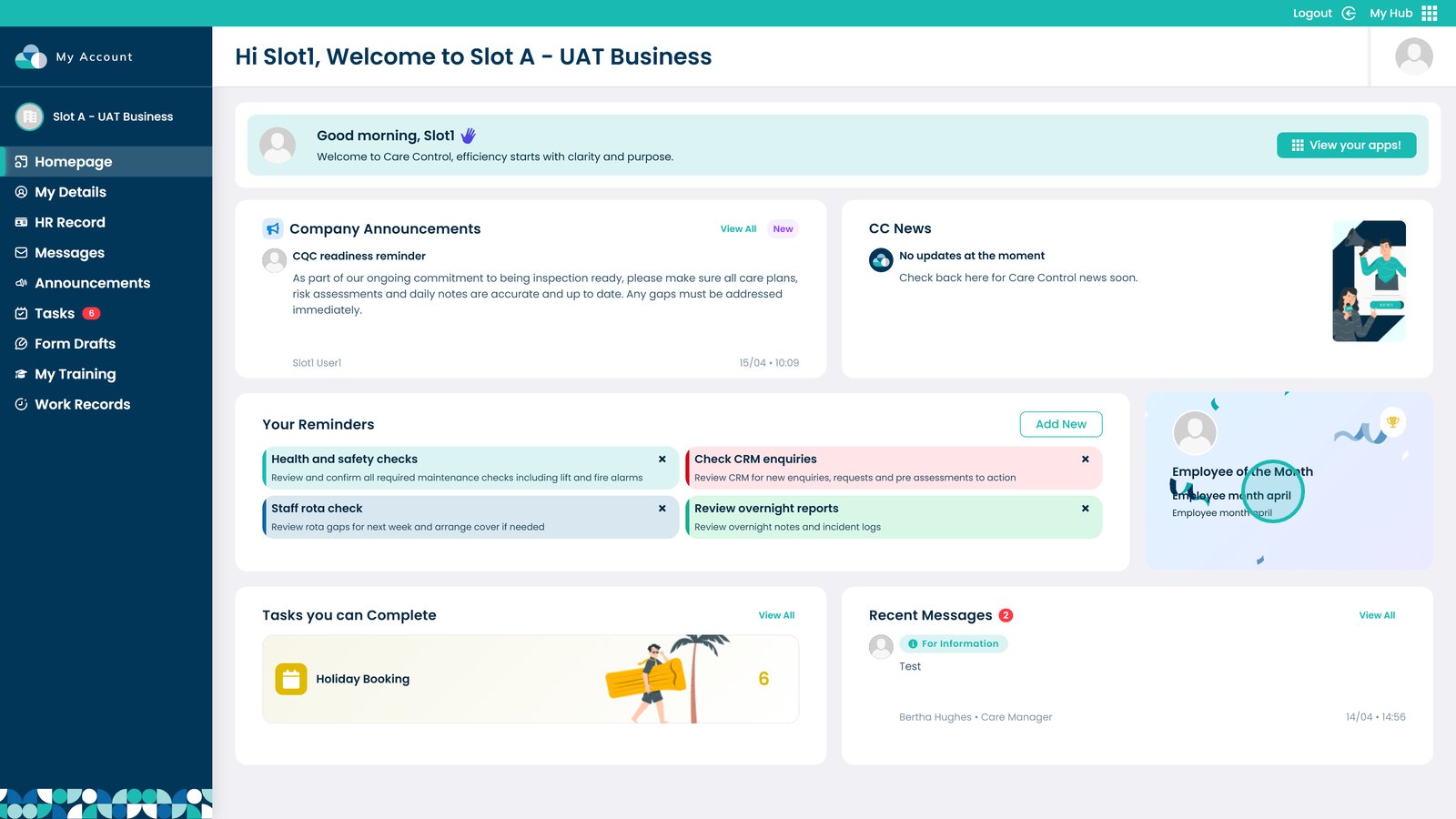
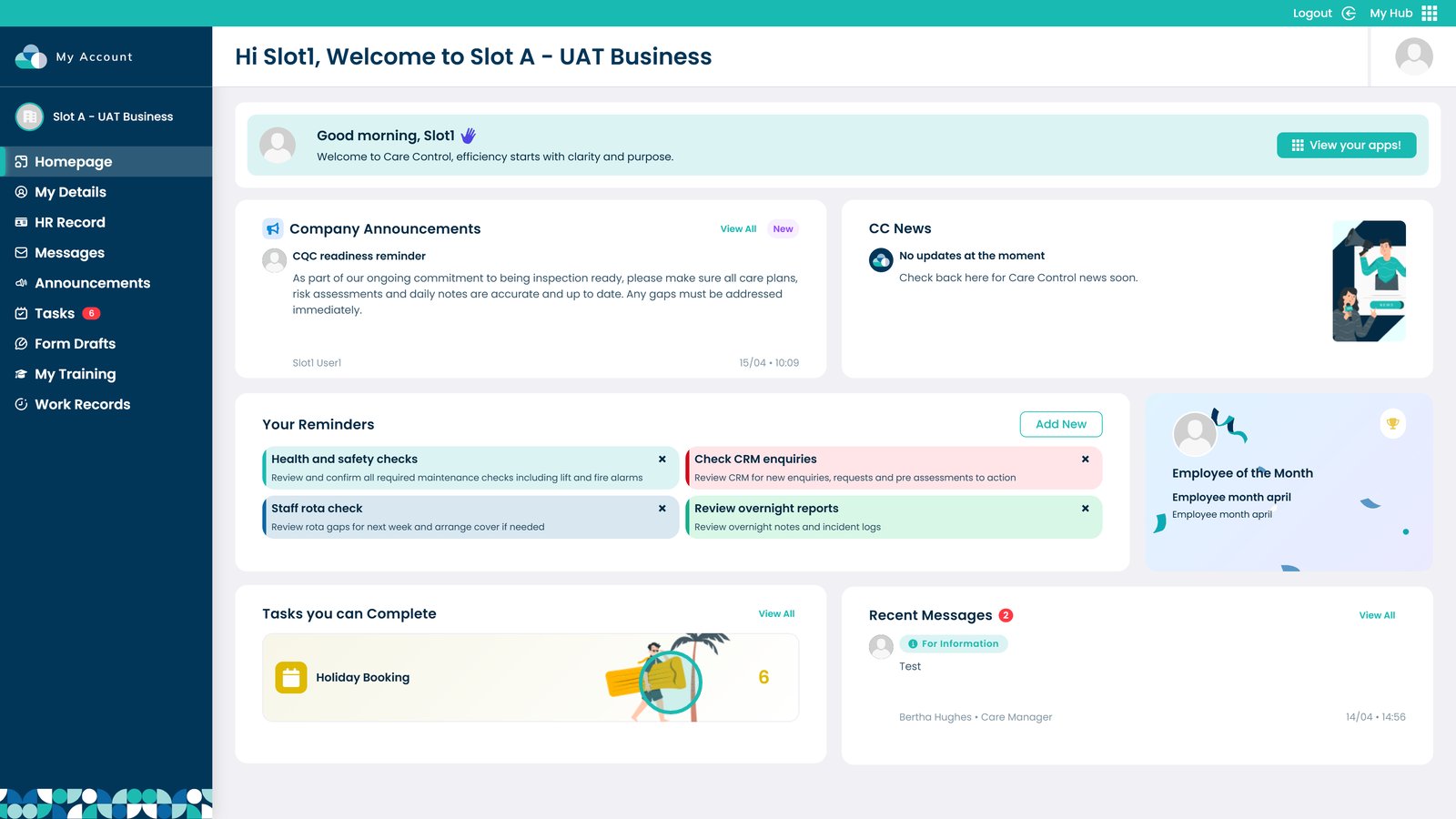
Welcome to your new MyHub Dashboard. This page shows the latest news about your site and Care Control.

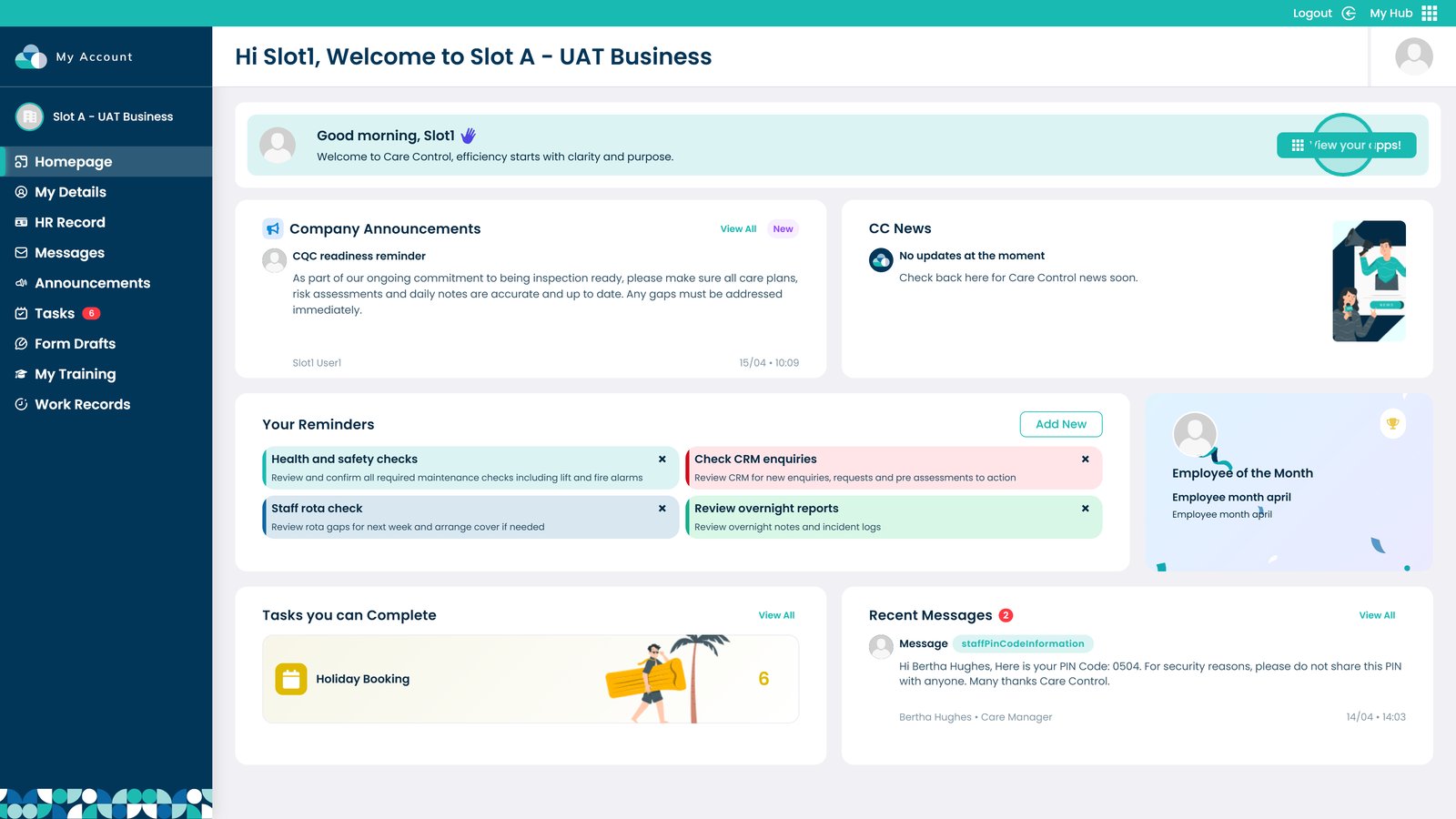
Select “View your apps” to open your app selection menu.

Select the app you want to open, or click away to return to the dashboard.

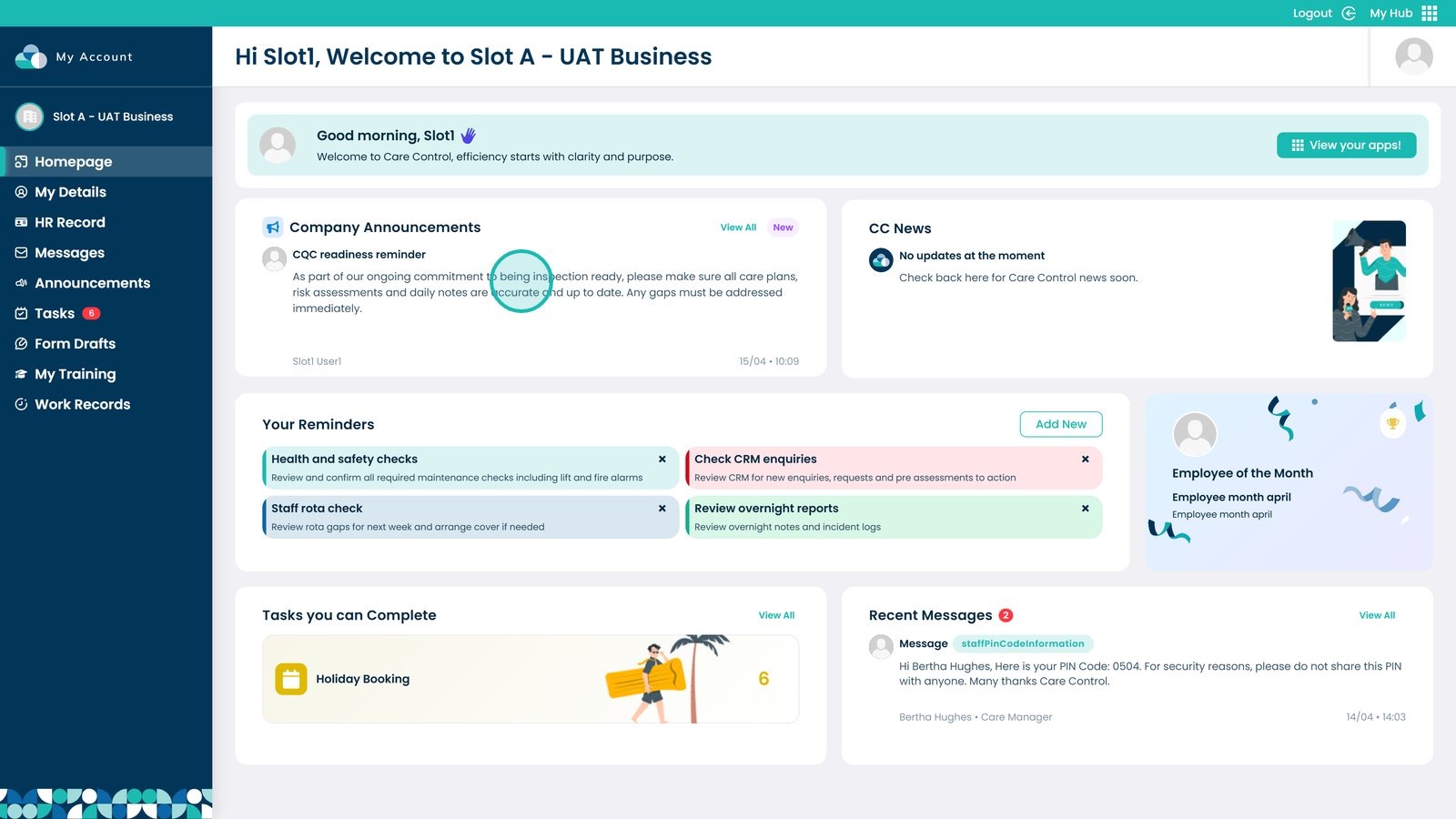
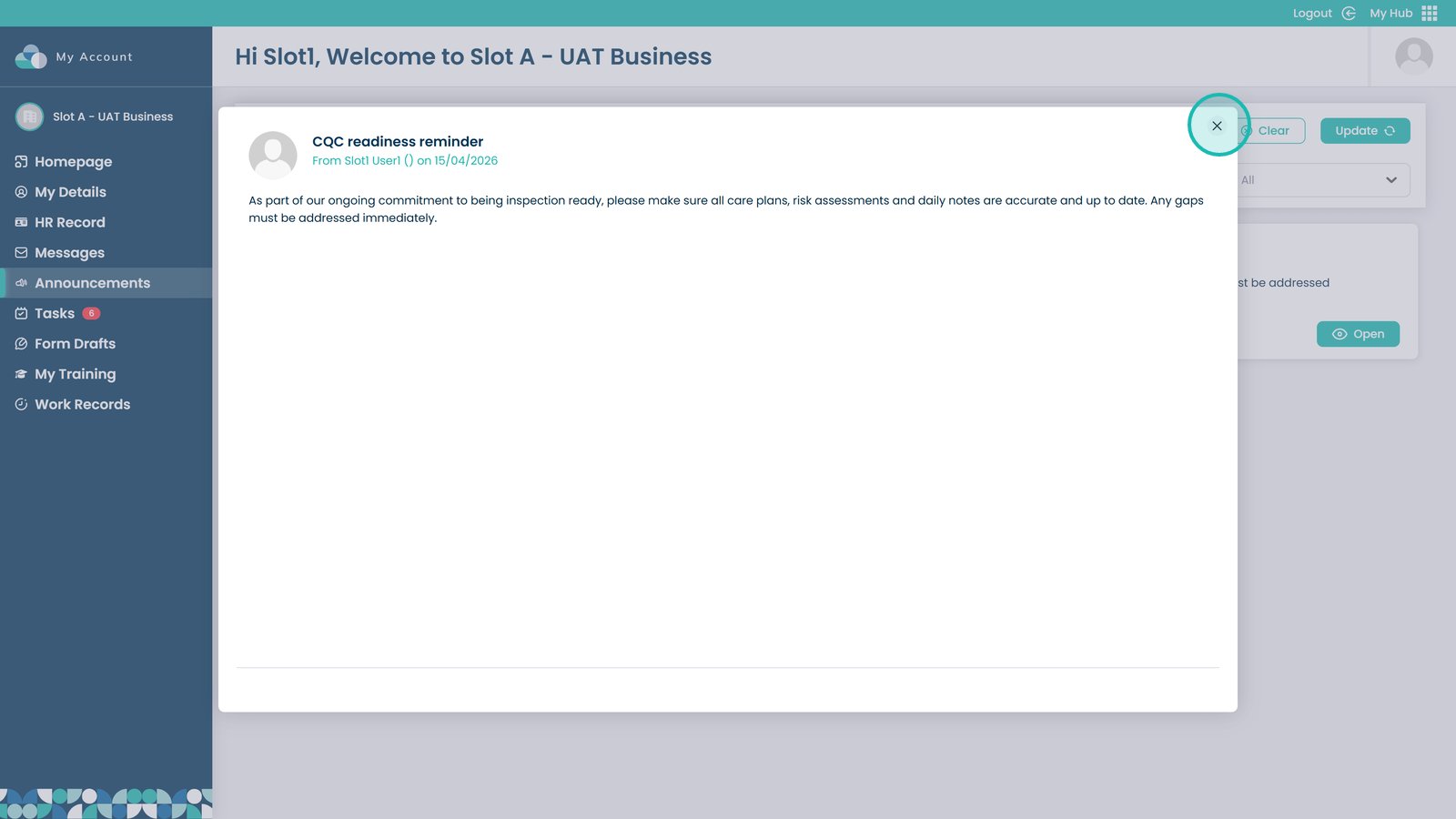
Tap on key announcements to view important compliance reminders and company news.

Read the full announcement, then click the “X” button to close the window.

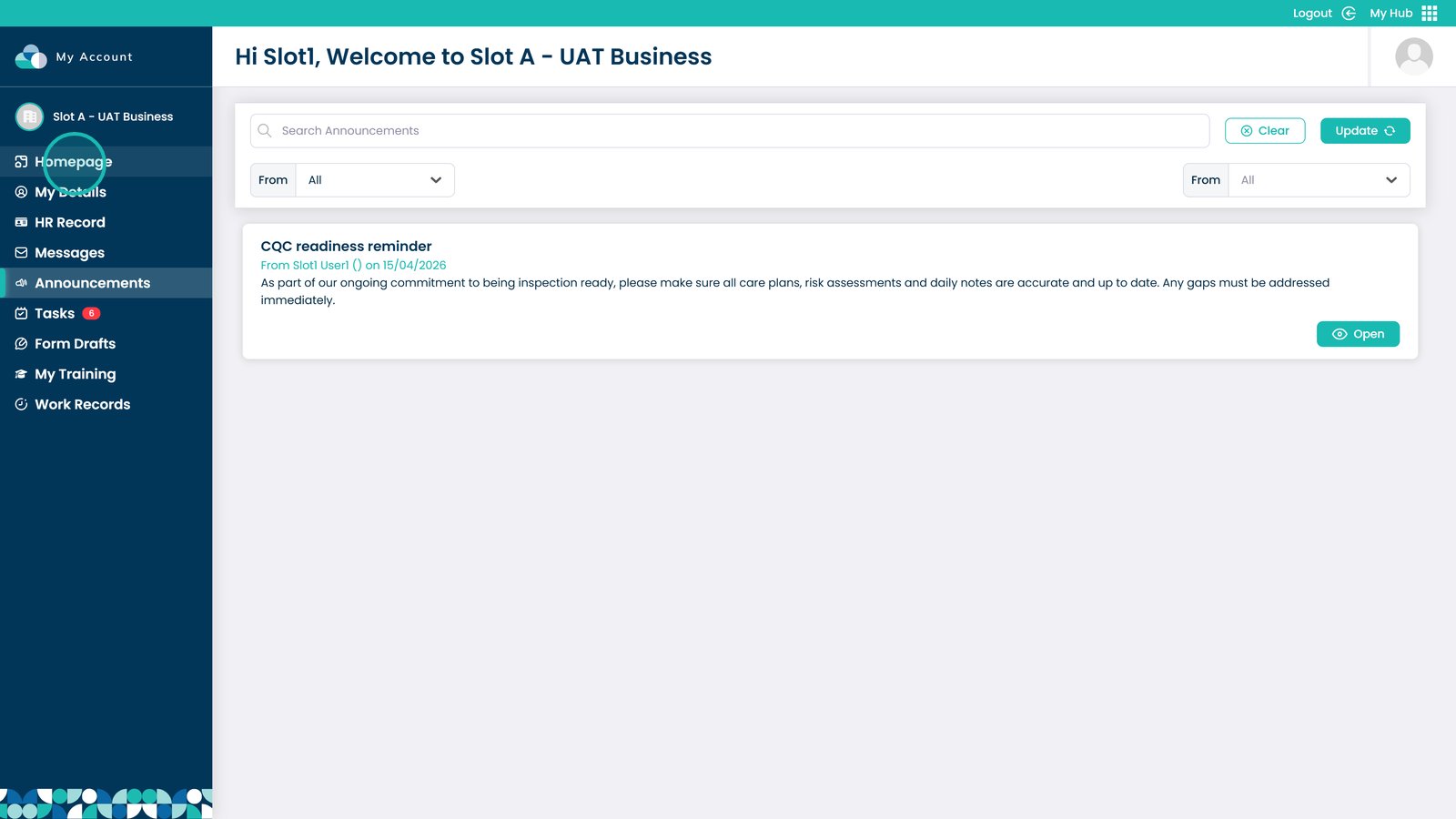
Click “Homepage” at any time to return to your dashboard.

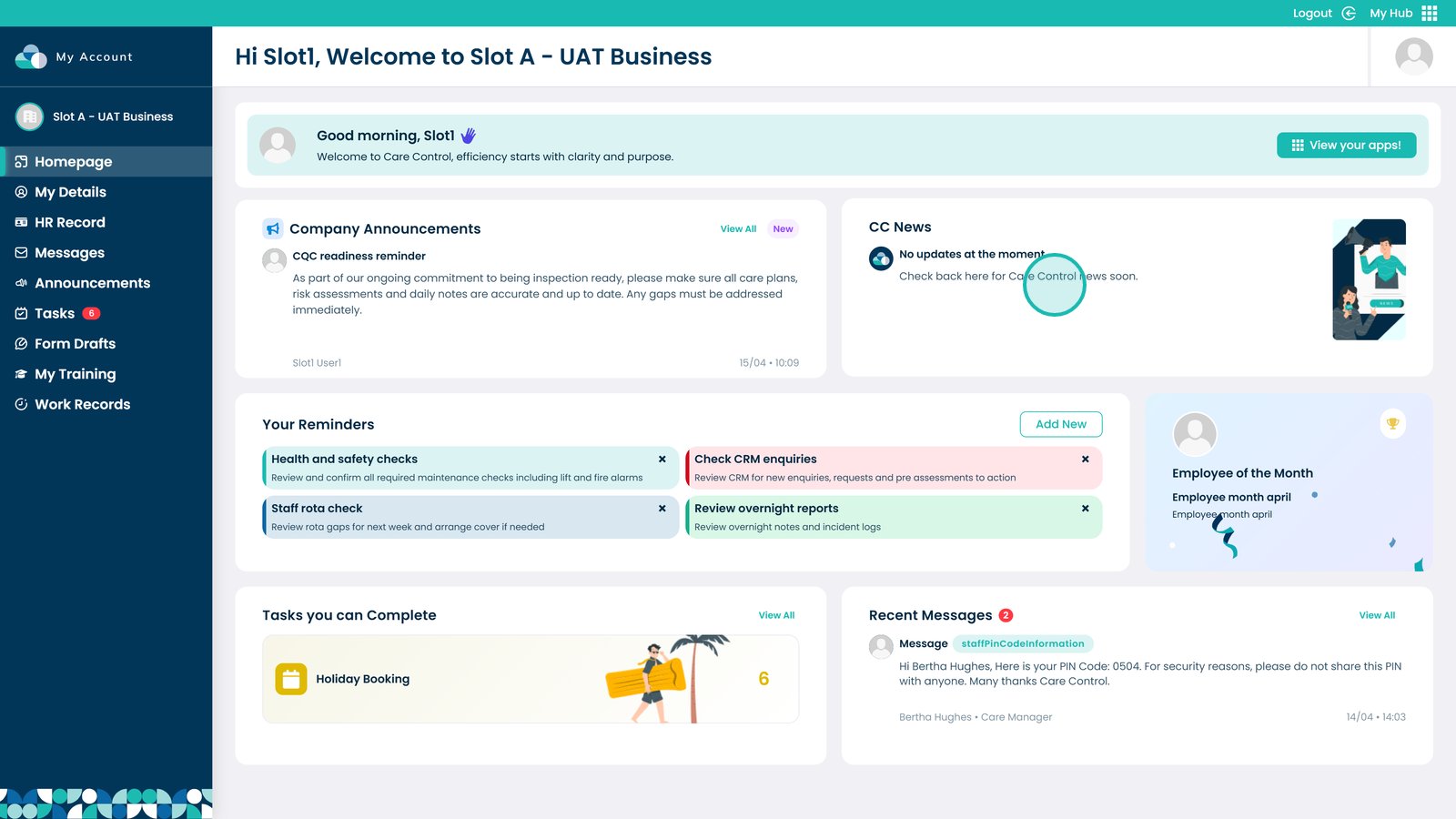
View the latest Care Control news within this widget to stay up to date.

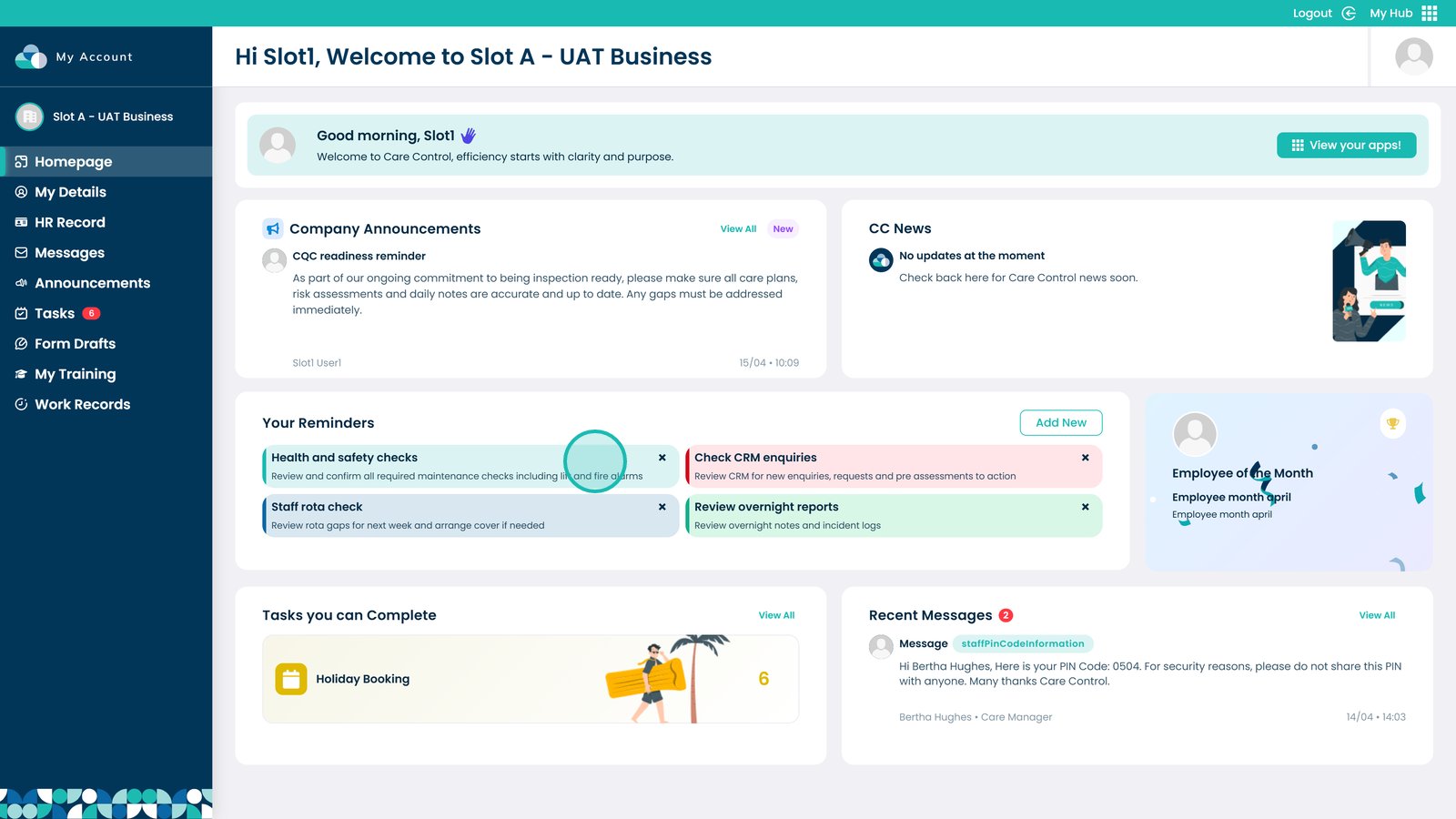
Create your own reminders to help you stay on top of your workload.

View the Employee of the Month to see who has been recognised for outstanding performance.

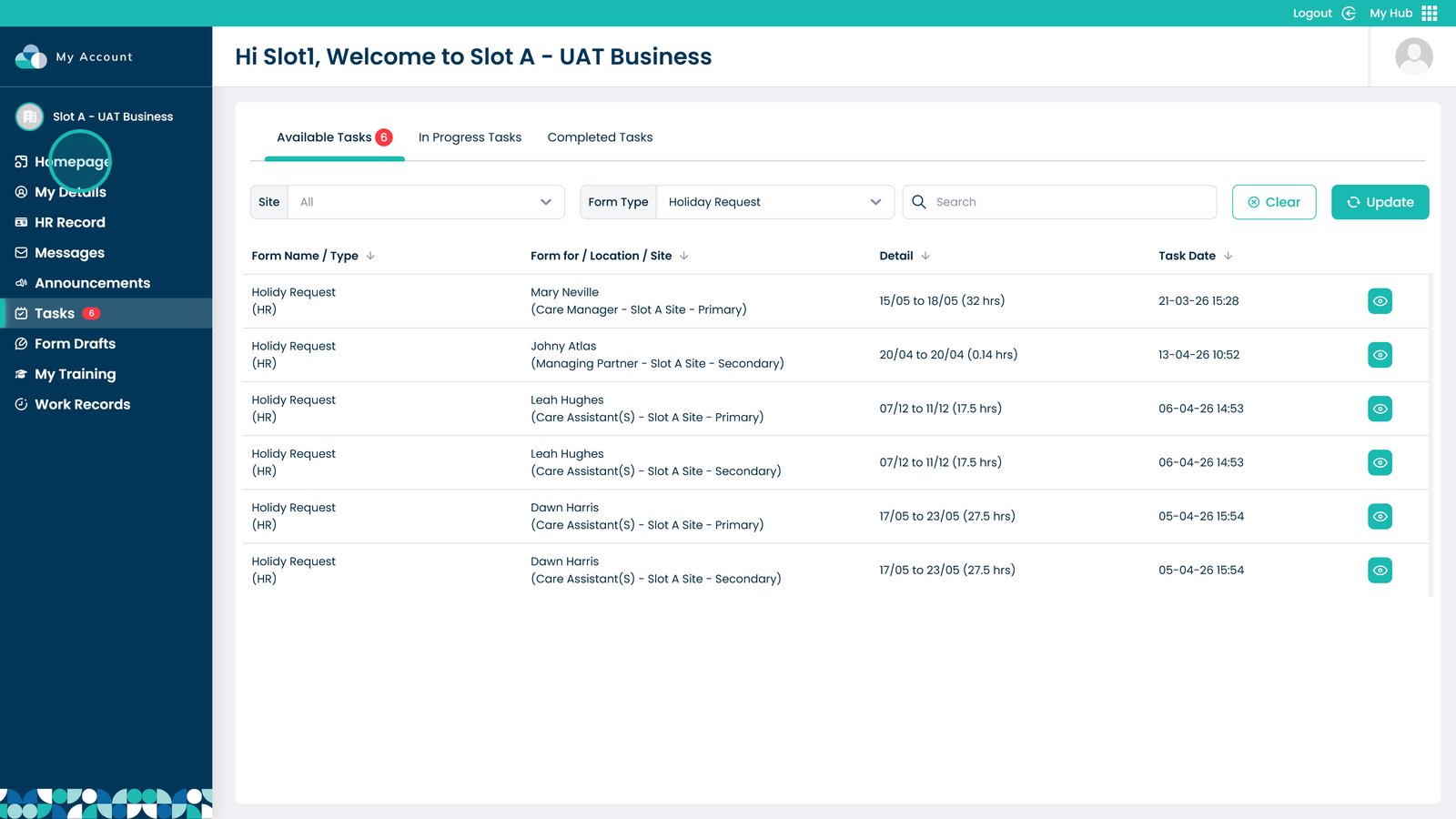
Open the Tasks section to view and manage your current tasks in more detail.

Click “Homepage” to return to your dashboard at any time.

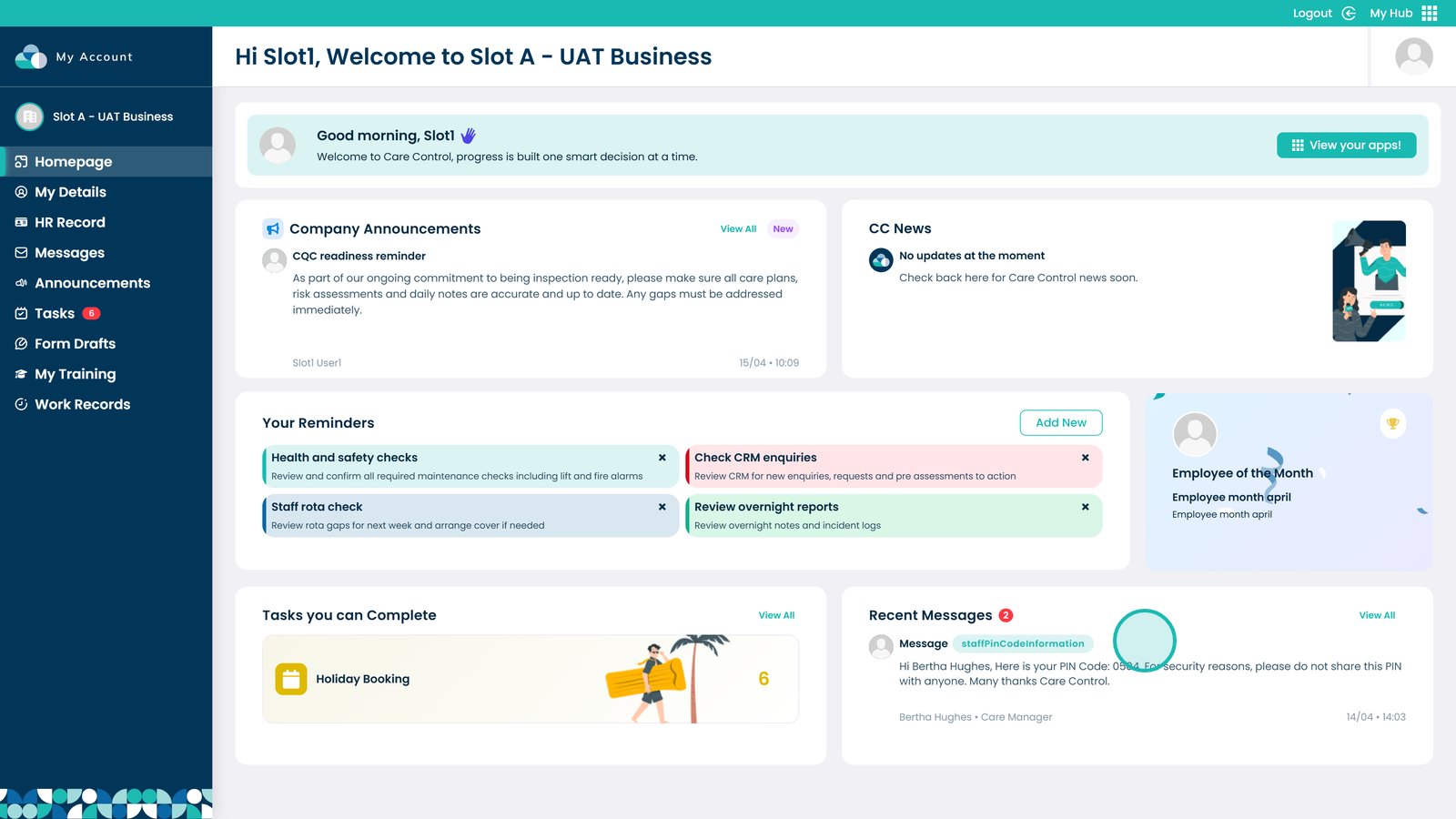
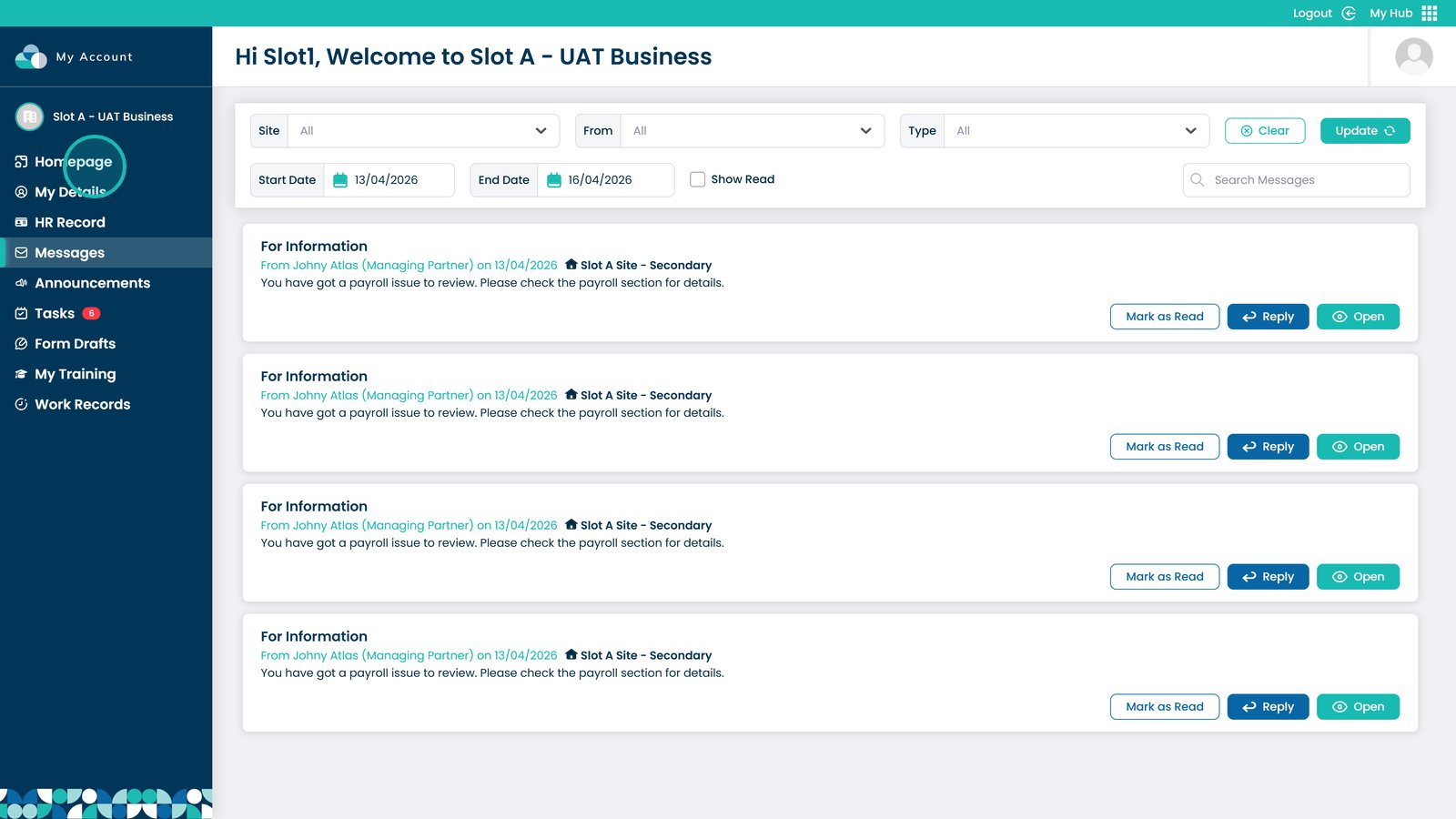
View your recent messages and click on any message to see more details.

Click “Homepage” to return to your dashboard at any time.