This guide explains how to use Margo, the built-in AI assistant in Care Control Cloud.
Takes 2 minutes
For: Everyone
Updated: 29th June 2026
Introduction
Margo is the built-in AI assistant within Care Control Cloud that provides instant answers to your questions using Care Control's LearningHub content. If Margo cannot resolve your query, you can raise a support ticket directly from the same window.
In this guide you'll learn how to:
Access Margo from anywhere in Care Control Cloud
Ask questions and receive AI-powered guidance
Open related LearningHub articles
Raise a support ticket when further assistance is needed
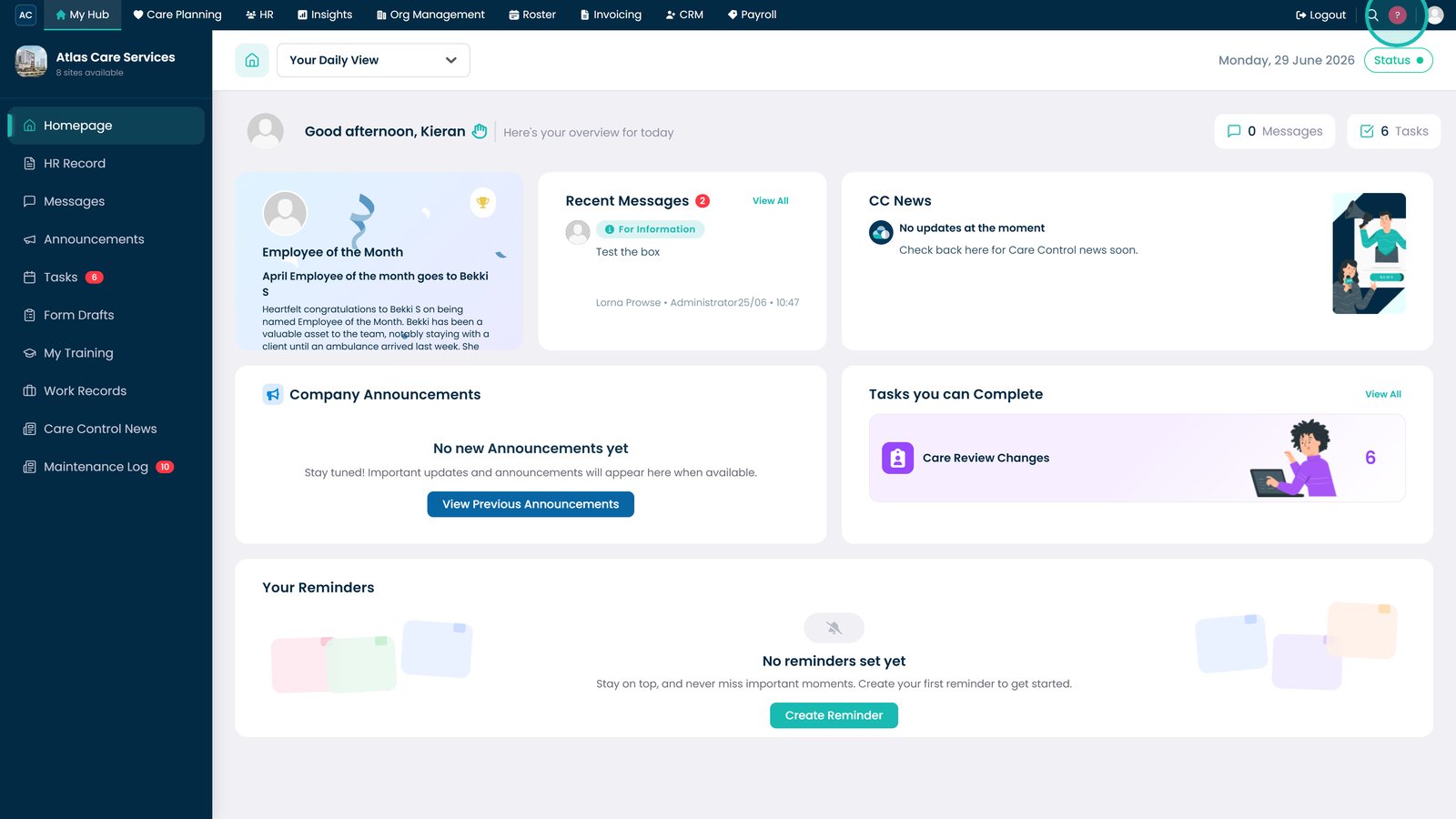
Select the question mark icon in the top-right corner of Care Control Cloud.
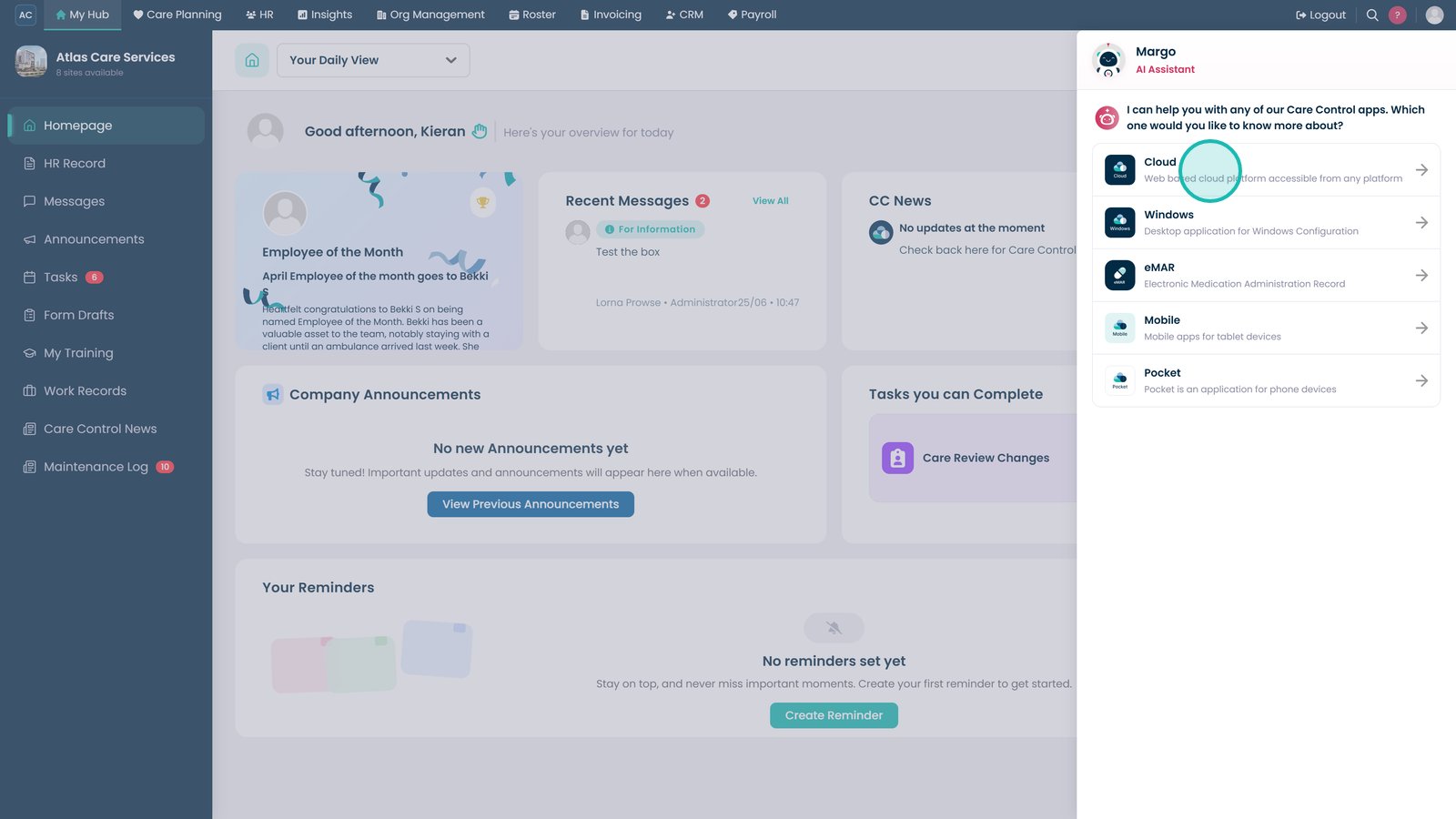
Select the app you need help with.
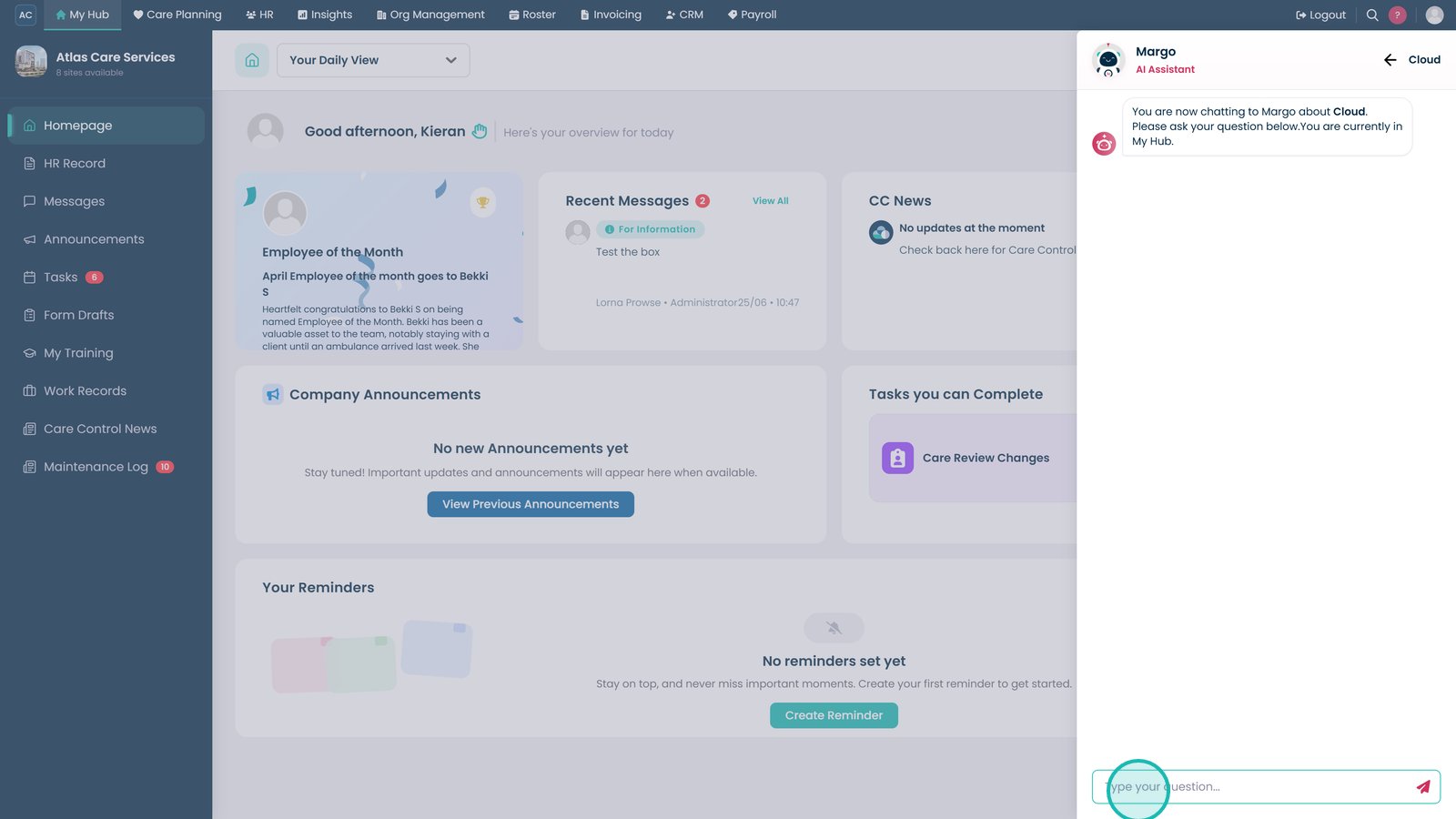
Type your question into the message box.
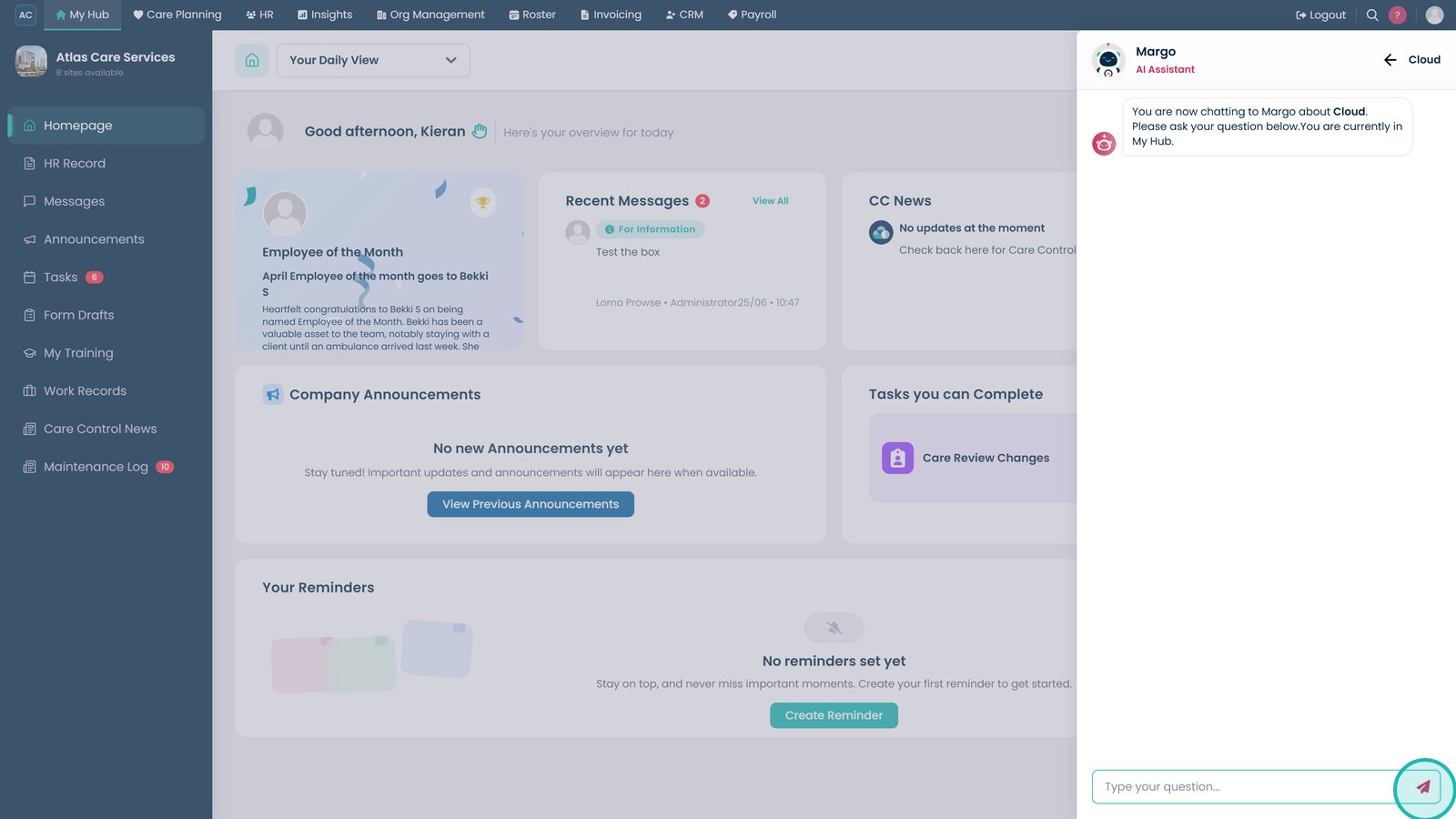
Press Enter or select the send icon to submit your question.
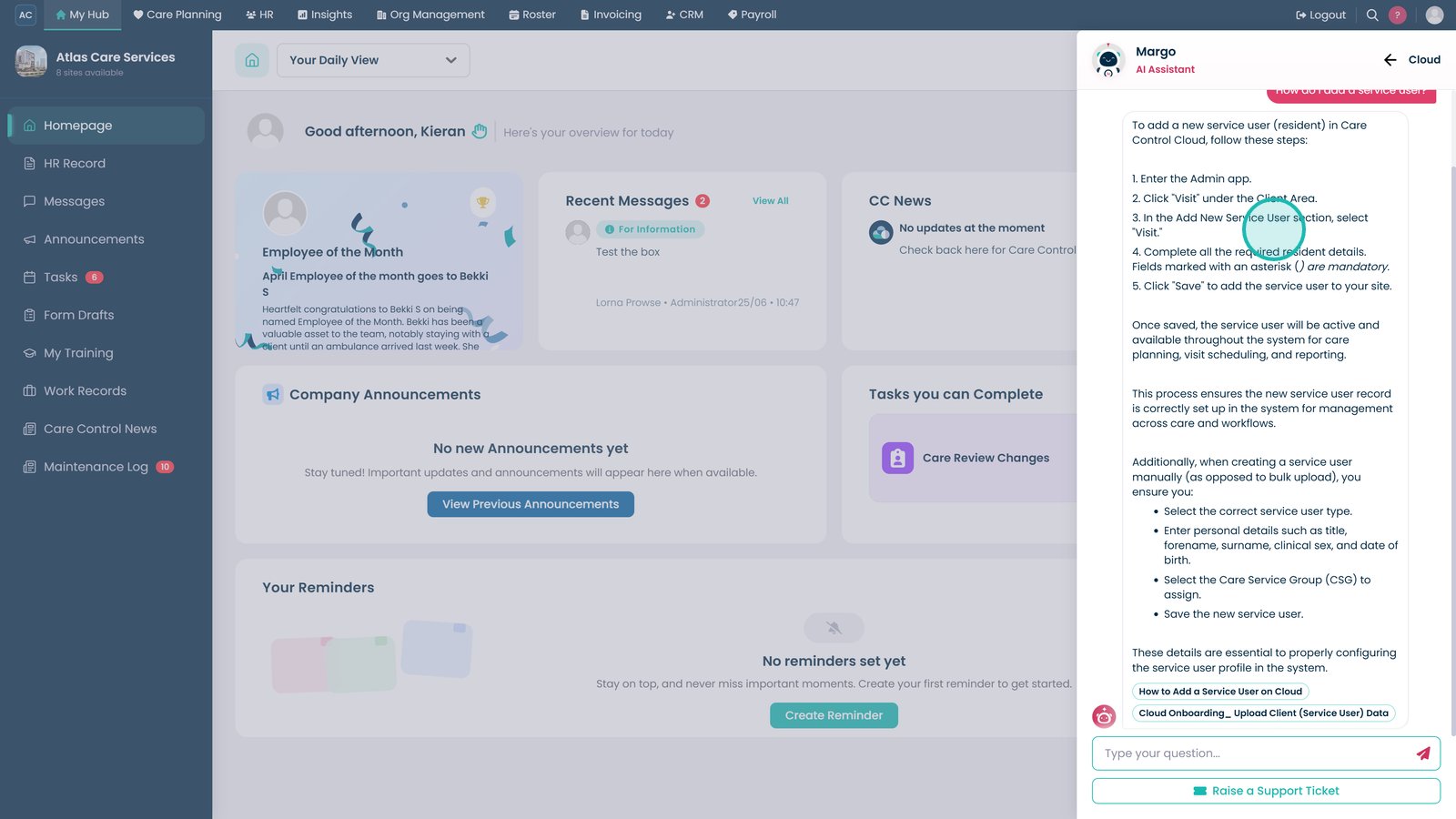
Review Margo's response for guidance.
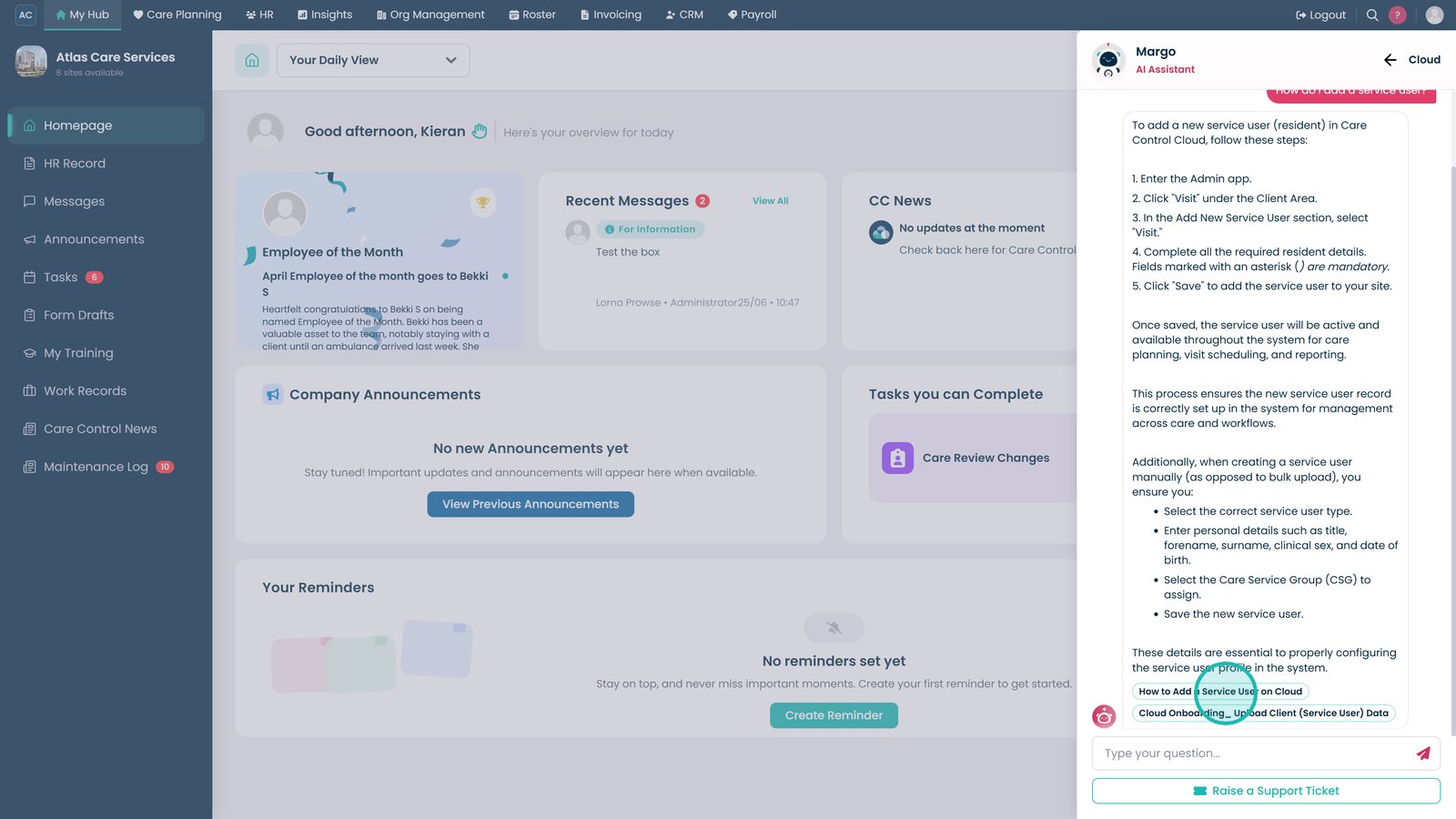
Select the LearningHub link at the bottom of the response to open the full article.
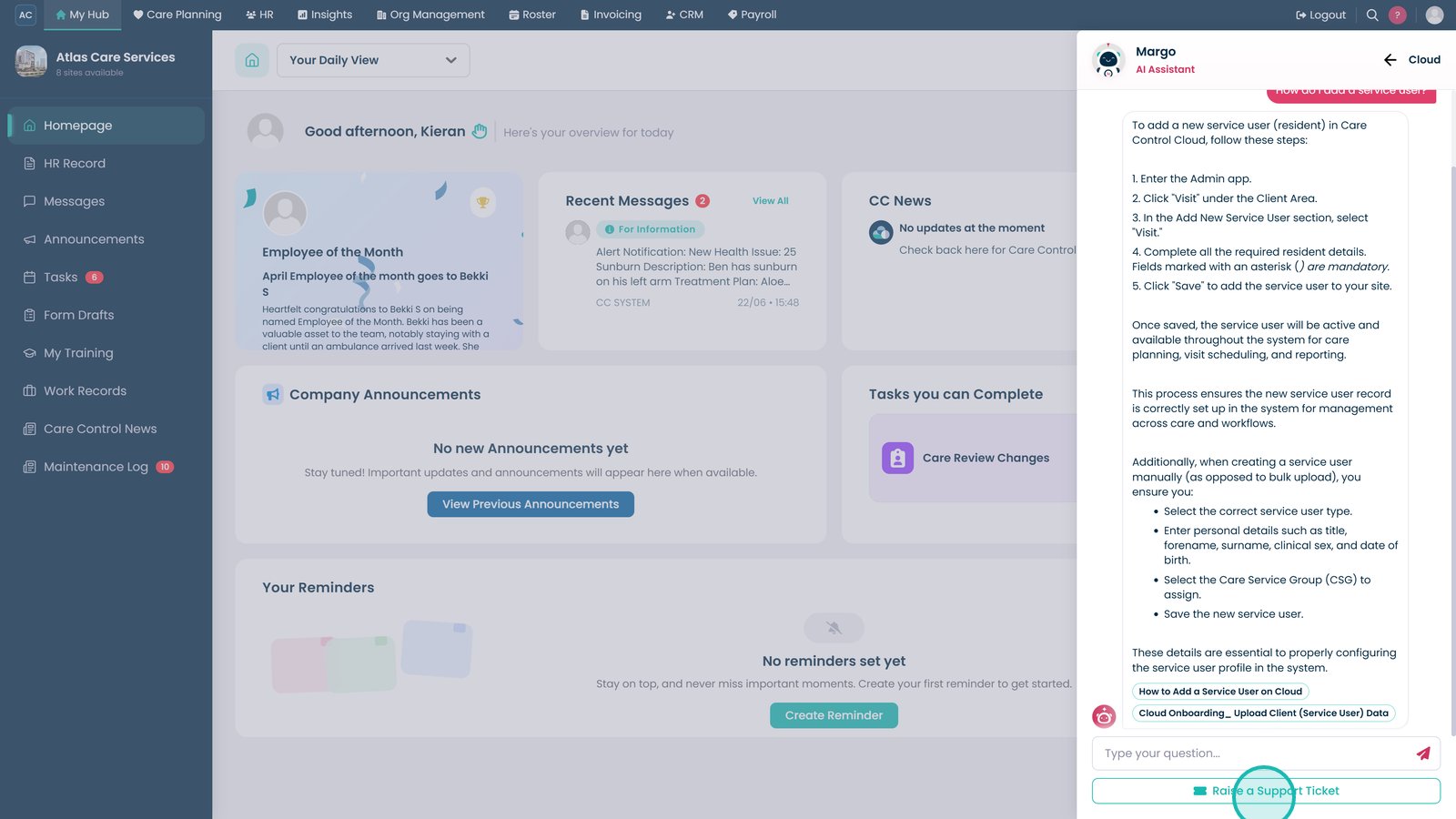
Select Raise a Support Ticket if you need further assistance.
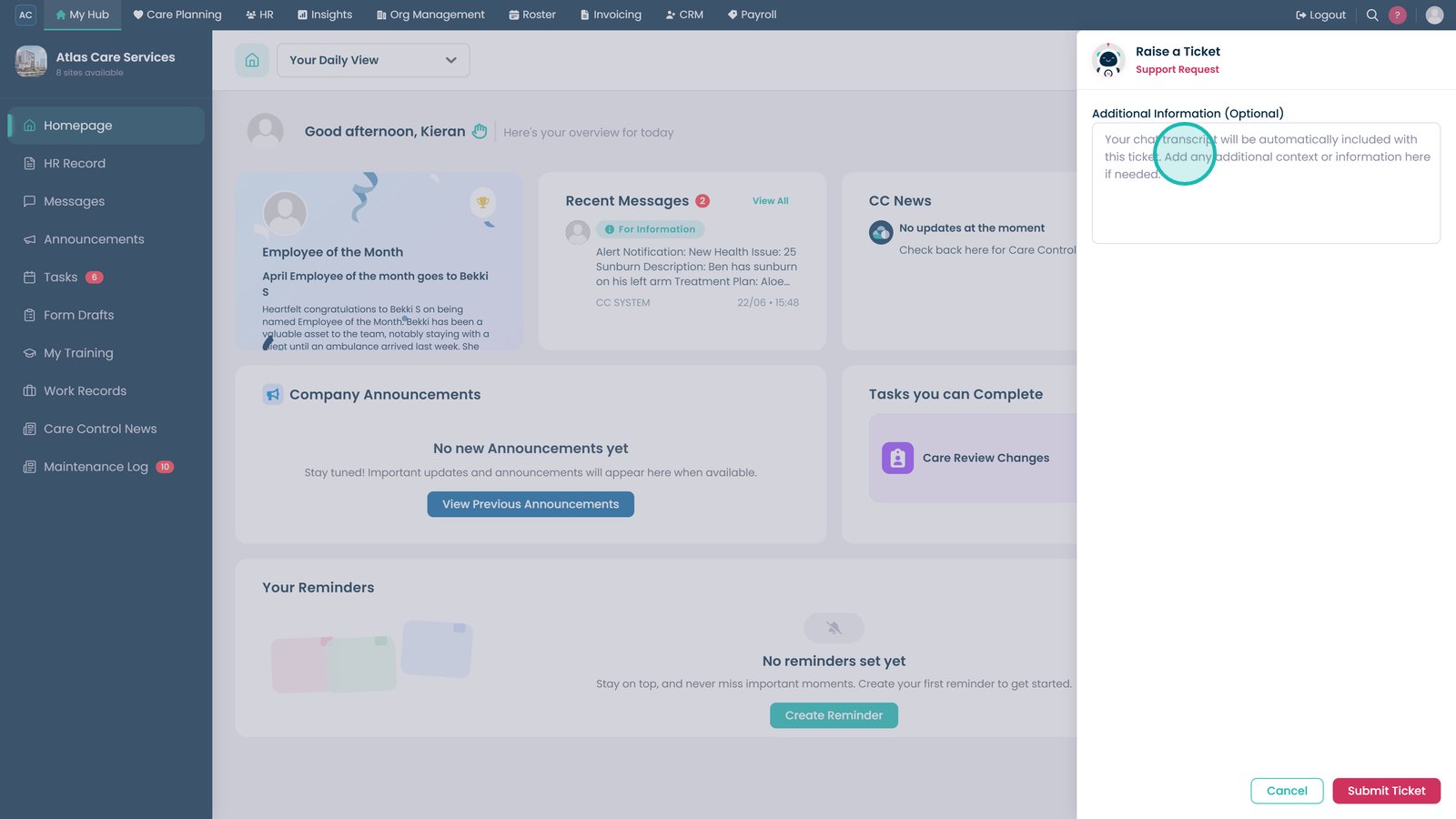
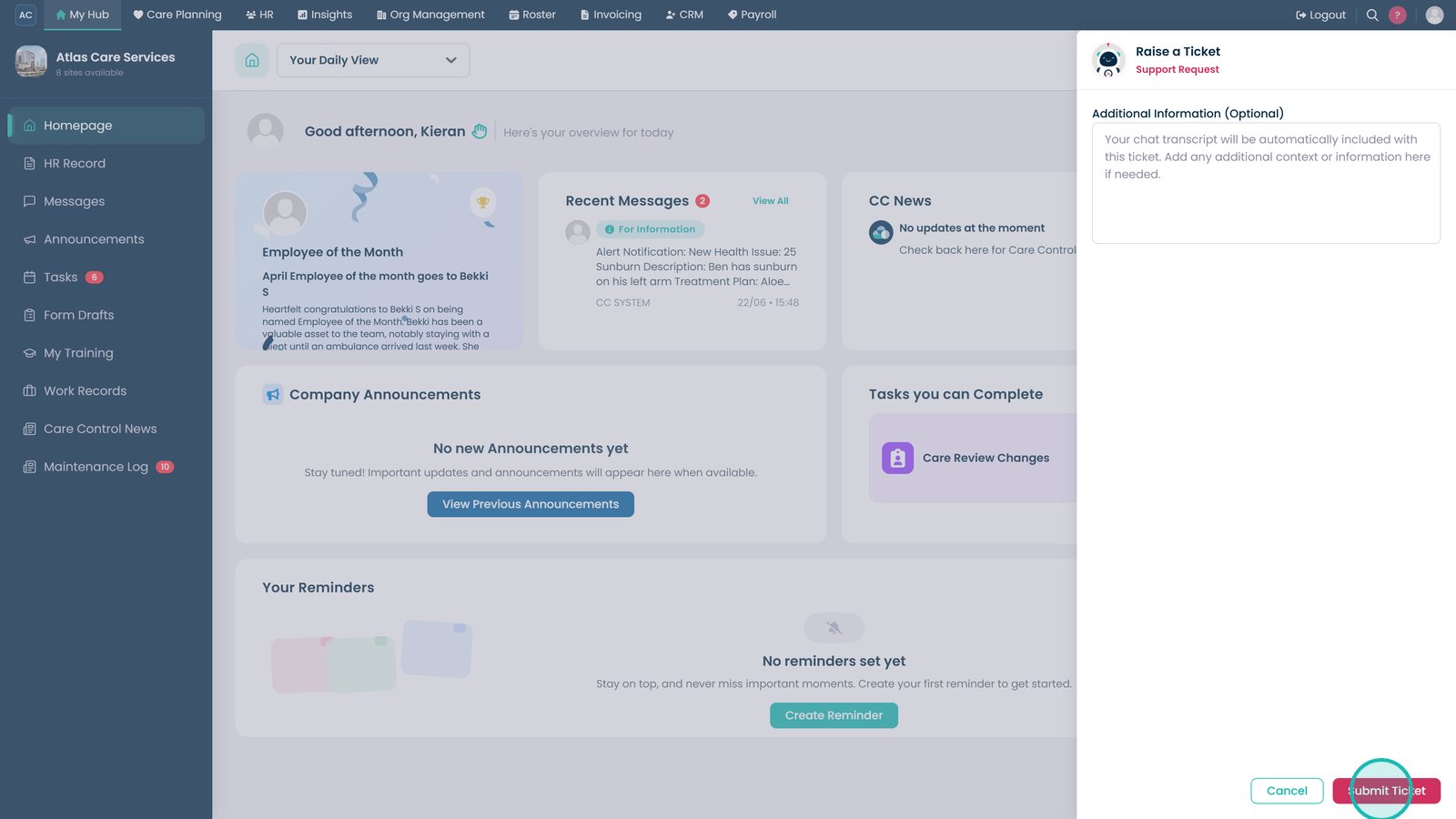
Enter any additional information to help the support team understand your issue.
Select Submit Ticket to send your request.
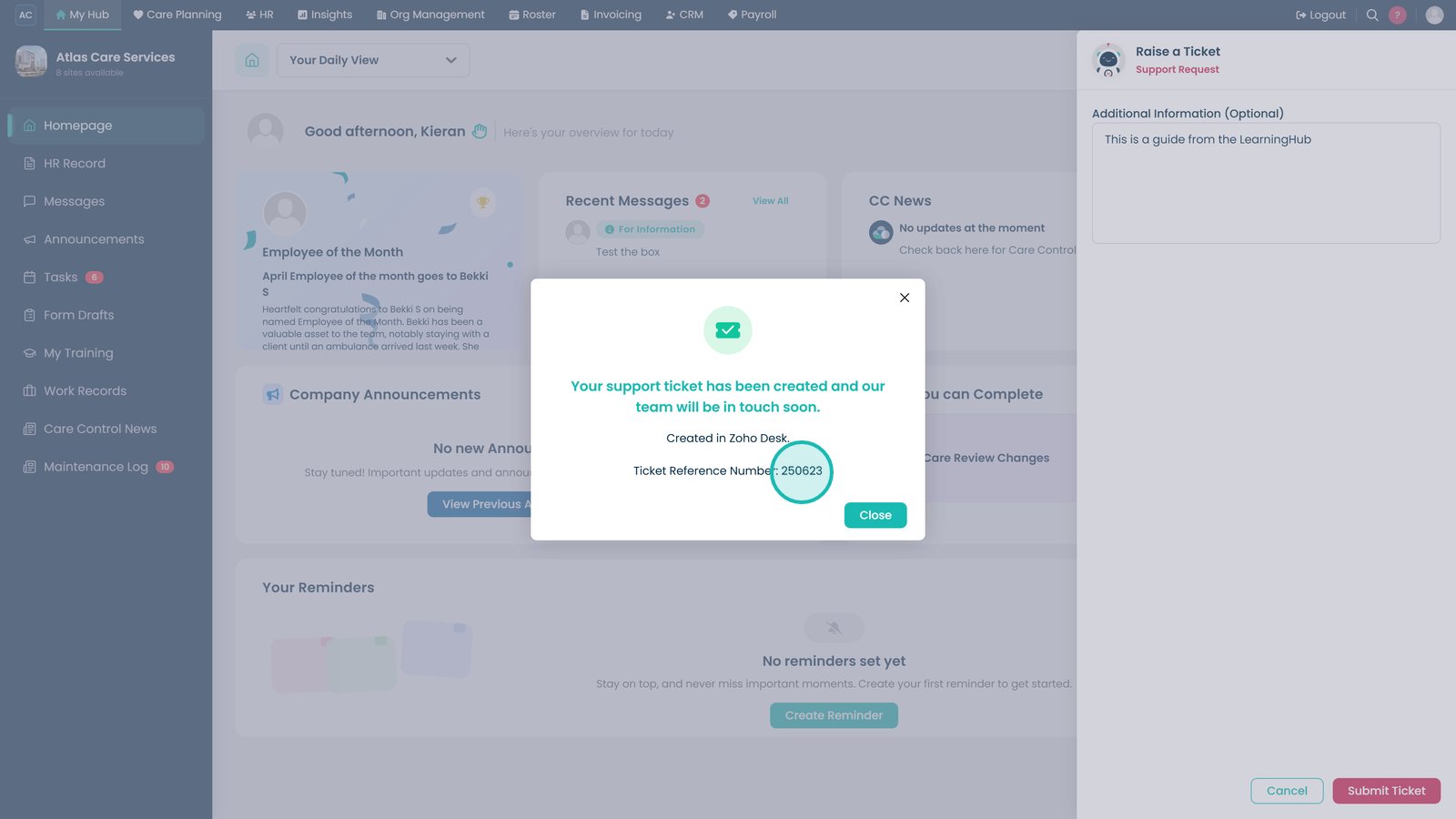
Make a note of your support ticket reference number.
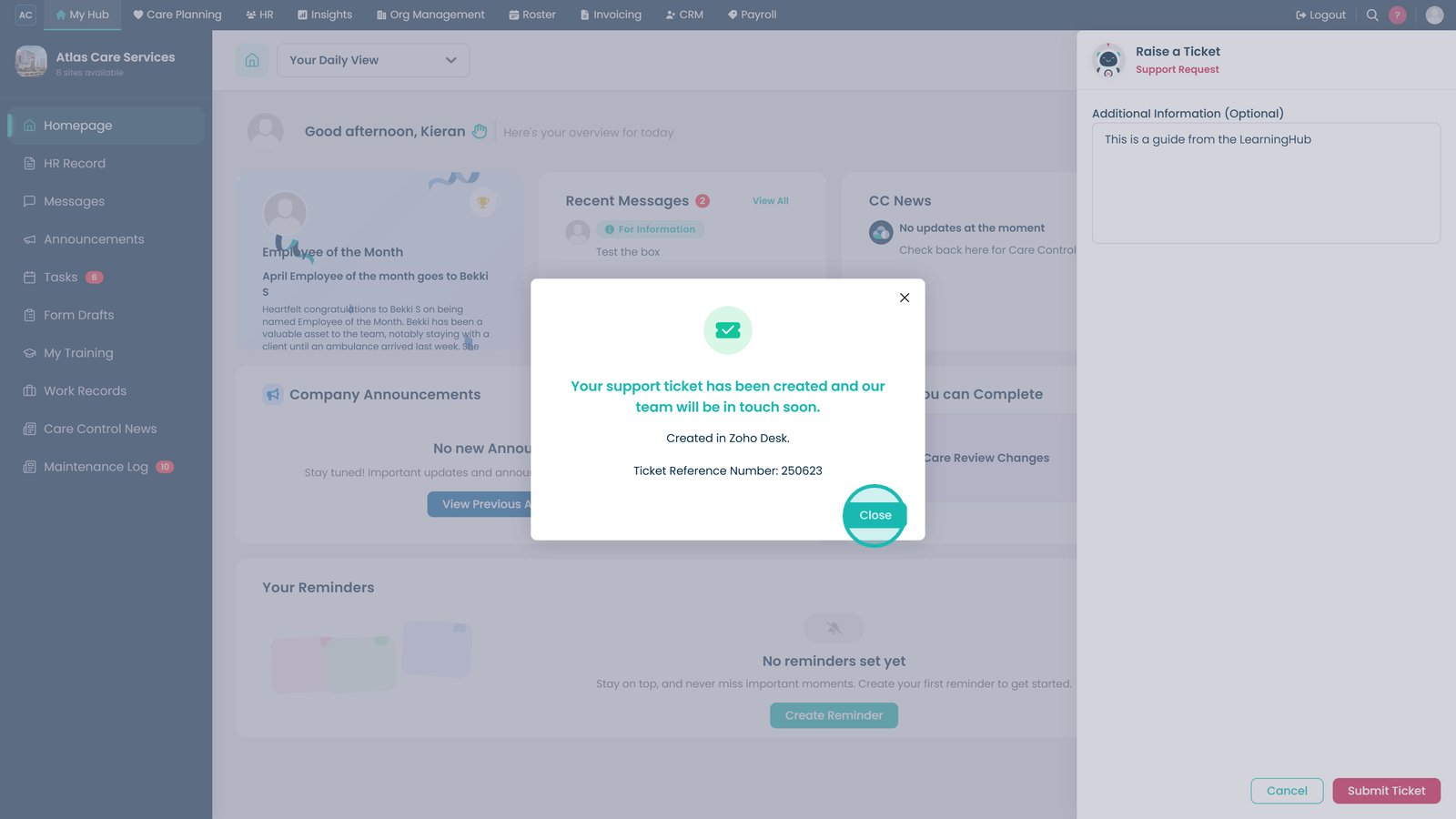
Select Close to exit the support window.
Top tip
Ask clear, specific questions to receive the most accurate guidance. If you still need help, you can submit a support ticket directly from within Margo without leaving Care Control Cloud.