View Categories

How to View Your Service Status Alerts

Learn how to use My Alerts within Service Status to identify issues that are specifically relevant to you, rather than viewing all alerts across the site.

Takes 1 minute
For: Everyone
Updated: 1st Sep 2026

Introduction

My Alerts within Service Status helps you focus on issues that are specifically relevant to you. Instead of working through all alerts across the site, you can filter the list to quickly identify the areas that require your attention.

In this guide you'll learn how to:

  • Access Service Status.
  • Open an area with outstanding alerts.
  • Switch between site-wide alerts and My Alerts.
  • Use My Alerts to focus on issues relevant to you.

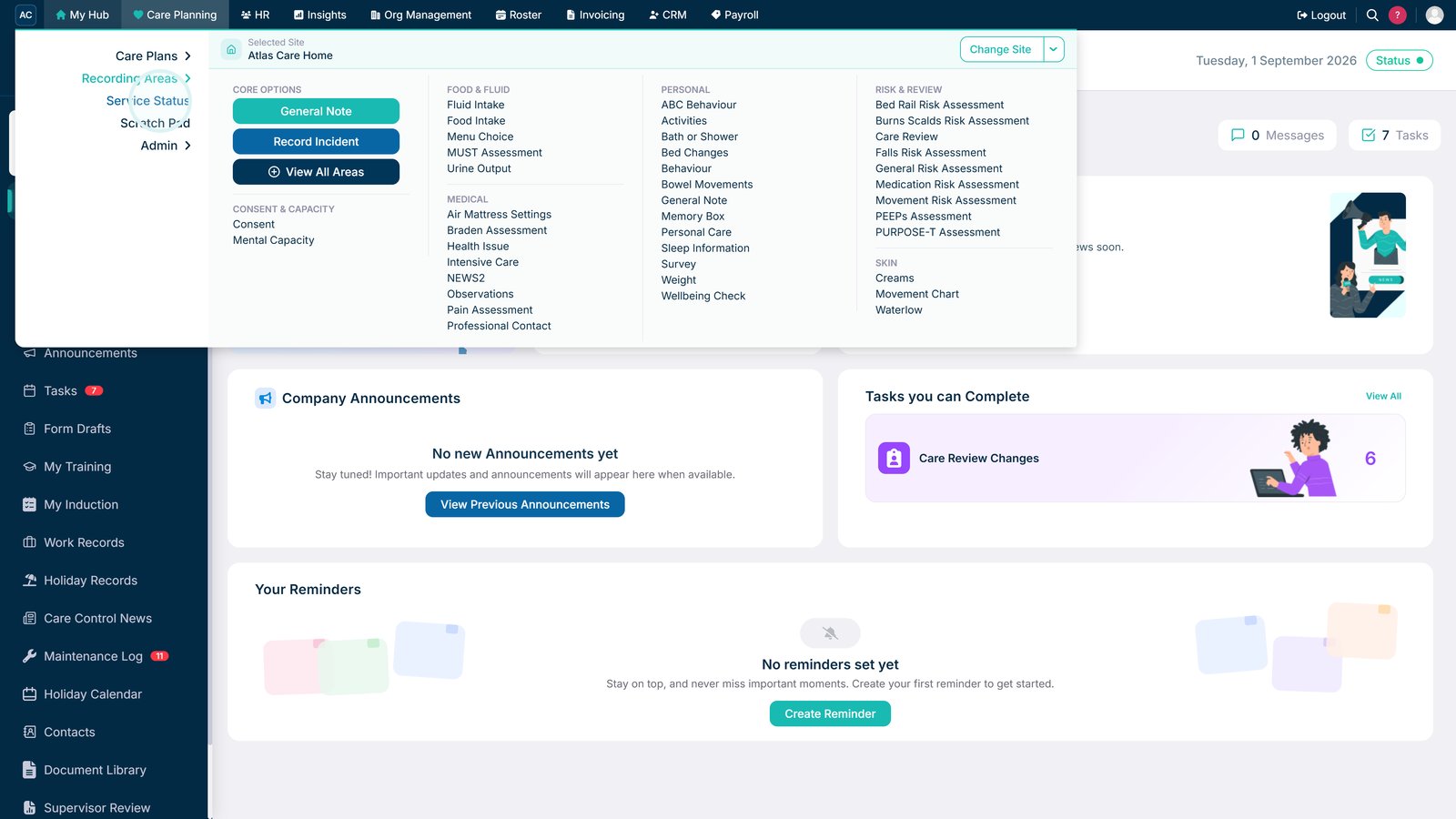
Open Service Status within Care Planning.

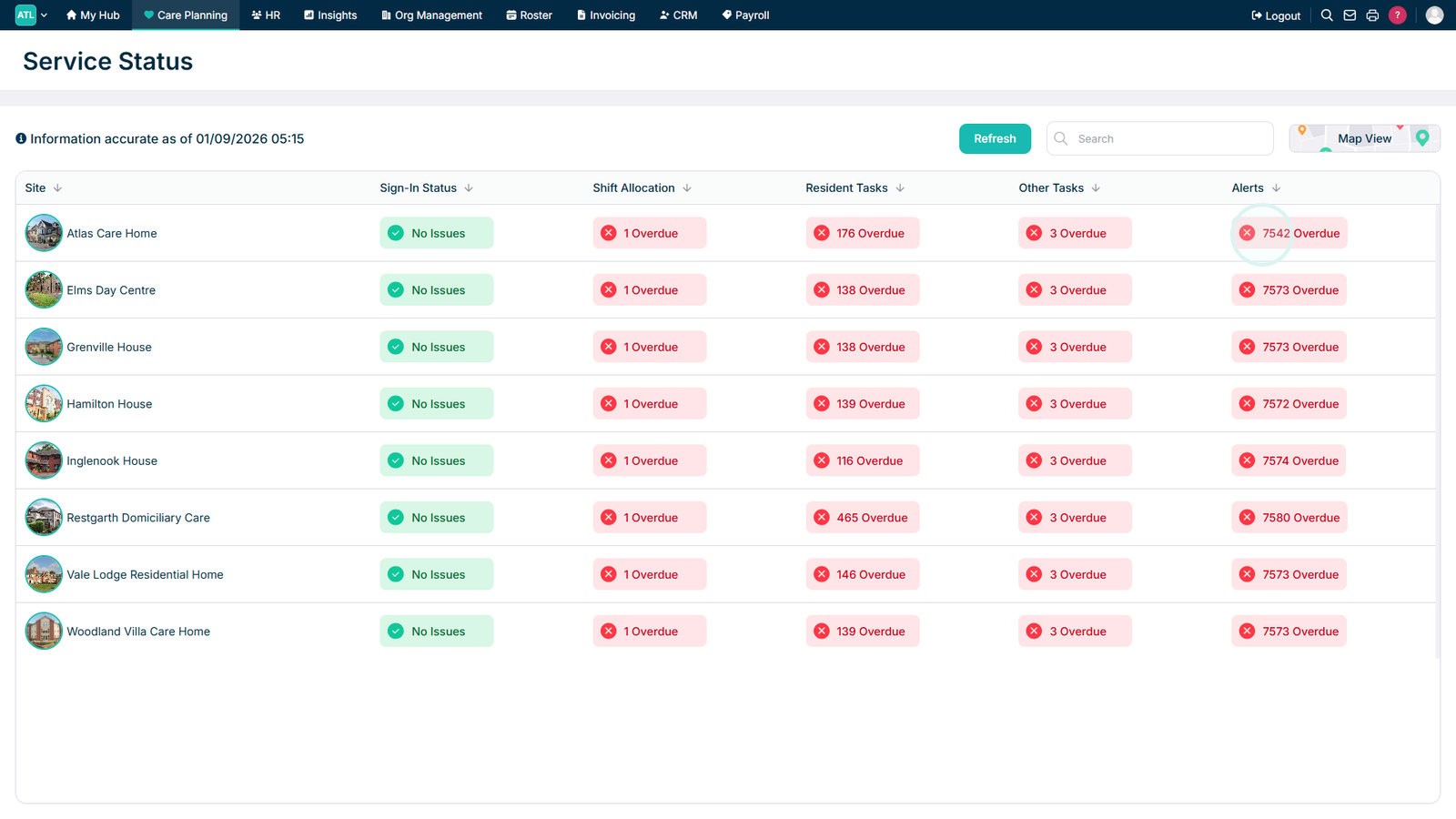
Select an area with outstanding issues to view its alerts.

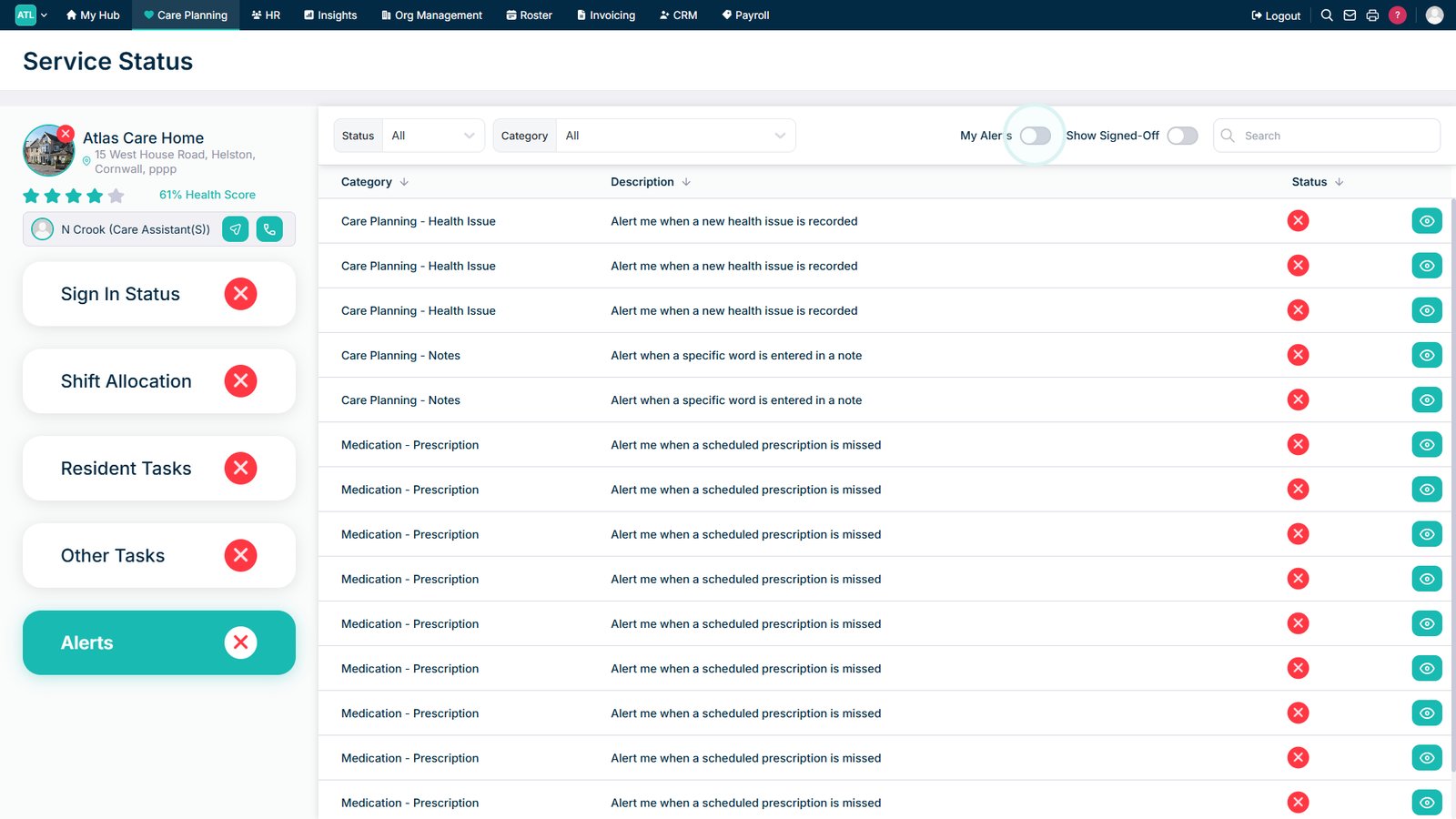
Use the toggle to switch between all site alerts and alerts that are relevant to you.

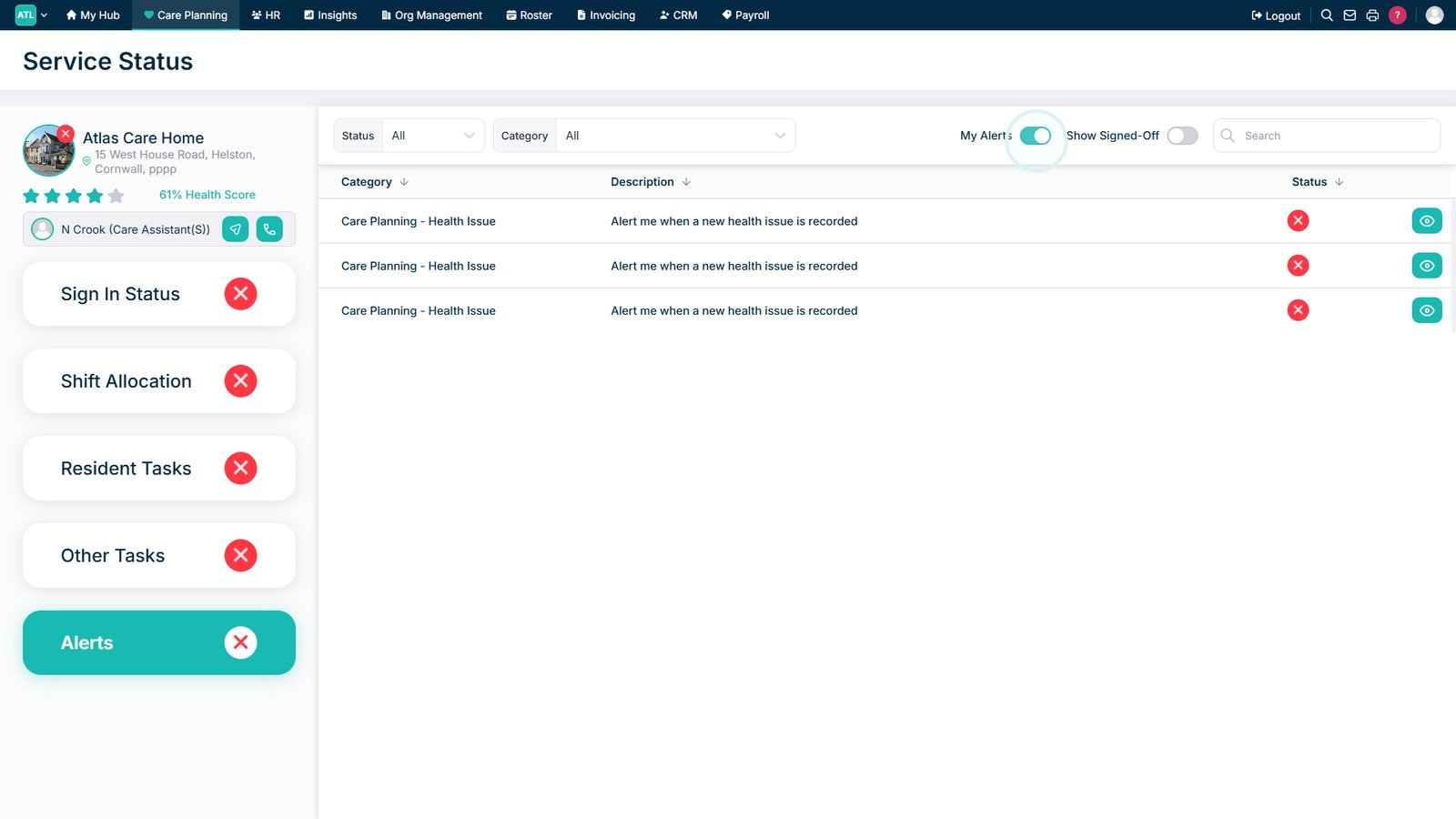
Select My Alerts to focus on the outstanding alerts that are relevant to you.

Top tip

Make sure My Alerts is selected when reviewing Service Status. This filters the list so you can focus on the alerts that are relevant to you.

Was this guide helpful?

Need more help?

Can't find what you're looking for? Our support team is here to help.

Contact Support

Or call us on

On this page