Explore our new Gateway hub with setup guides, FAQs, videos, webinars, and more
A different way to add a shift, this way gives more options and allows for further control over shifts.
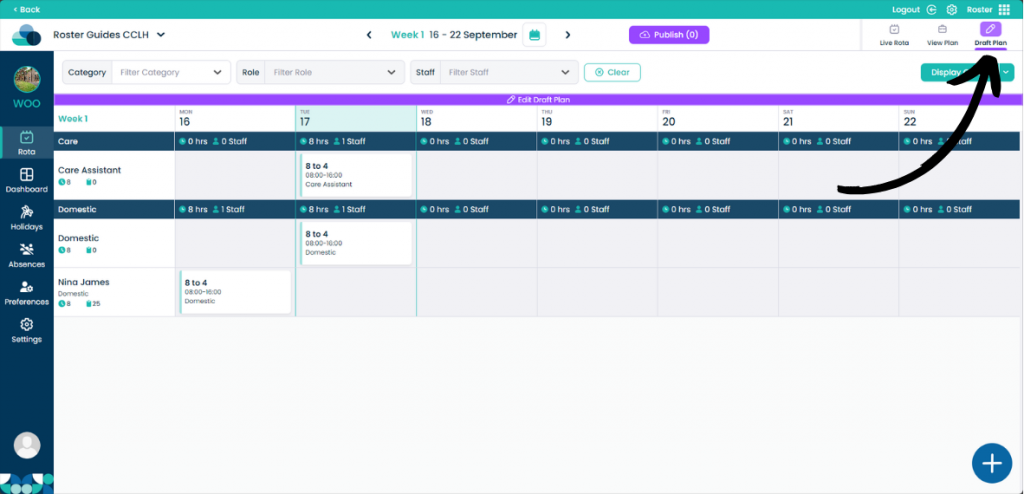
When on your rota screen, select Draft Plan and then Edit Draft Plan.
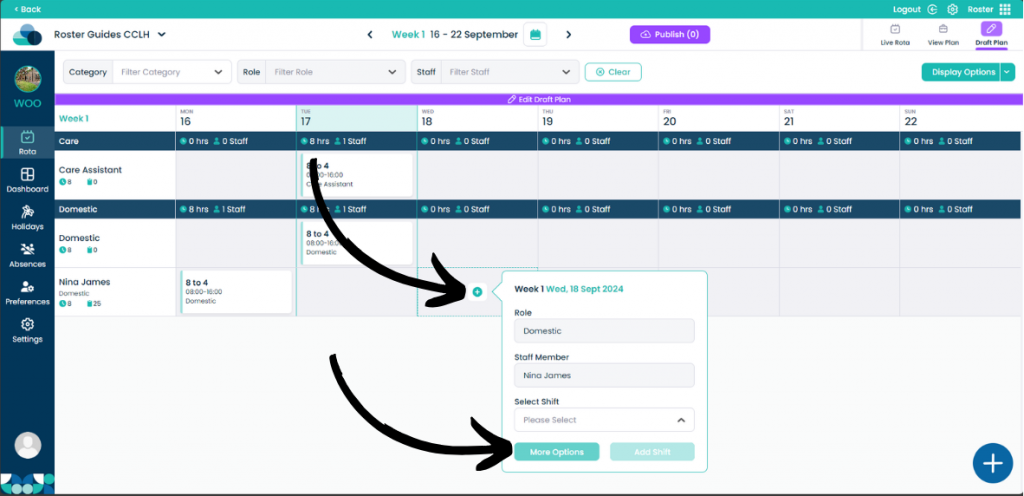
Now hover your mouse over the cell you wish to add a shift too. Click the Plus within the cell and then click More Options.
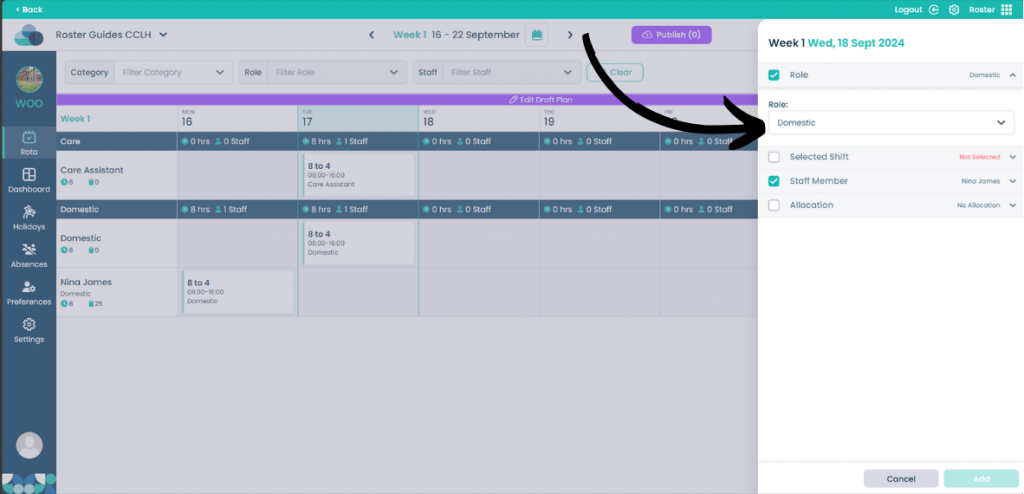
On the slide out menu there are a lot more options than the Quick Add Shift menu.
First, select which Role you would like the shift to fall under.
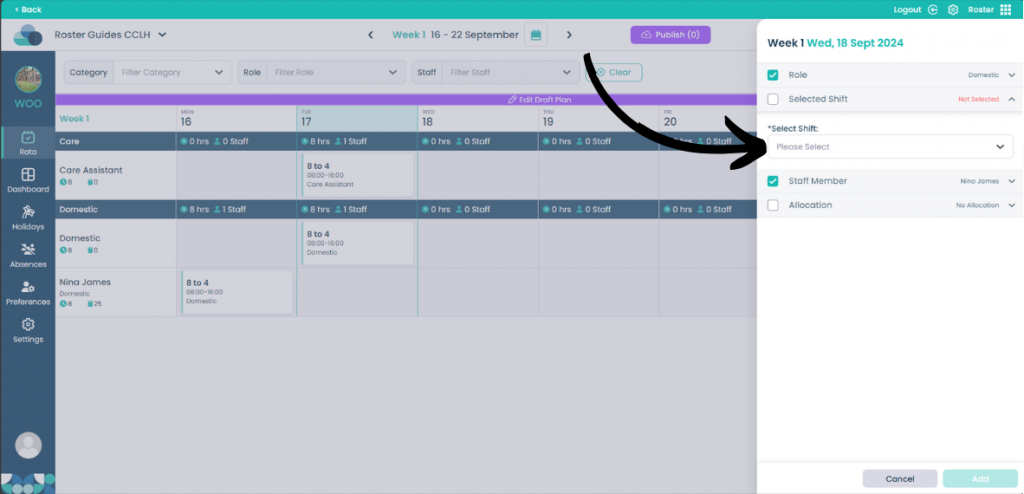
Then select the Shift you would like from the drop-down menu.
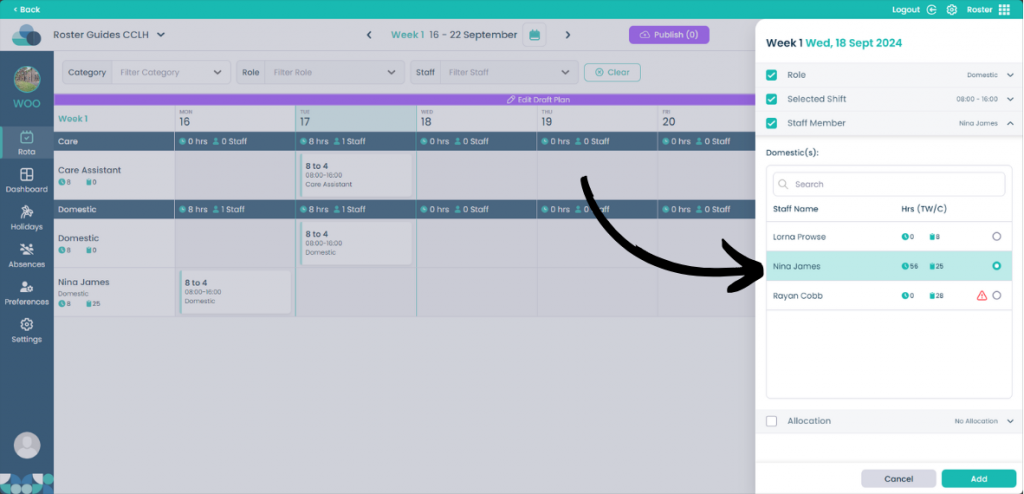
You can also select which Staff Member the shift should be added to. They will automatically be filtered based on the Role you selected.
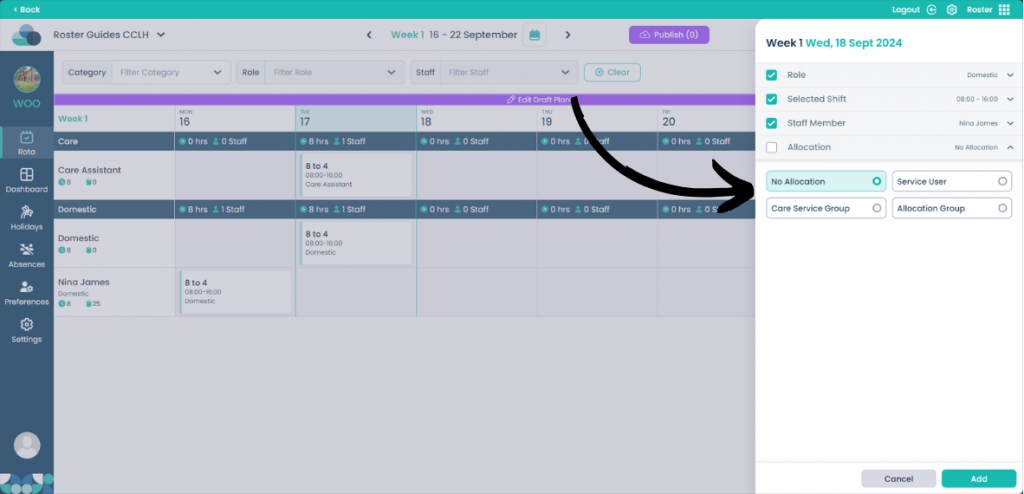
You can also add an Allocation to the shift, although this is not necessary.
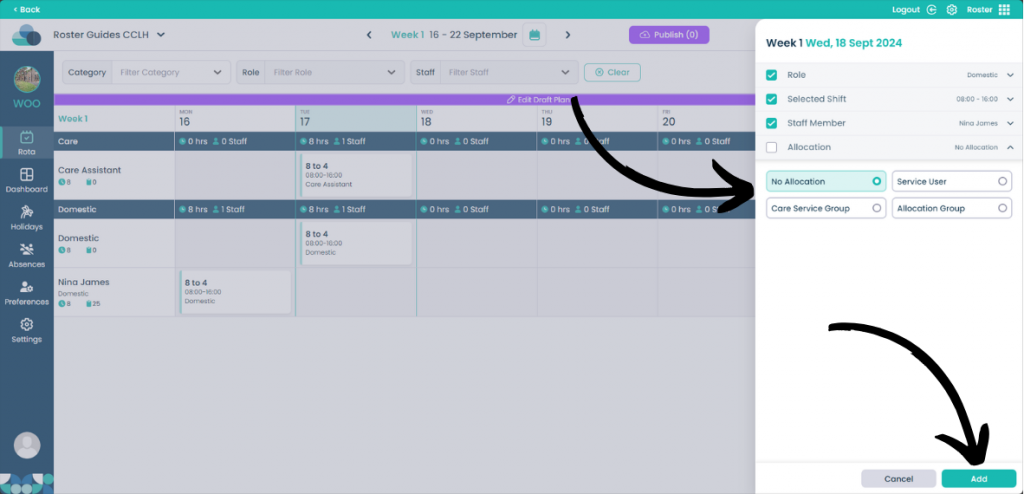
When you are happy with the shift, click the Add button to confirm adding the shift.