This guide will cover how to add a PRN Protocol to an existing prescription for a service user. This is completed in the Care Control eMAR application.
1
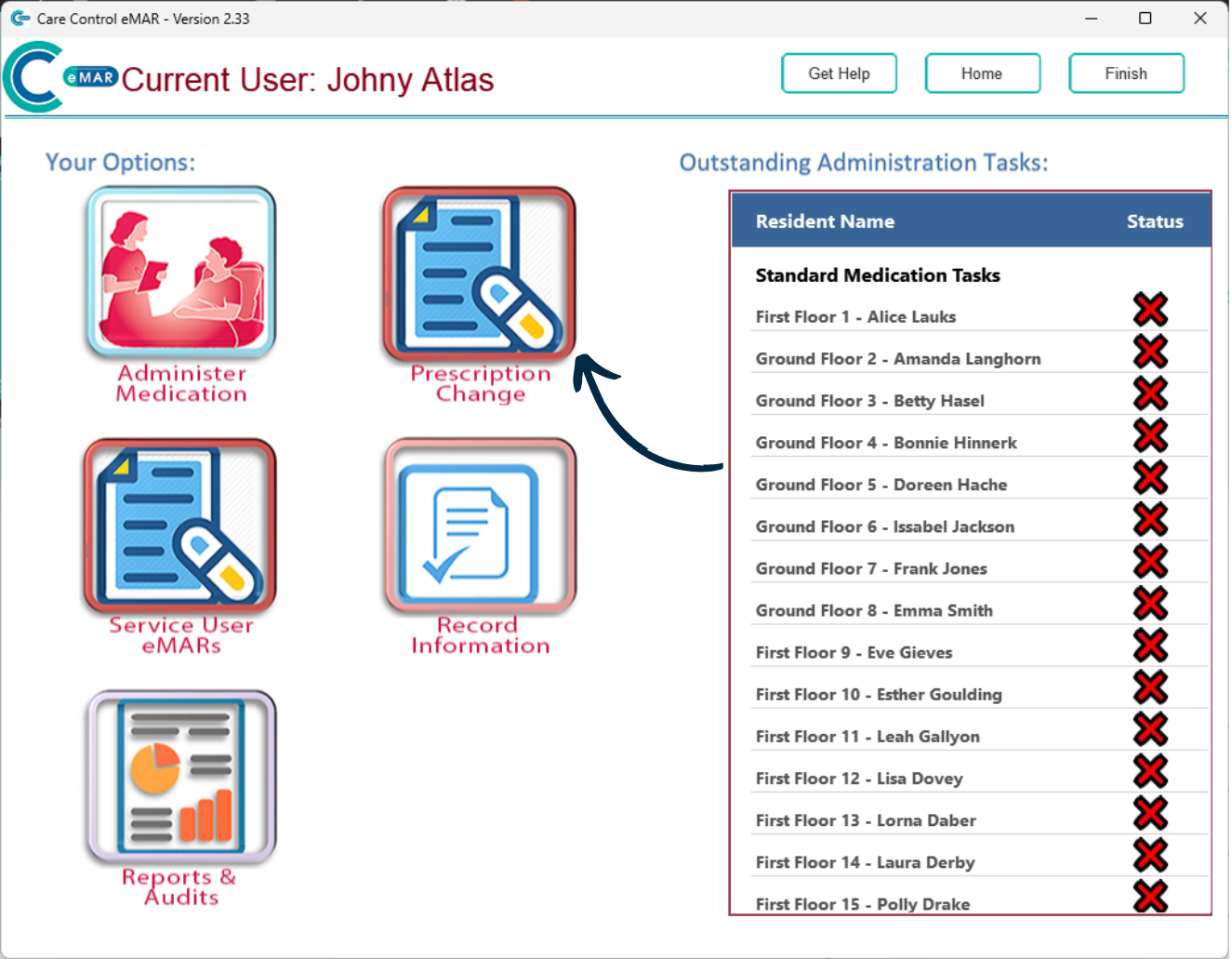
After signing into Care Control eMAR, select the Prescription Change tool.
2
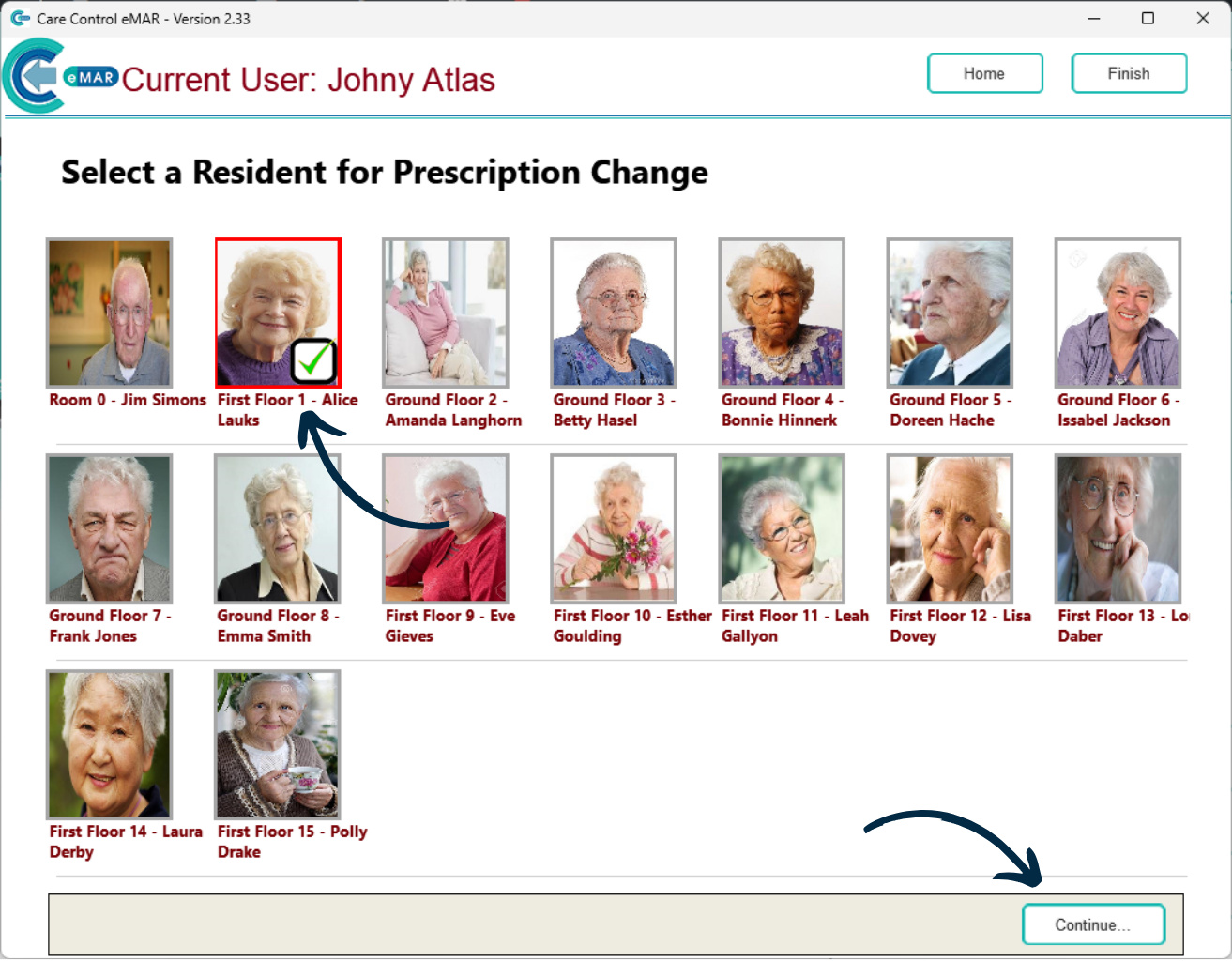
Select a Service User and press Continue.
3
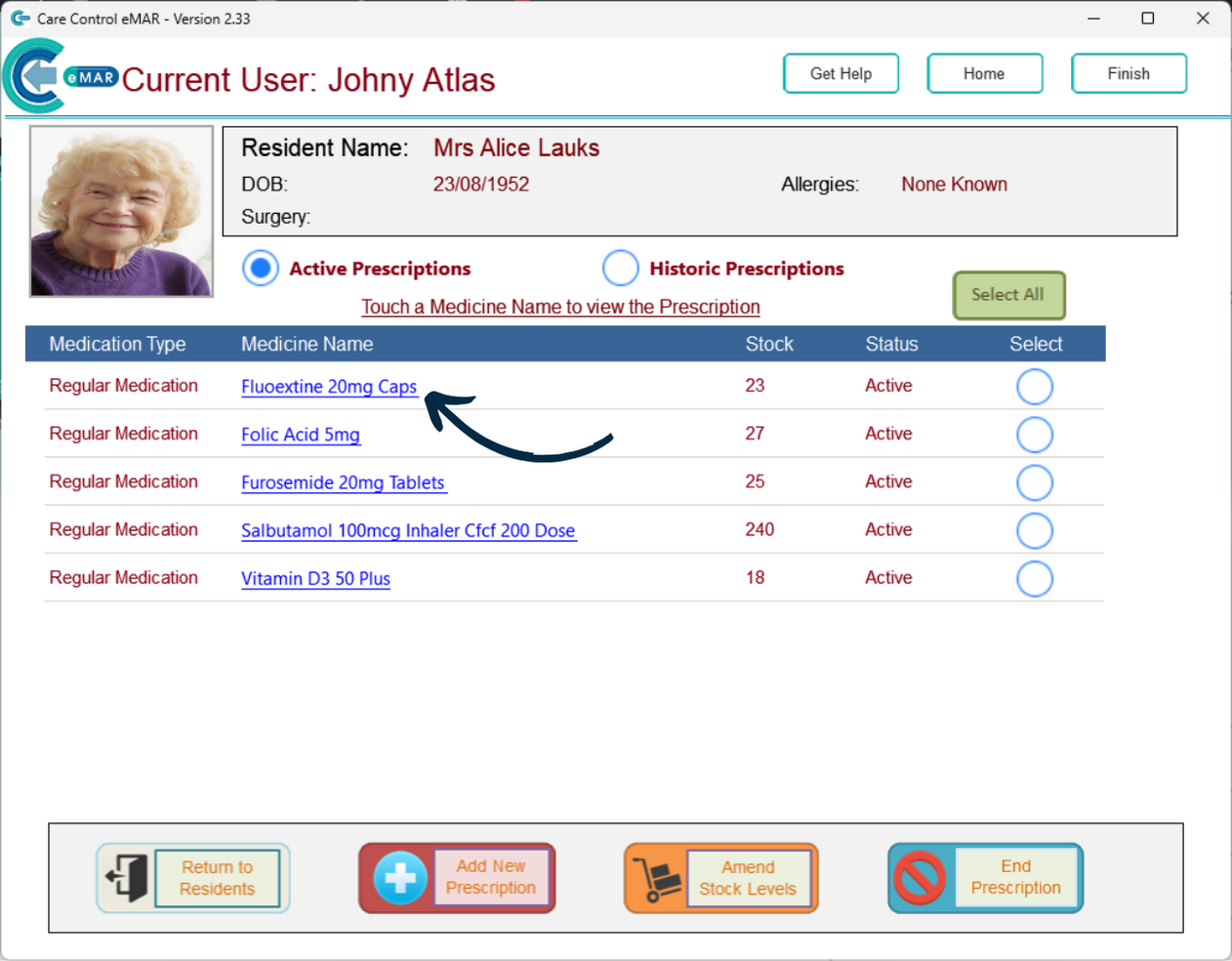
A list of the service users active prescriptions will be displayed. Here, select the prescription you wish to add a PRN Protocol to.
4
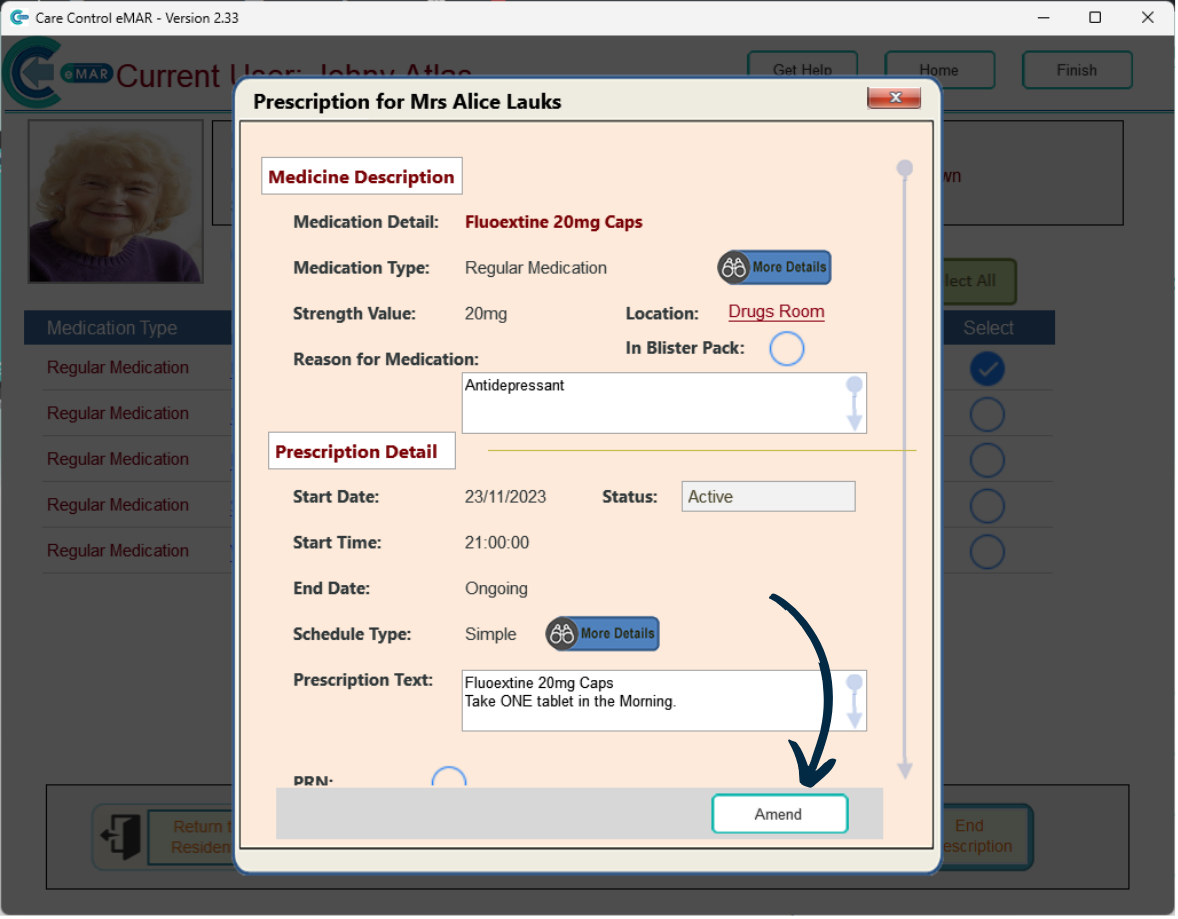
The details of the prescription will open. Press Amend to make a change.
5
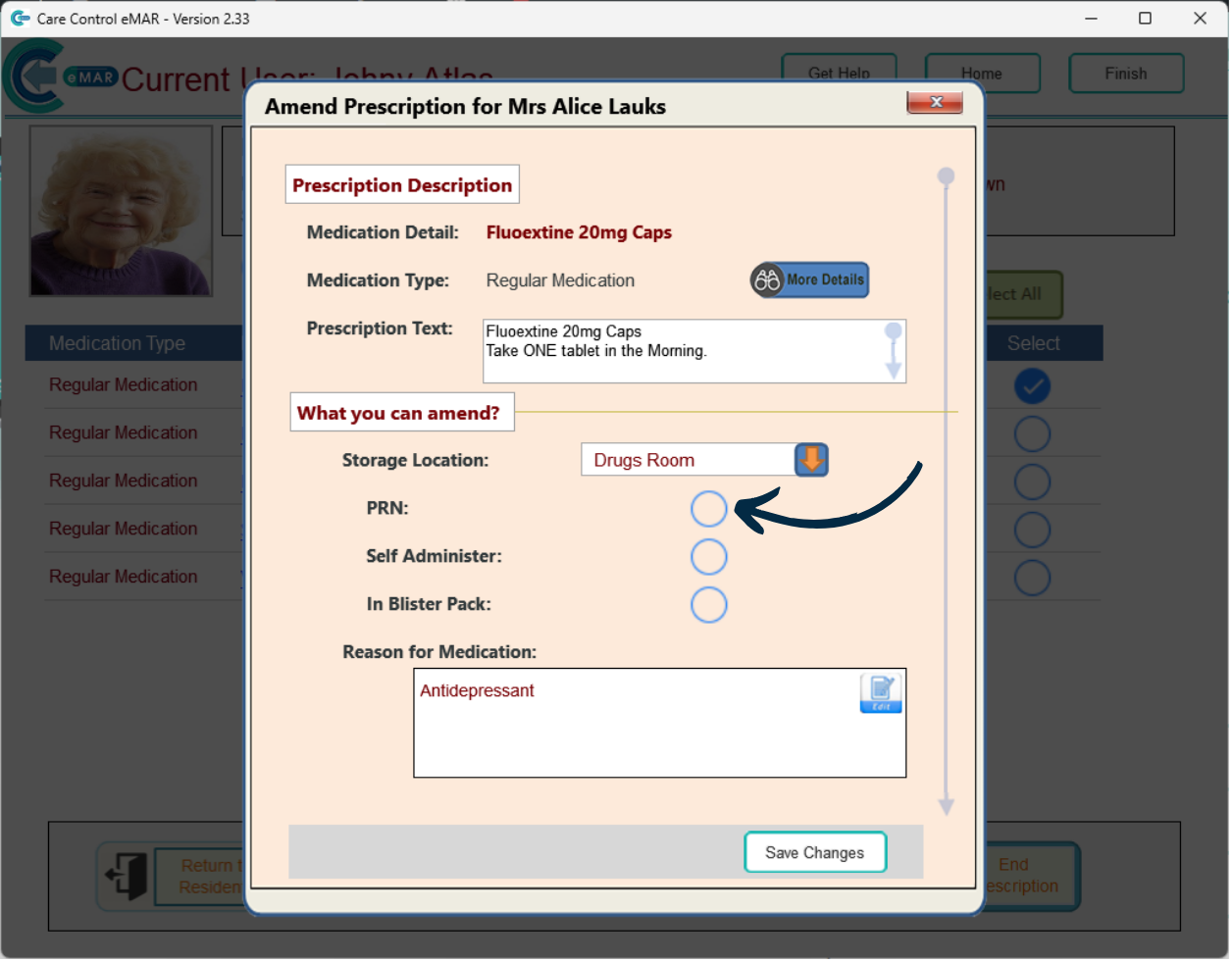
If a PRN Protocol has not been added at all, tick the PRN box.
6
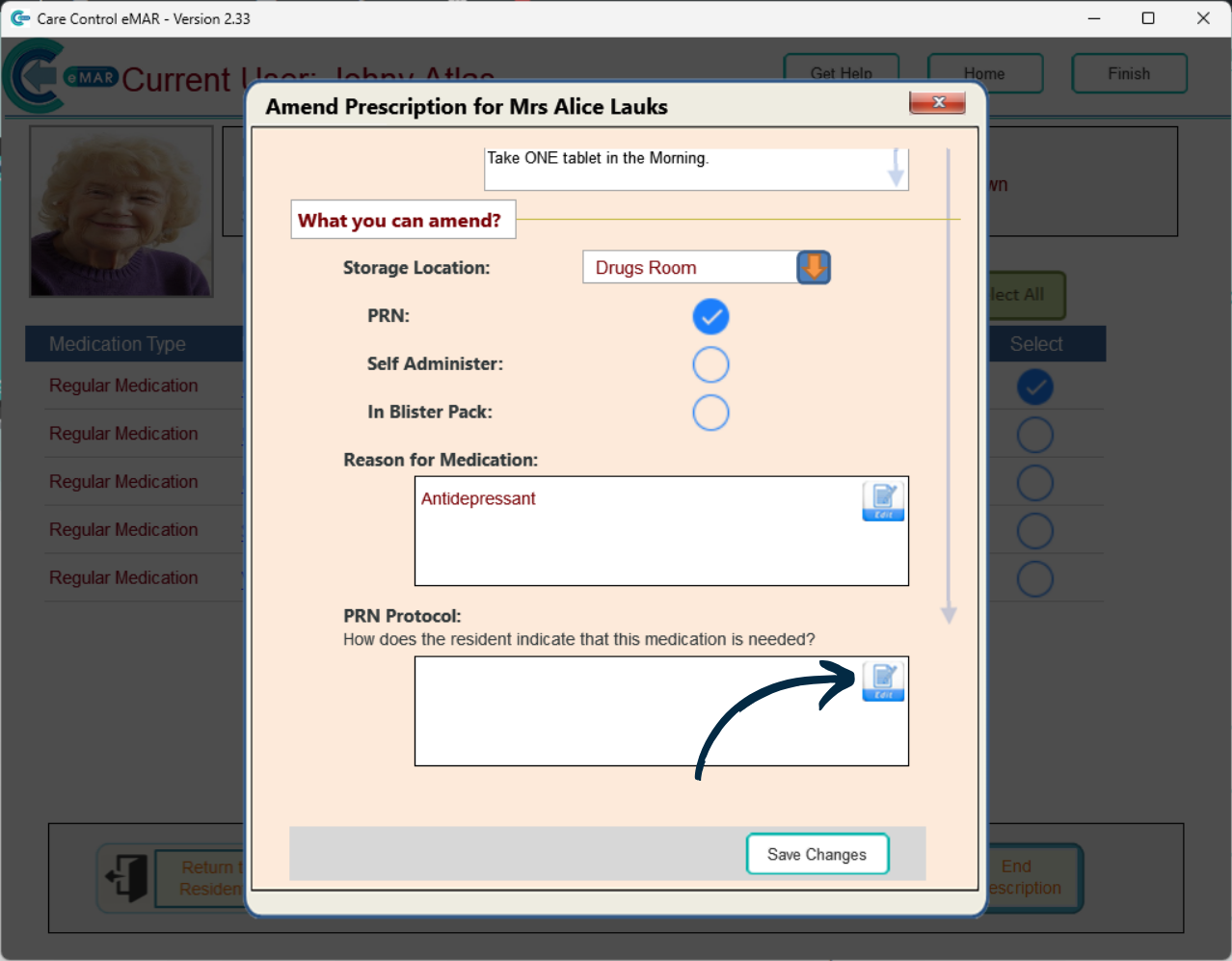
A protocol box will then appear further down the form. Press the Edit button to amend the content of the protocol.
7
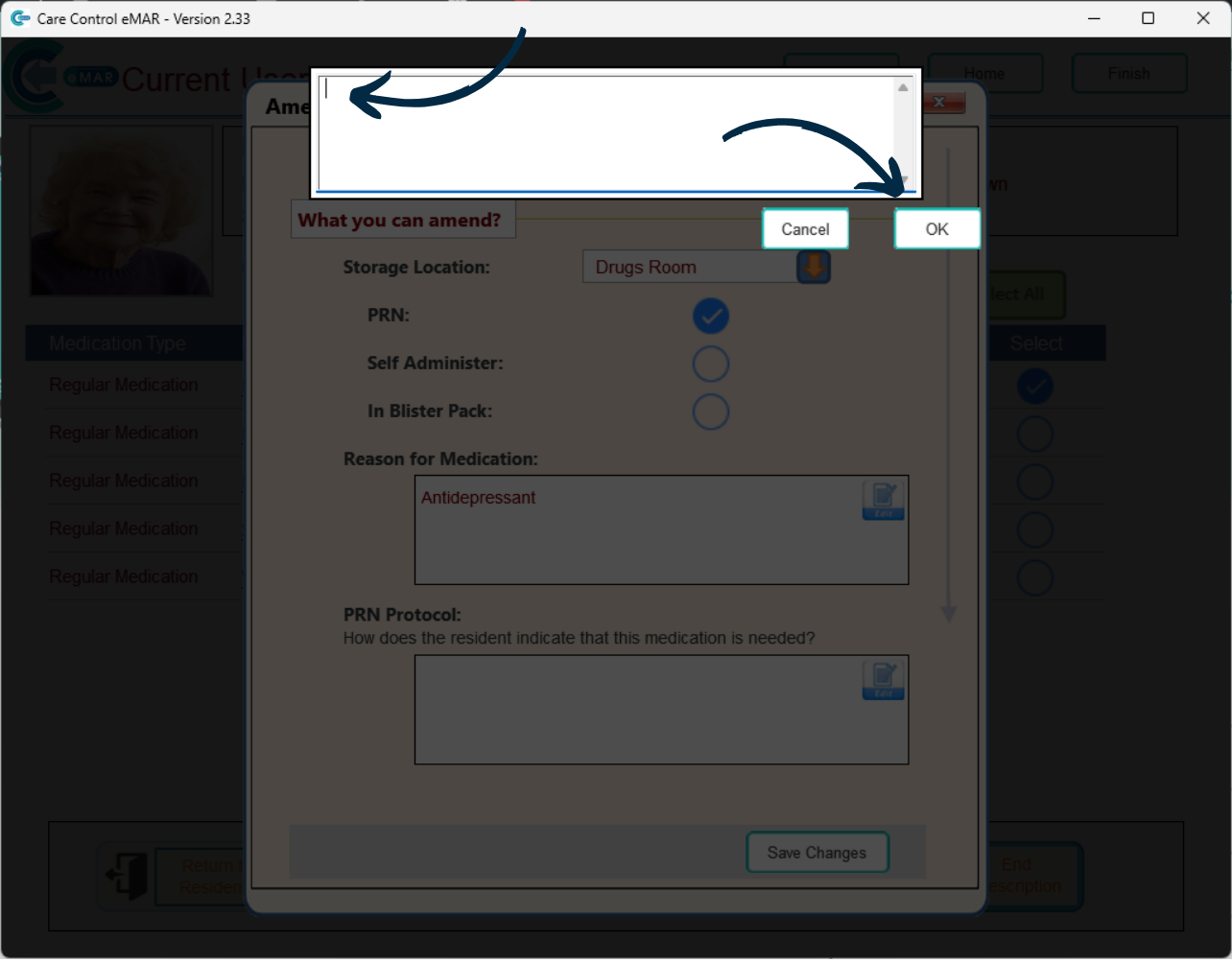
Enter the relevant information, then, press OK.
8
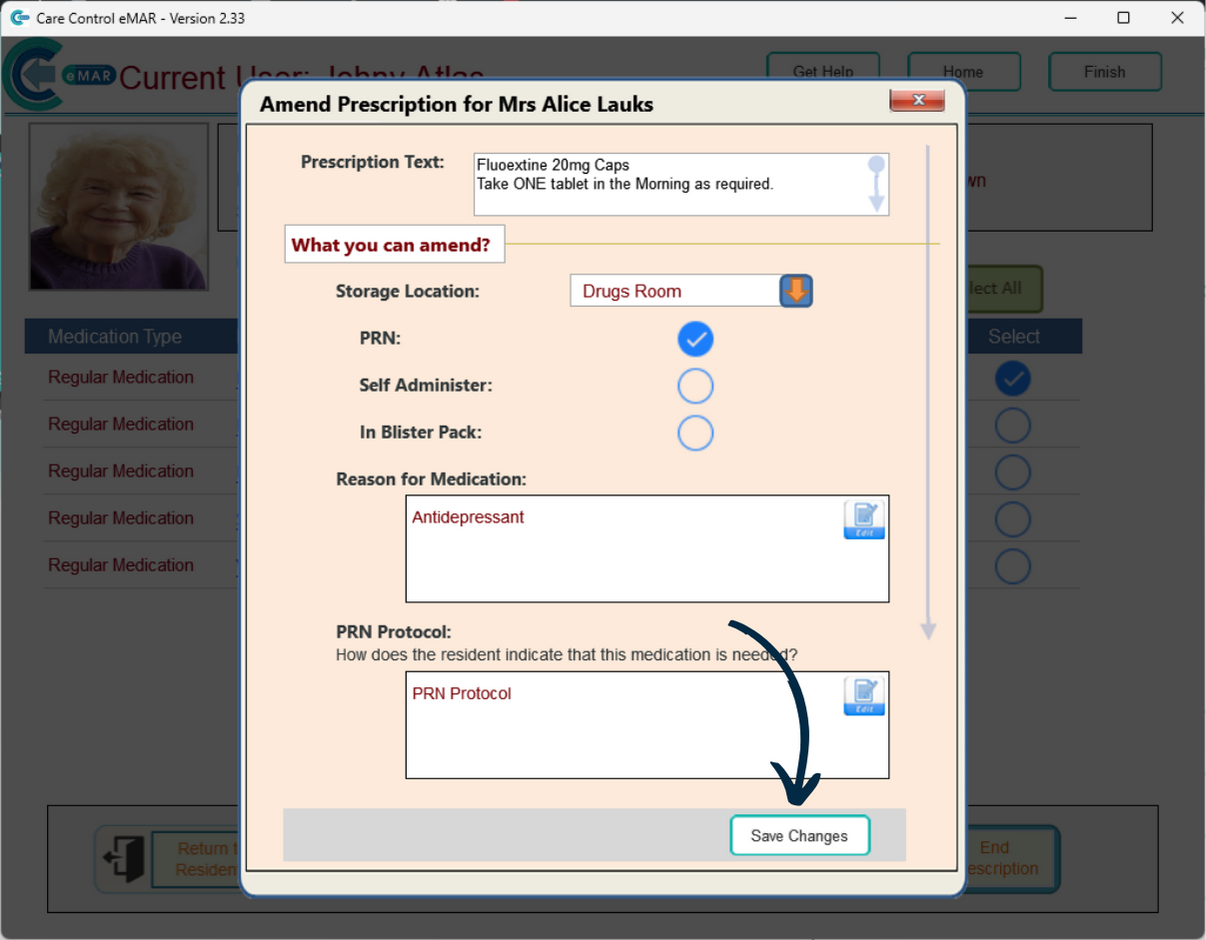
Finally, press Save Changes after making any amendments.