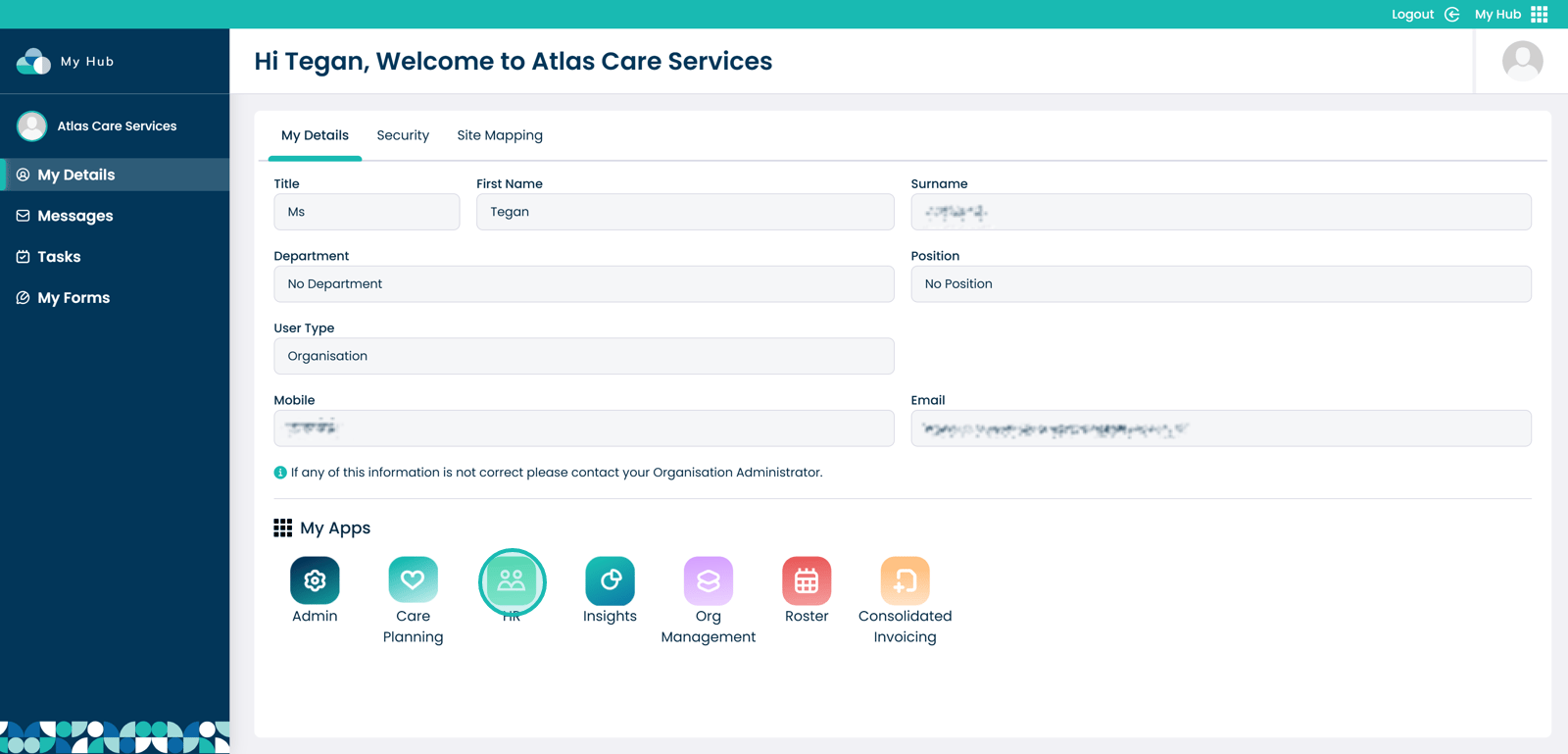
1. From within the HR application on Care Control Cloud, navigate to the Staff Training area.
Please note: this guide has been updated and this feature has migrated from the Admin Application to HR.
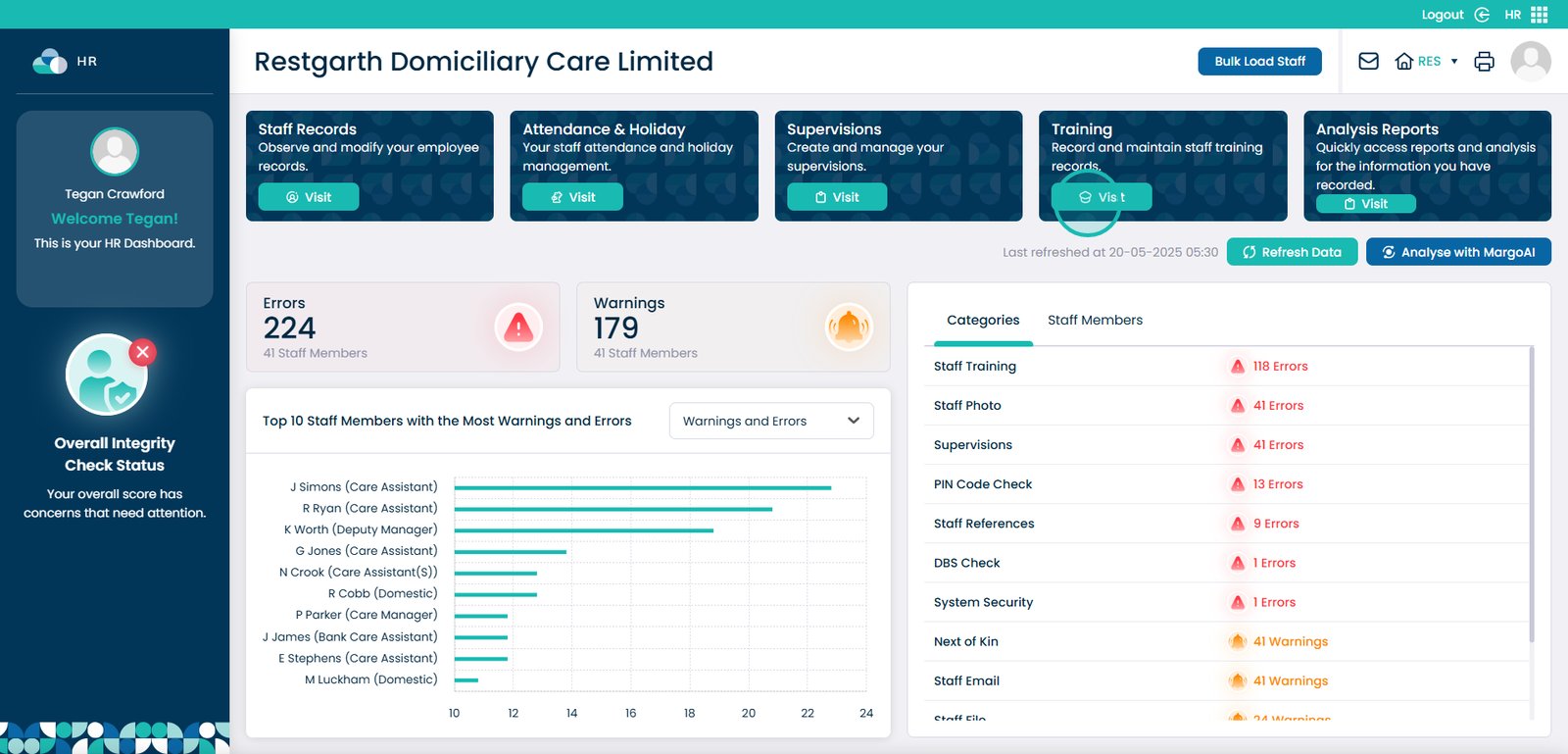
2. Here, select the ‘Visit’ button under Training from the options at the top.
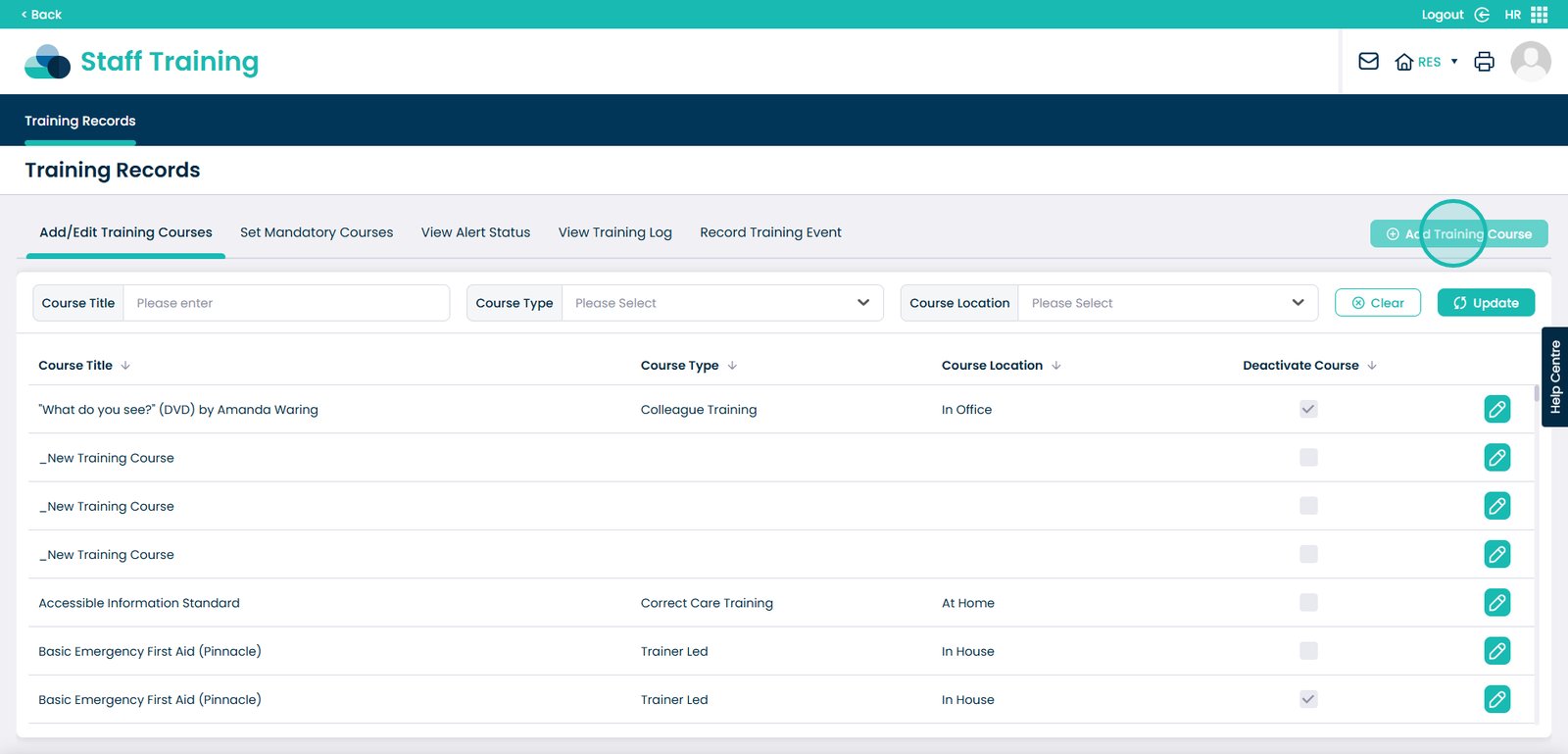
3. A list of all the training courses will be displayed. You can filter the list by Course Title, Course Type and Course Location.
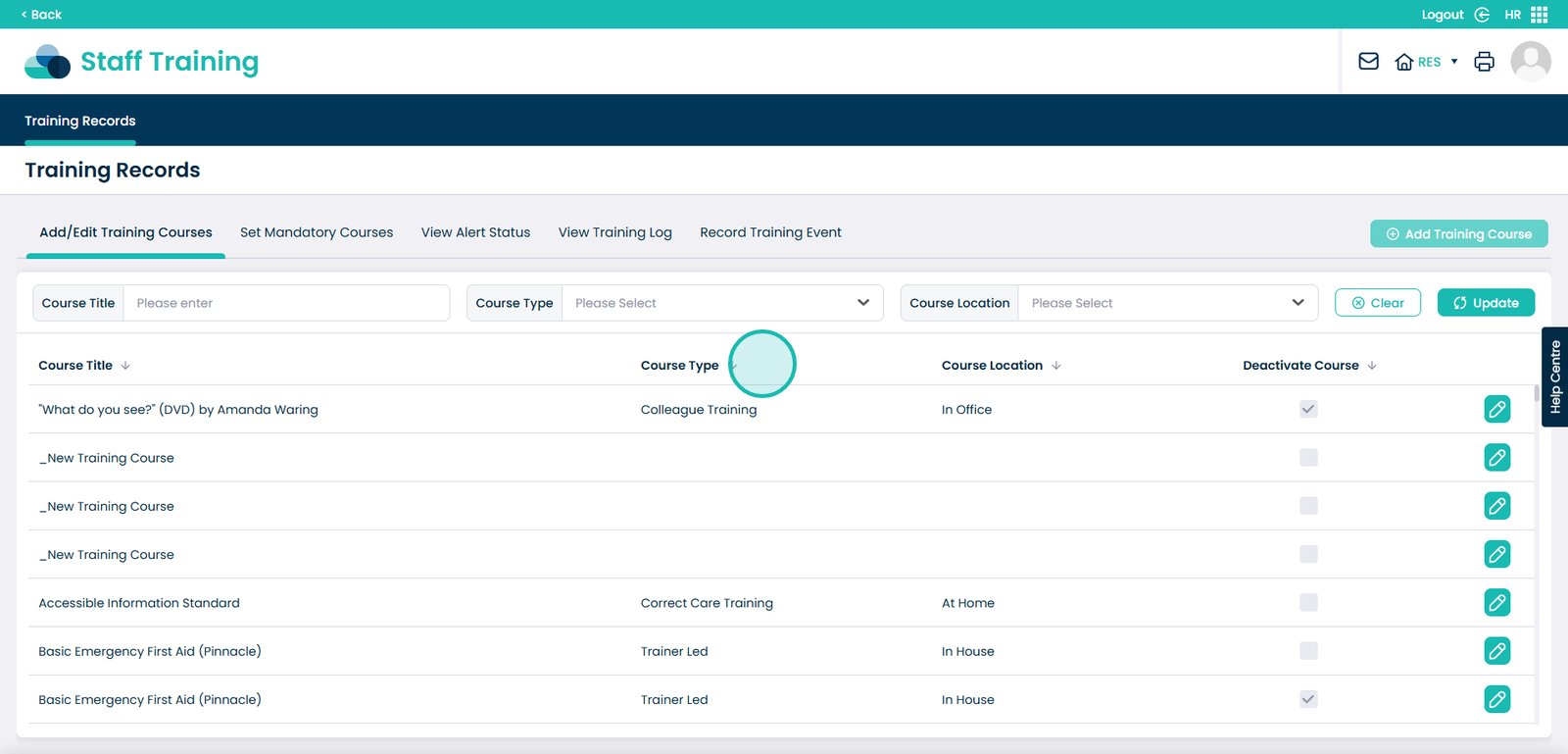
4. To add a new course, press the ‘Add Training Course’.
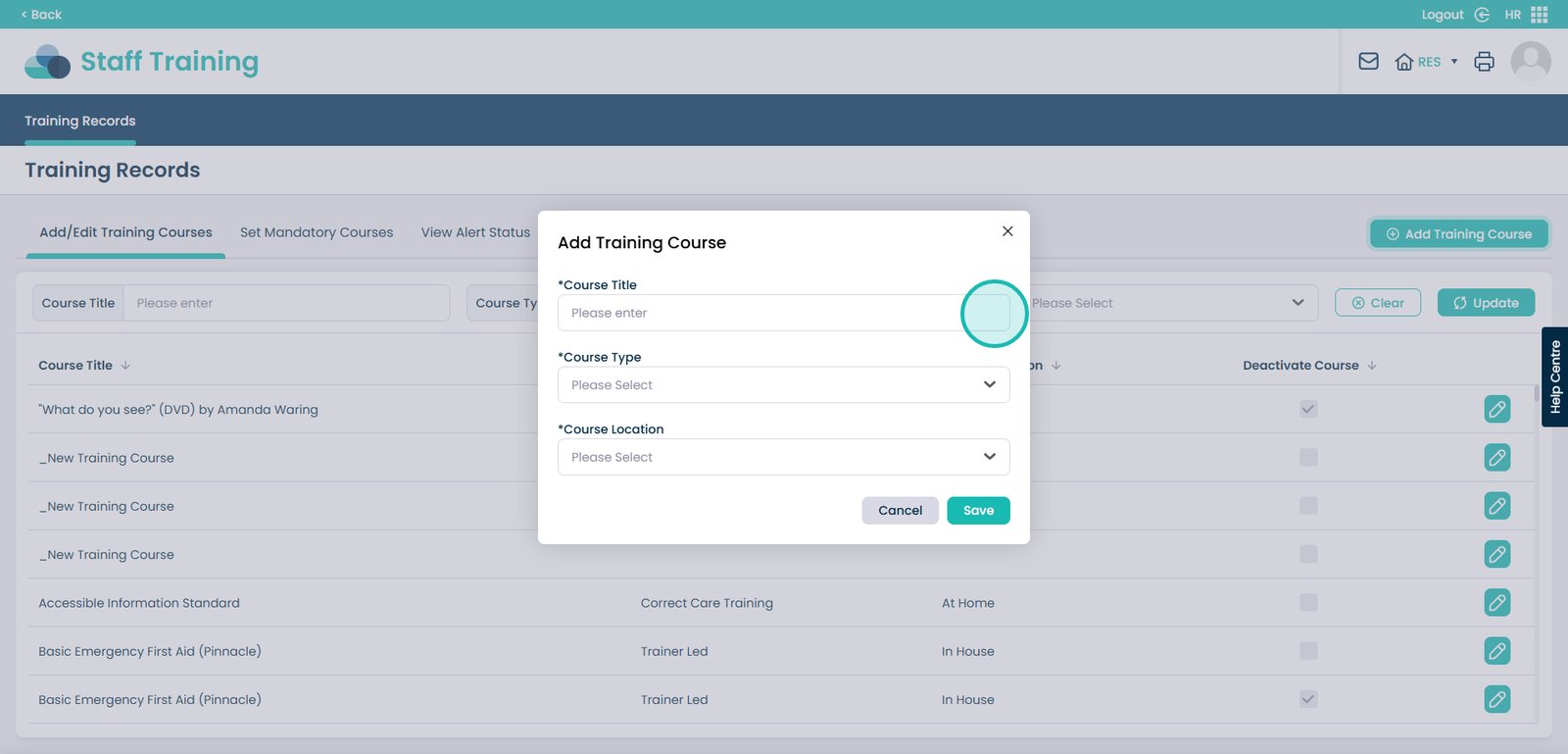
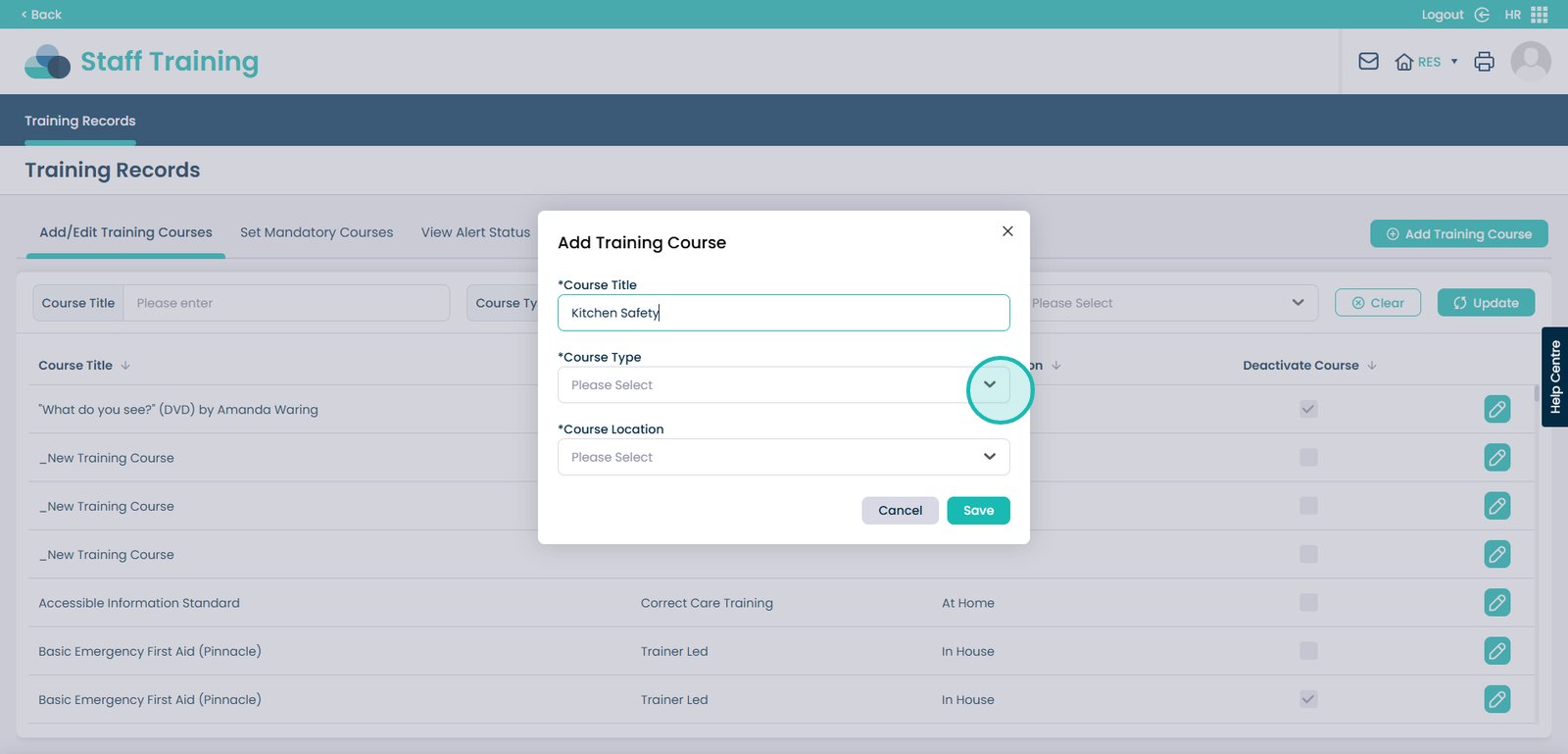
5. This blank form will open. Begin by entering Course Title.
6. Then select a Type and Location for your new course.
7.
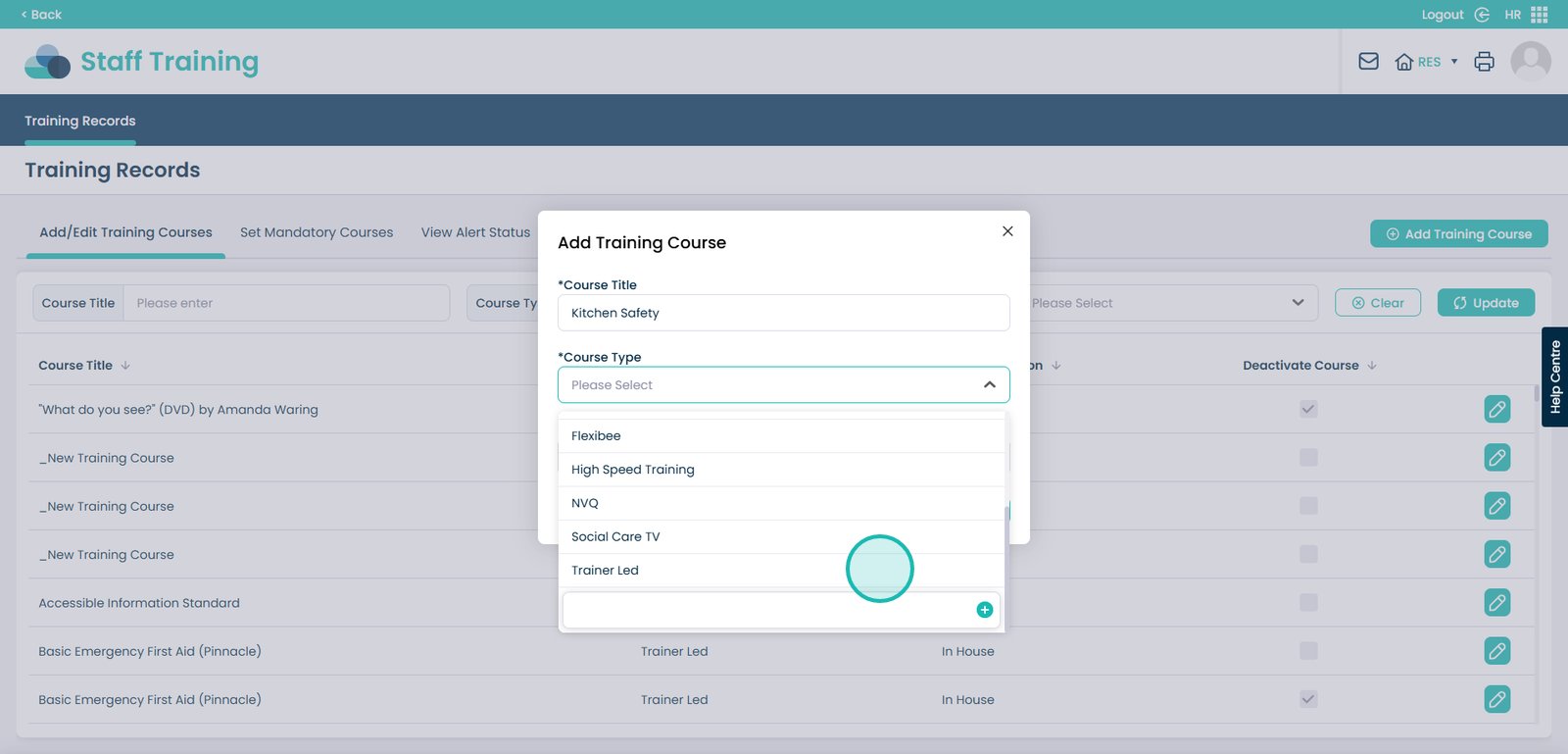
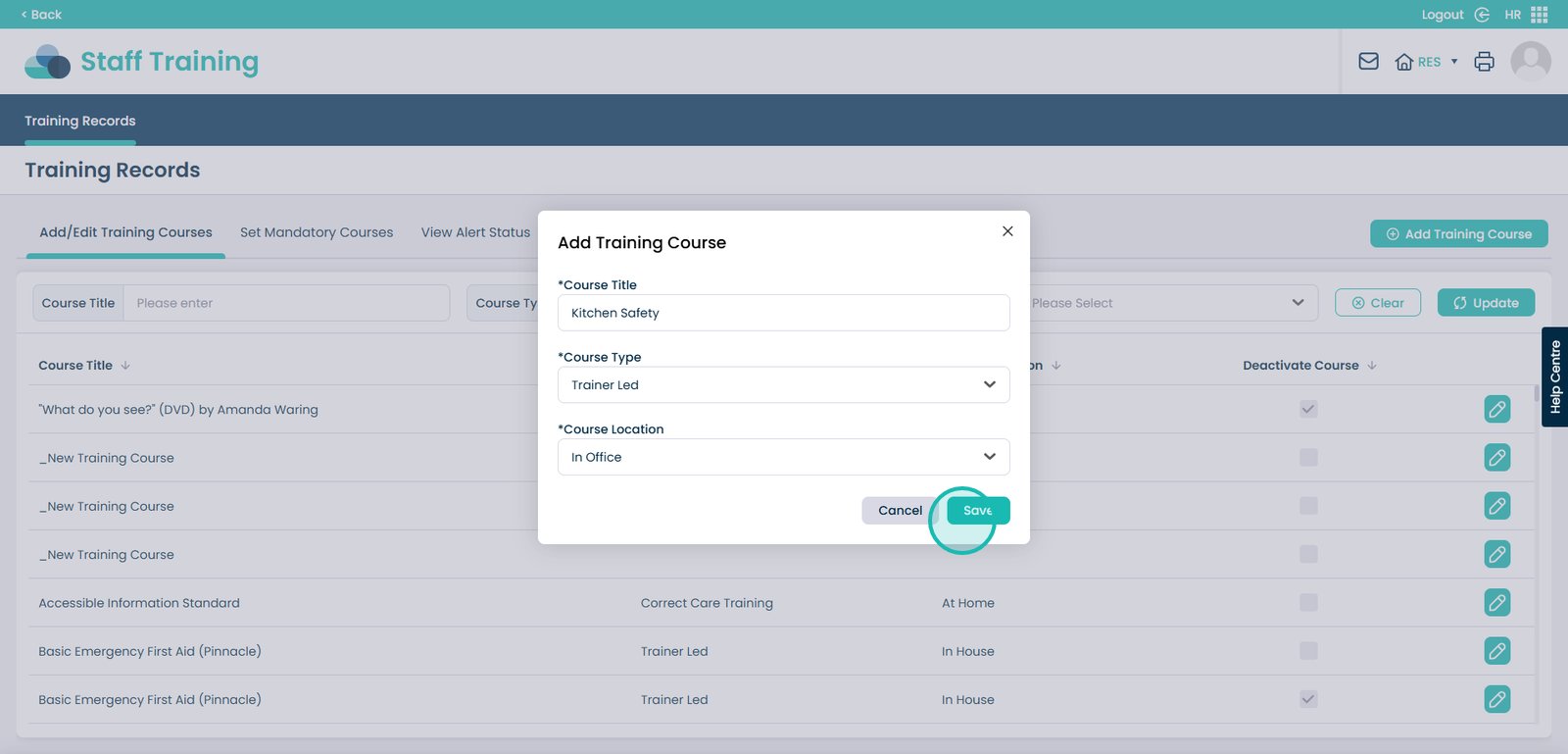
8. In this example, we are adding a Kitchen safety course which is Trainer led and occurs in Office.
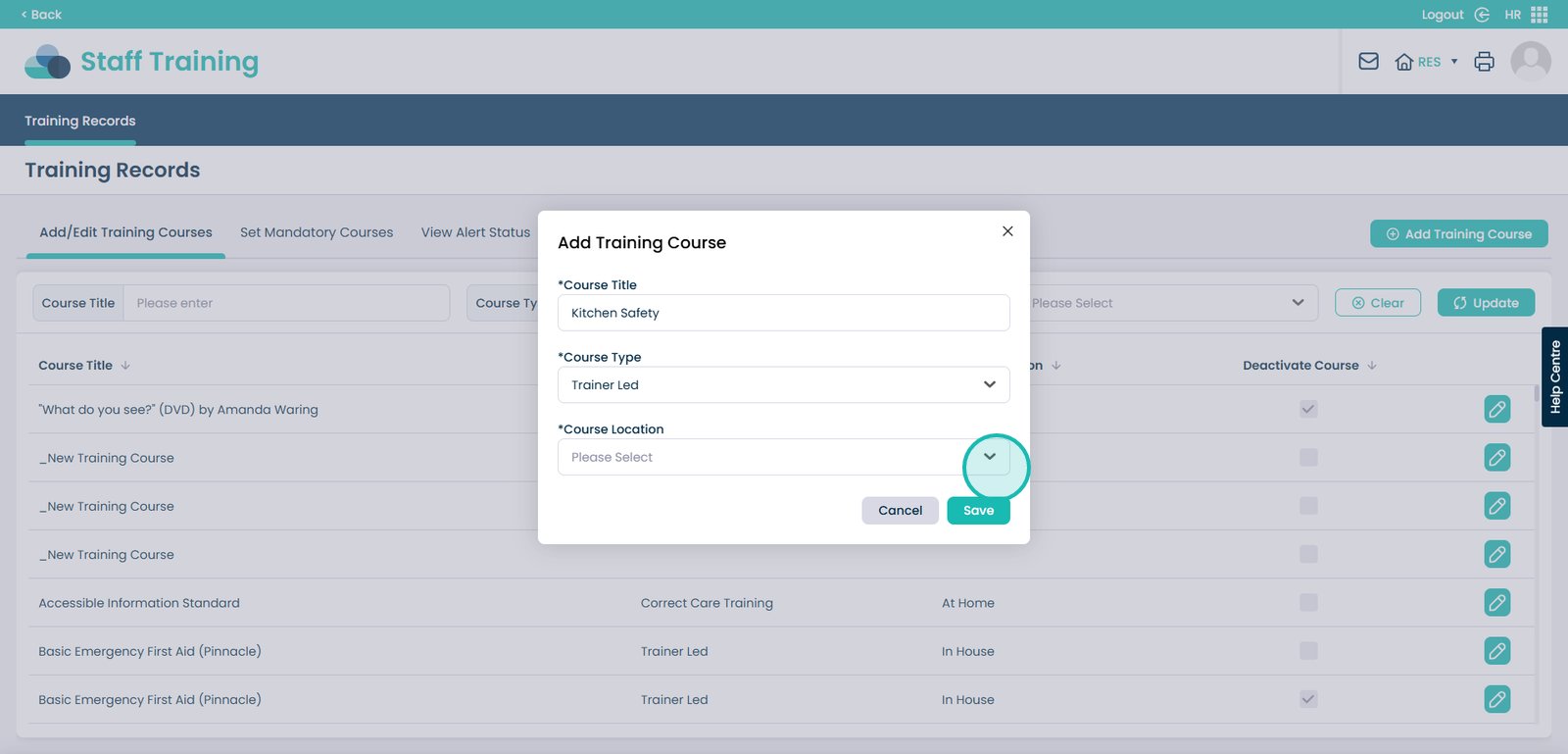
9.
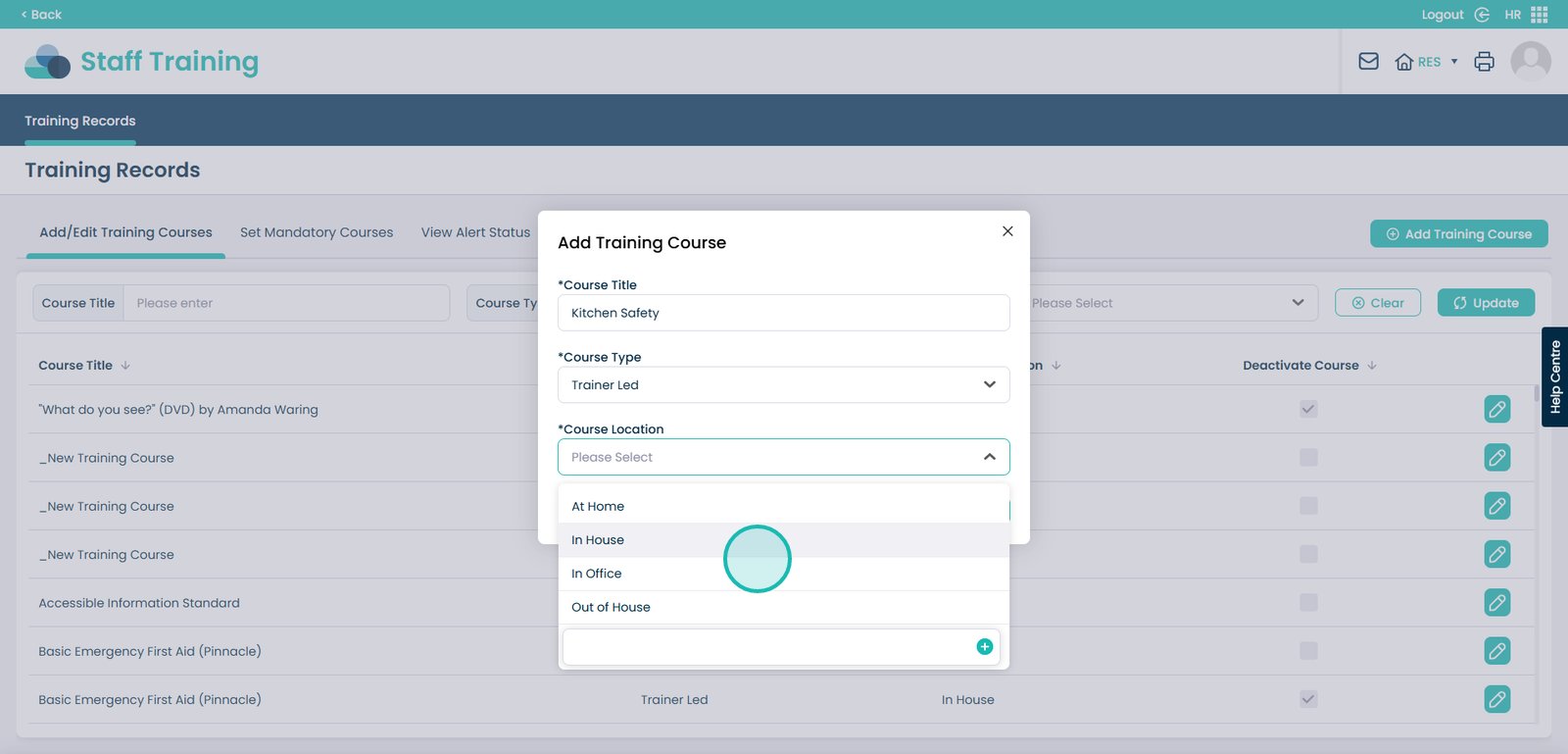
10. After completing the form, press the ‘Save’ button.
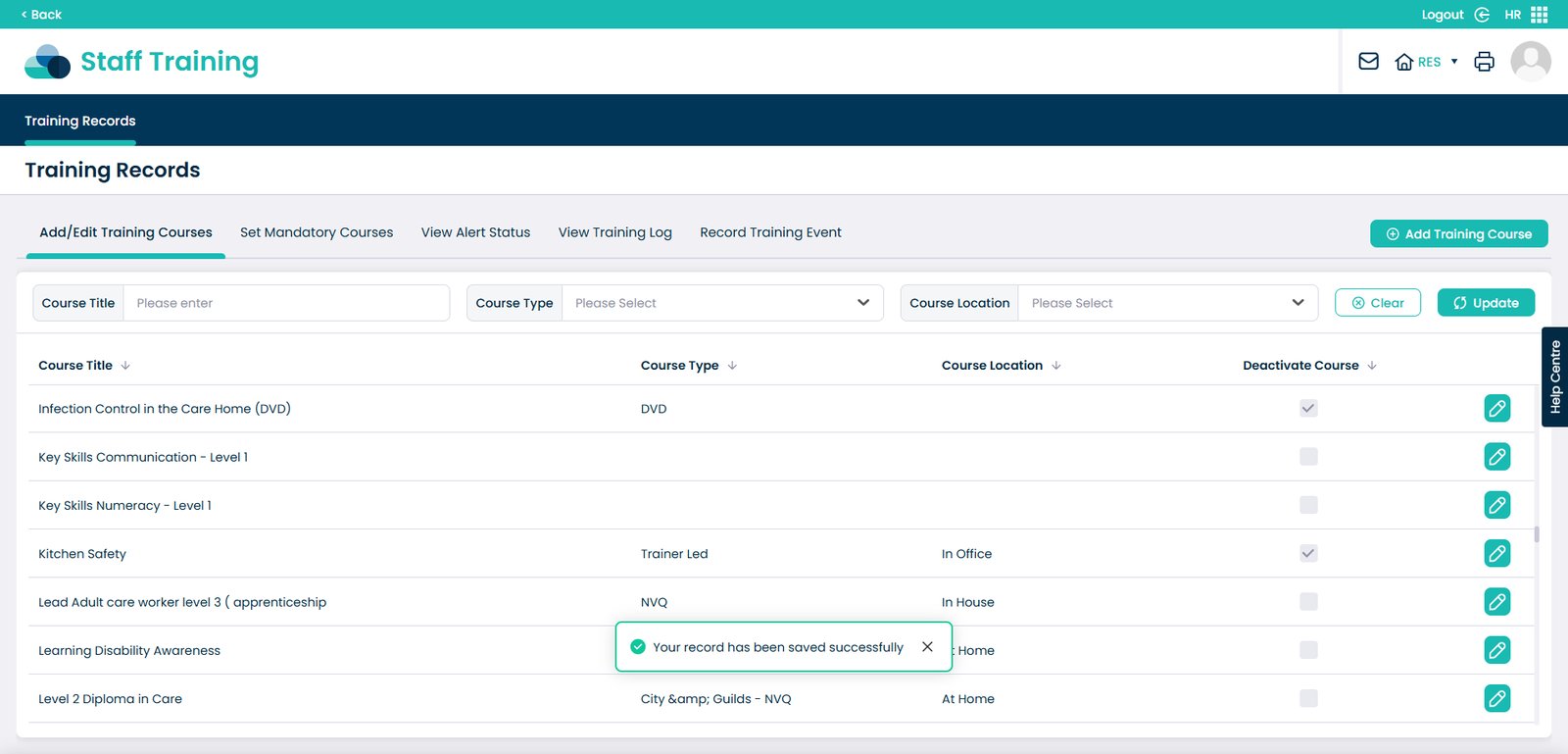
11. Your new course will appear in the list. You can edit and deactivate the course by pressing the pencil icon on the right hand side of the page.
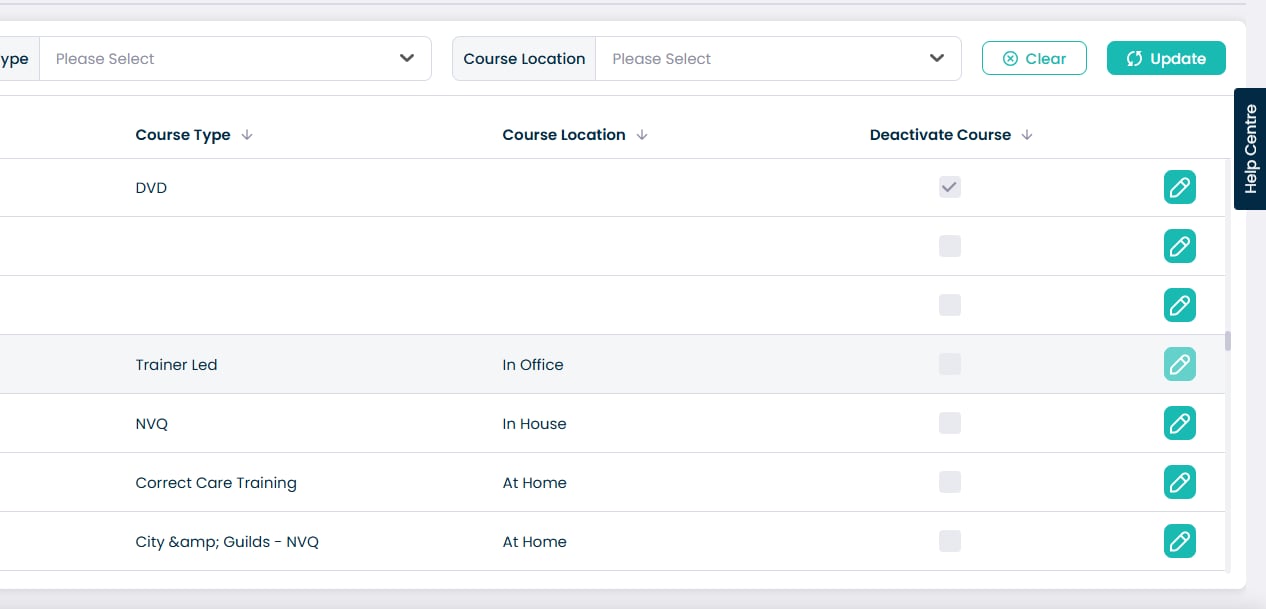
12. Change any details, or, tick the Deactivate Course box.
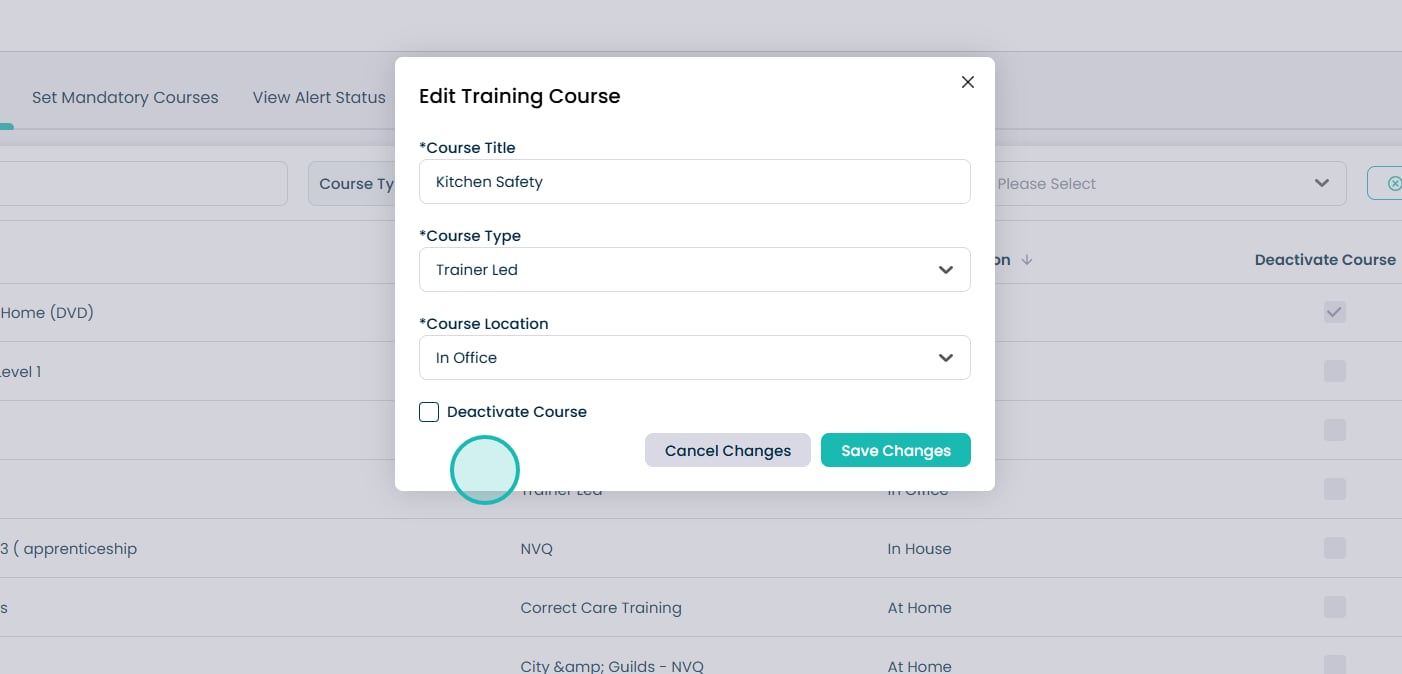
13. After making any amendments, press ‘Save Changes’.
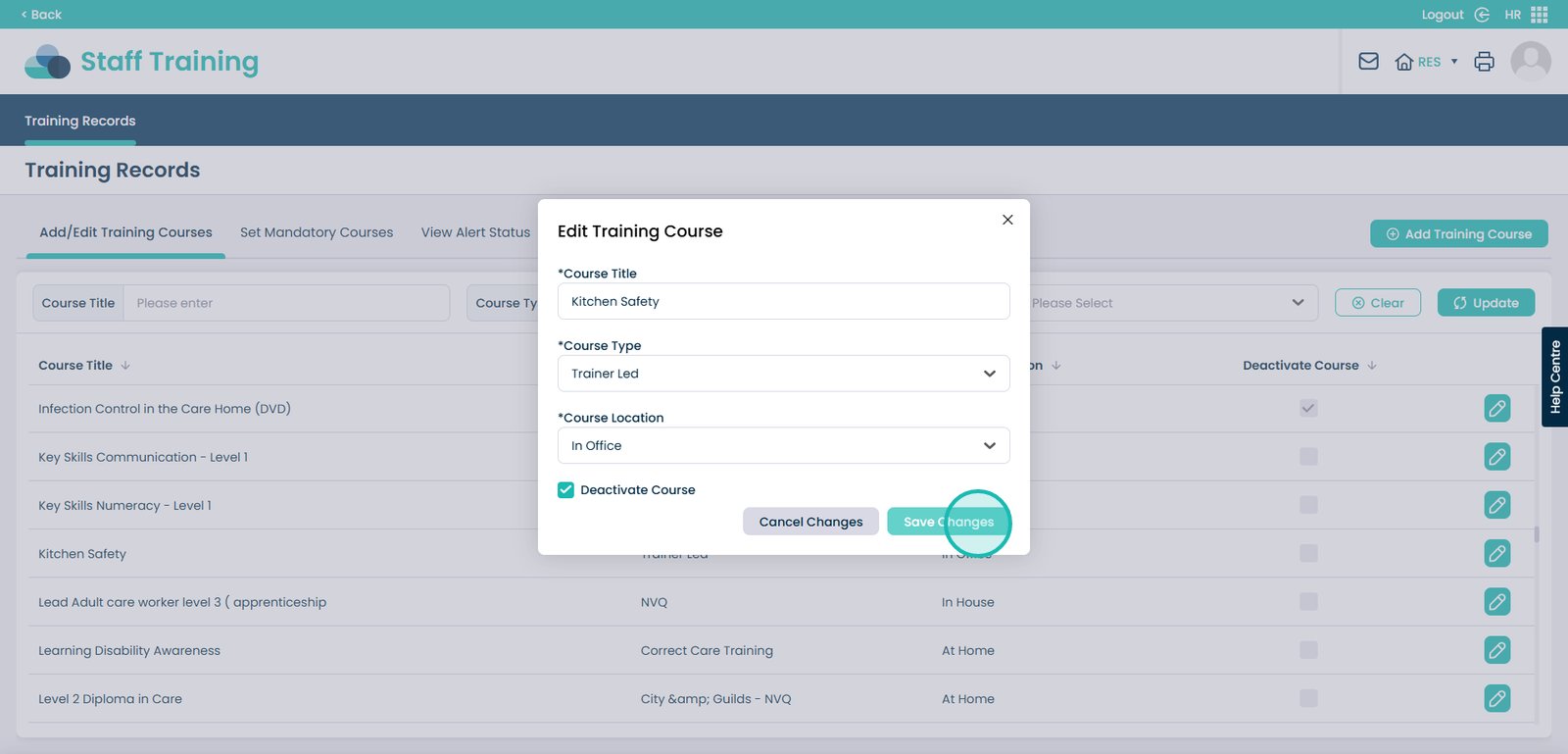
14. Your record has now been saved successfully.